

スライム変身 | Slime Transformation Effect
- Digital1,000 JPY
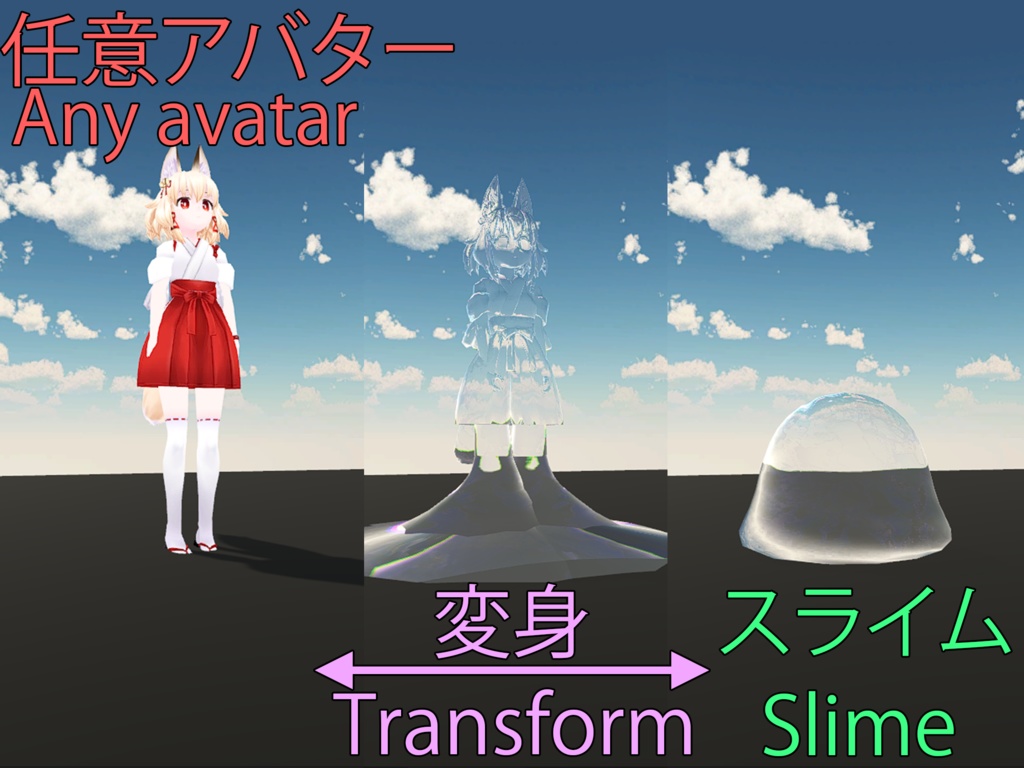
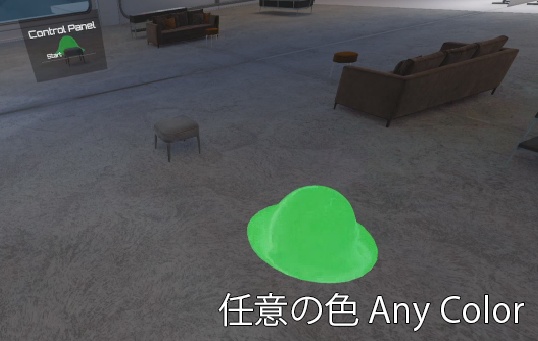


スライム変身任意アバター Slime Transformation Effect for any avatar Video | 動画: - https://www.youtube.com/watch?v=JfbgggYcr6I 注意事項 - 最新のテストはUnity 2022.3.22f1で実行されました - Unity 2019.4.31f1 対応します。 - VRCSDK3のUnityプロジェクト (必要)
使い方
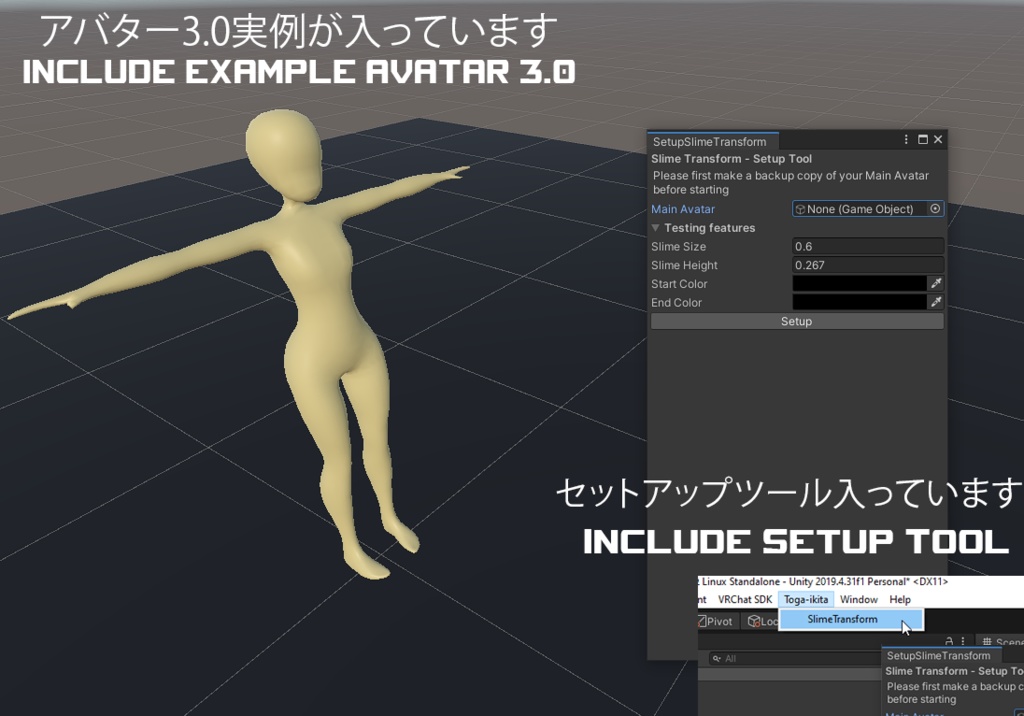
● アバター用のVRCHAT SDK3をVRChat公式よりダウンロードしUnityにインポートします。代わりにVCCを使用する。 ● ファイルをダウンロードし、解凍したUnitypackageファイルをUnityプロジェクトにインポートしてください。 ● シーンにアバターのコピーを作成します。さらに、プレハブの場合は完全に解凍してください。 ● ビデオに示されているように、セットアップツールを使用してSlime Transformをインストールします。 ● MA を使用する場合は、コピーを作成し、アバターのコピーを右クリック -> ModulaAvatar -> Manual bake avatarを選択します。その後、Slime Transform を使用します。 ● VRCFuryを使用する場合は、アバターを選択し、Unityの上部ツールバーから「Tools -> VRCFury -> Build an Editor Test Copy」を選択します。次に、新しいアバターのコピーを選択し、アバターのルートオブジェクトからVRCFuryスクリプトを削除します。その後、Slime Transformを使用してください。 ● 自分のFXやメニューを使いたい場合は、VCCのAvatar Managerを使って、FXをアバターに統合してください。 ● アバターの一部がスライムに変化しない場合は、その部分がUnityで無効化されていないことを確認してください。ツールを使用する前にオブジェクトを有効にし、使用後に無効にしてからアップロードしてください。 How to Use: ● First import VRCSDK3 from VRChat Official into Unity project. Altnernatively use VCC. ● Unzip downloaded file from booth and import Unitypackage file to the project ● Make a copy of your avatar in your Scene, if it is a prefab please unpack it completely ● Use the Setup Tool to install the Slime Transform, as shown in the video ● If you use MA, make a copy, then Right Click your avatar copy -> ModulaAvatar -> Manual bake avatar. Then use Slime Transform afterwards. ● If you use VRCFury, select your avatar, then from the top toolbar in Unity -> Tools -> VRCFury -> Build an Editor Test Copy. Then select the new avatar copy, and remove the VRCFury script from the avatar's root object. Then use Slime Transform afterwards. ● If you want to use your own FX and Menu, use Avatar Manager from VCC to merge your FX with the avatar. ● If some parts of your avatar is not turning into slime, please make sure that the part is not disabled in Unity. Please enable the objects before using the Tool, and disable it afterwards before uploading.
内容物
SlimeTransform_v003.unitypackage 3D Model - ikitaSampleBody.fbx Editor Tool (Toga-ikita/SlimeTransform) - SetupSlimeTransform.cs Scene (Animation設定済み) - ExampleSlime.unity (Unity Scene File) Shader - ikitaSlime.shader
更新履歴
3/12/2024 v005 特殊なアバター(例:桔梗)との互換性をSlime Toolで修正しました。 09/09/2024 説明を追加しました 06/12/2021 v003公開
利用規約
● このAssetの改変、商業的、VRChatや動画などでおよび個人的に利用する権利をお客様に許諾します。 ● この利用許可には、このアセットの一部または全部を2次配布、迷惑行為、再利用できる形で公開、再配布、販売する行為は、一切含まれません。(たとえ改変したものであっても禁止)
連絡先
Discord: ikita#0029
Modular Avatar / VRCFury をご利用の方へ / Notice for Modular Avatar & VRCFury Users
本ツールは、Modular Avatar (MA) や VRCFury が普及する以前に設計・開発されたものです。 そのため、これらの非破壊ツールとの完全な互換性は保証されておらず、サポートも限定的となります。 MAやVRCFuryで構成されたアバターに本ツールを使用する場合、そのままでは動作しません。 必ず以下の手順でアバターを**「Bake(焼き込み)」**し、標準的な状態にしてから本ツールを適用してください。 ● Modular Avatar: Manual bake avatar を実行し、生成されたアバターに使用する。 ● VRCFury: Build an Editor Test Copy を実行し、生成されたアバターからVRCFuryコンポーネントを削除して使用する。 上記の手順やUnityの基本操作にご不安がある場合は、導入が難しい可能性があります。あらかじめご了承ください。 This tool was designed and developed before the release of Modular Avatar (MA) and VRCFury. Therefore, full compatibility with these non-destructive frameworks is not guaranteed, and support for them is limited. If you attempt to use this tool directly on an avatar set up with MA or VRCFury, it will not work. You must "Bake" (flatten) your avatar into a standard state before applying this tool, using the following methods: ● Modular Avatar: Use Manual bake avatar and apply the tool to the baked copy. ● VRCFury: Use Build an Editor Test Copy, remove the VRCFury component from the root, and apply the tool to that copy. Please understand these limitations and ensure you are comfortable with these Unity operations before purchasing.