

VRChatアバター向け 翼(色3種)【無料版あり】
- 通常版Digital300 JPY
- 無料版Digital0 JPY
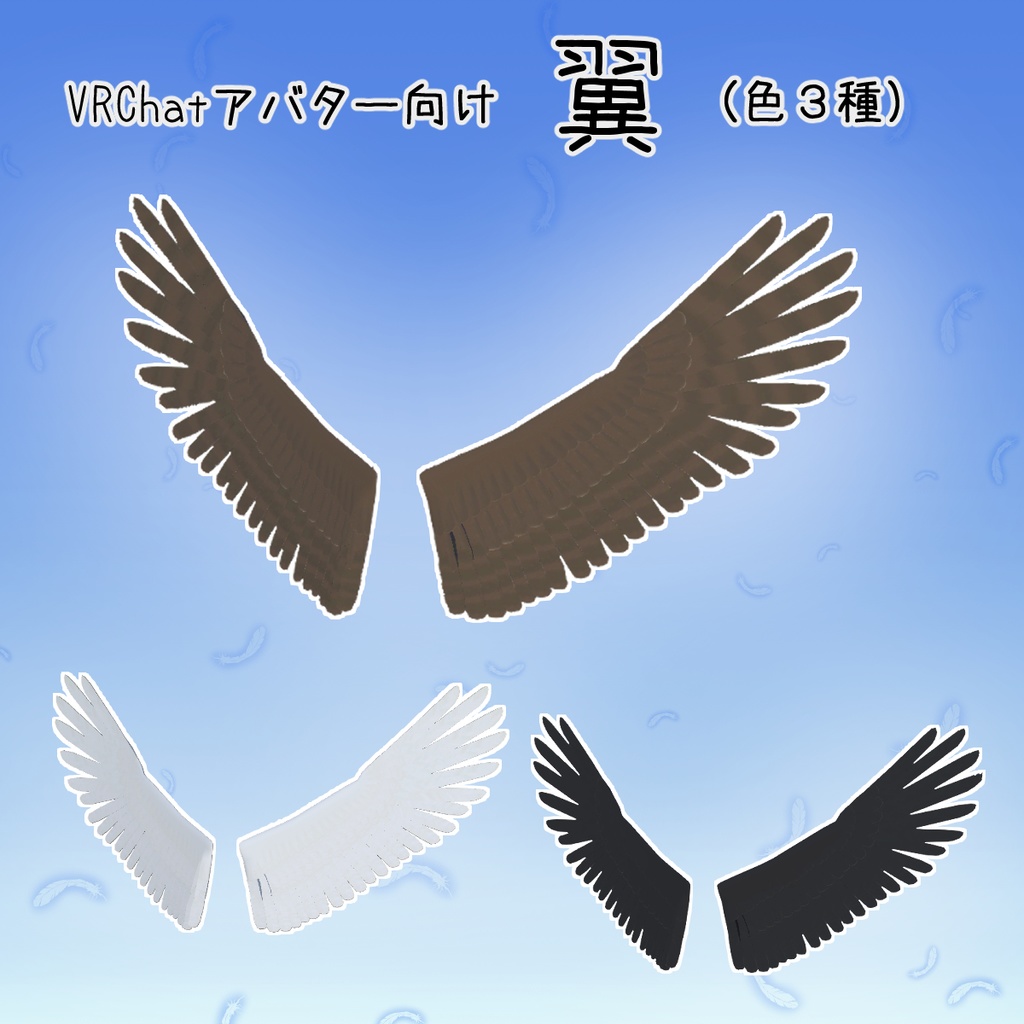
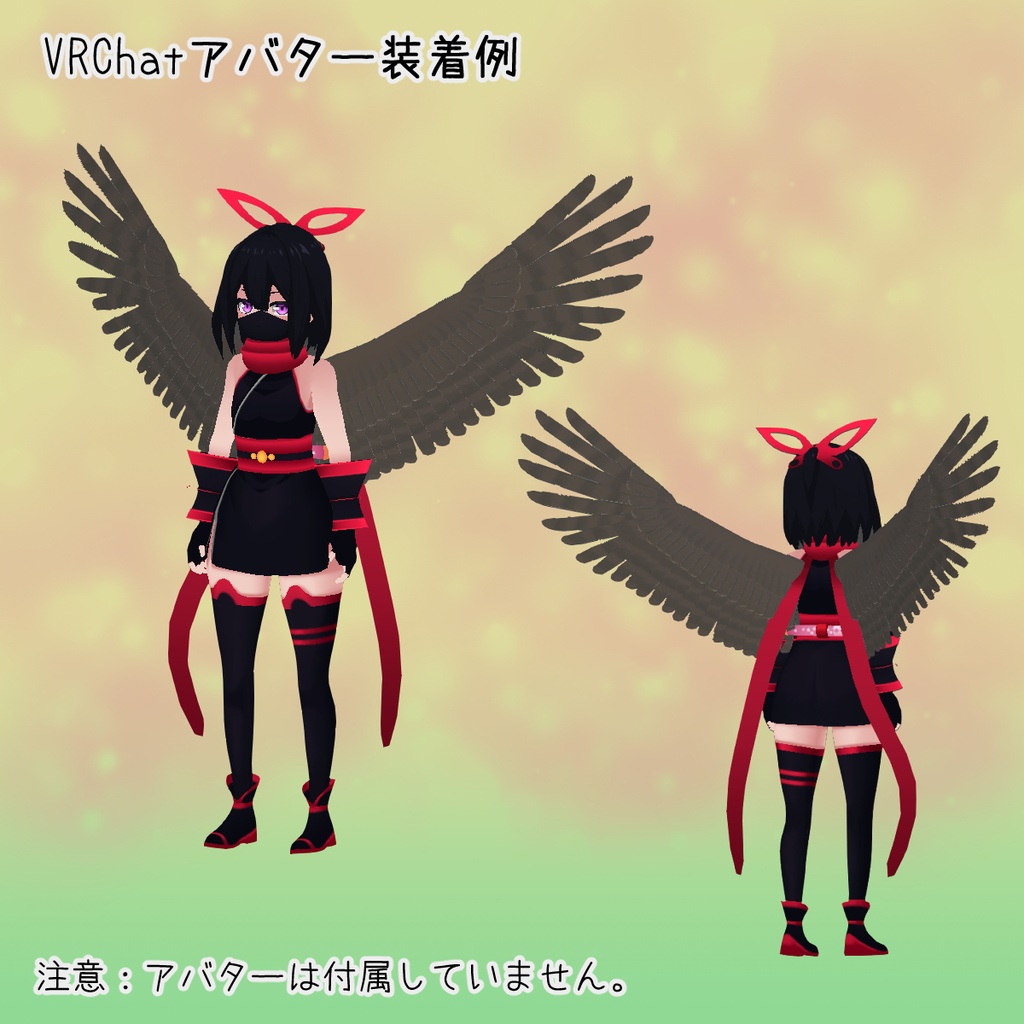
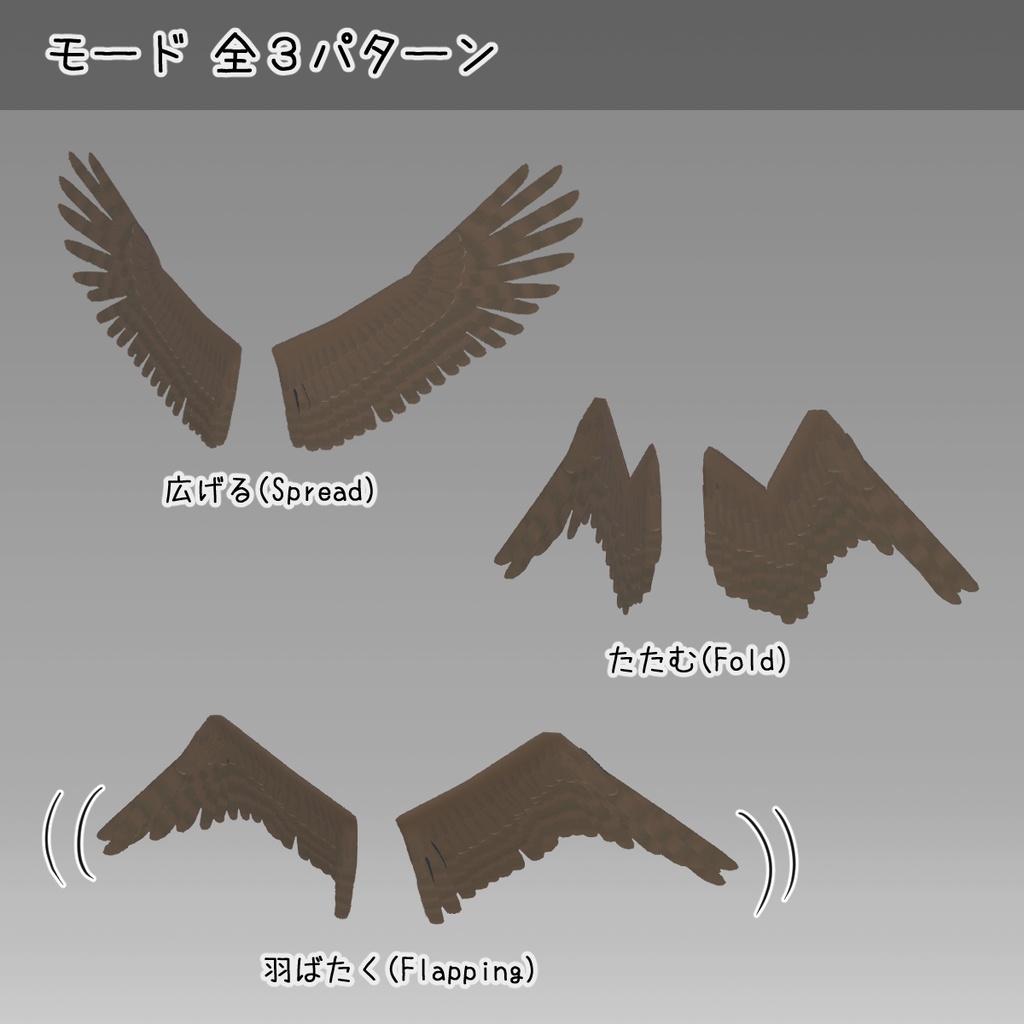


VRChatでアバターに装着可能な翼です。 モードは以下の3つを Expressions Menu で選択できます。 ・翼を折りたたんだ状態 ・翼を広げた状態 ・羽ばたき状態 (※) 翼の色は以下の3種類を Expressions Menu で選択できます。 ・鷹模様 (※) ・白 ・黒 (※) また、PhysBoneが仕込んでありアバターの動きに併せて多少揺れます。 ※ 無料版では選択できません。 These wings can be attached to your avatar in VRChat. You can select from the following three modes in the Expressions Menu: ・Folded wings ・Spread wings ・Flapping wings (*) You can select from the following three wing colors in the Expressions Menu: ・Hawk pattern (*) ・White ・Black (*) PhysBone is also built in, so they sway slightly in sync with your avatar's movements. *Not available in the free version.
内容物
・Wing_v1.0.unitypackage (※Unity 2022.3.22f1にてパッケージしています。 ) ・FBXファイル ・テクスチャ 三角ポリゴン数:6116
前提条件
本製品はアバター配布補助ツールである Modular Avatar を使用して作成しています。 そのため、本製品の Unitypackage を Unity へインポートする前に Modular Avatar をインストールしてください。
導入手順
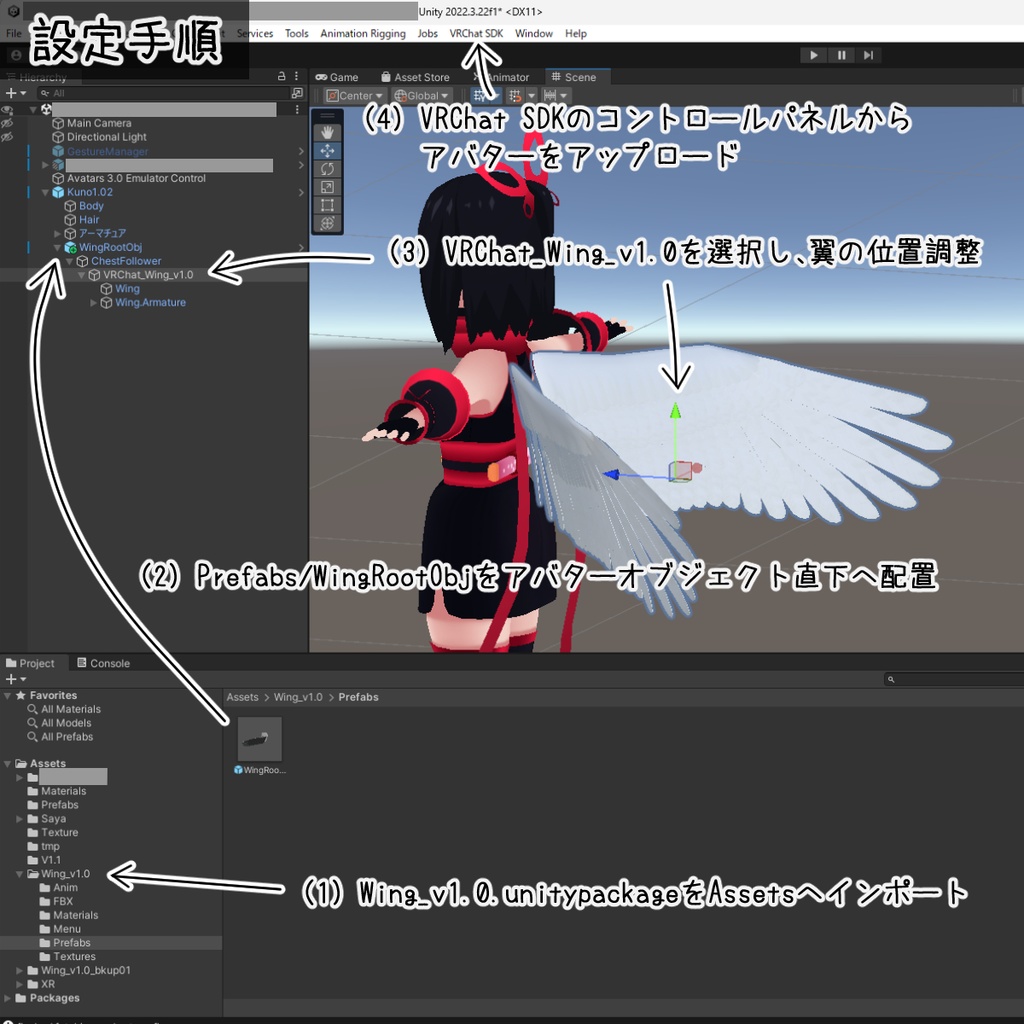
(1) Wing_v1.0.unitypackageをUnityへインポートします。 (2) Project パネルの Assets/Wing_v1.0/PrefabフォルダにあるWingRootObjをHierarchyパネルのアバターであるオブジェクトの直下に配置します。 (3) WingRootObj/ChestFollower/VRChat_Wing_v1.0 を選択し、InspectorパネルのTransform > Positionなどでアバターの背中になるよう位置調整してください。 (4) VRChat SDKのコントロールパネルからアバターをVRChatへアップロードしてください。
利用規約
・本データを購入・ダウンロードした時点で本利用規約に同意したものとします。 ・本データ、またはその改変データを使用することによって生じた不都合やトラブル、損失に対し当方は一切責任を負いません。ご了承ください。 ・本データの著作権は作者に帰属します。 ・この規約は予告なく変更、追加が行われる場合がございます。ご了承ください。
禁止事項
・購入者間以外での再配布を禁止します。
許可
以下の利用を許可します。 ・個人利用 ・商用利用 ・本データの改変利用
Contents
・Wing_v1.0.unitypackage (Packaged with Unity 2022.3.22f1.) ・FBX file ・Texture Triangular polygon: 6116
Prerequisites
This product was created using Modular Avatar, an avatar distribution support tool. Therefore, please install Modular Avatar before importing this product's Unity package into Unity.
Installation procedure
(1) Import Wing_v1.0.unitypackage into Unity. (2) In the Project panel, locate WingRootObj in the Assets/Wing_v1.0/Prefab folder and place it directly below the avatar object in the Hierarchy panel. (3) Select WingRootObj/ChestFollower/VRChat_Wing_v1.0 and adjust its position so that it is behind the avatar using Transform > Position in the Inspector panel. (4) Upload the avatar to VRChat via the VRChat SDK control panel.
terms of service
- By purchasing and downloading this data, you agree to these terms of use. - We assume no responsibility for any inconvenience, trouble, or loss that may arise from using this data or modified data. We appreciate your understanding. - The copyright of this data belongs to the author. - These terms may be changed or added to without notice. We appreciate your understanding.
Prohibitions
- Redistribution outside of the original purchaser is prohibited.
permission
The following uses are permitted: ・Personal use ・Commercial use ・Modified use of this data