
ブラウザで動くVJ HTML Pack Vol.01 Ver.1.3
- Digital1,500 JPY
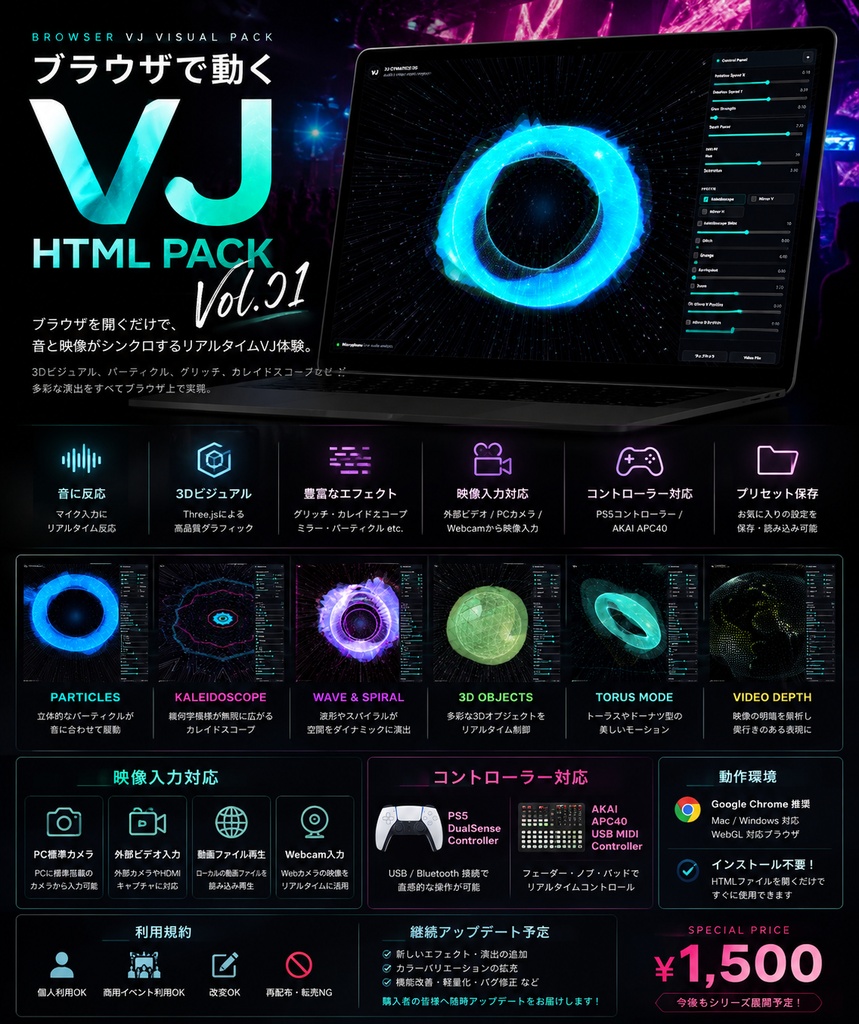

ブラウザ上で動作するVJ向けHTMLビジュアルパックです。 インストール不要。 HTMLファイルを開くだけで、音に反応するリアルタイムビジュアルを再生できます。 ライブ、クラブイベント、配信背景、展示空間などで使用可能。 Three.jsを使用した3D表現、音反応、グリッチ、カレイドスコープ、パーティクル演出などを収録しています。
詳細
内容 HTMLファイル JavaScriptファイル 使用ガイド 主な機能 Audio Reactive Visual 3D Particle System Glitch Effect Kaleidoscope Mirror Effect Webcam Input 外部ビデオ入力対応 MIDI対応 PS5 Controller対応 AKAI APC40 USB MIDI Controller対応 Preset Save / Load Fullscreen VJ Visual 映像入力対応 PC標準カメラ入力対応 Webcam映像入力可能 外部ビデオ入力可能 動画ファイル読み込み可能 リアルタイムで映像をVJ素材として使用できます。 対応コントローラー PS5 DualSense Controller AKAI APC40 USB MIDI Controller ブラウザ上からリアルタイム操作可能です。 ※一部機能(マイク / MIDI / Webcam)はブラウザ権限が必要です。 利用規約 個人利用OK 商用イベント利用OK 改変OK 再配布・転売禁止 価格 1,500円 Update 購入者向けにアップデート配布を予定しています。 演出追加 新エフェクト 軽量化 カラーバリエーション バグ修正
動作環境
Google Chrome 推奨 Mac / Windows 対応 WebGL対応ブラウザ
使い方
# VJ Cymatics 3D 日本語マニュアル 最終更新日: 2026-06-11 VJ Cymatics 3D は、音や映像に反応して3Dビジュアルを作るブラウザ用のVJツールです。マイク入力、音楽ファイル、ウェブカメラ、動画ファイルを使って、パーティクル、立体、背景エフェクト、万華鏡、グリッチ、MIDI操作、PS5コントローラー操作、Auto VJ などを組み合わせてライブ映像を作れます。 ## 1. すぐ使う 1. `vj-final.html` をブラウザで開きます。 2. `Mic` を押すか、`Audio File` で音楽ファイルを読み込みます。 3. `Visualization Modes` で使いたいモードにチェックを入れます。 4. `Particle Count`、`Particle Size`、`Glow Strength`、`Spark Power` を調整します。 5. 背景を使う場合は `BG Enabled` をオンにして、好きな `BG Mode` を選びます。 6. `Effects` で Kaleidoscope、Glitch、RGB Shift、Grunge、Earthquake、Zoom、Mirror を調整します。 7. 気に入った設定になったら `Save` を押します。 おすすめブラウザは、パソコン版の Chrome です。 AI画像生成を使う場合は、ローカルサーバーで起動します。 ```sh npm start ``` そのあと、ブラウザで次を開きます。 ```text http://localhost:5173/vj-final.html ``` ## 2. 画面の見方 中央の大きな画面が、実際に表示されるビジュアルです。 右側の `Control Panel` が操作メニューです。パネルの上部をドラッグすると移動できます。小さくしたり、別ウィンドウに出したりできます。 パネル上部のポップアウトボタンを押すと、操作メニューを別ウィンドウで開けます。別ウィンドウ側の `Hide Main` を押すと、メイン画面から操作メニューを完全に消せます。戻したい時は `Show Main` を押します。 ## 3. 音声入力 ### Mic `Mic` はマイク入力を使います。初回はブラウザからマイク許可を求められます。 音は自動で3つに分けられます。 - `Bass`: 低音。キック、ベース、サブの動き - `Mid`: 中音。声、シンセ、メロディ、曲の芯 - `Treble`: 高音。ハイハット、ノイズ、細かいきらめき ### Audio File `Audio File` では、MP3、WAV、OGG などの音楽ファイルを読み込めます。 ### Mic Sensitivity マイクの反応の強さを調整します。メーターがあまり動かない時は上げます。反応しすぎる時は下げます。 ### Noise Gate 小さな環境音を無視するための設定です。無音なのに反応してしまう時は上げます。小さい音にも反応させたい時は下げます。 ## 4. Auto VJ `Auto Performance` をオンにすると、音に合わせてモード、背景、エフェクトを自動で切り替えます。 ### Auto Range - `Curated`: 安定したセット。通常のライブ向き - `Wide`: ほぼ全部のモードから選ぶ広めのセット - `Chaos`: 全モードと背景を強めにランダム運用する実験的なセット その他使い方はマニュアルをご覧ください。
HOW TO USE
# VJ Cymatics 3D Manual Last updated: 2026-06-11 VJ Cymatics 3D is a browser-based audio and video reactive visualizer. It uses microphone or audio file input, real-time frequency analysis, Three.js particles and geometry, webcam or video depth processing, background shaders, post effects, MIDI control, gamepad control, and Auto VJ performance logic. This manual is written for live use. Start with Quick Start, then use the later sections when you want to prepare presets, controllers, or troubleshoot. ## 1. Quick Start 1. Open `vj-final.html` in a modern browser. 2. Click `Mic` or choose an `Audio File`. 3. Turn on one or more `Visualization Modes`. 4. Adjust `Particle Count`, `Particle Size`, `Glow Strength`, and `Spark Power`. 5. Turn on `BG Enabled` and choose a `BG Mode` if you want a full-screen background layer. 6. Use `Effects` for Kaleidoscope, Glitch, RGB Shift, Grunge, Earthquake, Zoom, and Mirror. 7. Click `Save` when you like the setup. Recommended browser: Chrome on desktop. For AI Image generation, use the local server: ```sh npm start ``` Then open: ```text http://localhost:5173/vj-final.html ``` ## 2. Screen Layout The main canvas is the performance screen. The `Control Panel` is the operation menu. It can be dragged by its header, minimized, or popped out into a separate control window. Use the popout button in the panel header to open the controls in another window. In the popout window, `Hide Main` removes the menu from the main visual screen, and `Show Main` brings it back. ## 3. Audio Input ### Mic `Mic` activates the microphone. Browser permission is required. The audio is separated into: - `Bass`: low frequencies, kick and sub movement - `Mid`: body, voice, synth, melodic pressure - `Treble`: hats, noise, sparkles, attacks ### Audio File `Audio File` loads local audio files such as MP3, WAV, OGG, or browser-supported audio formats. ### Mic Sensitivity Raises or lowers microphone gain for the visualizer. If the meters barely move, raise this. If everything is always reacting too hard, lower it. ### Noise Gate Cuts low-level room noise from the microphone input. Raise it when the visuals react even in silence. Lower it when quiet music is not being detected. ## 4. Auto VJ `Auto Performance` automatically changes modes, BG, and effects based on detected audio energy and BPM. ### Auto Range - `Curated`: stable set for normal live use - `Wide`: chooses from almost all modes - `Chaos`: stronger random operation using all Mode and BG choices
アップデート履歴
[2026-05-27: v1] 公開 [2019-02-01: v1.2] コントロールパネルを独立し、フル画面で表示が可能になりました。 AKAI APC40 MKIIのマッピングに対応しました。 その他MIDIコントロールの登録が可能になりました。 [2019-02-01: v1.3] パニックボタンの追加、バックグラウンドで再生できるBGモードの追加。