
ReduseKeysTool (キー削減ツール)
- Digital550 JPY
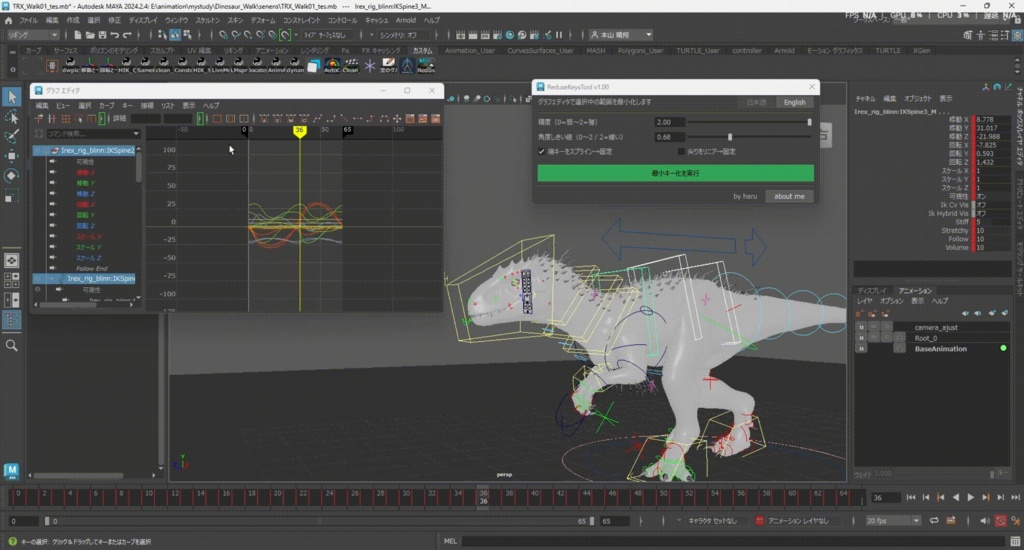
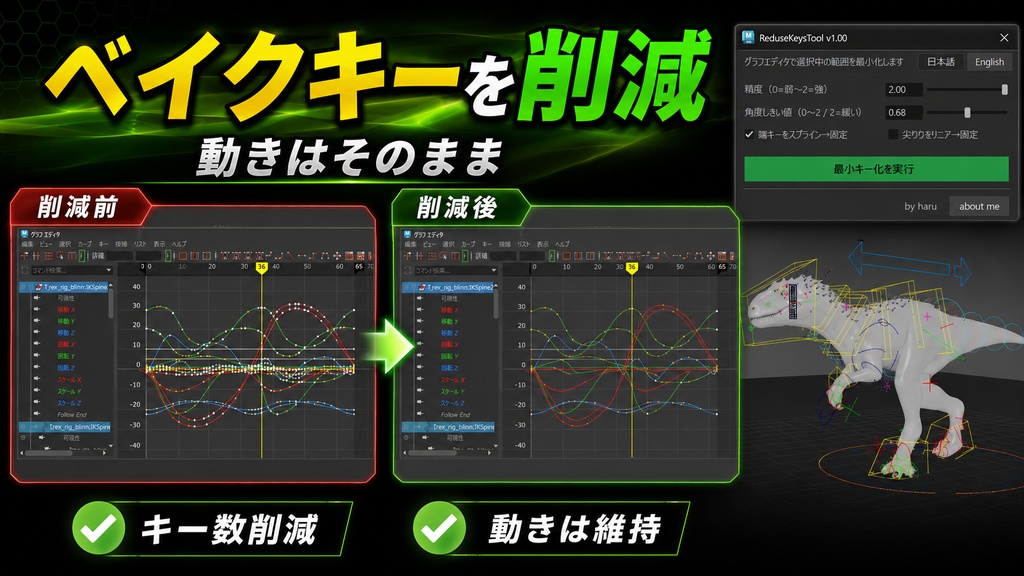
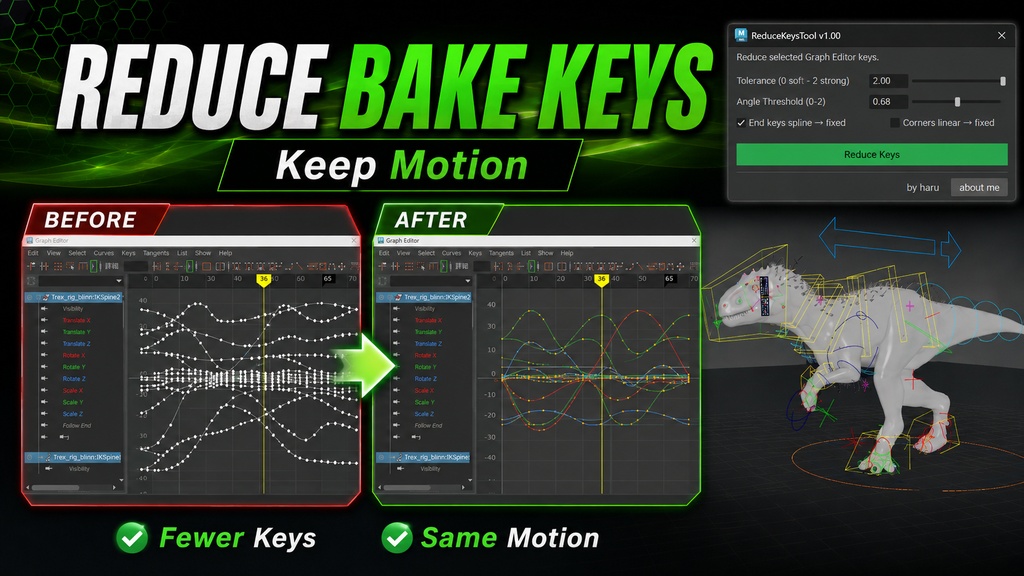


【ReduseKeysTool の使い方】 この機能は、アニメーションカーブの形をできるだけ保ちながら、不要なキーを削除して見やすく整理する機能です。 キーを減らした後も、カーブの角度が大きく崩れないように調整されます。 【インストール方法】 1. Mayaで、ReduseKeysToolを登録したいシェルフを開きます。 2. Redusekey_install.py をMayaの画面上にドラッグ&ドロップします。 3. 開いているシェルフにReduseKeysToolのボタンが追加されます。 4. 追加されたボタンからReduseKeysToolを起動できます。 【基本の流れ】 1. 処理したいカーブと範囲を選択します。 2. 必要に応じて設定を調整します。 3. ピークをはっきり残したい場合は、 「尖りをリニア → 固定」を使用します。 この設定を使うと、尖った部分を直線的に整えながら、ピークの形を分かりやすく残すことができます。 4. 「最小キー化を実行」ボタンを押します。 設定に沿って不要なキーが削除され、アニメーションカーブが整理されます。 結果が気に入らない場合は、Undoで戻してから、設定を調整して再実行してください。 実行後のキーは接線が固定されるため、周囲のキーを削除しても角度が自動で変わりにくくなります。 【おすすめ設定例】 ・細かい調整をできるだけ残したい場合 精度:0.2〜0.4 ・見やすく整理したい場合 精度:0.5〜1.0 ・大きくキーを減らしたい場合 精度:1.2〜2.0 ※動きが変わりすぎる場合は、精度の値を少し下げてください。 【注意点】 ・必ず、処理したいカーブと範囲を選択してから実行してください。 ・回転カーブは自動で補正されますが、複雑な動きの場合は完全に同じ結果にならないことがあります。 ・ジンバルロックが起きているカーブでは、見た目の動きが変わる場合があります。 ・設定によっては、ほとんどキーが削除されない場合があります。その場合は、精度を上げたり、角度しきい値を緩めたりして調整してください。 【How to Use ReduseKeysTool (Minimum Key Reduction)】 This feature reduces unnecessary keys while keeping the shape of the animation curve as close as possible to the original. It helps clean up dense keyframes without significantly changing the curve’s movement or angle. 【Installation】 1. In Maya, open the shelf where you want to save the ReduseKeysTool button. 2. Drag and drop Redusekey_install.py onto the Maya window. 3. A ReduseKeysTool button will be added to the currently open shelf. 4. You can launch ReduseKeysTool from the added shelf button. 【Basic Workflow】 1. Select the curves and frame range you want to process. 2. Adjust the settings as needed. 3. If you want to keep clear peaks, use “Sharp Peaks: Linear → Fixed.” This option helps preserve sharp peaks more clearly by straightening the pointed areas while keeping the shape easy to read. 4. Click the “Run Minimum Key Reduction” button. Unnecessary keys will be removed based on the selected settings, and the animation curve will be cleaned up. If the result does not look right, use Undo, adjust the settings, and run the process again. After the process is applied, the key tangents are fixed, so the curve angle is less likely to change automatically when nearby keys are removed. 【Recommended Settings】 ・When you want to keep fine adjustments Precision: 0.2–0.4 ・When you want a cleaner and easier-to-read curve Precision: 0.5–1.0 ・When you want to remove many keys Precision: 1.2–2.0 ※ If the motion changes too much, lower the precision value slightly. 【Notes】 ・Make sure to select the curves and frame range before running the process. ・Rotation curves are automatically corrected, but complex motion may not always produce perfectly identical results. ・If the curve has gimbal lock, the visible motion may change. ・Depending on the settings, only a small number of keys may be removed. In that case, try increasing the precision value or relaxing the angle threshold.
利用規約
著作権 (C) 2026 [Haru_Motionwork] 全著作権所有 本スクリプトの無断販売および再配布は禁止されています。 他人への配布を目的とした本スクリプトのコピーも禁止です。 個人や業務での使用を目的としたスクリプトの改変は許可されています。 本スクリプトは商業利用や業務利用が可能です。 本ソフトウェアは「現状のまま」で提供され、明示または黙示を問わず いかなる保証も伴いません。本ソフトウェアの利用、改変、または 規約違反による再配布に起因する問題や損害について、著者は責任を負いません。