

「連星特異点・光環」Binary Black Hole Halo Accessory with AudioLink
- Digital500 JPY
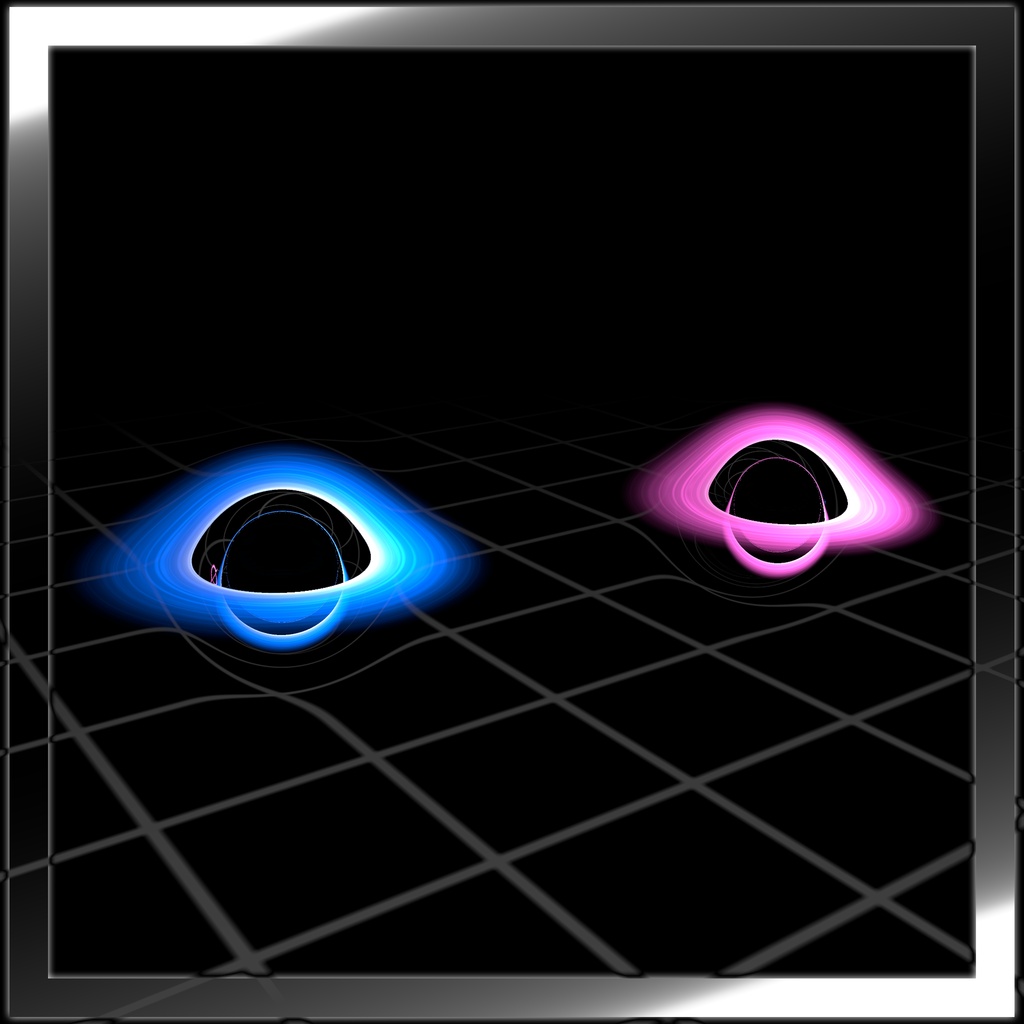
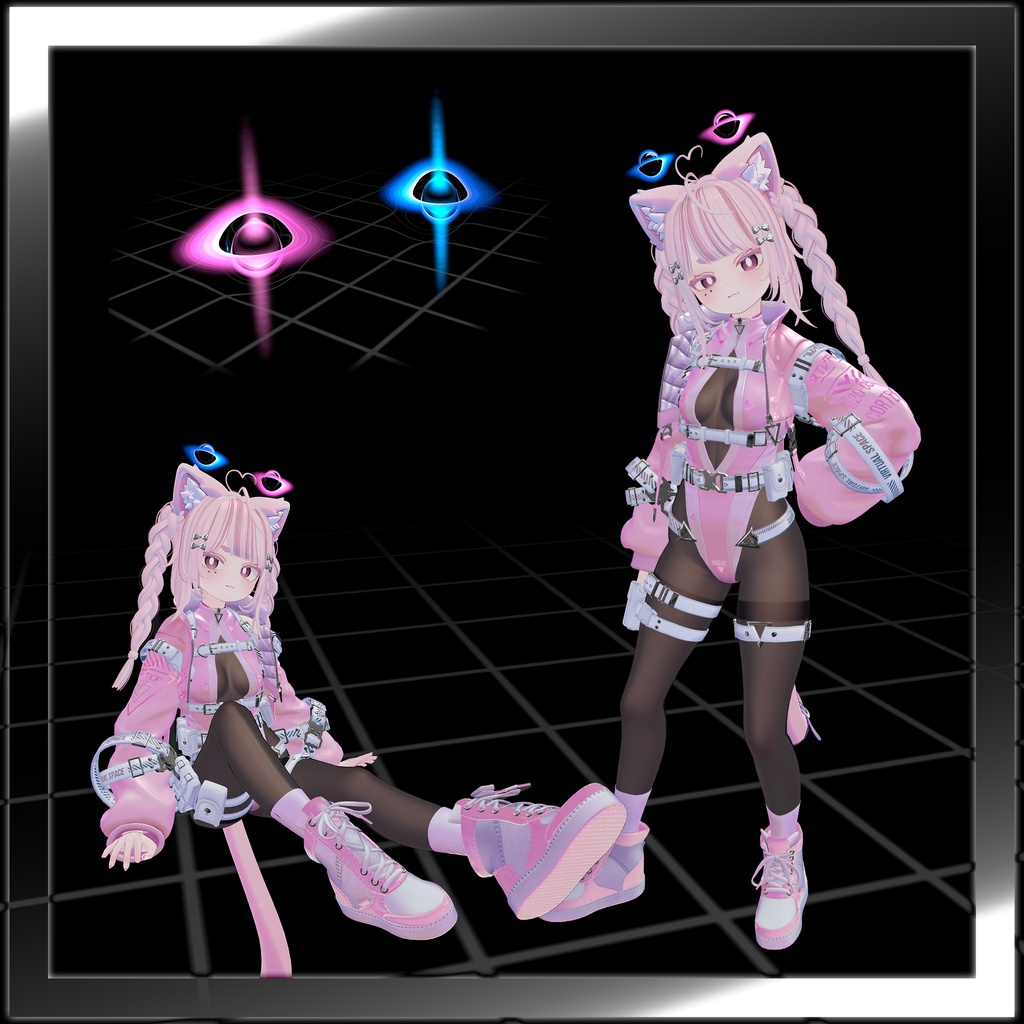
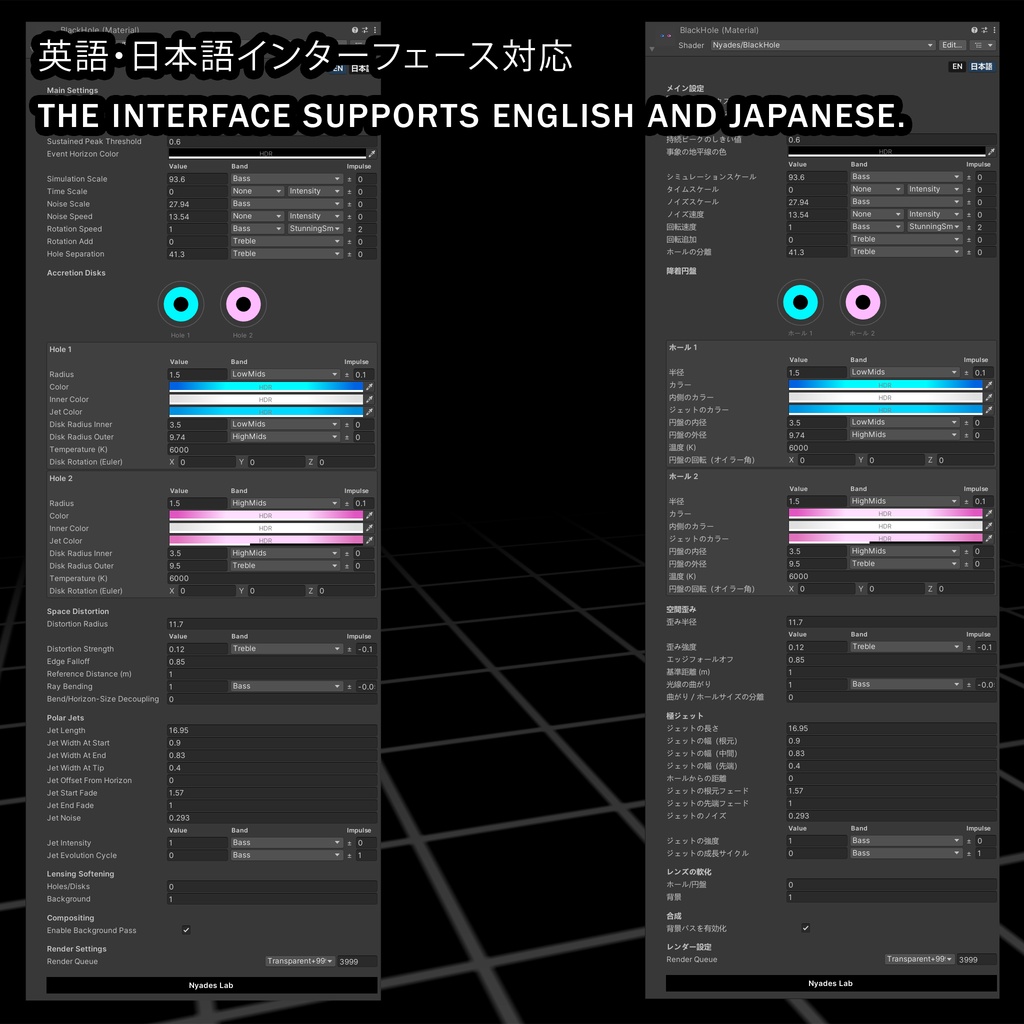


FIRST DAY SALE: -30% バイナリブラックホール(連星ブラックホール)の重力レンズ(光の屈折)シミュレーションとAudio Linkに対応した、フルカスタマイズ可能なアバター用後光(ヘイロー)アセットです。 専用のカスタムUIが付属した、完全にカスタマイズ可能なアセットとなっています。 さらに、パフォーマンスは多少犠牲になりますが、高画質な写真撮影のためのアンチエイリアス機能や、より迫力のあるビジュアルを演出するブラックホール・ジェットなどの追加機能も実装しました。 何かご不明な点やご質問などがございましたら、 いつでもお気軽にご連絡ください! このシェーダーの背景にある科学的な解説は、こちらでご覧いただけます:https://svs.gsfc.nasa.gov/13831/ 導入要件: Audio Link Modular Avatar(簡単なアバターセットアップ用) <>-<>-<>-<>-<>-<>-<>-<>-<>-<>-<>-<> I'm happy to provide you with a fully customizable halo accesory of binary black holes, complete with a gravitational lensing (light bending) simulation and Audio Link support. This is an shader that comes with a custom UI. I've also added some extra features, such as anti-aliasing for high-quality photography (at the cost of some performance) and Black Hole Jets for some extra visual punch. Please feel free to reach out at any time if you have any questions! You can find the scientific explanation behind this shader here: https://svs.gsfc.nasa.gov/13831/ Installation Requirements: Audio Link Modular Avatar (for easy avatar setup) スペシャルサンクス(特別謝辞) / Special thanks: Dxvd Hxvrt - フォトモデル / photo model ni007 - アバターインスピレーション / avatar inspiration Nasa、Nxrix - シェーダーインスピレーション / shader inspiration
ユーザーガイド 日本語
Black Hole Binary Shader — ユーザーガイド このシェーダーは、輝く降着円盤とジェットを持つ、互いに公転する2つのブラックホールを描画します。AudioLinkを使えば音楽に合わせて反応させることもできます。このガイドでは、各設定項目の意味を説明します。 オーディオ行(Audio Row)の見方 多くの設定項目は、1行の中に4つの要素があります。 - Value(値) — 音楽が鳴っていないときにも使われる基本の値です。 - Band(バンド) — この設定が音楽のどの部分を聴き取るか(Bass、LowMids、HighMids、Treble、Autocorrelation、Sustained Peak、またはNone)です。 - Impulse(±) — 音楽がこの値をどれくらい強く上下させるかです。0にすると、その設定は音楽の影響を受けなくなります。 - Mode(モード) — (一部の行のみ)音楽に反応するときの動き方のパターンです。詳しくは下記「モーションモード」をご覧ください。 Band/Impulseがない設定は固定値で、自動的に変化しません。 メイン設定 - Noise Texture(ノイズテクスチャ) — 円盤の表面に細かいディテールと渦を加えるためのテクスチャです。 - Enable AudioLink Reactive(AudioLink反応を有効化) — 音楽への反応をオン/オフします。AudioLinkを使わない場合や、完全に静止した見た目にしたい場合はオフにしてください。 - Sustained Peak Threshold(持続ピークのしきい値) — 「持続ピーク(Sustained Peak)」バンドとして反応するために、音がどれくらい大きい状態を保つ必要があるかです。値を下げるほど反応しやすくなります。 - Event Horizon Color(事象の地平線の色) — ブラックホールの中心部(暗い部分)の色です。 モーション&シミュレーション - Simulation Scale(シミュレーションスケール) — シミュレーション全体の大きさ(ズーム)です。 - Time Scale(タイムスケール) — シミュレーション全体のアニメーション速度です。 - Noise Scale(ノイズスケール) — 円盤の渦模様の大きさです。 - Noise Speed(ノイズ速度) — 渦模様が動く速さです。 - Rotation Speed(回転速度) — 2つのブラックホールが互いに公転する速さです。 - Rotation Add(回転追加) — 手動で回転のオフセットを加えます。シーンの向きを調整したいときに便利です。 - Hole Separation(ホールの分離) — 2つのブラックホール間の距離です。 降着円盤(ホール1/ホール2) 各ブラックホールには、それぞれ同じ設定項目を持つ円盤があります。 - Radius(半径) — ブラックホール自体の大きさです。 - Color(カラー) — 円盤のメインカラーです。 - Inner Color(内側のカラー) — ブラックホールに最も近い、円盤内側の色です。 - Jet Color(ジェットのカラー) — そのブラックホールのジェット(下記「極ジェット」参照)の色です。 - Disk Radius Inner/Outer(円盤の内径/外径) — 円盤がブラックホールからどれくらい離れた位置から始まり、どこまで広がるかです。どちらも上記のRadiusに対する倍率で決まります。 - Temperature (K)(温度) — 円盤の色を、より熱い(青白い)方向、またはより冷たい(赤〜オレンジ)方向にずらします。実際の恒星の温度と同じ考え方です。 - Disk Rotation (Euler)(円盤の回転(オイラー角)) — 円盤を3D空間で傾けます(X/Y/Z軸の回転)。 空間歪み 重力によって光が曲がって見える「重力レンズ」効果を制御します。 - Distortion Radius(歪み半径) — 光が曲がる効果が届く範囲です(ブラックホールからの距離)。 - Distortion Strength(歪み強度) — ブラックホール周辺で光がどれくらい強く曲がるかです。 - Edge Falloff(エッジフォールオフ) — 歪み半径の端で、効果がどれくらい滑らかに消えていくかです。 - Reference Distance (m)(基準距離) — この効果が想定しているメートル単位の距離です。アバターが極端に大きい/小さいスケールの場合に調整してください。 - Ray Bending(光線の曲がり) — ブラックホールのすぐ近くで光がどれくらい鋭く曲がるか(上記の歪みとは別の設定)です。 - Bend/Horizon-Size Decoupling(曲がり/ホールサイズの分離) — ブラックホールの見た目の大きさを変えても、光の曲がり方を変えずに保てます。0では曲がり方が常にホールのサイズと連動し、1では見た目のサイズが変わっても曲がり方が固定されたままになります。 極ジェット 各ブラックホールの極から噴き出す光の柱です。 - Jet Length(ジェットの長さ) — ブラックホールの大きさに対する、ジェットの長さです。 - Jet Width At Start/End/Tip(ジェットの幅:根元/中間/先端) — ジェットの形状を決めます。根元は細く、中間で広がり、先端での最終的な幅を指定します。 - Jet Offset From Horizon(ホールからの距離) — ジェットがブラックホールの表面からどれくらい離れた位置から始まるかです。 - Jet Start Fade/End Fade(ジェットの根元/先端フェード) — ジェットが根元と先端でどれくらい柔らかくフェードするかです。 - Jet Noise(ジェットのノイズ) — ジェットにゆらめくような乱れを加えます。 - Jet Intensity(ジェットの強度) — ジェット全体の明るさです。 - Jet Evolution Cycle(ジェットの成長サイクル) — ジェットが時間とともに成長していくアニメーションです(0=生まれたばかり、1=完全に成長)。「フレアアップ」のような演出に便利です。 レンズの軟化 - Holes/Disks(ホール/円盤) — ブラックホールと円盤が互いの光をどれくらい歪ませるかを和らげます。値を上げると、周囲に出やすい鋭い/チラつくような輪郭を抑えられます。 - Background(背景) — 同じ考え方で、ブラックホールが背景の光をどれくらい歪ませるかを和らげます。 合成 - Enable Background Pass(背景パスを有効化) — 背景の光の歪み効果をオン/オフします。背景の歪みが不要な場合、オフにするとパフォーマンスが向上することがあります。 レンダー設定 - Render Queue(レンダーキュー) — 他の半透明オブジェクトとの描画順序を制御します。他のシェーダーとの表示順の競合が分かっている場合のみ変更してください。 モーションモード(Modeがある行のみ) 音楽に反応する際の「どれくらい」ではなく、「どう動くか」を決めるものです。 - Intensity — 音が大きくなるほど動きが速くなります。逆方向には戻りません。 - PingPong — 前後に行き来する動きで、音が大きいほど速くなります。 - Stunning — 音が静かなときは一定速度で動き、音が大きいときは止まります。 - Wide — 静かなときは前方向、大きいときは後ろ方向に、それぞれ一定速度で動きます。 - Pauses — 上記と同じ挙動ですが、瞬間的な音の強さではなく「持続する音」に反応するよう調整されています。 一部のモードには「Smooth」版が対になっています。Smooth版は、フィルターをかけて平均化した音声データに反応するため、通常版より落ち着いた、カクつきの少ない動きになります。
UserGuide EN
Black Hole Binary Shader — User Guide This shader renders two orbiting black holes with glowing accretion disks and jets, and it can react to music through AudioLink. This guide explains what each setting does. How the Audio Rows Work Most settings have four parts in one row: - Value — the base amount, used even with no music playing. - Band — which part of the music this setting listens to (Bass, LowMids, HighMids, Treble, Autocorrelation, Sustained Peak, or None). - Impulse (±) — how strongly the music pushes the value up or down. Set to 0 to ignore music for that setting. - Mode — (only on a few rows) the pattern of motion used when reacting to music. See "Motion Modes" below. Settings without a Band/Impulse are static — they never change on their own. Main Settings - Noise Texture — the texture used to add surface detail and swirl to the disks. - Enable AudioLink Reactive — turns music reactivity on or off. Turn this off if you don't use AudioLink or want a completely static look. - Sustained Peak Threshold — how loud a sound needs to stay before it counts as a "held note" for the Sustained Peak audio band. Lower = triggers more easily. - Event Horizon Color — the color of the black hole's core (the dark center). Motion & Simulation - Simulation Scale — overall zoom/scale of the whole simulation. - Time Scale — how fast the whole simulation animates. - Noise Scale — size of the swirl detail on the disks. - Noise Speed — how fast the swirl detail moves. - Rotation Speed — how fast the two black holes orbit each other. - Rotation Add — adds an extra manual rotation offset, useful for lining up the scene. - Hole Separation — the distance between the two black holes. Accretion Disks (Hole 1 / Hole 2) Each black hole has its own disk with the same set of settings: - Radius — the size of the black hole itself. - Color — the main color of the disk. - Inner Color — the color near the inner edge of the disk, closest to the black hole. - Jet Color — the color of that hole's jet (see Polar Jets below). - Disk Radius Inner / Outer — how close to the black hole the disk starts, and how far out it extends. Both are measured as a multiple of the Radius above. - Temperature (K) — shifts the disk's color to look hotter (blue-white) or cooler (red-orange), like real star temperatures. - Disk Rotation (Euler) — tilts the disk in 3D space (X/Y/Z rotation). Space Distortion Controls the gravitational lensing (light-bending) look. - Distortion Radius — how far from the black holes the light-bending effect reaches. - Distortion Strength — how strongly light bends around the black holes. - Edge Falloff — how smoothly the bending fades out at the edge of the Distortion Radius. - Reference Distance (m) — the distance (in meters) the effect is calibrated for. Adjust if the avatar is scaled unusually large or small. - Ray Bending — how sharply light curves near the black hole itself (separate from the wider distortion above). - Bend/Horizon-Size Decoupling — lets you change the black hole's visual size without changing how strongly it bends light. At 0, bending always matches the hole's size; at 1, bending stays fixed even if the hole size changes. Polar Jets The bright beams shooting from each black hole's poles. - Jet Length — how long the jets are, relative to the black hole's size. - Jet Width At Start / End / Tip — controls the jet's shape: narrow near the hole, wider in the middle, and its final width at the tip. - Jet Offset From Horizon — how far the jet starts from the black hole's surface. - Jet Start Fade / End Fade — how softly the jet fades in near its base and out near its tip. - Jet Noise — adds flickering turbulence to the jet. - Jet Intensity — overall brightness of the jets. - Jet Evolution Cycle — animates the jet growing over time (0 = just starting, 1 = fully grown); useful for a "flare-up" effect. Lensing Softening - Holes/Disks — softens how the black holes and disks warp each other's light. Higher values reduce sharp/glitchy edges around them. - Background — same idea, but for how the black holes warp the background behind them. Compositing - Enable Background Pass — turns the background light-bending effect on or off. Turning this off can improve performance if the background distortion isn't needed. Render Settings - Render Queue — controls draw order relative to other transparent objects. Only change this if you know you have a layering conflict with another shader. Motion Modes (for rows that have a Mode option) These control how a value moves in response to music, not just how much: - Intensity — motion speeds up as the music gets louder; it never reverses. - PingPong — motion moves back and forth, faster with louder music. - Stunning — moves at a fixed speed when the music is quiet, and stops when it's loud. - Wide — moves forward when quiet, backward when loud (fixed speeds both ways). - Pauses — same behaviors as above, but tuned for a "held note" style reaction instead of a sharp hit. Some modes come in a "Smooth" pair — the smooth version reacts to a filtered/averaged version of the audio, which looks calmer and less jittery than the regular version.
利用規約 / Terms of Service
利用規約 二次配布・改変・再販は禁止します。 Terms of Service Not for redistribution / modification / resale.