

Fully Customizable Avatar Selection UI for Worlds, Easy Avi Menu Setup with Editor Scripts and UI Pedestals アバターメニュー
- Avatar Menu PrefabDigital3,000 JPY
- Individual UI Pedestal Prefab ONLYDigital1,000 JPY
- Avatar Menu + Individual UI Pedestal Prefab BundleDigital3,500 JPY
- Extra Support for Creator (Same download as "Avatar Menu + Individual UI Pedestal Prefab Bundle" option)Digital4,500 JPY
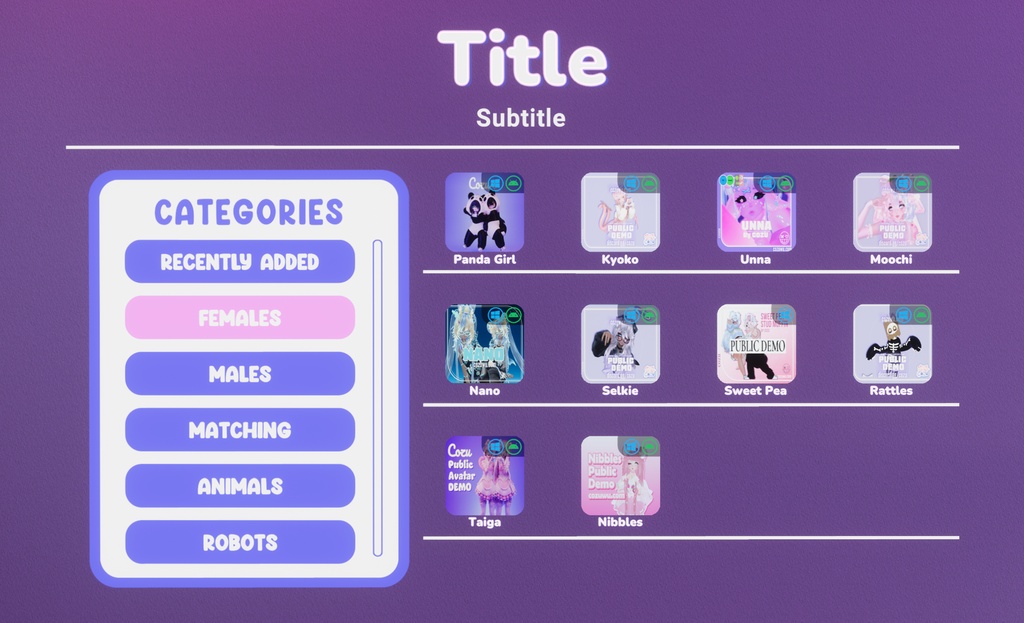
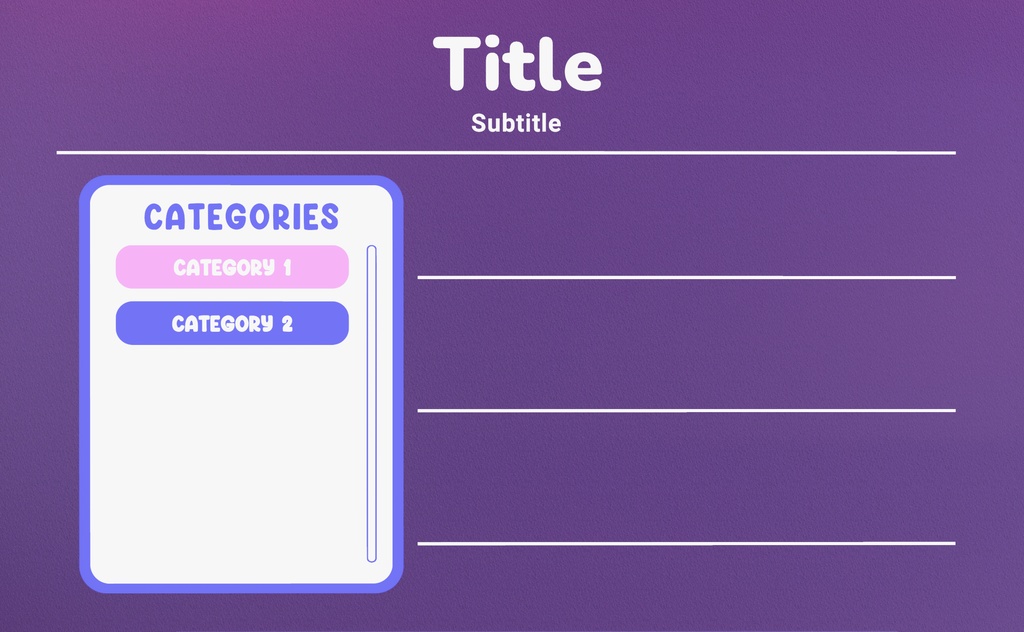
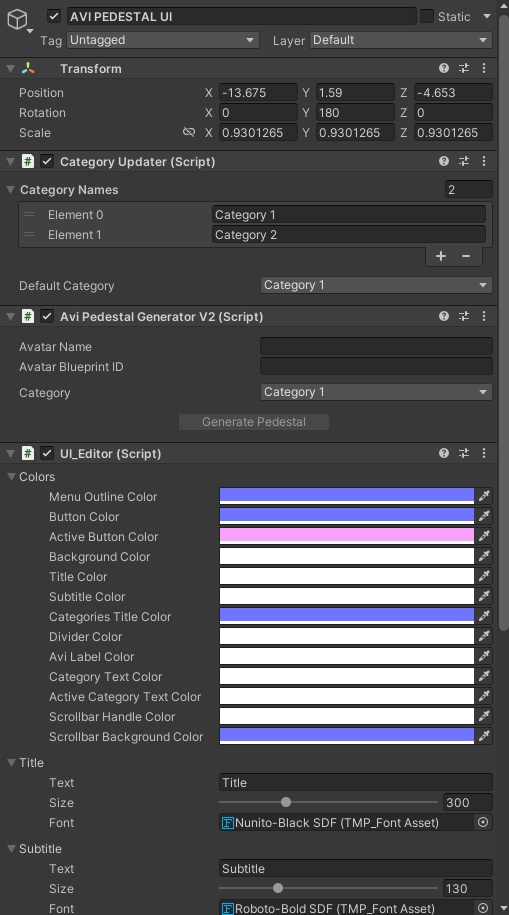
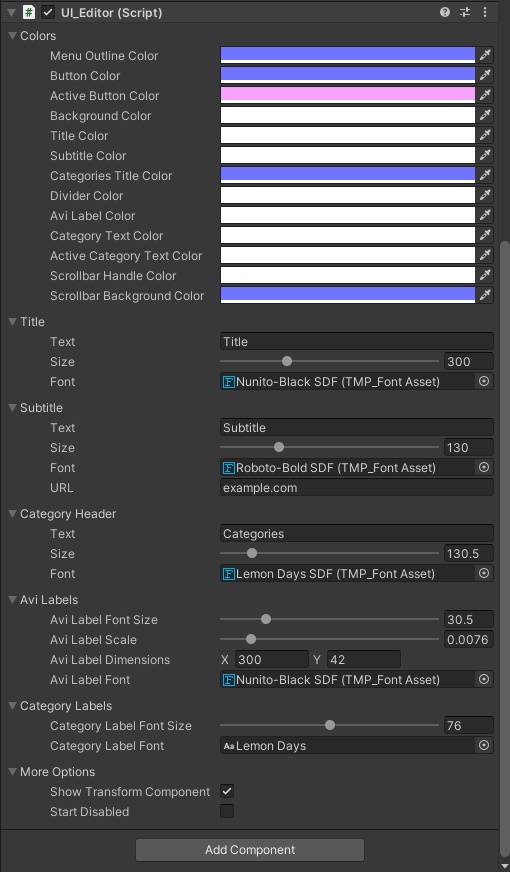
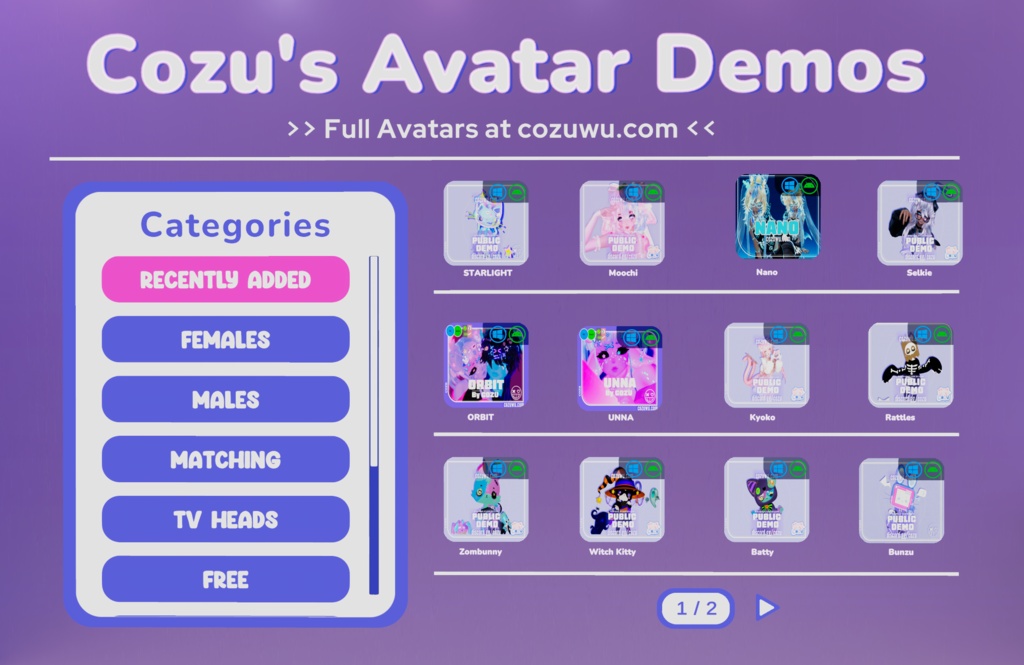


A Quest-compatible UdonSharp Avatar Menu UI prefab for use in VRChat Worlds. This prefab allows you to easily customize any color, text size, or font in the UI, and easily add avatar pedestals to various different categories. You can add/remove/reorder categories using the "Category Updater" script, and you can generate new pedestals using the "Avi Pedestal Generator V2" script. These generated pedestals can also easily be removed using each pedestal's associated script (outlined in the "Tutorial" section below). When adding a pedestal to a full category, a new page will automatically be created in that category so the pedestal can be added. The generated pedestals are also more convenient in-game than traditional avatar pedestals, since they can be interacted with using the laser pointer like with any other normal UI! (Note: VRChat may remove this functionality arbitrarily at any time, but if they do, the UI will seamlessly fall back to using a slightly more comfortable version of the traditional pedestal setup). You can also reorder pedestals within each generated page by moving them around in their associated page's transform hierarchy! However, note that you cannot move pedestals outside their original pages. You also cannot reorder pages within a given category. Attempting to perform either of these actions will likely break the prefab. The subtitle at the top can also be clicked by players to copy any URL you choose! The Avatar Menu prefab also comes with a script called "SetupInteractivePedestal" that, once placed on a MeshRenderer in your scene, will turn that mesh into an interactive avatar pedestal! (Note: You must input the target avatar ID for that interactive pedestal to use)
UI Pedestal Add-On
You can also purchase an additional "UI Pedestal" prefab. This add-on prefab is essentially just an individual pedestal version of those found on the main avatar menu prefab, for cases where you'd prefer placing individual pedestals in a certain arrangement around your world rather than using the Avatar Menu (or if you'd like to have the Avatar Menu in one section of your world, then Individual UI Pedestals in another). However, please note that having many instances of this add-on prefab in a world will be less performant than using the avatar menu prefab instead.
Example World
I originally created this prefab for a popular avatar creator named "Cozu", whose avatar worlds I've also worked on for the past few years. As a result, one of the provided screenshots of the prefab is an example of the prefab in one of her avatar worlds. If you'd like to test the UI for yourself, please feel free to visit her avatar world! https://vrchat.com/home/launch?worldId=wrld_36047dd1-dc80-404e-9793-dca078f5907b
Tutorials
~ Initial Setup ~ 1. Verify that your "Worlds 2022" project uses "VRChat SDK - Worlds" version 3.10.4 or higher, AND "VRChat SDK - Base" version 3.10.4 or higher. 2. Navigate to "Avatar Menu > Prefabs" from your Assets folder. ~ Avatar Menu Setup ~ 1. Drag the "AVI PEDESTAL UI" prefab into your scene, and position it as necessary. (Note: You can only have one instance of this prefab in your world. Adding more will break various editor scripts) 1.5. If you do not have TextMeshPro imported into your project, Unity will now prompt you to import it. Click "Import TMP Essentials" then close the prompt. Afterwards, delete the newly-created "AVI PEDESTAL UI" object from your hierarchy, then repeat Step 1. 2. Select the "AVI PEDESTAL UI" object if it's not selected already. 3. To add/remove categories, use the "+" and "-" buttons under the "Category Names" list on the "Category Updater" script. To reorder categories, simply click one and drag to your desired order. (Note: You may need to expand "Category Names" to see the list) 4. To add new avatar pedestals, use the "AviPedestalGeneratorV2" script. Enter your avatar's name, then enter its blueprint ID, then click the "Generate" button. (Note: If you copy an avatar ID, the script will use that ID from your clipboard automatically) 5. To remove an avatar pedestal, navigate to it in the transform hierarchy (AVI PEDESTAL UI > Avi Category Pages > [Category] > Avi Pages > [Page] > [Pedestal]) and click the "Reset Avatar Pedestal" button. (Note: If you remove the last remaining pedestal in a given page, that empty page will be deleted automatically) 6. To move an avatar pedestal to a different position in its associated page, simply reorder it in the transform hierarchy. (WARNING: Moving any pedestal to a different page or category will break the prefab. DO NOT DO THIS. If you do, you may need to delete the entire menu and start over from the beginning) ~ Individual UI Pedestal Add-On Setup ~ 1. Drag the "UI Pedestal" prefab into your scene, and position it as necessary. 2. Ensure that that "UI Pedestal" object is selected in the hierarchy, then paste your desired avatar ID into the text box labeled "Avatar ID" in the "UI Pedestal Editor" script's inspector. (WARNING: Changing the hierarchy order of either of these prefabs' child objects will likely cause various issues. Please keep everything in its default order, and try to only modify each prefab using the scripts I've provided)
WARNING
This prefab's UI Interaction feature relies on the undocumented internal structure of VRChat's Avatar Pedestals remaining the same for the foreseeable future. If VRChat arbitrarily decides to change that structure, or if they somehow implement a way to deny access to the internal components of Avatar Pedestals, then the special UI Interaction feature of this prefab will stop working. The prefab can still fall back to the default pedestal behavior in this case, so the menu will still work, you just won't be able to point at Avatar Pedestals using VRChat's laser pointer anymore. However, note that I will not offer any refunds if VRChat ever releases an update that breaks this functionality after you've purchased this prefab.
Support
For product support, please open a ticket in the "#prefab-support" channel of my Discord server, linked below: https://discord.com/invite/td7ydMZvsU
Disclaimers
1. Please back up your world before importing this prefab. I assume no responsibility for any issues resulting from the misuse of this product. 2. Support and refunds cannot be guaranteed if the product becomes unusable due to Unity/VRChat version updates. 3. Returns and refunds are not accepted after purchase. 4. Distribution or resale of the product's data (scripts, etc.) to third parties is prohibited.
License/Terms
You may use these assets in any public or private world project, whether that world is monetized or not, so long as you credit me accordingly somewhere in the world. However, as mentioned in the "Disclaimers" section above, you may not redistribute either of these prefabs to others in any capacity, for any reason.