

Spira すぴラ - カメラ位置を基準に回転しながらアバターやワールドを自動撮影
- Digital0 JPY
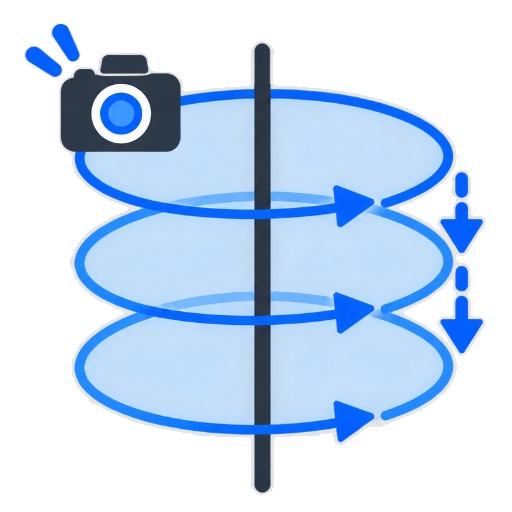


Spiraは、VRChatのUser CameraをOSCで操作できるWindowsアプリです。カメラ位置を基準に、周回半径や高さ、回転方向、撮影間隔などを設定し、アバターやワールドを自動撮影できます。 Spira is a Windows application that allows you to operate VRChat’s User Camera via OSC. By setting the camera position as a reference point, you can configure the orbit radius, height, rotation direction, shooting interval, and more to automatically take pictures of avatars and worlds.
詳細
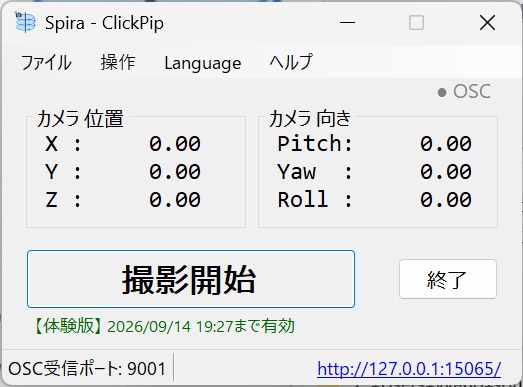
以下が現行仕様に合わせた更新版です。 --- Spira(すぴラ)は、VRChat内のUser CameraをOSC経由で操作し、アバターやワールドをさまざまな角度から撮影するためのClickPipシリーズのWindowsアプリです。VRChat側でOSCを有効にし、User Cameraを使用できる状態にしたら、Spiraを起動してブラウザの操作画面を開くだけで使い始められます。操作は画面上の項目を選ぶだけで、OSCコマンドを直接入力する必要はありません。 まずVRChat内で撮影したい場所へ移動し、Spiraに表示される現在のカメラ姿勢を確認します。構図が決まったら「固定」を有効にして、その位置を基準点として確定します。Spiraでは基準点、点A、点B、現在のカメラ位置、基準点との差分を確認しながら撮影範囲を設定できます。基準点はSpiraの起動中に保持され、設定ファイルには保存されません。 周回撮影では、基準点を中心にした周回半径、基準軸、点Aと点Bの範囲、範囲内の移動量、移動方向、回転方向、1枚ごとの撮影角、カメラのPitch(Rotation X)とRoll(Rotation Z)、撮影間隔を設定できます。X・Y・Zのいずれかの軸を選ぶと、選択した軸上を点Aから点Bまで複数の段に分け、各段でカメラを1周させます。任意軸を選ぶと、点Aと点Bを結ぶ3次元の直線上を移動しながら周回できます。 たとえば、アバターの周囲を一定の半径で一周する、少しずつ高さを変えながら複数の周回を行う、斜め方向へ移動しながら立体感のあるカットを集める、といった撮影を簡単に指定できます。撮影角を36度にすると1周10枚、90度にすると1周4枚というように、撮影角から1周あたりの撮影枚数が決まります。 設定が完了したら「周回撮影を開始」を押します。Spiraは各撮影位置のカメラ姿勢をVRChatへOSC送信し、設定した撮影間隔でUser Cameraの撮影指示を出します。撮影中は撮影枚数、現在の段、進行状況、終了予測を確認できます。撮影枚数が1000枚を超える場合や終了予測が5分を超える場合は画面に警告が表示されます。「いますぐ中止」を押せば、撮影をいつでも停止できます。 撮影直前にはUser CameraのModeも確認されます。User CameraがOFFの場合は撮影せずに周回を停止し、Modeを読み取れない場合は撮影待機状態になります。そのため、撮影を開始する前にVRChat内でUser Cameraを有効にしておく必要があります。 自動周回だけでなく、VRChat内でカメラ位置を手動調整しながら現在の姿勢を確認する使い方にも対応しています。決まった構図を繰り返し撮りたい人、撮影操作の手間を減らしたい人、アバター紹介用の連番写真、ターンテーブル風の記録、ワールドの景色を巡るカメラワークなどにおすすめのカメラコントローラーです。
explain in detail
Spira (pronounced “Supira”) is a Windows application in the ClickPip series for operating the VRChat User Camera through OSC and taking photos of avatars and worlds from various angles. After enabling OSC in VRChat and making the User Camera available, start Spira and open the browser control screen. You do not need to enter difficult OSC commands directly. You can create camera movements by selecting items on the screen. First, move to the place you want to photograph in VRChat and check the current camera pose shown in Spira. When the composition is ready, enable “Fixed” to set the current position as the reference point. Spira shows the reference point, Point A, Point B, the current camera position, and the difference from the reference point, so you can check the camera position while setting the shooting range. The reference point is kept only while Spira is running and is not saved in the settings file. For orbit shooting, you can set the orbit radius around the reference point, the reference axis, the range between Point A and Point B, the movement step, the movement direction, the rotation direction, the shooting angle for each photo, the camera Pitch (Rotation X), Roll (Rotation Z), and the shooting interval. When selecting the X, Y, or Z axis, Spira divides the selected axis from Point A to Point B into multiple stages and makes one camera orbit at each stage. When selecting Custom Axis, the camera moves along a three-dimensional line between Point A and Point B while orbiting. For example, you can make the camera orbit around an avatar with a constant radius, take several rotations while gradually changing the height, or collect shots with a three-dimensional diagonal movement. If the shooting angle is set to 36 degrees, Spira takes 10 photos per rotation. If it is set to 90 degrees, it takes 4 photos per rotation. After setting the parameters, press “Start Orbit Shooting.” Spira sends each camera pose to VRChat through OSC and sends the User Camera capture command at the configured shooting interval. During shooting, you can check the number of photos, the current stage, the progress, and the estimated finish time. A warning is shown when the planned number of photos is more than 1,000 or when the estimated finish time is more than five minutes. You can stop the shooting at any time by pressing “Stop Now.” Spira also checks the User Camera Mode immediately before each capture. If the User Camera is OFF, Spira does not take the photo and stops the orbit shooting. If the User Camera Mode cannot be read, Spira waits for the camera status. Therefore, please enable the User Camera in VRChat before starting the shooting. In addition to automatic orbit shooting, you can also adjust the camera position manually in VRChat while checking the current pose in Spira. Spira is recommended for people who want to repeat the same composition, reduce the effort of camera operation, create sequential photos for avatar introductions, make turntable-style records, or create camera movements around scenery in VRChat worlds.
動作環境
- Windows 11 - .Net framework 10 ランタイム版
アップデート履歴
[2026-10-16: v0.3.1] VRC+ Dolly JSON生成に対応 ・Camera DollyのOSC操作、Dolly JSON生成・保存に対応しました。 ・Dolly JSONは1段1周を1パスとして出力し、100段を超える場合もPathIndexに上限を設けません。 ・1周50点超過、または合計500点超過時は警告を表示しますが、JSON出力は継続します。 [2026-09-29: v0.2.1] Y軸以外のZ軸, X軸に対応 - X,Y,Z それぞれの軸で移動設定できる機能を追加 [2026-09-15: v0.1.2] バグ修正 - OSC受信ポートを自動選択可能に - 撮影枚数1000枚超や終了予測5分超を警告表示(実行は可能) - 体験版ライセンスの自動延長前に確認を表示 - ライセンス取得結果にかかわらずライセンス状態画面を開けるように [2026-09-14: v0.1.1] 初版リリース