
【FREE / 無料】Git Commit Exporter【Donations are welcome / 寄付歓迎】
- Free / 無料ダウンロード商品¥ 0
- Donate / 寄付(The content is the same as the free version / 無料版と中身は同じです)ダウンロード商品¥ 100

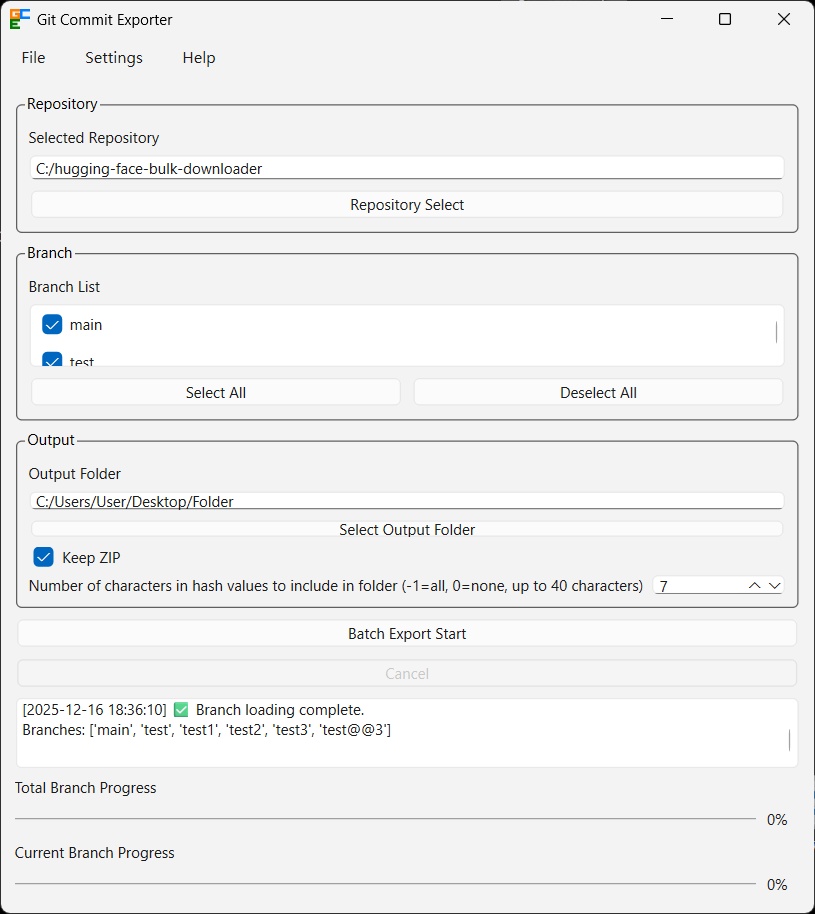
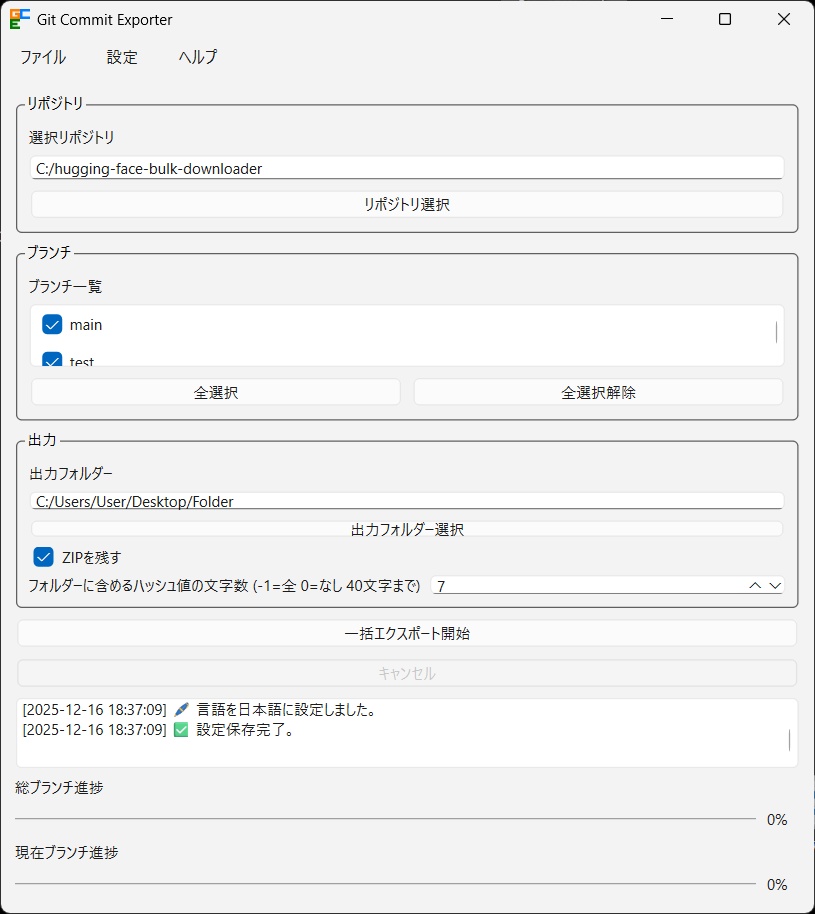


This software is a tool that exports all commits of specified branches from a Git repository into individual folders. By simply selecting a repository and branches in the GUI, anyone can easily obtain snapshots of all commits. It includes features such as selecting the output folder and saving logs. The application supports both English and Japanese. このソフトウェアは、Gitリポジトリから指定したブランチの全コミットを 個別フォルダとしてエクスポートするツールです。GUI上でリポジトリとブランチを選ぶだけで、 誰でも簡単に全コミットのスナップショットを取得できます。 保存フォルダ選択、ログ保存などの機能を備えています。また、英語、日本語に対応しています。
README.txt
==================================================================================================== Git Commit Exporter ==================================================================================================== ---------------------------------------------------------------------------------------------------- IMPORTANT ---------------------------------------------------------------------------------------------------- Please make sure to read IMPORTANT.txt. ---------------------------------------------------------------------------------------------------- Overview ---------------------------------------------------------------------------------------------------- This software is a tool that exports all commits of specified branches from a Git repository into individual folders. By simply selecting a repository and branches in the GUI, anyone can easily obtain snapshots of all commits. It includes features such as selecting the output folder and saving logs. The application supports both English and Japanese. ---------------------------------------------------------------------------------------------------- System Requirements ---------------------------------------------------------------------------------------------------- OS: Windows 10 (64-bit), Windows 11 (64-bit) Git must be installed. (Tested environment: Windows 10 (64-bit), Git Version 2.47.1) (Note: Git must be installed using the "Standalone Installer".) ---------------------------------------------------------------------------------------------------- Installation ---------------------------------------------------------------------------------------------------- Once you extract it to any location, installation is complete. ---------------------------------------------------------------------------------------------------- Uninstallation ---------------------------------------------------------------------------------------------------- Delete the entire folder to uninstall. ---------------------------------------------------------------------------------------------------- Basic Usage ---------------------------------------------------------------------------------------------------- Click the "Repository Select" button and choose the folder where the repository exists (the folder containing the ".git" folder). (The ".git" folder is hidden by default, so if you can't see it, you can display it by enabling the setting to show hidden folders.) After selecting the repository, the branch list will appear in the "Branch List". Select the branch you wish to output. Use the "Select All" and "Deselect All" buttons for bulk selection. Click the "Select Output Folder" button to choose the output folder. You can also enter the path directly. The "Keep ZIP" checkbox lets you choose whether to retain the commit snapshot ZIP generated by the "git archive --format=zip [commit hash]" command. Set the number of characters in the hash value displayed in the folder using "Number of characters in hash values to include in Folder". "-1" outputs the full hash, "0" outputs nothing, and values from "1" to "40" output the specified number of characters. Click the "Batch Export Start" button to begin exporting. Click the "Cancel" button to stop the export. ---------------------------------------------------------------------------------------------------- Additional Usage ---------------------------------------------------------------------------------------------------- ● About the Menu Bar ◎ "File" Menu ○ "Save Log" Save the log displayed at the bottom of the application window. ○ "Exit" Close Git Commit Exporter. ◎ "Settings" Menu ○ "Enable notifications at the finished" Notifies you upon export success or failure. ○ "Open folder when completed" Opens the destination folder upon successful export. ○ "Language" Allows setting the language to English or Japanese. ○ "Reset Settings" Resets the settings. ◎ "Help" Menu ○ "About" Display Git Commit Exporter information. ---------------------------------------------------------------------------------------------------- Notes ---------------------------------------------------------------------------------------------------- settings_gce_*_*_*.json is automatically created when Git Commit Exporter starts. If the output destination is a folder or file with the same structure, that file will be overwritten. In commit messages, the characters "\", "/", ":", ",", ";", "*", "?", """, "<", ">", "|" and whitespace characters (spaces, line breaks, etc.) are replaced with "_". Additionally, commit messages are also limited to 50 characters. If the file path is too long, an error may occur. In that case, shorten the file path by setting the root directory (root folder) as the “output folder,” etc. If you encounter an error while loading a repository, moving it to the C drive may allow it to load. The following is advanced content; proceed at your own risk: Alternatively, you can enter and execute the following in Command Prompt or similar: "git config --global --add safe.director (folder path where the repository causing the error exists)" This may allow the repository to load. This software is an unofficial tool created by YonRoku. ---------------------------------------------------------------------------------------------------- Remarks ---------------------------------------------------------------------------------------------------- If the software does not start, try the following: - Install Git using the "Standalone Installer". - Uninstall Git Commit Exporter and then reinstall it. ---------------------------------------------------------------------------------------------------- Tips ---------------------------------------------------------------------------------------------------- You can clone a GitHub repository using the command "git clone [repository URL]" in Command Prompt or Git Bash. Cloned repositories can be exported using Git Commit Exporter. ---------------------------------------------------------------------------------------------------- Disclaimer ---------------------------------------------------------------------------------------------------- The author assumes no responsibility for any troubles or damages caused by the use of this software. ---------------------------------------------------------------------------------------------------- Version History ---------------------------------------------------------------------------------------------------- Ver.1.1.0 - We have made corrections to the execution screen. Ver.1.0.0 - First release. ---------------------------------------------------------------------------------------------------- Contact ---------------------------------------------------------------------------------------------------- E-Mail: yonroku46464646@gmail.com ---------------------------------------------------------------------------------------------------- Author ---------------------------------------------------------------------------------------------------- YonRoku ---------------------------------------------------------------------------------------------------- Copyright ---------------------------------------------------------------------------------------------------- © 2025 YonRoku ---------------------------------------------------------------------------------------------------- License ---------------------------------------------------------------------------------------------------- Described in LICENSE.txt
README_JA.txt
==================================================================================================== Git Commit Exporter ==================================================================================================== ---------------------------------------------------------------------------------------------------- 重要 ---------------------------------------------------------------------------------------------------- 必ずIMPORTANT_JA.txtをお読みください。 ---------------------------------------------------------------------------------------------------- 概要 ---------------------------------------------------------------------------------------------------- このソフトウェアは、Gitリポジトリから指定したブランチの全コミットを 個別フォルダとしてエクスポートするツールです。GUI上でリポジトリとブランチを選ぶだけで、 誰でも簡単に全コミットのスナップショットを取得できます。 保存フォルダ選択、ログ保存などの機能を備えています。また、英語、日本語に対応しています。 ---------------------------------------------------------------------------------------------------- 動作環境 ---------------------------------------------------------------------------------------------------- OS:Windows 10(64bit)、Windows 11(64bit) また、Gitがインストールされている必要があります。 (検証環境:Windows 10 64bit、Git Version 2.47.1) (注意:Gitは「Standalone Installer」でインストールされている必要があります。) ---------------------------------------------------------------------------------------------------- インストール方法 ---------------------------------------------------------------------------------------------------- 任意の場所に解凍したらインストール完了です。 ---------------------------------------------------------------------------------------------------- アンインストール方法 ---------------------------------------------------------------------------------------------------- フォルダごとゴミ箱に入れればアンインストール完了です。 ---------------------------------------------------------------------------------------------------- 主な使用方法 ---------------------------------------------------------------------------------------------------- 「リポジトリ選択」ボタンを押して、リポジトリが存在するフォルダー (「.gitフォルダー」が存在するフォルダー)を選択してください。 (「.gitフォルダー」は基本的に隠しフォルダーなので、見えない場合は 隠しフォルダーを表示する設定にすることで、「.gitフォルダー」を表示することができます) リポジトリを選択したら「ブランチ一覧」にブランチ一覧が表示されるので、出力したいブランチを 選択してください。 「全選択」「全選択解除」ボタンで一括選択できます。 「出力フォルダー選択」ボタンで「出力フォルダー」を選択できます。 また、直接入力することも可能です。 「ZIPを残す」チェックボタンで「git archive --format=zip [commit hash]」コマンドで出した コミットのスナップショットZIPを残すかどうか選択できます。 「フォルダーに含めるハッシュ値の文字数」でハッシュ値の文字数を設定できます。 「-1」で全文字出力、「0」で出力無し、「1」から「40」で指定した文字数を出力します。 「一括エクスポート開始」ボタンでエクスポートされます。 「キャンセル」ボタンでエクスポートが中止されます。 ---------------------------------------------------------------------------------------------------- その他使用方法 ---------------------------------------------------------------------------------------------------- ●メニューバーについて ◎「ファイル」メニュー ○「ログを保存」 ソフト画面下部のログを保存できます。 ○「終了」 Git Commit Exporterを終了します。 ◎「設定」メニュー ○「終了時に通知を有効にする」 エクスポート成功、失敗時に通知されます。 ○「完了時にフォルダーを開く」 エクスポート成功時に保存先フォルダーを開きます。 ○「言語」 English、日本語から言語を設定できます。 ○「設定をリセット」 設定をリセットします。 ◎「ヘルプ」メニュー ○「バージョン情報」 Git Commit Exporterの情報を表示します。 ---------------------------------------------------------------------------------------------------- 注意事項 ---------------------------------------------------------------------------------------------------- settings_gce_*_*_*.jsonはGit Commit Exporter起動時に自動で作成されます。 出力先が同じ構成のフォルダ、ファイルだった場合、そのファイルは上書きされます。 コミットメッセージにて「\」「/」「:」「,」「;」「*」「?」「"」「<」「>」「|」の文字と 空白文字(スペースや改行等)は_に置き換えられます。 また、コミットメッセージは50文字以内に制限されます。 ファイルパスが長すぎる場合、エラーになる場合があります。 その際はルートディレクトリ(ルートフォルダー)を「出力フォルダー」に設定する等して ファイルパスを短くしてください。 リポジトリの読み込みでエラーが出た場合、Cドライブへ移動させると読み込める場合があります。 以下、高度な内容なので自己責任で行なってください: もしくは、コマンドプロンプト等で 「git config --global --add safe.director (エラーが出たリポジトリが存在するフォルダーパス)」 のように入力、実行をすることでリポジトリを読み込める場合があります。 本ソフトはYonRokuが作成した非公式ツールです。 ---------------------------------------------------------------------------------------------------- 備考 ---------------------------------------------------------------------------------------------------- ソフトが起動しない場合は ・Gitを「Standalone Installer」でインストールする。 ・Git Commit Exporterのアンインストール後、再びインストールする。 をお試しください。 ---------------------------------------------------------------------------------------------------- ヒント ---------------------------------------------------------------------------------------------------- コマンドプロンプトやGit BashでGitHubリポジトリを「git clone [リポジトリURL]」コマンドで クローンすることができます。 クローンしたリポジトリはGit Commit Exporterでエクスポートすることができます。 ---------------------------------------------------------------------------------------------------- 免責事項 ---------------------------------------------------------------------------------------------------- 本データの利用によって生じたトラブル、損害等について一切の責任を負いかねます。 ---------------------------------------------------------------------------------------------------- バージョン変更履歴 ---------------------------------------------------------------------------------------------------- Ver.1.1.0 - 実行画面に関する修正を行いました。 Ver.1.0.0 - 初回リリース。 ---------------------------------------------------------------------------------------------------- 連絡先 ---------------------------------------------------------------------------------------------------- E-Mail:yonroku46464646@gmail.com ---------------------------------------------------------------------------------------------------- 作者 ---------------------------------------------------------------------------------------------------- YonRoku ---------------------------------------------------------------------------------------------------- コピーライト ---------------------------------------------------------------------------------------------------- © 2025 YonRoku ---------------------------------------------------------------------------------------------------- ライセンス ---------------------------------------------------------------------------------------------------- LICENSE.txtに記述
LICENSE.txt
PySide6 Copyright: Copyright (C) The Qt Company Ltd. Licensed under the GNU Lesser General Public License version 3. Qt Libraries Copyright: Copyright (C) The Qt Company Ltd. Qt is available under multiple licenses, including the LGPLv3. For the full text of the licenses, please refer to the following URLs: https://opensource.org/license/python-2-0 https://www.gnu.org/licenses/lgpl-3.0.html
IMPORTANT.txt
==================================================================================================== Git Commit Exporter ==================================================================================================== ---------------------------------------------------------------------------------------------------- IMPORTANT ---------------------------------------------------------------------------------------------------- Before extracting, make sure that the SHA512 hash value of gce.zip matches the hash value in SHA512HASH.txt. Command example: certutil -hashfile C:\gce_V*.*.*\gce.zip SHA512 Open Command Prompt, enter the above command following the example, and run it to verify the hash value.
IMPORTANT_JA.txt
==================================================================================================== Git Commit Exporter ==================================================================================================== ---------------------------------------------------------------------------------------------------- 重要 ---------------------------------------------------------------------------------------------------- 必ずgce.zipのSHA512ハッシュ値が SHA512HASH.txtのハッシュ値と同等か確認してから解凍してください。 コマンド例: certutil -hashfile C:\gce_V*.*.*\gce.zip SHA512 コマンドプロンプトを開き、上記コマンド例に倣い入力、実行をするとハッシュ値を確認できます。
SHA512HASH.txt
Git Commit Exporter Ver.1.1.0 3c7a5b46124b0a32e0b2a461f0da1e815d70519bd6501094c6c80d9e93769b16221400ff89fd73d8ca1adc0b1d9482bbc70f5393a744bdaa2529a508f4f49b28 Git Commit Exporter Ver.1.0.0 15473e7809e207b350f788bf5f79c93d0bfff0e29e644ed779805135a3d02c2db978e907b458a35b735913a3f456b46f7da98d4c29a187ed62d6c18eefce30fa