

VRChat - Easy Toggle Switch Builder
- ダウンロード商品¥ 750
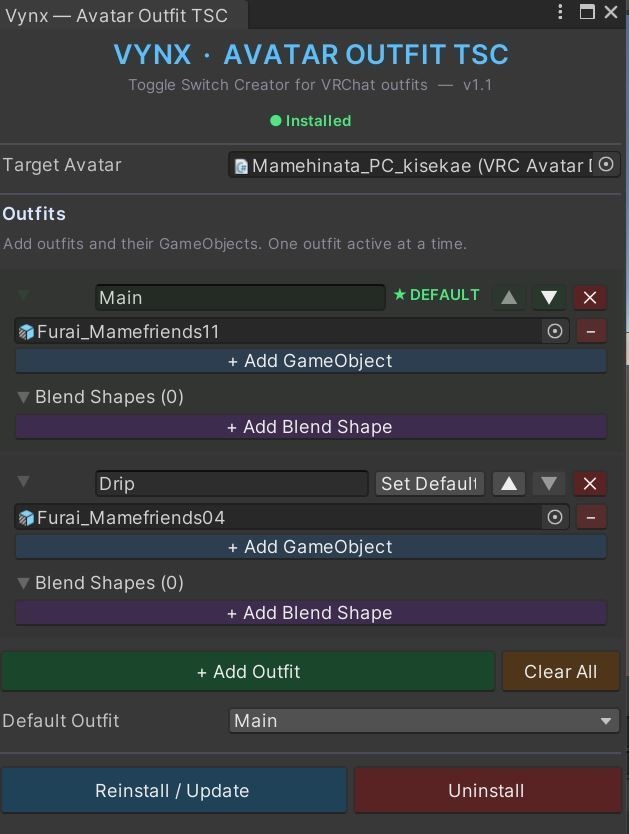


Vynx Avatar Outfit TSC Toggle Switch Creator for VRChat Avatars Vynx Avatar Outfit TSC is a Unity Editor tool that lets you set up outfit switching on your VRChat avatar in minutes — no animator knowledge required. Define your outfits, assign GameObjects, configure per-outfit blend shapes, pick a default, and hit install. The tool generates all the VRCFury toggles for you with exclusive tagging so only one outfit shows at a time. --- What It Does Outfit TSC creates a clean set of VRCFury-powered toggles under your avatar hierarchy. Each outfit gets its own toggle placed inside an `Outfits/` submenu in your expressions menu. The toggles use VRCFury's exclusive tag system, which means activating one outfit automatically deactivates the others — no conflicting states, no manual animator layer work. Under the hood, the tool: - Creates a `Vynx_OutfitToggles` container on your avatar - Generates one VRCFury Toggle component per outfit - Tags all toggles with a shared exclusive tag (`VynxOutfit`) so they're mutually exclusive - Sets the correct default outfit to be active on avatar load - Saves toggle state so your selected outfit persists between worlds - Drives blend shapes per outfit so your avatar's body adjusts to each look --- Blend Shape Support Each outfit can have its own set of blend shape overrides. When you switch outfits in-game, VRCFury automatically drives the blend shapes to the values you configured — so you can adjust body shape, hide clipping geometry, or reshape your avatar to fit each outfit perfectly. To use it: 1. Expand an outfit card and open the Blend Shapes foldout 2. Click + Add Blend Shape 3. Assign a SkinnedMeshRenderer from your avatar (e.g. your body mesh) 4. Pick a blend shape from the dropdown 5. Set the target value (0–100) with the slider 6. Add as many blend shape entries per outfit as you need Common uses: - Shrink chest for a flat outfit - Adjust hips/waist for tight vs. loose clothing - Hide body parts that clip through specific outfits - Change facial features or expressions per look --- Why You'd Want This If you've ever tried to set up outfit switching manually, you know the pain: animator controllers, parameter budgets, expression menu wiring, making sure states don't overlap. It's tedious and error-prone, especially when you just want to swap between a few looks. Outfit TSC removes all of that friction. You get: - One-click setup — no touching animators or expression menus by hand - Mutual exclusivity — only one outfit active at a time, always - Per-outfit blend shapes — body adjusts automatically when you switch - Saved state — your outfit choice sticks when you switch worlds - Easy updates — add or remove outfits and reinstall whenever you want - Full undo support — everything is undoable in Unity's undo system - Clean uninstall — removes everything it created, no leftover junk --- Requirements - Unity 2022.3 (VRChat Creator Companion recommended) - VRChat Avatars SDK 3.x - VRCFury installed in your project --- How to Use 1. Open the tool: Vynx > Avatar Outfit TSC in the Unity menu bar 2. Your avatar should auto-detect. If not, drag it into the Target Avatar field 3. Click + Add Outfit for each outfit you want 4. Name each outfit and drag in the GameObjects that belong to it (meshes, accessories, etc.) 5. Optionally expand Blend Shapes to add body adjustments for that outfit 6. Pick which outfit is the default*(active on avatar load) 7. Click Install Outfit Toggles That's it. Your expression menu will have an `Outfits` submenu with a toggle for each outfit. Updating Changed your mind about an outfit? Add, remove, or rearrange entries in the tool and click Reinstall / Update. The old toggles get replaced cleanly. Removing Click Uninstall to remove all generated toggles from your avatar. Your original GameObjects are untouched. --- How It Looks In-Game Once installed, you'll find your outfits under Expressions Menu > Outfits. Tap one to switch. The previous outfit turns off automatically, blend shapes adjust to match, and your selection is saved so the next time you load into a world you'll be wearing whatever you picked last. Version v1.1