
【わんコメ/OneComme】無料で高品質のストリーミングオーバーレイ
- ダウンロード商品¥ 0
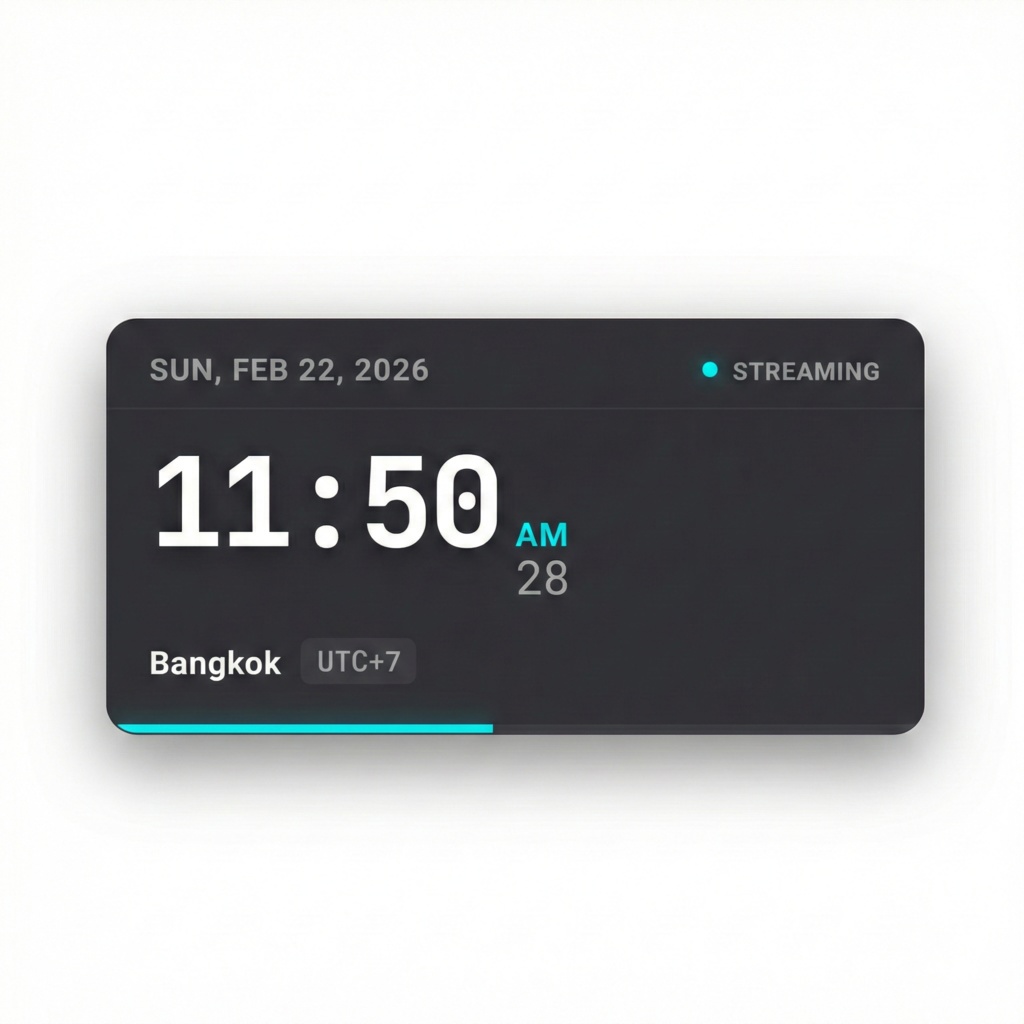
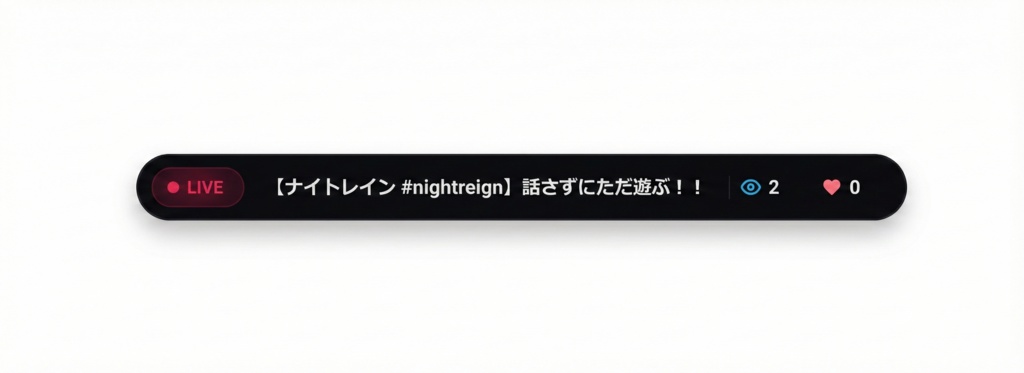



[JAPANESE] ストリームステータスとタイムゾーンオーバーレイのインストール(OBSブラウザーソース) まず、OneCommeとは何か、そしてそれをどのように使用するかを知る必要があります! ストリームステータスまたはタイムゾーンオーバーレイを使用するには: OBS Studioを開きます。 「ソース追加」→「ブラウザー」をクリックします。 「ローカルファイル」オプションを有効にします。 ストリームステータスまたはタイムゾーンオーバーレイファイルを参照して選択します。 要件: OneCommeアプリケーションがバックグラウンドで実行されている必要があります。 ストリームステータスオーバーレイが正しく動作するためには、ストリーミング中である必要があります。 インストール-ダンマクテンプレート OneCommeアプリケーションを開きます。 テンプレートのインストール方法を理解していることを確認します。 BetterDanmakuフォルダを次のディレクトリにコピーします: C:\Users\YOUR_USERNAME\AppData\Roaming\onecomme\templates OBS Studioを開き、BetterDanmakuをOneComme > Templates > CustomizedからOBSシーンにドラッグします。 [ENGLISH] Installation for Stream-status and Timezone overlay (OBS Browser Source) First you need to know what is OneComme and how to use it. To use the Stream Status or Timezone overlay: Open OBS Studio. Click Add Source → Browser. Enable the Local File option. Browse and select the Stream Status or Timezone overlay file. Requirements: The OneComme application must be running in the background. To ensure the Stream Status overlay works properly, you must be streaming. Installation – Danmaku Template Open the OneComme application. Make sure you understand how to install templates before proceeding. Copy the BetterDanmaku folder to the following directory: C:\Users\YOUR_USERNAME\AppData\Roaming\onecomme\templates Open OBS Studio and drag the BetterDanmaku from OneComme > Templates > Customized into your OBS scene.