

Arnosia Pixalette / ドット絵風パネル作成ツール
- ダウンロード商品¥ 500

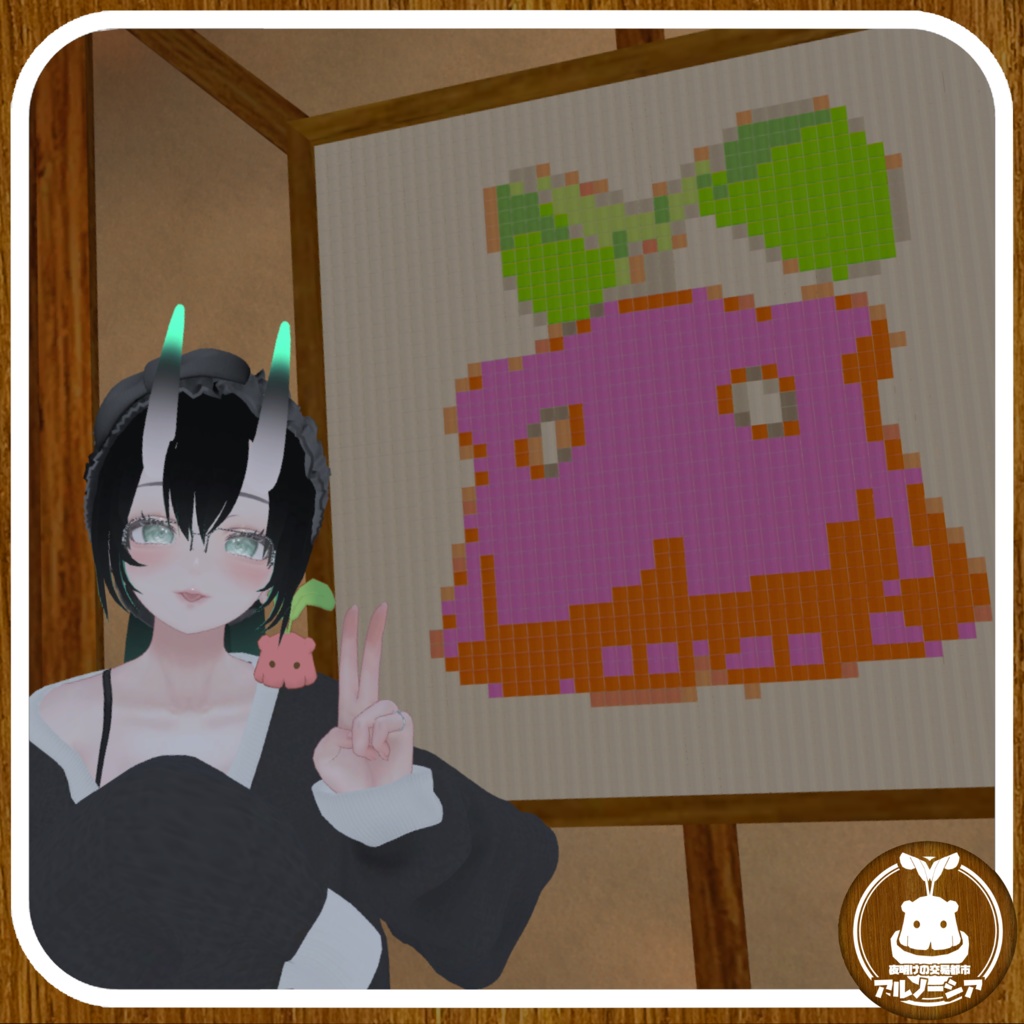


参照画像を読み取り、各ピクセルの色に最も近いPrefabを自動選択してシーン上にグリッド配置するワールド設置用ドット絵風パネル作成ツールです。 マテリアル、テクスチャは共にひとつで完結します。 ・事前に以下のアドオンを導入してください(必ず最新版の導入をお願い致します。) 【liltoon】 https://booth.pm/ja/items/3087170 使い方 ・PrefabをHierarchy内に設置。 ・参照画像をセット — 配置の元にしたい画像をドラッグ ※使用する画像のImport Settingsで Read/Write Enabled をオン にしてApplyしてください。 ・グリッド分割数を設定 — 横・縦の分割数 = 配置されるPrefabの総数 ・30色スロットにPrefabを登録 — 各色に対応するPrefabをドラッグ。空スロットはスキップされる ・配置設定を調整(必要に応じて) ・「▶ 画像を読み取って配置実行」 を押す 主な設定項目 ・X軸反転 :配置が左右反転して生成される場合オン ・完成サイズを指定する:幅・奥行きを指定すると間隔とPrefabスケールを自動計算 ・親オブジェクト :生成先の親Transform。空欄で自動生成 ・子オブジェクト削除 :配置したPrefabを一括削除(Undoで復元可) アルノーシアでご使用される場合 ・現状制限はありませんが、置きすぎたり、解像度が高すぎる場合 ワールドが重くなる恐れがあるため、注意してご使用ください。 ・アルノーシアでご使用いただく場合は、グリッド分割数を50×50のパネルを二枚、もしくは100×100のパネルを一枚までとしていただけますようお願いいたします。 追記 2026/02/27 負荷軽減用メッシュ統一化ツール【Arnosia MeshCombiner】をお付けしました。 2026/2/28 上記ツールにて別プロジェクトへ移行する際、MeshRendererがMissingになるため、生成Meshの保存機能を追加しました。 【利用規約】 https://drive.google.com/drive/folders/1kAX9lp-PdLs7a2NOy-FiYAeJ4wlX16l8?usp=sharing 【大体の使い方】 その1 https://x.com/VRCArnosia/status/2026889805045576129?s=20 その2 https://x.com/VRCArnosia/status/2027351661841445041?s=20 ーーーーーーーーーーーーーーーーーーーーーーーーーーーーーーーー This is a world-placement pixel art panel creation tool that reads a reference image, automatically selects the Prefab whose color is closest to each pixel, and arranges them in a grid within the scene. Both the material and texture are completed using a single asset each. 【Installation Guide】 ・Please install the following add-ons in advance. (Be sure to use the latest versions.) [liltoon] https://booth.pm/ja/items/3087170 How to Use ・Place the Prefab in the Hierarchy. ・Set the reference image — Drag in the image you want to use as the placement source. ※Make sure to enable Read/Write Enabled in the image’s Import Settings and click Apply. ・Set the grid division count — The horizontal and vertical divisions determine the total number of placed Prefabs. ・Register Prefabs in the 30 color slots — Drag a corresponding Prefab into each color slot. Empty slots will be skipped. ・Adjust placement settings (if necessary). ・Click “▶ Read Image and Execute Placement.” Main Settings ・Flip X Axis: Enable this if the placement is generated mirrored horizontally. ・Specify Final Size: When width and depth are specified, spacing and Prefab scale are calculated automatically. ・Parent Object: The parent Transform for generated objects. If left empty, it will be created automatically. ・Delete Child Objects: Deletes all placed Prefabs at once (can be restored with Undo). 【License】 https://drive.google.com/drive/folders/1kAX9lp-PdLs7a2NOy-FiYAeJ4wlX16l8?usp=sharing