

Audiolink Animation Scrubber - control animation progress with audiolink
- ダウンロード商品¥ 0
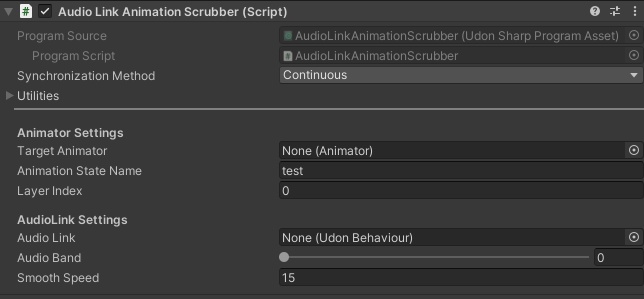


Demo world: https://vrchat.com/home/launch?worldId=wrld_a8f4bb48-0bd7-49d4-aaaf-ff65a35fbe36 The screens and doors in this world are controlled by Audiolink Animation Scrubber Windows world only, can't be used on other platform or avatars Notice: This plugin and its documentation were generated by AI. As a result, some content may contain inaccuracies or factual errors. Please be aware that I am unable to provide ongoing technical support for this project. Overview This UdonSharp script allows you to link the playback progress of a Unity Animation to a specific AudioLink frequency band (Bass, Low-Mid, High-Mid, or Treble). Instead of the animation playing at a constant speed, its "timeline" is scrubbed based on the real-time volume of the music. Requirements Unity 2022.3.x (or the current VRChat recommended version) VRChat SDK 3.0 UdonSharp AudioLink Package (Latest version recommended) 1. Preparation AudioLink Setup Place the AudioLink prefab in your scene. Select the AudioLink object in your Hierarchy. In the Inspector, scroll to the bottom and click "Enable Readback". [It should turn red after you click it] Note: This is mandatory. Without readback, the Udon script cannot access the audio data array. Animator Setup Create an Animator Controller and assign it to your object. Inside the Animator, create a new State (e.g., name it test) and assign your Animation Clip. [I usually just create a new animation, name it, and drag it to the object I want to animate. It will automatically generate a animator controller for this object] Set the Speed of this state to 0. This prevents the animation from playing on its own so the script can control the progress manually. 2. Script Configuration Attach the AudioLinkAnimationProgress script to your object and configure the following fields in the Inspector: Target Animator:Drag the GameObject that contains the Animator component. Animation State Name:The exact name of the state node in the Animator (e.g., test). Layer Index:Usually 0 for the Base Layer. Audio Link:Drag the AudioLink prefab instance from your Hierarchy here. Audio Band:Choose the frequency: 0 (Bass), 1 (Low-Mid), 2 (High-Mid), 3 (Treble). Smooth Speed:Controls how "jittery" the movement is. Lower values (5-10) are smoother; higher values (15+) are more reactive. 3. Technical Details Data Retrieval: The script uses GetProgramVariable("audioData") to fetch the real-time audio texture from AudioLink. Array Mapping: In modern AudioLink versions, data is read as a Color[] array. The script targets indices 0, 128, 256, or 384 (the start of each band's row) and uses the Red channel (.r) for volume intensity. Normalized Time: The volume (0.0 to 1.0) is passed directly to Animator.Play(state, layer, normalizedTime), which maps the volume level to a percentage of the animation's length. [I don't know any of this, so...... good luck] 4. Troubleshooting Animation is not moving: Double-check that "Enable Readback" is active on the AudioLink prefab. Animation is jittery: Reduce the Smooth Speed value in the script inspector. [And make sure you typed the exact name into "Animation State Name". If you're using the same method as I do, just type the name of the animation clip into it, should work fine.] [I really think this script has lots of possibilities, cause there are tons of stuff you can controll using animation, and this script can make them move with the music, isn't that great?]