

【VRoid Outfit/ Free Hair】 Original "KIRA" - Neo-Streetwear
- FREE Hairダウンロード商品¥ 0
- Face onlyダウンロード商品¥ 150
- Outfit Onlyダウンロード商品¥ 350
- Full Vroid File (Full Avatar)ダウンロード商品¥ 500
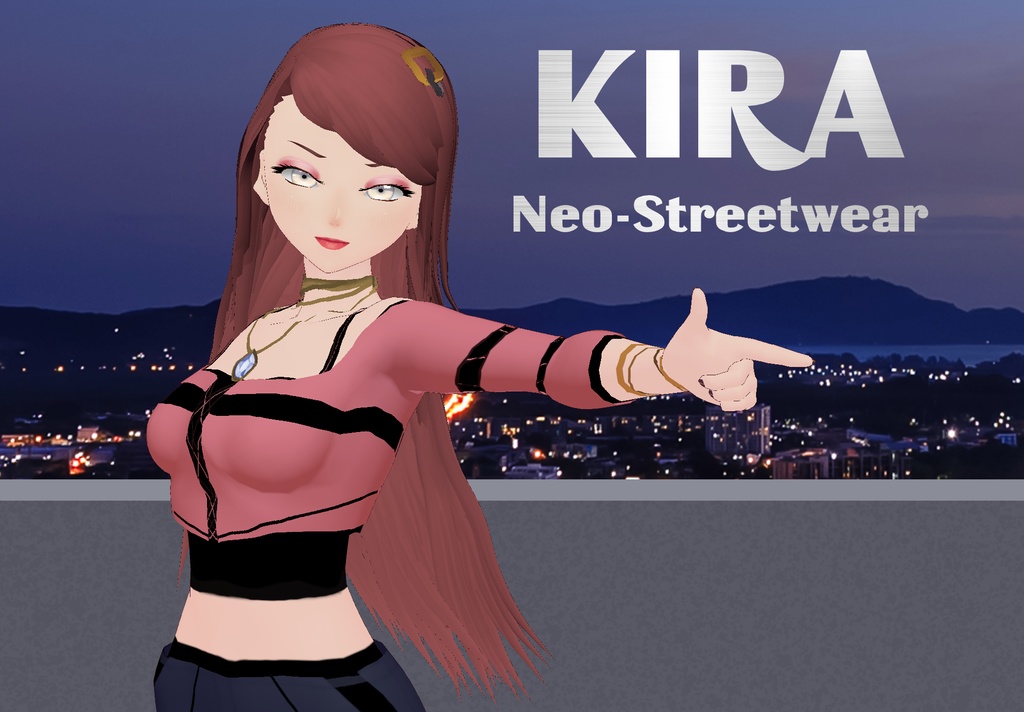
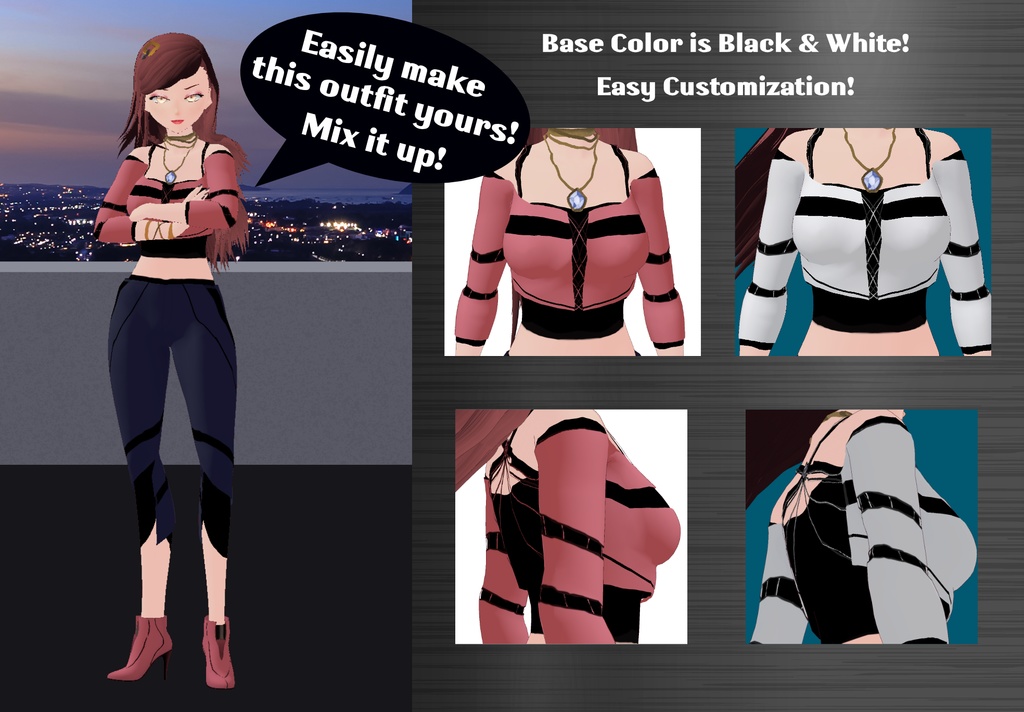
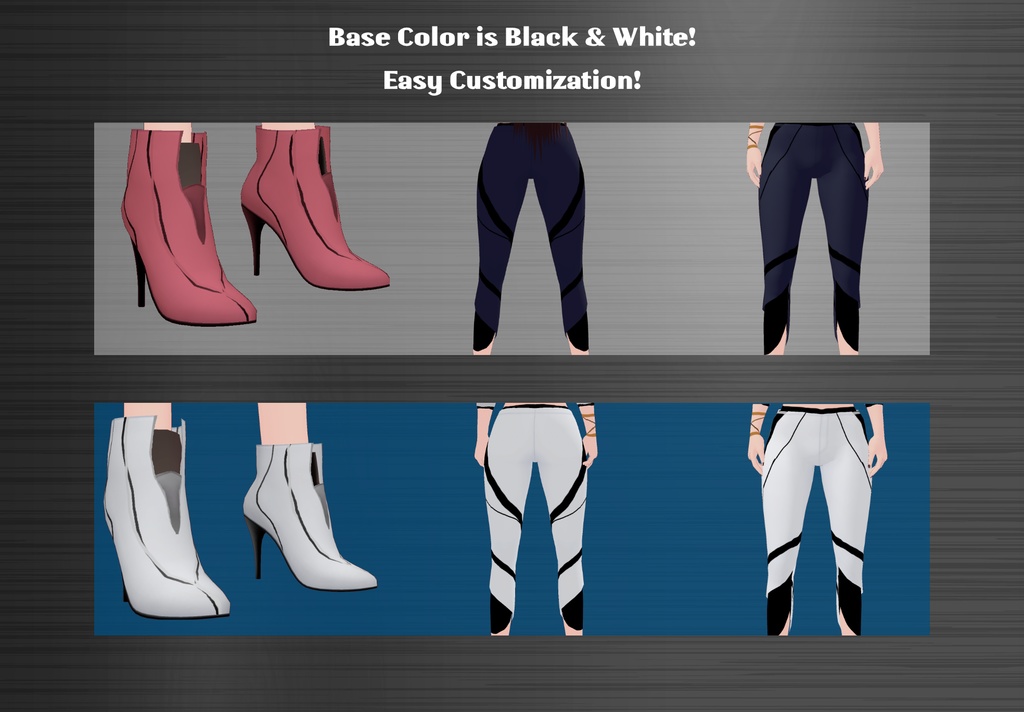
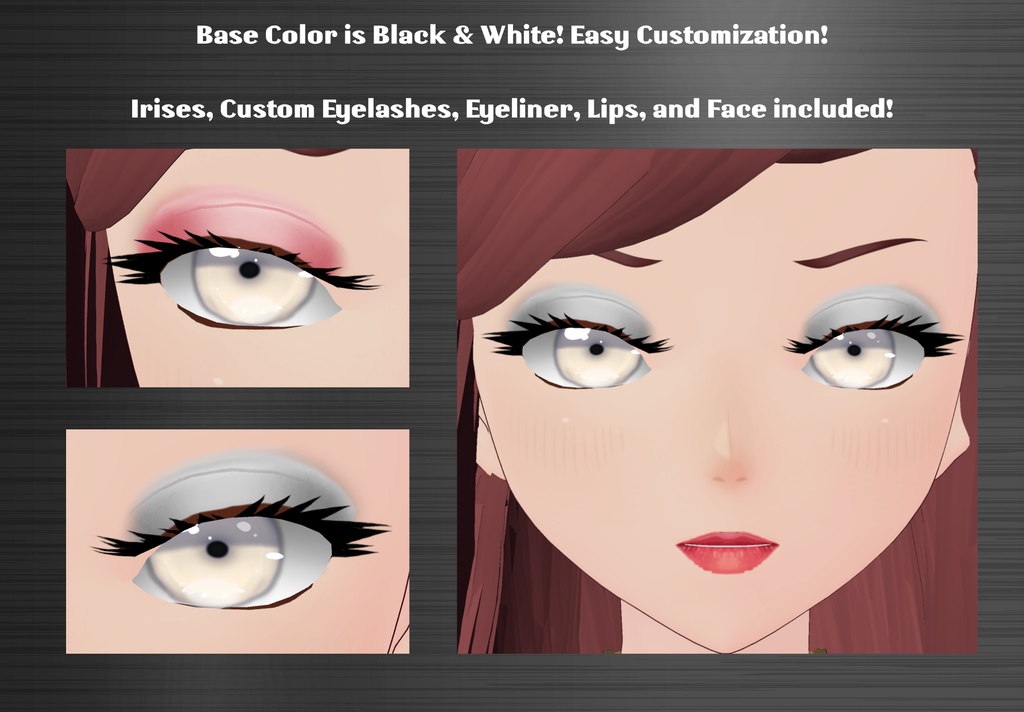
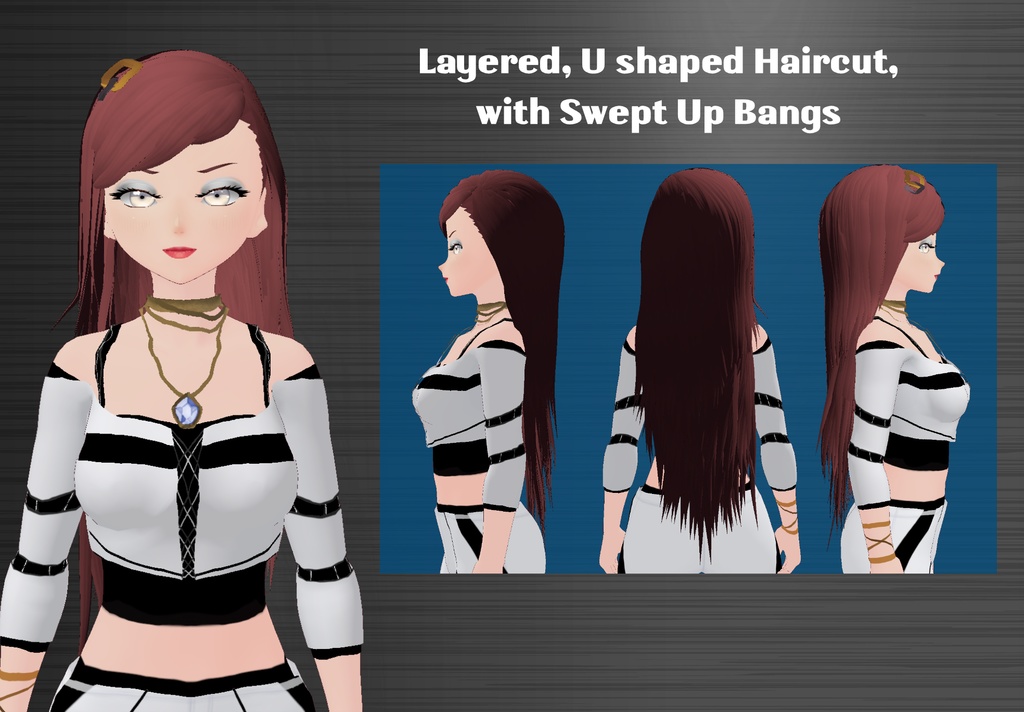
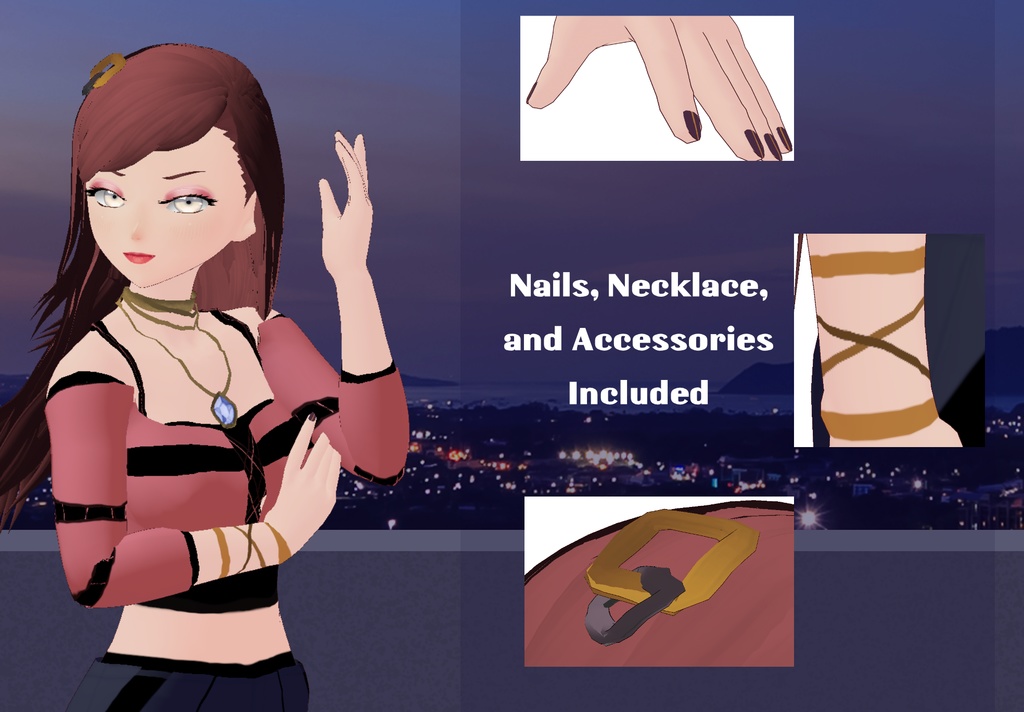


💬 "Switch the palette, keep the vibe. My style isn't a preset, it's a statement. Try and keep up." ✨ Looking for her twin sister, Sena? https://ladyestellarose.booth.pm/items/8201063 with this fully custom, Y2K-inspired virtual idol avatar! Designed with a Black & White base color for incredibly easy customization, you can effortlessly mix up the outfit to match your aesthetic. 📦 What's Included: 💇♀️ Hair: Custom Layered, U-shaped haircut with swept-up bangs. 💄 Face & Makeup: Custom Face base, Custom Irises, Eyelashes, Eyeliner, and Lips (includes pink and silver/grey eyeshadow options). 👚 Top: Off-the-shoulder crop top with criss-cross lacing, strapped detached sleeves, and gold buckle accents. 👖 Bottoms: Sleek, form-fitting pants with geometric dark panels. 👠 Shoes with socks: High-heeled ankle booties with a chic front-slit design. 💍 Accessories: Gold layered necklace with a blue gem pendant, painted nails, and wraparound arm/wrist straps. 🎨 Customization: All clothing items are designed with an easy-to-edit black and white base. Promo images show just a few of the possibilities (Pink/Black, White/Black, Sky's the limit), so you can easily make this outfit yours!
How to Edit Hair Textures, Colors, Adjust Custom VRoid Hair Parts in VRoid Studio, and Rig Hair for Movement ✂️✨
!!! Open the Hair Editor !!!! 1. Launch VRoid Studio and load your avatar. 2. Navigate to the **"Hair Editor"** tab from the menu on the left. --- !!!! Edit Hair Textures !!!! 1. Select the hair group or part you want to edit (e.g., bangs, back hair, or accessories like ribbons). 2. Go to the **"Texture"** section in the editor. 3. Click on the texture thumbnail to open the texture editing window. 4. Use the built-in painting tools or import a custom texture by clicking **"Import Image"**. 5. Apply changes and save. --- !!!! Change Hair Colors !!!! 1. In the **"Material"** section of the Hair Editor, locate the color settings. 2. Adjust the **Base Color** using the color picker or input specific RGB/HEX values. 3. Fine-tune highlights, shadows, and glossiness for a more realistic or stylized effect. 4. Save your changes. --- !!!! Adjust Custom Hair Parts !!!! 1. Select the custom hair part you want to modify (e.g., buns, ribbons, or strands). 2. Use the following tools: - **Move Tool:** Drag the part to reposition it around the head. - **Scale Tool:** Resize the hair part to better fit your avatar’s proportions. - **Rotate Tool:** Adjust angles for a natural look. 3. For more precision, tweak parameters like length, thickness, and curve in the **Hair Parameters** panel. --- !!!! Test and Save !!!! 1. Rotate your avatar preview to ensure all adjustments look good from every angle. 2. Save your project once satisfied with your edits. --- !!!! Rig Hair for Movement !!!! 1. **Add Bones:** - In the Hair Editor, select a hair strand or group you want to rig. - Click on the **"Bone Settings"** option in the editor panel. - Enable bones for that hair strand by clicking "Add Bone." 2. **Adjust Bone Count:** - Increase or decrease the number of bones depending on how much flexibility you want (e.g., longer strands may need more bones for smoother movement). 3. **Test Rigging:** - Use the preview window to test how hair moves when bones are applied. - Adjust bone placement and weight settings for natural motion. 4. **Save Changes:** - Once satisfied with your rigging setup, save your project. --- With these steps, you can fully customize your VRoid avatar's hairstyle for a polished and unique look! 🌟
How to Import Custom VRoid Hair Parts into VRoid Studio ✨
Follow these simple steps to import custom hair parts, such as the one shown in the images, into VRoid Studio: --- ### 1. Locate and Download the Custom Hair File - Ensure the custom hair file is in `.customvroiditem` format or a compatible hair preset file. - Save the file to an easily accessible folder on your computer. --- ### 2. Open VRoid Studio - Launch VRoid Studio and either create a new avatar or open an existing one. --- ### 3. Import the Custom Hair Part 1. Navigate to the **"Hair Editor"** tab in VRoid Studio. 2. Look for the **"Import"** button, typically located in the custom items section. 3. Click "Import" and browse your computer for the `.customvroiditem` file. 4. Select the file and confirm the import. The custom hair part will now appear in your list of available hair presets. --- ### 4. Apply and Adjust the Hair 1. Select the imported hair part from your presets. 2. Apply it to your avatar's hairstyle. 3. Use VRoid Studio’s tools to adjust: - **Position:** Move or scale the hair to fit your avatar’s head shape perfectly. - **Bones:** If the hair part includes pre-set bones (like in this example), ensure they are properly aligned for natural movement. --- ### 5. Save Your Avatar - Once satisfied with the adjustments, save your avatar with the new hairstyle. - Export it as a `.vrm` file if you plan to use it in Unity or VRChat. --- ### **Key Features of Custom Hair Parts** - **Dynamic Ribbon Movement:** If your custom hair includes ribbons, they may move naturally with head motion, adding realism and style. - **Pre-Set Bones:** Many custom hairs come with rigged bones for bangs or other parts, ensuring smooth animation and expressiveness.
Quick Instructions to Import .vroidcustom Items into VRoid Studio
1. **Open VRoid Studio:** - Launch the app and open your avatar project. 2. **Navigate to the Custom Item Importer:** - Go to the "Clothing Editor" or relevant customization tab. 3. **Import the .vroidcustom File:** - Click the **"Import"** button and select the `.vroidcustom` file from your computer. 4. **Apply the Item:** - Once imported, the custom item will appear in your clothing list. Select it to apply it to your avatar. 5. **Adjust as Needed:** - Use VRoid's sliders or tools to tweak the fit or positioning of the item. 6. **Save Your Avatar:** - Save your changes or export your avatar with the new custom item. 💡 *Tip:* Ensure you have compatible VRoid Studio versions to avoid import issues!
Terms of Service
Please carefully review the terms of service below before purchasing. By purchasing, you agree to these terms: 𝗨𝘀𝗮𝗴𝗲 𝗥𝗶𝗴𝗵𝘁𝘀 Personal Commercial Use: Allowed for a single owner per purchase. One Purchase, One Owner: Each purchase grants usage rights to one individual for most commercial purposes. 𝗖𝗿𝗲𝗱𝗶𝘁 Not Required but Appreciated: While crediting the creator (LadyLuck/LadyEstellaRose) is not mandatory, it is always appreciated when possible! 𝗔𝗹𝗹𝗼𝘄𝗲𝗱 𝗨𝘀𝗲𝘀 ✅ Streaming: Use the product on a model while streaming on platforms like Twitch or YouTube Live. ✅ YouTube Content: Feature the product on a model in videos for YouTube or other video-sharing platforms. ✅ VRChat Play & Private Use: Use the product on a model for personal VRChat avatars and private use. ✅ Alterations for Personal Use: Modify or alter the product to better suit your personal needs on a model. 𝗣𝗿𝗼𝗵𝗶𝗯𝗶𝘁𝗲𝗱 𝗨𝘀𝗲𝘀 🚫 Reselling: You may not resell the product, whether altered or unaltered. 🚫 False Attribution: Do not claim that you or anyone else created the product. Credit must remain with the original creator, LadyLuck/LadyEstellaRose. 🚫 Redistribution Without Purchase: Sharing or redistributing the product to others for commercial use without purchase is strictly prohibited. 🚫 Public Access Models: Do not make models with this product publicly downloadable, including public VRChat avatars or VRoid Hub models. 🚫 Immoral or Slanderous Use: The product may not be used for any purpose that harms others or promotes slanderous behavior. 𝗢𝘄𝗻𝗲𝗿𝘀𝗵𝗶𝗽 𝗮𝗻𝗱 𝗥𝗲𝗳𝘂𝗻𝗱 𝗣𝗼𝗹𝗶𝗰𝘆 All rights to the products sold remain with AureliaBoutique/LadyEstellaRose. No Refunds: Due to the digital nature of these products, refunds are not available after purchase. 𝗖𝗼𝗻𝘁𝗮𝗰𝘁 𝗜𝗻𝗳𝗼𝗿𝗺𝗮𝘁𝗶𝗼𝗻 If you have any questions or need assistance, feel free to reach out! I’m happy to help with custom VRoid fashion tailored just for you. 📱 Cluster & LINE Messaging Username: AureliaBoutique / LadyEstellaRose 𝙏𝙝𝙖𝙣𝙠 𝙮𝙤𝙪 𝙛𝙤𝙧 𝙨𝙪𝙥𝙥𝙤𝙧𝙩𝙞𝙣𝙜 𝙢𝙮 𝙬𝙤𝙧𝙠 𝙖𝙣𝙙 𝙧𝙚𝙨𝙥𝙚𝙘𝙩𝙞𝙣𝙜 𝙩𝙝𝙚𝙨𝙚 𝙩𝙚𝙧𝙢𝙨! 💖
To use .customvroiditem files for VRChat avatars, follow these detailed instructions:
## 1. Prepare Your VRoid Studio Avatar 1. Open VRoid Studio and create or load your base avatar. 2. Ensure your avatar is fully designed and ready for customization. ## 2. Import .customvroiditem Files 1. In VRoid Studio, locate the "Import" option in the main menu. 2. Select the .customvroiditem file you want to use. 3. The custom item will appear in your VRoid Studio inventory. ## 3. Apply Custom Items to Your Avatar 1. Navigate to the appropriate section in VRoid Studio (e.g., Clothing, Accessories). 2. Find the imported custom item in your inventory. 3. Click on the item to apply it to your avatar. 4. Adjust the item's position, size, and other properties as needed. ## 4. Export Your Avatar 1. Once satisfied with the customizations, export your avatar as a .vrm file. 2. Save the .vrm file in an easily accessible location. ## 5. Set Up Unity and VRChat SDK 1. Install Unity 2022.3.22f1 (the version compatible with current VRChat SDK)[4]. 2. Download and install the VRChat Creator Companion (VCC)[4]. 3. Use VCC to create a new VRChat avatar project[4]. ## 6. Import VRM Converter for VRChat 1. In your Unity project, go to the Package Manager. 2. Search for and import the "VRM Converter for VRChat" package[4][5]. ## 7. Convert Your VRoid Avatar 1. In Unity, navigate to "VRM0" in the top menu. 2. Click "Import" and select your .vrm file. 3. Once imported, select your avatar in the Project window. 4. Go back to "VRM0" and click "Duplicate and Convert for VRChat"[4]. 5. Save the converted avatar when prompted. ## 8. Configure Avatar Settings 1. Select your converted avatar in the Hierarchy window. 2. In the Inspector, locate the "VRC Avatar Descriptor" component. 3. Adjust the View Position to align with your avatar's eyes[7]. 4. Configure any other necessary VRChat-specific settings. ## 9. Upload Your Avatar 1. Open the VRChat SDK Control Panel in Unity. 2. Ensure all required components are set up correctly. 3. Click "Build & Publish" in the control panel[1]. 4. Name your avatar and complete the upload process. ## Additional Tips - If you need to make further adjustments to custom items, use the Unity Editor expansion pack to modify model data and costume data[2]. - Utilize the fitting feature in VRoid Studio to adjust costumes for different body types[2].
𝗡𝗲𝗲𝗱 𝗛𝗲𝗹𝗽? 𝗛𝗲𝗿𝗲’𝘀 𝗛𝗼𝘄 𝘁𝗼 𝗥𝗲𝗮𝗰𝗵 𝗢𝘂𝘁! 😊
If you’re experiencing any issues with my VRoid products, don’t worry—I’m here to help! To make the process as smooth as possible, please follow the steps below when contacting me: 1. Share a Screenshot 📸 Please include a clear screenshot of the part of the product you’re having trouble with in VRoid Studio. Let me know what you’re trying to accomplish so I can better understand the issue. 2. Tell Me What You’ve Tried 🛠️ Let me know the steps you’ve already taken to try and fix the problem. This helps me avoid suggesting things you’ve already done! 3. Be Patient While I Fix It 🕒 If it turns out the issue is something I need to fix on my end, I’ll get to work right away. Please allow 2-3 business days for me to send you a repaired file. Feel free to reach out anytime—I’m happy to assist and ensure your experience with my products is as enjoyable as possible! 💖