
LaserPin|レーザーでアイコンを瞬時に発見
- ダウンロード商品¥ 200
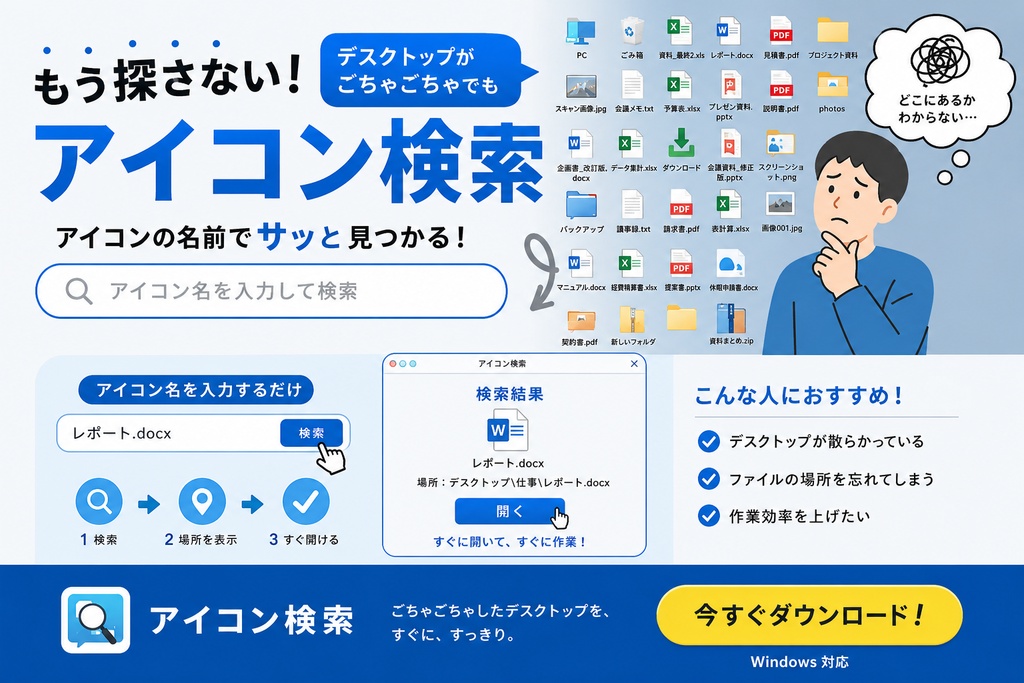
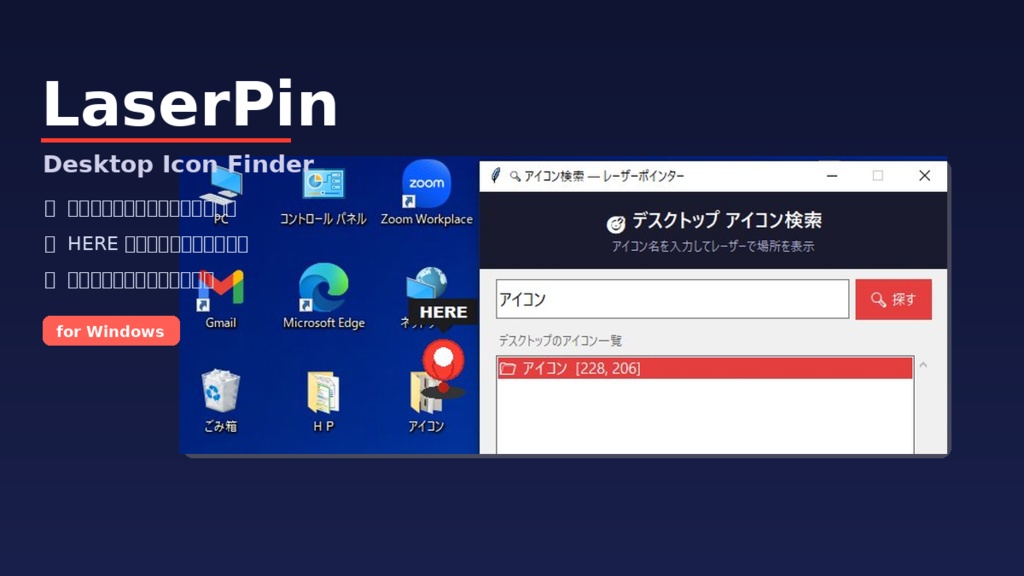


# 🎯 LaserPin — デスクトップ アイコン検索 --- ## 📌 こんな悩みありませんか? > 「あのアイコン、どこに置いたっけ…」 > デスクトップがアイコンだらけで目当てのものが見つからない! **LaserPin** はそんな悩みをレーザーポインターで一発解決するツールです。 --- ## 🎬 使い方 1. アプリを起動 2. 探したいアイコン名を入力(例:「ゴミ箱」「メモ帳」) 3. **「🔍 探す」** を押すだけ! 赤いレーザーがデスクトップを飛び、**HERE ピンがバウンスしながら着地**して場所を教えてくれます。 画面をクリックすると消えます。 --- ## ✨ 主な機能 | 機能 | 説明 | |---|---| | 🔴 レーザーアニメーション | アイコンに向かってレーザーがスムーズに飛ぶ | | 📍 HERE ピン | 着地点にマップピンがバウンスして落下 | | 🔍 リアルタイム検索 | 入力するたびに瞬時に絞り込み | | 🚀 その場で起動 | 見つけたアイコンをそのまま開ける | | 🪟 クリーン起動 | コマンドプロンプトが表示されない | | ♻️ 再読み込み | デスクトップ更新後もすぐ反映 | --- ## 💻 動作環境 - **OS**: Windows 10 / 11(64bit) - **Python**: 不要(スタンドアロン .exe) - **インストール**: 不要(ダウンロードしてすぐ使える) --- ## 📦 同梱ファイル ``` デスクトップアイコン検索.exe ``` --- ## ⚠️ ご注意 - 初回起動時に Windows Defender の警告が出る場合があります →「詳細情報」→「実行」で起動できます - アイコン座標の取得には**管理者権限での実行**を推奨します - アイコンが「座標なし」と表示される場合は右クリック →「管理者として実行」をお試しください --- --- # 🎯 LaserPin — Desktop Icon Finder --- ## 📌 Does this sound familiar? > "Where did I put that icon again...?" > Your desktop is a mess and you can't find anything! **LaserPin** solves that instantly with a laser pointer animation. --- ## 🎬 How to Use 1. Launch the app 2. Type the icon name you're looking for (e.g. "Recycle Bin", "Notepad") 3. Press **"🔍 Search"** — that's it! A red laser flies across your desktop and a **HERE pin bounces down** to mark the exact location. Click anywhere on screen to dismiss it. --- ## ✨ Features | Feature | Description | |---|---| | 🔴 Laser animation | Smooth laser flies straight to your icon | | 📍 HERE pin | A map pin bounces onto the exact spot | | 🔍 Real-time search | Filters instantly as you type | | 🚀 One-click launch | Open the found icon directly from the app | | 🪟 Clean launch | No command prompt window on startup | | ♻️ Refresh support | Instantly reflects desktop changes | --- ## 💻 System Requirements - **OS**: Windows 10 / 11 (64-bit) - **Python**: Not required (standalone .exe) - **Installation**: Not required (download and run immediately) --- ## 📦 Included Files ``` Desktop Icon Finder.exe ``` --- ## ⚠️ Notes - Windows Defender may show a warning on first launch → Click "More info" → "Run anyway" - Running as **administrator** is recommended for best icon detection accuracy - If an icon shows "no coordinates", right-click the app → "Run as administrator"