
ステージライトのアニメーションオーバーレイ(VTuber・配信者・DJ・音楽配信向け、透過WEBMループ・OBS対応) / Animated Stage Light Overlays for Streamer and VTuber, DJ, Music Stream, Loop WEBM Transparency, Easy Setup in OBS
- ダウンロード商品¥ 1,500
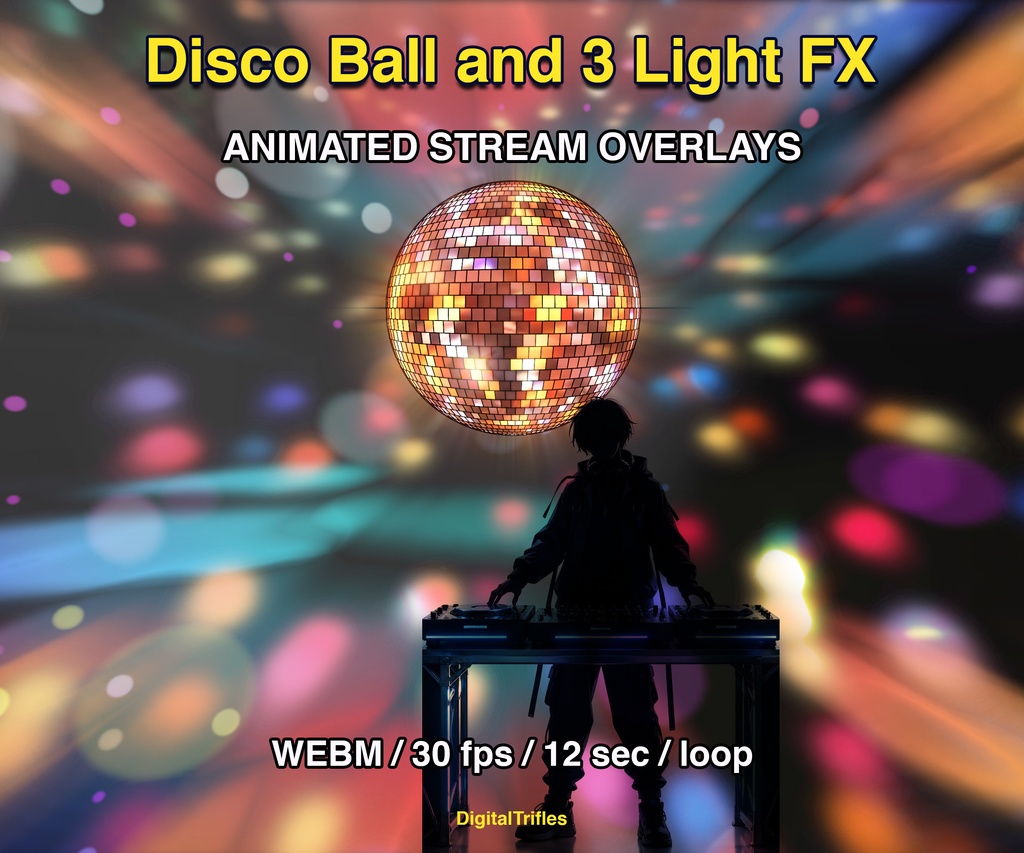
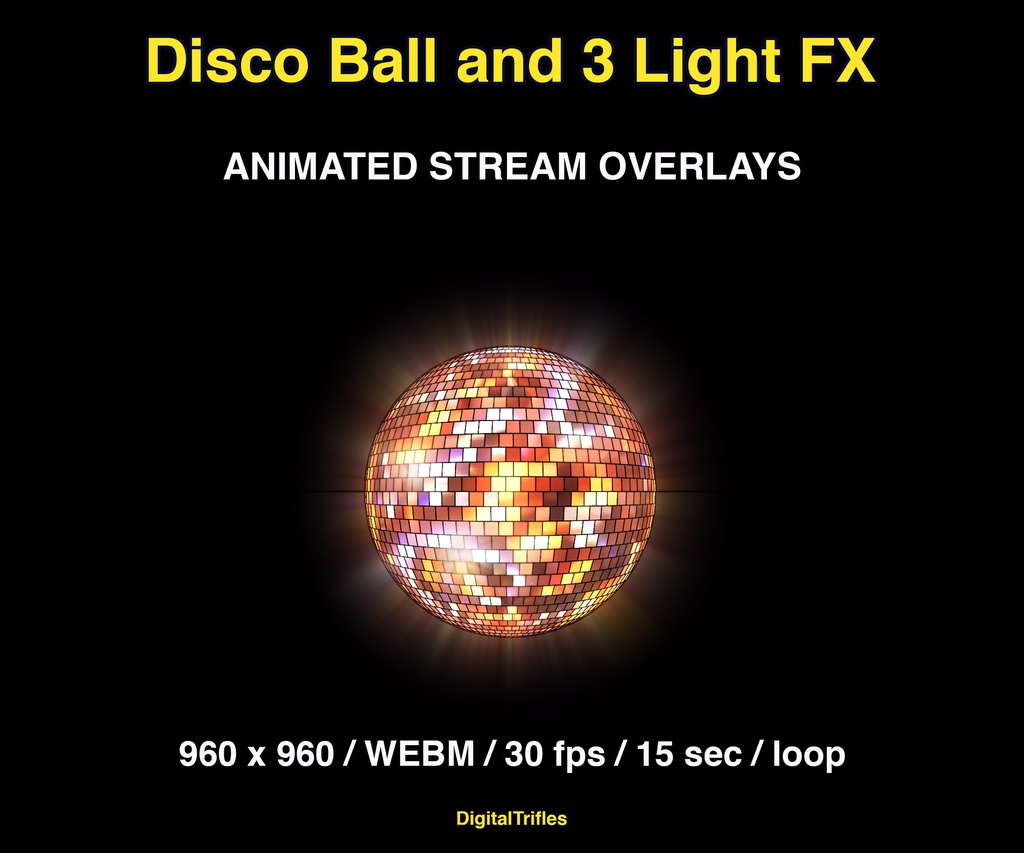
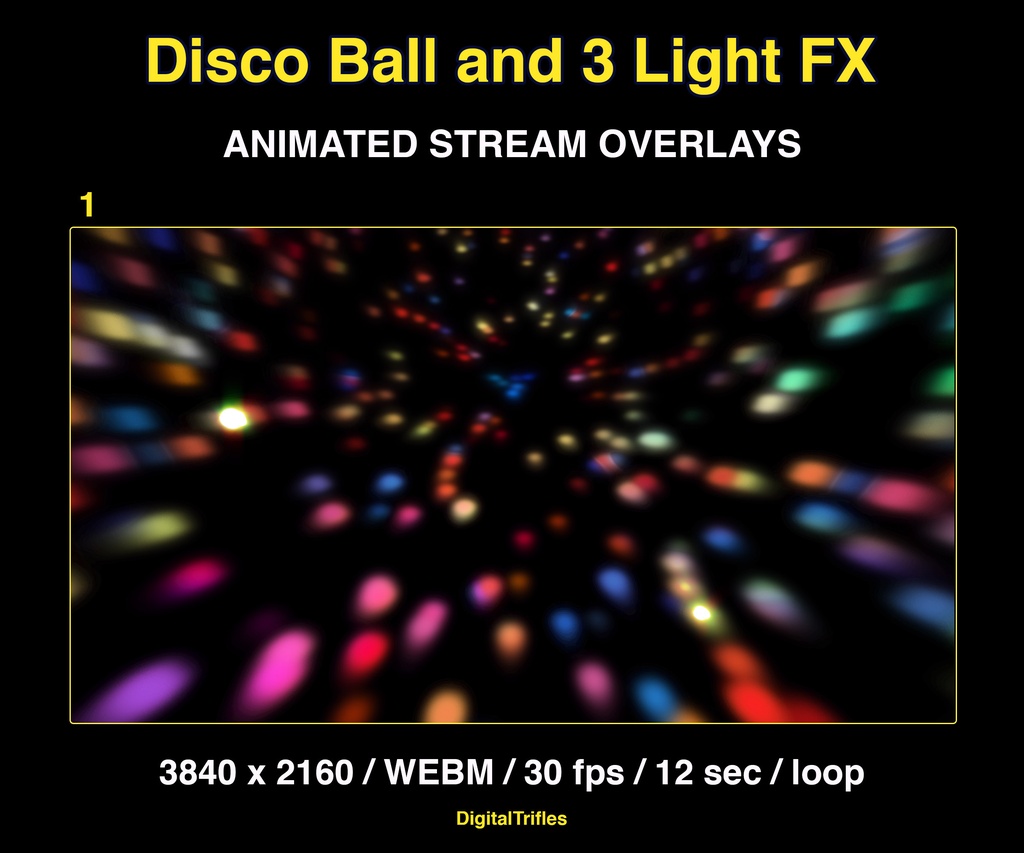
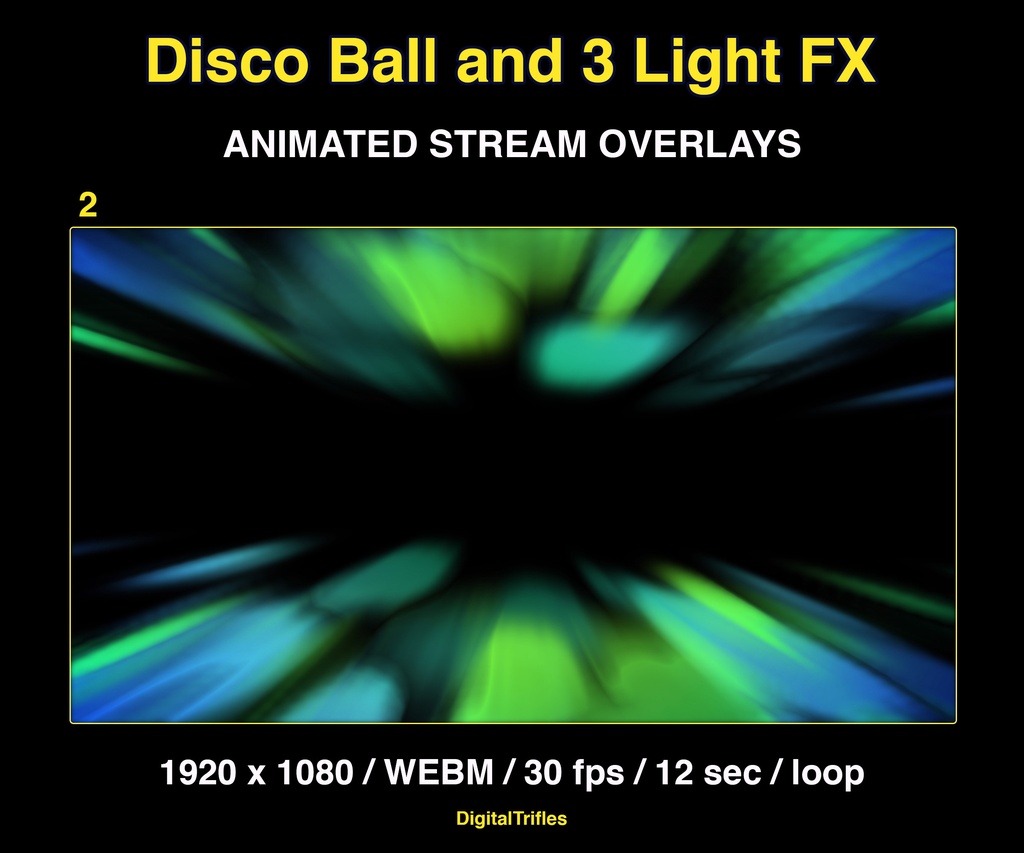
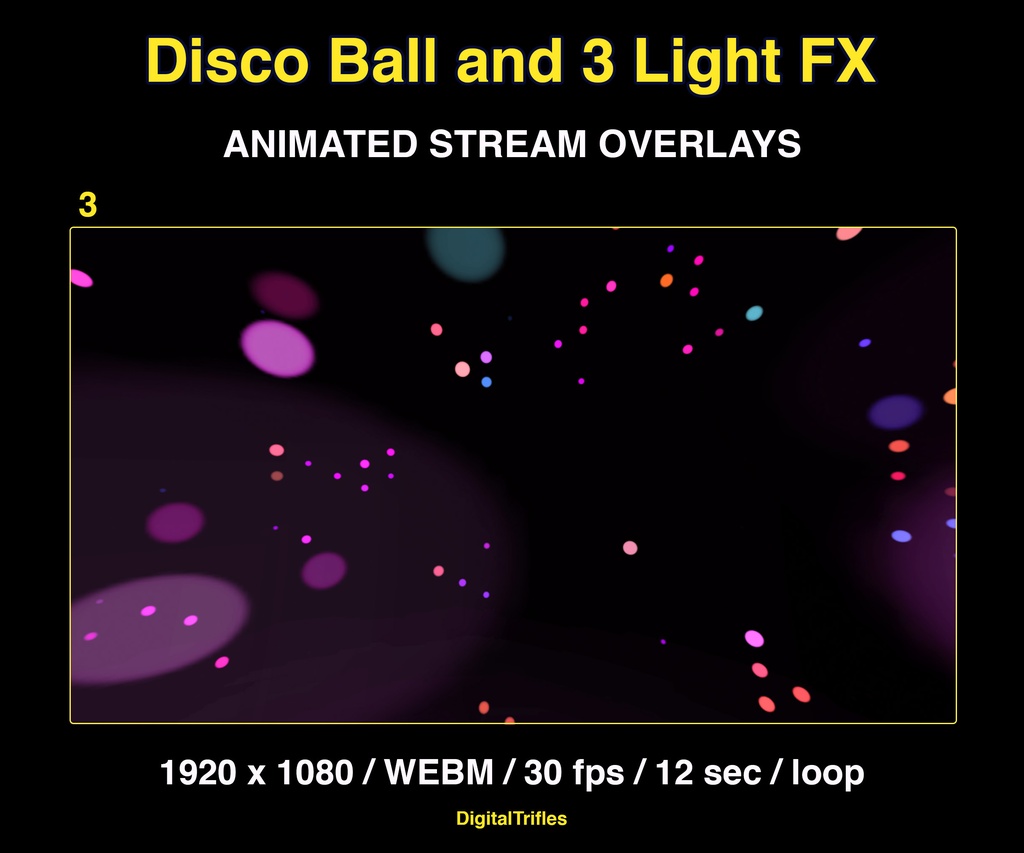
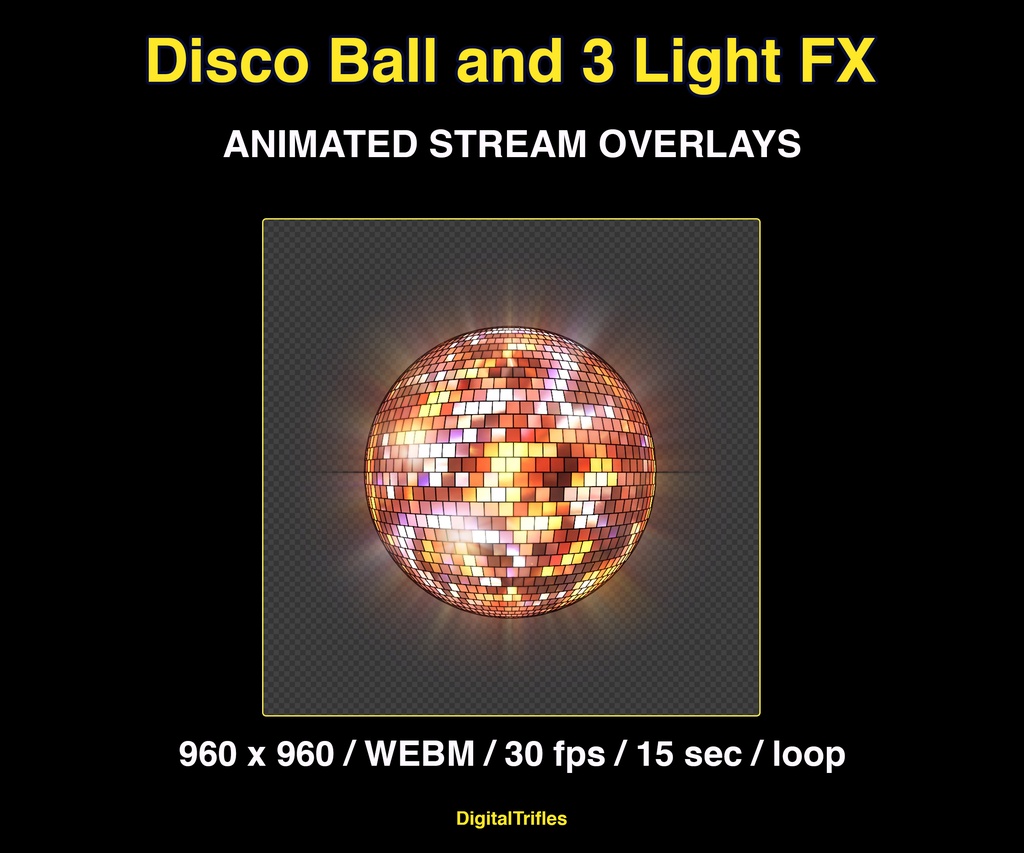
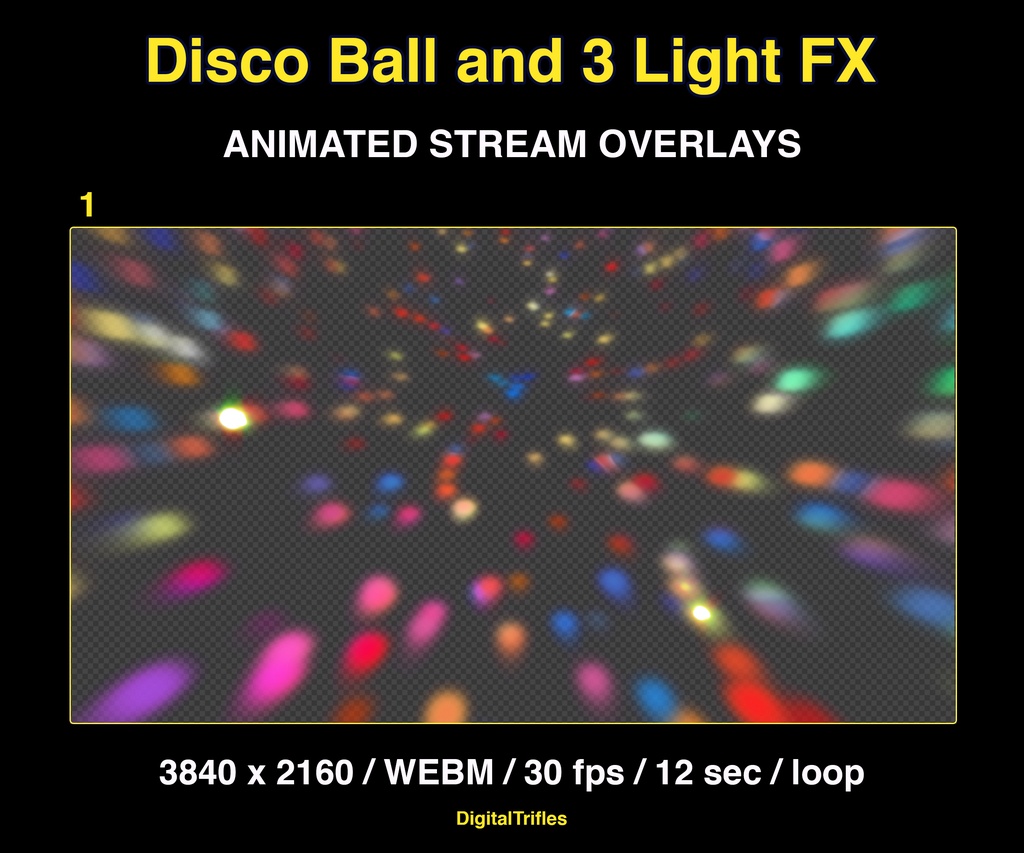
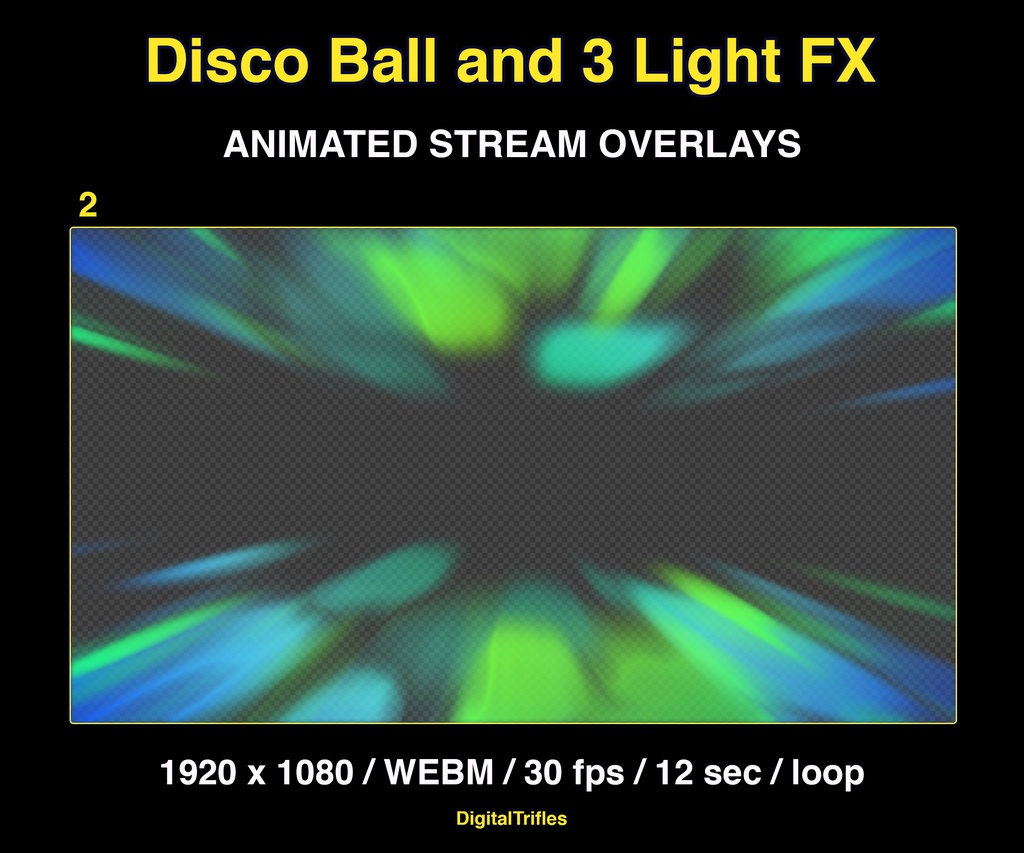
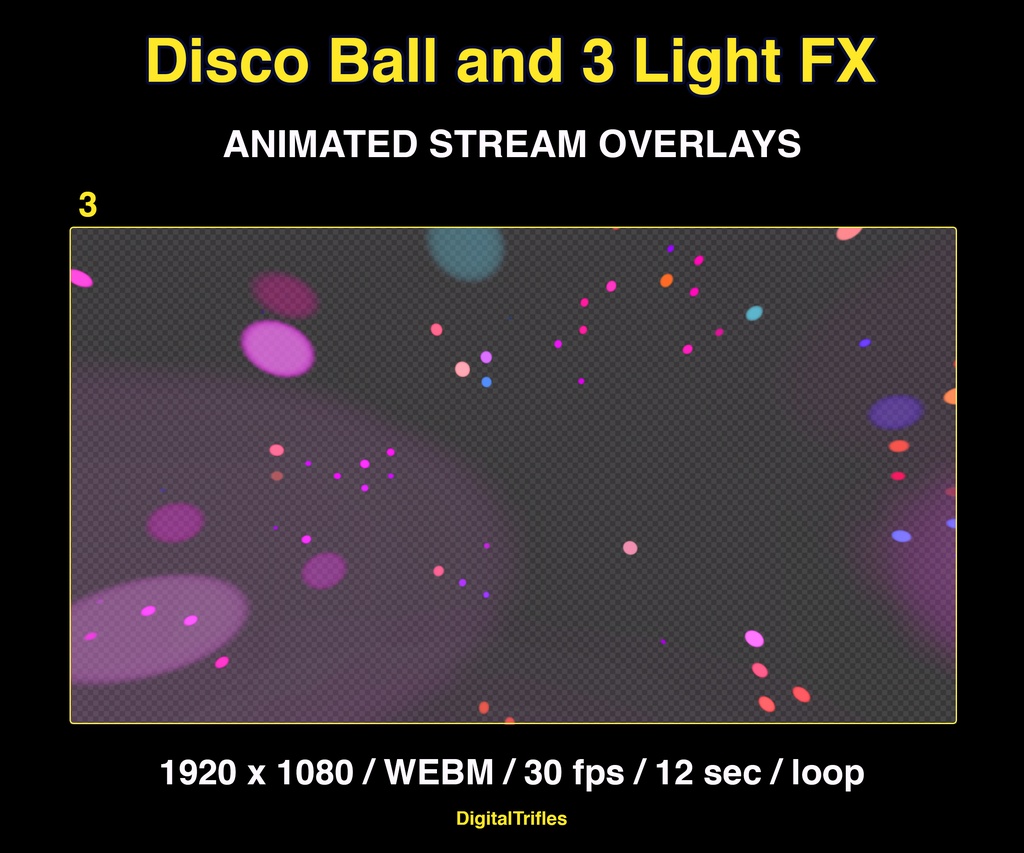


Animated stage light overlay package for streamers and VTubers. This pack brings dynamic light beams and effects, creating a vivid and professional stage look. And also a cool animated disco ball with golden glitter. These seamless, smoothly looping visuals with transparent backgrounds can be used as overlays or backgrounds in your stream setup. Perfect for Twitch streams, karaoke shows, DJ sets, music performances, dance streams, and other creative live events. Ready to use, easy to install, and customizable in OBS Studio.
ステージライトのアニメーションオーバーレイ
✅ What’s Included: Format: 4 WEBM files with transparent background, 30 fps, in 2 ZIP archives Resolution: 2 files HD 1920 x 1080, 1file 960 x 960, and 1 file 4K 3840 x 2160 Loop Type: Seamless, perfect for continuous playback ✅ Made for Music-Focused Streamers and VTubers: 🎧 DJ and VJ performances or music sets 🎤 Karaoke, vocal covers, and livestream concerts 🕺💃 Dance or choreography content 🎭 Fits any vibe: disco, pop, rock, EDM, lo-fi, J-pop, trippy and more ✅ Perfect for: Twitch, YouTube streams VTuber intros and stage scenes Virtual concerts & karaoke parties ✅ Easy Use in OBS Studio: Just drop loops into your scenes and trigger them live with hotkeys ➤ Drag and drop the loop into your scene in OBS studio. Alternatively, click the "+" button in the "Sources" menu, select "Media Source" in the dropdown menu. You can scale the background as needed. No plugins or extra software needed ➤ Don't forget to enable "loop" option to make it seamless ➤ Assign to hotkeys for real-time control ➤ To make the overlay as visually impactful as possible, use an appropriate blending mode: right-click on the overlay layer and, in the menu that opens, select "Blending Mode." Then, choose "Screen" or "Add". It will be better if you use a dark background for transparent WEBM files ➤ You can also adjust the overlay's opacity to suit your preferences and creative vision. To do this, right-click on the overlay layer, select "Filters," then click the "+" button to add the "Colour Correction" filter. Use it to fine-tune the transparency ➤ You can speed up the playback to match your music track ➤ Mix and match the light effects in any combination. Don’t be afraid to experiment! 重要なお知らせ 利用規約 - これはデジタル商品です。物理的な製品は発送されません。 - 購入後、デジタル形式の画像が提供されます。 - デジタル商品のため、返品、交換、またはキャンセルは受け付けていません。 - お使いのモニターにより、色の見え方が異なる場合がございます。 - 素材または素材を編集・加工したものの2次配布、販売不可