
ブラウザで動くVJ HTML Pack Vol.02
- ダウンロード商品¥ 5,500
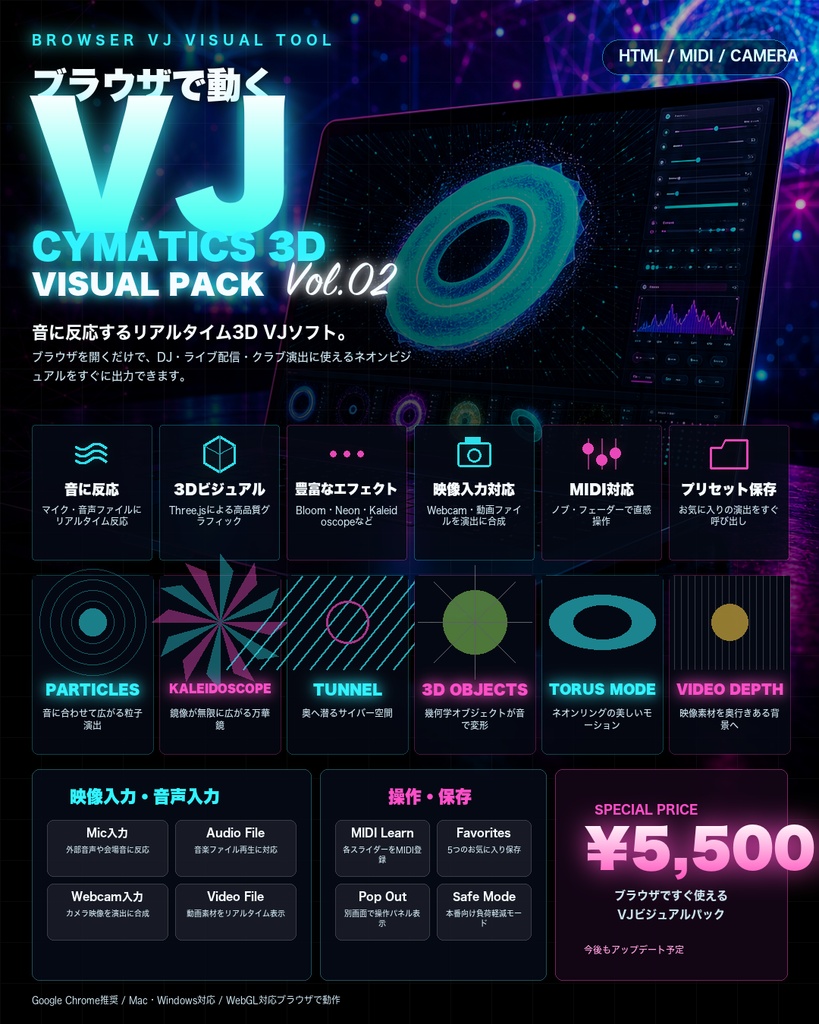

VJ Cymatics 3D 音に反応する、ライブ演出向け3Dビジュアライザー。 VJ Cymatics 3Dは、DJプレイ、ライブ配信、クラブイベント、映像演出、インスタレーション向けに作られたリアルタイム・オーディオリアクティブVJソフトです。音楽の低音・中音・高音を解析し、3Dジオメトリ、トンネル、パーティクル、フラクタル、ネオン発光、Webカメラ映像などを音に合わせて変化させます。 ブラウザ上で動作しながら、MIDIコントローラーによる操作、プリセット保存、お気に入り登録、ポップアウト操作パネルに対応。ライブ中でも直感的にビジュアルを切り替え、音の盛り上がりに合わせて演出をコントロールできます。
主な機能
* 音楽に反応するリアルタイム3Dビジュアル * 低音・中音・高音ごとの反応調整 * トンネル、幾何学、パーティクル、フラクタル、背景モードなど多数のビジュアライゼーション * Webカメラ、動画、音声ファイル入力に対応 * MIDIコントローラーで各パラメータやモードを操作可能 * 5つのお気に入りビジュアルを保存・呼び出し可能 * Neon Boost、Bloom Boost、Halation Polishなどの発光調整 * 操作パネルのタブ分け、折り畳み、ポップアウト表示 * パフォーマンスを安定させるSafe Mode * プリセットの保存・読み込み・書き出し対応 * AI画像生成やStable Diffusion連携にも対応可能 こんな人におすすめ * DJ/VJイベントで音に同期した映像を出したい方 * ライブ配信やYouTube用に動く背景映像を作りたい方 * MIDIコントローラーで映像演出を操作したい方 * クラブ、バー、展示、インスタレーションで使える映像ツールを探している方 * 既成の映像素材ではなく、その場の音に反応するビジュアルが欲しい方 注意事項 MIDI機能はWeb MIDI対応ブラウザが必要です。AI画像生成やStable Diffusion連携を使う場合は、別途APIキーやローカル環境の設定が必要です。通常の音反応ビジュアル機能は単体でも使用できます。 2026.07.09 アップデートで3Dモデルの読み込みに対応しました。 STL / OBJ / FBX / 3DS / DAE を放り込むだけで、 あなたのモデルがオーディオリアクティブなビジュアルに変わります。
基本的な使い方
1. アプリを起動する VJ Cymatics 3Dを起動すると、中央にビジュアル画面、右側にControl Panelが表示されます。 画面全体を映像出力として使いたい場合は、操作パネルを閉じる、またはポップアウト表示にできます。 2. 音を入力する Mic を選ぶと、マイクや外部オーディオ入力に反応します。 Audio File を選ぶと、音楽ファイルを読み込んで再生しながらビジュアルを反応させられます。 3. ビジュアルを選ぶ Visualization Modes から表示したいモードを選びます。 Geometry、Tunnel、Fractal、Particle、Webcam系など、複数のモードを同時に重ねることもできます。 4. 音への反応を調整する L Gain / M Gain / H Gain で低音・中音・高音の反応量を調整できます。 低音を強く出したい時はL、メロディや声に反応させたい時はM/Hを上げると効果的です。 5. 見た目を調整する Neon Boost でネオンカラーを強調できます。 Bloom Boost で発光感を強められます。 Halation Polish で白飛びしすぎる部分を整え、線や輪郭を見やすくできます。 6. トンネル演出を調整する Tunnel系モードでは、進行速度、回転、音への反応をスライダーで調整できます。 スピードは逆方向にも設定できるため、奥へ進む・手前へ戻るような演出も可能です。 7. お気に入りを保存する 気に入ったビジュアル状態ができたら、Favorites のスロットに保存できます。 ライブ中にワンタッチで好みの組み合わせへ戻せます。 8. MIDIコントローラーで操作する MIDI対応ブラウザでMIDI機器を接続すると、モード切替、スライダー、エフェクト、お気に入り呼び出しなどを物理コントローラーに割り当てられます。 MIDI または Learn を使って、動かしたいノブやボタンを登録します。 9. ポップアウト操作パネルを使う 操作パネルを別ウィンドウに出すことで、メイン画面は映像だけにして、別画面で操作できます。 配信、プロジェクター出力、VJプレイ時に便利です。 10. 重い時はSafe Modeを使う PC負荷が高い場合は Safe Mode をONにすると、描画負荷を抑えて安定しやすくなります。 ライブでのおすすめ手順 まず音を入力し、反応を見ながらL/M/H Gainを調整します。 次にVisualization Modesでベースとなる映像を選び、TunnelやGeometryを重ねます。 気に入った状態をFavoritesに保存しておくと、本番中にすぐ呼び出せます。 MIDIコントローラーを使う場合は、よく使うモード、Bloom、Neon、Tunnel Speed、お気に入り呼び出しを登録しておくのがおすすめです。
必要環境
・Node.js 18以降が必要です ・Chrome推奨 ・Stable Diffusion連携は別途Forge/AUTOMATIC1111が必要です ・AI画像生成は購入者自身のOpenAI APIキーが必要です
VJ Cymatics 3D
An audio-reactive 3D visualizer for live performance. VJ Cymatics 3D is a real-time audio-reactive VJ software designed for DJ sets, live streaming, club events, visual performances, and installations. It analyzes low, mid, and high frequencies in music, transforming 3D geometry, tunnels, particles, fractals, neon glow, webcam visuals, and other effects in sync with the sound. Running directly in the browser, it supports MIDI controller operation, preset saving, favorite visual slots, and a pop-out control panel. Even during live performance, you can intuitively switch visuals and control the atmosphere in response to the energy of the music.
Main Features
Real-time audio-reactive 3D visuals Independent reaction control for low, mid, and high frequencies A wide range of visualization modes including tunnels, geometry, particles, fractals, and background modes Supports webcam input, video files, and audio file playback Control modes and parameters with MIDI controllers Save and recall up to 5 favorite visual setups Glow controls such as Neon Boost, Bloom Boost, and Halation Polish Organized control panel with tabs, collapsible sections, and pop-out display Safe Mode for more stable performance Preset save, load, and export support Optional support for AI image generation and Stable Diffusion integration
Recommended For
DJs and VJs who want visuals that react to music in real time Streamers and creators who want animated backgrounds for YouTube or live shows Performers who want to control visuals with MIDI controllers Clubs, bars, galleries, exhibitions, and installations looking for reactive visual tools Anyone who wants visuals that respond to live sound instead of using fixed video loops
Notes
MIDI features require a browser that supports Web MIDI. AI image generation and Stable Diffusion integration may require separate API keys or a local setup. The standard audio-reactive visual features can be used on their own without additional AI setup.
Basic Usage
Launch the app When you open VJ Cymatics 3D, the visual output appears in the center, with the Control Panel on the right. If you want to use the entire screen as visual output, you can close the control panel or move it to a separate pop-out window. Input audio Select Mic to react to microphone or external audio input. Select Audio File to load and play a music file while the visuals react to it. Choose visual modes Select the modes you want from Visualization Modes. You can combine multiple modes such as Geometry, Tunnel, Fractal, Particle, and Webcam-based visuals. Adjust audio reaction Use L Gain / M Gain / H Gain to control the reaction strength for low, mid, and high frequencies. Increase L for stronger bass response, or raise M/H to react more to melodies, vocals, and high-frequency sounds. Adjust the look Use Neon Boost to emphasize vivid neon colors. Use Bloom Boost to increase glow and brightness. Use Halation Polish to smooth overly bright areas and keep lines and shapes more visible. Control tunnel effects Tunnel modes include sliders for speed, rotation, and audio reaction. Speed can also be set in reverse, allowing the tunnel to move forward or backward. Save favorites When you find a visual setup you like, save it to one of the Favorites slots. During live performance, you can instantly recall your preferred combinations. Use a MIDI controller With a Web MIDI-compatible browser, you can connect a MIDI controller and assign mode switching, sliders, effects, and favorite recall to physical knobs, faders, and buttons. Use MIDI or Learn to register the controls you want to assign. Use the pop-out control panel The control panel can be moved to a separate window, allowing the main screen to show only the visuals. This is useful for live streaming, projector output, and VJ performance setups. Use Safe Mode when performance is heavy If your computer is under heavy load, turn on Safe Mode to reduce rendering load and improve stability. Recommended Live Workflow Start by selecting your audio input and adjusting L/M/H Gain while watching the reaction. Next, choose a base visual from Visualization Modes, then layer Tunnel or Geometry modes on top. Once you find a look you like, save it to Favorites so you can recall it instantly during performance. If you use a MIDI controller, it is recommended to assign frequently used modes, Bloom, Neon, Tunnel Speed, and Favorite recall to your controller.
System Requirements
・Requires Node.js 18 or later ・Chrome is recommended ・Integration with Stable Diffusion requires a separate Forge/AUTOMATIC1111 account ・AI image generation requires the purchaser’s own OpenAI API key
アップデート情報
2026.07.09:ver.20.02 3Dモデルを読み込めるようになりました。