

【MA対応/ギミック付】雪華の指輪 -Frost Crystal Ring-
- 通常版ダウンロード商品¥ 500
- 支援版(中身は通常版と同じです)ダウンロード商品¥ 800
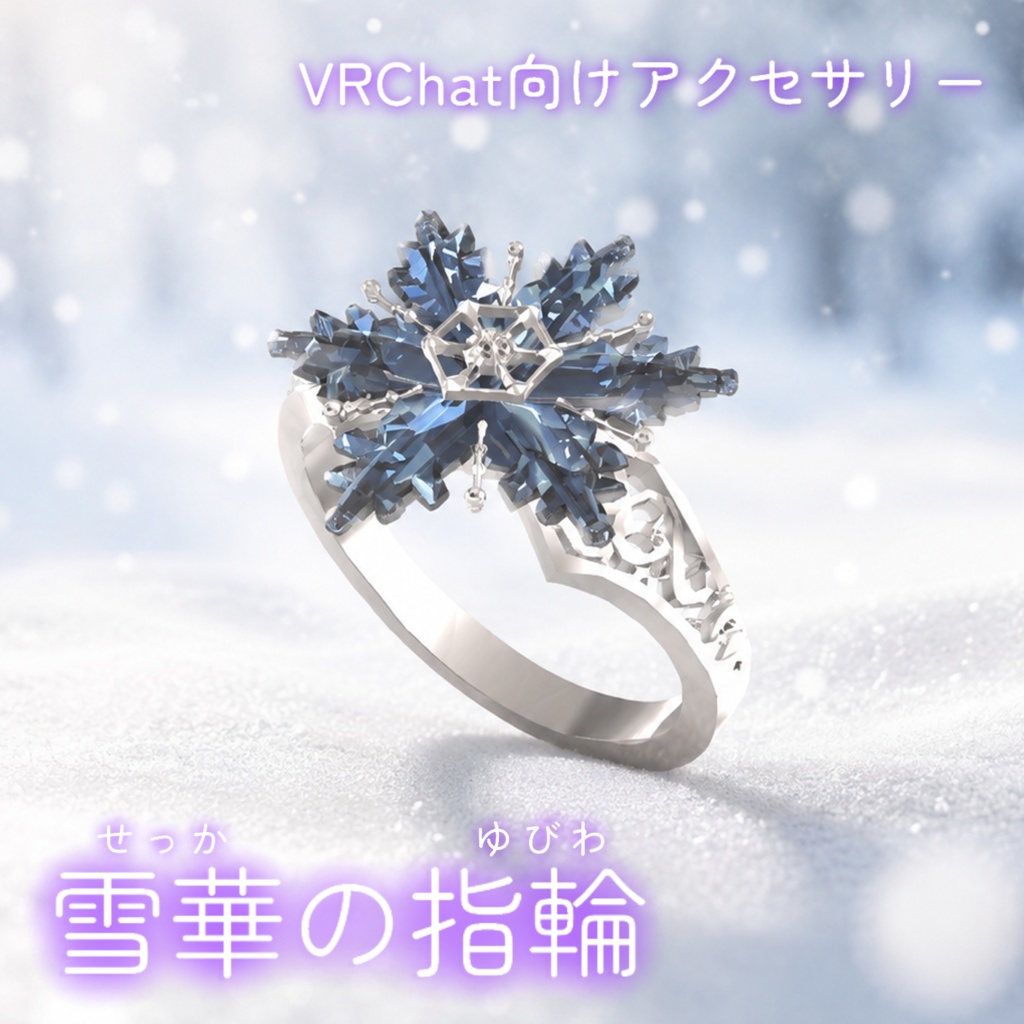
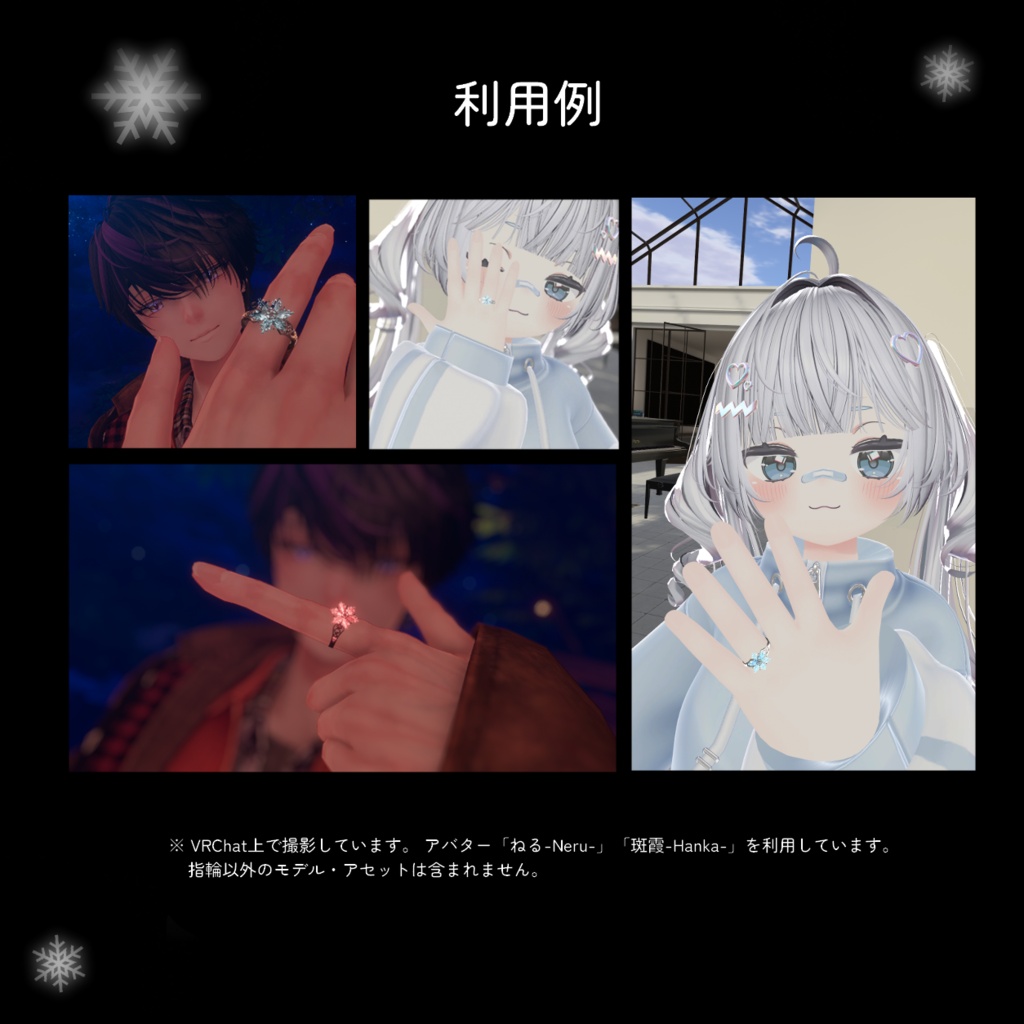
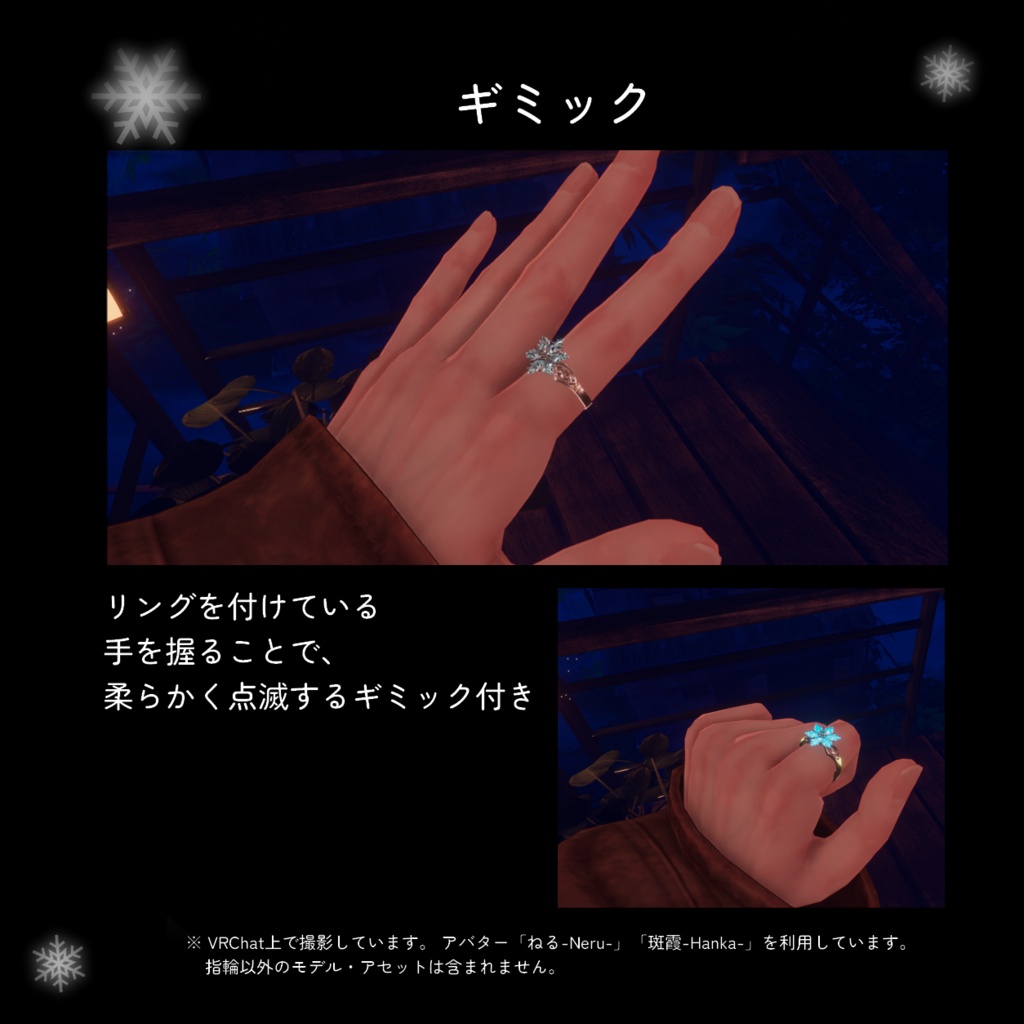


雪の結晶をモチーフにした VRChat 想定の指輪アクセサリーです。 つけている手をグーで握ると柔らかく点滅発光するギミックがついています。 指の太さに合わせられる調整用シェイプキー付きで、 どのアバターにも馴染みやすい作りとなっています。
特徴
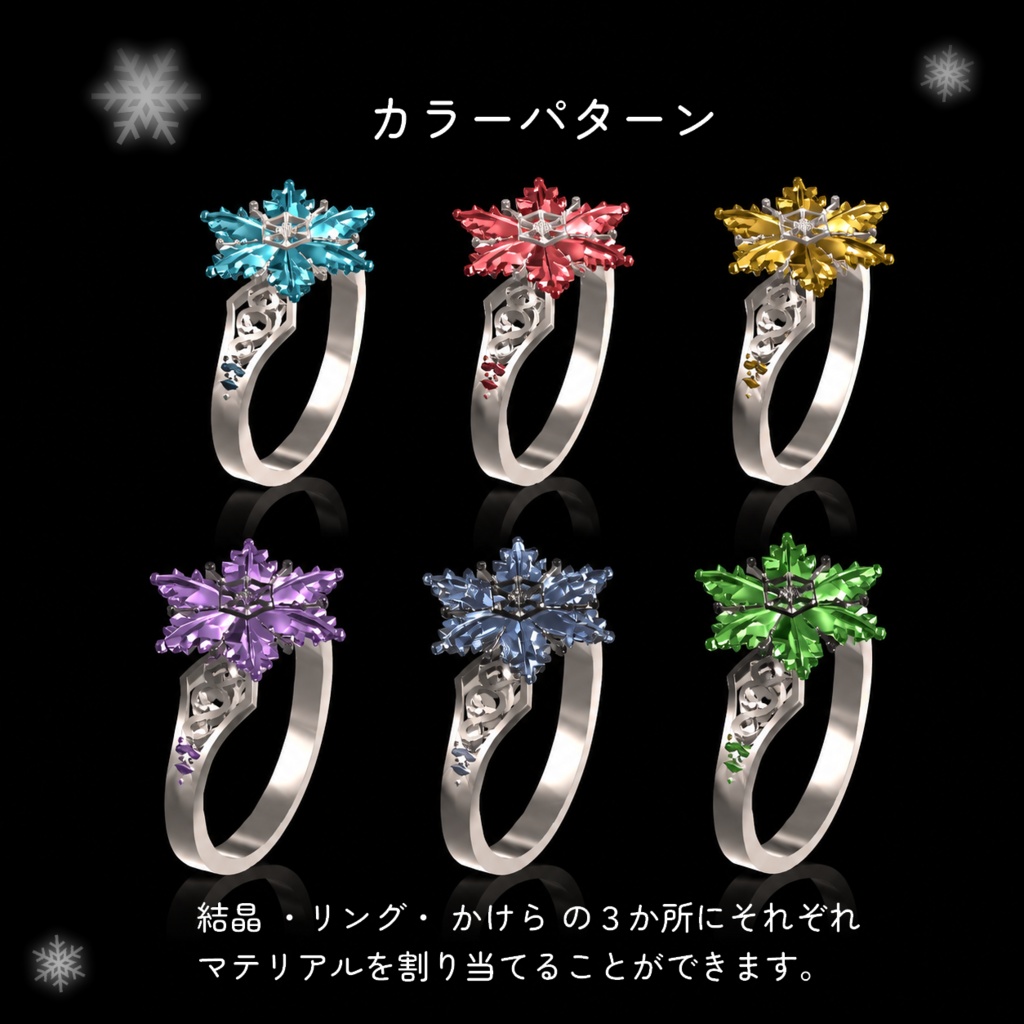
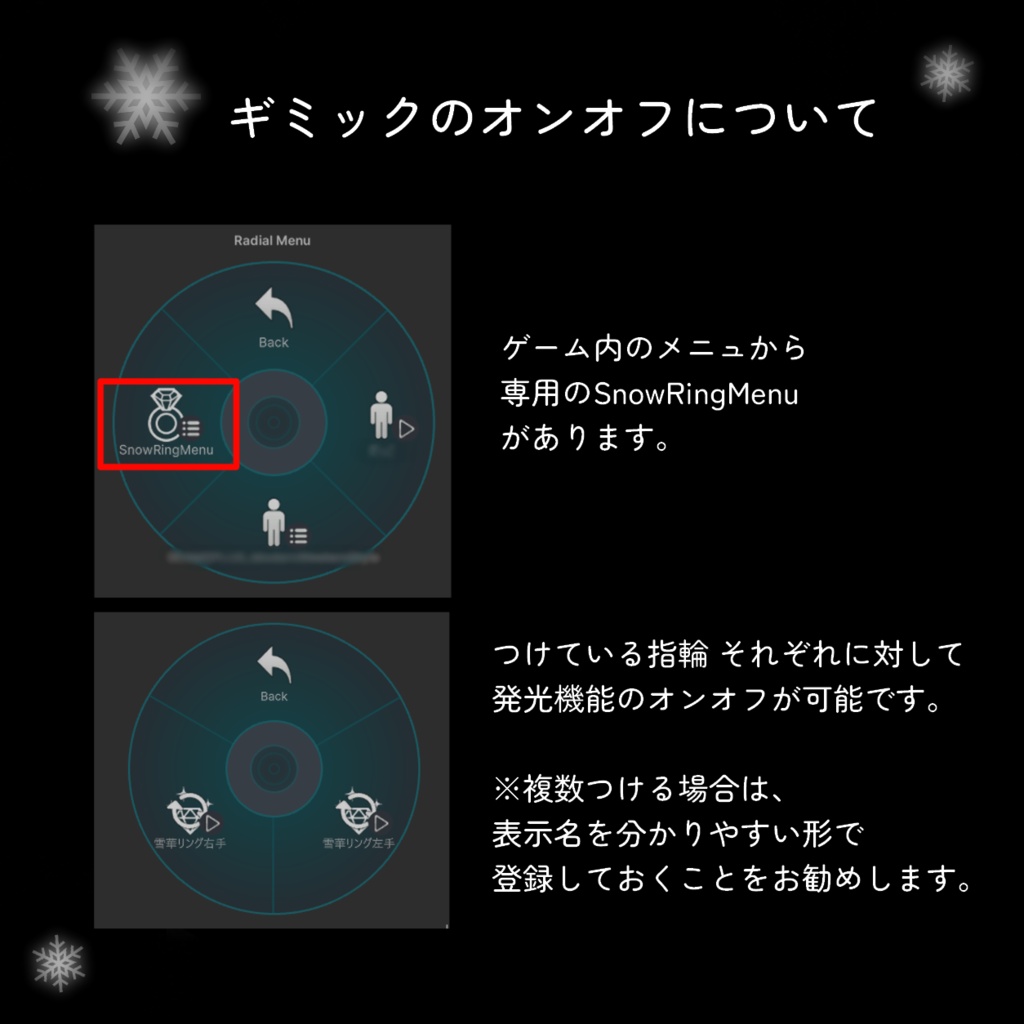
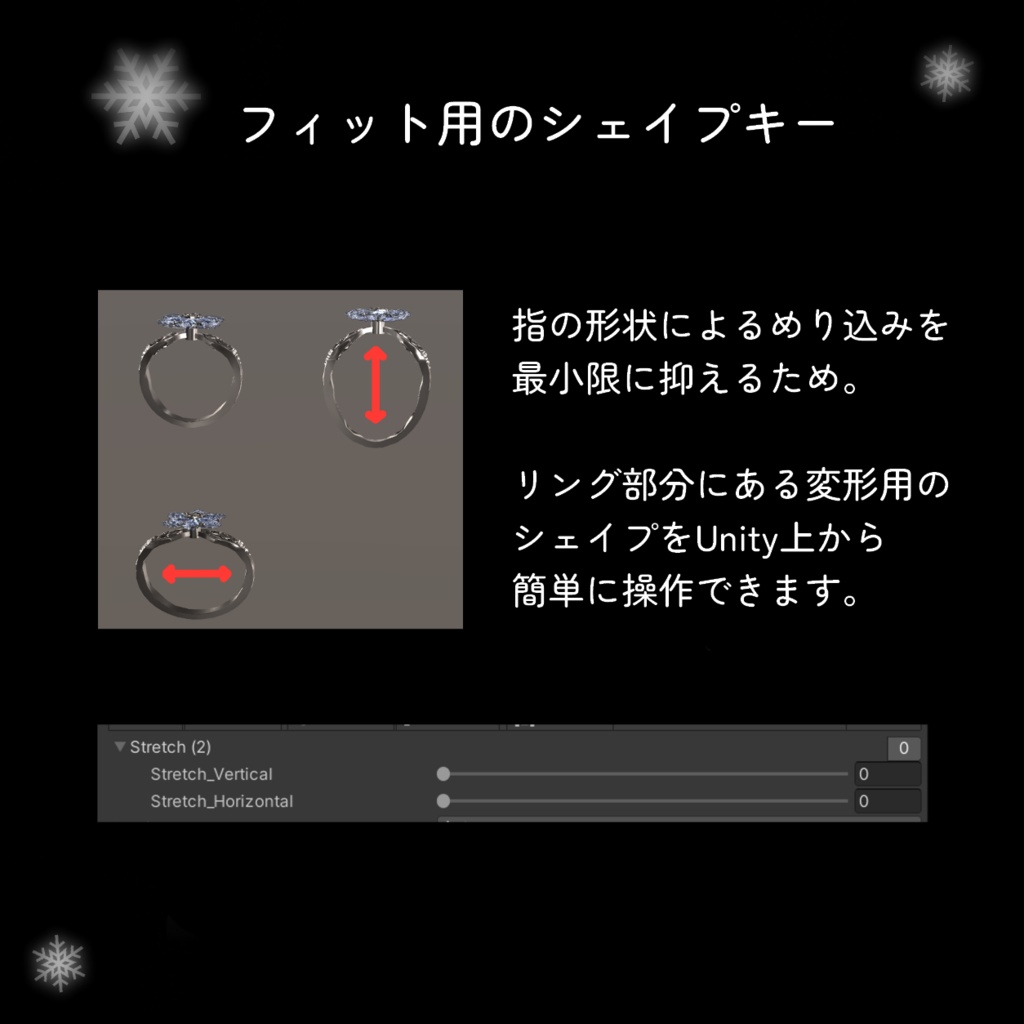
・結晶 / リング / アクセントストーン の 3 マテリアル構成。色替えが簡単です。 ・指輪をつけている手をグーにすると結晶が淡く発光します。開くと元に戻ります。 メニューから ON / OFF 可能。指輪ごとに指定できます。 ・フィッティング用シェイプキー 2種(Stretch_Vertical / Stretch_Horizontal) 内径を縦横それぞれ最大 25% まで拡張可能で指の断面に合わせて調整できます。 ・ポリゴン数 △8,289(三角面換算)。
内容物(unitypackage 展開後)
Assets/Namiton/SnowFlake_Ring/ → Prefab SnowFlakeRing.prefab 指輪本体 MA_SnowRingGimmic.prefab メニュー用 → Model SM_SnowFlake_Ring.fbx メッシュ → Materials → Gem(結晶用 8 種) M_Crystal / M_Gem / M_SkyBlue / M_White M_Green / M_Purple / M_Red / M_Yellow → Ring(金属用 2 種) M_Silver / M_DarkSilver → Animations Ring_Glow_FX. controller 発光ギミック用 Ring_Glow_On.anim / Ring_Glow_Off.anim → Gimmick SnowRing_SubMenu.asset → Textures T_SnowRing.png メニューアイコン T_SnowRing_GripOnOff.png 発光トグル用アイコン → Readme.txt → 導入マニュアル
対応環境
・Unity 2022.3(VRChat SDK3 Avatars) ・lilToon 2.3 以降(2.3.4 で動作確認) [liltoon] https://booth.pm/ja/items/3087170 ・Modular Avatar Modular Avatar 1.18 以降(1.18.1 で動作確認) (未導入の場合、メニューとギミックが動作しません)。 [Modular Avatar] https://modular-avatar.nadena.dev/ja/docs/intro ・PC 向けです。 ※ Quest 対応マテリアルは同梱していません。Quest で使用する場合は VRChat/Mobile 系シェーダーへの差し替えが必要で、発光ギミックは動作しません。
導入方法
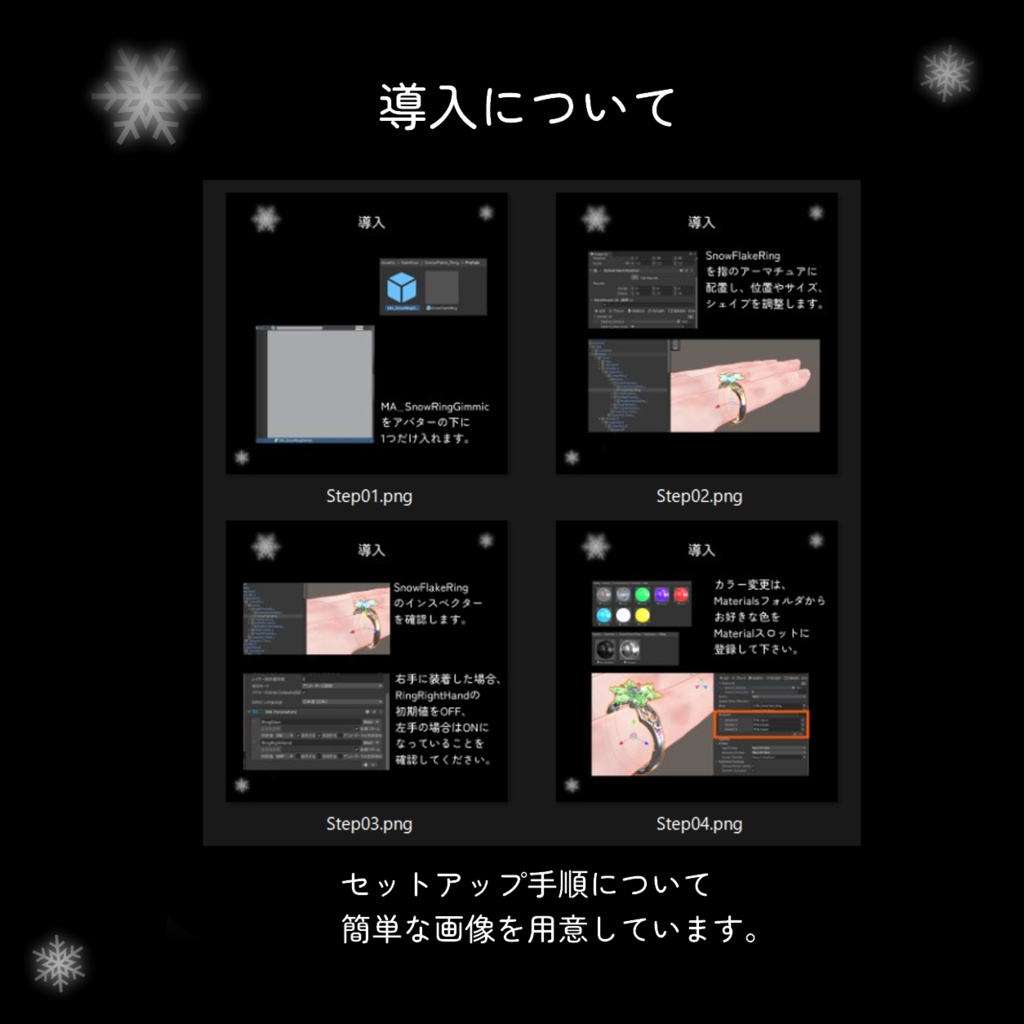
1. lilToon と Modular Avatar を導入した Unity プロジェクトに unitypackage を読み込みます。 2. 「MA_SnowRingGimmic」Prefab をアバター直下に 1 個置きます(指輪の個数に関係なく1 個だけ置いて下さい)。 3. 指輪 「SnowFlakeRing」 Prefab をアバターの指ボーン(例: Hand_L → Index Proximal)の子に置き、位置と向きを合わせます。 4. 右手に着ける場合は、指輪 Prefab の MA Parameters にある「RingRightHand」の初期値を ON にします(初期状態は左手)。 5. 指が太い / 細い場合は、ベーススケールを調整の上、SkinnedMeshRenderer の BlendShapes で Stretch_Vertical(縦)と Stretch_Horizontal(横)を調整します。 6. アップロード後、Expression メニュー「SnowRing」→「Glow」で発光の ON / OFF ができます。
カラーカスタマイズ
1. Prefab を配置後、Hierarchy でリングを選択。 2. Inspector の Skinned Mesh Renderer → Materials に 3 つのスロットがあります。 ・ [0] 金属(バンド・透かし彫り) ・ [1] アクセントストーン ・ [2] 結晶 3. 変えたいスロットへ、Project の Materials フォルダから好きなマテリアルをドラッグ&ドロップ。
▼注意事項
・Unity の基本操作(Prefab の配置、マテリアルの変更)ができる方を想定しています。 ・アバターごとの位置合わせは購入者様側で行っていただきます。 ・Modular Avatar が必須です(未導入の場合、メニューとギミックが動作しません)。 ・lilToon が未導入、または対応バージョンより古い場合、マテリアルがエラー表示になります。 ・発光ギミックはグー(Fist)のハンドサインに反応するため、Fist に表情を割り当てているアバターでは表情と同時に発光します。 ・発光の色は、結晶マテリアルの「発光」の色設定で変更できます。 ・新しい色を作る場合は、同梱の結晶用マテリアル(Materials/Gem)を複製して色だけ変更してください。 新規作成したマテリアルや他製品のマテリアルを結晶スロットに入れると、発光ギミックが動かない・待機中に光り続ける・一瞬ちらつく、といった症状が出ることがあります(発光の内部設定が異なるためです)。 ・商品画像はアバター「ねる-Neru-」( めいこ 様 / Meidollia-Dolls 様 )「斑霞-Hanka-」(よの 様 / ©StudioYONO)を使用しています。アバター本体は付属しません。
▼利用規約
この製品はVN3ライセンス(https://www.vn3.org/)に準じます。 規約全文は以下のリンクよりご確認ください。 https://drive.google.com/drive/folders/157aorKDfNIIbluiBEESTlre8BQrgZvb5?usp=sharing
更新履歴
2026/9/7 - v1.0 公開 2026/9/16 - v2.0 公開
Overview
A snowflake-themed ring accessory designed for VRChat. It comes with a gimmick: make a fist with the hand wearing the ring, and the crystal softly glows. Fitting shape keys let you match the ring to your avatar's finger, so it looks natural on almost any avatar.
Features
- 3 material slots: Crystal / Ring / Accent Stone. Swapping colors is simple. - Make a fist with the hand wearing the ring and the crystal softly glows; open your hand and it fades back. Can be toggled ON / OFF from the Expression menu, individually per ring. - 2 fitting shape keys (Stretch_Vertical / Stretch_Horizontal) Each expands the inner diameter by up to 25%, so you can match the cross-section of the finger. - Polygon count: 8,289 triangles.
Contents
Assets/Namiton/SnowFlake_Ring/ → Prefab SnowFlakeRing.prefab The ring MA_SnowRingGimmic.prefab Expression menu container → Model SM_SnowFlake_Ring.fbx Mesh → Materials → Gem (8 crystal materials) M_Crystal / M_Gem / M_SkyBlue / M_White M_Green / M_Purple / M_Red / M_Yellow → Ring (2 metal materials) M_Silver / M_DarkSilver → Animations Ring_Glow_FX. controller Glow gimmick animator Ring_Glow_On.anim / Ring_Glow_Off.anim → Gimmick SnowRing_SubMenu.asset → Textures T_SnowRing.png Menu icon T_SnowRing_GripOnOff.png Glow toggle icon → Readme.txt → Manual
Requirements
- Unity 2022.3 (VRChat SDK3 Avatars) - lilToon 2.3 or later (tested with 2.3.4) [lilToon] https://booth.pm/ja/items/3087170 - Modular Avatar 1.18 or later (tested with 1.18.1) (Without it, the menu and the gimmick will not work.) [Modular Avatar] https://modular-avatar.nadena.dev/en/docs/intro - PC only. Quest-compatible materials are not included. To use on Quest, you must switch to VRChat/Mobile shaders, and the glow gimmick will not work.
Setup
1. Import the unitypackage into a Unity project that already has lilToon and Modular Avatar installed. 2. Place one "MA_SnowRingGimmic" Prefab directly under the avatar root (only one, regardless of how many rings you use). 3. Place the "SnowFlakeRing" Prefab as a child of a finger bone on your avatar (e.g. Hand_L -> Index Proximal), then adjust its position and rotation. 4. To wear it on the right hand, turn on the default value of "RingRightHand" in the ring Prefab's MA Parameters (left hand by default). 5. If the finger is thicker or thinner than the ring, adjust the base scale first, then fine-tune with the BlendShapes on the SkinnedMeshRenderer: Stretch_Vertical (vertical) and Stretch_Horizontal (horizontal). 6. After uploading, open Expression menu "SnowRing" -> "Glow" to toggle the glow ON / OFF.
Color Customization
1. After placing the Prefab, select the ring in the Hierarchy. 2. In the Inspector, open Skinned Mesh Renderer -> Materials. There are 3 slots: - [0] Metal (band and filigree) - [1] Accent stone - [2] Crystal 3. Drag and drop any material from the Materials folder in the Project window onto the slot you want to change.
Notes
- Basic Unity skills are assumed (placing Prefabs, changing materials). - Position adjustment for each avatar is up to the buyer. - Modular Avatar is required. Without it, the menu and the gimmick will not work. - If lilToon is not installed, or is older than the supported version, the materials will show as errors. - The glow gimmick reacts to the Fist hand sign. On avatars with a facial expression assigned to Fist, the expression and the glow will trigger together. - The glow color can be changed in the crystal material's Emission color setting. - To create a new color, duplicate one of the included crystal materials (Materials/Gem) and change only the color. Putting a newly created material or a material from another product into the crystal slot may cause the gimmick to stop working, glow constantly while idle, or flicker briefly (the internal emission settings differ). - Product images show the avatar "Neru" (by Meiko / Meidollia-Dolls) "Hanka" (by Yono / ©StudioYONO). The avatar itself is not included.
Terms of Use
This product is provided under the VN3 License (https://www.vn3.org/). Please read the full terms at the link below: https://drive.google.com/drive/folders/157aorKDfNIIbluiBEESTlre8BQrgZvb5?usp=sharing
Changelog
2026/09/07 - v1.0 Released 2026/9/16 - v2.0 Released