
【配信者さん向け】声に反応して波形っぽいのが出るやつ┆OBSで設定!
- Voice Wave2.3ダウンロード商品¥ 300
- ご支援用!中身は一緒ですダウンロード商品¥ 500
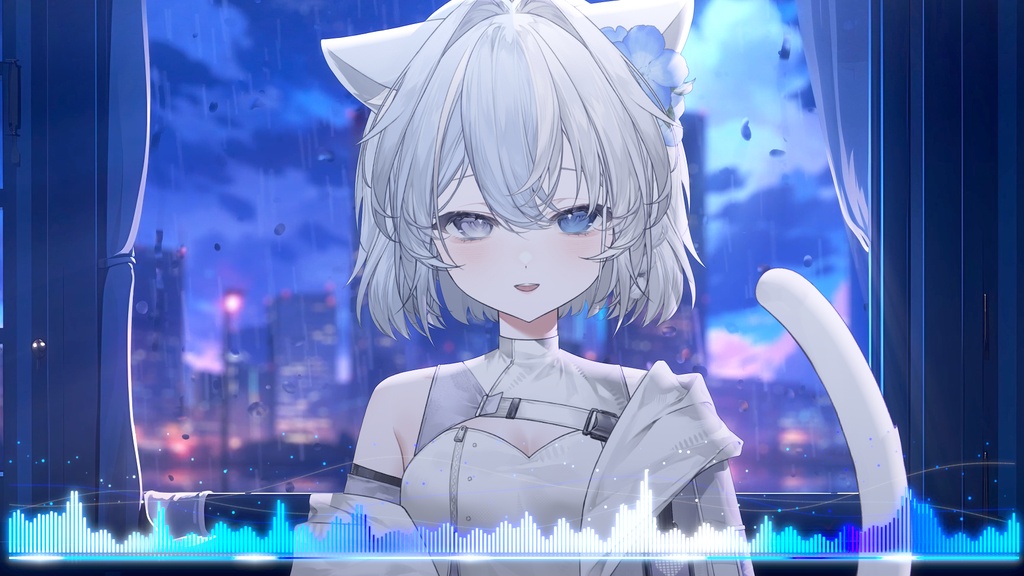
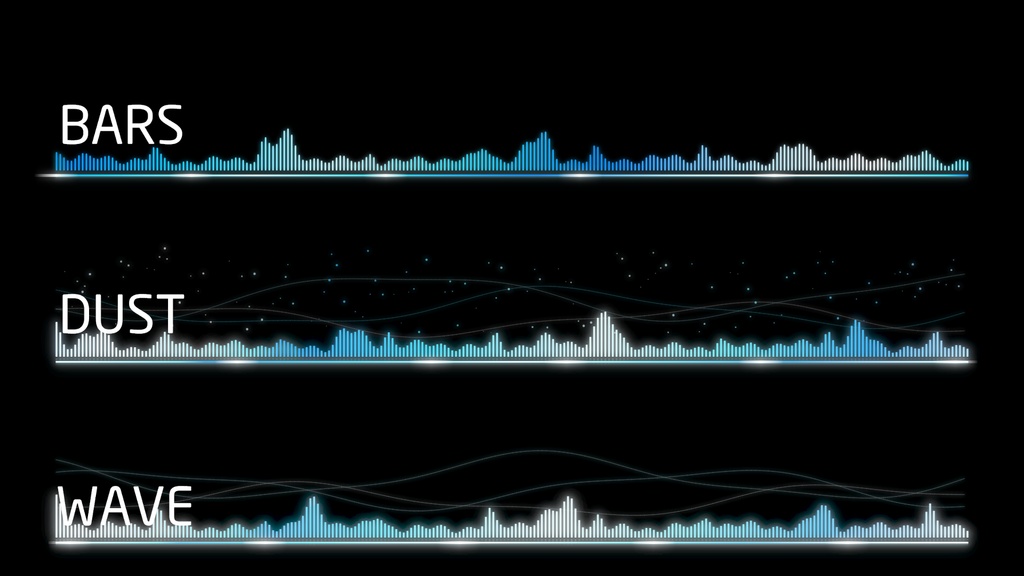
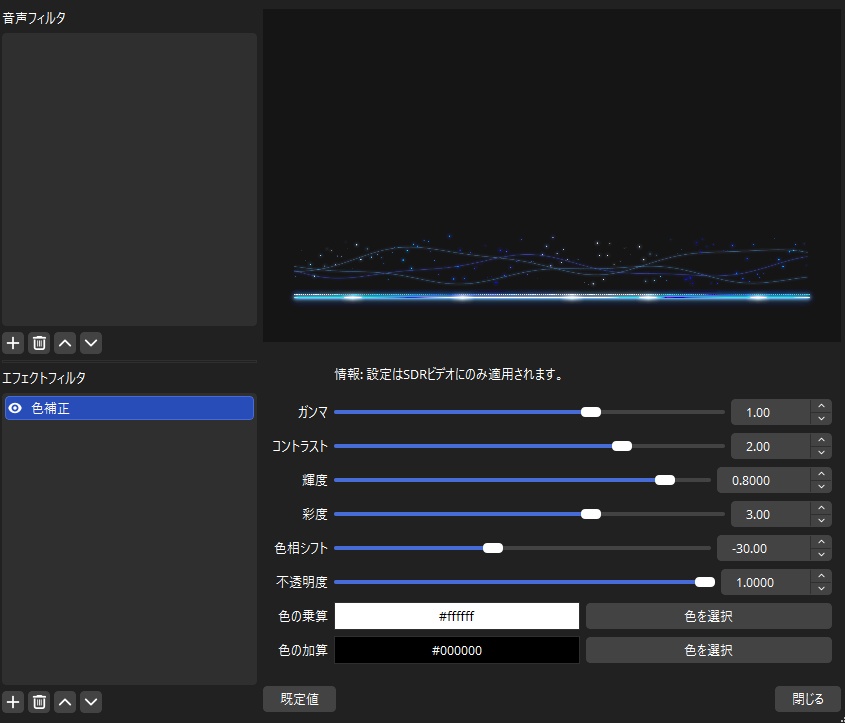


配信にて使用できる OBSのマイクに反応して動く波形っぽいやつです バリエーションは3種類 ・BARS ・DUST ・WAVE ブレンド方法を 「SRGBオフ」にするとキレイに見えます 色合いはフィルタの 色補正で変更して下さい ⚠️何か不具合がある場合はDM下さい⚠️  ̄ ̄ ̄ ̄ ̄ ̄ ̄ ̄ ̄ ̄ ̄ ̄ ̄ ̄ ̄ ̄ ̄ ̄ ̄ ̄ ̄ ̄ ̄ ̄ ̄ ̄ 2026/09/24 Version2を調整中 2026/09/25 旧htmlを削除しVersion2のみに以降しました 2026/09/26 Voice_Wave_Ver2.1を公開しました UIの変更、言語が選べるようになりました 2026/09/28 Version2の販売を停止しVersion2.1のみ販売にしました 2026/09/29 Version2.2 内容の記載を少し変更しました 2026/10/04 Version2.2に移行しました 2026/10/17 Version2.3にバージョンアップしました ミュートした際に波形が反応しなくなりました  ̄ ̄ ̄ ̄ ̄ ̄ ̄ ̄ ̄ ̄ ̄ ̄ ̄ ̄ ̄ ̄ ̄ ̄ ̄ ̄ ̄ ̄ ̄ ̄ ̄ ̄ This is a waveform-style visualizer for use in streams that reacts to your OBS microphone input. It comes in three variations: ・BARS ・DUST ・WAVE For the best visual quality, set the blending method to "sRGB Off." You can adjust the colors using the "Color Correction" filter. ⚠️ Please send me a DM if you encounter any issues ⚠️  ̄ ̄ ̄ ̄ ̄ ̄ ̄ ̄ ̄ ̄ ̄ ̄ ̄ ̄ ̄ ̄ ̄ ̄ ̄ ̄ ̄ ̄ ̄ ̄ ̄ ̄ 2026/09/24 Version 2 currently under adjustment 2026/09/25 Removed the old HTML file; switched exclusively to Version 2 2026/09/26 Released Voice_Wave_Ver2.1 Updated UI and added language selection 2026/09/28 Discontinued sales of Version 2; now selling only Version 2.1 2026/09/29 Version 2.2 – Slightly modified the description details 2026/10/04 Switched to Version 2.2 2026/10/17 Updated to Version 2.3 The waveform no longer reacts when muted.
🧊Version2.3の設定方法🫧
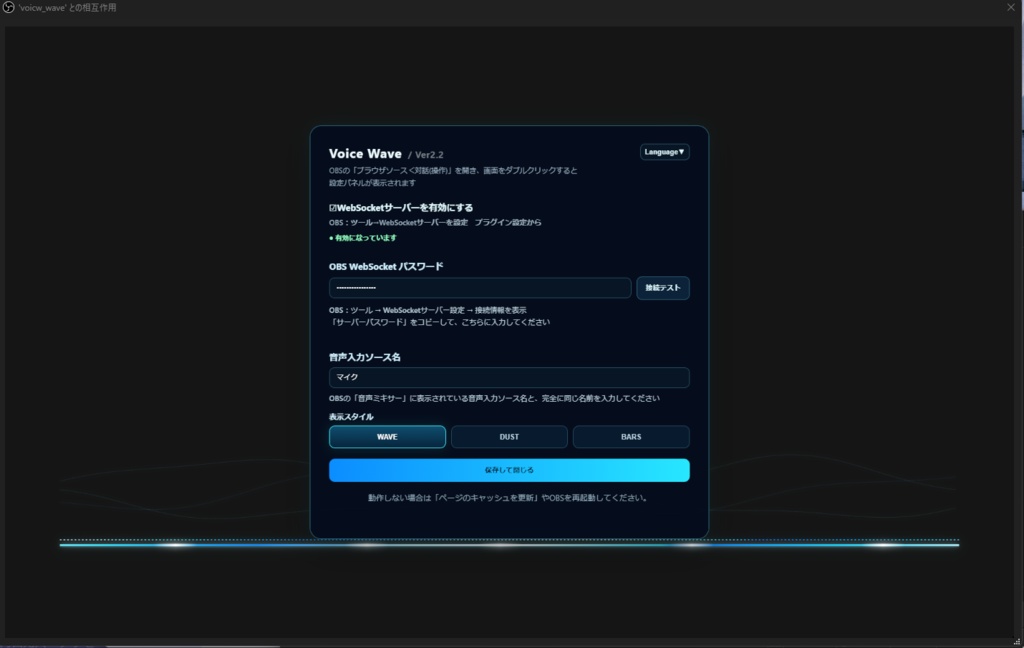
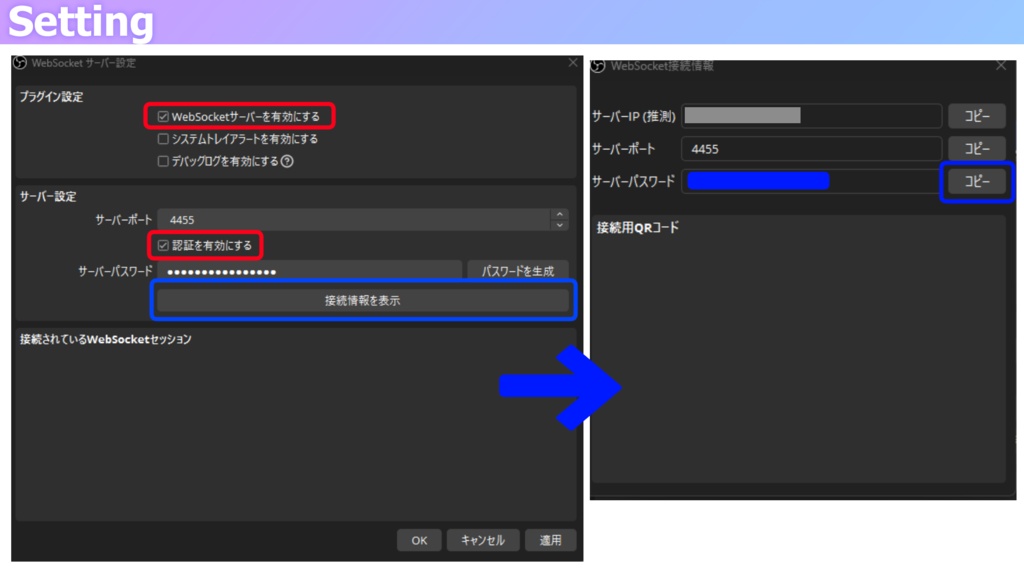
ツール < WebSocketサーバー設定 WebSocketサーバーを有効にする こちらに✅を入れてください ⋯⋯⋯⋯⋯⋯⋯⋯⋯⋯⋯⋯⋯⋯⋯ OBS内にブラウザを追加します ローカルファイルに✅を入れhtmlを参照します 幅 1920 高さ 1080 OBS下部に出てくる「対話(操作)」を押して設定を行います 「対話(操作)」を押して画面を2回クリックすると設定画面が開きますので、再設定も可能です。 言語も選べるようになりました ⋯⋯⋯⋯⋯⋯⋯⋯⋯⋯⋯⋯⋯⋯⋯ サーバーパスワードの取得方法 ツール < WebSocketサーバー設定 接続情報を表示というボタンを押すと パスワードを確認できます ⚠️パスワードは外部に漏れないよう気を付けて下さい _______________ Tools < WebSocket Server Settings Enable the WebSocket server Please check this box (✅) ⋯⋯⋯⋯⋯⋯⋯⋯⋯⋯⋯⋯⋯⋯⋯ Add a "Browser" source in OBS Check the "Local file" box and select the HTML file Width: 1920 Height: 1080 Click "Interact" at the bottom of the OBS window to configure the settings Clicking "Interact" and then clicking the screen twice will open the settings menu, allowing you to reconfigure settings if needed. You can now select the language as well ⋯⋯⋯⋯⋯⋯⋯⋯⋯⋯⋯⋯⋯⋯⋯ How to retrieve the server password Tools < WebSocket Server Settings Click the "Show connection info" button to view the password ⚠️ Please be careful not to let the password leak to others
⚠️注意事項⚠️
クレジットは記載してくれたら嬉しいですが 不要です!記載する際は下記をお願いいたします ⋯⋯⋯⋯⋯⋯⋯⋯⋯⋯⋯⋯⋯ 波形素材 kiryu https://kiriumi.booth.pm/ ⋯⋯⋯⋯⋯⋯⋯⋯⋯⋯⋯⋯⋯ 下記を許可します ・OBS内にてフィルタで色味などを変更する ・商用利用 下記は許可しません ・再配布 ・自作発言
⚠️Precautions⚠️
While I appreciate credit, it is not required! If you do choose to credit me, please use the following format: ⋯⋯⋯⋯⋯⋯⋯⋯⋯⋯⋯⋯⋯ Waveform assets by kiryu https://kiriumi.booth.pm/ ⋯⋯⋯⋯⋯⋯⋯⋯⋯⋯⋯⋯⋯ The following are permitted: ・Adjusting colors or other visual settings using OBS filters ・Commercial use The following are not permitted: ・Redistribution ・Claiming the work as your own