
Last Orbit {Warudo URP} - Warudo Environment
- ダウンロード商品¥ 4,200
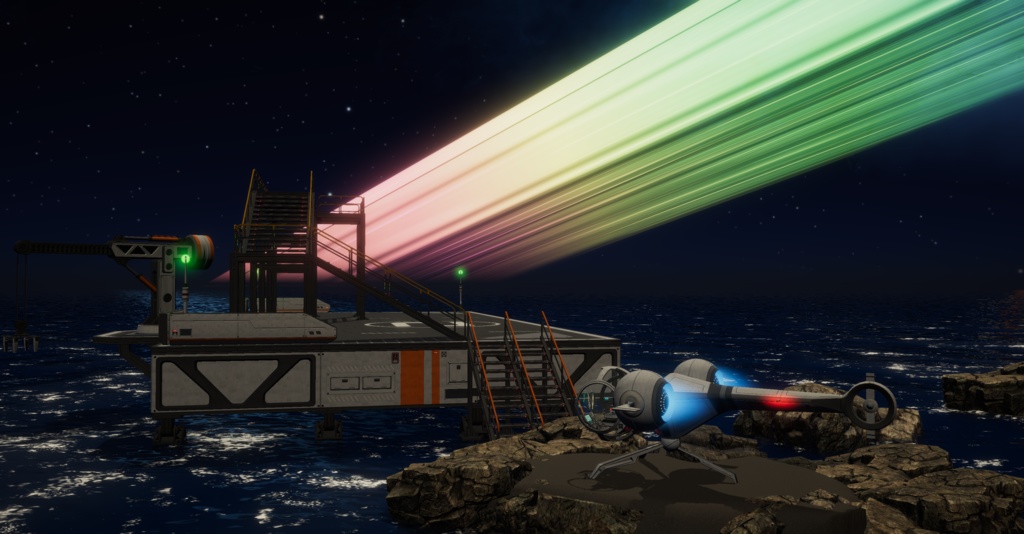
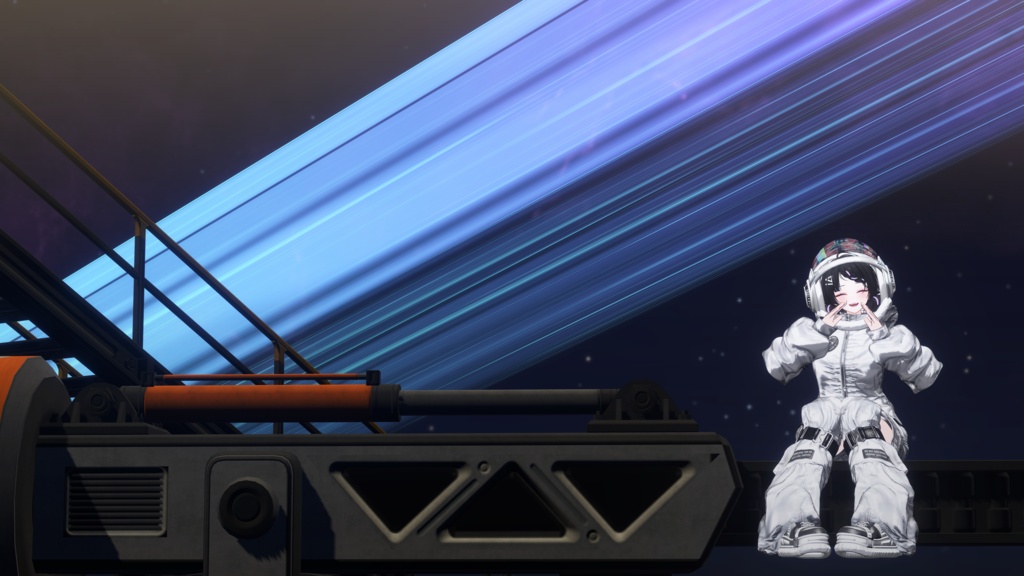
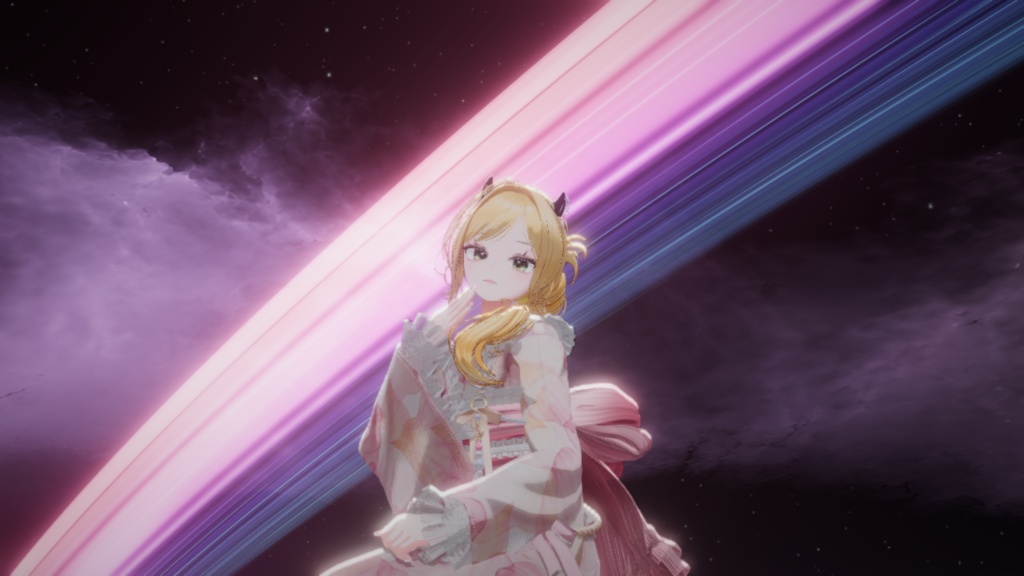
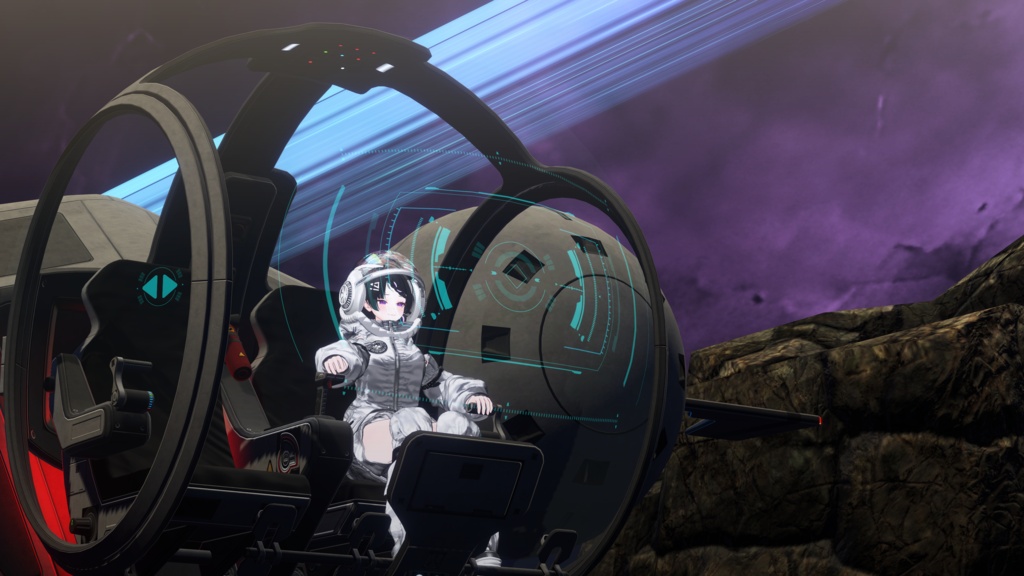
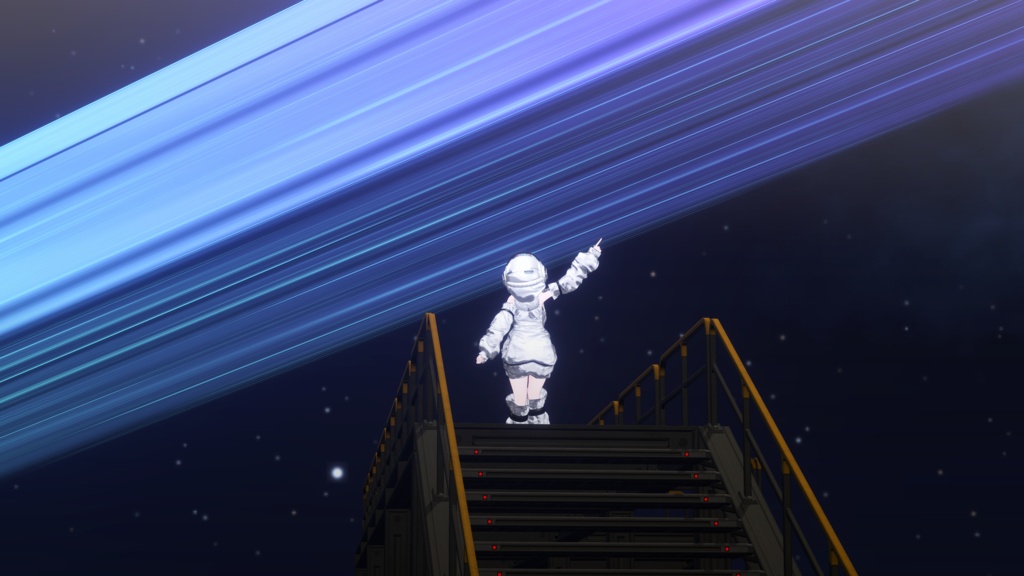
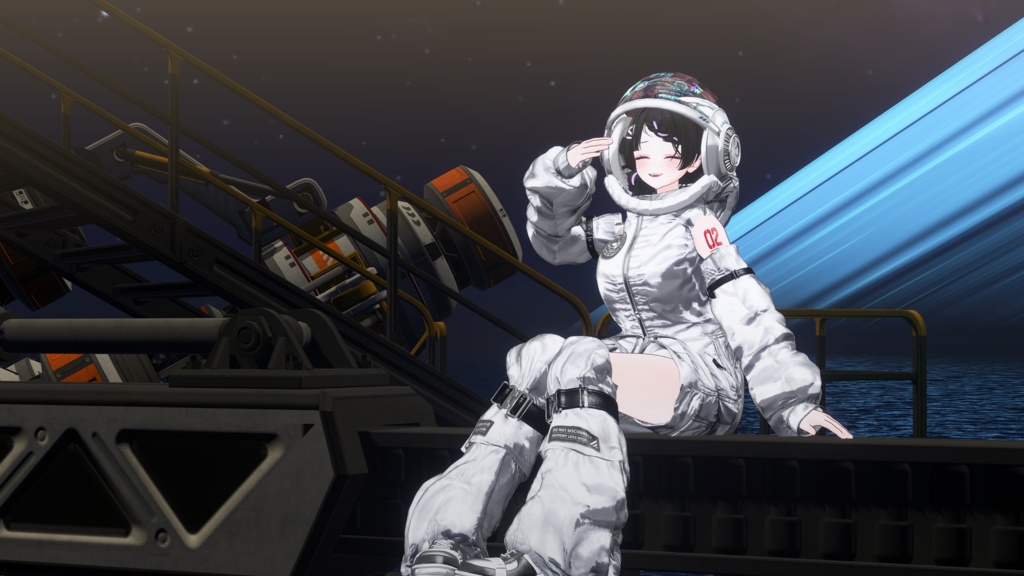


--한국어 Warudo Pro(URP) 전용 우주 배경입니다 성운과 빛나는 링으로 몽환적인 분위기를 연출할 수 있습니다. 함께 제공되는 환경 조절 에셋으로 링의 색상·그라데이션·형태·움직임과 안개·반사 설정을 원하는 분위기에 맞게 조절해 보세요! 【파일 구성】 ・Warudo 배경 파일 [.warudo] ・포스트 프로세싱 볼륨 ・환경 조절 에셋 ・사용 안내문 안내문 지원 언어: 한국어 · 日本語 · English ※ Warudo Pro의 URP 환경용 상품입니다. 구매 전 사용 중인 버전을 확인해 주세요. 【배경 및 환경 조절 에셋 설치 방법】 ① 데이터 폴더 열기 Warudo에서 **메뉴 → 데이터 폴더 열기(Open Data Folder)**를 선택해 주세요. ② 배경 파일 설치 열린 데이터 폴더의 Environments 폴더에 제공된 .warudo 배경 파일을 넣어 주세요. ③ 환경 조절 코드 설치 같은 데이터 폴더의 Playground 폴더에 OrbitEnvironmentControl.cs 파일을 넣어 주세요. Playground 폴더가 없다면 같은 이름으로 새 폴더를 만들어 주세요. 설치 위치: ・배경 파일 → Environments ・OrbitEnvironmentControl.cs → Playground ※ 압축을 해제한 뒤 파일을 넣어 주세요. .cs 파일은 수정하거나 내용을 복사할 필요 없이, 파일 자체를 넣으면 됩니다. ④ 배경 선택 파일 설치 후 Warudo를 다시 실행해 주세요. **환경(Environment) 에셋 → 소스(Source)**에서 구매한 배경을 선택해 주세요. ⑤ 환경 조절 에셋 추가 **에셋 추가(+ / Add Asset) → 환경(Environment)**에서 Orbit 환경 조절을 추가해 주세요. 조절 에셋의 조절 사용을 켜고, 상태에 연결됨이 표시되는지 확인해 주세요. 연결되면 링의 색상·그라데이션·무지개·형태·위치·움직임과 안개·반사 설정을 조절할 수 있습니다. ⑥ 씬 저장 설정이 끝나면 Warudo 메뉴에서 씬을 저장해 주세요. 【목록에 환경 조절 에셋이 나타나지 않을 때】 ・파일이 Playground/OrbitEnvironmentControl.cs 위치에 있는지 확인해 주세요. ・압축 파일이나 하위 폴더 안에 들어가 있지 않은지 확인해 주세요. ・Warudo를 완전히 종료한 뒤 다시 실행해 주세요. ・스크립트 컴파일 오류 알림이 나타나면 오류 내용과 화면을 함께 보내 주세요. --日本語 Warudo Pro(URP)専用の宇宙背景です 星雲と輝くリングで、幻想的な雰囲気を演出できます。 付属の環境調整アセットを使って、リングの色・グラデーション・形状・動きや、霧・反射の設定をお好みに合わせて調整してください! 【同梱ファイル】 ・Warudo背景ファイル [.warudo] ・ポストプロセッシングボリューム ・環境調整アセット ・ご利用ガイド ガイド対応言語:한국어 · 日本語 · English ※ Warudo ProのURP環境向けの商品です。ご購入前に、ご利用のバージョンをご確認ください。 【背景と環境調整アセットの導入方法】 ① データフォルダーを開く Warudoのメニュー → Open Data Folderを選択してください。 ② 背景ファイルを配置する 開いたデータフォルダー内のEnvironmentsフォルダーに、付属の.warudo背景ファイルを入れてください。 ③ 環境調整スクリプトを配置する 同じデータフォルダー内のPlaygroundフォルダーに、OrbitEnvironmentControl.csを入れてください。 Playgroundフォルダーがない場合は、同じ名前で新しく作成してください。 配置先: ・背景ファイル → Environments ・OrbitEnvironmentControl.cs → Playground ※ 圧縮ファイルを展開してから配置してください。.csファイルは編集や内容のコピーをせず、ファイルそのものを入れてください。 ④ 背景を選択する ファイルの配置後、Warudoを再起動してください。 環境(Environment)アセット → Sourceで、購入した背景を選択してください。 ⑤ 環境調整アセットを追加する + / Add Asset → Environmentから、Orbit 環境調整を追加してください。 環境調整アセットの調整を使用をオンにし、ステータスに接続済みと表示されることを確認してください。 接続後は、リングの色・グラデーション・虹色・形状・位置・動きや、霧・反射の設定を調整できます。 ⑥ シーンを保存する 設定が完了したら、Warudoのメニューからシーンを保存してください。 【環境調整アセットが一覧に表示されない場合】 ・ファイルがPlayground/OrbitEnvironmentControl.csに配置されているか確認してください。 ・圧縮ファイルやサブフォルダーの中に入っていないか確認してください。 ・Warudoを完全に終了してから再起動してください。 ・スクリプトのコンパイルエラー通知が表示された場合は、エラー内容とスクリーンショットを添えてお問い合わせください。 --English A space environment exclusively for Warudo Pro (URP) Create a dreamy atmosphere with nebulae and a glowing ring. Use the included environment control asset to customize the ring’s colors, gradients, shape and movement, along with fog and reflection settings, to suit your scene! 【Included Files】 ・Warudo environment file [.warudo] ・Post-processing volume ・Environment control asset ・User guide Guide languages: 한국어 · 日本語 · English ※ This product is intended for the URP rendering pipeline in Warudo Pro. Please check your version before purchasing. 【Installing the Environment and Controls】 ① Open the data folder In Warudo, select **Menu → Open Data Folder**. ② Install the environment file Place the supplied `.warudo` environment file in the **Environments** folder inside the data folder. ③ Install the environment control script Place `OrbitEnvironmentControl.cs` in the **Playground** folder inside the same data folder. If the Playground folder does not exist, create a folder with that exact name. File locations: ・Environment file → Environments ・OrbitEnvironmentControl.cs → Playground ※ Extract the package before installing the files. Place the `.cs` file itself in the folder; you do not need to edit it or copy its contents. ④ Select the environment Restart Warudo after installing the files. Select the purchased environment under **Environment asset → Source**. ⑤ Add the environment control asset Open **Add Asset (+) → Environment** and add **Orbit Environment Controls**. Turn on **Enable controls** and check that the status reads **Connected**. Once connected, you can adjust the ring’s colors, gradients, rainbow mode, shape, position and movement, along with fog and reflection settings. ⑥ Save your scene When setup is complete, save your scene from the Warudo menu. 【If the Environment Control Asset Does Not Appear】 ・Check that the script is located at `Playground/OrbitEnvironmentControl.cs`. ・Check that it is not still inside an archive or a subfolder. ・Close Warudo completely and restart it. ・If a script compilation error notification appears, send the error text and a screenshot when requesting support.
Terms of Service
--한국어 【라이선스 안내】 본 상품은 1인 1라이선스를 원칙으로 합니다. 본 상품의 파일은 구매자 본인만 사용할 수 있습니다. ・다른 사람에게 배경 적용·수정·세팅 등의 작업을 의뢰하는 경우, 작업자와 실제 사용자 모두 본 상품을 각각 구매하여 라이선스를 소유해야 합니다. ・같은 팀이나 회사에 소속되어 있더라도 사용자마다 별도의 라이선스가 필요합니다. ・하나의 라이선스를 여러 명이 공동으로 사용하는 행위는 허용되지 않습니다. ・상품 파일을 타인에게 공유·배포하는 행위는 허용되지 않습니다. --日本語 【ライセンスについて】 本商品は、**1名につき1ライセンス**を原則とします。 本商品のファイルを使用できるのは、購入者ご本人のみです。 ・第三者に背景の導入・改変・設定などの作業を依頼する場合、**作業者と実際の利用者の双方が、それぞれ本商品を購入し、各自のライセンスを保有する必要があります。** ・同じチームや会社に所属している場合でも、利用者ごとに個別のライセンスが必要です。 ・1つのライセンスを複数人で共同利用することは許可されていません。 ・商品ファイルを他の方に共有・配布することは許可されていません。 --English 【License Information】 This product is licensed on a **one-person, one-license basis**. Only the purchaser may use the files included with this product. ・When commissioning another person to install, modify or configure the environment, **both the person performing the work and the actual user must each purchase this product and hold their own license.** ・A separate license is required for each user, even when they belong to the same team or company. ・Sharing a single license between multiple people is not permitted. ・Sharing or distributing the product files to others is not permitted. ---For questions or error reports, please contact: E-mail: lunevestudio1@gmail.com or DM