
OBS Mute Switch|ひと押しでマイクをミュート【Windows・日本語/English】
- ダウンロード商品¥ 500
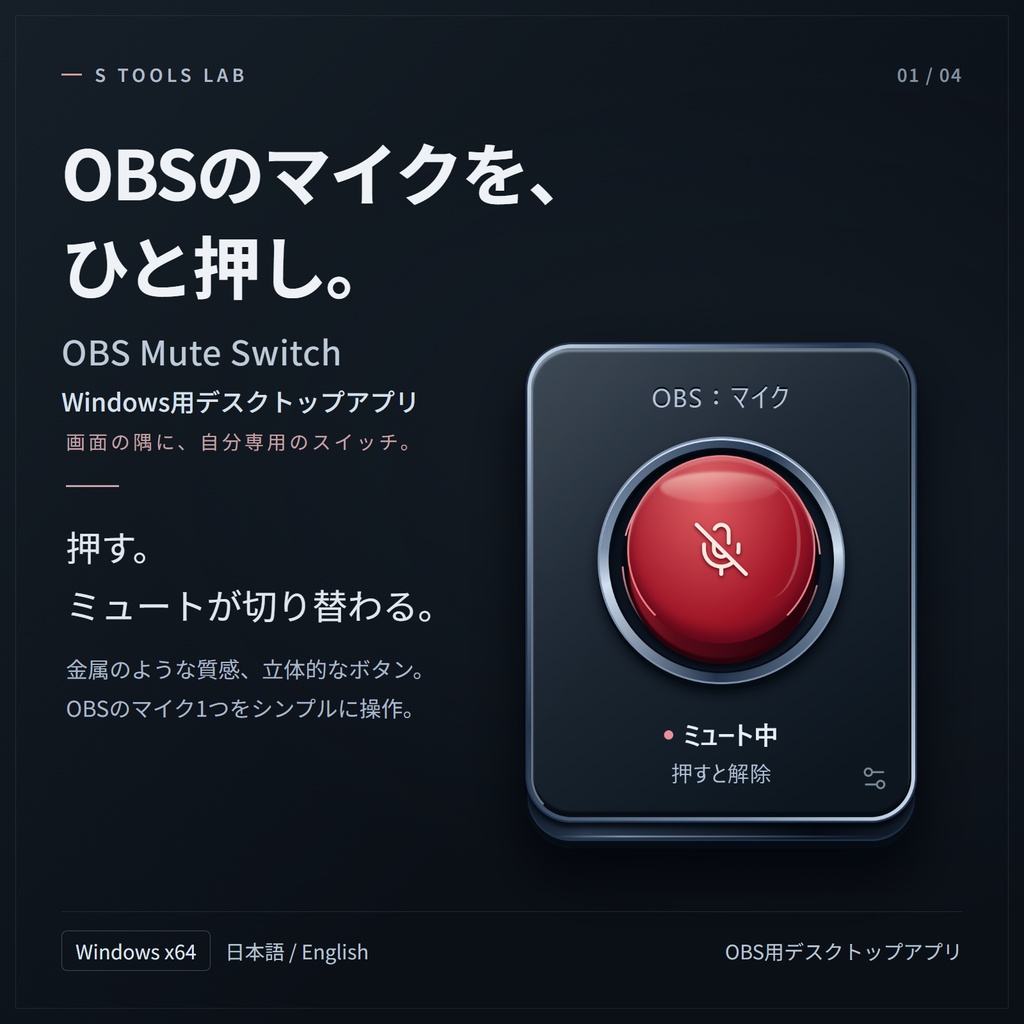
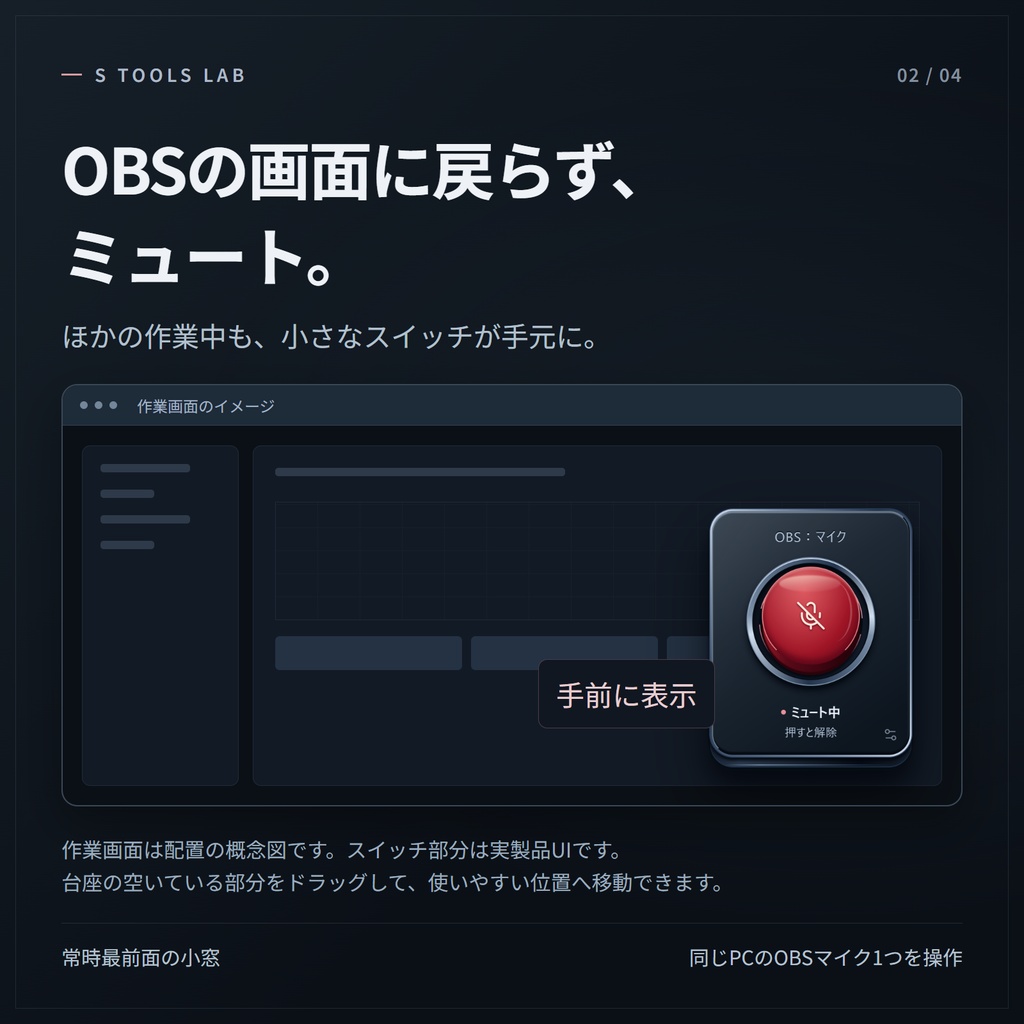
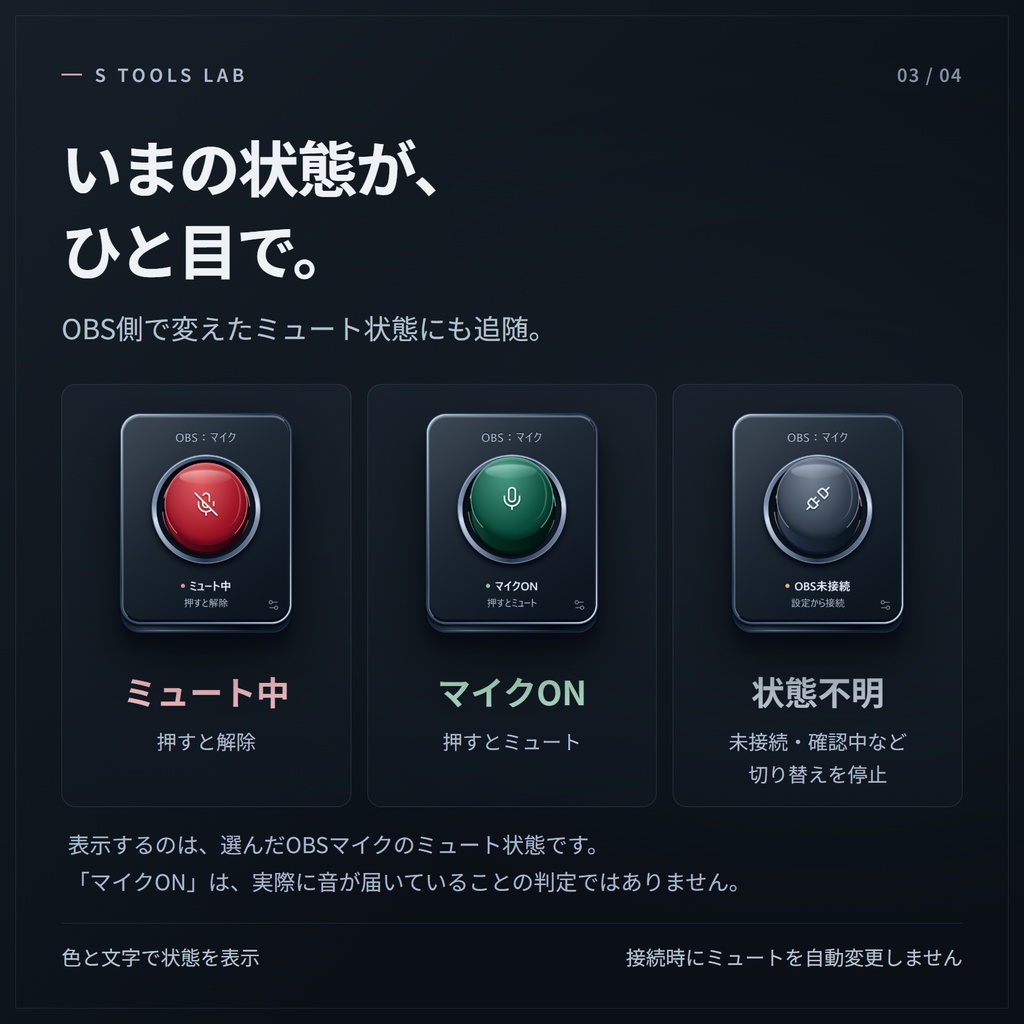
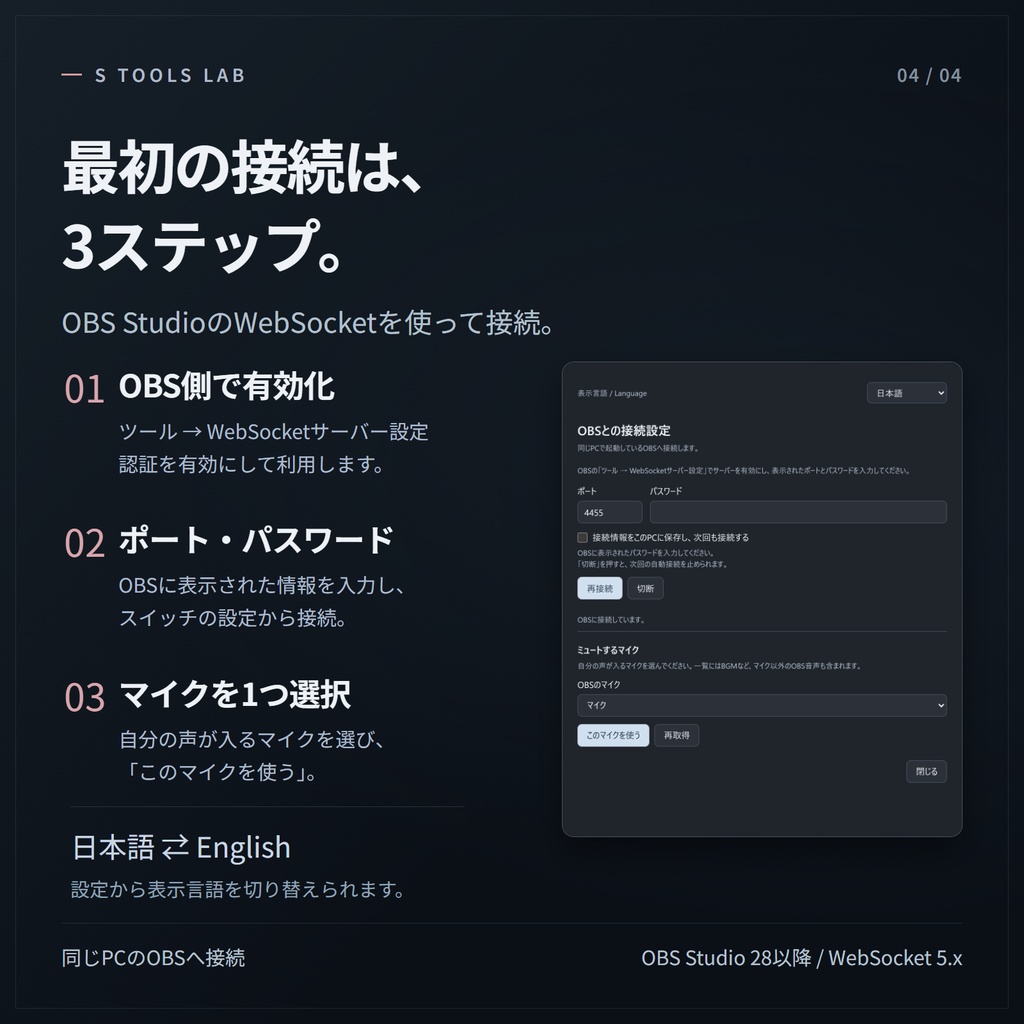


OBSのマイクを、ひと押し。 OBS Mute Switchは、OBSに入る自分のマイク1つを、画面の隅のボタンでミュート・解除できるWindowsアプリです。 作業中に、ちょっと声を止めたいとき。 OBSの画面に戻らず、手元のスイッチをぽちっと。 金属のような質感の台座と、押すと沈み込むボタン。触りたくなる見た目に、マイク操作をひとつにまとめました。 【ほかの作業中も、押せる場所に。】 小さなスイッチを常に手前へ表示します。台座の空いている部分をドラッグして、押しやすい位置へ。次回も同じ位置で使えます。 ※排他的なフルスクリーン表示など、最前面の小窓が表示されない環境があります。 【赤と緑で、いまの状態を。】 ・赤「ミュート中」:選んだマイクはミュートされています。 ・緑「マイクON」:選んだマイクのミュートが解除されています。 ・灰色:未接続・未選択・確認中・状態不明。この間は切り替え操作を受け付けません。 OBS側でミュートを変えたときも、ボタンの表示が追随します。接続や再接続だけで、マイクのミュートを勝手に変更しません。 「マイクON」はOBSのミュート解除状態です。実際に声が届いているかを判定する機能ではありません。 【日本語 / Englishに対応】 設定の「表示言語 / Language」で切り替えられます。ボタン、設定、エラー案内、メニューまで対応。選んだ言語は保存されます。 【はじめ方】 1. ZIPをフォルダーごと展開し、「OBS Mute Switch.exe」を起動します。 2. OBSの「ツール → WebSocketサーバー設定」でサーバーを有効にして「適用」または「OK」。認証を有効にしたまま、表示されたポートとパスワードを本アプリへ入力して接続します。 3. 自分のマイクを1つ選んで「このマイクを使う」を押せば準備完了。大きなボタンでミュート・解除できます。 一覧にはマイク以外の音声入力も表示されるため、自分の声が入るマイクを選んでください。exeだけを移動せず、同梱ファイルを同じフォルダーに保ってください。 【対応環境・確認範囲】 ・Windows x64向けのデスクトップアプリです。Windows 11 Proで動作確認しています。Windows 10は本製品での実機未検証です。macOS / Linux / Windows ARM / 32ビット版は配布しません。 ・同じPCで動くOBS Studioと、WebSocket 5.xが必要です。OBS Studio 28以降にはWebSocketが標準搭載されています。初回に有効化と接続設定が必要です。 ・OBS Studio 32.0.4 / obs-websocket 5.6.3で、実マイクのミュート・解除と表示の一致を確認しました。すべての環境での動作を保証するものではありません。 ・操作するのは選んだOBSのマイク1つです。PC全体のマイクやDiscordなど、ほかのアプリのマイクは止まりません。 ・OBSへ接続する独立したアプリです。OBSのプラグインフォルダーへの配置は不要です。 ・未署名のため、Windows SmartScreenなどの警告が出る場合があります。入手元やファイルを確認できない場合は実行せず、ショップへお問い合わせください。 ・本番の配信・録画の前に、OBSの音声ミキサーとボタンの状態が一致することをご確認ください。画面キャプチャに小窓を含めたくない場合は、OBSの取得範囲もご確認ください。 【ダウンロード内容】 OBS Mute Switch 0.1.2(Windows x64) アプリ本体一式、日本語・英語の使い方、ファイル照合用SHA256一覧、第三者ライセンス、検証結果を収録したZIPです。インストーラーは使用しません。 本商品は開発初版です。最新の実マイク検証の要点は、このページの確認範囲に記載しています。同梱の「検証結果.txt」には初版制作時の検証も含みます。 【お問い合わせ】 BOOTHのショップメッセージから、Windows / OBS / 本アプリのバージョン、起きた操作、表示されたエラーをお知らせください。接続用パスワードは送らないでください。 本ツールはS Tools Labが制作した独立した製品です。OBS Projectの公式製品ではなく、提携・承認・後援を受けたものではありません。 ────────── English ────────── Mute your OBS microphone with one press. OBS Mute Switch is a small Windows app that puts a microphone mute button in the corner of your screen. Mute or unmute one microphone in OBS without switching back to the OBS window. A metal-style base, a raised button, and a satisfying press animation bring the feel of a physical switch to your desktop. ALWAYS WITHIN REACH Keep the small window on top of your other work. Drag an empty area of the base to place it where you want; its position is saved. Exclusive fullscreen applications and some window modes may cover the switch. SEE YOUR MUTE STATE Red / Muted: the selected OBS microphone is muted. Green / Mic ON: it is unmuted. Gray: disconnected, not selected, checking, or unknown. Switching is disabled until the state is known. Changes made inside OBS update the button too. Connecting or reconnecting does not automatically change the mute setting. Mic ON reports the OBS input's mute setting. It does not verify that your voice is reaching OBS. JAPANESE AND ENGLISH Choose either language in settings. The button, settings, error messages, and menus are translated. Your choice is saved. GET STARTED 1. Extract the entire ZIP and open OBS Mute Switch.exe. Keep all included files together. 2. In OBS, open Tools > WebSocket Server Settings. Enable the server and click Apply or OK. Keep authentication enabled, then enter the port and server password in the app and connect. 3. Select the microphone carrying your voice and click Use this microphone. Press the large button to mute or unmute it. The list can include other audio inputs; choose your own microphone. REQUIREMENTS AND TESTED SCOPE Windows x64. Tested on Windows 11 Pro; this product has not been tested on Windows 10. No macOS, Linux, Windows ARM, or 32-bit build is provided. OBS Studio on the same PC with WebSocket 5.x enabled is required. WebSocket is included with OBS Studio 28 and later; initial setup is required. Mute/unmute and matching button states were verified with a real microphone in OBS Studio 32.0.4 / obs-websocket 5.6.3. Behavior in every environment is not guaranteed. Controls one selected OBS input. It does not mute the system microphone or other apps such as Discord. This is a separate desktop app; nothing needs to be placed in the OBS plugins folder. The app is unsigned. Windows SmartScreen or similar warnings may appear. If you cannot verify the source or files, do not run them; contact the shop. Check the OBS mixer and button state before a live stream or recording. Check your capture area if you do not want the switch to appear in a screen capture. DOWNLOAD OBS Mute Switch 0.1.2 for Windows x64, supplied as a ZIP containing the app, Japanese and English instructions, SHA256 checksums, third-party licenses, and verification notes. No installer is used. This is an initial development release. The tested scope above includes the latest real-microphone check; the included verification file also records earlier development tests. SUPPORT Contact the shop through BOOTH messages with your Windows, OBS, and app versions, the steps taken, and the error shown. Do not send your WebSocket password. An independent product by S Tools Lab. It is not an official OBS Project product and is not affiliated with, endorsed by, or sponsored by OBS Project.