
Transcribe Captions|動画から縁取り字幕を自動作成(macOS / Windows)
- ダウンロード商品¥ 0
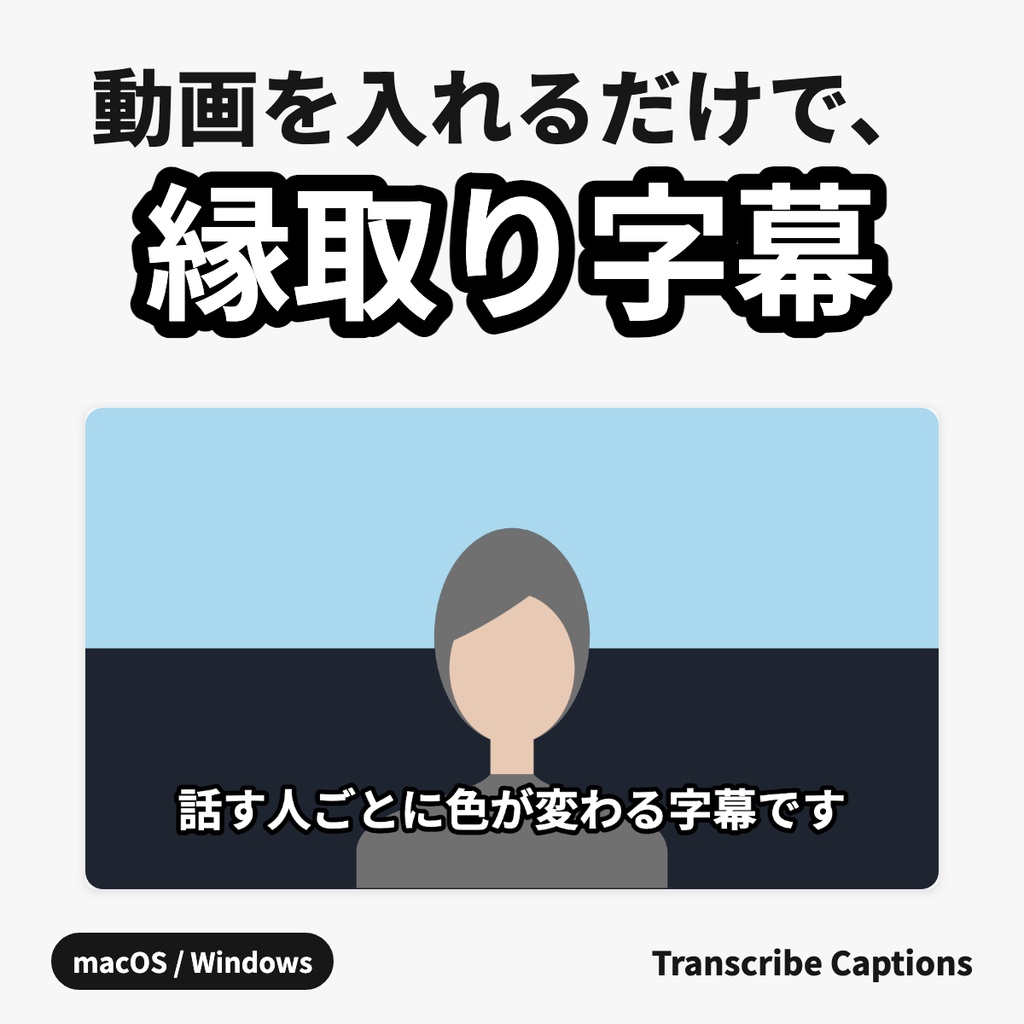
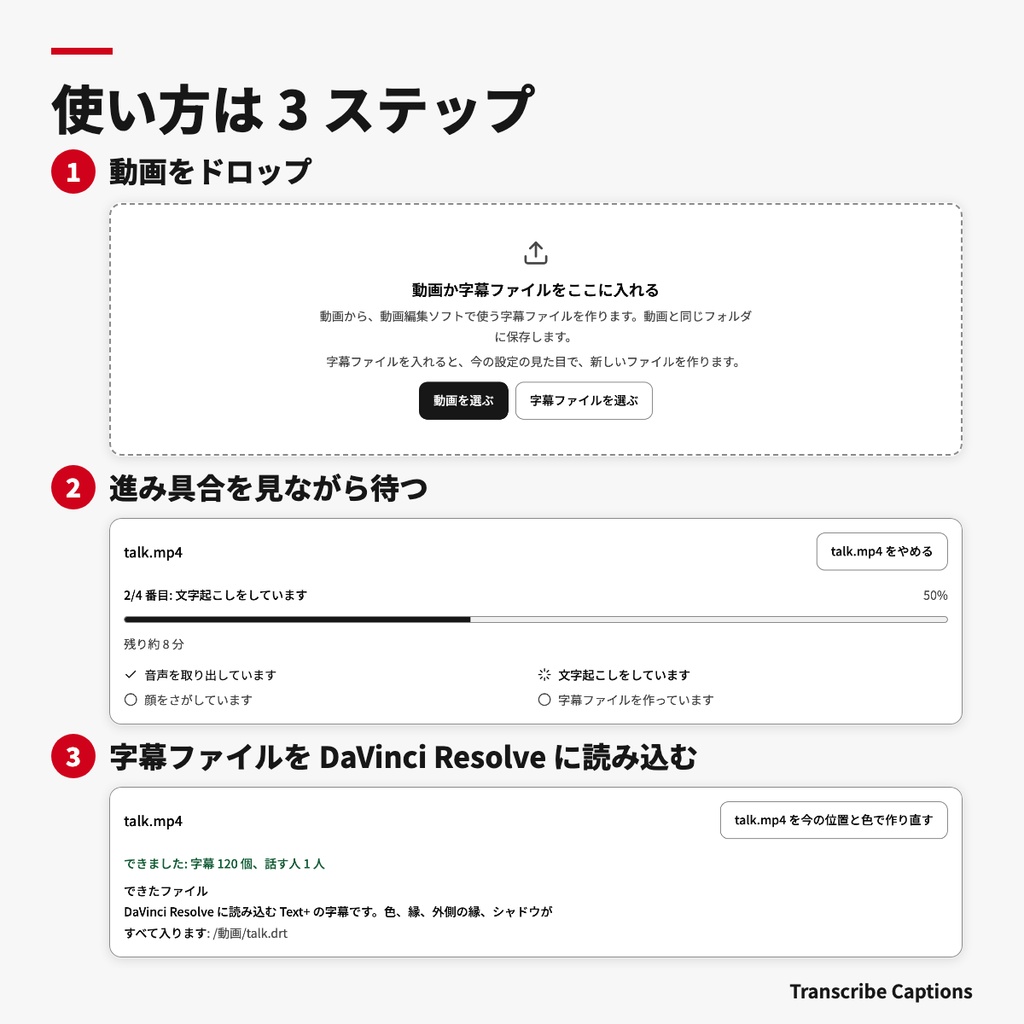
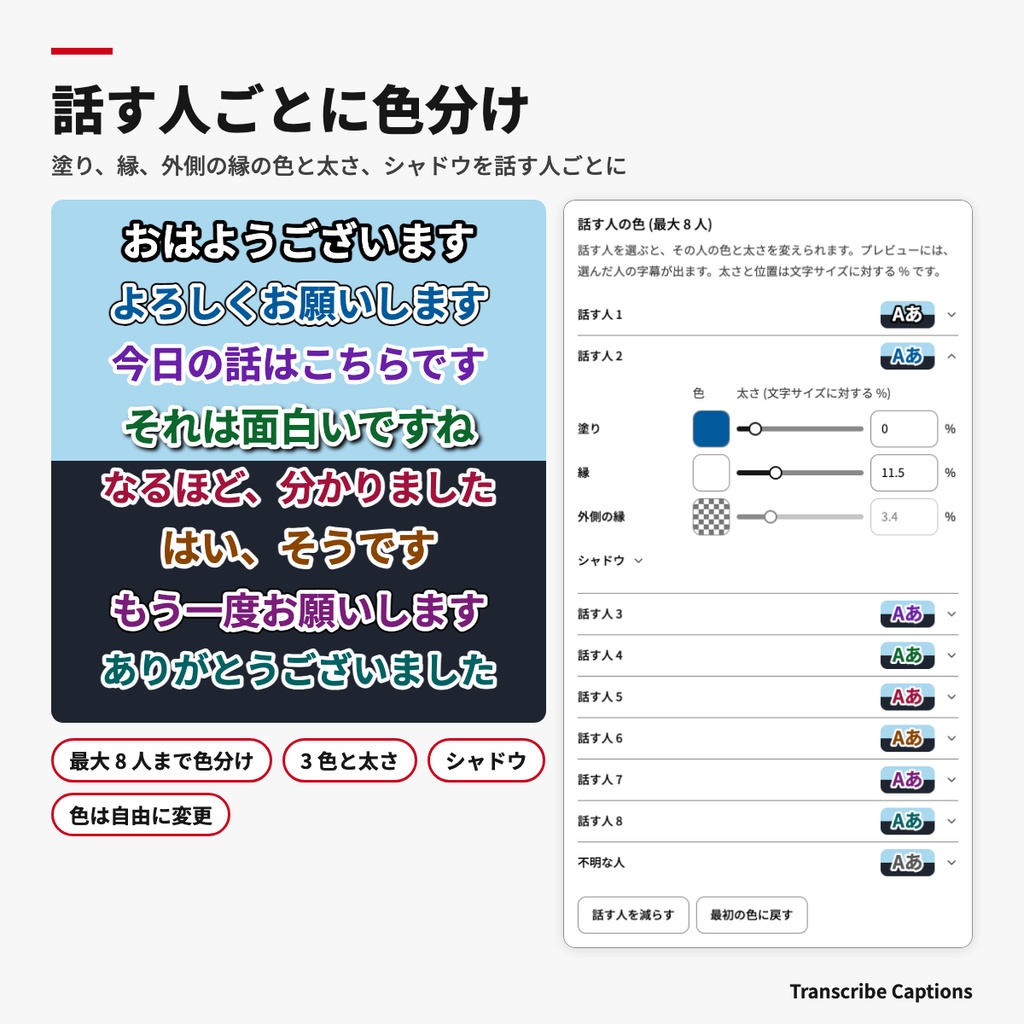
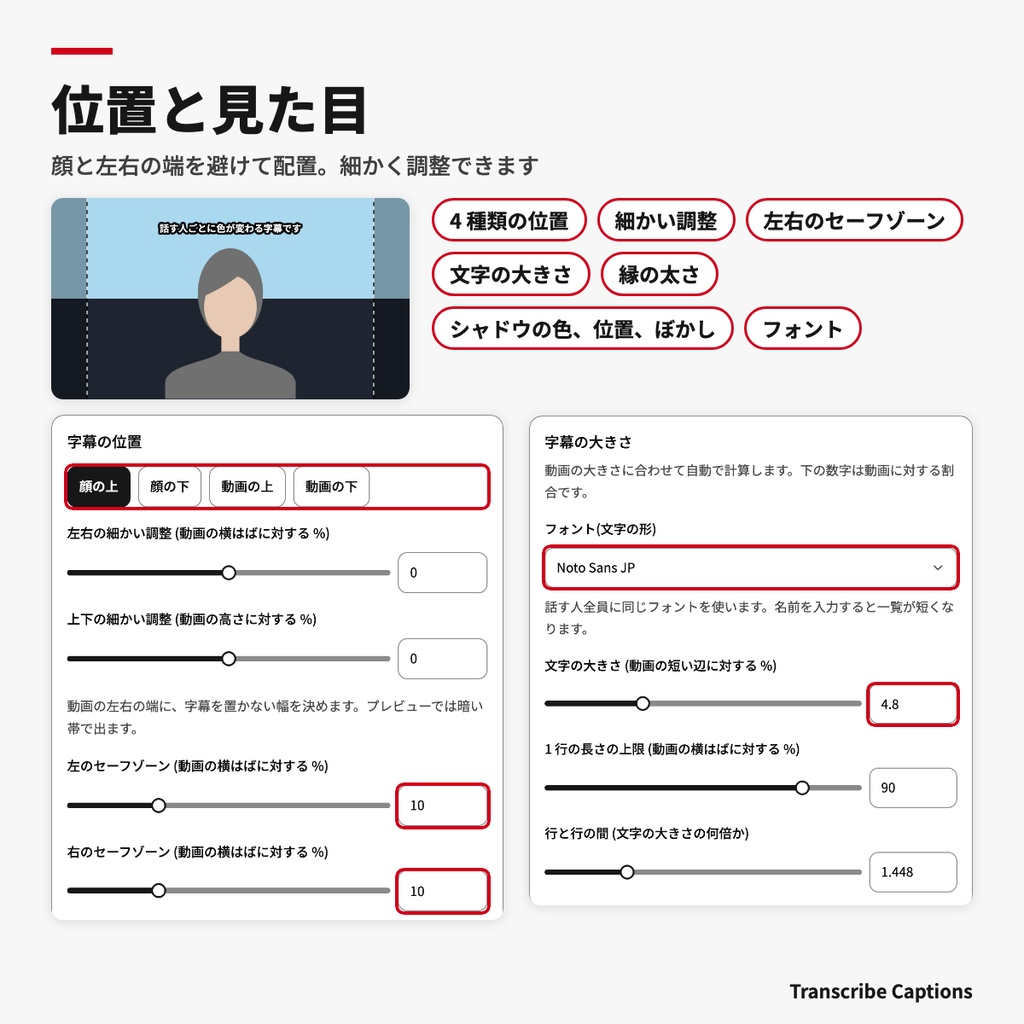
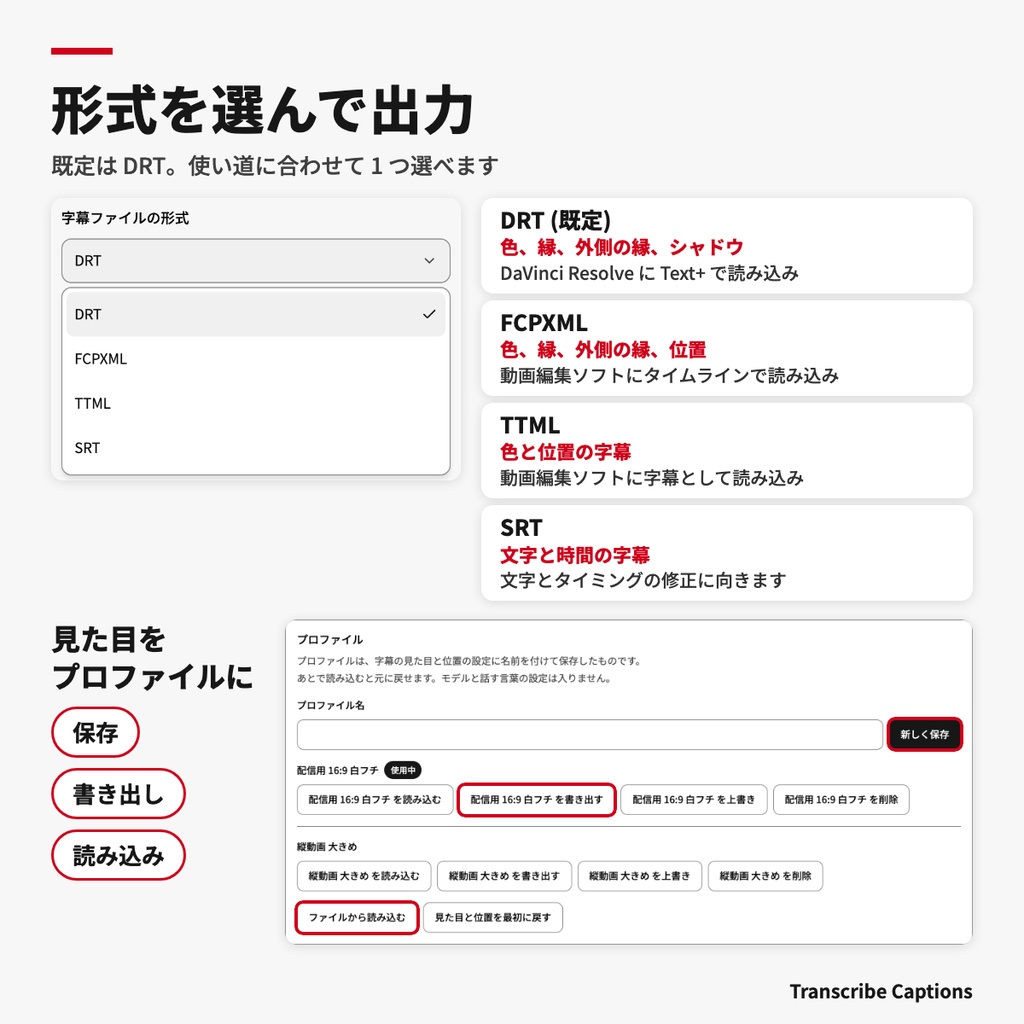
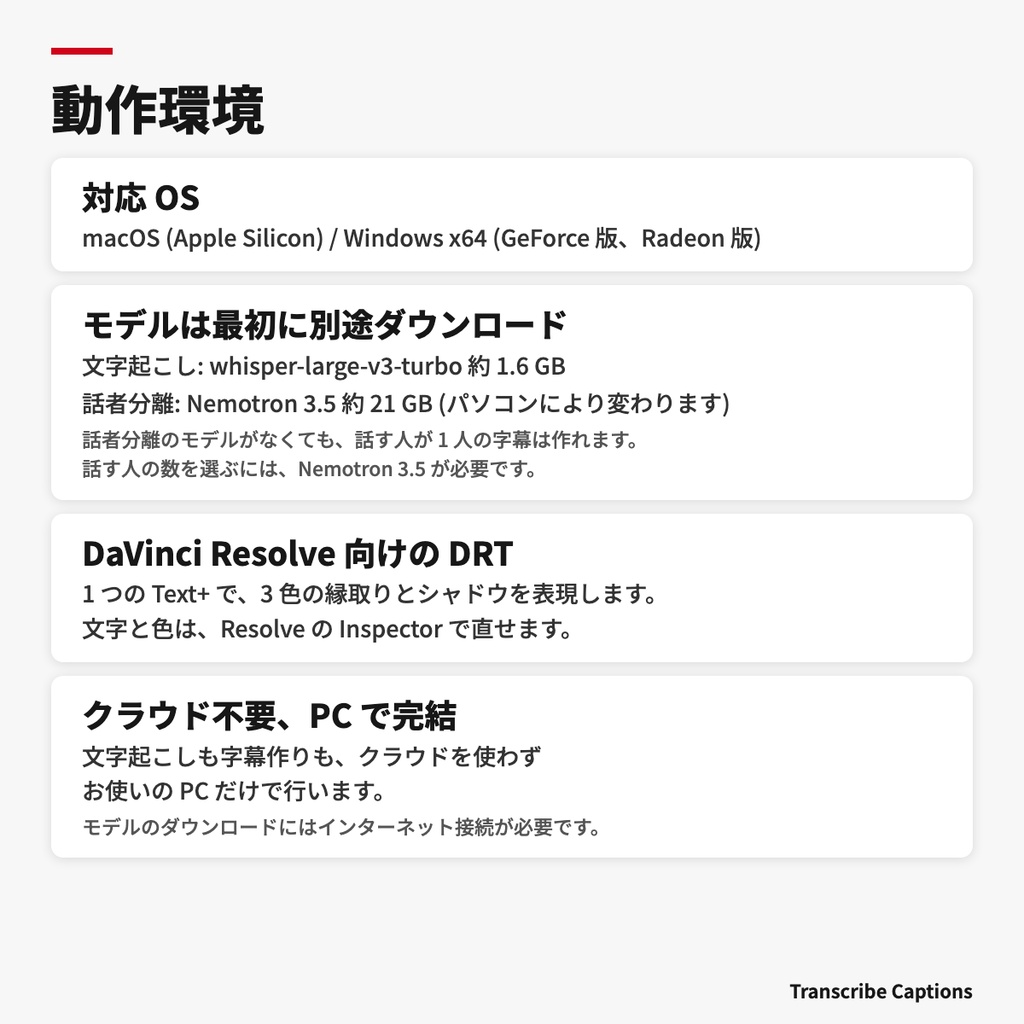


動画をドロップするだけで、文字起こしから縁取り字幕のファイル作成までを自動で行うデスクトップアプリです。クラウドを使わず、お使いの PC だけで処理が完結します。 ■ できること ・動画をドラッグ&ドロップすると、進み具合を見ながら字幕ファイルを作成 ・声の間に合わせて字幕を区切り、声のない場面では字幕を表示しません ・白文字に黒い縁など、すべての字幕を袋文字で作成 ・話す人ごとに色を自動で変更(最大 8 人まで) ・話す人ごとに、塗り、縁、外側の縁の色と太さ、シャドウを指定できます ・DaVinci Resolve には、1 つの Text+ で字幕を読み込めます。文字と色は Resolve の Inspector で直せます ・顔の上、顔の下、動画の上、動画の下から位置を選び、細かく調整 ・左右のセーフゾーンを指定して、字幕が画面の端に寄らないようにできます ・文字の大きさ、行間、フォントをプレビューを見ながら調整 ・設定をプロファイルとして保存し、書き出しと読み込みができます ・作成した字幕ファイルを入れ直すと、今の設定で見た目だけを作り直せます ・画面は日本語、英語、中国語(簡体字、繁体字)、韓国語、ドイツ語、フランス語、スペイン語に対応。設定タブで言語とダークモードを切り替えられます ・使い方は、注釈つきの画面写真でアプリの中で確認できます。DaVinci Resolve への読み込み方も載っています ■ 作成するファイル(形式を選べます。最初は DRT) ・.drt:DaVinci Resolve のタイムライン。色、縁、外側の縁、シャドウ、位置を含む字幕を Text+ で読み込みます(macOS 版 DaVinci Resolve 21.1.2 で確認) ・.fcpxml:色、縁、外側の縁、位置を含む字幕とタイムライン。FCPXML を読み込める動画編集ソフトで使います ・.ttml:色と位置を含む字幕 ・.srt:文字と時間の字幕(縁と位置は含みません) ・.transcript.json:見た目を作り直すためのデータ(常に作成します) ■ 動作環境 ・ macOS(Apple Silicon) ・Windows x64(GeForce 版と Radeon 版があります。お使いの PC に合うファイルを選んでください。対応する GPU がない場合は時間がかかります) ■ モデルについて ・文字起こしと話者分離のモデルは、アプリの中からダウンロードします。大きなデータなので、空き容量とインターネット接続が必要です ・whisper-large-v3-turbo:約 1.6 GB ・Nemotron 3.5 Transcribe(話者分離。2 人以上の動画で使います):約 21 GB。PC のメモリによって選べるモデルが変わります ・話す人が 1 人の動画は、話者分離のモデルなしで作成できます ・すでにダウンロード済みのモデルは、フォルダを指定すれば使えます ■ ご注意 ・文字起こしの結果には誤りが含まれることがあります。必要に応じて動画編集ソフトで修正してください ・話者分離の精度は、音声の状態によって変わります ・はじめて起動するときに、OS の確認画面が表示されることがあります - Mac:システム設定の「プライバシーとセキュリティ」で「このまま開く」を選びます - Windows:「詳細情報」を押して「実行」を選びます ―――――――――― [English] Drop a video and this desktop app transcribes it and writes outlined caption files automatically. Everything runs on your own PC, with no cloud service. ■ Features - Drag and drop a video and watch the progress while the caption file is made - Captions are split at pauses in the voice and do not appear where nobody is speaking - Every caption is outlined text, such as white letters with a black edge - Each speaker gets their own colour automatically (up to 8 speakers) - For each speaker, set the fill, outline and outer outline colours and widths, plus a shadow - In DaVinci Resolve, each caption comes in as one Text+ clip, so you can fix the words and colours in the Inspector - Place captions above or below the face, or at the top or bottom of the video, and fine-tune the position - Set left and right safe zones to keep captions away from the edges of the frame - Adjust the text size, line spacing and font while watching a preview - Save settings as profiles, and export or import them - Drop a caption file you made earlier to rebuild only its look with the current settings - The app is available in Japanese, English, Chinese (Simplified and Traditional), Korean, German, French and Spanish. Change the language and dark mode on the Settings tab - The built-in guide uses annotated screenshots and shows how to import into DaVinci Resolve ■ Files it writes (you choose the format; DRT by default) - .drt: a DaVinci Resolve timeline. Captions come in as Text+ with colours, outline, outer outline, shadow and position (checked with DaVinci Resolve 21.1.2 for macOS) - .fcpxml: a timeline with captions, including colours, outline, outer outline and position, for video editors that read FCPXML - .ttml: captions with colours and position - .srt: text and timing only (no outline or position) - .transcript.json: the data used to rebuild the look (always written) ■ Requirements - macOS (Apple Silicon) - Windows x64 (separate GeForce and Radeon builds; choose the file that matches your PC. Without a supported GPU, processing takes longer) ■ Models - Download the transcription and speaker separation models inside the app. They are large, so you need free disk space and an internet connection - whisper-large-v3-turbo: about 1.6 GB - Nemotron 3.5 Transcribe (speaker separation, for videos with two or more speakers): about 21 GB. The models you can choose depend on your PC's memory - Videos with one speaker work without a speaker separation model - Models you have already downloaded can be used by choosing their folder ■ Notes - Transcriptions can contain mistakes. Correct them in your video editor as needed - Speaker separation accuracy depends on the audio - Your OS may show a warning the first time you open the app - Mac: in System Settings > Privacy & Security, choose "Open Anyway" - Windows: choose "More info", then "Run anyway"