

【11/20 23:59まで期間限定無料】【BETA】CPU Frametime Profiler (v1.0 Beta) — アバターのCPU負荷を計測・可視化 (VRCHAT)
- ダウンロード商品¥ 0
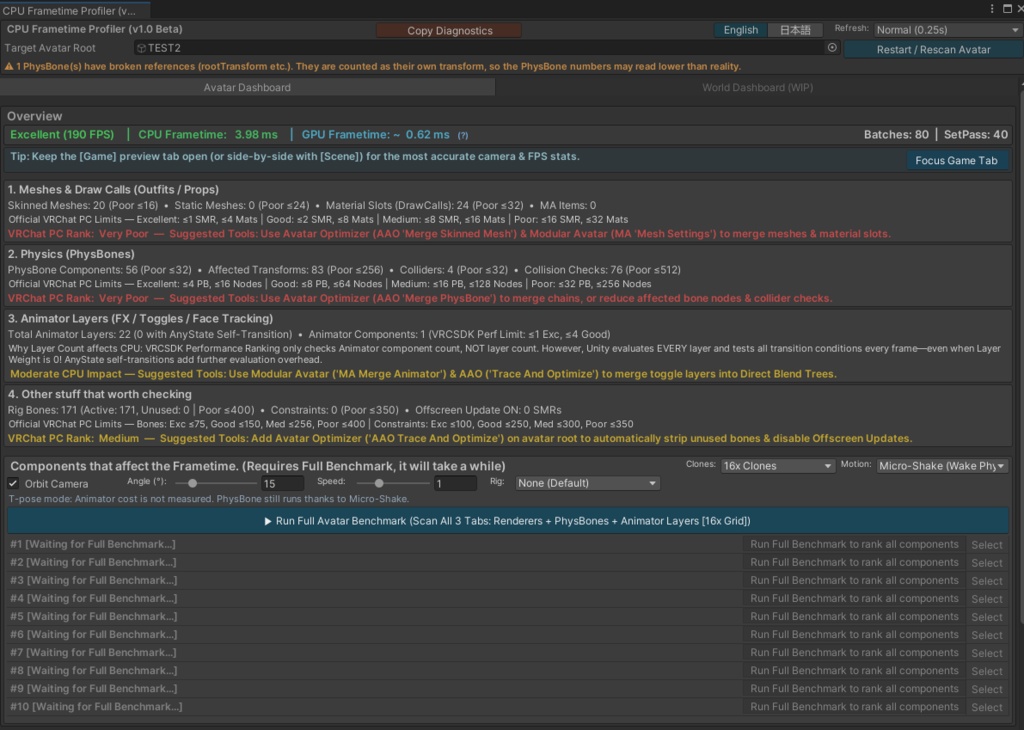
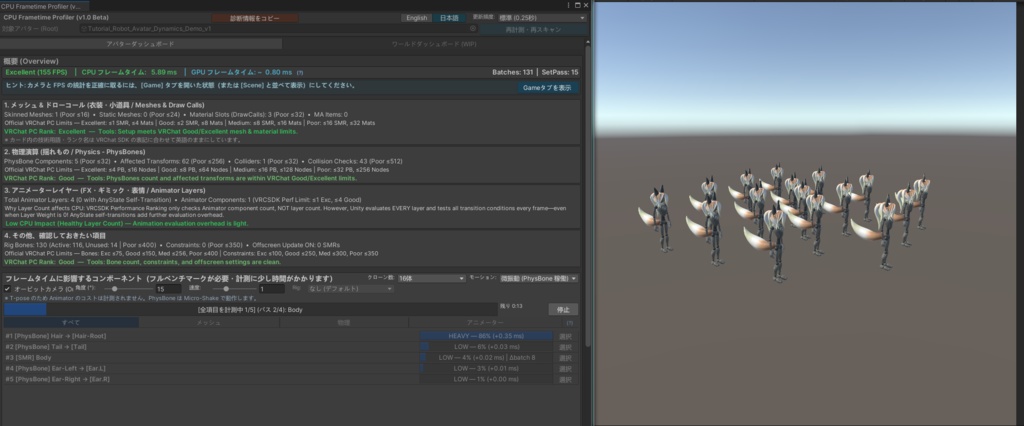
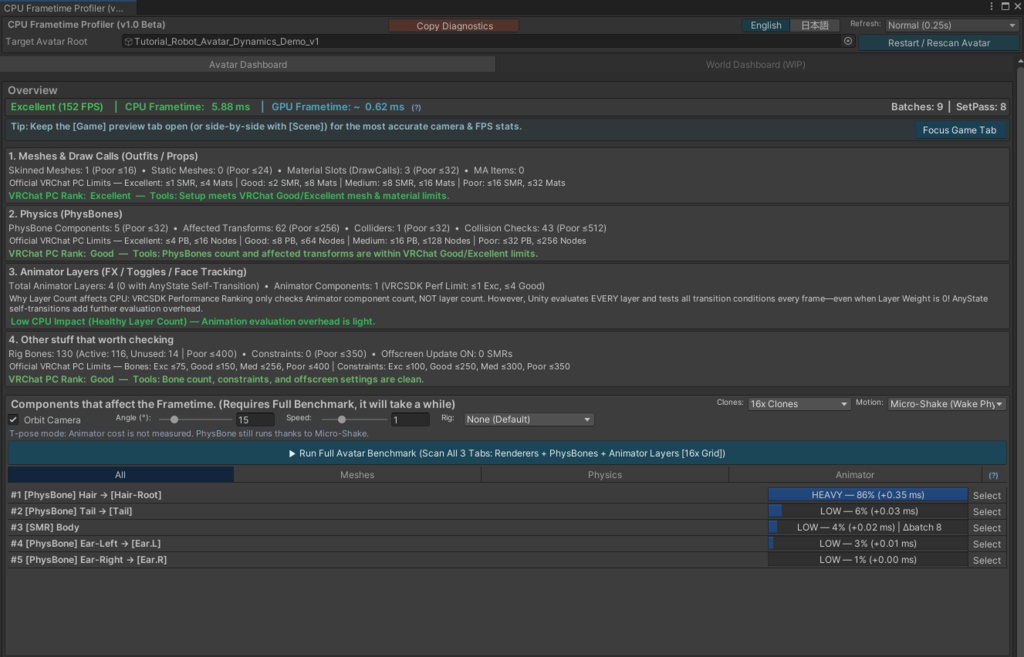
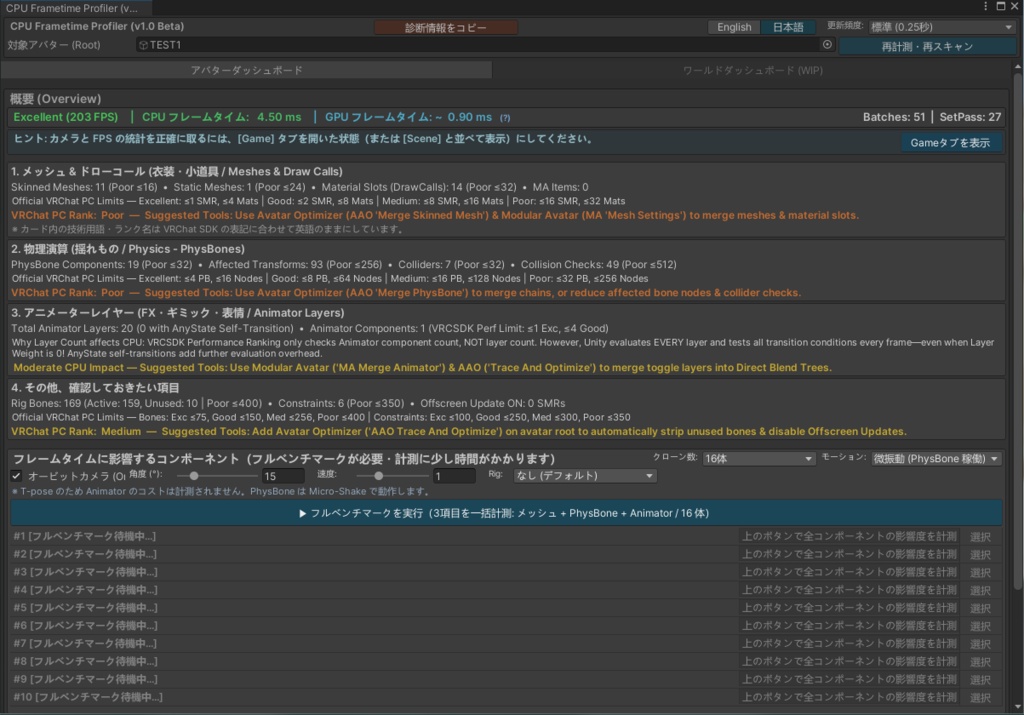


■ 価格スケジュール・収録内容について / Pricing & Scope ・11/20 23:59 (JST) まで:リリース記念 期間限定無料 ・Beta 期間中:500 JPY(早期アクセス価格・正式版の半額) ・正式版 v1.0:1,000 JPY 予定 ※ Beta 期間中にご購入いただいた方は、同じ商品ページから追加料金なしで正式版(Avatar Dashboard およびその今後のアップデート)へアップグレード可能です。 ・Until Nov 20, 23:59 JST: Limited-time Free Launch ・During Beta: 500 JPY (Early Access Price — 50% OFF) ・Full Release v1.0: Planned 1,000 JPY * Anyone who purchases during the Beta period will receive a free upgrade to the full release (Avatar Dashboard and its future updates) on this same page. ※ 本ツールに含まれる機能は「Avatar Dashboard(アバター計測)」のみとなります。UI 上に表示されている「World Dashboard (WIP)」については現在未定(開発・提供形態を含め検討中)であり、本製品には含まれません。 * This release includes the "Avatar Dashboard" features only. The "World Dashboard (WIP)" tab shown in the UI is currently undecided (development and release plans are TBD) and is not included. ▼ 期間限定無料期間中の特典(先着15名様限定) / Limited-Time Launch Bonus (First 15 Only) 11/20 23:59 (JST) までの無料配布期間中に、下記の【先着15名限定フォーム】より「有効なバグ報告」または「具体的な改善フィードバック」をお送りいただいた方【先着15名様】に、BOOTH のギフト機能にて「Early Access 版(正式版および今後の Avatar Dashboard アップデート権を含む)」を無料でお贈りします。 ※ 特典のギフト URL は、期間限定無料期間の終了後(11/20 23:59 JST 以降・有料化後)に順次お送りいたします。 ※ ギフト URL の送付先として、フォーム内に X (Twitter) の ID または Discord のユーザー名をご記入ください(内容が空欄・スパム等の場合は対象外となります。定員に達し次第終了いたします)。 【先着15名限定・特典付きフォーム】: https://forms.gle/13riRhTXVNrigES26 The first 15 people who submit a valid bug report or constructive feedback via the Limited Bonus Form below during the free launch period (until Nov 20, 23:59 JST) will receive a complimentary BOOTH Gift copy of the paid Early Access edition (equivalent to the 500 JPY tier, including the full release and future updates for Avatar Dashboard). * Bonus BOOTH Gift links will be sent out after the limited-time free period ends (after Nov 20, 23:59 JST, once the price transitions). * Drop your X or Discord username in the form so I can DM you the BOOTH Gift link (empty, low-effort, or spam submissions are excluded; ends once all 15 slots are claimed). [First 15 Limited Bonus Form]: https://forms.gle/13riRhTXVNrigES26
--------------------------------------------------------------------------------------------- CPU Frametime Profiler は、VRChat アバターの「どの部分が CPU 負荷に効いているか」を Unity エディタ上で切り分けて計測するパフォーマンス分析ツールです。 「衣装のメッシュが多すぎる? それとも揺れもの(PhysBone)やギミックのせい?」 なんとなくの勘でパーツを削る前に、どこがどれだけ重いかを具体的な数字で見えるようにします。 ※ 本ツールは実験的な Beta 版です。環境やアバター構成によっては正常に動作しない場合があります。不具合やフィードバックがある際は、ツール上部の「Copy Diagnostics」から診断情報をコピーし、下記の報告フォームよりお知らせください。 ────────── ■ 不具合報告・フィードバック ────────── 以下の Google フォームよりお送りいただけます(日本語・英語対応): https://forms.gle/3Ewh9mo49pNaAi8g9 ────────── ■ 主な機能 ────────── ▼ リアルタイム負荷モニター CPU フレームタイム / GPU フレームタイム(参考値)/ FPS / Batches をエディタ上で常時表示します。 ▼ 4つのステータスカードで現状把握 VRChat 公式のパフォーマンスランク基準に沿って、以下の項目を自動集計します。 1. Meshes & Draw Calls(SkinnedMesh / Static Mesh / Material Slot / MA 関連) 2. Physics(PhysBone 本数・対象 Transform 数・Collider 数・衝突判定数) 3. Animator Layers(総レイヤー数・AnyState 自己遷移の数) 4. Other(Rig Bones 数・Constraints 数・Offscreen Update 有効数) ▼ Full Benchmark(目玉機能) シーン内にアバターのクローンを 8 / 16 / 24 / 32 体生成し、各コンポーネントを1つずつ ON / OFF 切り替えながらフレーム時間の差分を計測します。 「この衣装メッシュや揺れものを消すと何 ms 軽くなるか」が具体的な数値で分かります。 ▼ 負荷ランキング(Top 10+全件スクロール) 計測結果を CPU 負荷の大きい順にランキング表示します。「すべて / メッシュ / 物理 / アニメーター」のカテゴリタブで絞り込み可能です。 ▼ GestureManager 連携(実験的機能) GestureManager と接続することで、実際にアニメーションが稼働している状態(FX ギミックや AFK 装飾品など)を含めた計測が可能です。 ※ 接続時は GestureManager 自体の固定負荷(数 ms)が計測値に上乗せされます。 ▼ 診断情報のワンクリックコピー(Copy Diagnostics) PC スペック・Unity 環境・実行ログをワンクリックでコピーできます。アバター名やオブジェクト名はハッシュ化され含まれないため、そのまま不具合報告に貼り付けられます。 ────────── ■ 使い方 ────────── ※ 万が一に備え、使用前にプロジェクトやアバターのバックアップ(Unitypackage のエクスポート等)を取っておくことをおすすめします。 1. ダウンロードした Unitypackage をプロジェクトにインポートします。 2. Unity 上部メニューから「Tools > CPU Frametime Profiler (v1.0 Beta)」を開きます。 3. Unity の Play モードに入ります。 4. 「Target Avatar Root」に計測したいアバターを指定します(シーン内に1体のみの場合は自動選択されます)。 5. 「Start Testing Selected Avatar」をクリックします。 6. アニメーション稼働状態で測りたい場合は、Rig を「フル (FX)(実験的)」に変更し「Connect GestureManager」をクリックします。 7. 「Run Full Avatar Benchmark」をクリックして計測を開始します。 ────────── ■ 数値の読み方・各指標の見方(重要) ────────── ▼ 基本の目安(フレーム時間と FPS の関係) ・フレーム時間(ms)は「1フレームの描画にかかる時間」で、低いほど快適です。 目安:60 FPS = 16.6 ms / 90 FPS = 11.1 ms / 120 FPS = 8.3 ms ・表示される数値はすべて「同一マシン・同一セッション内」での相対比較用です。CPU や冷却状態、Game ビューの解像度で大きく変わるため、他人の数値と直接比べないでください。 ・システムレベルのすべてのボトルネック(OS スケジューラやドライバ遅延等)を特定できるとは限りません。 ▼ 上部ステータスバー ・FPS:現在のフレームレート(90以上 [Green] / 45〜89 [Yellow] / 45未満 [Red])。 ・CPU Frametime:メインスレッドの処理時間。ここが体感の快適さの上限を決めます。 ・GPU Frametime(~):参考値です。エディタ仕様上、正確な GPU 時間ではなく描画スレッドの代用値を出しています。GPU 側が CPU より高い(赤字警告が出る)場合は、Game ビューの解像度を下げるかポストプロセスを切ってから計測してください。 ・Batches / SetPass:描画命令(Draw Call)の数。少ないほど軽量です。 ▼ 4つのステータスカード(ベンチマーク不要で即確認) ・1. Meshes & Draw Calls:SkinnedMesh 数、静的 Mesh 数、マテリアルスロット数(Draw Call に直結)、MA 関連アイテム数。 ・2. Physics(PhysBone):PhysBone 本数、制御されるボーン数、コライダー数、Collision Checks(ボーン数 × コライダー数の毎フレーム判定回数。ここが跳ね上がると一気に重くなります)。 ・3. Animator Layers:統合後の総レイヤー数、AnyState 自己遷移数、Animator コンポーネント数。 ※ VRChat 公式ランクは「Animator の数」しか見ませんが、Unity 内部では「全レイヤー」を毎フレーム評価しているため、レイヤーが多すぎるとランクが良好でも重くなります。 ・4. Other:使用ボーン数(実際にウェイトがある Active と、未使用の Unused)、Constraint 数、Offscreen Update ON の数(画面外でも更新し続ける設定。AAO 等で 0 にすると手軽に軽くなります)。 ▼ Full Benchmark ランキングの見方 ・+X.XX ms:そのコンポーネントを OFF にした時に短縮できた時間です。一番上の項目が最も効果の高い最適化候補になります。 ・XX%:「計測された全コンポーネントの合計時間」に対する割合です(フレーム全体の割合ではありません)。 ・Δbatch X:OFF にした時に減った Draw Call 数。レンダリング負荷の裏付けになります。 ・[HEAVY] / [MEDIUM] / [LOW]:現在表示中のタブ内の「最大値」を基準にした相対ランクです(タブを切り替えると基準が変わります)。 ・Full モードの数値には GestureManager の固定負荷(数 ms)が含まれるため、None モードと絶対値を直接比較しないでください。 ────────── ■ 既知の制限事項(Beta) ────────── ・クローンは AFK アニメーションの一部しか再現できません(AFK 時に出現する装飾品は表示されますが、専用ポーズやまばたき等の表情アニメーションは再生されません)。通常は AFK をオフにしての計測を推奨します。 ・LODGroup を使用しているアバターは、カメラ距離によって描画負荷が変動します。 ・24 / 32 クローン設定は数 GB のメモリを消費します(システムメモリ 30GB 未満の環境では確認ダイアログが表示されます)。 ・計測時間はコンポーネント数に比例します(実測目安:61 コンポーネントで約 4 分半)。 ・VRChat 固有の StateMachineBehaviour(ParameterDriver 等)の挙動は完全には再現されません。 ────────── ■ 安全設計について ────────── ・プロジェクト内のアセットやマテリアルは一切変更しません。 ・Project Settings(品質設定など)も書き換えません。 ・ベンチマーク用に生成されたクローンは Play モード終了時に自動で破棄されます。 ・万が一挙動がおかしくなった場合は、Play モードを終了すれば元の状態に戻ります。 ────────── ■ クレジット ────────── GestureManager(MIT License, © BlackStartx)との連携機能を備えています。 本ツールは GestureManager のソースコードを同梱しておらず、リフレクション(Reflection)経由で呼び出しています。
■ 動作環境 / Requirements ・Unity 2022.3.22f1(VRChat Creator Companion / VCC プロジェクト) ・VRChat SDK - Avatars(SDK3) ・Windows 10/11 ・GestureManager(任意:Full モードでアニメーション稼働時を計測する場合のみ必要) ※ エディタ拡張専用です。アップロードされるアバター本体には一切含まれません。 ※ Play モード専用です(非破壊・安全のため、編集モードでは操作が無効になります)。 ────────── ■ 利用規約・免責事項(日本語) ────────── ダウンロード・インポート、または利用を開始した時点で、本規約および免責事項(下記英語版を含む)のすべてに同意したものとみなします。 【OK】 ・個人アバターのパフォーマンス計測・最適化利用 ・有償コミッション(アバター改変・軽量化作業)での利用 ・不具合報告や検証目的でのベンチマーク画面・匿名診断ログの共有 【NG】 ・改変の有無を問わず、本ツール・スクリプト単体の再配布・共有・再アップロード・転売 ・自作発言(著作権・作成者の詐称) 【免責事項・サポートについて】 ・本ツールは「現状有姿(As-Is)」で提供され、動作の完全性や特定目的への適合性について一切保証いたしません。 ・本ツールの使用、高負荷クローンテスト中のエディタ不安定化・メモリ不足(OOM)、または外部ツール(Unity, VRCSDK, NDMF, MA, GM 等)のアップデートに起因するプロジェクトの不具合・データ損失・その他一切の損害について、Feinestra_Works は責任を負いません。 ・ベータ版ツールであるため、個別のアバター環境に対する導入指導や個別サポートは行っておりません。 ※ 本ページの日本語表記は翻訳ツールを使用しています。内容に相違や解釈の争いが生じた場合は、下記の英語版原文を優先とします。 ────────── ■ TERMS OF USE & DISCLAIMER (Feinestra_Works) ────────── By downloading, importing, or using this package, you agree to be bound by all of the following terms, conditions, and disclaimers. [PERMITTED / OK] ・Personal avatar performance profiling and optimization. ・Use in commercial avatar optimization or modification commissions. ・Sharing benchmark screenshots or anonymized diagnostic logs for feedback and troubleshooting. [PROHIBITED / NG] ・Standalone redistribution, sharing, re-uploading, or resale of this C# script or package (modified or unmodified). ・Claiming ownership or authorship of this tool or script. [DISCLAIMER & SUPPORT POLICY] ・This tool is provided "AS IS", without warranty of any kind, express or implied. ・Feinestra_Works shall not be liable for any project errors, avatar data loss, Editor instability or out-of-memory (OOM) crashes during high-clone stress tests, or damages arising from the use of this tool or updates to third-party dependencies (Unity, VRCSDK, NDMF, Modular Avatar, GestureManager, etc.). ・As this is a Beta release, I do NOT provide individual technical support, debugging, or 1-on-1 avatar setup assistance. ────────── ■ 更新履歴 / Changelog ────────── v1.0 Beta (2026-11-13) ・初回ベータ版公開 / Initial Beta release
[ENGLISH DESCRIPTION] CPU Frametime Profiler is a Unity Editor tool built mainly for VRChat avatars. Wondering if it's your outfit meshes, PhysBones, or gimmicks slowing things down? Instead of deleting parts on a hunch, this tool isolates each component and shows you the actual numbers so you know what to optimize first. * Note: This is an experimental Beta build. Some avatars or environments may experience issues. If you encounter bugs or have feedback, please click "Copy Diagnostics" at the top of the tool window and submit it via the Google Form below when contacting me. ────────── ■ BUG REPORT & FEEDBACK ────────── You can submit reports or feedback via the Google Form below (English & Japanese supported): https://forms.gle/3Ewh9mo49pNaAi8g9 ────────── ■ KEY FEATURES ────────── ▼ Live Frame Timings Continuously displays CPU frametime, GPU frametime (reference value), FPS, and Batches inside the Editor. ▼ Four Summary Cards Automatically aggregates avatar stats aligned with VRChat's official PC performance rank limits: 1. Meshes & Draw Calls (SkinnedMesh / Static Mesh / Material Slots / Modular Avatar items) 2. Physics (PhysBone count, affected transforms, colliders, collision checks) 3. Animator Layers (total layer count, AnyState self-transitions) 4. Other (rig bones, constraints, offscreen update enabled count) ▼ Full Benchmark (Core Feature) Spawns a grid of 8, 16, 24, or 32 clones of your avatar, toggles each component on and off individually, and measures the frametime difference. You get exact millisecond numbers showing how much CPU time removing a specific mesh or PhysBone saves. ▼ Ranked Bottleneck List (Top 10 + Full Scroll) Ranks measured components by CPU impact, complete with category filter tabs (All / Meshes / Physics / Animator). ▼ GestureManager Integration (Experimental) Connect GestureManager to measure your avatar while animations are actively running, including FX toggles and AFK accessories. * Note: Connecting adds GestureManager's own fixed overhead (a few ms) to the readings. ▼ One-Click Copy Diagnostics Copies your hardware specs, Unity environment, and execution logs in one click. Avatar and object names are anonymized via hashing, making the report completely safe to paste publicly. ────────── ■ HOW TO USE ────────── * Recommended: Back up your Unity project or avatar (e.g., export a .unitypackage) before using this tool just in case. 1. Import the downloaded .unitypackage into your Unity project. 2. Open "Tools > CPU Frametime Profiler (v1.0 Beta)" from the top Unity menu. 3. Enter Play Mode in Unity. 4. Assign your avatar to "Target Avatar Root" (auto-selected if there is only one active avatar in the scene). 5. Click "Start Testing Selected Avatar". 6. To measure while animations are active, set Rig to "Full (FX)(Experimental)" and click "Connect GestureManager". 7. Click "Run Full Avatar Benchmark" to begin scanning.
■ HOW TO READ THE NUMBERS (IMPORTANT) ────────── ▼ The Basics (Frametime vs. FPS) ・Frametime (ms) is the time it takes to process a single frame—lower is smoother. Quick reference: 60 FPS = 16.6 ms | 90 FPS = 11.1 ms | 120 FPS = 8.3 ms ・All timings are estimated approximations for relative comparison within the same machine and session only. Numbers shift heavily depending on CPU architecture (e.g., X3D, Intel P/E-cores), thermals, and Game view resolution—do not compare raw numbers across different PCs. ・Results may not pinpoint all system-level bottlenecks (such as OS scheduler jitter or driver overhead). ▼ Top Status Bar ・FPS: Current frame rate (90+ [Green] / 45–89 [Yellow] / <45 [Red]). ・CPU Frametime: Main thread time per frame; this determines your smoothness ceiling. ・GPU Frametime (~): Reference value only (Unity Editor rarely exposes true GPU hardware timings, so render thread time is used). If GPU time exceeds CPU time (highlighted in red), lower your Game view resolution or disable post-processing before benchmarking. ・Batches / SetPass: Draw call counts—lower is better. ▼ Four Summary Cards (Instant Snapshot) ・1. Meshes & Draw Calls: SkinnedMesh count, static meshes, Material Slots (roughly equals draw calls), and Modular Avatar items. ・2. Physics (PhysBones): PhysBone components, affected transforms, colliders, and Collision Checks (bones × colliders checked every frame—an often-overlooked CPU hog). ・3. Animator Layers: Total merged layers, AnyState self-transitions, and Animator component count. * Note: VRChat's official rank only checks Animator component count, NOT layer count, yet Unity evaluates every single layer every frame. ・4. Other: Rig bones (Active weighted vs. Unused), Constraints, and Offscreen Update ON count (0 is best; easily fixed with Avatar Optimizer). ▼ Full Benchmark Ranked List ・+X.XX ms: CPU time saved when this component is disabled. The top item is your #1 optimization target. ・XX%: Share of the total sum of all measured components (NOT a percentage of the entire frame). ・Δbatch X: Draw calls saved when toggled off, useful for verifying render thread cost. ・[HEAVY] / [MEDIUM] / [LOW]: Relative severity compared to the highest item in the currently selected category tab (changes when switching tabs). ・Full mode includes GestureManager's fixed overhead (a few ms). Do not compare absolute values directly between None mode and Full mode. ────────── ■ KNOWN LIMITATIONS (BETA) ────────── ・Clones only partially mimic AFK animations (AFK accessories appear, but custom AFK poses and eyelid/blinking animations do not). Profiling with AFK turned off is recommended. ・Avatars using LODGroup will report varying numbers depending on camera distance. ・24 / 32 clone presets consume several GB of RAM (a confirmation dialog appears on systems with less than 30 GB RAM). ・Scan duration scales with component count (measured reference: 61 components take approximately 4.5 minutes). ・VRChat-specific StateMachineBehaviours (such as ParameterDrivers) are not fully emulated. ────────── ■ SAFETY & NON-DESTRUCTIVE DESIGN ────────── ・Does not modify any project assets or materials. ・Does not alter Project Settings or Quality Settings. ・All spawned clones are automatically destroyed upon exiting Play Mode. ・If anything unexpected occurs, simply exiting Play Mode restores your scene cleanly. ────────── ■ CREDITS ────────── Integrates with GestureManager (MIT License, © BlackStartx). This tool does not bundle any GestureManager source code; it interacts with it via C# Reflection.