
방송배경/방송화면/버튜버/配信部屋/DIY/3DBackground for VTuber/配信背景/Live Streaming Background/VTuber room/Vtuber background/Pink Room
- Digital3,000 JPY
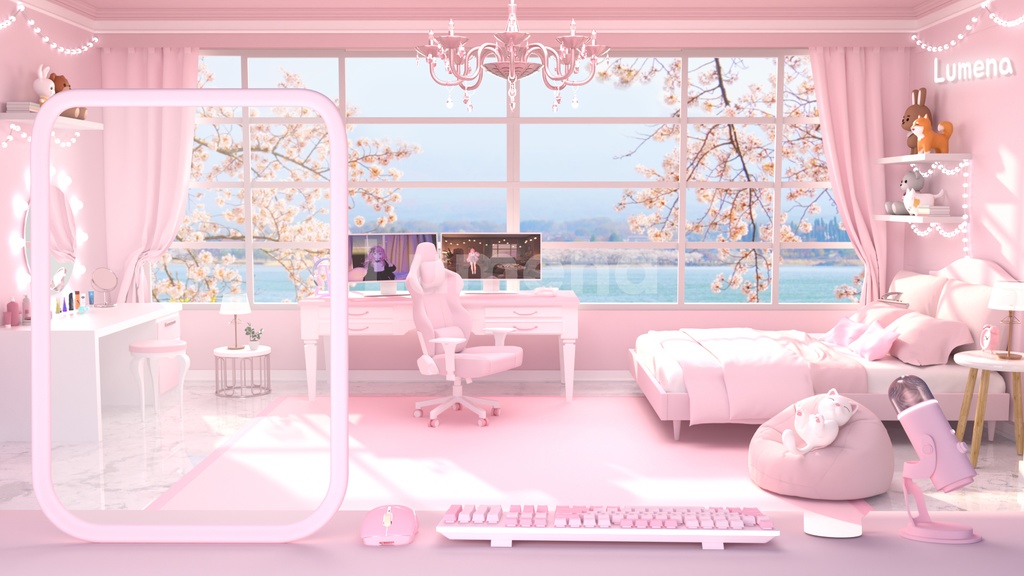
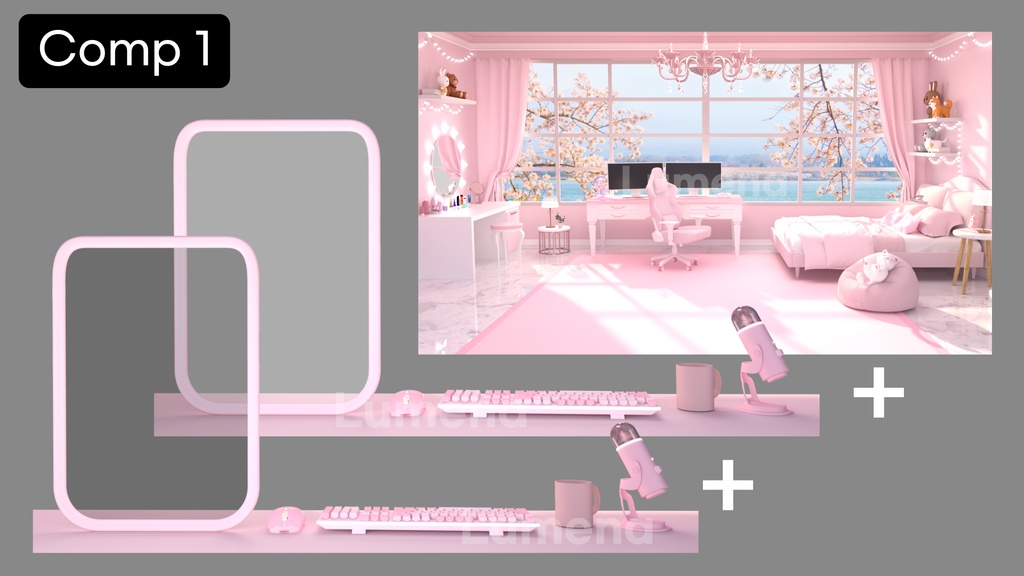
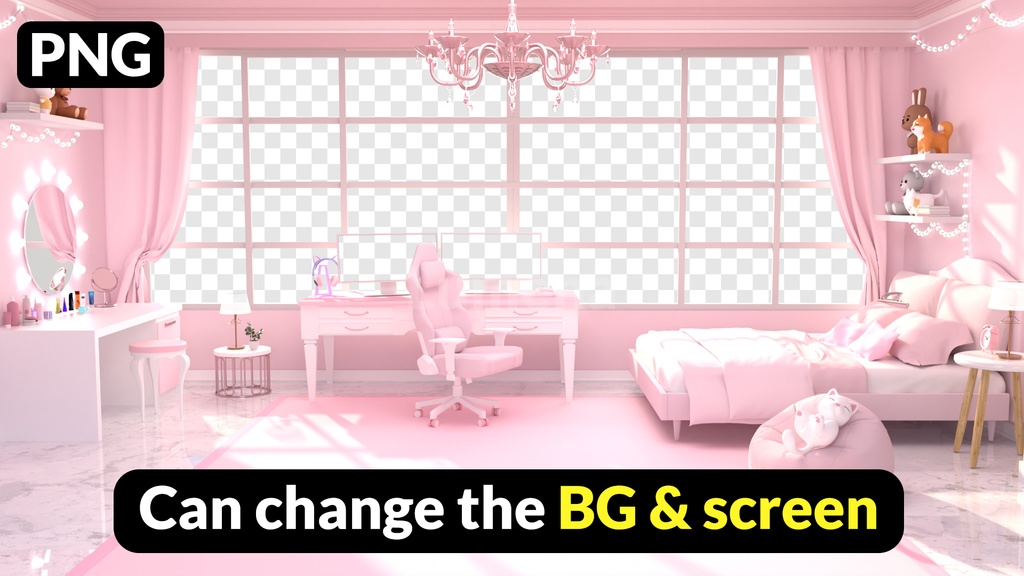
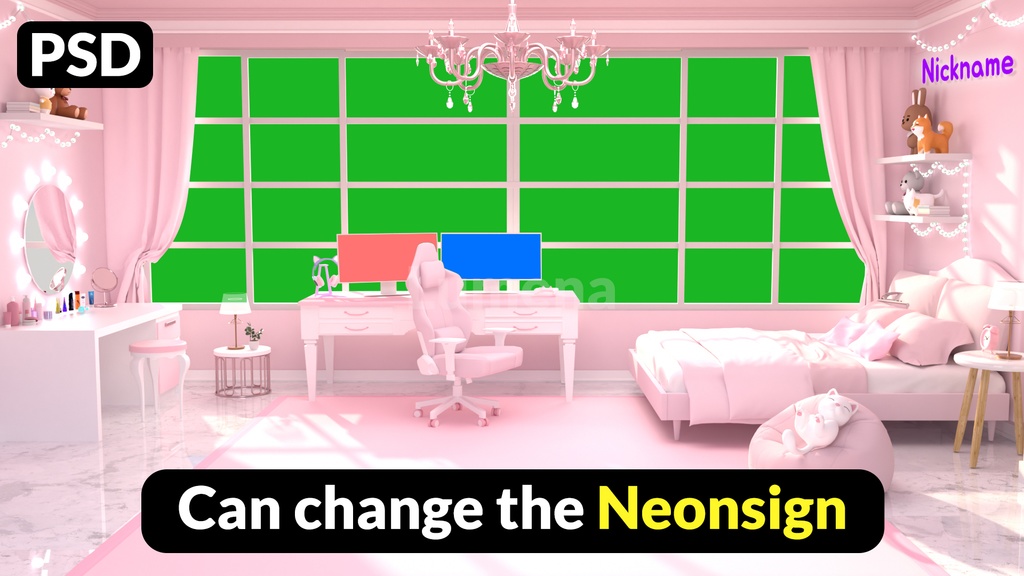
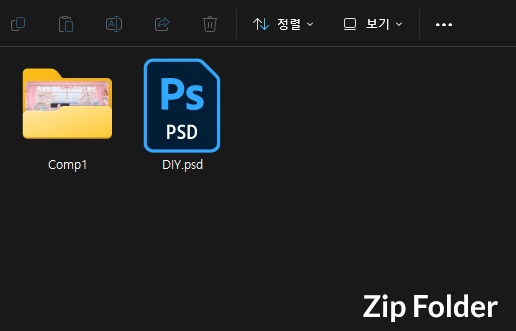
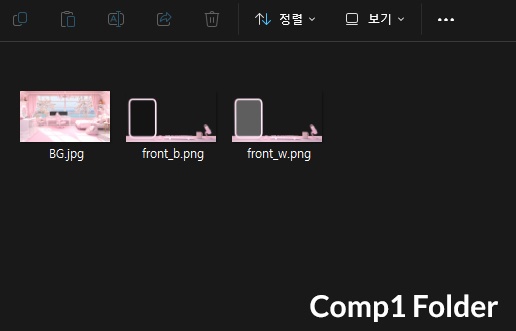


JP 構成要素 jpg, png, psd 構成1 ・基本背景付き 背景後部(jpg) ・前面デスク部分 ダーク&ライト 2種(png) 構成2 ・背景、モニター画面、ネオンサインの変更が可能な DIY組み立て式 背景フレーム(psd) DIY 使用方法 1. 背景の変更方法 「DIY.psd」Photoshopファイルを開き、 レイヤーの最下段にお好みの背景を配置してください。 2. モニター画面の変更方法 ・左画面:「screen L」レイヤーをダブルクリックしてレイヤー内部に入り、 お好みの画像を配置後、Ctrl + S で保存してください。 ・右画面:「screen R」レイヤーをダブルクリックしてレイヤー内部に入り、 お好みの画像を配置後、Ctrl + S で保存してください。 元のPSDファイルに戻ると、保存した変更内容が反映されます。 3. ネオンサインのテキスト変更方法 「Neonsign」レイヤーをダブルクリックしてレイヤー内部に入り、 お好みのテキストを入力後、Ctrl + S で保存してください。 元のPSDファイルに戻ると、保存した変更内容が反映されます。 CN 内容构成 jpg, png, psd 构成 1 ・包含基础背景的后方背景部分(jpg) ・前方桌面部分 深色 / 浅色 2种(png) 构成 2 ・可更换背景、显示器画面、霓虹灯文字的 DIY 组合式背景模板(psd) DIY 使用方法 1. 更换背景的方法 打开「DIY.psd」Photoshop 文件, 在图层最底部放入您想要的背景图片。 2. 更换显示器画面的方法 ・左侧画面:双击「screen L」图层进入图层内部, 放入想要的图片后按 Ctrl + S 保存。 ・右侧画面:双击「screen R」图层进入图层内部, 放入想要的图片后按 Ctrl + S 保存。 返回原 PSD 文件后,保存的修改内容将自动应用。 3. 更换霓虹灯文字的方法 双击「Neonsign」图层进入图层内部, 输入想要的文字后按 Ctrl + S 保存。 返回原 PSD 文件后,保存的修改内容将自动应用。 KO 구성 요소 jpg, png, psd 구성1 기본 배경 포함 뒤쪽 배경부 (jpg) 앞쪽 책상부 다크&라이트 2종 (png) 구성2 배경, 모니터 화면, 네온사인 변경이 가능한 DIY 조립식 배경 틀 (psd) DIY 사용 방법: 1. 배경 변경 방법 'DIY.psd' 포토샵 파일을 열고 레이어 최하단에 원하는 배경을 넣으세요. 2. 모니터 화면 변경 방법 - 왼쪽 화면: 'screen L' 레이어를 더블클릭하여 레이어 내부로 들어간 후 원하는 이미지를 넣고 Ctrl+s를 눌러 저장하세요. - 오른쪽 화면: 'screen R' 레이어를 더블클릭하여 레이어 내부로 들어간 후 원하는 이미지를 넣고 Ctrl+s를 눌러 저장하세요. 다시 기존의 psd 파일로 돌아오면 저장된 변경 내용이 적용됩니다. 3. 네온사인 텍스트 문구 변경 방법 'Neonsign' 레이어를 더블클릭하여 레이어 내부로 들어간 후 원하는 텍스트를 입력하고 Ctrl+s를 눌러 저장하세요. 다시 기존의 psd 파일로 돌아오면 저장된 변경 내용이 적용됩니다. EN Included Files jpg, png, psd Set 1 Rear background with base background included (jpg) Front desk section: Dark & Light versions (2 types) (png) Set 2 DIY modular background template that allows customization of background, monitor screens, and neon sign text (psd) DIY Usage Guide 1. How to Change the Background Open the Photoshop file “DIY.psd” and place your desired background at the bottom-most layer. 2. How to Change the Monitor Screens Left screen: Double-click the “screen L” layer to enter the layer contents, insert your desired image, then press Ctrl + S to save. Right screen: Double-click the “screen R” layer to enter the layer contents, insert your desired image, then press Ctrl + S to save. When you return to the main PSD file, the saved changes will be applied automatically. 3. How to Change the Neon Sign Text Double-click the “Neonsign” layer to enter the layer contents, edit the text as desired, then press Ctrl + S to save. When you return to the main PSD file, the saved changes will be applied automatically.