
Warudo Standard - Environment - Home Cyberpunk
- Digital4,500 JPY
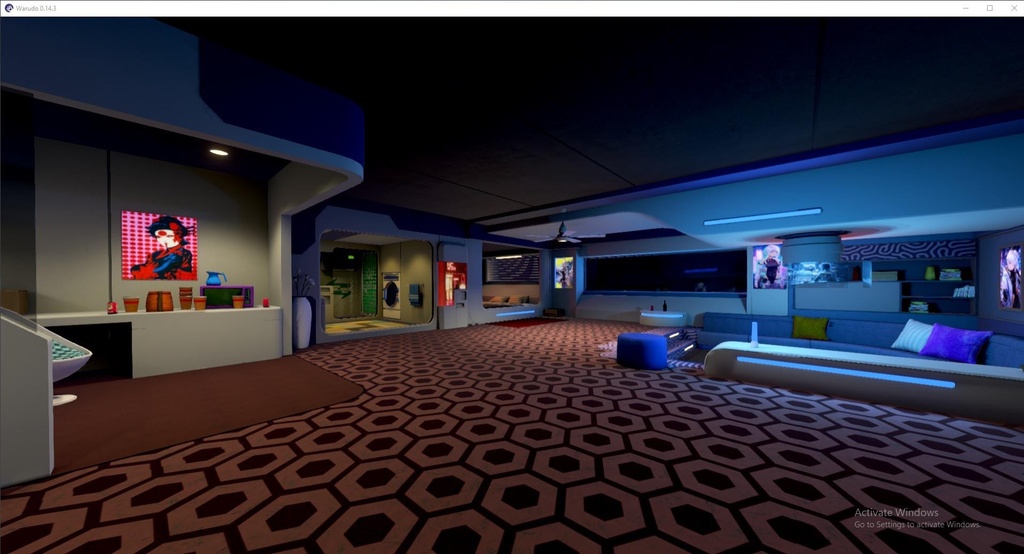
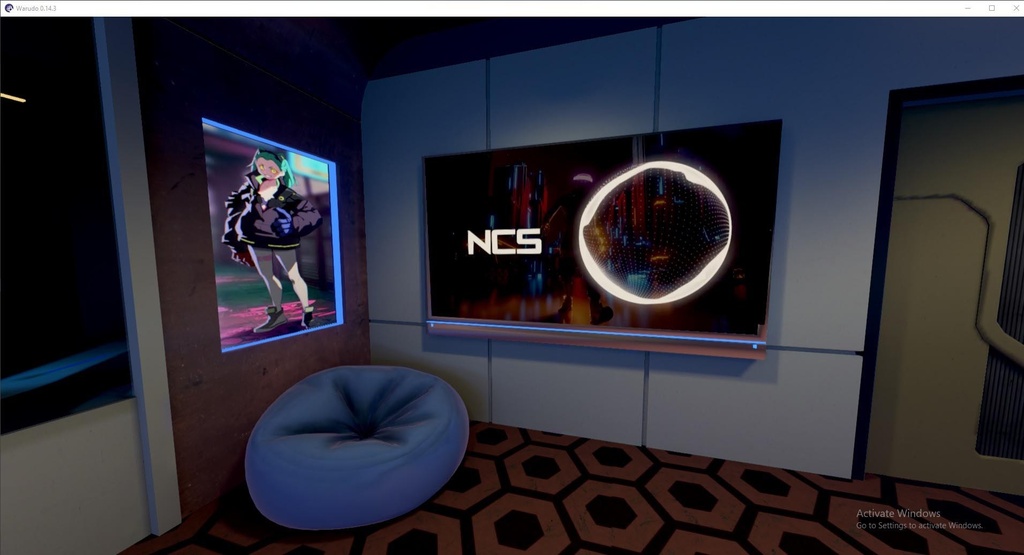
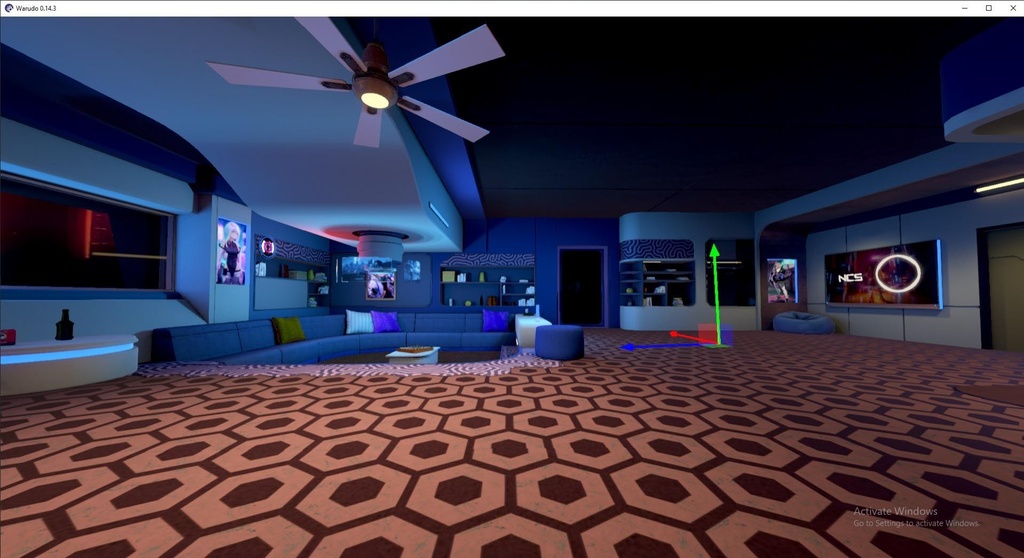
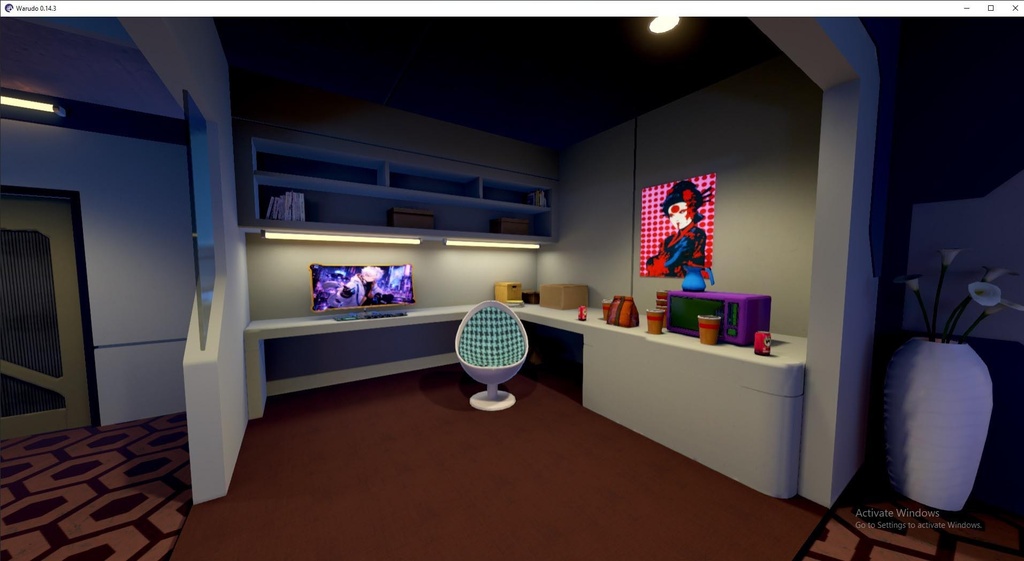
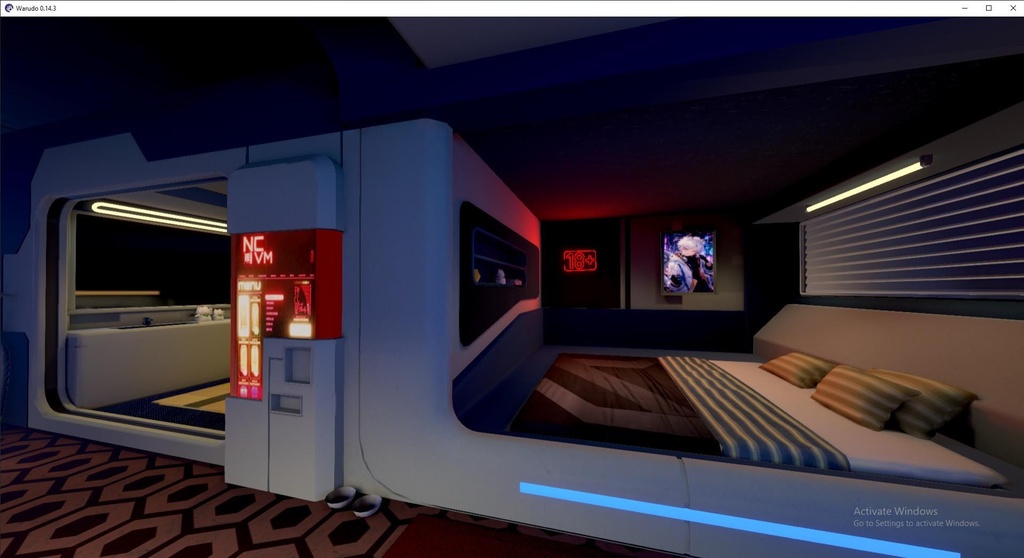


Recommended for VTubers / Virtual Performers A Cyberpunk Warudo environment designed for VTuber, streaming, featuring a fully 3D space with lighting, props, screens, and an immersive atmosphere. Warudo is a 3D VTubing software that allows users to create, animate, and livestream customizable virtual avatars with advanced motion capture and interactive features. If you have any questions, feel free to contact me before purchasing the environment. For this type of environment, the Unity project is not required — only the .warudo file is needed. If you need any customization, please tell me the changes you would like to make through Discord. Small changes are free, such as changing images or adding a simple prop. Discord: ra845vis or ra845 Version: Warudo 0.14.3 Unity 2021.3.45f2 Important Notes ************************************************************************* This Environment runs only on the standard version of WARUDO. Unity project files and package files are not included. ************************************************************************* https://youtu.be/lJdycwCi6X8 How to Install Your Exported Scene in Warudo After exporting your environment from Unity, you should have a .warudo file. 1. Open the Warudo data folder Open Warudo and go to: Menu → Open Data Folder 2. Find the environments folder Inside the data folder, go to: Warudo_Data/StreamingAssets/Environments 3. Copy your exported scene Copy your exported .warudo file into the Environments folder. 4. Restart Warudo Close and reopen Warudo so it can detect the new environment. 5. Load your environment In Warudo: Add Asset → Environment Then select your custom environment from the list. Your exported scene should now appear inside Warudo and be ready to use. Screen Asset In Video Source, select your MP4 file. Enable Auto Play if you want the video to start automatically when the scene loads. Adjust the position, rotation, and scale so the screen fits exactly in front of the mesh you left in Unity. The Warudo Screen asset can display images, videos, browser content, monitor capture, window capture, NDI, or Spout. In Video mode, you can choose a Video Source, use an MP4 file, and enable Auto Play. In the Screen asset: Disable Bend if you want a flat screen. Adjust Width / Height so it matches your 16:9 frame. Use Crop if the video has black borders. Use Corner Radius if you want rounded corners. Use Tint only if you want to darken or color-tint the video. Important Notes This background runs only on the standard version of WARUDO. Unity project files and package files are not included.
