
HoppoVoices - Voice Studio (for cvoice.ai) Windows version
- Digital500 JPY
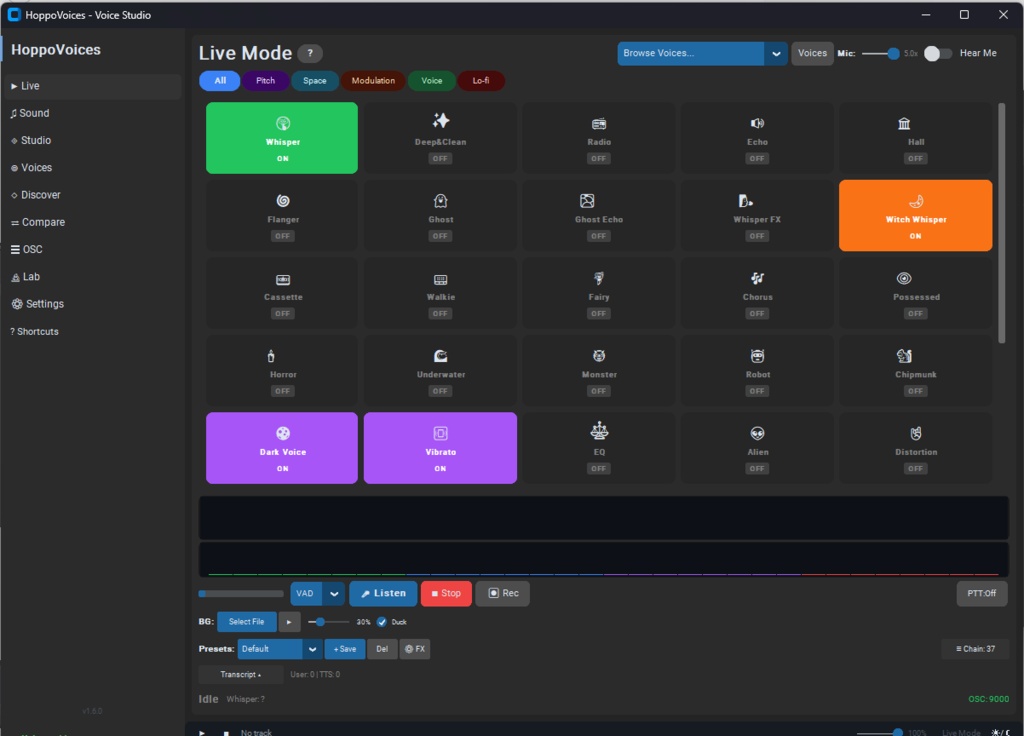
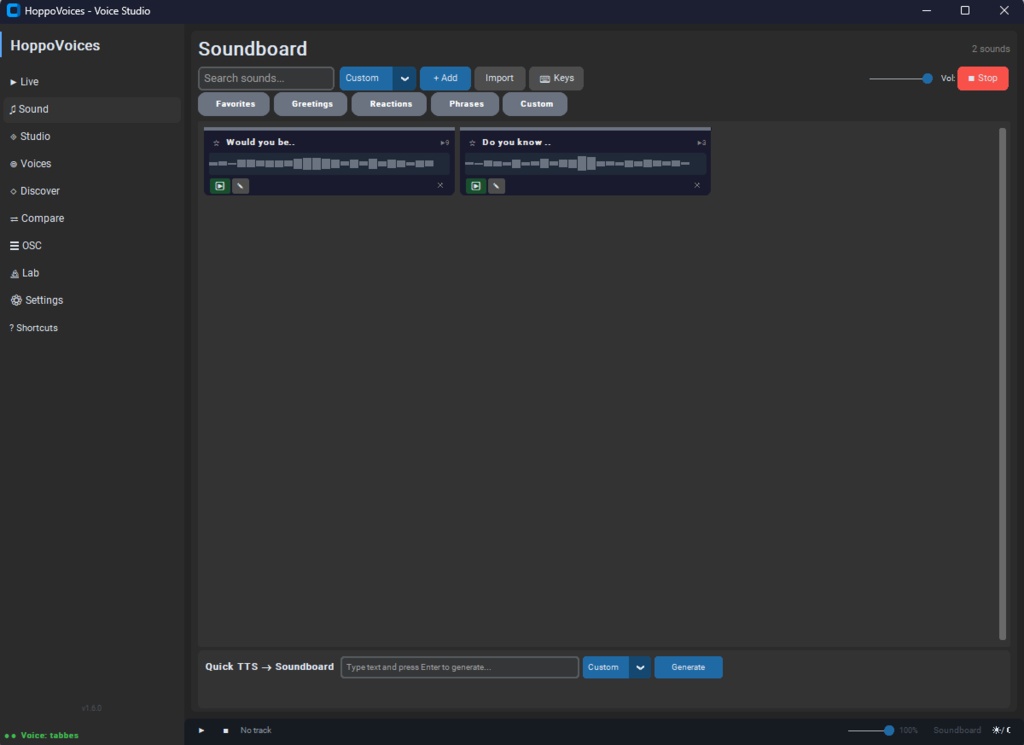
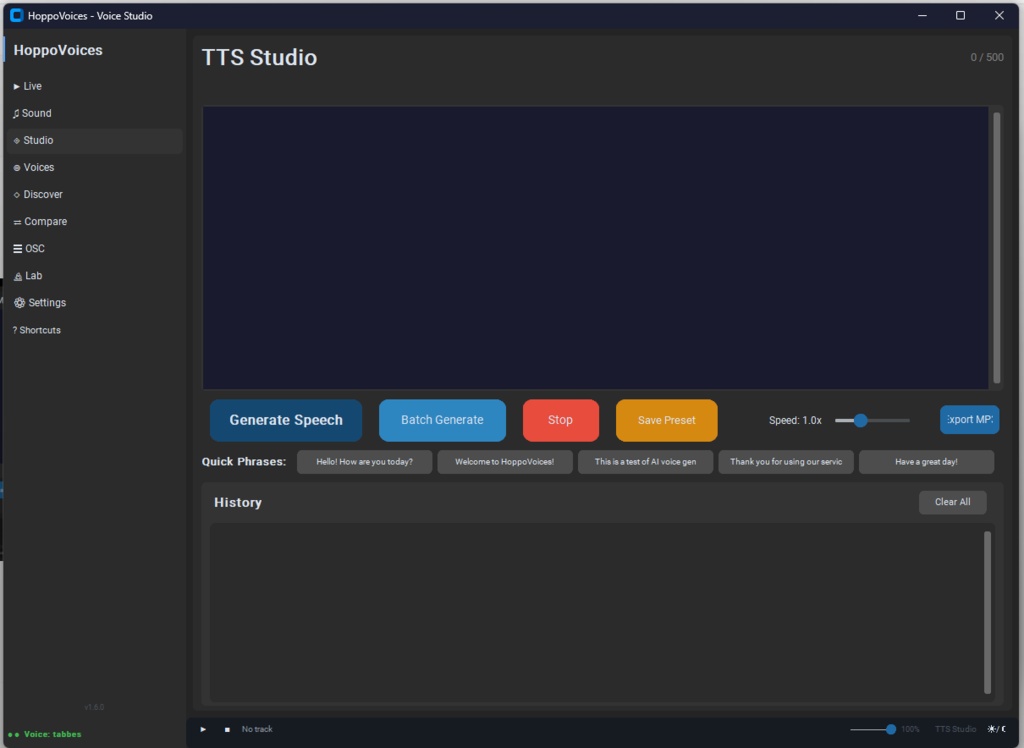
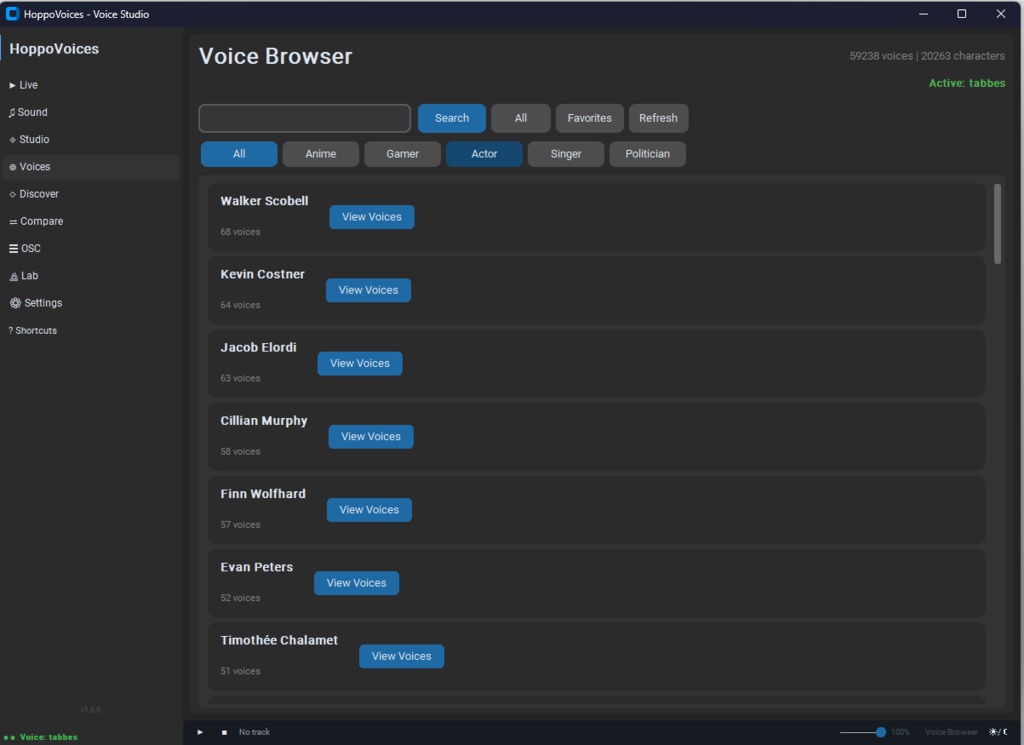
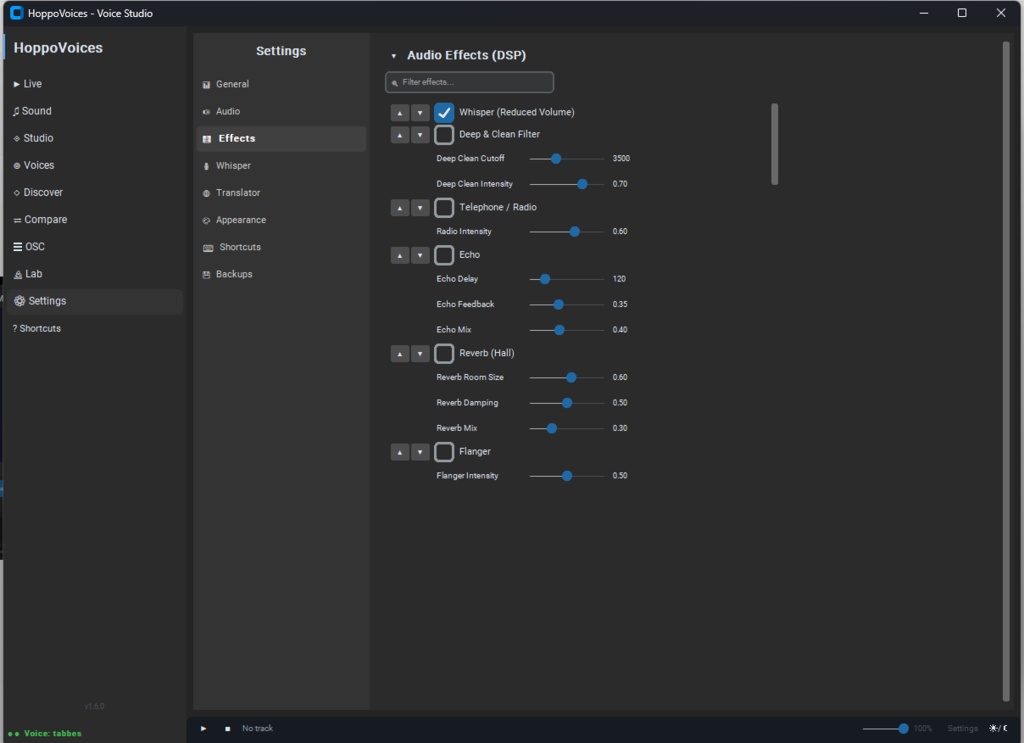
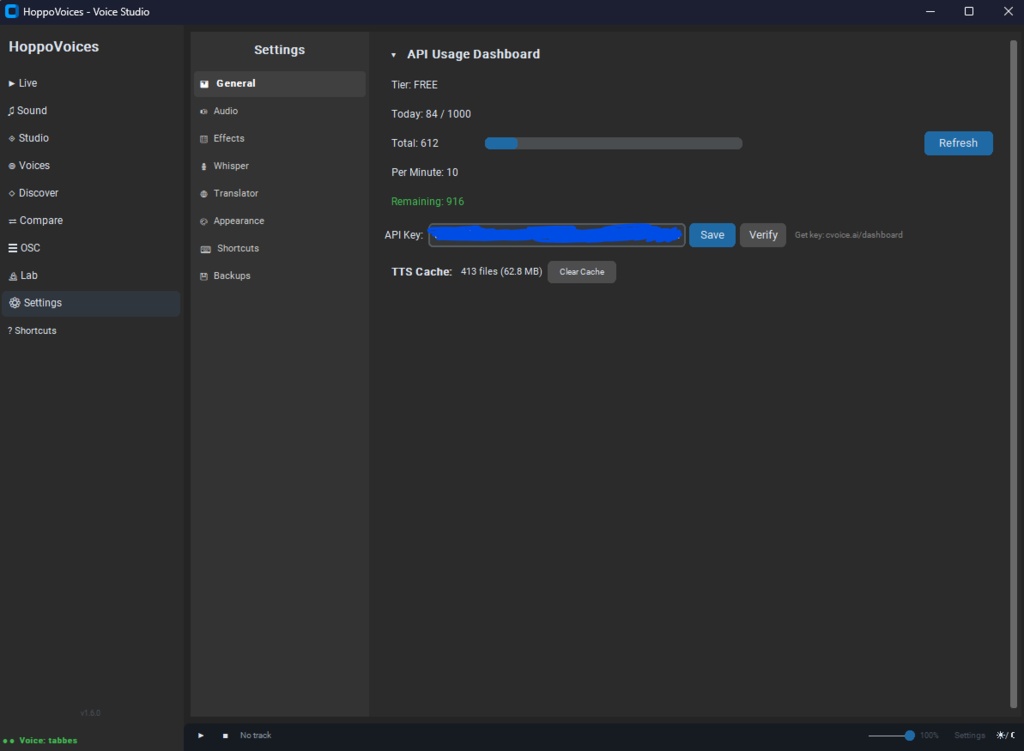


HoppoVoices - Voice Studio | The All-in-One AI Voice & Soundboard Solution Transform your voice, generate lifelike AI speech, and take your streams or gaming sessions to the next level! HoppoVoices is the ultimate voice studio designed for content creators, VTubers, roleplayers, and gamers. Whether you want to speak live with a completely different voice, generate custom voice lines, or trigger an advanced hotkey-managed soundboard—this tool brings everything together under one clean, modern, and user-friendly interface. ✨ Core Features: 🎙️ Live Mode & Speech-to-Speech (STTS): Speak naturally into your microphone and let the AI instantly morph your voice into your selected character in real-time. ⌨️ Advanced TTS Studio: Type your text, generate instant voiceovers, and utilize batch generation. Export your files as high-quality MP3 or WAV in seconds. 🎛️ Smart Soundboard: Save frequently used phrases, create "Quick TTS" clips directly within the soundboard, and assign global hotkeys to trigger audio anytime during gameplay or voice chats. 🌐 Discover & Voice Browser: Browse a massive database of community and official voices (Anime, Gaming, Actors, and more). Use the Voice Comparison tool to preview multiple models simultaneously to find the perfect fit. 🎮 OSC Integration: Built with VTubers and VRChat players in mind—seamlessly send text data, chatbox popups, and commands directly to your external software or tracking tools. ⚠️ Important Prerequisite: To power the AI voice synthesis, this application requires a free API key from cvoice.ai. After downloading, simply head over to cvoice.ai/dashboard to create a free account, grab your personal key, and paste it into the HoppoVoices settings. Your free key comes with a generous daily generation quota. 💻 System Requirements: Operating System: Windows 10/11 Active internet connection (for API requests) Phase 1: The Essential Prerequisite (API Setup) Before generating any audio, the software needs a connection to its voice generation engine. You must obtain a free API key from cvoice.ai to use this program. Open your web browser and navigate to cvoice.ai/dashboard. Create a free account or log in, and generate your personal API key. Open HoppoVoices and click on the Settings tab on the left sidebar. Under the API Configuration section, paste your key into the text box. Click Save, then click Verify. Note: You can monitor your daily generation limits (e.g., 82 / 1000) directly at the top of this page in the API Usage Dashboard. Phase 2: Windows Audio Configuration Still in the Settings tab, you need to configure how HoppoVoices interacts with your hardware. Input Device: Select your physical microphone. Output Device: Select your headphones or speakers to hear the playback. If you intend to use this live in games or Discord, you will eventually want to set this to a "Virtual Audio Cable" (so the AI voice feeds into your chat). Mic Gain: Adjust this slider so your microphone volume is easily picked up by the software. Phase 3: Core Features Overview 1. Generating Audio (TTS Studio) This is your main text-to-speech hub. Type your desired text into the large text box. Adjust the Speed slider if necessary. Click Generate Speech to hear the result. You can use the buttons on the right to Export as MP3/WAV, or use the "Quick Phrases" buttons below for rapid generation. 2. Real-Time Translation (Live Mode & STTS) Live Mode: This is for real-time voice changing. Click Start Listening, speak into your microphone, and the AI will process your speech and output it in your currently active voice (e.g., gawr-gura). STTS (Speech-to-Speech): This tab handles uploading pre-recorded audio files or processing specific bursts of speech to be converted into the AI voice, rather than a continuous live feed. 3. Managing Voices (Voices, Discover & Compare) Discover: Search the cvoice.ai database for new community or official voices. You can filter by categories like Anime, Gamer, Actor, or specific character names. Voices (Voice Browser): This acts as your local library. View, organize, and select the voices you have already added or favorited. Compare: If you aren't sure which voice fits a specific line of text, type it here. The Bulk Voice Preview allows you to test the exact same phrase across multiple different characters back-to-back to find the perfect fit. 4. Soundboard & Hotkeys Instead of generating live, you can pre-generate common phrases and save them here. You can categorize sounds (e.g., Greetings, Phrases). Click + Add Sound to import an audio file, or use the Quick TTS to Soundboard tool at the bottom to type a phrase and immediately add it to a slot. Assign Hotkeys so you can trigger these sounds instantly while in another application. 5. OSC Control If you use VRChat or VTubing software, this tab allows HoppoVoices to communicate directly with it. By setting up the Localhost IP (127.0.0.1) and corresponding ports (9000/9001), you can send text data (like a chatbox popup) or trigger events in your game based on your voice generation.
