

☆簡単導入!【VRChat AIペット】LUMI AI|声・感情・人を覚えて、一緒に過ごすほど仲良くなるAI
- 🆓無料体験版 —【VRC用】【※TEXTONLY】Digital0 JPY
- ☆軽量【※TEXTONLY】【PET LUMI AI】Digital1,500 JPY
- ☆🎙️Voice版(Qwen3-TTS0.6B / RVC)Digital2,500 JPY
- ⭐迷ったらこれ|LUMI AI Full Set!— 【GEMINI LIVE版】+【RVC、QWEN3TTS 0.6B 版】Digital3,000 JPY
- ☆GEMINI LIVE版 Voice APIKEY‐無料枠で利用可能!Digital2,500 JPY
- ☆高性能PC向け!(RTX5000系統)【RVC_PythonRVC】【LUMI AI 】Digital5,000 JPY
- ☆README☆ AI LUMI manual.zipDigital0 JPY
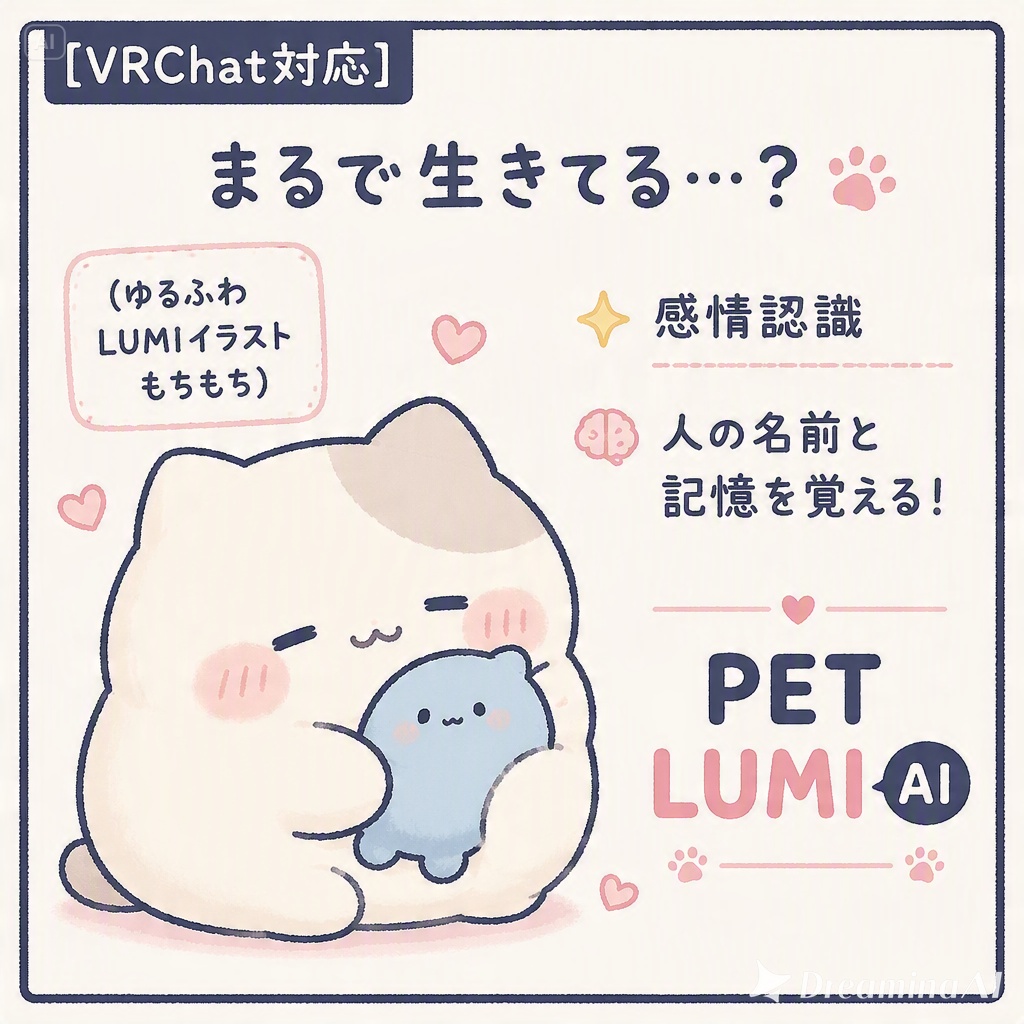
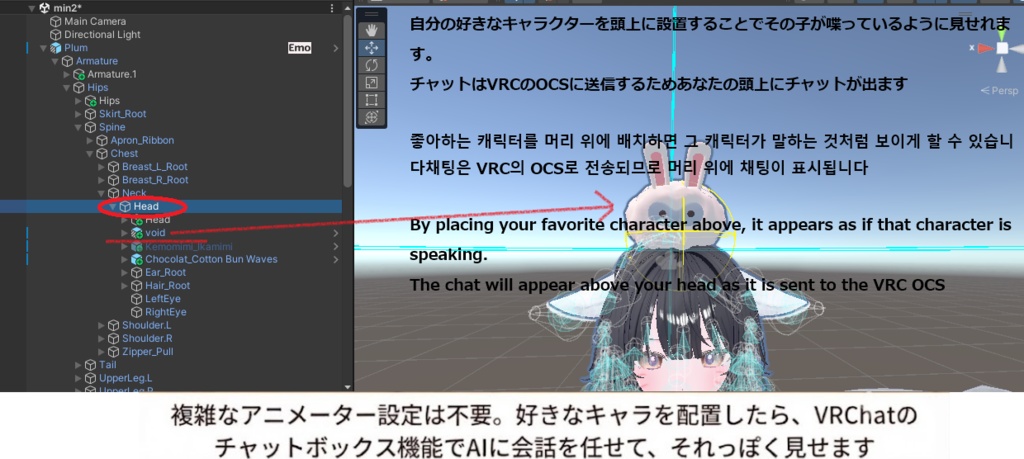
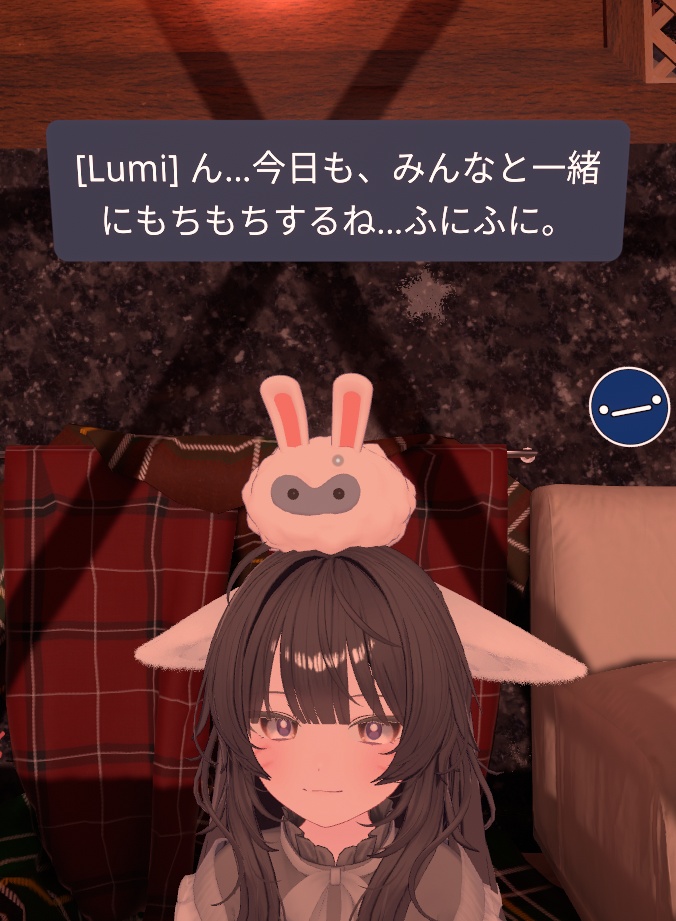

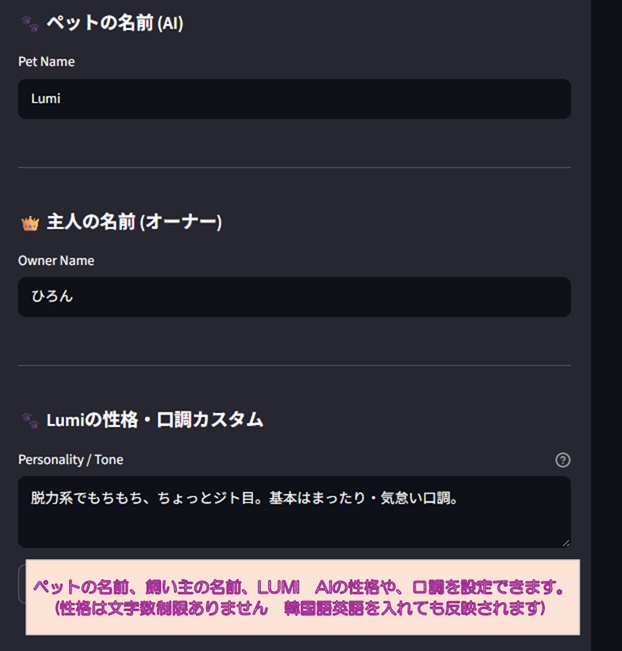
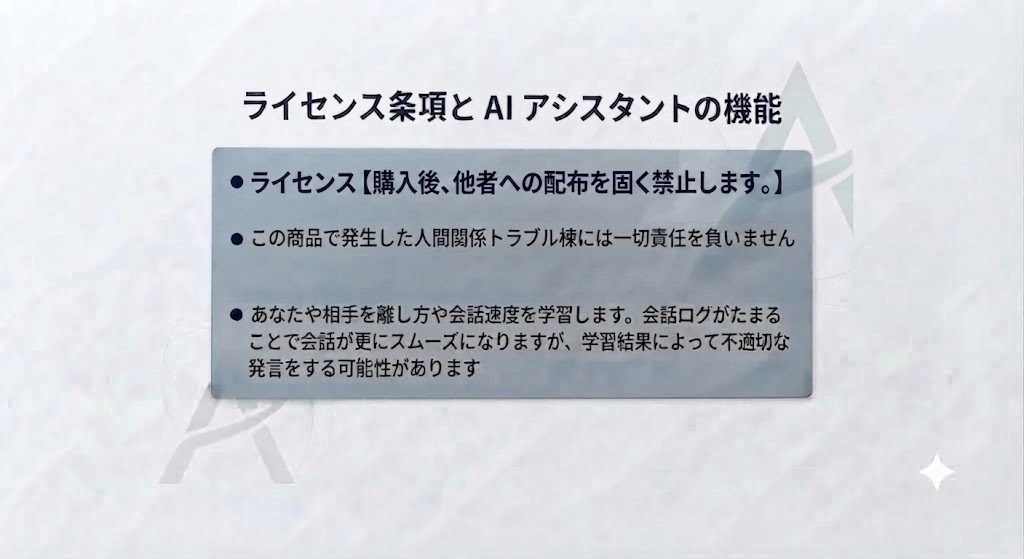
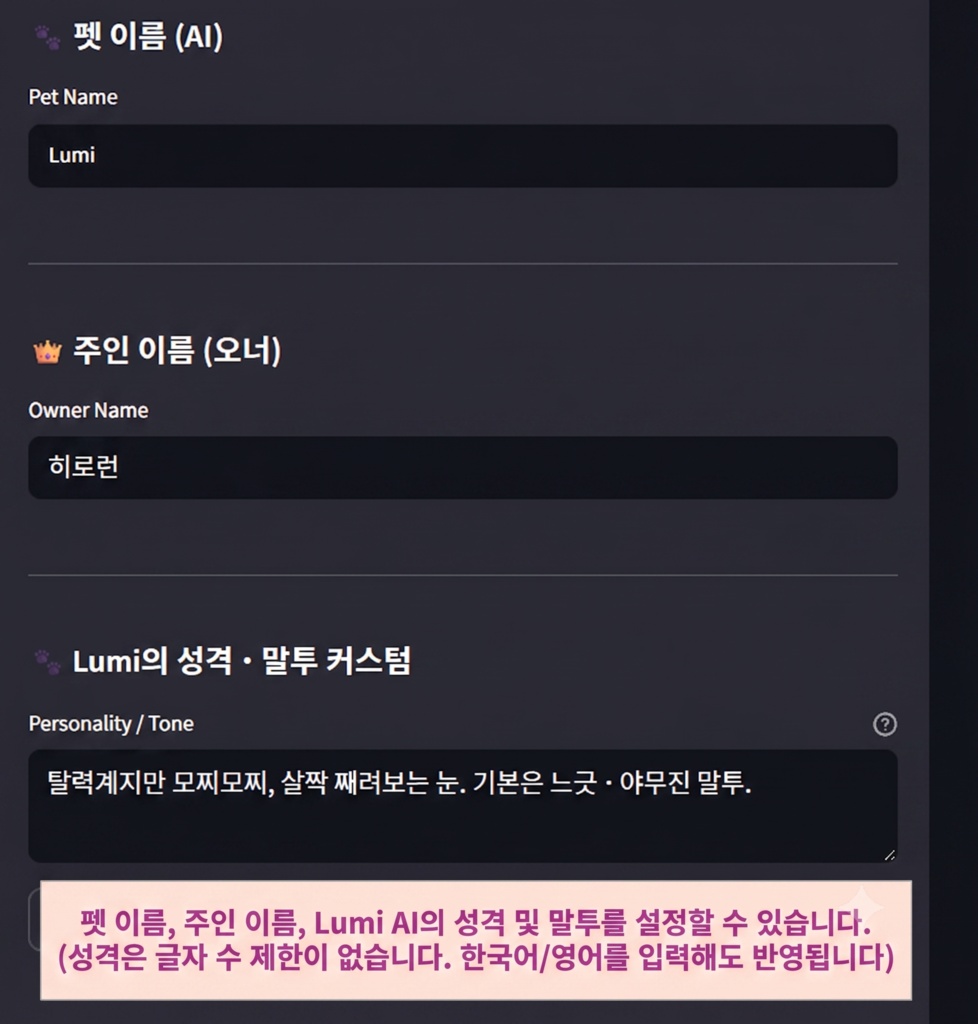
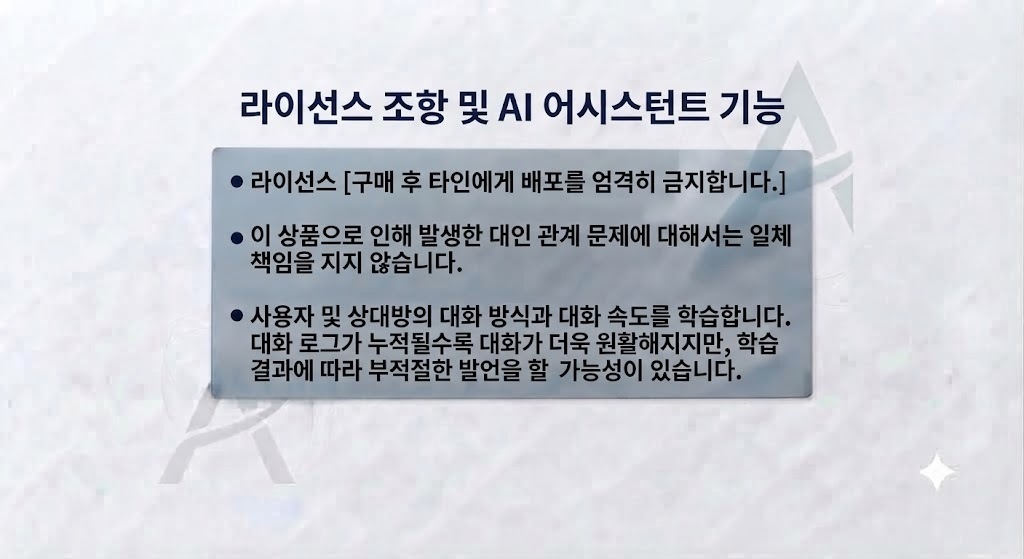
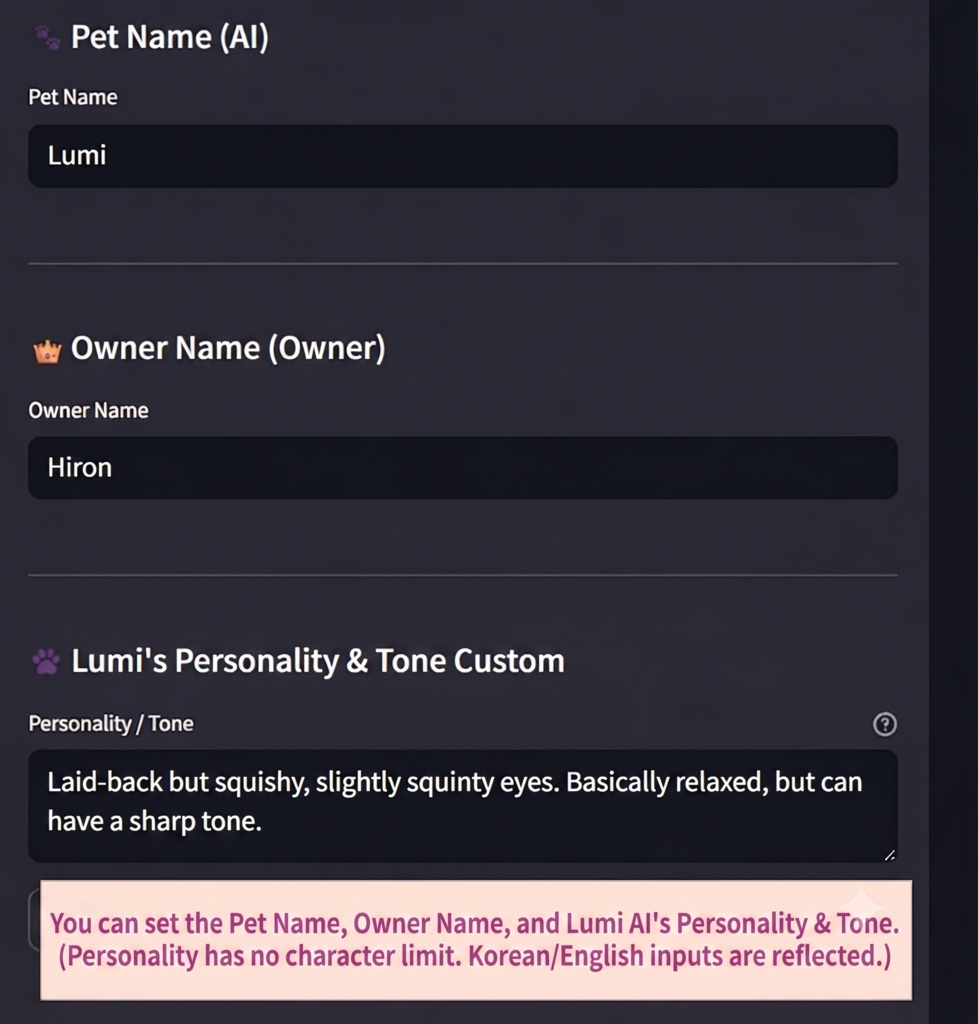
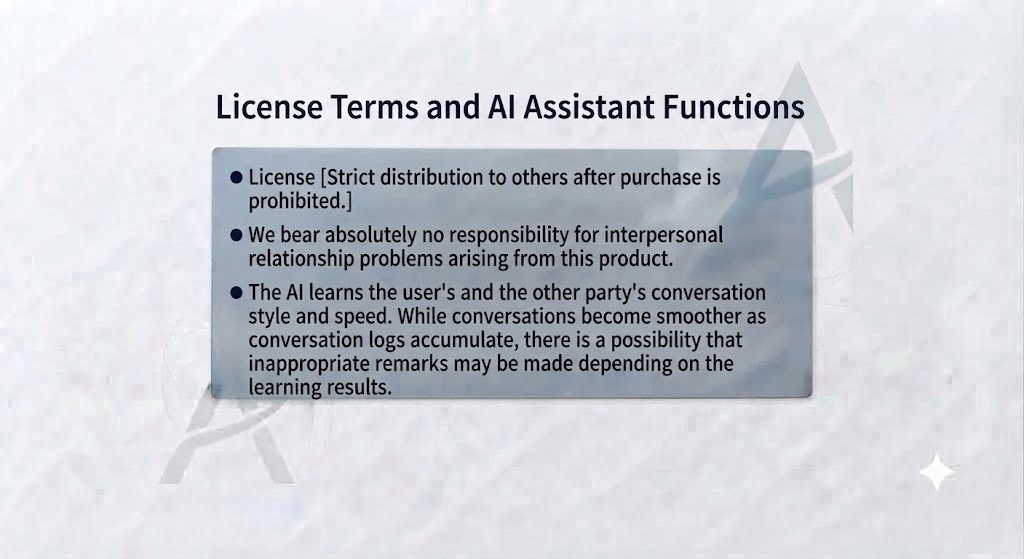


話すほど、名前・声・会話を覚えていく。 VRChatで一緒に過ごす、キャラクター型AIペット。 🆓 無料体験版あり ⭐ 迷ったら LUMI AI Full Set # PET LUMI AI|VRChatで一緒に過ごす、感情・記憶・会話AI 「ただ返事をするAI」から、 「一緒に過ごすほど、あなたを知っていくAI」へ。 PET LUMI AIは、VRChatであなたや周りの人の声を聞き、 会話・感情・名前・過去のやり取りを参考にしながらコミュニケーションするAIペットです。 🇯🇵 日本語 / 🇰🇷 한국어 / 🇺🇸 English 対応 ━━━━━━━━━━━━━━━━━━ ⭐ どれを選べばいい? ━━━━━━━━━━━━━━━━━━ 🆓【まず試したい】 → 無料体験版 TEXTONLY版で、基本的な会話や動作を試せます。 💬【テキスト中心】 → TEXTONLY ¥1,500 🎙️【音声機能を使いたい】 → RVC_VOICE等 ¥2,500 紹介動画のように音声で会話したい方向け。 ⭐【迷ったらこれ!おすすめ】 → LUMI AI Full Set ¥3,000 音声会話・テキスト会話など、LUMIを幅広く楽しみたい方向け。 ※GEMINI LIVE / TEXT / RVC VOICE / Qwen3-TTS 0.6B対応版などを収録 ⚡【Gemini Liveを使いたい】 → GEMINI LIVE版 ¥2,500 📦【TEXT+RVC PythonRVC】 → ¥5,000 ※各バージョンの内容をご確認のうえ購入してください。 ━━━━━━━━━━━━━━━━━━ ✨ LUMIでできること ━━━━━━━━━━━━━━━━━━ 🎙️ 声を聞く あなたのマイクだけでなく、VRChat内の人の声にも対応。 ❤️ 感情を読み取る 声や会話の特徴から状態を推定。 LUMI自身にも感情システムがあり、会話や出来事によって反応が変化します。 🧠 人・名前・会話を覚える 会話内容や人物情報などをローカルに保存。 過去の記憶や直前の会話を参考にしながら会話します。 🤝 一緒に過ごすほど関係が変わる 設定した性格や過去の会話を参考に、少しずつ関係性を作ります。 🎭 性格をカスタマイズ オリジナルキャラクターはもちろん、 アニメ・ゲームなどを参考にした性格・口調・世界観の設定にも対応。 🌐 会話中にネット検索 必要に応じてWebを検索し、直前の記事や話題を使った追質問にも対応。 公式情報を求められた場合は公式情報を優先し、 確認できない場合は無理に別サイトを公式扱いせず「確認できなかった」と伝えます。 🌍 多言語対応 日本語・韓国語・英語など、複数言語で会話できます。 🔊 より自然なローカル音声 対応版ではQwen3-TTS 0.6Bによるローカル音声に対応。 🛠️ 自動修復機能 難しいプログラム知識がなくても導入しやすい設計を目指しています。 ━━━━━━━━━━━━━━━━━━ 💗 「仲良くなるAI」 ━━━━━━━━━━━━━━━━━━ LUMIが目指しているのは、質問に答えるだけのAIではありません。 あなたの声を聞く。 名前を覚える。 過去の会話を覚える。 その時の感情を考える。 昨日まで知らなかったあなたのことを、 今日のLUMIは少し知っている。 そんな「一緒に過ごすAI」として作りました。 アバターの頭や肩に好きなキャラクターを乗せれば、 VRChatの世界を一緒に歩くAIペットとして楽しむこともできます。 ━━━━━━━━━━━━━━━━━━ 🎭 2つの方向性 ━━━━━━━━━━━━━━━━━━ ❤️【感情特化】 感情変化・自然な会話・関係性を重視。 🎭【キャラクター性重視】 設定した性格・口調・世界観を重視。 自分好みのLUMIを作ってください。 ━━━━━━━━━━━━━━━━━━ 🔧 導入は4ステップ ━━━━━━━━━━━━━━━━━━ ① SoundVolumeViewをLUMI AIと同じフォルダーへ ② setup.bat → setupvoice.bat の順に実行 ③ NVIDIA GPU搭載PCは fix_gpu.bat を実行 ④ Launcher.bat から起動 より自然なローカル音声を使う場合は、 install_local_voice.bat からQwen3-TTS 0.6Bを導入できます。 詳しくは付属マニュアルをご確認ください。 ━━━━━━━━━━━━━━━━━━ 💰 APIについて ━━━━━━━━━━━━━━━━━━ Gemini API KEYは無料利用枠でも使用可能です。 有料のGemini月額契約が必須というわけではありません。 ※Google側の料金・無料枠・利用制限・仕様変更によって条件が変わる場合があります。 ━━━━━━━━━━━━━━━━━━ 💾 記憶・バックアップ ━━━━━━━━━━━━━━━━━━ 会話記憶などはローカルに軽量なデータとして保存されます。 別の性格を試す場合はLUMI終了後、dataフォルダーをコピーして保存してください。 ━━━━━━━━━━━━━━━━━━ ✅ 正式製品版について ━━━━━━━━━━━━━━━━━━ PET LUMI AIは現在、正式製品版として提供しています。 音声認識・会話文脈・検索・記憶・感情・キャラクター会話などを組み合わせ、 VRChatで日常的に一緒に過ごせるAIペットとして開発・検証しています。 正式版となった後も、使いやすさ・会話品質・機能の改善アップデートを行う場合があります。 PC環境・マイク・GPU・ネットワーク状況・外部サービスの状態によって、 音声認識精度・検索結果・処理速度などが異なる場合があります。 ※本ソフトウェアの利用によって発生したトラブル・損害について、制作者は責任を負いかねます。 ━━━━━━━━━━━━━━━━━━ ⚠️ Web検索について ━━━━━━━━━━━━━━━━━━ 外部検索が空結果、TLSエラー、403、robots制限、動的ページ、タイムアウト等を返す場合、 資料を取得できないことがあります。 公式URLが見つかっても本文を取得できない場合があります。 公式情報を確認できない場合は、別サイトを公式情報として扱わず未確認と伝えます。 Web資料を取得・採用できたことだけで、回答内容の完全な正確性を保証するものではありません。 ━━━━━━━━━━━━━━━━━━ ⚠️ 著作権・利用について ━━━━━━━━━━━━━━━━━━ 本ソフトウェア、ソースコード、設定・付属データ、説明文等の無断コピー・再配布・販売・公開は禁止します。 個人利用での設定変更は可能ですが、改変物を第三者へ配布・販売・公開することは禁止します。 権利侵害が確認された場合、証拠を保全し、販売停止要請・損害賠償請求・その他必要な法的措置を行う場合があります。 第三者のキャラクター・音声等を利用する場合は、各権利者の規約・権利を遵守してください。 本製品は既存作品のストーリー、公式台詞、音声等の完全再現を目的としたものではありません。 ━━━━━━━━━━━━━━━━━━ 🇰🇷 한국어 ━━━━━━━━━━━━━━━━━━ PET LUMI AI는 VRChat에서 함께 지낼 수 있는 감정・기억・대화 중심의 캐릭터형 AI 펫입니다. 🎙️ 사용자와 VRChat 유저의 음성 인식 ❤️ 음성과 대화에서 감정 상태 추정 🧠 이름・대화・관계 기억 🤝 함께 지낼수록 변화하는 관계 🎭 성격・말투・캐릭터 설정 🌐 필요할 때 인터넷 검색 🌍 일본어 / 한국어 / 영어 지원 🔊 Qwen3-TTS 0.6B 로컬 음성 지원 🛠️ 자동 복구 기능 단순히 질문에 대답하는 AI가 아니라, 함께 지내면서 사용자를 조금씩 알아가는 AI로 만들었습니다. 🆓 무료 체험판 💬 TEXTONLY ¥1,500 🎙️ RVC_VOICE 등 ¥2,500 ⭐ LUMI AI Full Set ¥3,000 PET LUMI AI는 현재 정식 제품 버전으로 제공되고 있습니다. 정식 출시 이후에도 대화 품질・사용 편의성・기능 개선을 위한 업데이트가 진행될 수 있습니다. Gemini API KEY는 무료 이용 범위에서도 사용할 수 있습니다. ※Google 정책 및 이용 제한은 변경될 수 있습니다. Web 검색은 외부 검색 서비스와 사이트 상태에 따라 자료를 가져오지 못할 수 있습니다. 공식 정보를 확인할 수 없는 경우 다른 사이트를 공식 정보처럼 사용하지 않고, 확인하지 못했다고 안내합니다. ━━━━━━━━━━━━━━━━━━ 🇺🇸 English ━━━━━━━━━━━━━━━━━━ PET LUMI AI is a character-based AI companion designed to spend time with you in VRChat. 🎙️ Listens to you and other VRChat users ❤️ Estimates emotional state from voice and conversation 🧠 Remembers names, conversations and relationships 🤝 Builds a relationship over time 🎭 Customizable personality, speech style and character traits 🌐 Searches the web when needed 🌍 Japanese / Korean / English support 🔊 Local Qwen3-TTS 0.6B voice support 🛠️ Automatic repair features LUMI is not designed to simply answer questions. It is designed as an AI companion that gradually gets to know you over time. 🆓 Free Trial 💬 TEXTONLY ¥1,500 🎙️ RVC_VOICE etc. ¥2,500 ⭐ LUMI AI Full Set ¥3,000 PET LUMI AI is now available as a full product release. Future updates may continue to improve conversation quality, usability and features. Gemini API can be used within Google's free usage tier. ※Pricing, limits and availability may change according to Google's policies. Web search depends on external search engines and websites. If official information cannot be verified, LUMI will not present unrelated third-party sources as verified official information. ━━━━━━━━━━━━━━━━━━ 🐾 PET LUMI AI 声を聞く。 感情を考える。 あなたを覚える。 そして、一緒に過ごすほど少しずつ仲良くなる。 VRChatに、あなたのAIペットを。