
Tree Editor(Outline Processor)
- Tree EditorDigital0 JPY
- Tree Editor(投げ銭版)Digital500 JPY
- Tree Editor(投げ銭お大尽版)Digital1,000 JPY
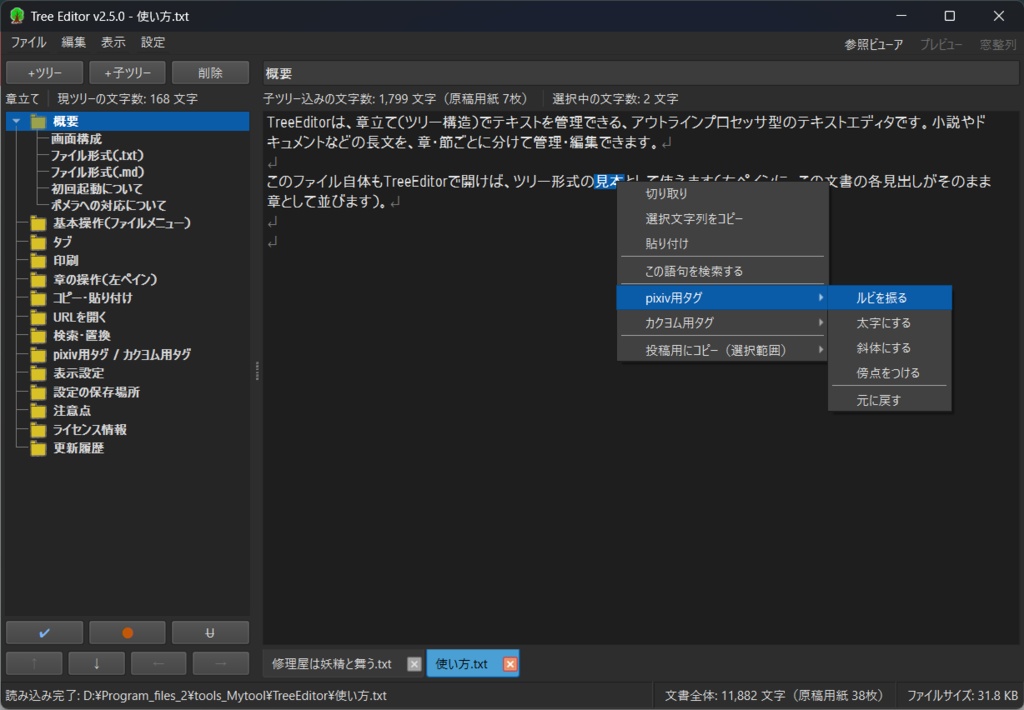
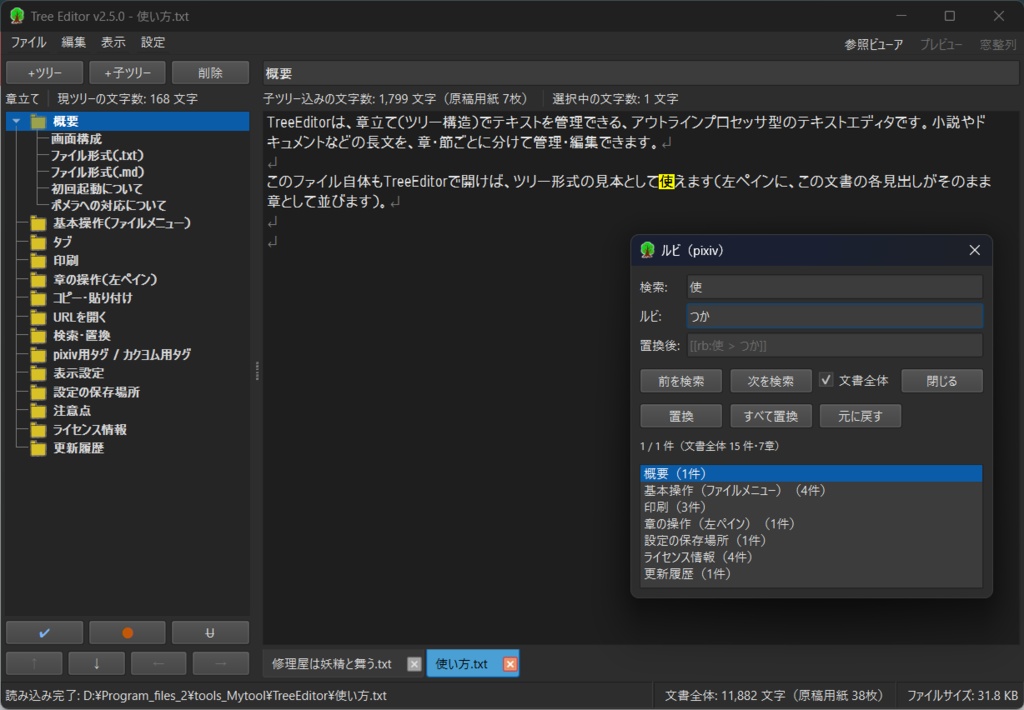
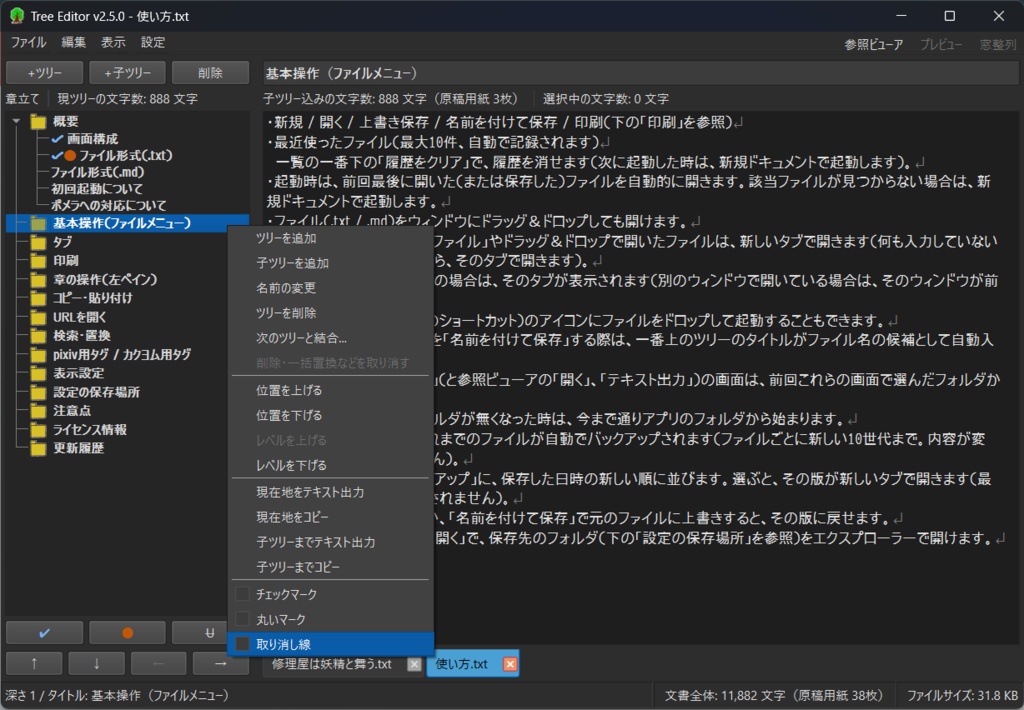
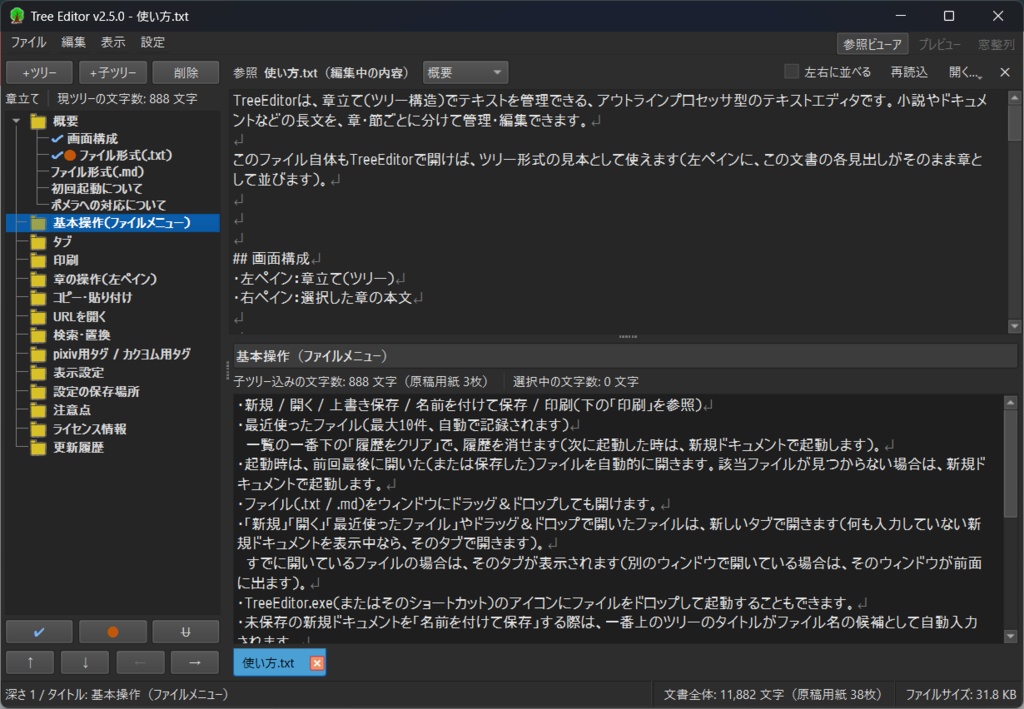
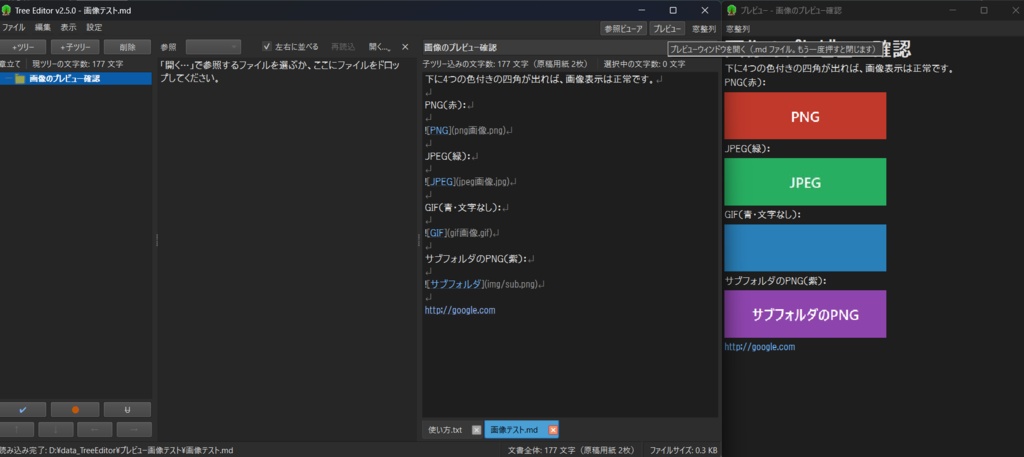
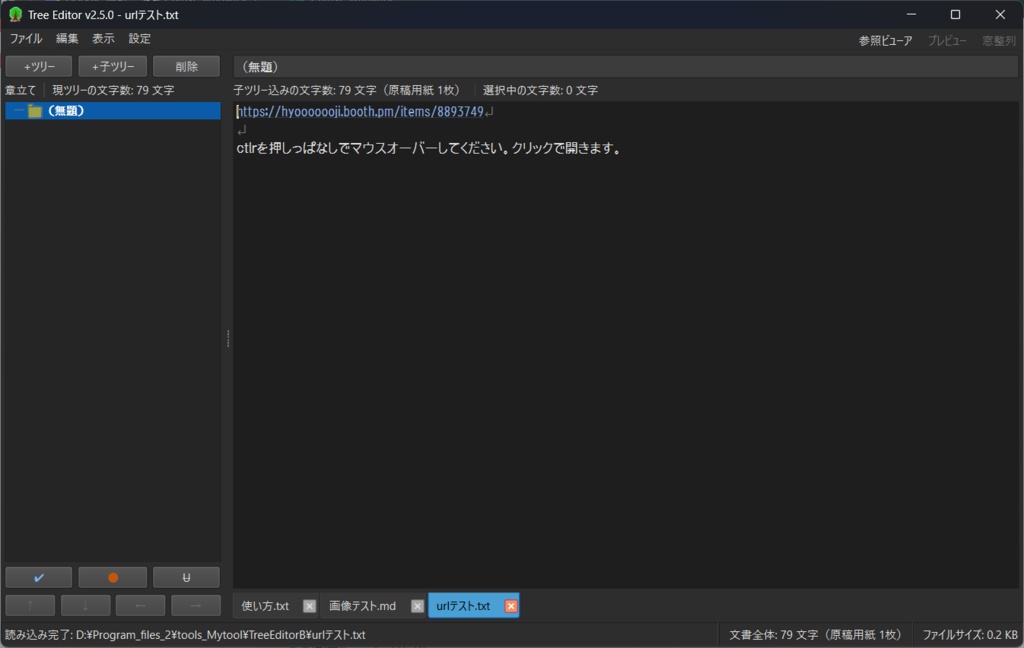
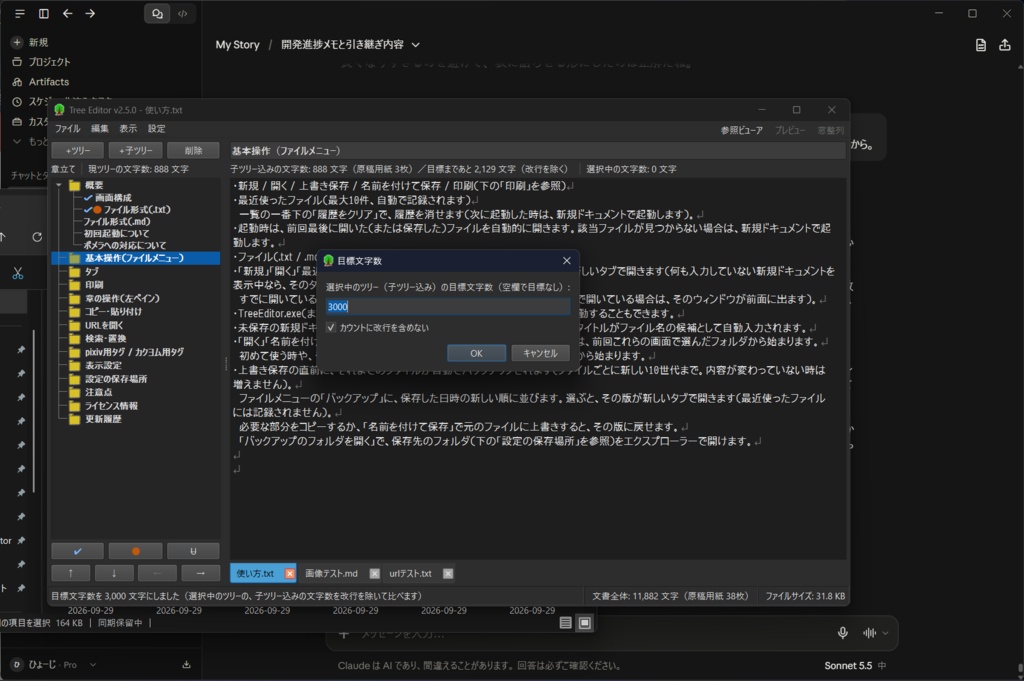


※とりあえず左の窓にツリーを作って右の窓に書いてみてください。 ※英語表示に対応しています(設定メニューの「Language / 言語」で切り替え)。 The interface supports English ("Settings > Language / 言語"). ※AIのClaude Codeさんを詰めまくって作ってもらいました。 ※Windows専用ソフトです(動作確認環境 Windows11 Pro 64bit。Mac等では使えません) ※無料版・投げ銭版(500円)・投げ銭お大尽版(1,000円)の中身はすべて同じです。投げて頂けると励みになりますw *主な特徴* UTF-8保存/ツリー単位の文字数表示・出力/pixiv・カクヨム用タグ挿入と相互変換/取り消し・自動バックアップ対応/.md・印刷・PDF書き出し対応 Tree Editorは、章立て(ツリー構造)でテキストを管理できる、アウトラインプロセッサ型のテキストエディタです。 小説やドキュメントなどの長文、シナリオ等を書く用途などに向いています。 ※同梱の「使い方.txt」を読み込むと、そのままツリー形式で表示されます。 ※初回起動時、本ソフトはコード署名をしていないためSmartScreenの警告が出ますが『詳細情報→実行』で起動できます。 ※保存形式はUTF-8のプレーンテキスト(.txt)とMarkdown(.md)。 ※ツリーごとの文字数(単独/子ツリー込み)を常時表示。 ※pixiv用・カクヨム用のルビ・傍点などのタグ挿入に対応。 ※設定はexeと同じフォルダに保存(レジストリ不使用)。フォルダごとUSBで持ち運べます。削除もフォルダごとゴミ箱ぽいのお手軽加減。 *ただし下記の通りバックアップフォルダが中にありますので「世代バックアップ取っておきたい!」という時はうっかり丸ごと捨てないようにご注意を。 ※上書き保存時に自動でバックアップを作ります(exeと同じフォルダの「config」→「backup」フォルダに10世代)。 ※Markdown(.md)ファイルに対応。「#」の見出しがそのままツリーになり、本文の太字・引用・コードなどは色分けして表示します。 メニューバー右端の「プレビュー」ボタンで、装飾済みの見た目を別ウィンドウで確認できます(画像の表示にも対応)。 ※ファイルはウィンドウやexeのアイコンにドラッグ&ドロップしても開けます。 ※他のエディタやポメラで作ったファイルを開いて保存しても、最初の見出しより前の文章や空行などはそのまま保たれます。 ※印刷とPDFへの書き出しに対応。印刷プレビューを見ながら、範囲(選択中の章/子ツリー込み/文書全体)・フォント・余白を選べます。 ルビや傍点などのタグは、記号を省いて「漢字(かんじ)」の形で印刷することもできます。 ※ツリー(章)単位でテキスト出力・コピー・貼り付けができます(コピーしたツリーは、別のタブやファイルにも貼り付けられます)。「この章だけ投稿サイトに貼りたい」が右クリックで済みます。 ※選択範囲をコピーして投稿する際、ルビのタグを「pixiv→カクヨム」変換したり(逆も可能)、ルビを外してコピーしたりすることができます。 ※ツリーの追加・削除・移動・章の分割と結合・「文書全体」での一括置換は、すべて取り消せます(タブごとに20回分)。 ※ツリーはドラッグ&ドロップ、またはAlt+矢印キーで移動できます。章の分割・結合にも対応。 ※文書全体を対象にした検索・置換に対応。 ※原稿用紙換算の枚数と、目標文字数を表示できます(目標は、選択中のツリー〔子ツリー込み〕の文字数を基準に、ツリーを選び直すたびに「目標まであと○文字」「目標達成」を表示。目標はファイルごとに設定フォルダへ保存され、本文のファイルには書き込まれません。「カウントに改行を含めない」設定もあります)。 ※参照ビューアとタブで、別ファイルを見比べながら書けます。 ※本文中のURL(http・https)は青い下線で表示し、Ctrl+クリックで既定のブラウザで開けます(表示だけで、保存されるテキストは変わりません)。 ※クリップボード履歴:Ctrl+E(またはメニューバー右端のボタン)で、直近にコピーした文字9件の小窓を開き、数字キー・矢印キー・クリックで選んで、カーソル位置に貼り付けられます。ほかのアプリでコピーした文字も入ります。履歴はメモリ上だけで、アプリを閉じると消えます(パスワード管理ソフトなどが「履歴に残さない」と印を付けたコピーは入りません)。 ※テキストに影響しませんが、PC上でツリーに目印(チェックマーク・丸いマーク・取り消し線)を設定できます。 ※見出し記号は「#」と「.」です(.mdファイルは「#」のみ)。 ※キングジムのデジタルメモ「ポメラ」の見出し記号に対応していますので、PCとのデータの行き来が容易です(*ツリーの目印類は持ち越されません) ※配布ファイルはフォルダ形式です。解凍したフォルダの中の「TreeEditor.exe」から起動してください。 同じフォルダ内の「_internal」フォルダは動作に必要なため、exeだけを取り出さずフォルダごと置いてください。 ※本ソフトはQt(LGPL v3)などのオープンソースソフトウェアを利用しています。詳細は同梱の「使い方.txt」をご参照ください。 ※「ポメラ」は株式会社キングジムの登録商標です。本ソフトウェアはキングジム社とは無関係の非公式ソフトウェアであり、同社への問い合わせはご遠慮ください。 ※本ソフトウェアは無保証で提供されます。利用によって生じたいかなる損害についても、製作者は責任を負いません。
動作環境
Windows11 64bit版(Windows10では未確認です) ポメラ連携の動作確認機種:ポメラ DM250
アップデート履歴
[2026-10-12: v2.9.0] 左ペインの右クリックメニューに「コピーしたツリーを貼り付け」を追加(「現在地をコピー」「子ツリーまでコピー」で入れた見出し付きのテキストを、選択中のツリーのすぐ次に貼り付け。取り消せます) [2026-10-10: v2.8.0] 英語表示に対応(設定メニューの「Language / 言語」で日本語・英語を切り替え。次に起動した時に反映)。英語の説明書(Manual_en.txt)を同梱 [2026-10-07: v2.7.0] メニューバーの「設定」の右に「上書き保存」ボタンを追加(押すとCtrl+Sと同じ保存。変更がない時は薄く表示されて押せません)、開いたことがあるファイルを開き直すと、最後に表示していたツリーを選んで開くように変更 [2026-10-05: v2.6.0] クリップボード履歴を追加(Ctrl+Eで直近9件の小窓を開いて、カーソル位置に貼り付け。履歴はメモリ上だけ)。右ペインの右クリックメニューに「選択文字列を削除」を追加。目標文字数の「カウントに改行を含めない」を選ぶと「現ツリーの文字数」「子ツリー込みの文字数」「選択中の文字数」「文書全体」も改行を除いて数えるように変更、左ペインの「章立て」の表示を削除、左ペインの幅を次に起動した時も引き継ぐように変更 [2026-10-02: v2.5.1] 左ペインでツリーを削除したとき、一番上のツリーに戻ってしまう不具合を修正(削除したツリーの次のツリー〔なければ前のツリー、親のツリー〕を表示し、スクロール位置も保つ) [2026-09-29: v2.5.0] 目標文字数を、文書全体ではなく選択中のツリー(子ツリー込み)の文字数を基準に表示するように変更、目標文字数の数え方から改行を除く設定を追加。旧バージョンで設定した目標文字数は引き継がれません [2026-09-29: v2.4.0] 本文中のURL(http・https)を青い下線で表示し、Ctrl+クリックで既定のブラウザで開けるように。保存されるテキストは変わりません [2026-09-28: v2.3.1] 「開く」「名前を付けて保存」などの画面を、前回使ったフォルダから開くように変更 [2026-09-28: v2.3.0] ツリーの削除・移動・分割・結合と一括置換の取り消し、上書き保存時の自動バックアップ(10世代)、文書全体の検索・置換、投稿用にコピー(pixiv用・カクヨム用に変換)、ツリーのドラッグ&ドロップとAlt+矢印キーでの移動、原稿用紙換算と目標文字数、章の分割・結合を追加。プレビューウィンドウの「窓整列」ボタンを左端に移動 [2026-09-28: v2.2.0] 印刷機能を追加(印刷プレビュー、印刷する範囲・ルビなどのタグの扱い・フォントの選択、PDFに書き出し)。「ツリーを追加」で、選択中のツリーのすぐ次に追加するように変更 [2026-09-28: v2.1.1] 参照ビューアの再読込や章の切り替えの直後に、改行マーク(↵)が表示されないことがある不具合を修正 [2026-09-28: v2.1.0] 参照ビューア(別のファイルや編集中の別の章を、閲覧専用で上下・左右に並べて表示)と、タブ機能(1つのウィンドウで複数のファイルを開く)を追加。メニューバー右端に「参照ビューア」「プレビュー」「窓整列」ボタンを追加。ルビなどのタグを置換した後や元に戻した後も、現在位置の黄色い表示が消えないように修正 [2026-09-27: v2.0.1] 左ペインの「右端で折り返す」が表示に反映されない不具合を修正 [2026-09-26: v2.0.0] 画面表示の仕組みをTkinterからQtに変更。貼り付け時のがたつき・全角記号の変換で文字が消える問題を解消。配布形式をフォルダ形式に変更。Markdown(.md)の読み書き・装飾表示・プレビューと、ドラッグ&ドロップでファイルを開く機能に対応 [2026-09-25: v1.0.0] 配布開始
Tree Editor (Outline Processor)
* Just make a tree in the left pane and start writing in the right pane. * Made by pushing the AI "Claude Code" hard. * Windows only (tested on Windows 11 Pro 64-bit; it does not run on Mac, etc.) * The free version, the tip version (500 yen) and the big-tip version (1,000 yen) are all identical. A tip is much appreciated! * The interface is available in English and Japanese. It follows your Windows display language, and you can change it in "Settings > Language / 言語" (it takes effect the next time the program starts). An English manual ("Manual_en.txt") and a Japanese one ("使い方.txt") are both included. * Main features * Saves as UTF-8 / character counts per tree / tags for the Japanese posting sites pixiv and Kakuyomu (insert and convert) / undo and automatic backups / .md, printing and PDF export Tree Editor is an outline-processor-style text editor that organizes your text as chapters (a tree structure). It suits long writing such as novels, documents and scenarios. * Open the included "Manual_en.txt" in the program and it is shown as a tree. * On first launch, SmartScreen shows a warning because the software is not code-signed. Choose "More info > Run anyway" to start it. * Files are saved as UTF-8 plain text (.txt) or Markdown (.md). * Character counts per tree (alone / with sub-trees) are always shown. * Tags for ruby and emphasis dots for pixiv and Kakuyomu (Japanese writing sites) can be inserted. * Settings are kept in the same folder as the exe (no registry). You can carry the whole folder on a USB drive, and delete it by deleting the folder. * Note that the backup folder is inside it, so if you want to keep the generations of backups, be careful not to throw the whole folder away. * A backup is made automatically whenever you save (10 generations, in the "config" > "backup" folder next to the exe). * Markdown (.md) files are supported. "#" headings become the tree, and bold, quotes, code and so on in the body are color-coded. The "Preview" button at the right end of the menu bar shows the formatted look in a separate window (images are supported too). * Files can be opened by dropping them on the window or on the exe's icon. * Files made in other editors or on the Pomera keep any text before the first heading, blank lines and so on as they are when you open and save them. * Printing and PDF export. In the print preview you can choose the range (selected chapter / with sub-trees / whole document), the font and the margins. Ruby and emphasis-dot tags can be removed when printing, leaving only the characters. * Export, copy and paste as text per tree (chapter); copied trees can be pasted into other tabs and files too. Pasting just one chapter to a posting site takes one right-click. * When copying a selection for posting, ruby tags can be converted from pixiv to Kakuyomu (and back), or removed. * Adding, deleting and moving trees, splitting and merging chapters, and "Replace All" in the whole document can all be undone (20 steps per tab). * Trees can be moved by drag and drop or with Alt + arrow keys. Splitting and merging chapters is supported. * Find and replace across the whole document. * Shows the length in sheets of 400-character manuscript paper (a Japanese convention) and a character goal (the goal is based on the selected tree's count including its sub-trees, and shows "to go" / "reached" each time you select a tree. Goals are saved per file in the settings folder, not in the text file. There is also a "Don't count line breaks" option). * The reference viewer and tabs let you write while comparing other files. * URLs (http, https) in the body are shown in blue with an underline and open in the default browser with Ctrl+click (display only; the saved text does not change). * Clipboard history: Ctrl+E (or the button at the right end of the menu bar) opens a small window with the last 9 texts you copied; choose one with the number keys, arrow keys or a click to paste it at the cursor. Text copied in other applications is included. The history is kept in memory only and disappears when you close the program (anything a password manager marks as "do not keep in history" is not included). * You can set marks on trees (check mark, circle mark, strikethrough) on the PC. They do not affect the text. * Heading marks are "#" and "." (only "#" for .md files). * It supports the heading marks of the KING JIM digital memo "Pomera", so moving data between the PC and the Pomera is easy (* the marks on trees are not carried over). * The distribution is a folder. Start the program from "TreeEditor.exe" in the extracted folder. The "_internal" folder in the same folder is needed to run, so keep the whole folder together instead of taking out only the exe. * This software uses open-source software such as Qt (LGPL v3). See the included "Manual_en.txt" for details. * "Pomera" is a registered trademark of KING JIM CO., LTD. This software is unofficial and unrelated to KING JIM; please do not contact them about it. * This software is provided without warranty. The author takes no responsibility for any damage caused by its use.
動作環境
System requirements Windows 11 64-bit (not tested on Windows 10) Model tested for Pomera support: Pomera DM250
Release notes
[2026-10-12: v2.9.0] Added "Paste copied trees" to the left pane's right-click menu (pastes the text with headings put on the clipboard by "Copy this tree" / "Copy this tree with sub-trees" right after the selected tree; it can be undone) [2026-10-10: v2.8.0] Added English display (switch between Japanese and English in "Settings > Language / 言語"; it takes effect the next time the program starts). Added an English manual (Manual_en.txt). [2026-10-07: v2.7.0] Added a "Save" button to the right of "Settings" on the menu bar (same as Ctrl+S; dimmed and unclickable when there are no changes). Reopening a file you have opened before now selects the tree you were last viewing. [2026-10-05: v2.6.0] Added the clipboard history (Ctrl+E opens a small window with the last 9 copies to paste at the cursor; kept in memory only). Added "Delete selection" to the right pane's right-click menu. "Don't count line breaks" in the character goal now also applies to "Chars (this tree)", "Chars (with sub-trees)", "Selected chars" and "Whole document". Removed the "Chapters" label of the left pane. The left pane's width is kept at the next start. [2026-10-02: v2.5.1] Fixed: after deleting a tree in the left pane the view jumped back to the top tree. It now shows the next tree (else the previous one, else the parent) and keeps the scroll position. [2026-09-29: v2.5.0] The character goal is now based on the selected tree (with sub-trees) instead of the whole document. Added an option to leave line breaks out of the count. Goals set in older versions are not carried over. [2026-09-29: v2.4.0] URLs (http, https) in the body are shown in blue with an underline and open in the default browser with Ctrl+click. The saved text does not change. [2026-09-28: v2.3.1] "Open", "Save as" and similar dialogs now start in the folder used last time. [2026-09-28: v2.3.0] Added undo for deleting, moving, splitting and merging trees and bulk replace, automatic backups when saving (10 generations), find and replace in the whole document, copy for posting (convert for pixiv / Kakuyomu), moving trees by drag and drop and Alt + arrow keys, manuscript-sheet conversion and character goal, splitting and merging chapters. Moved the preview window's "Arrange windows" button to the left end. [2026-09-28: v2.2.0] Added printing (print preview, choice of range, ruby tag handling and font, export to PDF). "Add tree" now adds right after the selected tree. [2026-09-28: v2.1.1] Fixed: the line-break mark (↵) sometimes did not appear right after reloading the reference viewer or switching chapters. [2026-09-28: v2.1.0] Added the reference viewer (shows another file or another chapter of the file being edited, read-only, above or beside the body) and tabs (several files in one window). Added "Reference viewer", "Preview" and "Arrange windows" buttons at the right end of the menu bar. Fixed the yellow current-position highlight disappearing after replacing or undoing tags such as ruby. [2026-09-27: v2.0.1] Fixed: "wrap at the right edge" of the left pane was not reflected in the display. [2026-09-26: v2.0.0] Changed the display from Tkinter to Qt. Fixed the jerkiness when pasting and characters disappearing when converting full-width symbols. Changed the distribution to a folder. Added reading and writing of Markdown (.md), the formatted display and preview, and opening files by drag and drop. [2026-09-25: v1.0.0] First release