

【無料 / FREE】Component Transfer ― PhysBone・Collider・マテリアル移植ツール
- 無料版 / FreeDigital0 JPY
- 支援版 / SupportDigital500 JPY
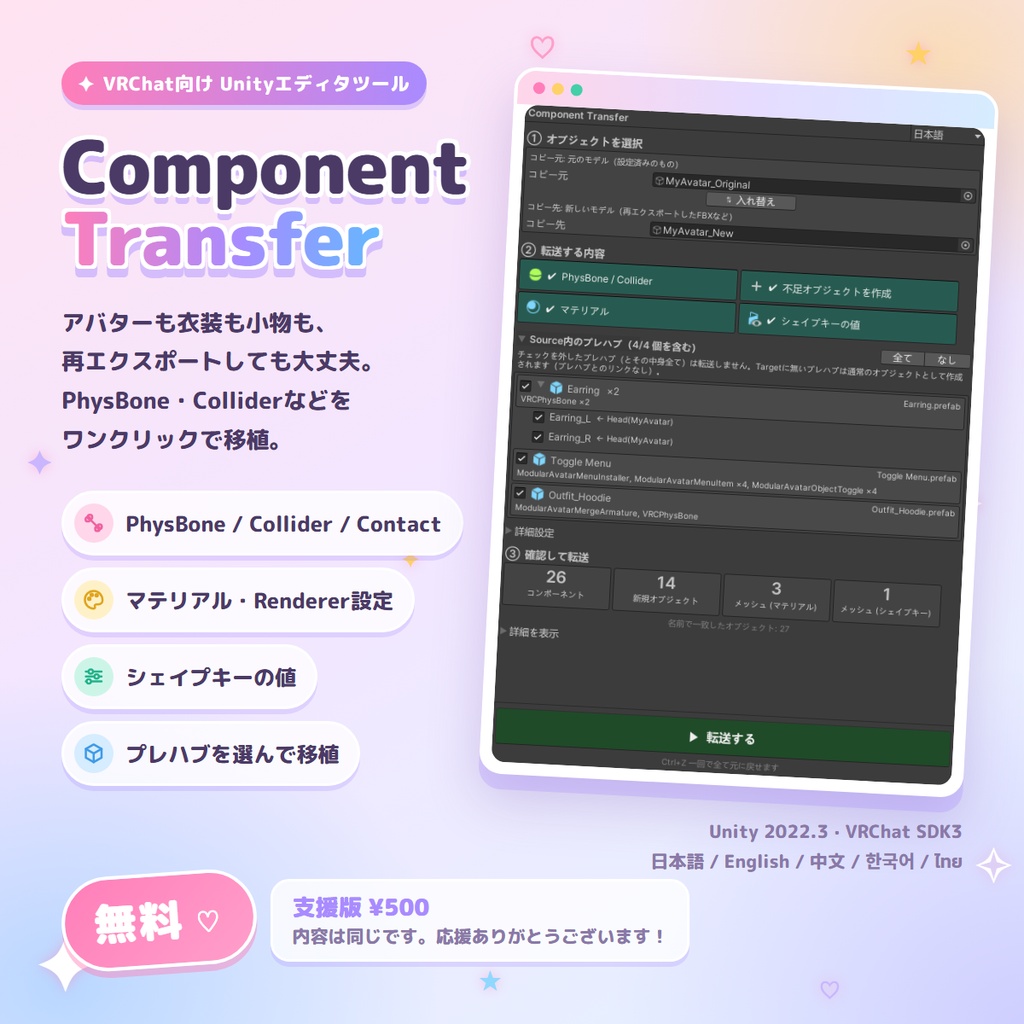
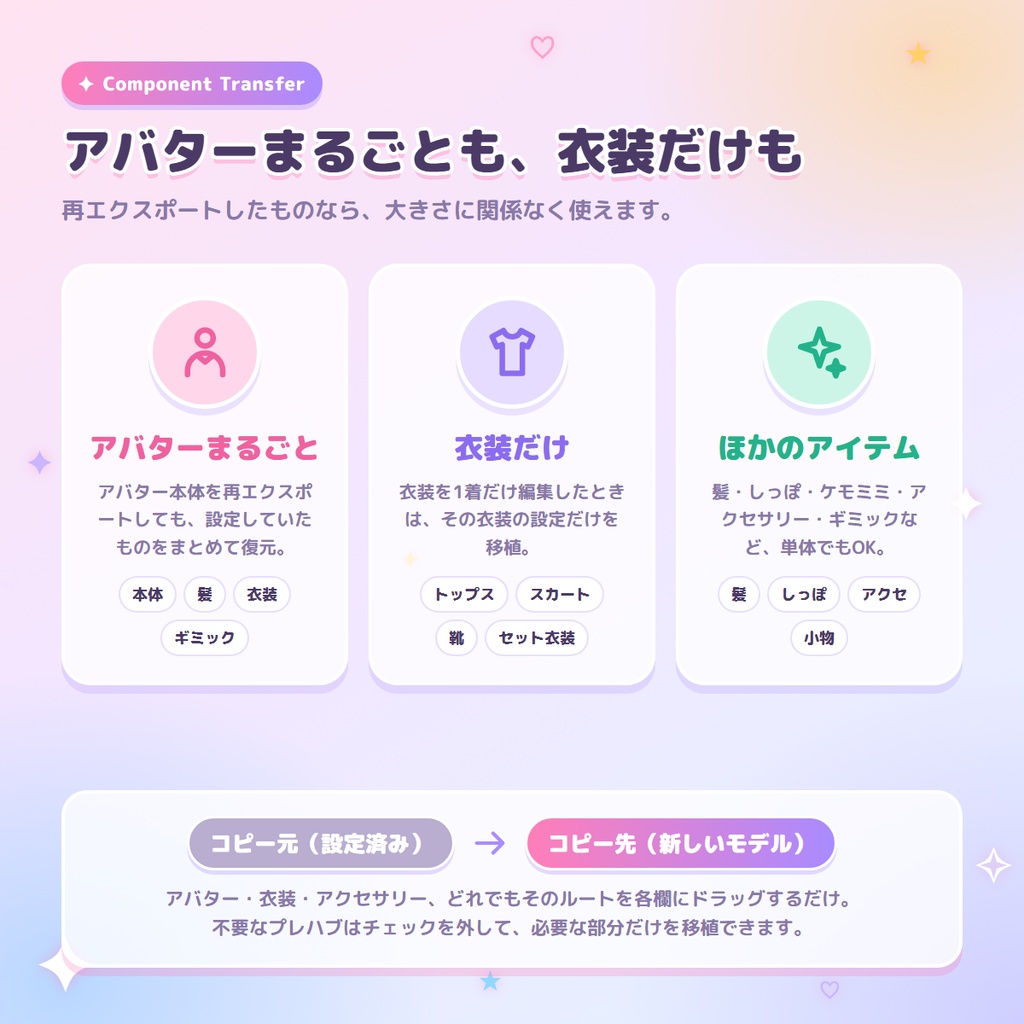
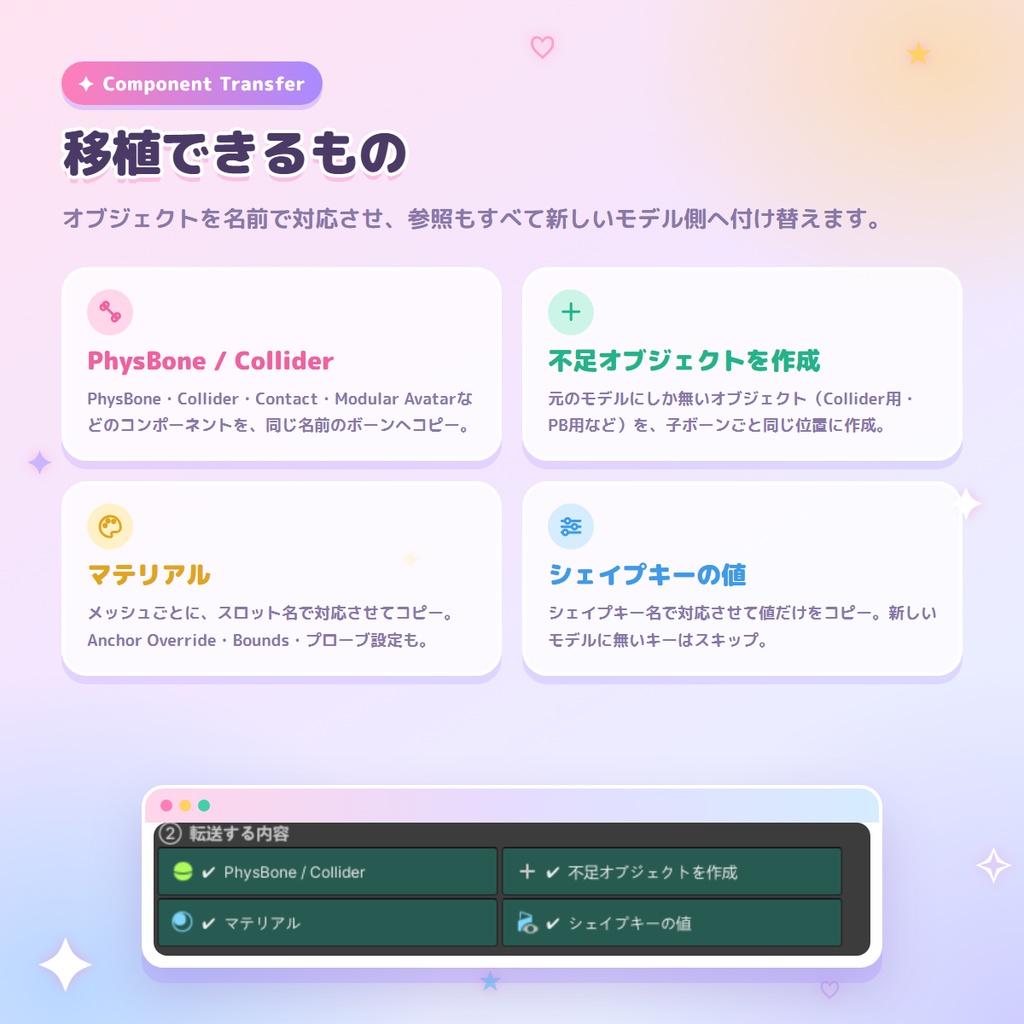
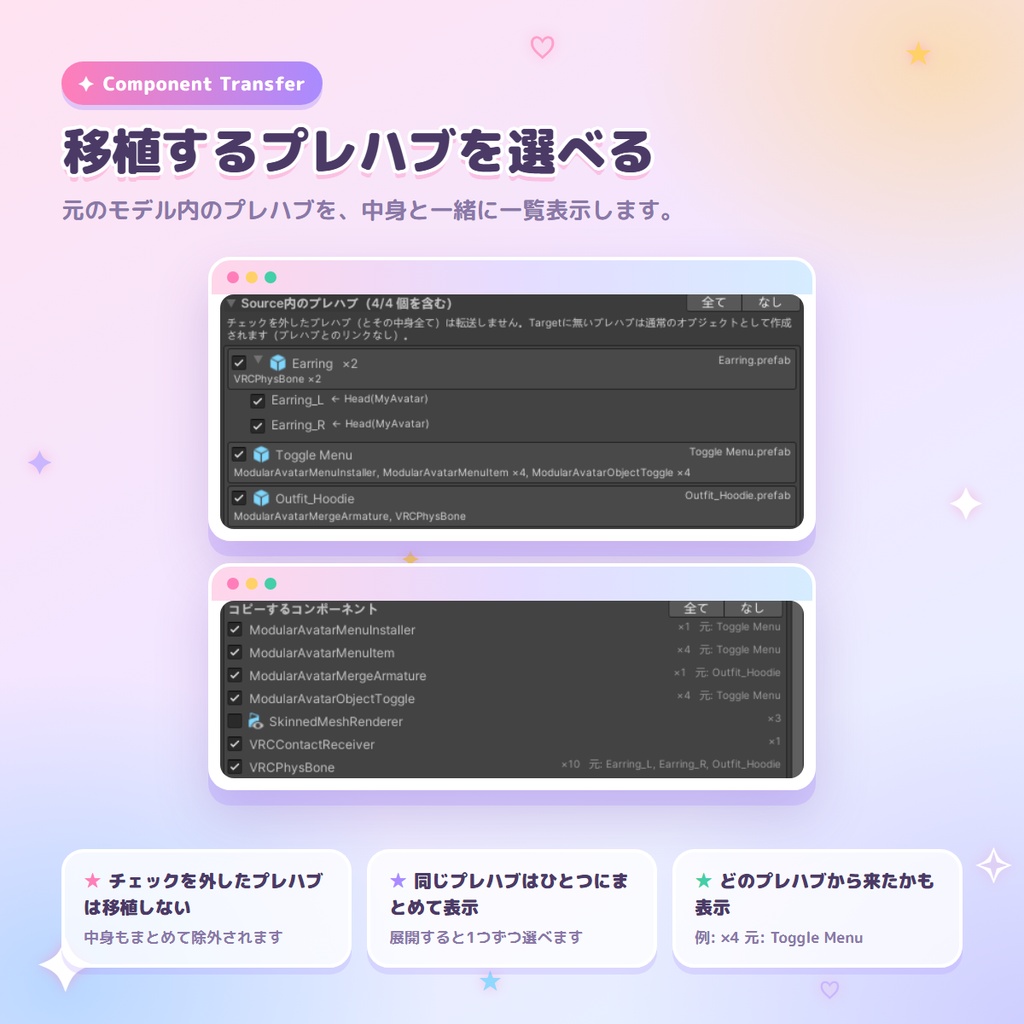
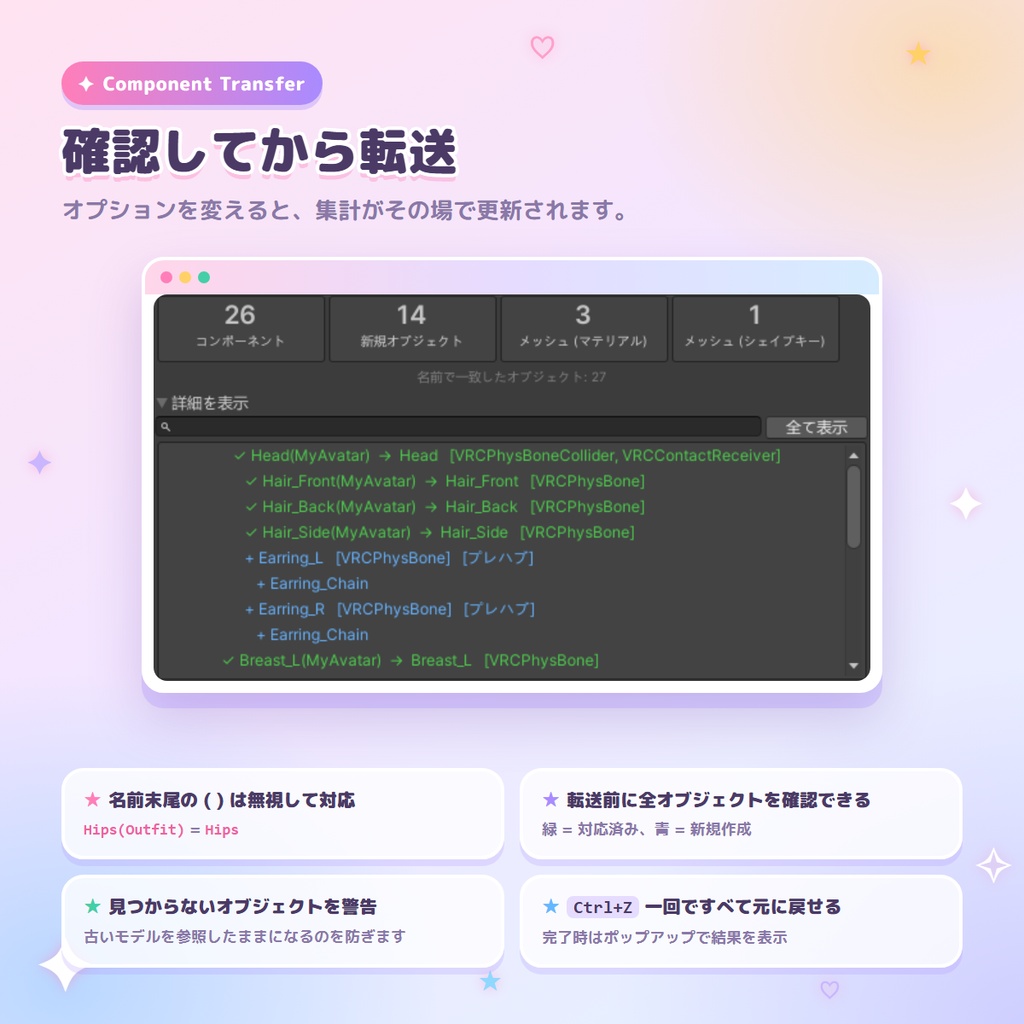
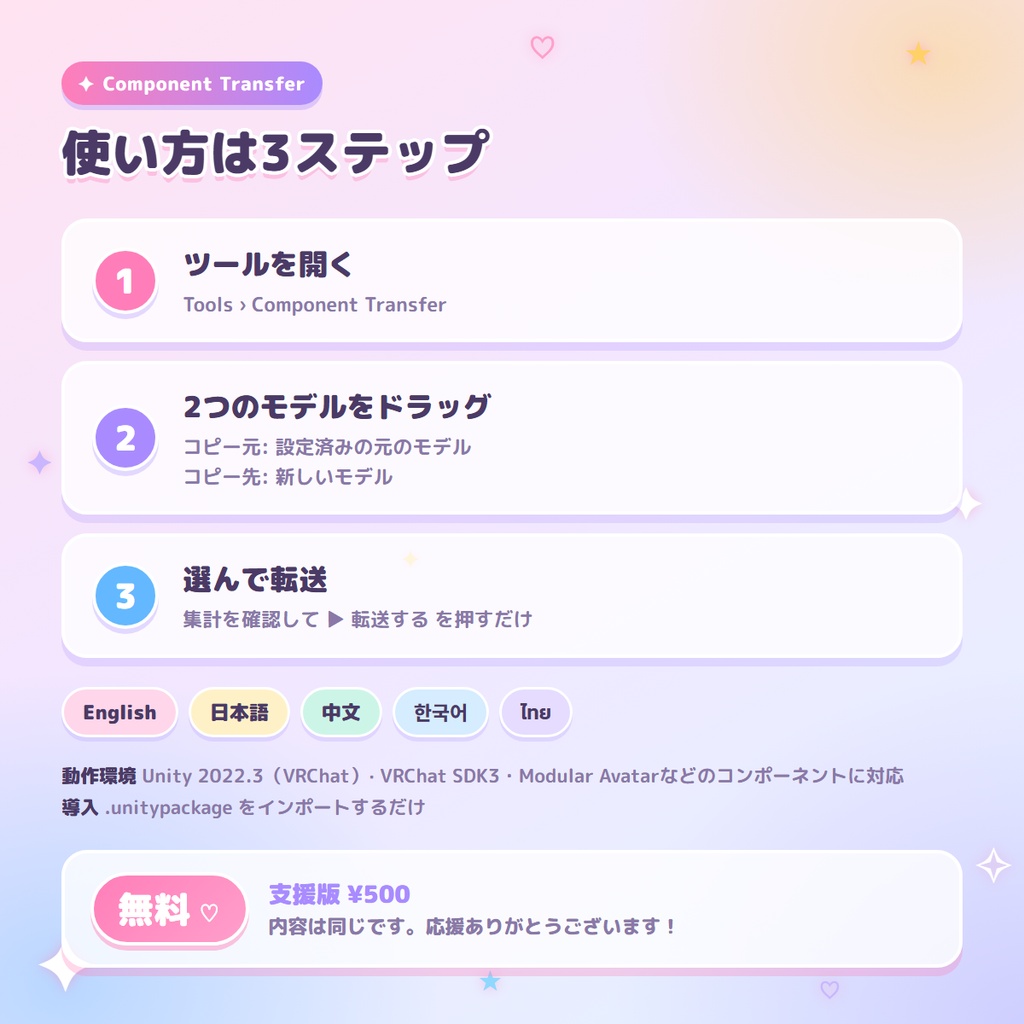
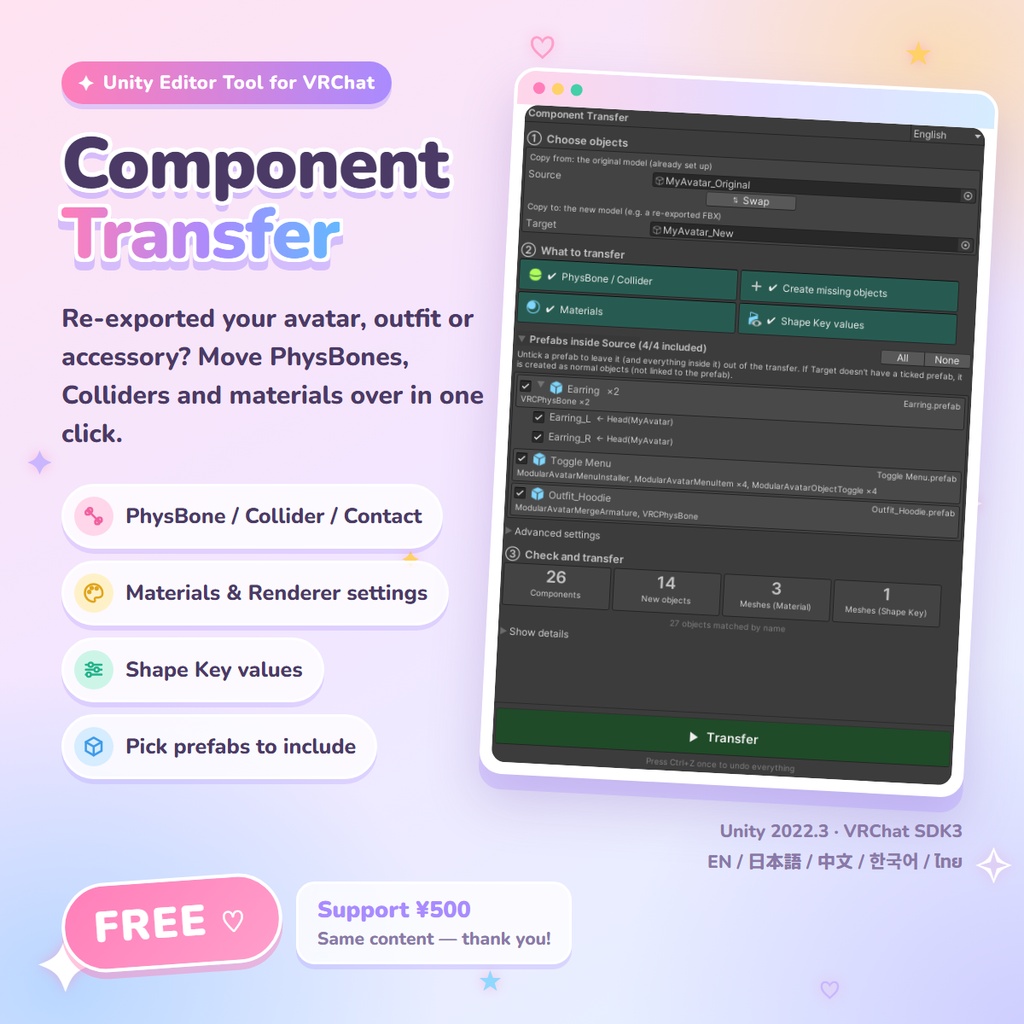
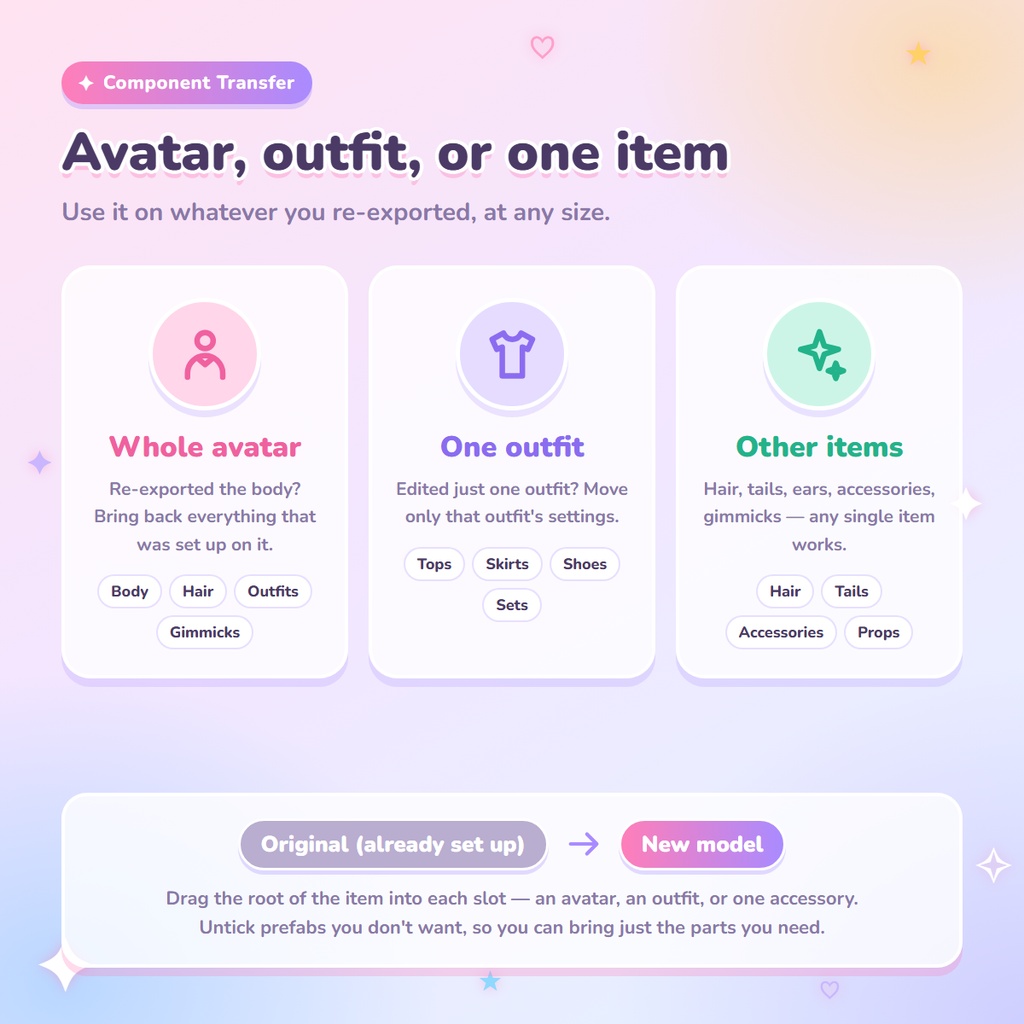
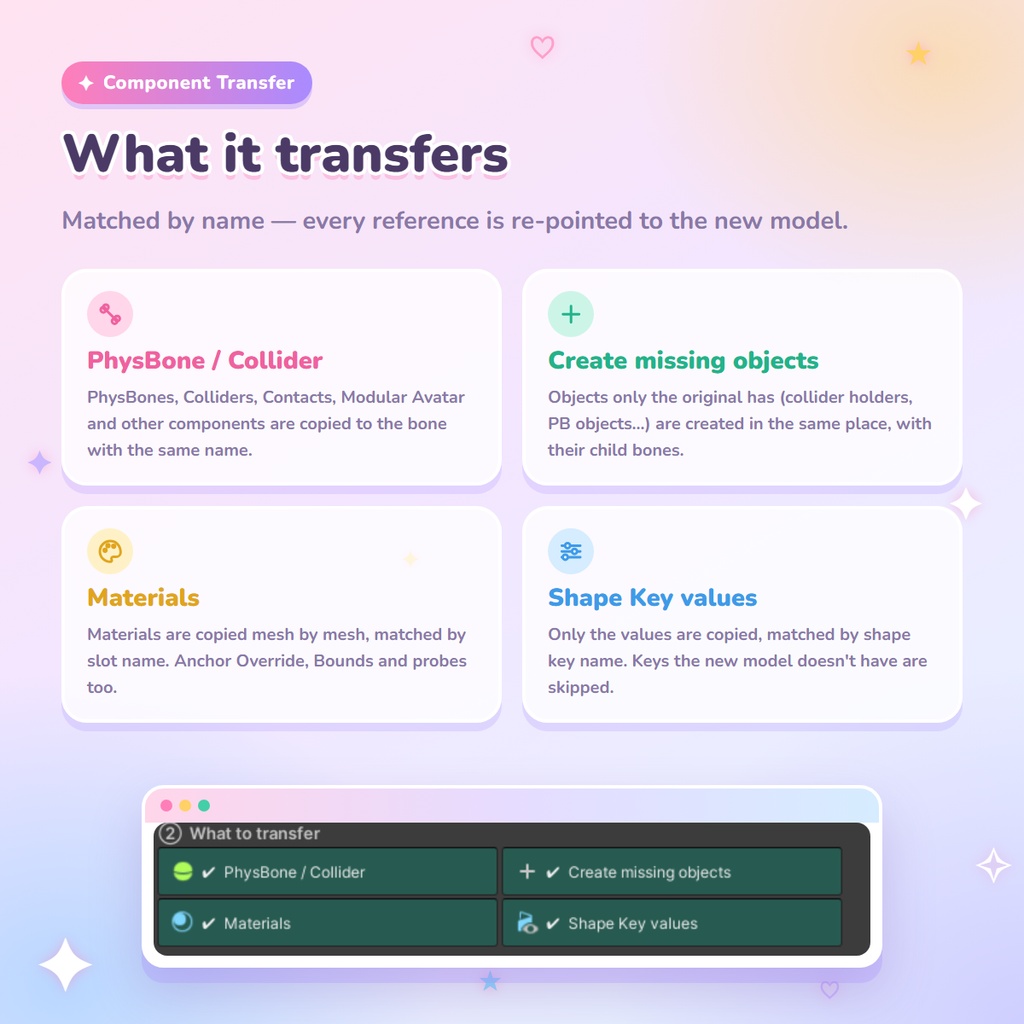
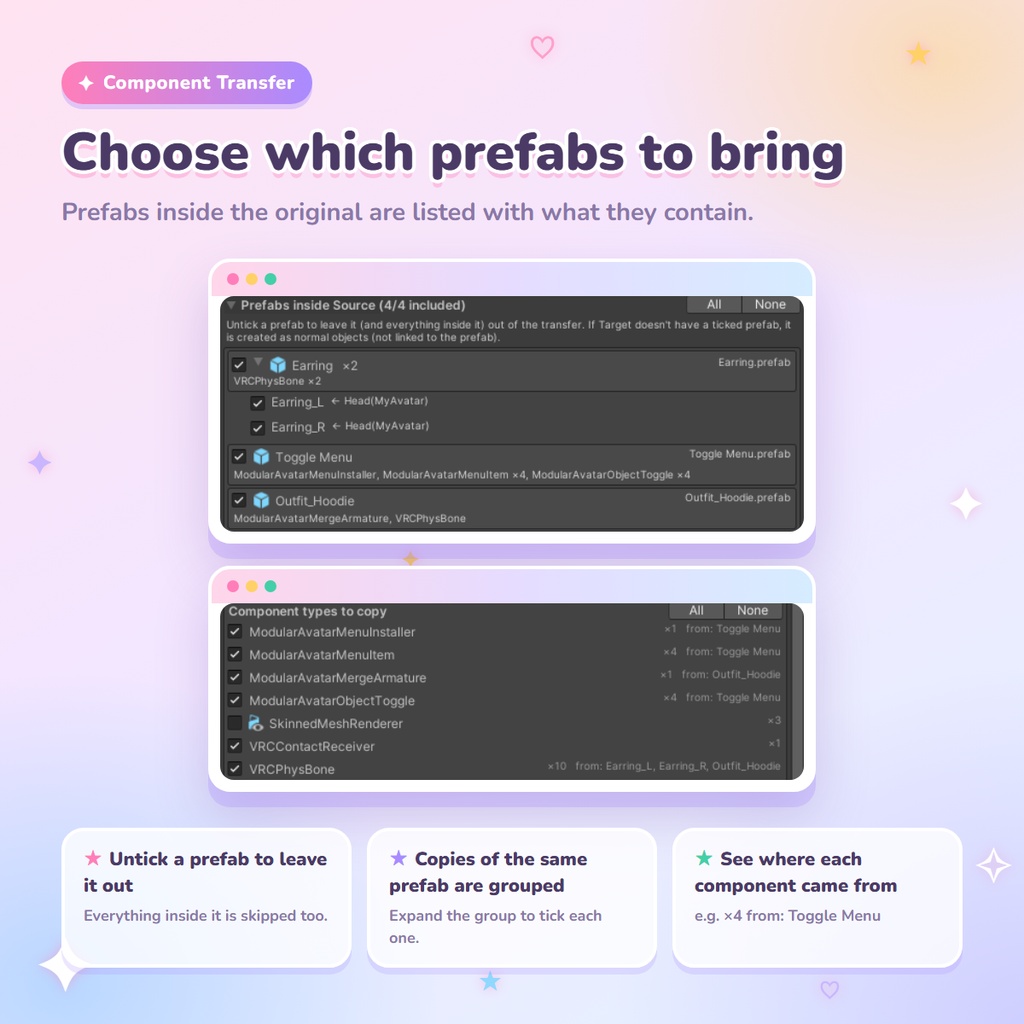
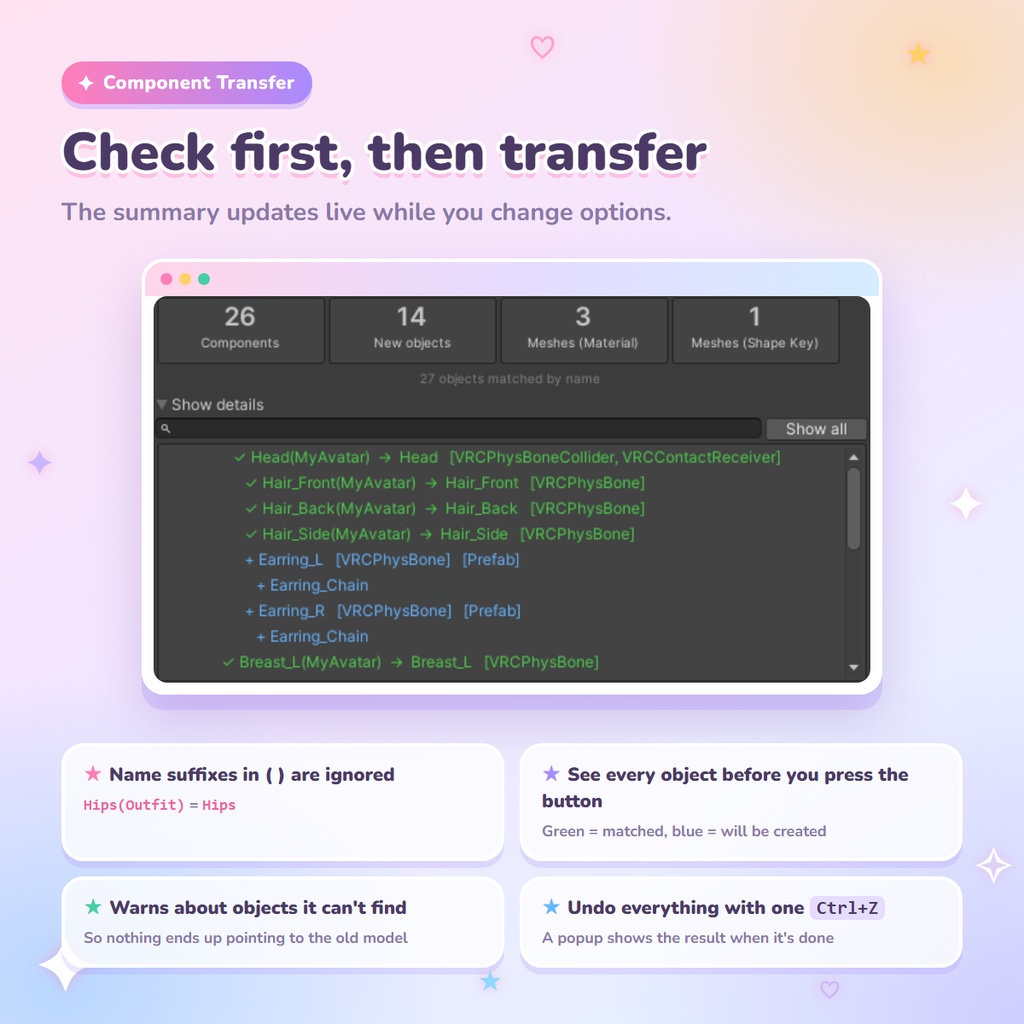
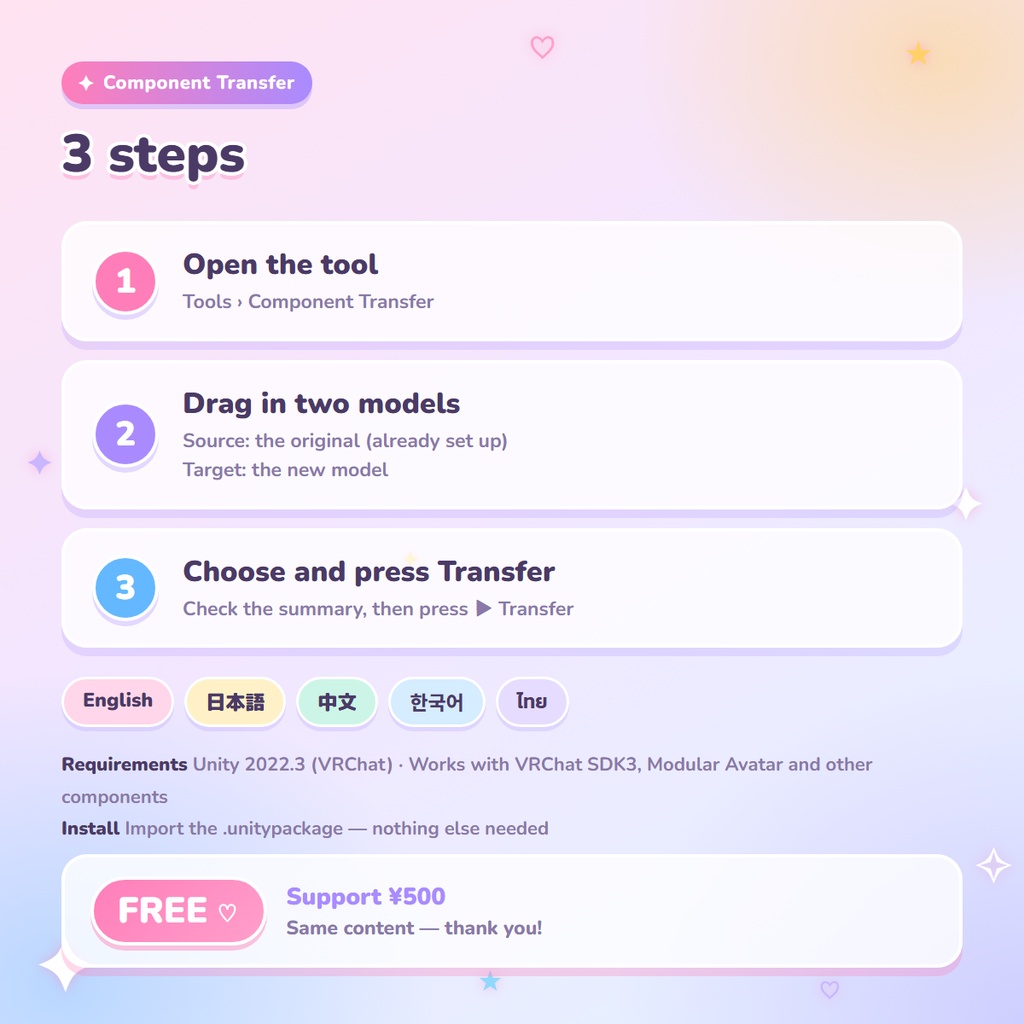
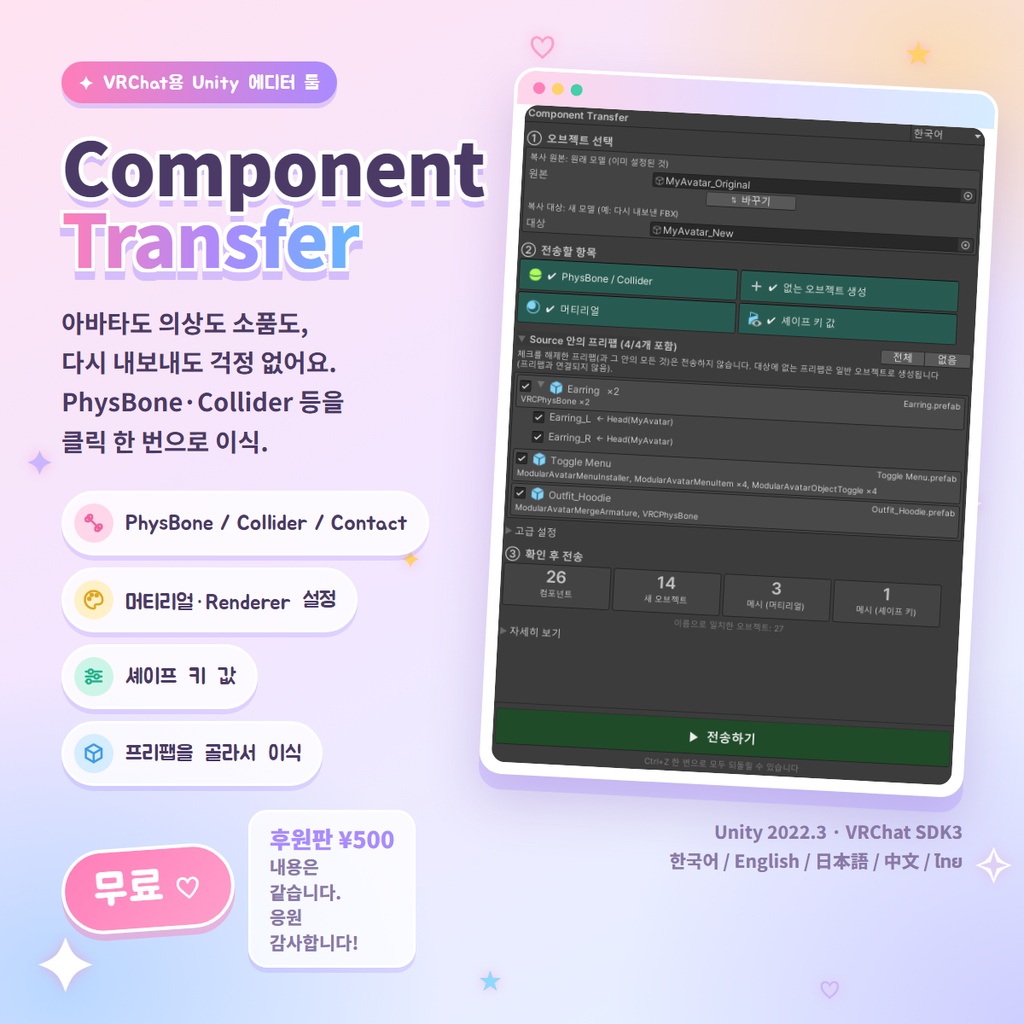
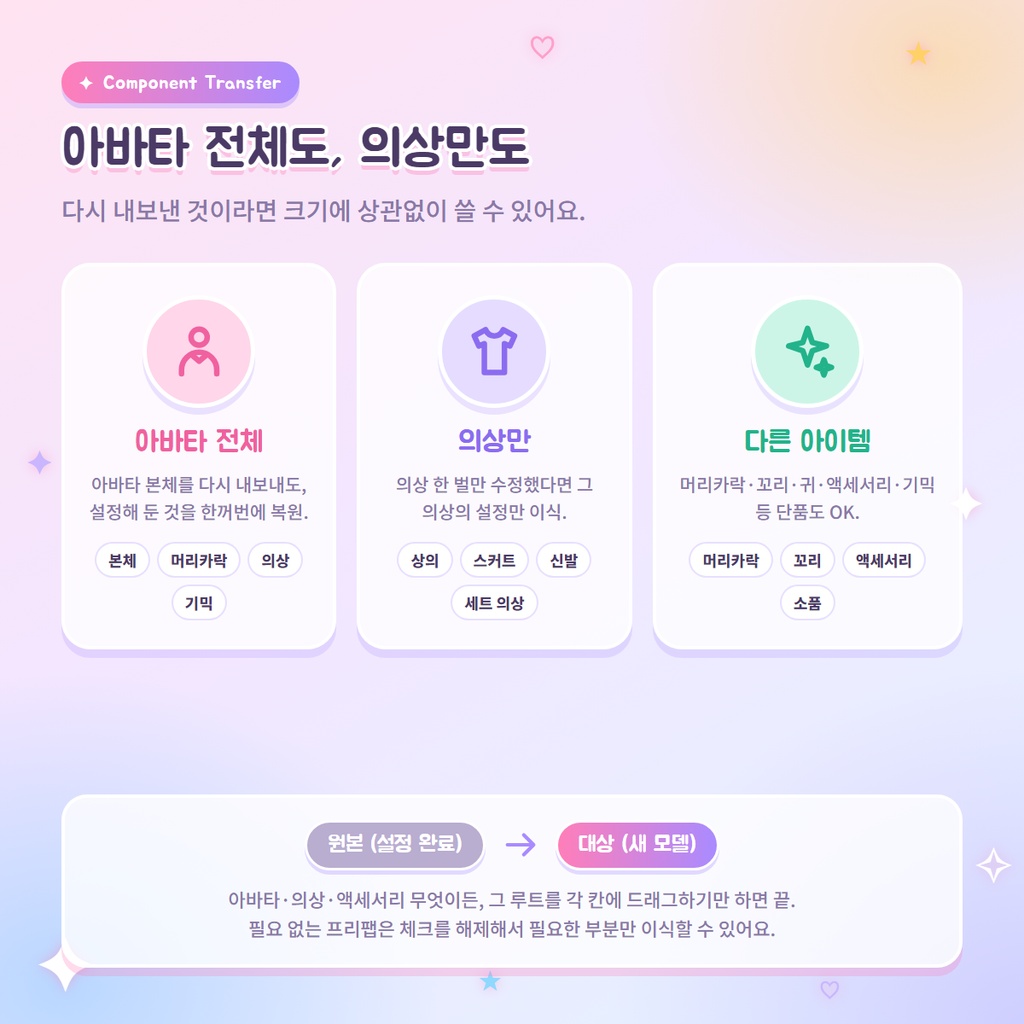
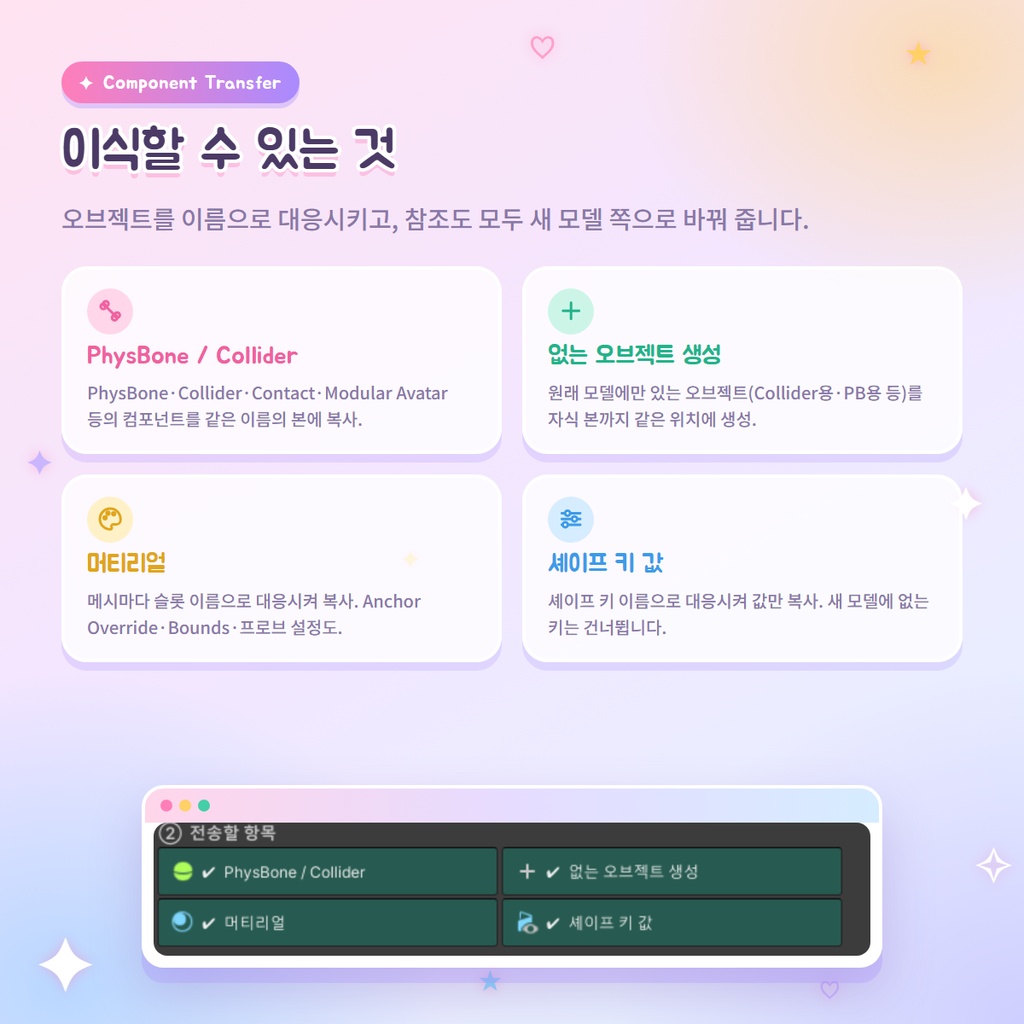
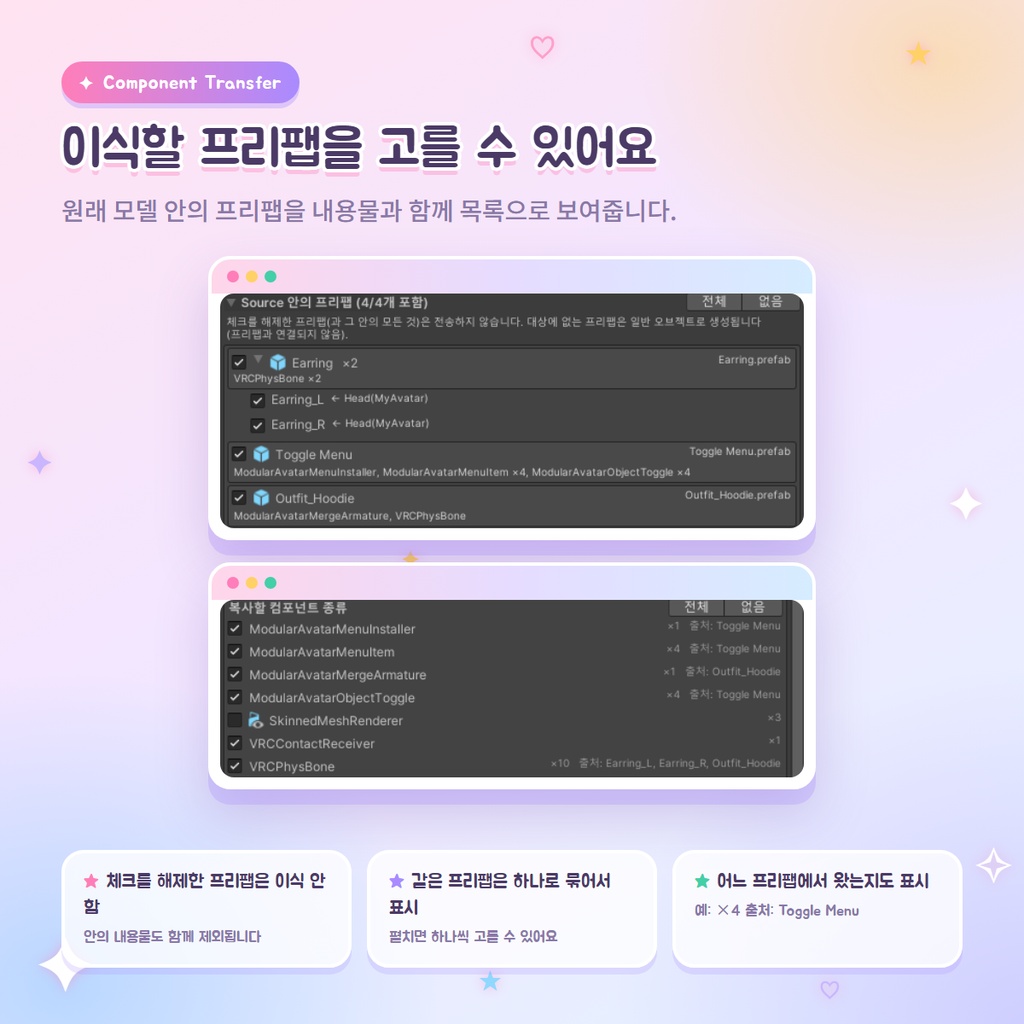
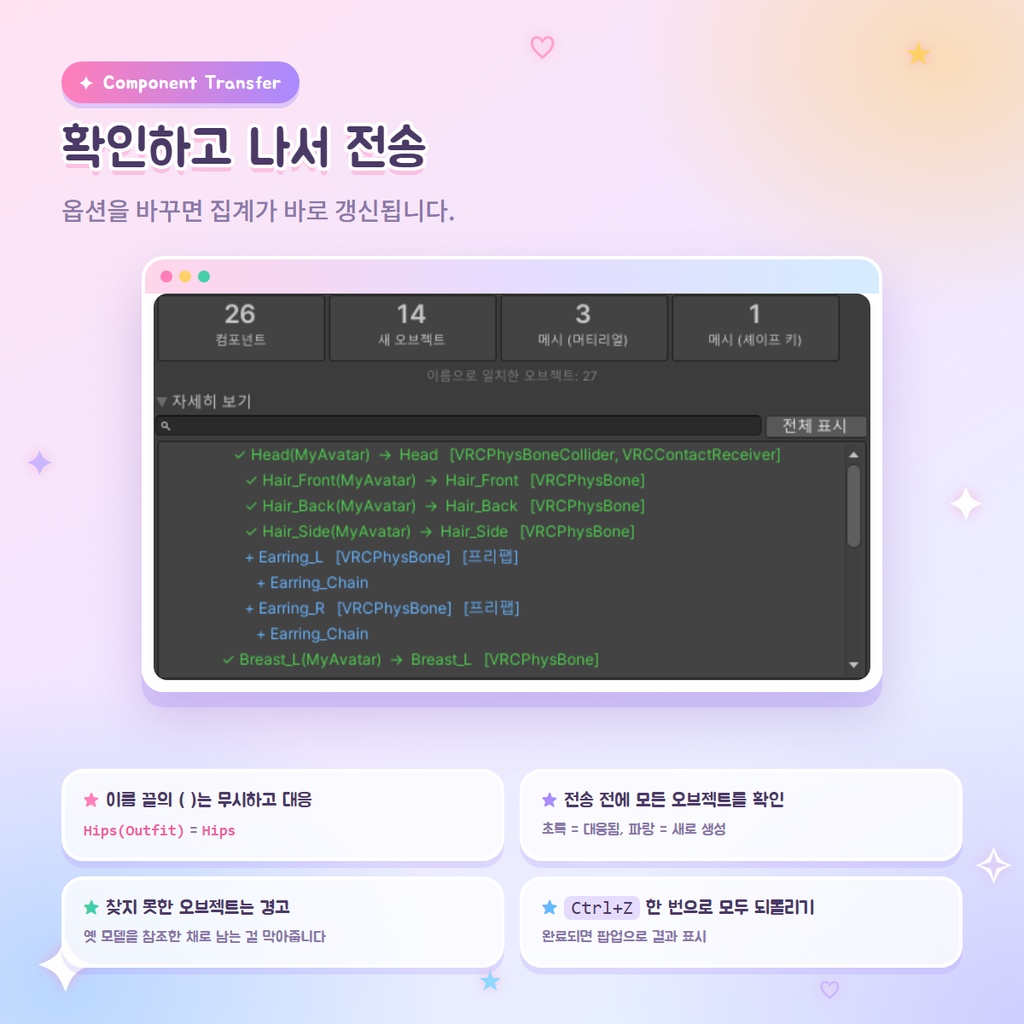
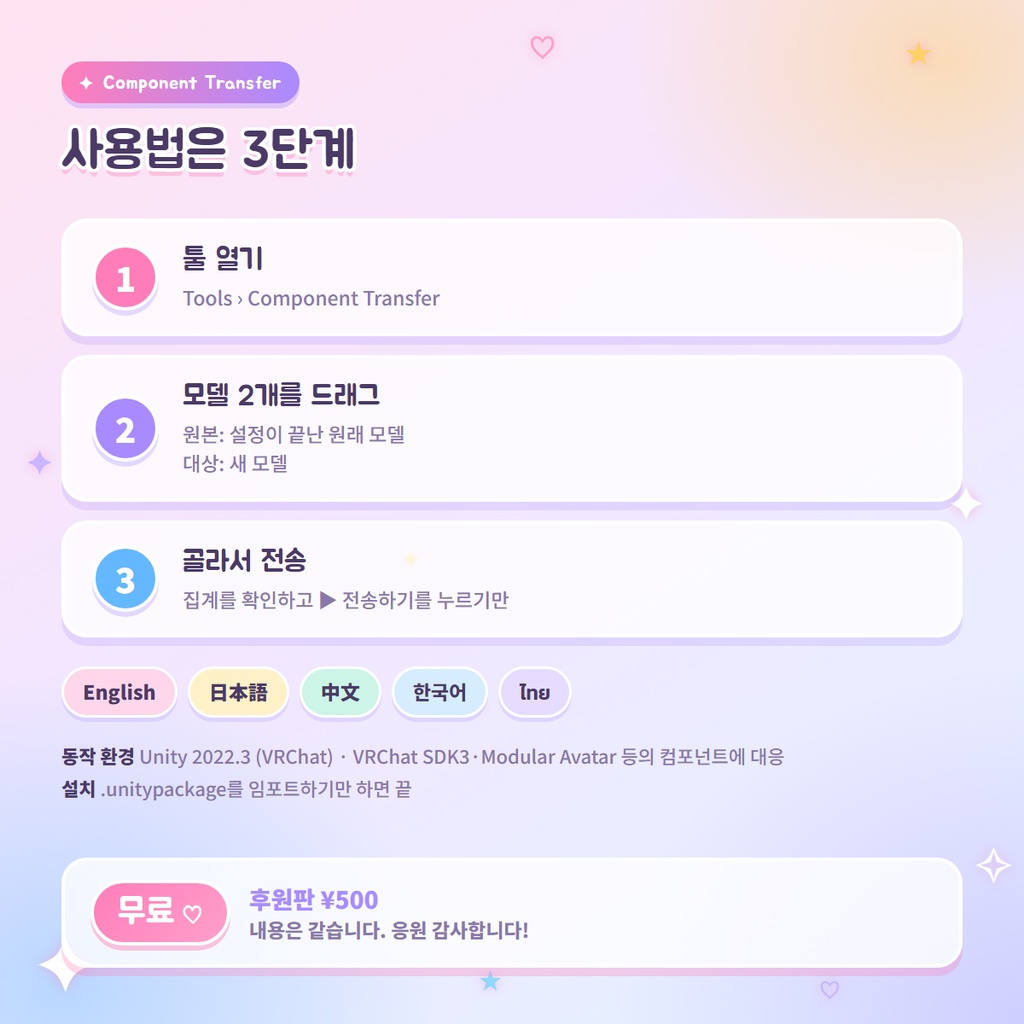
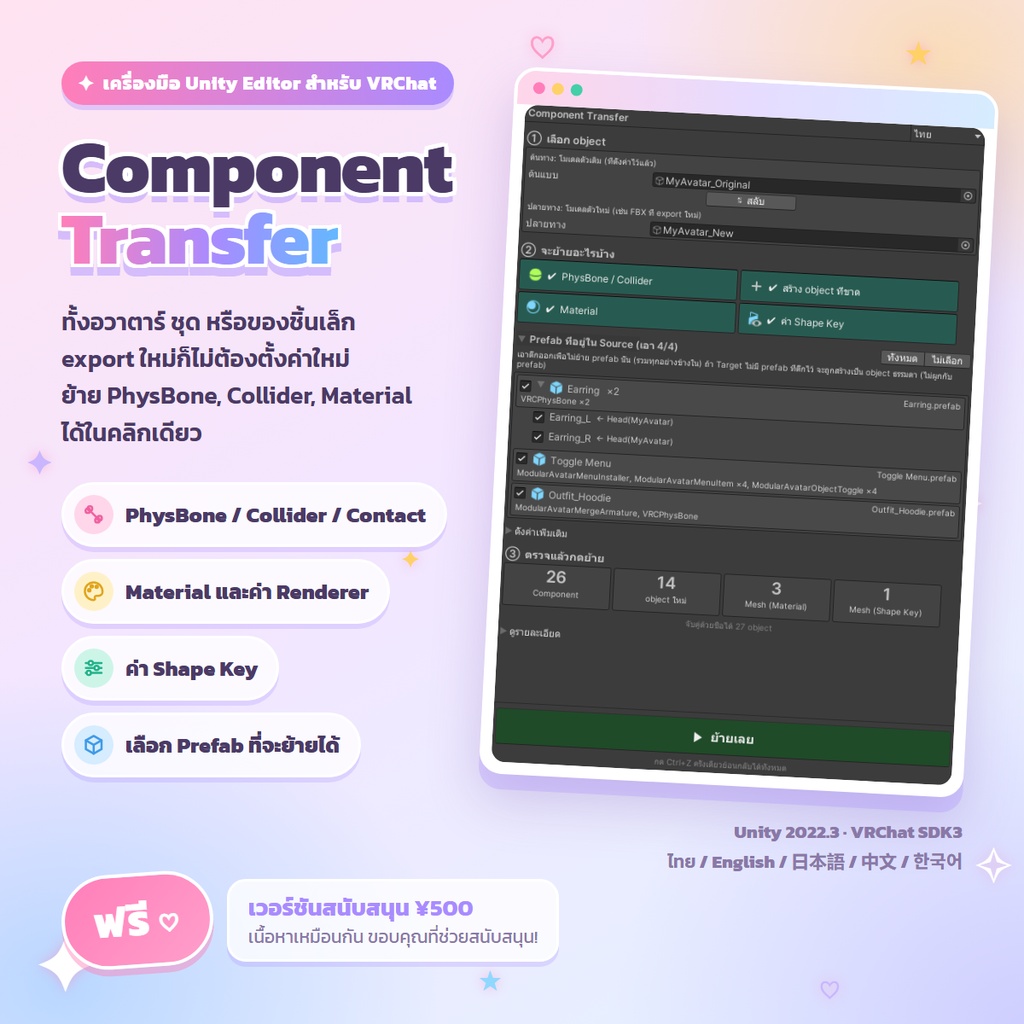
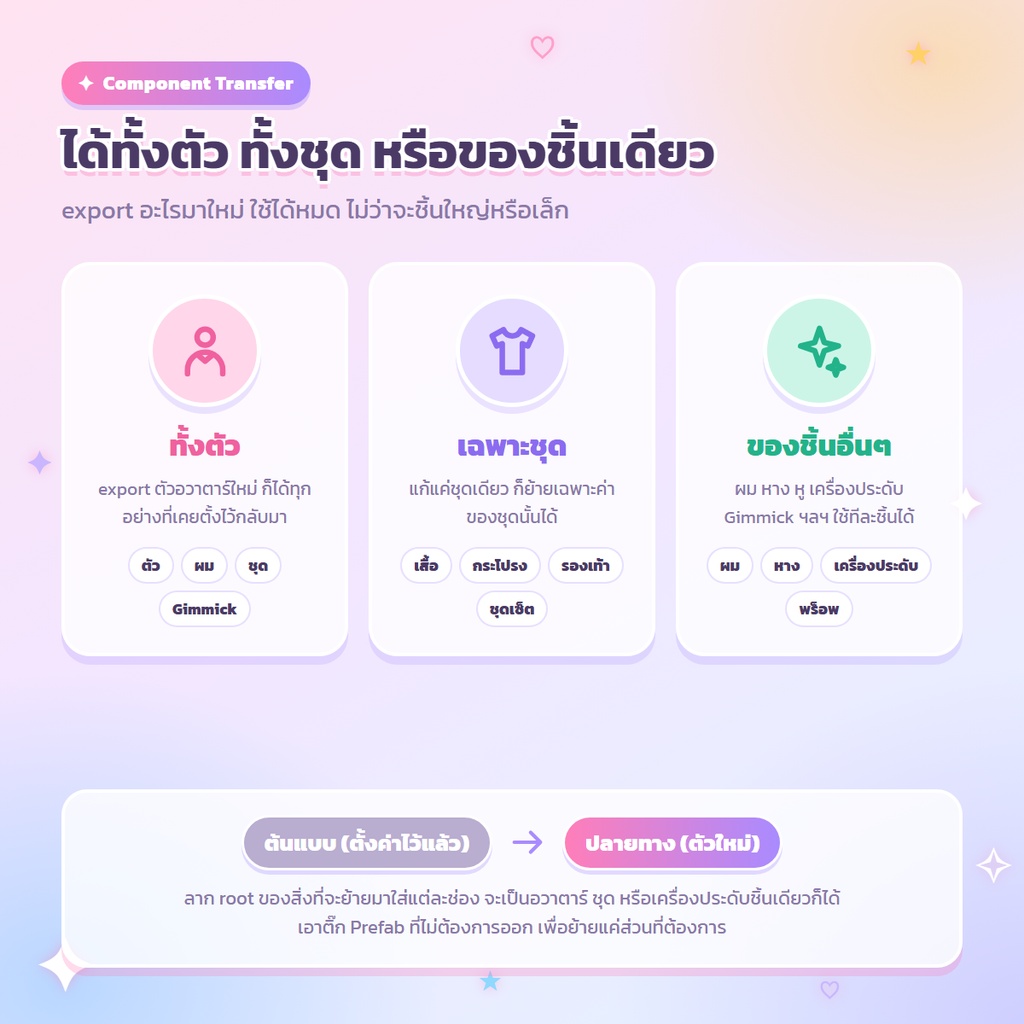


【無料】Component Transfer for Unity アバターや衣装をBlenderなどで編集して再エクスポートすると、 PhysBone・Collider・マテリアルの設定がすべて消えてしまう… そんな時に、元のモデルの設定を新しいモデルへワンクリックで移植できるUnityエディタツールです。 【アバターまるごとも、衣装だけも、小物ひとつでも】 ・アバター本体:再エクスポートした本体に、髪・衣装・ギミックまで設定をまとめて復元 ・衣装だけ:1着だけ編集したときは、その衣装の設定だけを移植 ・ほかのアイテム:髪・しっぽ・ケモミミ・アクセサリー・ギミックなど、単体でもOK コピー元・コピー先にそのルートをドラッグするだけ。不要なプレハブはチェックを外せば、必要な部分だけを移植できます。 【主な機能】 ・PhysBone / PhysBone Collider / Contact / Modular Avatar などのコンポーネントを、同じ名前のボーンへコピー ・Root Transform・Colliders などの参照を、新しいモデル側へ自動で付け替え ・新しいモデルに無いオブジェクト(Collider用・PB用など)を、子ボーンごと同じ位置に作成 ・マテリアルをメッシュごとにコピー(スロット名で対応)。Anchor Override・Bounds・影・プローブ設定も ・シェイプキーの値だけをコピー(シェイプキー名で対応、無いキーはスキップ) ・名前末尾の ( ) を無視して対応 例: Hips(Outfit) = Hips 【プレハブを選んで移植】 ・元のモデル内のプレハブ(衣装・ギミック・アクセサリーなど)を一覧表示 ・チェックを外したプレハブは、中身ごと移植しません ・同じプレハブはひとつにまとめて表示し、展開すると1つずつ選べます ・コンポーネントの種類ごとに、どのプレハブから来たかも表示します 【安心して使える】 ・転送前に、集計と全オブジェクトの一覧をその場で確認できます(緑 = 対応済み、青 = 新規作成) ・一覧にはコピー元 → コピー先のフルパスを表示。同じ名前のボーンを持つ衣装が複数あっても、別の衣装との取り違えにすぐ気づけます ・親の外(Target全体の検索)で見つかった対応は ⚠ 付きのオレンジ色で表示 ・見つからないオブジェクトがあれば警告を表示 ・Ctrl+Z 一回で、転送をすべて元に戻せます ・完了時はポップアップで結果を表示 【使い方】 1. .unitypackage をUnityへインポート 2. メニューの Tools > Component Transfer を開く 3. 「コピー元」に設定済みの元のモデル、「コピー先」に新しいモデルをドラッグ 4. 移植する内容を選び、「▶ 転送する」を押すだけ 【対応言語】 日本語 / English / 中文 / 한국어 / ไทย(ウィンドウ右上で切り替え) 【動作環境】 ・Unity 2022.3(VRChatで使用されているバージョン) ・VRChat SDK3 Avatars、Modular Avatar などのコンポーネントに対応 ・他のパッケージは不要です(エディタ専用のため、アップロード時には含まれません) 【無料版 / 支援版】 無料版と500円の支援版の内容は同じです。 今後の開発を応援していただける場合は、支援版をお選びください。ありがとうございます! 【更新履歴】 v1.0.3(2026/10/19) ・詳細の一覧にコピー元 → コピー先のフルパスを表示 ・親の外(Target全体の検索)で見つかった対応を ⚠ 付きのオレンジ色で表示し、件数をお知らせ ・検索欄でパスでも絞り込めるように v1.0.2(2026/10/18) ・初回公開 【注意事項】 ・オブジェクトは名前で対応させます。元のモデルと新しいモデルでボーン名が違う場合(例: Armature.1 と Armature)は対応できないため、事前に名前を揃えてください。 ・新しいモデルに無いプレハブは、通常のオブジェクトとして作成されます(プレハブとのリンクはありません)。 ・作業前にプロジェクトのバックアップを取ることをおすすめします。 【利用規約】 個人・商用制作に使用でき、このツールを使用して制作した成果物の販売・配布も可能です。 ツール本体および改変版の再配布、再販売、譲渡、ほかの商品への同梱は禁止します。 本ツールの使用によって生じた損害について、作者は責任を負いません。 詳細は同梱の README.txt をご確認ください。
English
【FREE】Component Transfer for Unity Edited your avatar or outfit in Blender (or another tool) and re-exported it, only to lose every PhysBone, Collider and material setting? This Unity editor tool moves those settings from the original model to the new one in one click. 【Whole avatar, one outfit, or a single item】 - Whole avatar: bring back everything set up on a re-exported body — hair, outfits, gimmicks and all - One outfit: edited just one outfit? Move only that outfit's settings - Other items: hair, tails, ears, accessories, gimmicks — a single item works too Just drag the root of the item into Source and Target. Untick prefabs you don't need to bring only the parts you want. 【Features】 - Copies PhysBones, PhysBone Colliders, Contacts, Modular Avatar and other components to the bone with the same name - Re-points references such as Root Transform and Colliders to the new model automatically - Creates objects that only the original has (collider holders, PB objects…) in the same place, with their child bones - Copies materials mesh by mesh (matched by slot name), plus Anchor Override, Bounds, shadows and probes - Copies shape key values only (matched by shape key name; keys the new model doesn't have are skipped) - Ignores name suffixes in ( ), e.g. Hips(Outfit) = Hips 【Choose which prefabs to bring】 - Lists the prefabs inside the original model (outfits, gimmicks, accessories…) - Untick a prefab to leave it out, together with everything inside it - Copies of the same prefab are grouped; expand the group to tick each one - Shows which prefab each component type came from 【Safe to use】 - Check the live summary and the full object list before transferring (green = matched, blue = will be created) - The list shows the full Source → Target path, so if several outfits share a bone name, a match into the wrong outfit is easy to spot - Matches found outside the matched parent (whole-Target search) are shown in orange with ⚠ - Warns about objects it can't find - Press Ctrl+Z once to undo the whole transfer - A popup shows the result when it's done 【How to use】 1. Import the .unitypackage into Unity 2. Open Tools > Component Transfer 3. Drag the original (already set up) model into "Source" and the new model into "Target" 4. Choose what to transfer and press "▶ Transfer" 【Languages】 English / 日本語 / 中文 / 한국어 / ไทย (switch at the top-right of the window) 【Requirements】 - Unity 2022.3 (the version used by VRChat) - Works with VRChat SDK3 Avatars, Modular Avatar and other components - No other packages needed (editor-only, not included in your upload) 【Free / Support version】 The free version and the ¥500 support version are the same. If you'd like to support future development, please choose the support version. Thank you! 【Update history】 v1.0.3 (2026/10/19) - The details list now shows the full Source → Target path - Matches found outside the matched parent (whole-Target search) are shown in orange with ⚠, with a count - The search box also filters by path v1.0.2 (2026/10/18) - First release 【Notes】 - Objects are matched by name. If bone names differ between the two models (e.g. Armature.1 and Armature), they can't be matched, so please make the names the same first. - Prefabs that the new model doesn't have are created as normal objects (not linked to the prefab). - Please back up your project before use. 【Terms of Use】 You may use this tool for personal and commercial work, and anything you make with it may be sold or distributed. Redistributing, reselling, transferring, or bundling the tool itself or modified versions with other products is prohibited. The author is not responsible for any damage caused by using this tool. See the included README.txt for details.
ภาษาไทย
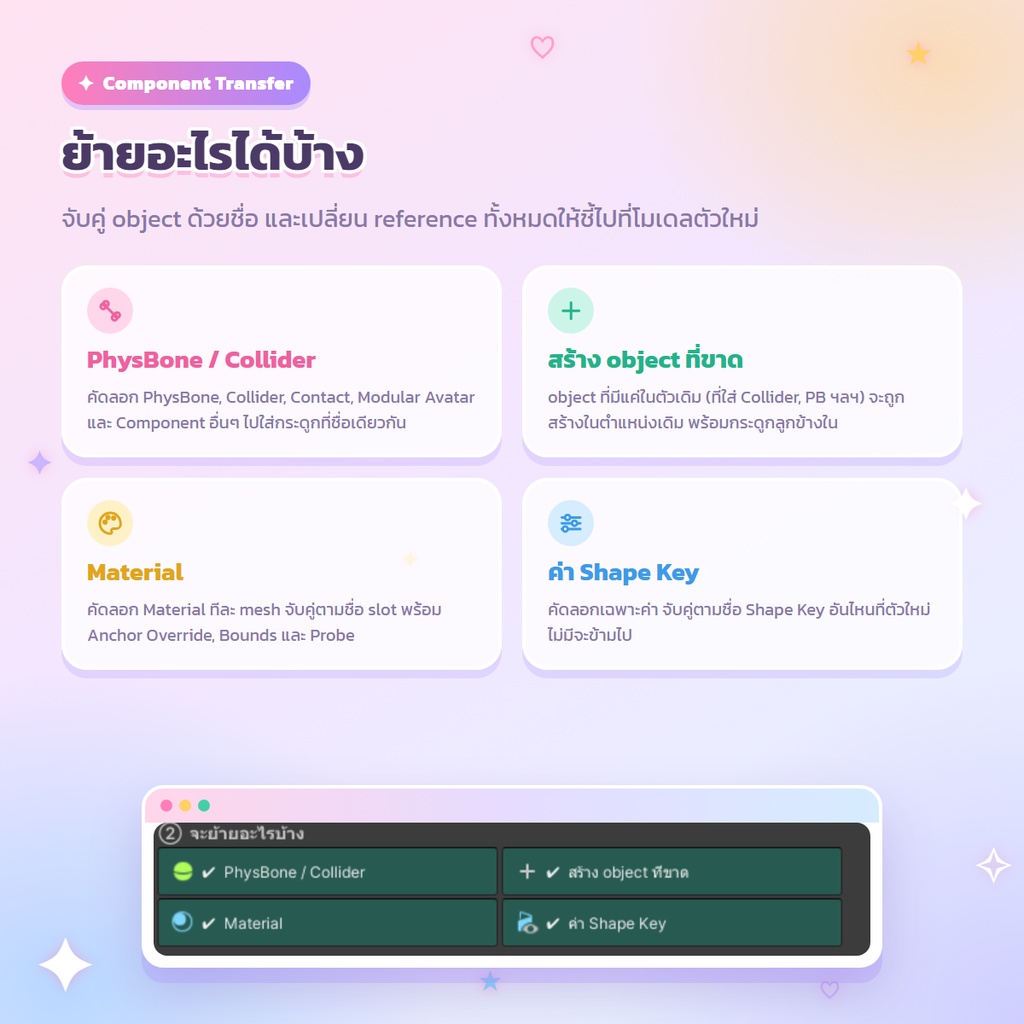
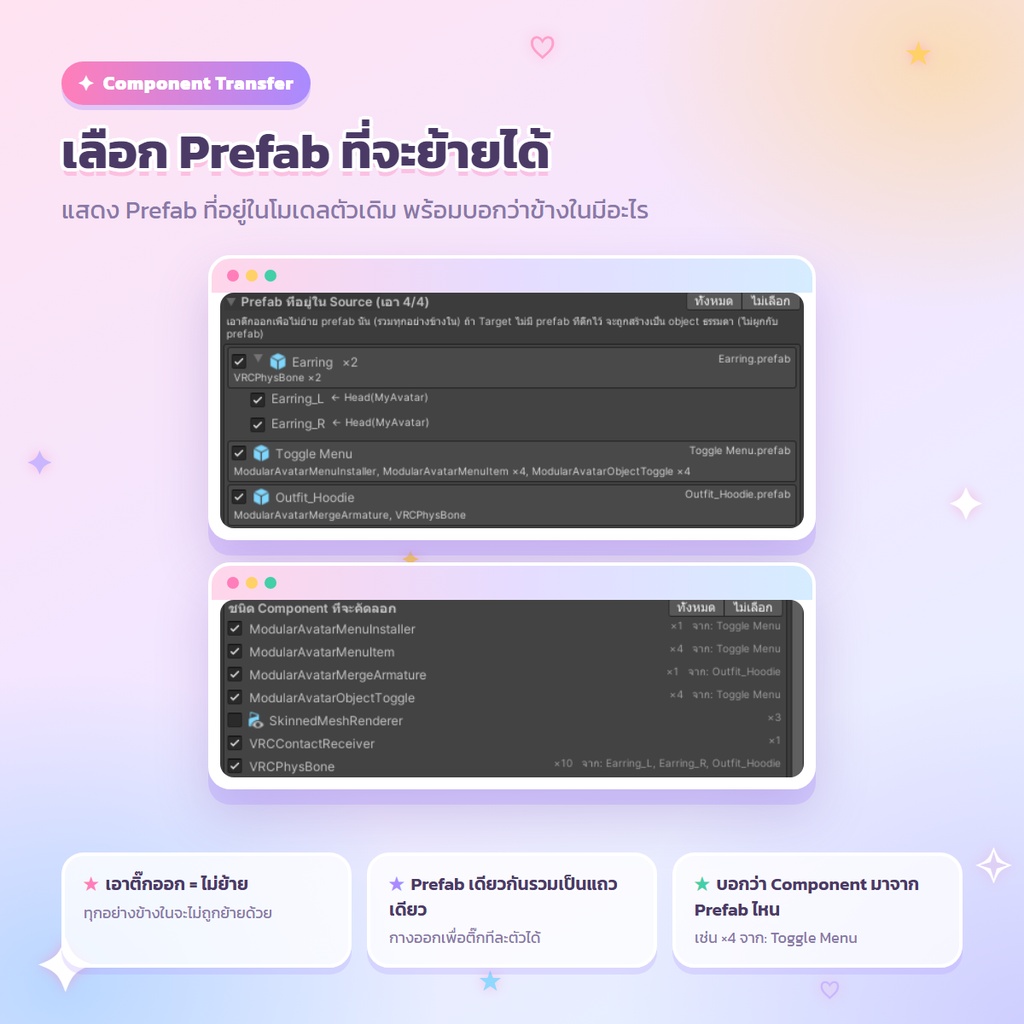
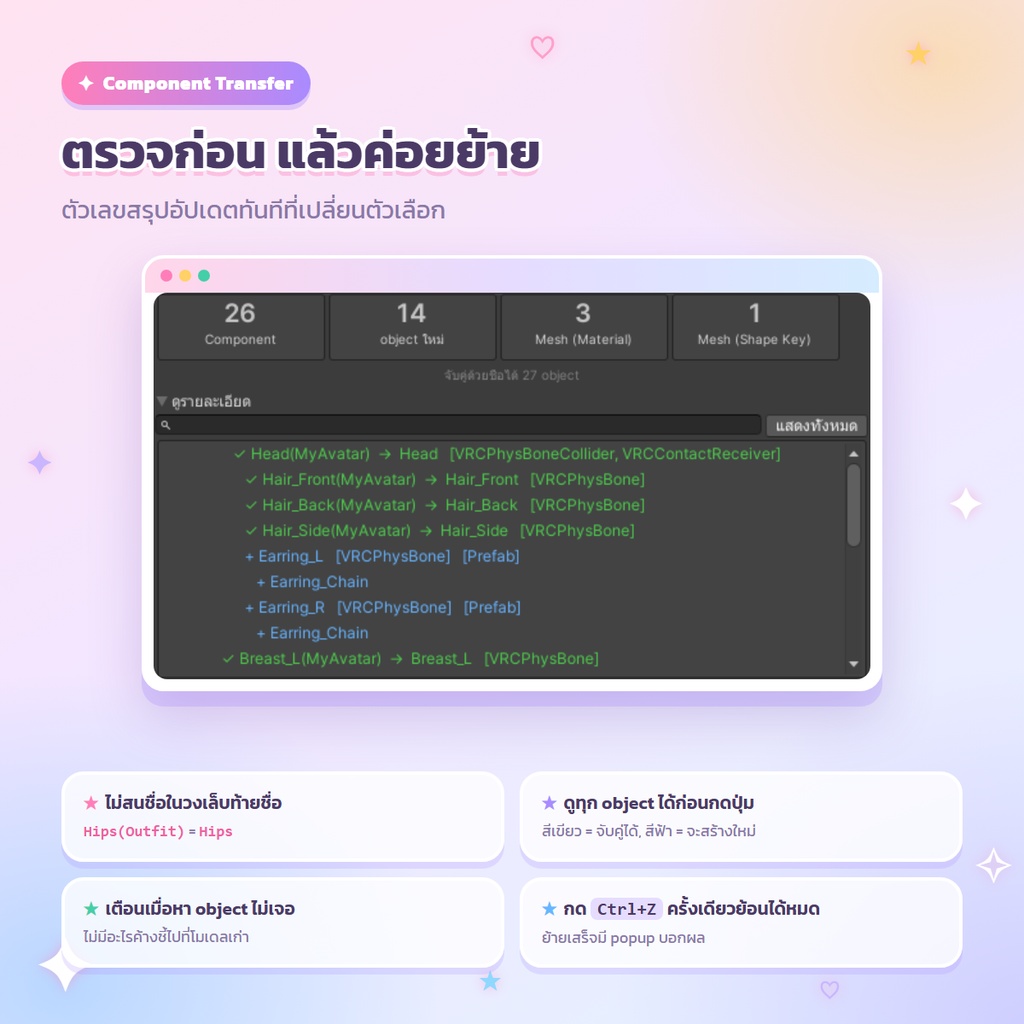
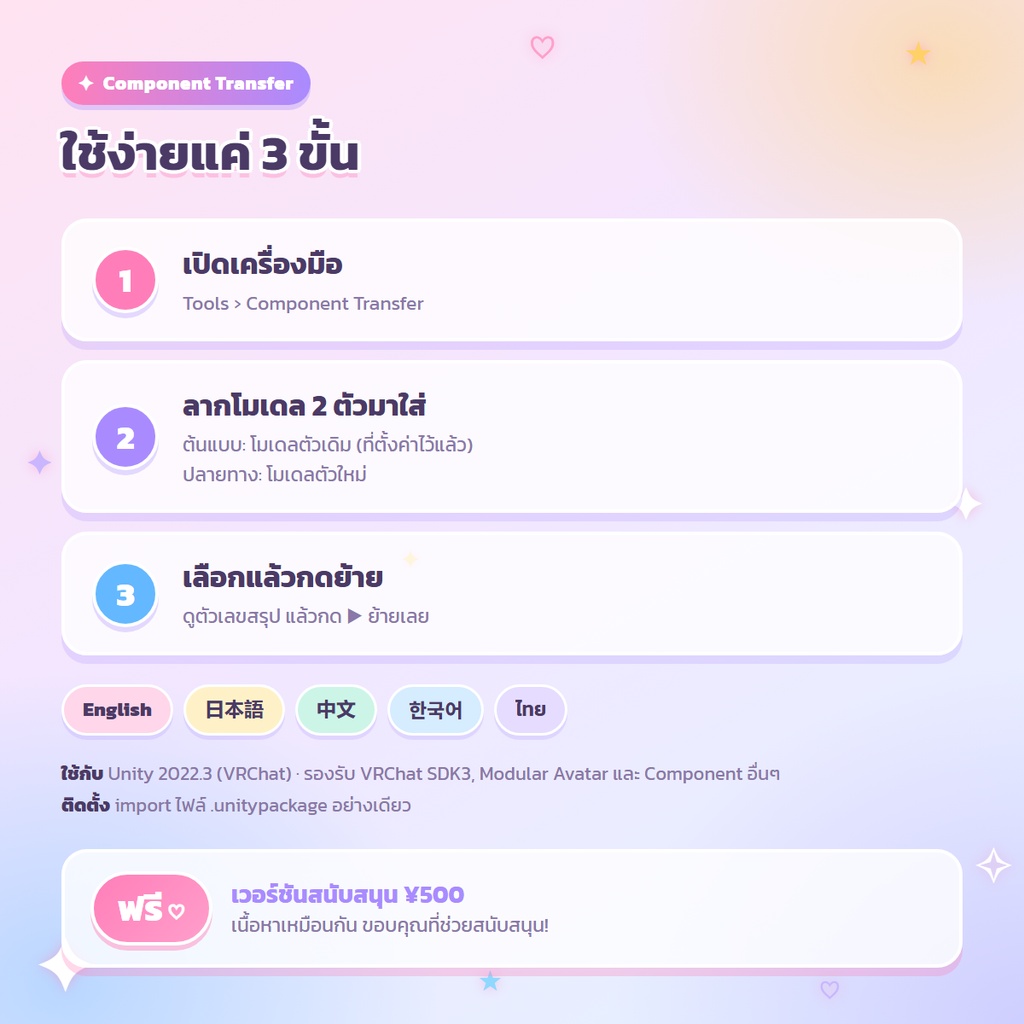
【ฟรี】Component Transfer for Unity แก้อวาตาร์หรือชุดใน Blender (หรือโปรแกรมอื่น) แล้ว export ใหม่ แต่ PhysBone, Collider และ Material ที่ตั้งไว้หายหมด? เครื่องมือนี้ย้ายค่าที่ตั้งไว้จากโมเดลตัวเดิมไปใส่โมเดลตัวใหม่ได้ในคลิกเดียว 【ทั้งอวาตาร์ ชุดเดียว หรือของชิ้นเดียวก็ได้】 - ทั้งอวาตาร์: ย้ายทุกอย่างที่ตั้งไว้ ทั้งผม ชุด และกิมมิก ไปใส่ตัวที่ export ใหม่ - ชุดเดียว: แก้แค่ชุดเดียว ก็ย้ายแค่ค่าของชุดนั้น - ของอื่นๆ: ผม หาง หู เครื่องประดับ กิมมิก ใช้กับของชิ้นเดียวก็ได้ แค่ลาก root ของสิ่งนั้นใส่ช่อง ต้นแบบ และ ปลายทาง ถ้าไม่ต้องการ prefab ไหน ก็เอาติ๊กออก จะย้ายเฉพาะส่วนที่ต้องการ 【ความสามารถ】 - ย้าย PhysBone, PhysBone Collider, Contact, Modular Avatar และ Component อื่นๆ ไปที่ bone ชื่อเดียวกัน - เปลี่ยน reference เช่น Root Transform และ Colliders ให้ชี้ไปที่โมเดลตัวใหม่ให้อัตโนมัติ - object ที่มีแค่ในตัวเดิม (เช่นตัวถือ Collider หรือ PB) จะถูกสร้างที่ตำแหน่งเดิม พร้อม bone ลูก - ย้าย Material ทีละ mesh (จับคู่ตามชื่อช่อง) รวมถึง Anchor Override, Bounds, เงา และ Probe - ย้ายแค่ค่า Shape Key (จับคู่ตามชื่อ ถ้าตัวใหม่ไม่มี key นั้นจะข้ามไป) - ไม่สนวงเล็บท้ายชื่อ เช่น Hips(Outfit) = Hips 【เลือก prefab ที่จะย้าย】 - แสดงรายการ prefab ที่อยู่ในโมเดลตัวเดิม (ชุด กิมมิก เครื่องประดับ ฯลฯ) - เอาติ๊กออก prefab นั้นและทุกอย่างข้างในจะไม่ถูกย้าย - prefab เดียวกันจะรวมเป็นแถวเดียว กดขยายเพื่อเลือกทีละตัวได้ - บอกด้วยว่า Component แต่ละประเภทมาจาก prefab ไหน 【ใช้งานอย่างสบายใจ】 - ดูตัวเลขสรุปและรายการ object ทั้งหมดได้ก่อนกดย้าย (เขียว = จับคู่แล้ว, ฟ้า = จะสร้างใหม่) - รายการแสดง path เต็มของต้นแบบ → ปลายทาง ถ้ามีหลายชุดที่ใช้ชื่อกระดูกเหมือนกัน ก็เห็นได้ทันทีว่าจับคู่ผิดชุดหรือเปล่า - คู่ที่เจอนอก parent (จากการค้นทั้ง Target) จะแสดงเป็นสีส้มพร้อม ⚠ - เตือนถ้ามี object ที่หาไม่เจอ - กด Ctrl+Z ครั้งเดียว ย้อนกลับได้ทั้งหมด - ย้ายเสร็จจะมีหน้าต่างบอกผล 【วิธีใช้】 1. Import ไฟล์ .unitypackage เข้า Unity 2. เปิดเมนู Tools > Component Transfer 3. ลากโมเดลตัวเดิม (ที่ตั้งค่าไว้แล้ว) ใส่ช่อง "ต้นแบบ" และตัวใหม่ใส่ช่อง "ปลายทาง" 4. เลือกว่าจะย้ายอะไร แล้วกด "▶ ย้ายเลย" 【ภาษา】 ไทย / English / 日本語 / 中文 / 한국어 (เปลี่ยนได้ที่มุมขวาบนของหน้าต่าง) 【สิ่งที่ต้องใช้】 - Unity 2022.3 (เวอร์ชันที่ VRChat ใช้) - ใช้กับ VRChat SDK3 Avatars, Modular Avatar และ Component อื่นๆ ได้ - ไม่ต้องลงแพ็กเกจอื่นเพิ่ม (ทำงานแค่ใน Editor ไม่ติดไปตอนอัปโหลด) 【ฟรี / ฉบับสนับสนุน】 ฉบับฟรีกับฉบับสนับสนุน ¥500 เหมือนกันทุกอย่าง ถ้าอยากสนับสนุนการพัฒนาต่อ เลือกฉบับสนับสนุนได้เลย ขอบคุณมากครับ! 【ประวัติการอัปเดต】 v1.0.3 (2026/10/19) - รายการในรายละเอียดแสดง path เต็มของต้นแบบ → ปลายทาง - คู่ที่เจอนอก parent (จากการค้นทั้ง Target) แสดงเป็นสีส้มพร้อม ⚠ และบอกจำนวน - ช่องค้นหากรองด้วย path ได้ด้วย v1.0.2 (2026/10/18) - เปิดตัวครั้งแรก 【ข้อควรรู้】 - จับคู่ object ตามชื่อ ถ้าชื่อ bone ของสองโมเดลไม่เหมือนกัน (เช่น Armature.1 กับ Armature) จะจับคู่ไม่ได้ ให้แก้ชื่อให้ตรงกันก่อน - prefab ที่ตัวใหม่ไม่มี จะถูกสร้างเป็น object ธรรมดา (ไม่ผูกกับ prefab) - แนะนำให้สำรองโปรเจกต์ก่อนใช้งาน 【ข้อกำหนดการใช้งาน】 ใช้ได้ทั้งงานส่วนตัวและงานเชิงพาณิชย์ ผลงานที่สร้างด้วยเครื่องมือนี้นำไปขายหรือแจกได้ ห้ามแจกต่อ ขายต่อ โอนสิทธิ์ หรือรวมตัวเครื่องมือหรือฉบับที่แก้ไขไว้ในสินค้าอื่น ผู้สร้างไม่รับผิดชอบต่อความเสียหายใดๆ ที่เกิดจากการใช้เครื่องมือนี้ ดูรายละเอียดใน README.txt ที่แนบมา