

VRChat Boop Counter
- Digital300 JPY

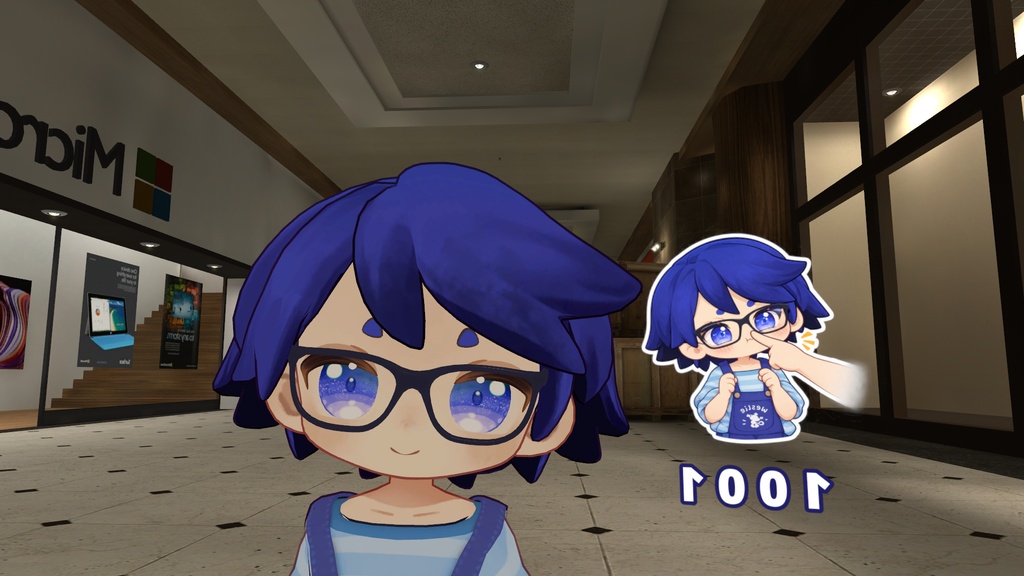


A cute and customizable Boop Counter for your VRChat avatar! Every time someone boops your avatar's nose, the counter automatically increases! ━━━━━━━━━━━━━━━━━━━━ Make every boop count! The Boop Counter is a fun and easy-to-use addition to your VRChat avatar that automatically tracks how many times someone boops your avatar's nose. Whether you're hanging out with friends or meeting new people, keep track of all the boops you receive! The counter also supports custom images, allowing you to personalize its appearance to match your avatar's style. The prefab is already positioned for Mamefriend avatars, but can easily be adjusted to work with other avatars too! ✨ FEATURES ・Automatically counts nose boops ・Easy drag-and-drop installation ・Preconfigured for Mamefriend avatars ・Compatible with other VRChat avatars ・Customizable counter image ・Simple setup and customization ⚠️ ANDROID COMPATIBILITY WARNING: The Boop Counter is compatible with Android, but it is not fully supportet. While it works on Quest, the counter may experience slight flickering during use. ━━━━━━━━━━━━━━━━━━━━ 📦 CONTENTS ・Ready-to-use Boop Counter Prefab ・Customizable texture slots ・Nose Contact Receiver setup ━━━━━━━━━━━━━━━━━━━━ 🛠️ INSTALLATION & USAGE Requirements: ・VRChat Avatar ・Unity ・lilToon Shader ⚠️ IMPORTANT: The lilToon Shader must be installed in your Unity project before using the Boop Counter. ① Make sure lilToon is installed in your Unity project. ② Import the Boop Counter package. ③ Find the Boop Counter prefab. (Nose Booper - Example Variant) ④ Drag and drop the prefab into your avatar's hierarchy. ⑤ Adjust the "Head" GameObject so that the Contact Receiver is positioned correctly on your avatar's nose. ⑥ Done! Your Boop Counter is ready to use! ━━━━━━━━━━━━━━━━━━━━ 📱 QUEST & iOS COMPATIBILITY The Boop Counter also supports VRChat avatars uploaded for Meta Quest and iOS! Before uploading your avatar for Quest or iOS, a few adjustments are required in the prefab hierarchy. ⚠️ IMPORTANT: Follow these steps before uploading to Quest or iOS! ① Open the Boop Counter prefab in your avatar's hierarchy. ② Navigate to the following GameObject: Head → Display → Pop → Quad (PC) ③ Select "Quad (PC)" and change its Tag to "EditorOnly" in the Unity Inspector. ④ Find the GameObject "Card (Android)" in the prefab hierarchy. ⑤ Change the Tag of "Card (Android)" to "Untagged". ⑥ Done! Your Boop Counter is now configured for Quest and iOS uploads! 💡 NOTE: These changes are required for Quest and iOS uploads to ensure the correct display objects are used. Make sure to apply these settings before building and uploading your avatar for these platforms. ━━━━━━━━━━━━━━━━━━━━ 🎨 CUSTOM IMAGE Want to give your Boop Counter a unique look? You can easily replace the default image with your own! ① Select the Boop Counter prefab. ② Find the texture slots on the prefab. ③ Replace the existing textures with your own image. ④ Done! Your custom image is now applied! ━━━━━━━━━━━━━━━━━━━━ ⚠️ DISCLAIMER & IMPORTANT NOTES ・The lilToon Shader is required and is not included. ・This product is designed for VRChat avatars. ・The prefab is preconfigured for Mamefriend avatars. Other avatars may require manual position adjustments. ・Make sure the "Head" GameObject is positioned correctly so the Contact Receiver can detect nose boops. ・This product is provided as-is. Compatibility with future VRChat or Unity updates is not guaranteed.