

Bentukin Transparent Capture | unity addons
- Digital890 JPY
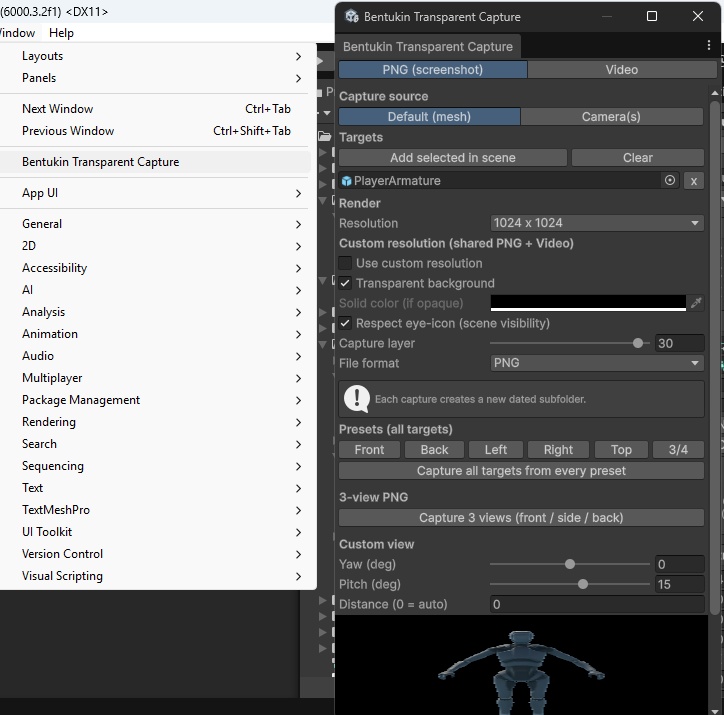
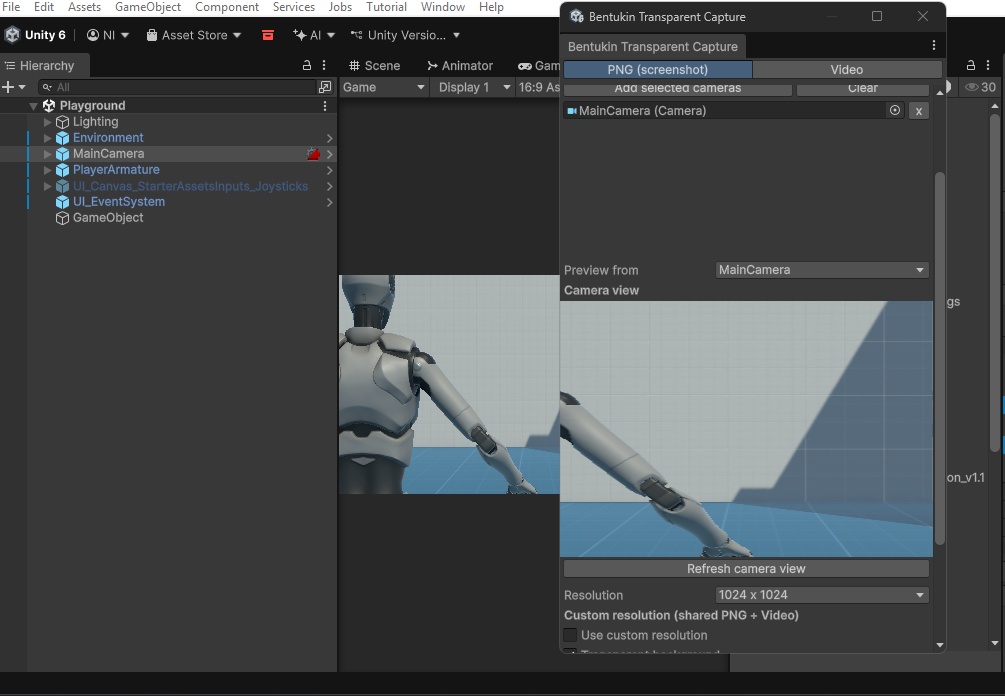
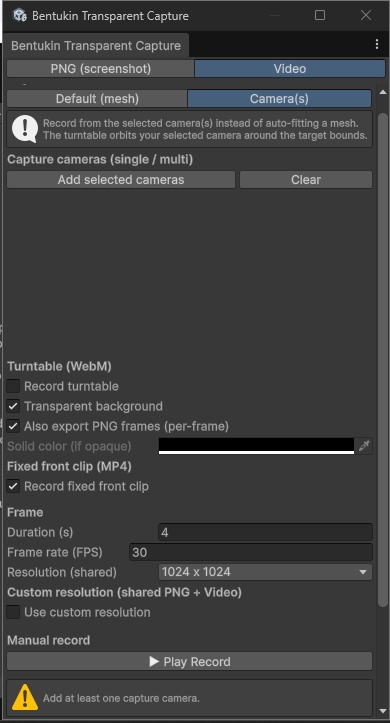
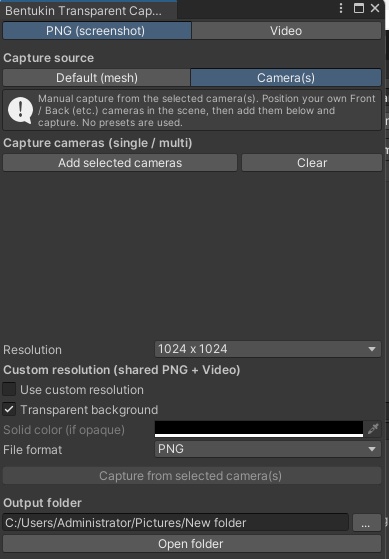


Bentukin Transparent Capture Clean, transparent product captures for Unity — PNG, JPG, EXR, and video, straight from the Editor. Stop fighting with green screens, alpha plugins, and broken export pipelines. Bentukin Transparent Capture is a lightweight Unity Editor extension that renders your models with a true transparent background — no post-processing, no compositing hacks — and exports them as images or turntable videos in one click. Features at a glance - True transparent alpha (PNG / EXR / per-frame PNG) - One-click turntable, fixed-front, or combined video - Custom resolution shared across screenshots + video - PNG, JPG, and EXR export (EXR linear for VFX) - Camera mode (capture from your own Front/Back/Side/Top cameras) - 6 preset views + custom yaw/pitch/distance - 3-view batch (front / side / back) - Respect scene eye-icon visibility - Live in-window preview - Dated output subfolders, pick-any output folder Why you'll want it - Real transparency. Captures keep a clean alpha channel so your model drops straight onto any background. - One-click turntables. Record a spinning WebM (or MP4) and optional per-frame PNG sequence — perfect for store listings and socials. - Custom resolution, shared across tabs. Set one width × height and it applies to both screenshots and video. - Multiple formats. PNG, JPG, and EXR (EXR is exported linear for VFX/compositing pipelines). - Camera mode. Capture from your own positioned cameras instead of auto-fitting the mesh. - Respect scene visibility. The Hierarchy eye-icon is honored, so hidden helpers stay out of the shot. - Live preview. See the framing inside the window before you capture. What you can do - Capture a target mesh from 6 built-in presets or a fully custom view. - Capture 3-view sets in a single click. - Record a turntable clip, a fixed front clip, or both at once. - Export every frame as transparent PNGs alongside the video. - Pick the output folder (defaults to a Captures directory beside your project). How it works 1. Open Window → Bentukin Transparent Capture in the Unity Editor. 2. Add your target mesh (or cameras) from the scene. 3. Choose resolution, format, and transparent vs. solid background. 4. Hit capture — files are written to a dated subfolder. Pricing - Single license: PRICE — one-time purchase, yours to use in any project you work on. - Includes future 1.x updates. - Gumroad handles delivery and any applicable VAT automatically. Requirements - Unity 2022.3 LTS (tested on 2022.3.22f1). - The Unity Recorder package (required for video export). - Editor-only — no runtime component ships to your build. License - Single-seat editor tool. One purchase covers all projects you personally work on (personal + commercial). - May not be redistributed, resold, or shared as a standalone asset/package. - May be used in products you ship, as long as the tool itself isn't the product. - No watermark, no expiration, no phone-home. Notes - JPG has no alpha, so transparent shots flatten to a solid color (expected). - EXR is written linear for compositing; PNG/JPG are display-ready sRGB. - Video recording runs in Play Mode automatically and writes when playback stops. knowing bug : flikering when use frame per frame, overal everyting working fine