

発売記念セール中!!CYBER HUD SYSTEM【MA対応】【音声アシスタント】
- セール中:フルセット[OSCソフト付き]Full set [includes OSC software]Digital1,600 JPY
- HUD単体[OSC無し]HUD Unit Only [No OSC]今はフルセットの方が安いよDigital1,700 JPY
- OSCソフト単体(これだけじゃ何も出来ません)OSC software only (this alone cannot do anything)Digital700 JPY
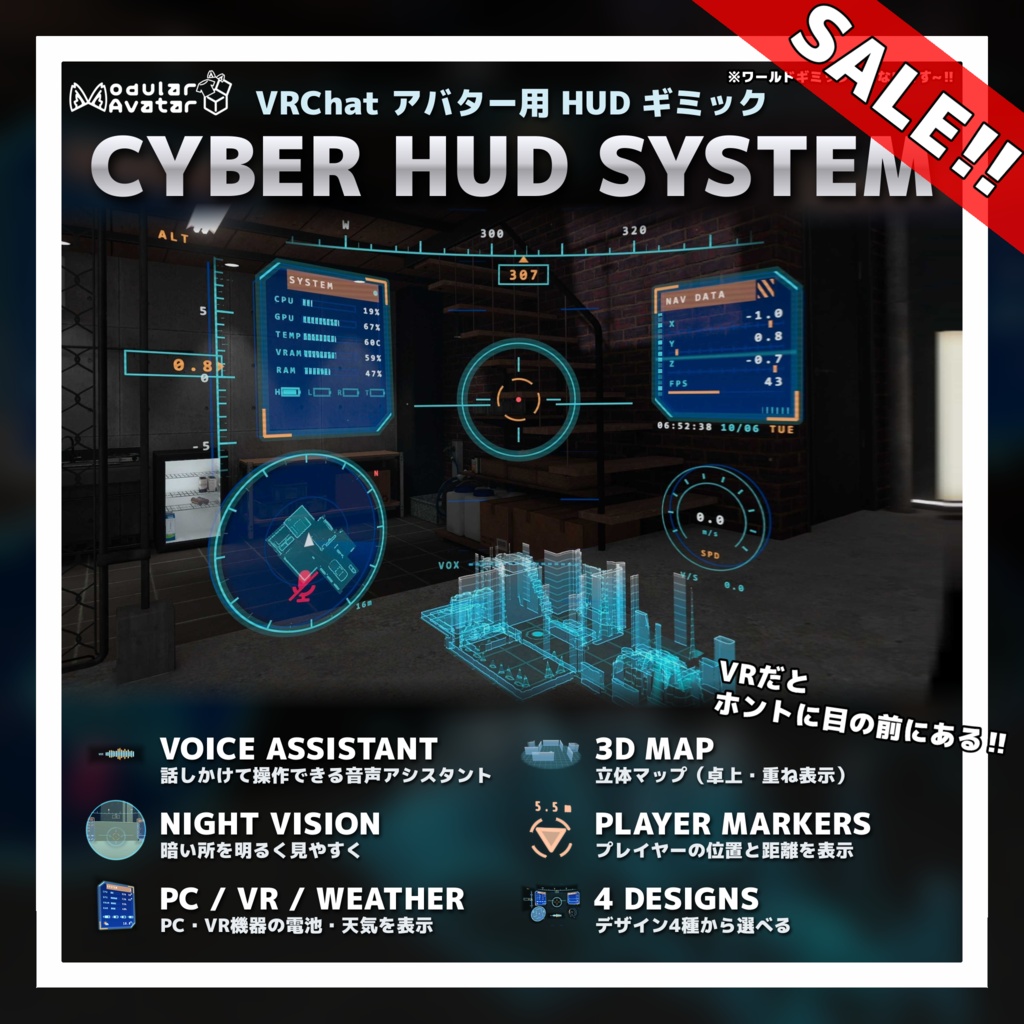
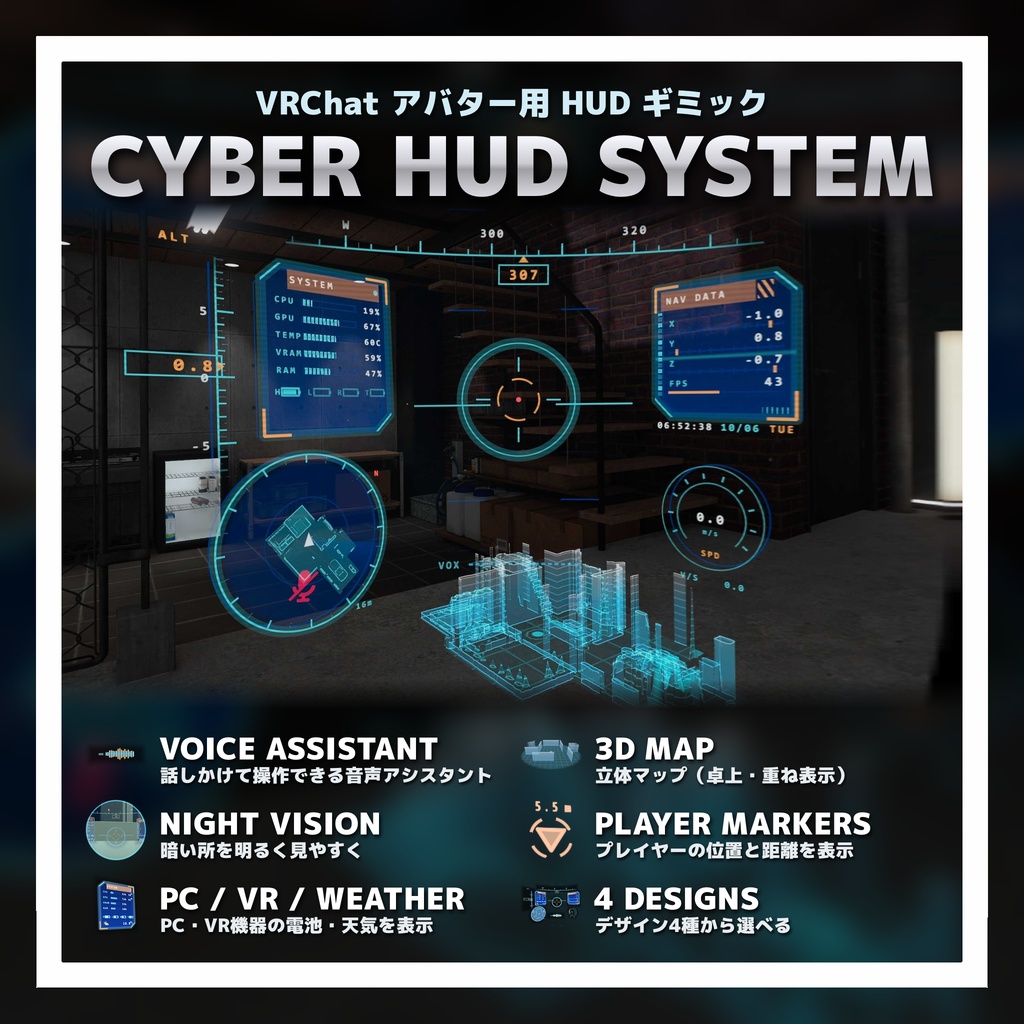


作りたいやつ作れたやったね記念セール中!! Full-Set/フルセット 2,300円 -> 1,600円 10月7日~10月17日まで!! VRChat のアバターに、SF のパイロットのような HUD(ヘッドアップディスプレイ)を追加するギミックです。 照準・方位・高度・速度・ミニマップなどを視界に表示し、3Dマップやナイトビジョン、プレイヤーマーカーも使えます。 付属の連携ソフト「KGY HUD Link」を使うと、PC の負荷やVR機器の電池、天気を HUD に表示できるほか、 「アシスタント、今の天気は?」と話しかけて HUD を操作できる音声アシスタントが使えます。 HUD は自分の視界にだけ表示されます(鏡や手持ちカメラには映りません) 導入は Unity のセットアップツールでボタン1つです(Modular Avatar 対応) 日本語版、英語版があります。やったね。
🧩主な機能
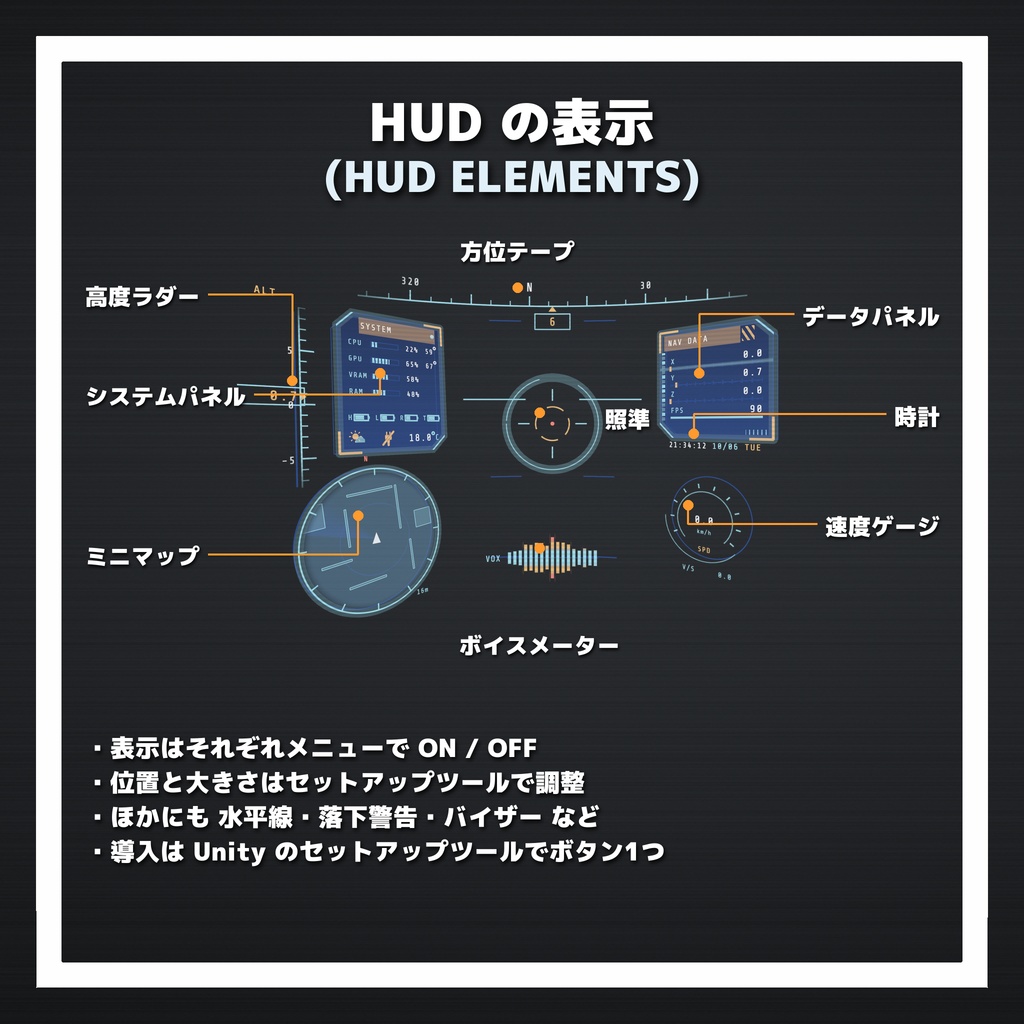
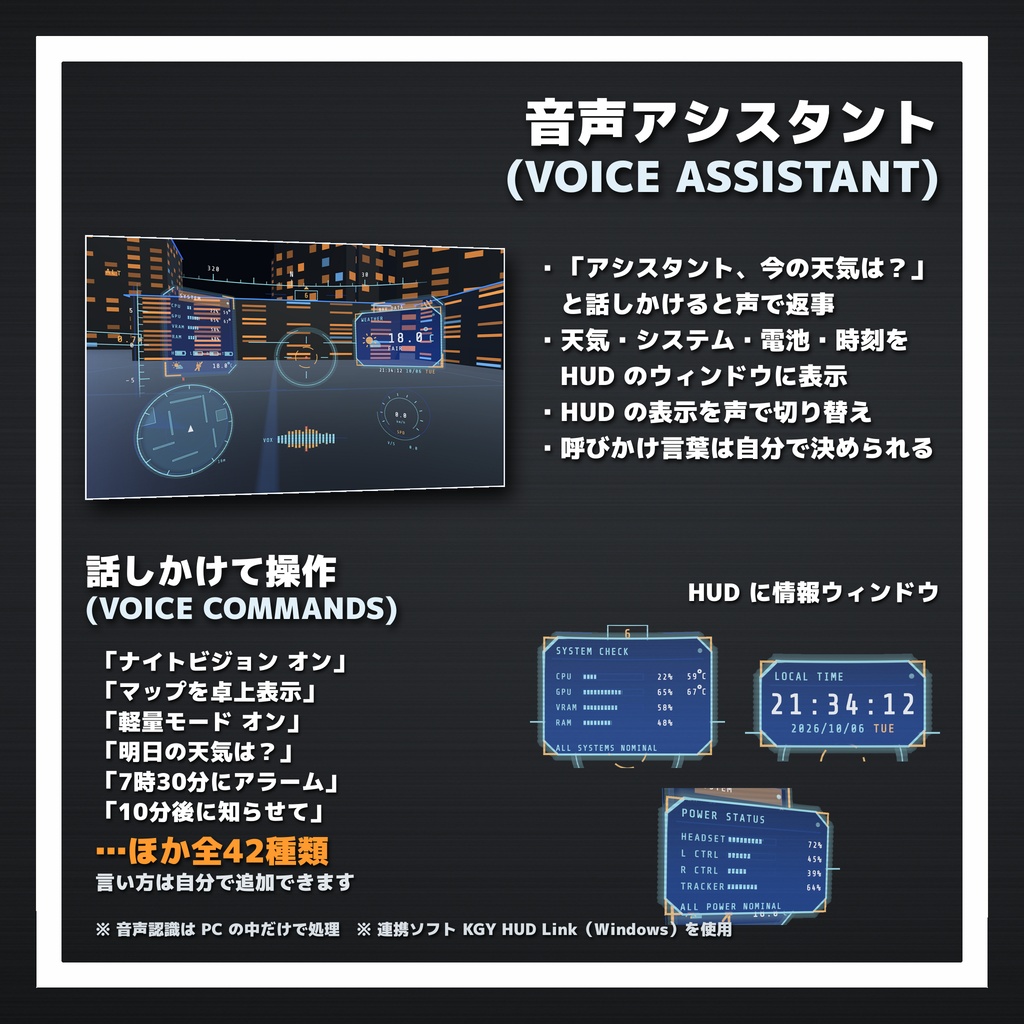
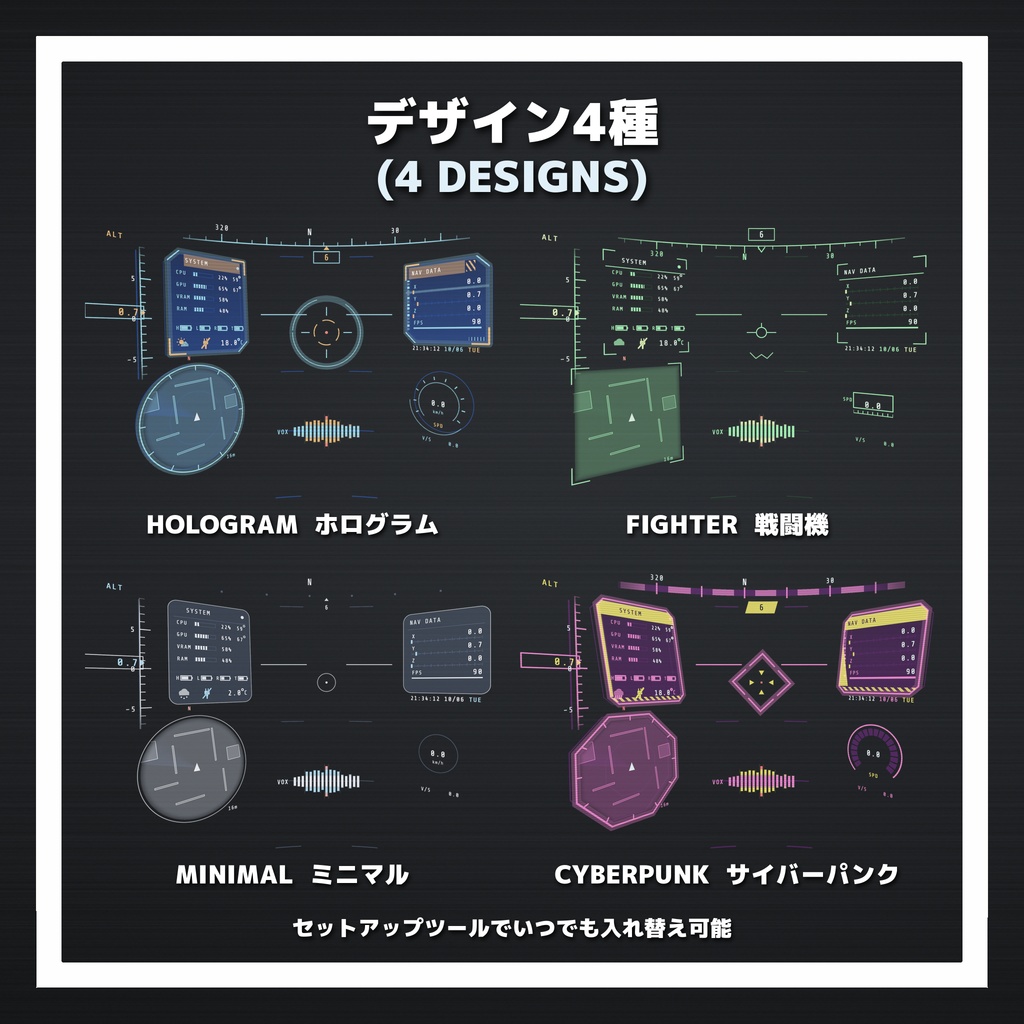
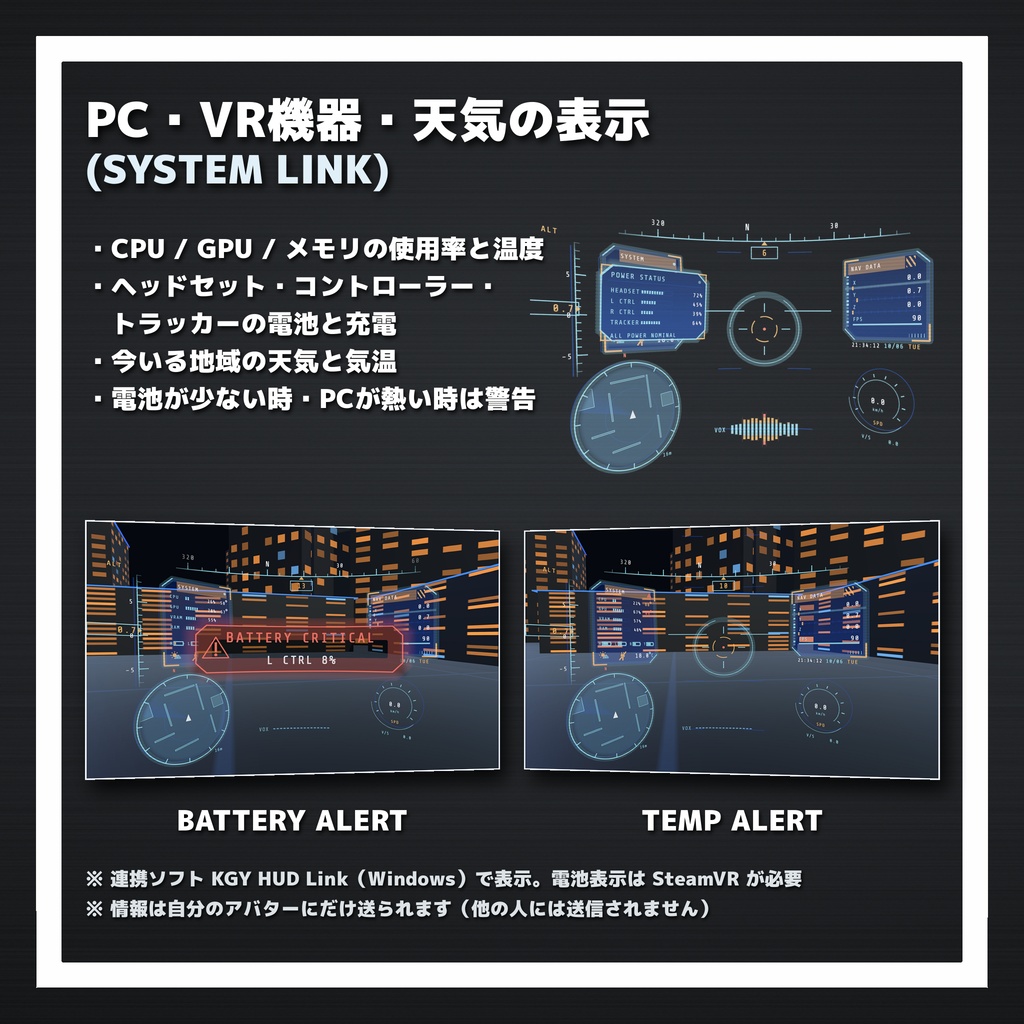
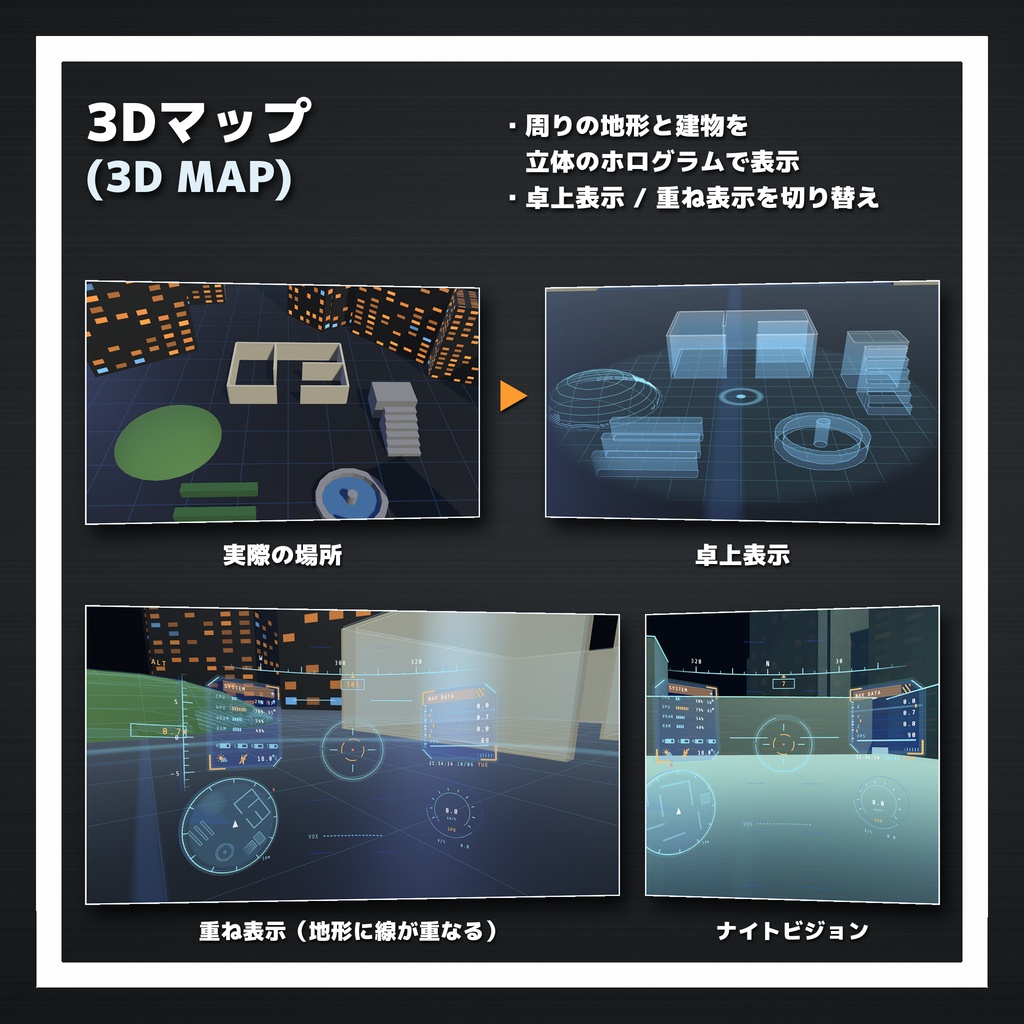
🎨 デザイン4種 ・ホログラム:シアン×オレンジ。角を切ったパネルと回る照準。標準のデザイン ・戦闘機:緑の単色。枠なしで線と数字が主体 ・ミニマル:白基調。細い線と角丸で控えめ ・サイバーパンク:マゼンタ×黄。斜めのパネルと縞模様、ときどき走るノイズ セットアップツールでいつでも入れ替えられます。 🎯 HUD の表示 ・照準、方位テープ、高度ラダー、水平線 ・速度ゲージ(km/h・m/s 切り替え)、落下警告 ・ミニマップ(周りの地形と、ほかのプレイヤーの位置) ・時計(時刻・日付・曜日) ・データパネル(座標・FPS など) ・ボイスメーター(自分の声に合わせて動く) ・バイザー(色味・周辺減光) それぞれの表示は Expression Menu で ON / OFF でき、位置と大きさもセットアップツールで調整できます。 HUD の起動・終了には演出があり、周りの明るさに合わせて見やすさを自動で調整します。 🗺 3Dマップ ・卓上表示:目の前に周りの地形を立体のホログラムで表示 ・重ね表示:周りの壁や床に線を重ねて、地形の形を浮かび上がらせる ON にすると地形が構築されていくような演出で表示されます。 🌙 ナイトビジョン 暗い場所を明るく、くっきり見やすくします。ON / OFF の時は視界を走査するような演出が入ります。 📍 プレイヤーマーカー ほかのプレイヤーの頭上にマーカーと距離(m)を表示します。壁越しにも見えます。 💻 PC・VR機器・天気の表示(連携ソフト KGY HUD Link) ・CPU / GPU / メモリ / ビデオメモリの使用率と温度 ・ヘッドセット・左右コントローラー・トラッカーの電池残量と充電状態 ・今いる地域の天気と気温 ・電池が少なくなった時や、PC の温度が高い時は HUD で警告 連携ソフトはタスクトレイに常駐し、OSC で自分のアバターにだけ情報を送ります(ほかの人には送られません)。 🎤 音声アシスタント(連携ソフト KGY HUD Link) ・「アシスタント、今の天気は?」のように話しかけると、声で返事をして HUD に情報ウィンドウを表示 ・今の天気、明日の天気、システムチェック、バッテリー、時刻、日付を聞ける ・「7時30分にアラーム」「10分後に知らせて」でアラーム・タイマーをセット。時間になるとチャイムと声で知らせ、HUD にウィンドウを表示(確認・解除・停止も声でできます) ・ナイトビジョン、軽量モード、3Dマップ、マーカー、時計・照準などの表示を声で切り替え ・HUD の起動・終了、電池の残量、充電の開始・終了、PC の温度などを声でお知らせ ・コマンドは全42種類。言い方は自分で追加できます ・呼びかけ言葉は「アシスタント」「コンピューター」「オペレーター」から選ぶか、自分で決められます 音声認識はすべて PC の中で行い、声のデータを外部に送ることはありません。 読み上げの声は Windows 標準の音声合成です。無料の音声合成ソフト VOICEVOX(別途インストール)を入れると、その声で読み上げることもできます。
📦 内容物
・Unity package ・連携ソフト KGY HUD Link(Windows 用。はじめにお読みください.txt 付き) ・権利表記(THIRD_PARTY_NOTICES.txt・ライセンス全文) ・License
🛠 導入方法
1. VRChat Creator Companion(VCC)で Modular Avatar をプロジェクトに入れる 2. unitypackage をインポートする 3. Unity のメニュー「KGTools > CYBER HUD SYSTEM セットアップ」を開き、アバターとデザインを選んで「セットアップ」を押す 4. (連携ソフトを使う場合)KGYHUDLink.exe を起動し、VRChat の OSC を有効にする アクションメニュー → オプション → OSC → 有効
⚠注意事項[必読]
・PC 専用です(Android / iOS 版のアバターには使えません)。 ・軽量化の処理をしておりますが、使用環境やワールド等によっては処理が重くなる場合があります。 ・Modular Avatar が必要です(同梱していません)。最新の VRChat SDK でご利用ください。 ・HUD は自分の視界にだけ表示されます。ほかのプレイヤーからは見えません。 ・PC・電池・天気の表示と音声アシスタントには、連携ソフト KGY HUD Link(Windows 10 / 11 64bit)が必要です。 HUD の基本の表示(照準・方位・ミニマップ・3Dマップ・ナイトビジョン等)は連携ソフトなしでも使えます。 ・VR機器の電池表示には SteamVR が必要です。Meta Quest のコントローラーは、Meta 側が電池残量を SteamVR に渡していないため表示できません(ヘッドセットは表示されます)。 ・GPU 温度は NVIDIA の GPU のみ対応です。CPU 温度を正確に表示するには、LibreHardwareMonitor(無料・別途)が必要です。 ・音声コマンドは日本語に対応しています。音声コマンドで話した声は VRChat のマイクにも入ります。 ※音声や情報は外部に送信されません。PC本体内で処理されます。 ・天気はノルウェー気象局(MET Norway)の公開データを使っています(Based on data from MET Norway, CC BY 4.0)。 取得のため、設定した地域のおおよその座標を MET Norway に送信します。 ・VOICEVOX は本商品に含まれていません。使う場合は、VOICEVOX と各キャラクターの利用規約に従ってください (クレジット例:VOICEVOX:九州そら)。 ・アバターの改変・導入はご自身の責任で行ってください。導入前にプロジェクトのバックアップをおすすめします。 ・全てのワールドでの動作は確認しておりません。MAPが動作しないワールドがあるかもしれません。 ・本商品の再配布・転売・共有は禁止です。 ・ダウンロード商品の購入後の返品、返金は対応していません。 ・同梱のシェーダー[Shaderフォルダ内]のソースコードの一部・全部の自作発言、二次配布は禁止とします。
【音声アシスタント コマンド一覧(全42種類)】
※ 呼びかけ言葉(初期設定「アシスタント」)のあとに話しかけます 例:「アシスタント、今の天気は?」 ※ ( )内は同じ意味で使える別の言い方です ■ 情報 ・今の天気は?(今日の天気は?/天気を教えて/気温は?) → 設定した地域の天気と気温を返事(HUD 右に天気のウィンドウ) ・明日の天気は?(明日の天気を教えて/明日は雨?) → 明日の天気と最高・最低気温を返事(HUD 右に明日の天気のウィンドウ) ・システムチェック(ステータスレポート) → CPU・GPU・メモリの使用率と温度、ヘッドセットの電池を返事(HUD 中央にシステムのウィンドウ) ・バッテリーは?(バッテリーチェック/電池の残りは?) → ヘッドセット・コントローラー・トラッカーの電池残量を返事(HUD 左に電池のウィンドウ) ・今何時?(時刻は?) → 今の時刻を返事(HUD 中央に時刻のウィンドウ) ・今日は何日?(日付は?/何曜日?) → 今日の日付と曜日を返事(HUD 中央に時刻のウィンドウ) ・ヘルプ(何ができる?) → 使えるコマンドを返事 ■ アラーム・タイマー ・7時30分にアラーム(午後3時にアラームをセット/6時半に起こして/アラーム 8時) → アラームをセット。時間になるとチャイムと読み上げで知らせ、HUD 中央にアラームのウィンドウ (午前・午後を言わない時は、近い方の時刻) ・アラームは何時?(アラームの確認) → セット中のアラームの時刻を返事 ・アラーム解除(アラームを消して/アラームをキャンセル) → セット中のアラームを解除(鳴っている時は止める) ・ストップ(止めて/起きた) → 鳴っているアラーム・タイマーを止める ・10分後に知らせて(タイマー5分/1時間半後に教えて/30秒タイマー) → タイマーをセット。時間になるとチャイムと読み上げで知らせ、HUD 中央にタイマーのウィンドウ ・タイマーの残りは?(あと何分?) → タイマーの残り時間を返事(HUD 中央に残り時間) ・タイマー解除(タイマーをキャンセル/タイマーを止めて) → 動いているタイマーを解除(鳴っている時は止める) ■ 切り替え ・ナイトビジョン オン(ナイトビジョンをつけて/ナイトビジョン起動) ・ナイトビジョン オフ(ナイトビジョンを消して/ナイトビジョン解除) ・ナイトビジョン(ナイトビジョン切り替え) → ON / OFF を切り替え ・軽量モード オン(軽量モードにして/パフォーマンスモード オン) ・軽量モード オフ(軽量モードを解除) ・軽量モード(軽量モード切り替え) → ON / OFF を切り替え ・マップを卓上表示(マップ/3Dマップ表示/マップを開いて/マップ オン) → 3Dマップを卓上表示 ・マップを重ねて(マップを重ねろ/マップを重ねて表示) → 3Dマップを重ね表示 ・マップを閉じろ(マップを消して/マップ オフ) → 3Dマップ(卓上・重ね表示とも)を OFF ・マーカー オン(プレイヤーマーカーを表示) ・マーカー オフ(マーカーを消して) ・マーカー(マーカー切り替え) → ON / OFF を切り替え ■ 表示 ・時計 オン(時計を表示して) ・時計 オフ(時計を消して) ・時計(時計切り替え) ・照準 オン(照準を表示) ・照準 オフ(照準を消して) ・照準(照準切り替え) ・ミニマップ オン(ミニマップを表示) ・ミニマップ オフ(ミニマップを閉じて) ・ミニマップ(ミニマップ切り替え) ・速度計 オン(スピードメーターを表示) ・速度計 オフ(スピードメーターを消して) ・速度計(速度計切り替え) ■ 終了 ・エイチユーディー オフ(ディスプレイを閉じろ/システムシャットダウン) → HUD 本体を OFF(マイクも止まります) ・音声アシスタント オフ(音声を止めて) → 音声アシスタントを OFF(マイクも止まります) ■ その他 ・キャンセル(なんでもない) → 呼びかけを取り消す ・ありがとう → 返事のみ ※ 言い方は、連携ソフト KGY HUD Link の設定画面から自分で追加できます
EN
Available in English and Japanese editions. A gimmick that adds a sci-fi pilot-style HUD (head-up display) to your VRChat avatar. It shows a reticle, compass, altitude, speed, minimap and more in your view, and also includes a 3D map, night vision and player markers. With the included companion app "KGY HUD Link", the HUD can show your PC load, VR device batteries and the weather, and you can use a voice assistant: just say "Assistant, what's the weather?" to control the HUD with your voice. The HUD appears only in your own view (it is not shown in mirrors or handheld cameras). Installation is one button in Unity's setup tool (Modular Avatar compatible).
🧩 Main Features
🎨 4 Designs ・Hologram: Cyan × orange. Angled-corner panels and a rotating reticle. The default design ・Fighter Jet: Single green color. No frames, mostly lines and numbers ・Minimal: White-based. Thin lines and rounded corners for a subtle look ・Cyberpunk: Magenta × yellow. Slanted panels, stripes and occasional glitch noise You can switch designs at any time with the setup tool. 🎯 HUD Display ・Reticle, compass tape, altitude ladder, horizon line ・Speed gauge (km/h or m/s), falling warning ・Minimap (surrounding terrain and other players' positions) ・Clock (time, date, day of the week) ・Data panel (coordinates, FPS, etc.) ・Voice meter (moves with your voice) ・Visor (tint and vignette) Each element can be turned ON / OFF from the Expression Menu, and its position and size can be adjusted in the setup tool. The HUD has boot-up and shutdown effects, and automatically adjusts its visibility to the brightness around you. 🗺 3D Map ・Tabletop mode: Shows the surrounding terrain as a 3D hologram in front of you ・Overlay mode: Draws lines over nearby walls and floors to bring out the shape of the terrain When turned ON, the map appears with an effect as if the terrain is being built up. 🌙 Night Vision Brightens dark places and makes them clear and easy to see. A scan effect runs across your view when you turn it ON / OFF. 📍 Player Markers Shows a marker and the distance (m) above other players' heads, up to about 50 m away. Visible through walls. 💻 PC, VR Device and Weather Display (companion app KGY HUD Link) ・CPU / GPU / RAM / VRAM usage and temperature ・Battery level and charging status of your headset, left/right controllers and trackers ・Weather and temperature for your area (choose from about 90 cities worldwide, or enter latitude/longitude) ・HUD warnings when a battery is low or your PC is running hot The app sits in the system tray and sends data via OSC to your own avatar only (nothing is sent to other players). 🎤 Voice Assistant (companion app KGY HUD Link) - Say something like "Assistant, what's the weather?" and it answers out loud and shows an info window on the HUD - Ask about the current weather, tomorrow's weather, system check, battery, time and date - Set alarms and timers with "Set an alarm for seven thirty" or "Set a timer for ten minutes". When the time comes, a chime and an announcement play and a window appears on the HUD (you can also check, cancel and stop them by voice) - Switch night vision, lite mode, 3D map, markers, clock, crosshair and more by voice - Spoken notifications for HUD start / shutdown, battery levels, charging start / stop, PC temperatures and more - 42 commands in total. You can add your own phrases - Choose the wake word from "assistant", "computer" or "operator", or set your own All speech recognition runs on your PC; no voice data is sent anywhere. Announcements use the standard Windows speech voice. You can add more voices in Windows Settings > Time & language > Speech.
📦 Contents
・Unity package ・Companion app KGY HUD Link (for Windows, includes README.txt) ・Third-party notices (THIRD_PARTY_NOTICES.txt and full license texts) ・License
🛠 How to Install
1. Add Modular Avatar to your project with the VRChat Creator Companion (VCC) 2. Import the unitypackage 3. Open the Unity menu "KGTools > CYBER HUD SYSTEM Setup (EN)", choose your avatar and a design, then press "Set Up" 4. (If using the companion app) Launch KGYHUDLink.exe and enable OSC in VRChat Action Menu → Options → OSC → Enabled
⚠ Notes [Please read]
・PC only (cannot be used on Android / iOS avatars). ・We have optimized the code for performance, but depending on the usage environment or the world, processing may still be slow. ・Modular Avatar is required (not included). Please use the latest VRChat SDK. ・The HUD appears only in your own view. Other players cannot see it. ・The PC, battery and weather displays and the voice assistant require the companion app KGY HUD Link (Windows 10 / 11, 64-bit). The basic HUD features (reticle, compass, minimap, 3D map, night vision, etc.) work without the companion app. ・Showing VR device batteries requires SteamVR. Meta Quest controller batteries cannot be shown, because Meta does not pass their battery level to SteamVR (the headset battery is shown). ・GPU temperature is supported on NVIDIA GPUs only. For accurate CPU temperature, LibreHardwareMonitor (free, separate download) is required. ・Voice commands are supported in English. What you say for voice commands also goes into your VRChat microphone. ・The voice assistant uses Windows' built-in English text-to-speech voice. *Audio and information are not transmitted externally; processing takes place within the PC itself. ・Weather uses open data from the Norwegian Meteorological Institute (MET Norway) (Based on data from MET Norway, CC BY 4.0). To get the weather, the approximate coordinates of the area you set are sent to MET Norway. ・Modifying and installing on your avatar is at your own risk. We recommend backing up your project before installing. ・Redistribution, resale or sharing of this product is prohibited. ・Returns and refunds are not available after purchasing a downloadable product. ・Operation has not been verified in all worlds; there may be worlds where the map does not function correctly. ・Claiming the included shaders' source code [in the Shaders folder], in part or in whole, as your own work, or redistributing it, is prohibited. ・For bugs or questions, please contact us via BOOTH messages.
[Voice Assistant Command List (42 commands)]
* Say the wake word first (default: "assistant"), then the command Example: "Assistant, what's the weather?" * Phrases in ( ) are other ways to say the same command ■ Info - What's the weather? (What's the weather today? / Weather report / What's the temperature?) → Replies with the weather and temperature at your location (weather window on the right of the HUD) - What's the weather tomorrow? (Tomorrow's weather / Will it rain tomorrow?) → Replies with tomorrow's weather and high / low temperatures (forecast window on the right of the HUD) - System check (Status report) → Replies with CPU / GPU / memory usage and temperatures, and headset battery (system window in the center of the HUD) - Battery status (Battery check / How much battery is left?) → Replies with the battery levels of the headset, controllers and trackers (battery window on the left of the HUD) - What time is it? (What's the time?) → Replies with the current time (time window in the center of the HUD) - What's the date? (What day is it?) → Replies with today's date and day of the week (time window in the center of the HUD) - Help (What can you do?) → Replies with the available commands ■ Alarm / Timer - Set an alarm for seven thirty (Wake me up at six a.m. / Alarm for half past seven) → Sets an alarm. When the time comes, a chime and an announcement play, and an alarm window appears in the center of the HUD (without a.m. / p.m., the nearer time is used) - When is my alarm? (What time is the alarm set for?) → Replies with the time the alarm is set for - Cancel the alarm (Turn off the alarm / Delete the alarm) → Cancels the alarm (stops it if it is ringing) - Stop (I'm awake / Dismiss) → Stops the ringing alarm or timer - Set a timer for ten minutes (Remind me in an hour and a half / Five minute timer / Timer for thirty seconds) → Sets a timer. When the time comes, a chime and an announcement play, and a timer window appears in the center of the HUD - How much time is left? (Timer status) → Replies with the time left on the timer (shown in the center of the HUD) - Cancel the timer (Stop the timer) → Cancels the running timer (stops it if it is ringing) ■ Switch - Night vision on (Turn on night vision / Activate night vision) - Night vision off (Turn off night vision) - Night vision (Toggle night vision) → Toggles ON / OFF - Lite mode on (Turn on lite mode / Performance mode on) - Lite mode off (Turn off lite mode) - Lite mode (Toggle lite mode) → Toggles ON / OFF - Map tabletop (Map / Show the map / Map on) → Shows the 3D map in tabletop mode - Map overlay (Overlay the map) → Shows the 3D map in overlay mode - Map off (Close the map / Hide the map) → Turns the 3D map OFF (both tabletop and overlay) - Markers on (Show player markers) - Markers off (Hide markers) - Markers (Toggle markers) → Toggles ON / OFF ■ Display - Clock on (Show the clock) - Clock off (Hide the clock) - Clock (Toggle clock) - Crosshair on (Show the crosshairs) - Crosshair off (Hide the crosshairs) - Crosshair (Toggle crosshairs) - Mini map on (Show the mini map) - Mini map off (Close the mini map) - Mini map (Toggle mini map) - Speedometer on (Show the speedometer) - Speedometer off (Hide the speedometer) - Speedometer (Toggle speedometer) ■ Shut down - HUD off (Close the display / System shut down) → Turns the HUD OFF (the microphone stops too) - Voice assistant off (Stop voice) → Turns the voice assistant OFF (the microphone stops too) ■ Other - Cancel (Never mind) → Cancels the wake word - Thank you → Reply only * You can add your own phrases on the settings screen of the companion app KGY HUD Link
更新履歴
2026/10/07 販売開始 2026/10/08 v0.0.2 公開 修正内容:3Dmapの卓上表示と、重ねて表示する際、マップスケールが反映されるようになりました。 2026/10/9 v0.0.3 公開 修正内容 :ギミック使用時の負荷の軽減処理の修正。 2026/10/9 ギミック本体 v0.0.4 OSCソフト v0.0.2 公開 追加内容 :軽量化モード、アラーム・タイマー、明日の天気、SteamVRと一緒に起動 ・音声アシスタントコマンドの追加 修正内容 :HUDとポップアップの負荷を大幅に軽減