

GPU Snow - GPU Particle Volumes
- Digital1,000 JPY
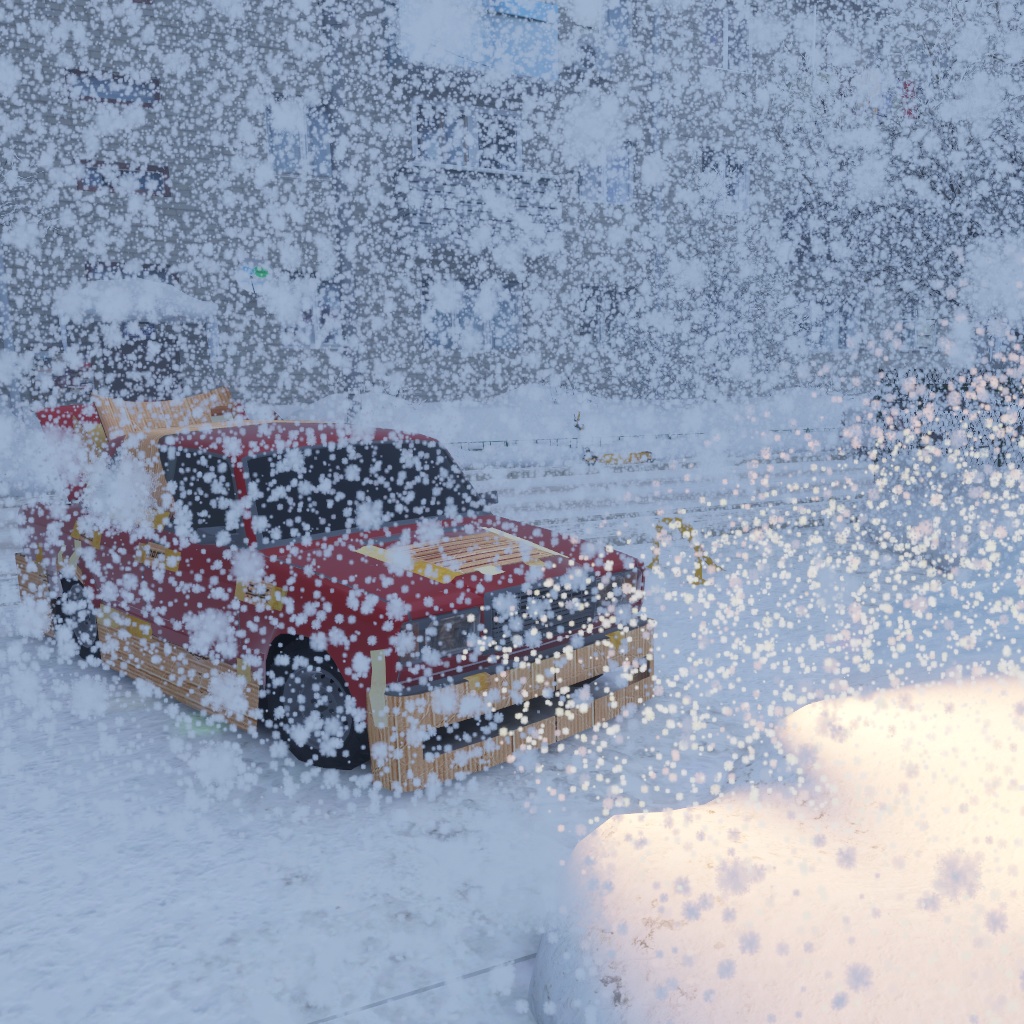
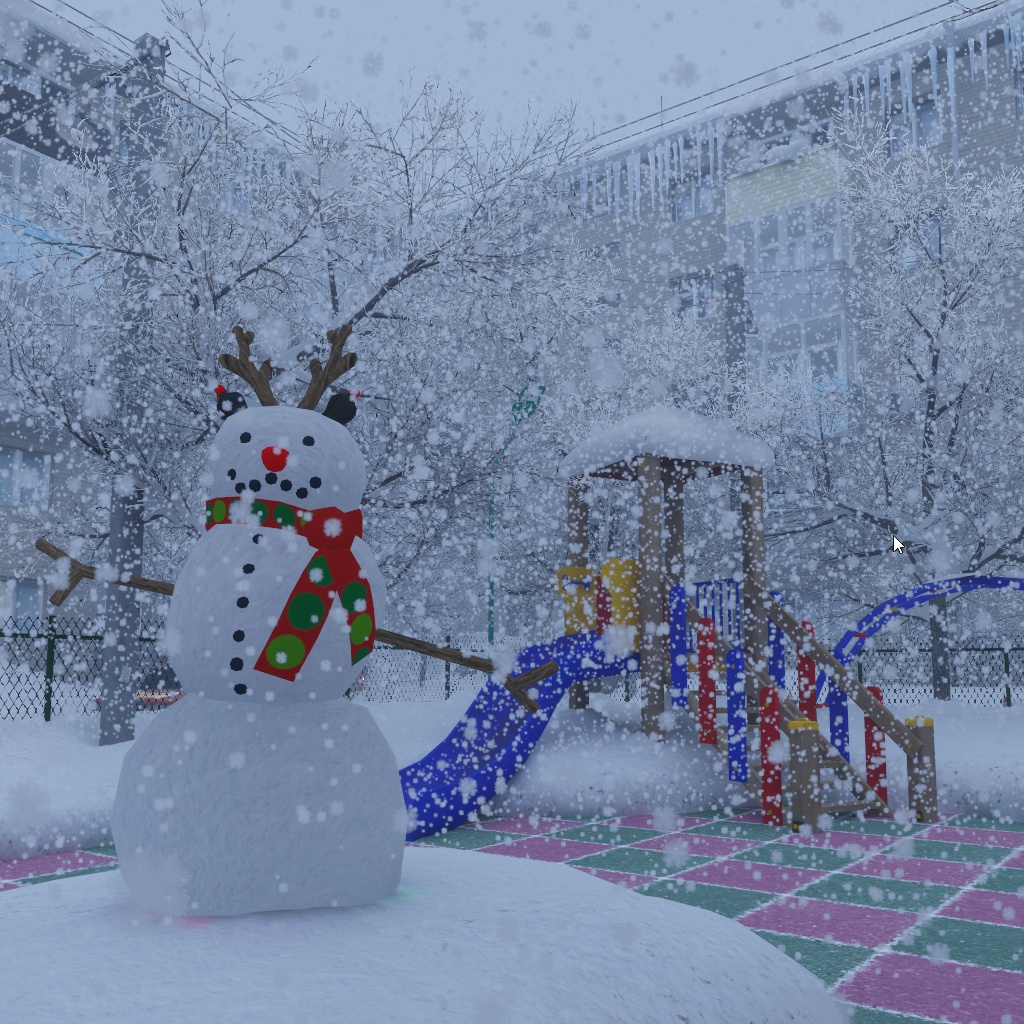
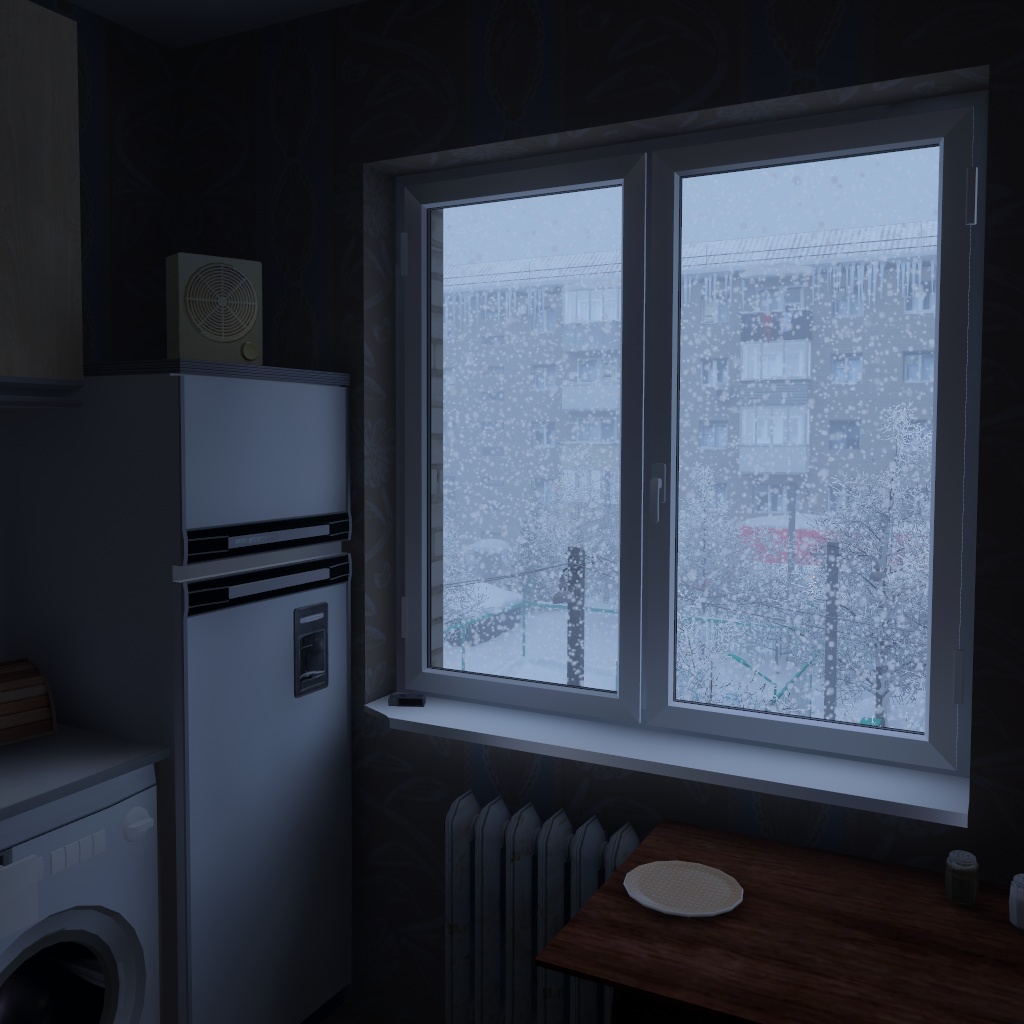
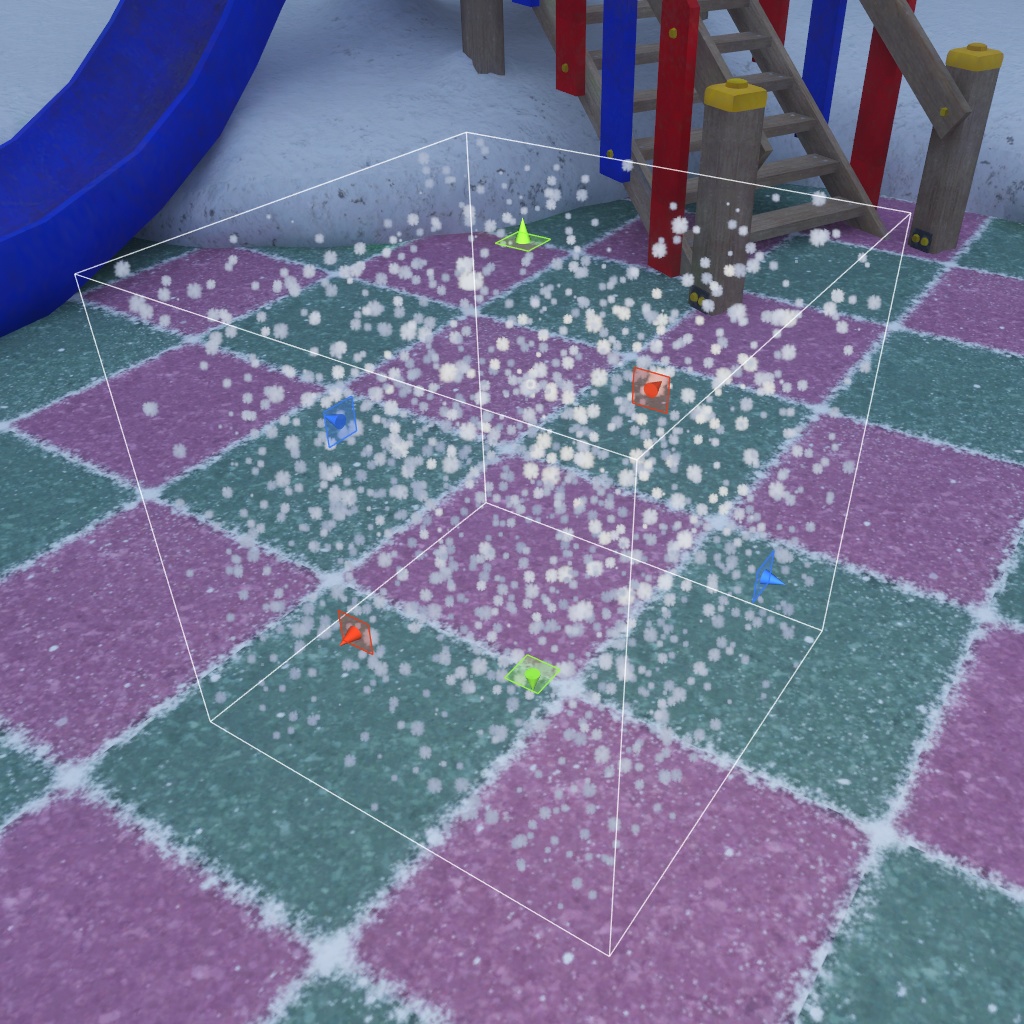
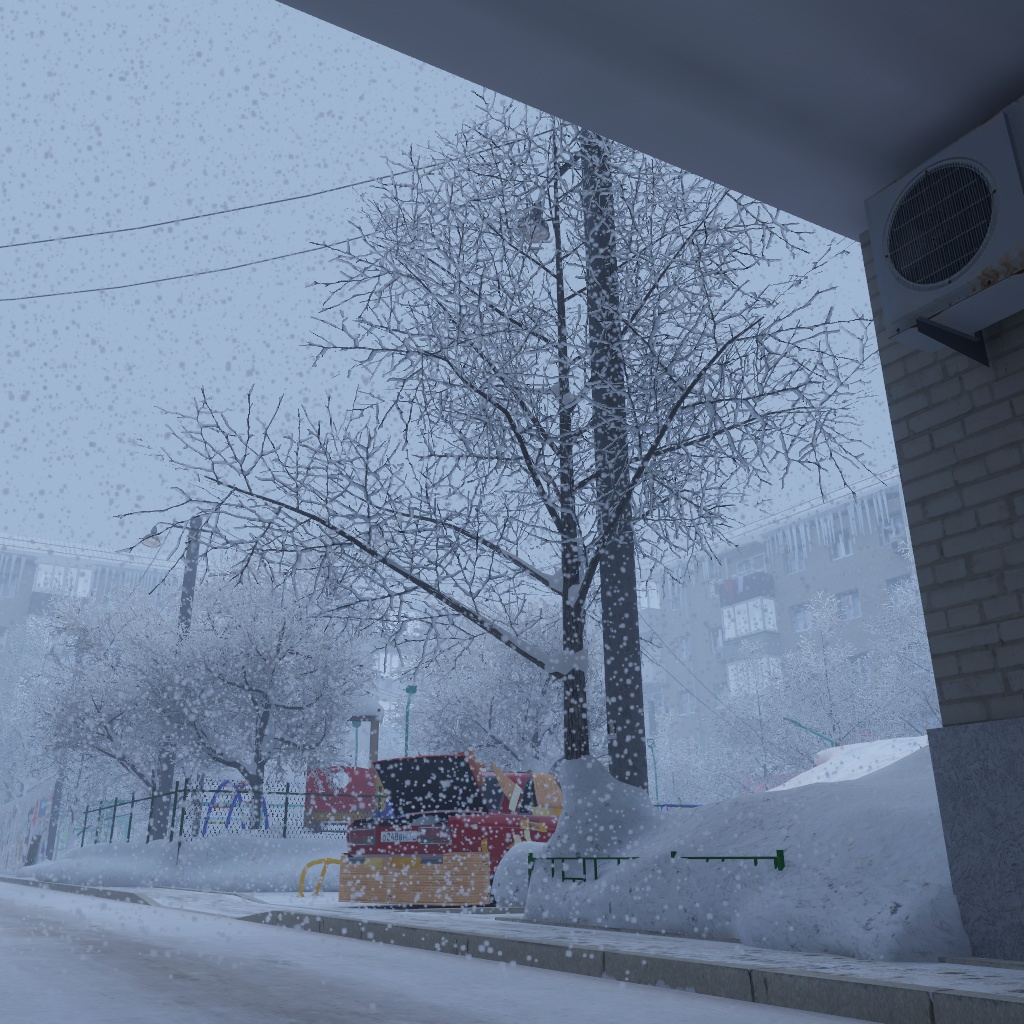


Video: https://www.youtube.com/watch?v=FSkBsOkFgHo ---------------------------------------- JAPANESE ---------------------------------------- Overview これは新しい GPU Particle Volumes システム用の GPU 雪パーティクルシェーダーです。 静かな雪から激しい吹雪まで幅広く対応します。 数十万パーティクルを同時に描画してもパフォーマンス低下はほとんどありません。 PC、Quest、Android、iOS に対応しています。 Features - パーティクルボリュームの配置(パーティクルが描画される範囲を指定) - ボリュームエクスクルーダーの配置(パーティクルが隠される範囲を指定) - 超高速 GPU パーティクル(低スペック環境でも大量描画可能) - 最小限の頂点属性のみを使用した最適化メッシュ - すぐ使えるパーティクルダストシェーダーを同梱 - VRChat ワールド/アバターで使用可能(アバター使用は非推奨だが可能) - VRC Light Volumes 対応(ライトの影響を受けよりリアルに表示) Installation 1. まず GPU Particle Volumes をインストールしてください。 必要なアセット「GPU Particle Volumes」は、同梱のアーカイブには含まれなくなり、今後は VCC を通して個別にインストールする形式になります! これにより今後のアップデートがより簡単になり、皆さんの作業が楽になります。ご理解ありがとうございます! VRC Creator Companion(VRChat 向け推奨) 1) VPM リスティングページ: https://redsim.github.io/vpmlisting/ 2) 「Add to VCC」を押す 3) ポップアップを確認 4) VCC → Manage Project で「GPU Particle Volumes」を追加 Unity Package Manager(Git URL) - 「VRChatプロジェクトでは推奨されていません」 1) Window → Package Manager 2) 左上の [+] を押す 3) 「Add package from git URL...」を選択 4) 次を貼り付け: https://github.com/REDSIM/GPUParticleVolumes.git?path=/Packages/red.sim.particlevolumes 5) Add を押す 2. 次に GPUSnowParticles.unitypackage を Unity にドラッグ&ドロップして本アセットを追加。 3. 雪パーティクルのプレハブは以下にあります: /Assets/RED_SIM/GPU Particle Volumes/Snow/Prefabs How to Use 1. パーティクルプレハブをシーンに配置。 2. Particle Volume Manager コンポーネントを確認。 3. 次のリストが表示されます: - Particle Volume Includers - Particle Volume Excluders 4. これらはパーティクルボリュームを表す空の GameObject です。 5. 選択するとギズモが表示されます。Scene View の Gizmos をオンにしてください。 6. Includers はパーティクルが描画される範囲。 7. Excluders はパーティクルが隠れる範囲(建物内の雪を防ぐなど)。 8. Auto Update Volumes を有効にすると Runtime 中もボリュームを更新できます。 9. ボリュームは Runtime でオン/オフ可能。 10. パーティクルを完全に停止したい場合は Mesh Renderer を無効にします。 11. 複数の Particle Volume Manager を使って複数タイプのパーティクルを扱えます。 12. パーティクル数は専用のパーティクルメッシュに依存します。 Tools → GPU Particle Volumes → Simple Particle Mesh Generator から生成し、 生成したメッシュを Particle Volume Manager の Mesh Filter に設定してください。 13. 見た目の調整はマテリアルで行います。 トラブルシューティング 不具合:アセットをインポートした後、エディターにボリュームのギズモが表示されない 解決方法:Unity を再起動してください。Unity 側の奇妙なバグのようです。 Support the Project もし気に入っていただけたら Patreon でサポートしていただけると嬉しいです。 追加の GPU Particle Volumes シェーダーなど多数の特典が利用できます。 Patreon: https://www.patreon.com/red_sim Contact 質問や問題があれば Discord で気軽にメッセージしてください: RED_SIM 追加情報とドキュメント: https://github.com/REDSIM/GPUParticleVolumes/ ---------------------------------------- ENGLISH ---------------------------------------- Overview This is a GPU Snow Particles shader made for the new GPU Particle Volumes system. Perfect for calm snowfall or heavy snowstorms. Renders hundreds of thousands of particles with almost no performance loss. Works on PC, Quest, Android and iOS. Features - Particle Volume placement (areas where particles are rendered) - Volume Excluder placement (areas that hide or mask particles) - Extremely fast GPU-driven particles, even on low-end devices - Highly optimized mesh format using minimal vertex attributes - Includes a ready-to-use particle dust shader - Can be used in VRChat worlds and avatars (avatar use not recommended but possible) - Supports VRC Light Volumes for more realistic lighting Installation 1. First install the GPU Particle Volumes system. The required asset “GPU Particle Volumes” is no longer included in the archive and must now be installed separately via VCC! This will make future updates much easier and improve your workflow. Thank you for your understanding! VRC Creator Companion (recommended for VRChat creators) 1) Open: https://redsim.github.io/vpmlisting/ 2) Press "Add to VCC" 3) Confirm the popup 4) In VCC → Manage Project, add "GPU Particle Volumes" Unity Package Manager (Git URL) - Not recommended for VRChat 1) Window → Package Manager 2) Press [+] 3) Select "Add package from git URL..." 4) Paste: https://github.com/REDSIM/GPUParticleVolumes.git?path=/Packages/red.sim.particlevolumes 5) Press Add 2. Install GPUSnowParticles.unitypackage by dragging it into Unity. 3. All snow particle prefabs are located in: /Assets/RED_SIM/GPU Particle Volumes/Snow/Prefabs How to Use 1. Drag a particle prefab into the scene. 2. Select it and check the Particle Volume Manager component. 3. You will see two lists: - Particle Volume Includers - Particle Volume Excluders 4. These lists contain empty GameObjects representing particle volumes. 5. When selected, special gizmos appear. Make sure Gizmos are enabled in Scene View. 6. Includers define where particles are rendered. 7. Excluders define where particles are hidden (useful indoors). 8. Auto Update Volumes updates volume transforms at runtime if needed. 9. You can toggle volumes on or off at runtime. 10. To fully disable particles, disable the Mesh Renderer. 11. You can use multiple Particle Volume Managers for different particle types. 12. Particle count depends on a special particle mesh. Generate it via Tools → GPU Particle Volumes → Simple Particle Mesh Generator, then assign it to the Mesh Filter of your Particle Volume Manager. 13. Configure visuals through the material. Troubleshooting Bug: No volume gizmos in editor after you just imported the asset Solution: Restart your Unity, looks it's a weird Unity bug Support the Project If you like this tool, supporting me on Patreon would be greatly appreciated. You will get access to many extra assets, including additional GPU Particle Volumes shaders. Patreon: https://www.patreon.com/red_sim Contact If you have any questions, feel free to DM me on Discord: RED_SIM Additional information and documentation: https://github.com/REDSIM/GPUParticleVolumes/