
AuxiliaryReferenceImage
- windowsDigital500 JPY
- macDigital500 JPY
- ubuntuDigital500 JPY
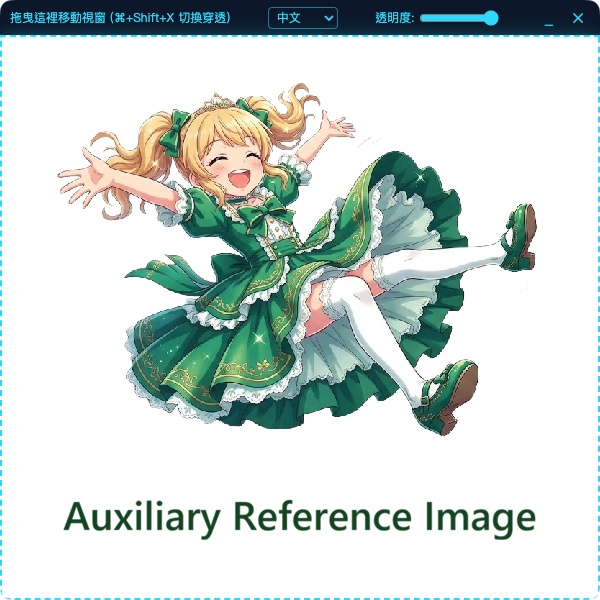

⁉️中文 ✨ 核心功能 拖曳與點擊載入:直接將圖片拖入視窗,或點擊視窗開啟檔案。 自訂透明度:直覺的滑桿設計,隨時調整圖片不透明度。 一鍵穿透模式:按下快捷鍵隱藏邊框,滑鼠操作直接穿透圖片,無縫操作底層軟體。 內建多國語言:介面支援繁體中文、日本語、English 一鍵切換。 💻 安裝與解除系統限制說明 由於本工具為獨立開發,未加入官方數位簽章,首次開啟時系統可能會跳出安全警告。請依照您的作業系統執行以下解除步驟: Windows (.exe) 下載後對著 .exe 執行檔按 「右鍵」 ➜ 選擇 「內容」。 在「一般」分頁最下方,勾選 「解除封鎖」 並點擊「套用」。 雙擊執行。若跳出「Windows SmartScreen 已保護您的電腦」提示,請點擊 「其他資訊」 ➜ 「仍要執行」 即可。 macOS (.dmg) 打開 .dmg 檔,將 APP 拖曳至 「應用程式 (Applications)」 資料夾。 按下 Cmd + 空白鍵,搜尋並打開 「終端機 (Terminal)」。 貼上指令並按下 Enter:xattr -cr /Applications/AuxiliaryReferenceImage.app 執行後無任何提示即代表成功,可直接至應用程式資料夾開啟。 Ubuntu / Linux (.AppImage) 對著下載的檔案按 「右鍵」 ➜ 選擇 「屬性」。 切換至 「權限」 分頁,勾選 「允許將檔案作為程式執行」。 雙擊即可開啟。 🎮 使用快捷鍵 Windows / Linux:Ctrl + Shift + X (切換穿透模式) Mac:Cmd + Shift + X (切換穿透模式) ⁉️日本語 【半透明・最前面表示リファレンスツール / Transparent Reference Overlay】 クリエイター向けに開発された、極めてシンプルな画像リファレンスツールです。画像を半透明にして常に最前面に表示し、「マウスクリック透過」機能により、下のCLIP STUDIO PAINTやBlenderなどをそのまま操作・描画できます。トレースやモデリングの三面図合わせに最適です。 ✨ 主な機能 ドラッグ&ドロップ対応:画像をウィンドウにドロップ、またはクリックしてファイルを選択。 不透明度スライダー:画像の透過具合をいつでも直感的に調整可能。 クリック透過モード:ショートカットキーで枠を隠し、画像越しのクリック操作が可能に。 多言語対応:UIは日本語、繁体字中国語、英語に切り替え可能。 💻 インストールとセキュリティ警告の解除方法 本ツールは個人開発のため、公式のデジタル署名がありません。初回起動時にOSの警告が出る場合がありますが、以下の手順で解除できます。 Windows (.exe) ダウンロード後、.exe ファイルを 右クリック ➜ 「プロパティ」 を選択。 「全般」タブの一番下にある 「許可する(ブロックの解除)」 にチェックを入れ、「適用」をクリック。 実行時に「Windows によって PC が保護されました」と表示された場合、「詳細情報」 ➜ 「実行」 をクリックしてください。 macOS (.dmg) .dmg を開き、アプリを 「アプリケーション」 フォルダにドラッグしてインストール。 Cmd + スペース キーで 「ターミナル (Terminal)」 を検索して開く。 次のコマンドを貼り付けて Enter を押す:xattr -cr /Applications/AuxiliaryReferenceImage.app アプリケーションフォルダから通常通り起動できるようになります。 Ubuntu / Linux (.AppImage) ファイルを 右クリック ➜ 「プロパティ」 を選択。 「アクセス権」 タブを開き、「プログラムとして実行可能にする」 にチェックを入れる。 ダブルクリックで起動します。 🎮 ショートカットキー Windows / Linux:Ctrl + Shift + X (クリック透過モードの切り替え) Mac:Cmd + Shift + X (クリック透過モードの切り替え) ⁉️English 【Transparent Reference Overlay】 A minimalist reference image tool designed for digital artists and 3D modelers. It keeps your reference images semi-transparent and always on top. With the "Click-Through" mode, you can interact directly with the software underneath (like CLIP STUDIO PAINT or Blender) without the reference image blocking your cursor. ✨ Key Features Drag & Drop : Drop an image into the window, or click to browse files. Opacity Slider : Easily adjust the transparency of your reference image on the fly. Click-Through Mode : Toggle via shortcut to hide the window frame and let your mouse clicks pass right through the image to your canvas/workspace. Multi-Language UI : Instantly switch between English, Japanese, and Traditional Chinese. 💻 Installation & Security Bypass As an indie-developed tool, it does not include official digital signatures. You may encounter OS security warnings on the first launch. Please follow the steps below to run the app: Windows (.exe) Right-click the downloaded .exe file and select Properties. At the bottom of the "General" tab, check the Unblock box and click Apply. Double-click to run. If Windows SmartScreen pops up, click More info ➜ Run anyway. macOS (.dmg) Open the .dmg and drag the app into your Applications folder. Press Cmd + Space to search for and open Terminal. Paste the following command and press Enter: xattr -cr /Applications/AuxiliaryReferenceImage.app You can now launch the app normally from the Applications folder. Ubuntu / Linux (.AppImage) Right-click the downloaded file and select Properties. Go to the Permissions tab and check Allow executing file as program. Double-click to launch. 🎮 Shortcuts Windows / Linux : Ctrl + Shift + X (Toggle Click-Through Mode) Mac : Cmd + Shift + X (Toggle Click-Through Mode)