
Shorts Video/Audio Combiner
- Digital100 JPY
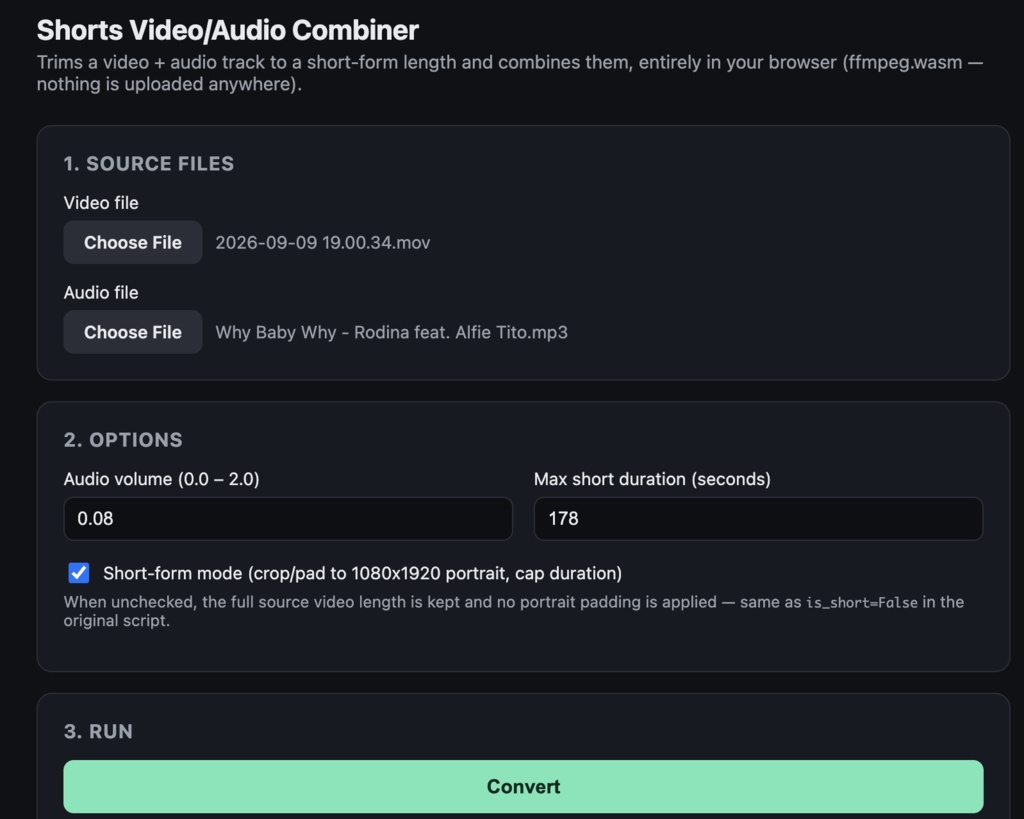

# Shorts Video/Audio Combiner — User Manual A single self-contained HTML file that trims a video and an audio track to a short-form length and combines them, entirely inside your web browser using ffmpeg (compiled to WebAssembly). Nothing is uploaded anywhere — all processing happens on your own machine, in the browser tab. ## 1. Requirements - A modern desktop browser (Chrome, Safari, or Firefox) - An internet connection the first time you use it (it downloads the ffmpeg engine, ~30MB, from a CDN) - Nothing else — no installation, no Python, no server, no ffmpeg binary ## 2. Opening it Unzip the folder and double-click **index.html**. It opens directly in your default browser — that's it, there's no server to start and no command line involved. ## 3. Using the app 1. **Video file** — click **Choose File** and pick the source video. 2. **Audio file** — click **Choose File** and pick the audio track to lay over it. 3. **Audio volume (0.0 – 2.0)** — multiplier applied to the audio track's volume. `1.0` keeps the original level; `0.08` makes it very quiet. 4. **Max short duration (seconds)** — the output is capped to this length when short-form mode is on. `178` matches the common ~3-minute limit used by YouTube Shorts / TikTok-style short-form video. 5. **Short-form mode** checkbox: - **Checked**: output is cropped/padded to a 1080×1920 portrait frame and capped to the max duration above. - **Unchecked**: the original video's dimensions and full length are kept. 6. Click **Convert**. - The first run downloads the ffmpeg engine (~30MB) — you'll see "Loading ffmpeg core..." in the status line. - **While it's actually processing, the page will look frozen** (the status line stops updating and the tab won't respond to clicks) — this is expected, not a crash. Everything runs on the same thread as the page itself, so there's nothing left to keep the UI moving while ffmpeg works. Just wait for it; don't close the tab or click Convert again. - This can take anywhere from several seconds to a couple of minutes depending on your machine and the video's length, since it's software encoding running in the browser rather than your GPU/native ffmpeg. 7. When it finishes, the status line says "Done." and a preview with a **Download** link appears below the log. ## 4. Troubleshooting - **"Please choose both a video file and an audio file."** — one or both file pickers were left empty. - **The page hangs on "Loading ffmpeg core..." and never gets past it** — check your internet connection; the engine is fetched from a CDN on first use, and a firewall or ad-blocker that blocks `cdn.jsdelivr.net` will prevent this. - **The tab looks frozen after clicking Convert** — see the note in step 6 above; this is expected while ffmpeg is running, not an error. - **The tab crashes or the browser warns the page is unresponsive** — this can happen with a very long or very high-resolution source video, since everything is decoded/encoded in-browser with no hard limit on memory use. Try a shorter or lower-resolution source. - Any other error is shown in the red box above the log, with ffmpeg's own output underneath it for more detail.