
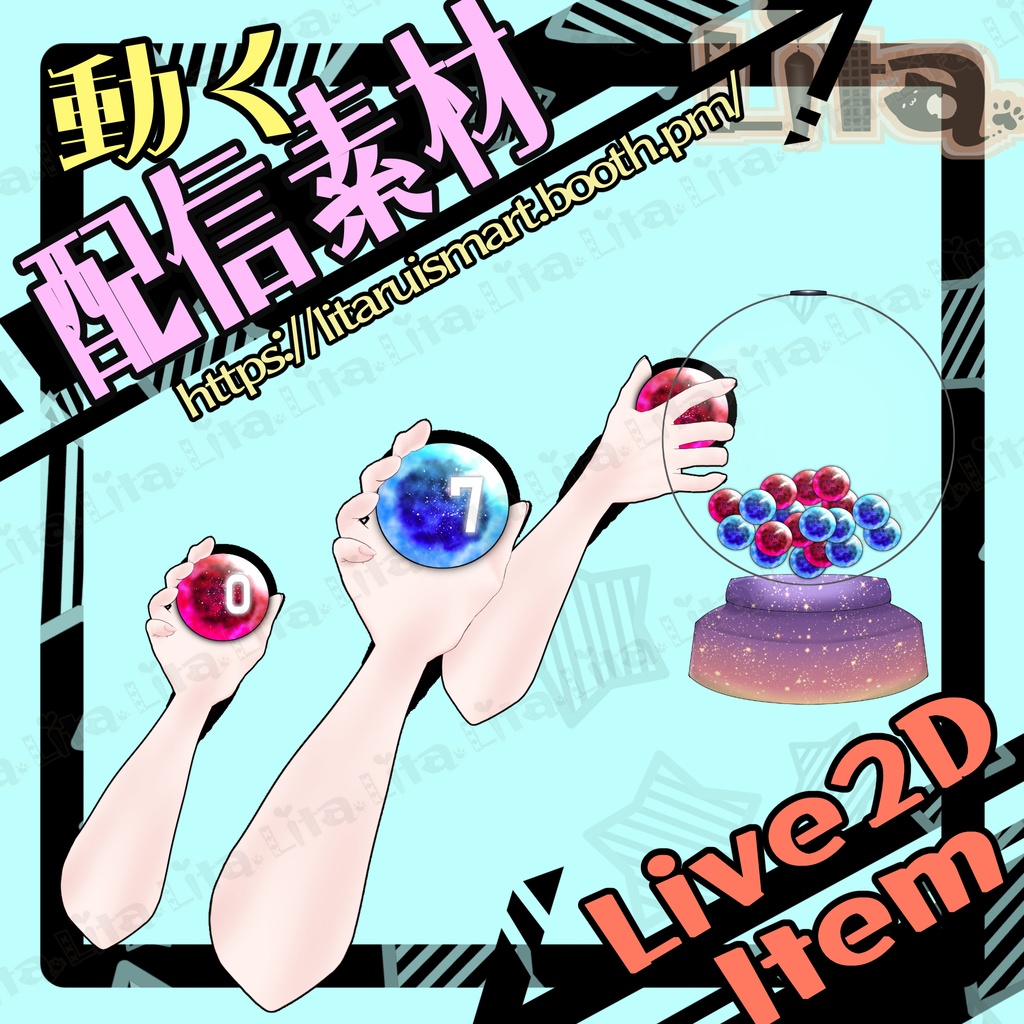
ランダムくじ素材 | Random Lottery Asset (VTube Studio)
- Digital800 JPY

毎週腕素材をリリースしている腕素材屋さんです。 ぜひ配信のネタにしてください! ⭐︎Lita公式サイト⭐︎ https://lita-art.net/
VtubeStudioで使える素材です。//Assets for VtubeStudio
☆★☆★☆★☆★☆★☆★☆★☆★☆ キーバインド設定//Keybind setting 🎮 【右クリック/Right Click】 くじ引き開始//Start lottery draw ※押しっぱなしにすると数字が変わっていき、離すと数字が止まります。 ※ボールが落ちてきた後でもクリック長押しし続けていると数字が変わり続けるので気をつけてください。 (Hold to shuffle numbers, release to stop. If you keep holding even after the ball drops, the number will continue to change.) 🎮 【左クリック/Left Click】 持っているボールを見せます//Show the ball in hand ※オンのままにすると見せたままくじ引き開始しし、くじ引き後に番号が見える形でボールが落ちてきます。 (If kept on, the ball will remain visible, and after drawing, the number will also show when it drops.) 🎮 【Ctrl + 1】模様_夕焼けOFF//Pattern – Sunset (OFF) 🎮 【Ctrl + 2】模様_夜//Pattern – Night 🎮 【Ctrl + 3】模様_トランプ//Pattern – Cards 🎮 【Ctrl+ 4】模様_水玉//Pattern – Polka Dots 🎮 【Ctrl+ 5】机ON//Desk ON 🎮 【Ctrl+ Q】手前に出ている数字OFF//Front number OFF 🎮 【Ctrl+ W】腕オフ//Arm OFF ーーーーーーーーーーーー 🎮 【Ctrl+0】リセット//Reset Expression ーーーーーーーーーーーー ☆★☆★☆★☆★☆★☆★☆★☆★☆★☆★☆★☆ 今回は、texture_00 がカスタム可能になっています。 くじ引きボックスの柄をお好きに変更してください。 This time, texture_00 can be customized. Feel free to change the design of the lottery box to your liking! カスタム設定方法はこちら/How to set up custom textures 日本語 https://youtu.be/2YASoao3Phg?si=rKnwaCQY_RKe75uy English https://youtu.be/JgQLLwoV4iU?si=RQnnBqioZrd36J83 https://note.com/litaruismart/n/ncb10f7c36e94 ーーーーーーーーーーーー 今回は、表情ファイルエディターでくじの箱の場所を移動できますので、お好きな位置に設定できます。 設定方法は↑のURLからどうぞ。 This time, you can move the lottery box freely using the Expression File Editor, so feel free to place it wherever you like. For setup instructions, please check the URL above. BOX_X. くじ引きの箱を横軸に移動//Move the lottery box horizontally BOX_Y くじ引きの箱を縦軸に移動//Move the lottery box vertically Desk_X 机を横向きに広げます。//Extend the desk horizontally Des_Y 机を縦向きに広げます。//Extend the desk vertically ☆★☆★☆★☆★☆★☆★☆★☆★☆ ーーーーーーーーーーーー
✅ 商用利用・編集可能ですが、著作権は放棄していません。 ✅ クレジット表記は任意です。 ✅ ご利用の際は、下記URL記載の 利用規約 に同意したものとみなします。 🔗 https://lita-art.net/terms-and-condition/ ⚠️ 成人向けコンテンツへの使用規制はしていません。 常識の範囲内でご使用ください。 ーーーーーーーーーーーー Litaのアイテムは、表情ファイルエディター、またはアートメッシュでの色調整が可能です。(表情ファイルエディタからは一部できないものもあります。初期の作品のほとんどはアートメッシュからの色変更になります!) 表情ファイルエディタから可能な場合は、colorと書いてあるパラメータが存在します。そのパラメータをいじって色変更して遊んでみてください! 色変更パラメータ: Color1 – 乗算明暗 Color2 – 乗算カラー Color3 – スクリーン明暗 Color4 – スクリーンカラー 設定方法の詳細はこちらをご覧ください! 日本語 🔗 https://lita-art.net/2026/01/26/how-to-change-color/ English 🔗 https://lita-art.net/2026/01/26/how-to-chage-color/ ーーーーーーーーーーーー 質問・ご相談はDMにて受付中! お気軽にご連絡ください✨ 🔹 LitaのX(Twitter): https://x.com/LitaVtuber 🔹 Litaのホームページ: https://lita-art.net/ ーーーーーーーーーーーー ✅ Commercial use and editing are permitted, but I do not waive my copyright. ✅ Credit notation is optional. ✅ By using this product, you are deemed to have agreed to the Terms of Sale listed at the URL below. 🔗https://lita-art.net/terms-and-condition/ ⚠️ There are no restrictions on use in adult-oriented (NSFW) content. Please use within the bounds of common sense. ーーーーーーーーーーーー Lita’s items can be color-adjusted either through the Expression File Editor or directly via ArtMesh. (Some items cannot be adjusted from the Expression File Editor. Most early works require color changes through ArtMesh.) If the item supports adjustment in the Expression File Editor, there will be a parameter labeled “Color.” Try modifying that parameter to change the colors and have fun experimenting! Color change parameters: Color1 – Multiply Brightness Color2 – Multiply Color Color3 – Screen Brightness Color4 – Screen Color For more details on the setup method, please check here! Japanese 🔗 https://lita-art.net/2026/01/26/how-to-change-color/ English 🔗 https://lita-art.net/2026/01/26/how-to-chage-color/ ーーーーーーーーーーーー Questions and consultations are accepted via DM! Feel free to contact me ✨ 🔹 Lita's X (Twitter): https://x.com/LitaVtuber 🔹 Lita's Website: https://lita-art.net/