

きれいに残す、あの人へのメッセージ。【VRC自動置き書き助手】
- Digital900 JPY


もうマウスのガタガタ文字で悩まない!VRChat自動書き置きシステム QvPen對応 / 多言語・イラスト線画対応描画ツール
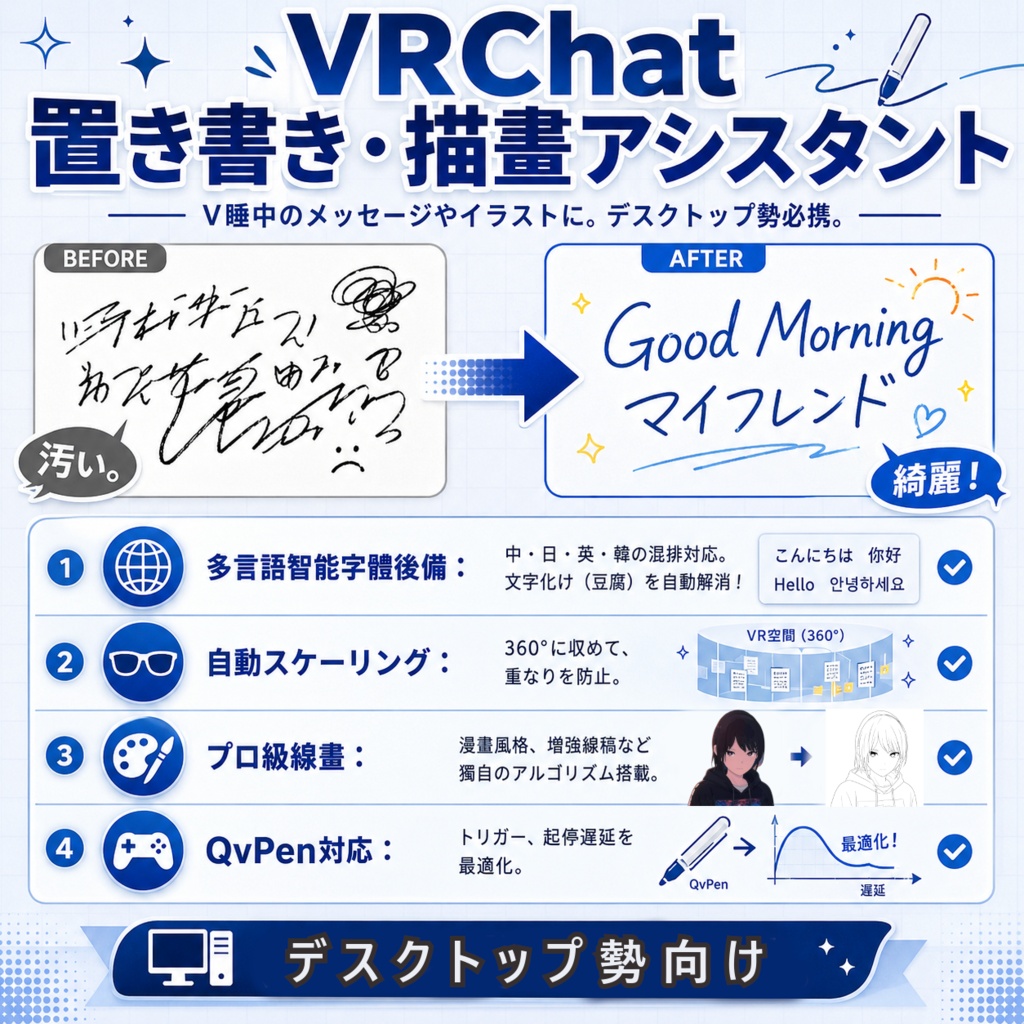
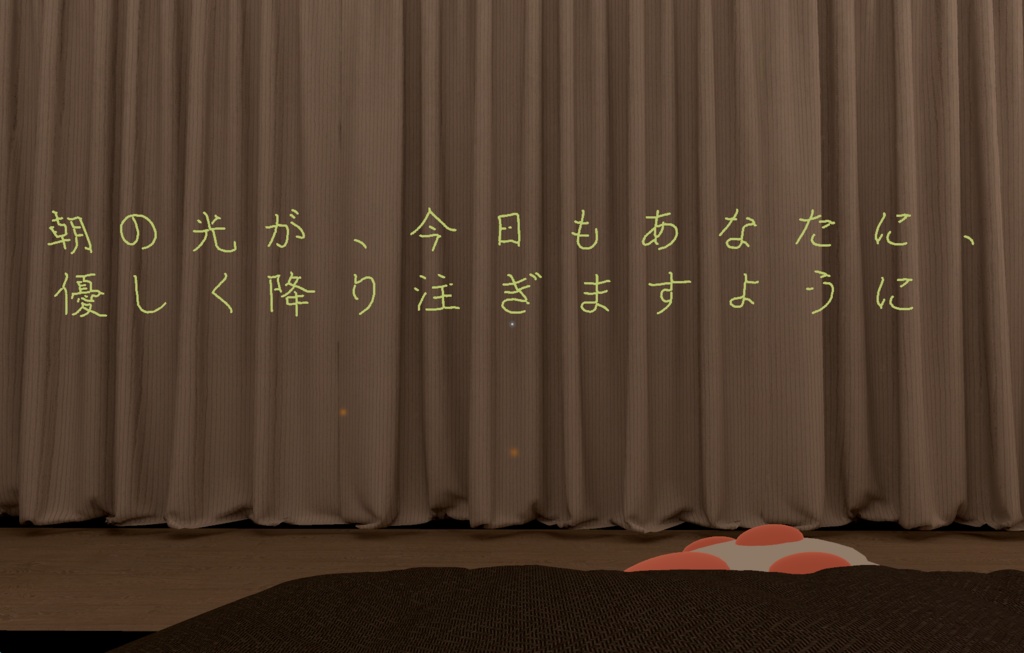
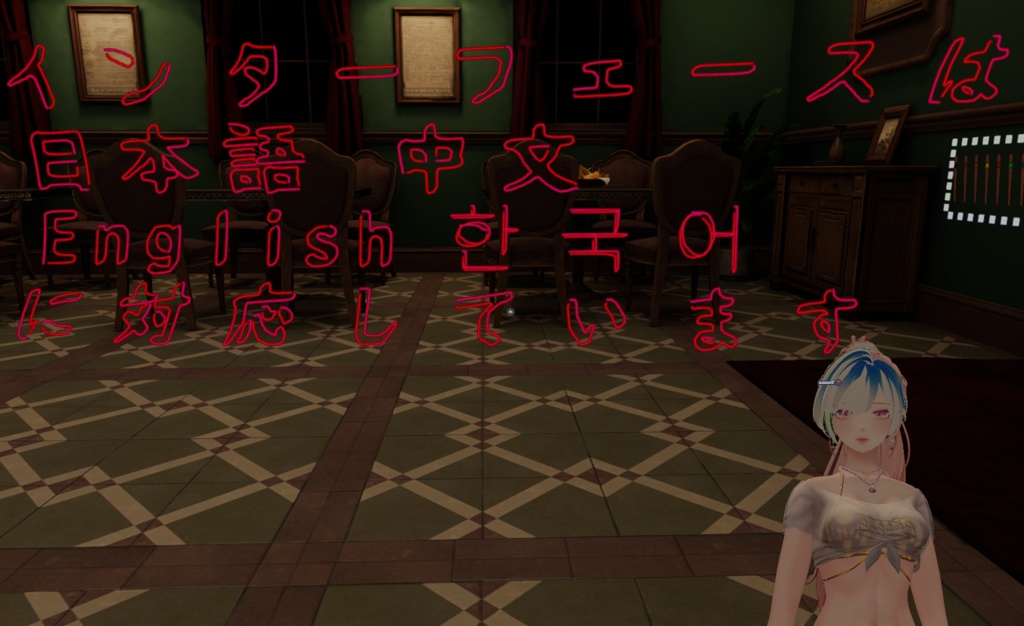
🇯🇵 日本語 (Japanese) VRChat スマート置き書き・描画アシスタント (VRC Writer & Drawer) 【商品紹介】 V睡中のフレンドへの「置き書き」を、もっと手軽に、美しく。 マウスで必死に書いたガタガタの文字で、大切なメッセージを残すのは終わりにしませんか? 「VRChat スマート置き書き・描画アシスタント」は、デスクトップ勢のVRChatプレイヤーのために設計された自動化ツールです。 キーボードで入力したテキストや、お気に入りの画像を、自動でVRChatの空間に描画します。V睡(VR睡眠)をしているフレンドが起きた時に読むメッセージや、ワールドに残す記念のイラストを、誰でも簡単に、綺麗に描くことができます。 【主な機能】 🌐 多言語対応スマートフォントシステム (Smart Font Fallback) 「豆腐(文字化け)」にさようなら: フォントの自動補完機能を内蔵。メインフォントに文字(漢字など)が含まれていない場合、自動的に fonts フォルダ内の他のフォントを検索して補完します。日本語、中国語、韓国語などが混ざった文章も完璧に表示します。Windows にインストール済みのフォントを直接選択することもできます(カテゴリ絞り込み対応)。 多様なスタイル: 「縁取り(アウトライン)」と「単線(センターライン)」の2つのモードに対応。文字間隔、行間、縦横比の調整も可能です。 🎨 プロ仕様の画像・線画変換アルゴリズム 画像のタイプに合わせて選べる3つの独自処理モードを搭載: 標準モード: 一般的な画像向けの汎用アルゴリズム。 マンガ風スタイル (Manga Style): アニメ・イラスト画像に特化。Cannyエッジ検出とバイラテラルフィルタを使用し、ノイズの少ない綺麗な線画を生成します。 強調線画 (Enhanced): 暗い部分のディテール抽出に特化。CLAHE技術を使用し、コントラストの低い画像からでも詳細な線を描き出します。 👓 VRChat専用の最適化 視点の自動リセット: 独自の「頷き補正」技術を搭載。描画開始前に視点の高さを水平に自動調整することで、視線の角度による座標ズレを防ぎ、キャンバスを完璧に展開します。 360° パノラマ描画: 自動スケーリング機能をサポート。横長の画像も360°の範囲内に自動で収め、線が重なるのを防ぎます。 ミラーモード: 文字や絵を書く際に左右反転させる設定が可能。対面している相手から見て、正しい向きで文字や絵を表示できます。 🎮 多彩なトリガー制御 マウスボタン、キーボードキー、およびVRChatのジェスチャー(Gesture)によるペンの起動に対応。様々なペンギミック(Prefab)と互換性がありますが、特に QvPen で最高のパフォーマンスを発揮します。 ================================================== 🇺🇸 English VRChat Smart Writer & Drawer Assistant (VRC Writer & Drawer) 【Product Introduction】 Leave perfect messages for your friends while they sleep. Are you tired of struggling to write messy messages with a mouse in VRChat? Do you want to leave a clean note for a friend in "V-Sleep" to read when they wake up? "VRChat Smart Writer & Drawer Assistant" is an automation tool designed specifically for VRChat Desktop Mode players. It automatically converts your text input or selected images into mouse paths, drawing them precisely in the game world. Whether it's a "Good Morning" note for a sleeping friend or a line art sketch, you can draw it perfectly every time. 【Core Features】 🌐 Smart Multilingual Font System (Smart Font Fallback) Say Goodbye to "Tofu": Built-in font fallback mechanism. When the main font is missing a glyph (like Japanese Kanji), it automatically searches other fonts in the fonts folder to fill it in, ensuring perfect display for mixed CJK (Chinese/Japanese/Korean) languages. You can also select fonts already installed in Windows directly (with category filtering). Versatile Styles: Supports both "Outline" and "Centerline" (single stroke) modes. You can also adjust character spacing, line height, and vertical stretching. 🎨 Professional Image-to-Line Art Algorithms Offers three exclusive image processing modes to suit different needs: Standard Mode: General-purpose algorithm for most images. Manga Style: Optimized for anime/cartoon images. Uses Canny edge detection and bilateral filtering for clean, crisp lines. Enhanced Mode: Optimized for dark details. Uses CLAHE technology to extract rich details from low-contrast images. 👓 VRChat-Specific Optimizations Auto-View Reset: Exclusive "Nod Calibration" technology. Automatically adjusts your view pitch to the horizon before drawing to prevent coordinate offsets caused by tilted angles, ensuring the canvas spreads out perfectly. 360° Panoramic Drawing: Supports auto-scaling. Automatically adjusts long images to fit within the 360° range to prevent overlapping. Mirror Mode: Can be set to flip horizontally when writing/drawing, so the audience facing you sees the text and patterns correctly. 🎮 Versatile Control Triggers Supports Pen triggering via Mouse buttons, Keyboard keys, and VRChat Gestures. Compatible with various pen prefabs, but performs best with QvPen. ================================================== 中文: VRChat 智慧寫字繪圖助手 (VRC Writer & Drawer) 商品介紹 讓您的 VRChat 互動更生動! 厭倦了在 VRChat 中用滑鼠艱難地寫出歪七扭八的字嗎?想要將喜歡的圖片快速轉化為遊戲內的線稿塗鴉嗎? 「VRChat 智慧寫字繪圖助手」 是專為桌面模式 VRChat 玩家設計的自動化工具。它能將您輸入的文字或選取的圖片,自動轉換為滑鼠路徑,在 VRChat 的畫筆系統中精準繪製。 核心亮點功能 🌐 多語言智慧字體系統 (Smart Font Fallback) 告別豆腐塊:內建字體後備機制。當主字體缺字(如日文漢字)時,自動搜尋 fonts 資料夾中的其他字體進行補完,確保中日韓多語言混排完美顯示。並可直接選用 Windows 系統已安裝字型(含分類篩選)。 多樣化風格:支援實心描邊 (Outline) 與單線字 (Centerline) 兩種模式,並可調整字距、行距與縱向拉伸。 🎨 專業級影像轉線稿演算法 提供三種獨家影像處理模式,滿足不同圖片需求: 標準模式:通用型演算法。 漫畫風格 (Manga Style):專為動漫圖優化,使用 Canny 邊緣檢測與雙邊濾波,線條乾淨俐落。 增強線稿 (Enhanced):針對暗部細節優化,使用 CLAHE 技術,能從低對比度圖片中提取豐富細節。 👓 VRChat 專屬優化 視角自動回正:獨家的「點頭校正」技術。繪圖前自動調整視角至水平線,防止因視角傾斜導致的座標偏移,確保畫布完美展開。 360° 全景繪圖:支援自動縮放功能,自動將長圖調整至360°範圍內, 防止重疊。 鏡像模式:可設定寫字/畫圖時水平翻轉,讓對面的觀眾看到正向的文字與圖案。 🎮 多元觸發控制 支援 滑鼠按鍵、鍵盤按鍵 及 VRChat 手勢 (Gesture) 觸發畫筆,相容於各種畫筆 Prefab, 但於QvPen上有最好的表現。
使用說明書
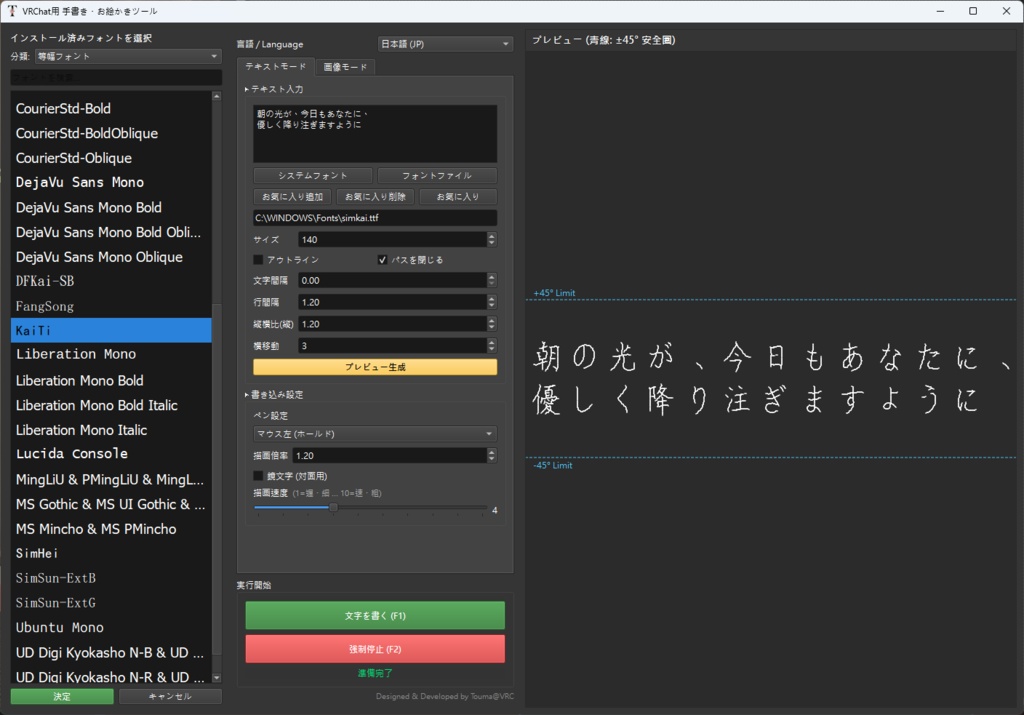
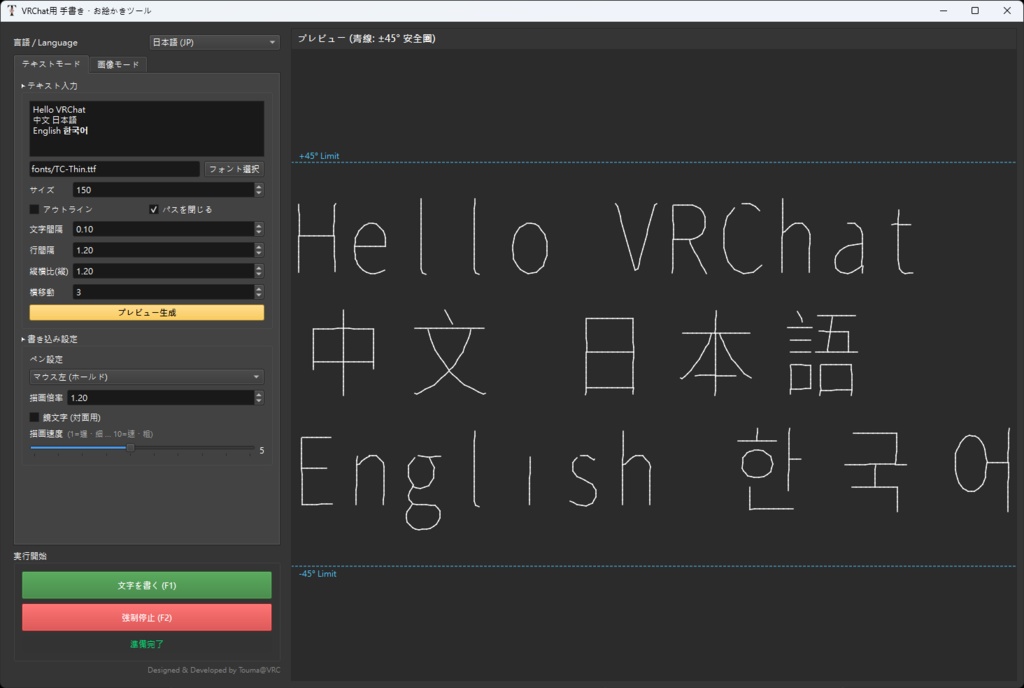
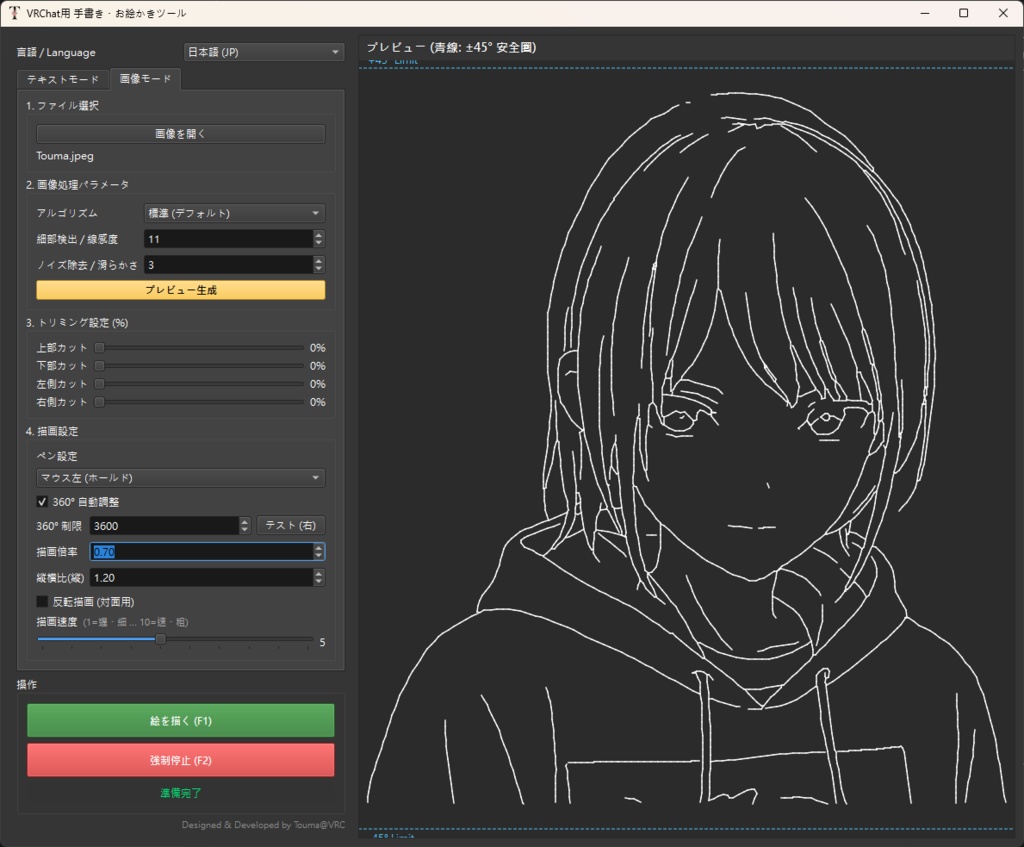
🇯🇵 日本語 (Japanese) 1. インストールと起動 お使いのPCが Windows システムであることを確認してください。 プログラムのディレクトリ内に fonts というフォルダがあります。ここに好きなフォントファイル(.ttf, .otf, .ttc, .otc)を追加して使用することができます。 解凍後、メインプログラム「VRC_Writer.exe」を実行してください。インターフェースは「繁體中文、English、日本語、한국어」の4言語切り替えに対応しています。 2. テキストモード (Text Mode) このモードでは、入力した文字をプログラムが自動で代筆します。 文字入力: 上部のテキストボックスに内容を入力します。 フォント設定: 「フォント選択」をクリックしてメインフォントを読み込みます。文字が含まれていない(文字化けする)場合、プログラムは自動的に fonts フォルダから代替フォントを探して補完します。 パラメータ調整: フォントサイズ: ゲーム内での実際の文字サイズを制御します。 アウトライン / パスを閉じる: チェックを入れると袋文字(中抜き)になります。チェックを外すと単線(シングルストローク)での描画を試みます。 鏡文字: チェックを入れると文字が左右反転して描かれます。対面で相手に文字を見せる場合に適しています。 プレビュー: パラメータ調整後、「プレビュー生成」をクリックして書き順パスを確認できます(青い点線は VRChat の ±45度の変形影響範囲の目安です)。 3. 画像モード (Image Mode) 画像を線画に変換して描画します。 画像読み込み: 「画像を開く」をクリックしてファイルを選択します。 (プログラムフォルダ内の Images ディレクトリに、テスト用のデモ画像が2枚入っています) アルゴリズム選択 (画像処理パラメータの最初の欄): 標準モード: 一般的な線画や白黒画像に適しています。 マンガ風: カラー画像やアニメのスクリーンショットに適しています。「細部検出範囲」で線の量を、「ノイズ除去」で線の滑らかさを調整します。 強調線画: 写真や暗い画像に適しています。より多くのディテールを抽出できます。 トリミング設定: バーをスライドさせて、不要な画像の端を切り取ります。 360° 自動調整: 画像が横に長すぎる場合、このチェックを入れると描画が重ならないように自動で縮小されます。 4. 描画設定と操作 (Drawing Settings) VRChat で使用するペンの種類に合わせて調整してください。 ペーントリガー (Pen Trigger): マウス左 (ホールド): QvPen など、左クリック長押しで描く一般的なペンに適しています。 キーボード (切替): 指定したキー(例:Pキー)を押してペンの ON/OFF を切り替えます。 VRCジェスチャー (切替): Avatar 3.0 のジェスチャーペン(例:Shift+F2 握り拳で描画)に適しています。 描画速度: 「5」から試すことをお勧めします。速度が速いと時間は短縮されますが、フレーム落ちにより線が乱れたり変形したりする可能性があります。遅いほど線は精細になります。 縦方向の比率 (Vertical Stretch): 描画された絵が上下に潰れて見える場合、この値を上げてください(VRChat の視点変形を相殺するため、デフォルトは 1.2 です)。 5. 描画開始 ソフト側で設定とプレビュー生成を完了させておきます。 VRChat の画面に戻り、ペンを持ってください。 F1 キー を押すと描画を開始します。 (ソフト上で F1 を押しても構いません。自動的に VRChat 画面に切り替わります) 注意: プログラムは水平視点をリセットするために、自動的に視点を「下に向けてから上に戻す」動作を行います。その間、マウスを動かさないでください。 中断する必要がある場合は、F2 キー を押して強制停止してください。 ==================================== 🇺🇸 English 1. Installation & Startup Please ensure your computer is running Windows. There is a folder named fonts in the program directory. You can add your favorite font files (.ttf, .otf, .ttc, .otc) there. After extracting the files, run the main program VRC_Writer.exe. The interface supports switching between 4 languages: Traditional Chinese, English, Japanese, and Korean. 2. Text Mode In this mode, you can input text and have the program write it for you. Text Input: Enter your content in the text box at the top. Font Settings: Click "Select Font" to load the main font. If a character is missing (tofu), the program will automatically search for a fallback font in the fonts folder. Parameter Adjustment: Font Size: Controls the actual size of the text in-game. Outline / Close Path: Check to draw hollow (outline) text; uncheck to attempt drawing single-line text. Mirror Writing: When checked, the text is mirrored horizontally. This is suitable for writing face-to-face so others can read it correctly. Preview: After adjusting parameters, click "Generate Preview" to see the writing path (The blue dashed lines represent the suggested VRChat +/- 45 degree distortion safety zone). 3. Image Mode Converts images into line art and draws them. Load Image: Click "Open Image" to select a file. (There is an Images directory in the program folder containing two demo images for testing) Algorithm Selection (Located in the first field of Image Processing Params): Standard Mode: Suitable for general line art or black & white images. Manga Style: Suitable for color images or anime screenshots. Adjust "Detail Detection" to control the amount of lines, and "Denoise Blur" for line smoothness. Enhanced: Suitable for photos or dark images. Capable of extracting more details. Crop Settings: Drag the sliders to crop out unwanted edges of the image. Auto Scale for 360°: If the image is too wide, checking this prevents the drawing from overlapping itself. 4. Drawing Settings & Operations Please adjust these settings according to the pen tool you are using in VRChat. Pen Trigger: Mouse Left (Hold): Suitable for most standard pens like QvPen (draws while holding Left Click). Keyboard (Toggle): Press a specified key (e.g., P) to toggle the pen ON/OFF. VRC Gesture (Toggle): Suitable for Avatar 3.0 gesture pens (e.g., Shift+F2 Fist to draw). Drawing Speed: It is recommended to start from 5. Faster speeds save time but may cause messy or distorted lines due to frame drops; slower speeds result in finer lines. Vertical Ratio (Vertical Stretch): If the drawn image looks flattened, increase this value (Default is 1.2 to counteract VRChat's perspective distortion). 5. Start Drawing Set up the content and generate a preview in the software. Switch back to the VRChat window and equip your pen. Press F1 to start drawing. (You can also press F1 directly within the software, and it will auto-switch to VRChat) Note: The program will first look "down and then up" to reset your horizontal view pitch. Please do not move the mouse during this process. If you need to interrupt, press F2 to Force Stop. ==================================== 中文: 1. 安裝與啟動 請確保您的電腦為 Windows 系統。 程式目錄下有名為 fonts 的資料夾,可額外加入您喜歡的字體檔 (.ttf, .otf, .ttc .otc)。 解壓縮後執行主程式VRC_Writer.exe,介面支援 繁體中文、English、日本語、한국어 四種語言切換。 2. 文字模式 (Text Mode) 在此模式下,您可以輸入文字並讓程式代寫。 文字輸入:在上方文字框輸入內容。 字型設定:點擊「選擇字型」載入主字體。若遇到缺字,程式會自動從 fonts 資料夾尋找替代字體。 參數調整: 字型大小:控制文字在遊戲中的實際大小。 描邊路徑 / 閉合路徑:勾選描邊會畫出空心字;取消則嘗試畫單線字。 鏡像書寫:勾選時寫出來的字會水平鏡像, 適用於面對面寫字。 預覽: 調整參數後,點擊「生成預覽」查看寫字路徑(藍色虛線代表 VRChat 的 ±45 度變形影響建議)。 3. 圖片模式 (Image Mode) 將圖片轉換為線稿並繪製。 載入圖片:點擊「開啟圖片」選擇檔案。 (程式資料夾下有個Images目錄, 其中有兩個Demo圖片可用於繪圖測試) 演算法選擇 (位於影像處理參數第一欄): *標準模式:適合一般線稿或黑白圖片。 *漫畫風格:適合彩色圖片或動漫截圖。調整「細節偵測範圍」控制線條多寡;調整「降噪模糊」控制線條平滑度。 *增強線稿:適合照片或暗色圖片。能抓出更多細節。 裁切設定:拖動拉桿裁切圖片不需要的邊緣。 自動縮放適應 360°:若圖片過寬,勾選此項可避免畫到重疊。 4. 繪圖設定與操作 (Drawing Settings) 請根據您在 VRChat 中使用的畫筆道具進行調整。 畫筆觸發模式 (Pen Trigger): 滑鼠左鍵 (按住):適合大多數標準畫筆如QvPen(按住左鍵畫圖)。 鍵盤按鍵 (切換):按下指定鍵(如 P 鍵)切換開關筆。 VRC手勢 (切換):適合 Avatar 3.0 手勢畫筆(例如 Shift+F2 握拳出筆)。 繪圖速度:建議從 5 開始嘗試。速度越快越省時,但可能因掉幀導致線條潦草或變形;速度越慢線條越精細。 縱向比例 (Vertical Stretch):若發現畫出來的圖變扁,請調高此數值(預設 1.2 以抵消 VRChat 的視角變形)。 5. 開始繪製 在軟體中設定好內容並生成預覽。 切換回 VRChat 視窗,拿出您的畫筆。 按下 F1 鍵開始繪製。 (也可以直接在軟體中按下F1, 會自動切回VRChat) 注意:程式會先將您的視角「向下看再向上看」以歸零水平視角,請勿移動滑鼠。 若需中斷,請按下 F2 鍵強制停止。
🔒 安全性に関するお知らせ (Safety Notice & False Positives)
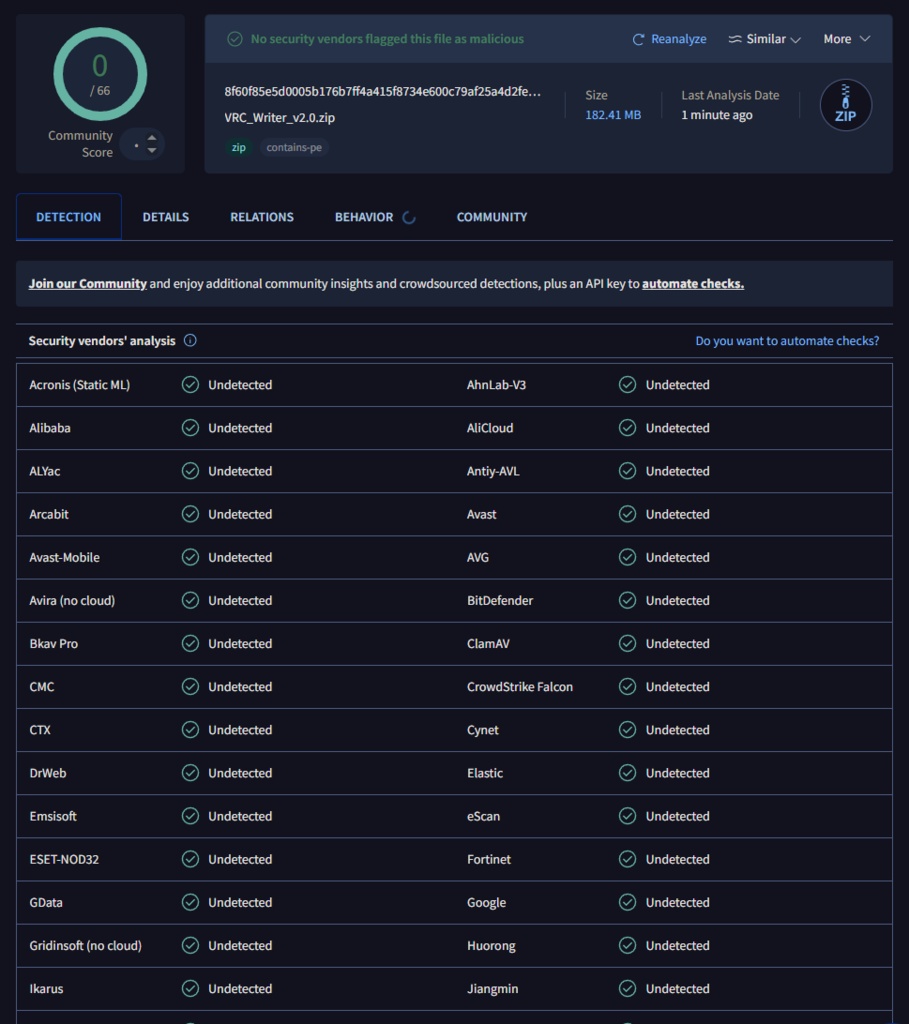
本ソフトウェア VRC_Writer.exe は、Pythonで記述され、Nuitkaを使用してコンパイルされた独立したアプリケーションです。個人開発のソフトウェアであり、高額なマイクロソフトのデジタル署名証明書を購入していないため、一部のセキュリティソフトで誤検知される場合があります。 本ソフトウェアは以下の安全性を保証します: ✅ 悪意のあるコード、ウイルス、バックドアは一切含まれていません。 ✅ 描画のためにマウスとキーボード操作をエミュレートするだけであり、個人情報を盗むことはありません。 ✅ コードは完全にローカルで動作し、外部へのネットワーク通信は行いません。 安心してお使いいただくために、ファイルをVirusTotalにアップロードして検査を行いました。以下のリンクからスキャン結果をご確認いただけます: 🔗 VirusTotal スキャンレポートを表示 (0/66 Clean) https://www.virustotal.com/gui/file/8f60f85e5d0005b176b7ff4a415f8734e600c79af25a4d2fe480ad6eead6aa84 ==================================== This software, VRC_Writer.exe, is a standalone application written in Python and compiled using Nuitka. As this is an indie software project without an expensive Microsoft digital code-signing certificate, it may be flagged as a "False Positive" by some antivirus software. We guarantee the safety of this software: ✅ It contains NO malicious code, viruses, or backdoors. ✅ It only executes mouse and keyboard simulation for drawing purposes and does NOT steal personal data. ✅ The code runs entirely locally and requires no internet connection. For your peace of mind, we have uploaded the file to VirusTotal for inspection. You can view the full report via the link below: 🔗 View VirusTotal Scan Report (0/66 Clean) https://www.virustotal.com/gui/file/8f60f85e5d0005b176b7ff4a415f8734e600c79af25a4d2fe480ad6eead6aa84 ==================================== 🔒 安全性聲明 (Safety Notice & False Positives) 本軟體 VRC_Writer.exe 使用 Python 編寫並透過 Nuitka 編譯的獨立應用程式。由於本軟體屬於獨立開發,未購買昂貴的微軟數位簽章證書 我們保證本軟體: ✅ 不含任何惡意代碼、病毒或後門。 ✅ 僅執行滑鼠與鍵盤模擬以進行繪圖,不會竊取個資。 ✅ 程式碼完全在本地運行,不需聯網。 為了讓您安心,我們已將檔案上傳至 VirusTotal 進行檢測,您可以點擊下方連結查看報告: 🔗 查看 VirusTotal 掃描報告 (0/66 Clean) https://www.virustotal.com/gui/file/8f60f85e5d0005b176b7ff4a415f8734e600c79af25a4d2fe480ad6eead6aa84
利用規約
■ 利用規約 本ツールの購入・ダウンロードをもって、本規約に同意したものとみなします。 【許可事項】 ・本ツールの個人的な利用。 ・本ツールを使用して制作された作品(画像、動画、VRChat内での描画物など)の公開・商用利用。 【禁止事項】 ・本ツール本体、またはその改変物を第三者へ再配布・販売・譲渡する行為。 ・自作発言(本ツールの製作者を偽る行為)。 ・公序良俗に反する行為、または政治・宗教活動、他者への誹謗中傷目的での利用。 ・本ツールを用いてVRChat等のプラットフォームの利用規約に違反する行為。 ・リバースエンジニアリング、解析、コードの盗用。 【免責事項】 ・本ツールを利用したことによって生じた、いかなるトラブル・損失・損害(アカウントBAN等を含む)に対しても、製作者は一切の責任を負いません。自己責任でご利用ください。 ・VRChatのアップデート等により、本ツールが予告なく利用できなくなる可能性があります。 ・デジタルデータという性質上、購入後の返金・返品対応は致しかねます。 ■ Terms of Use By purchasing or downloading this tool, you agree to the following terms. [Allowed] - Personal use of this tool. - Public or commercial use of works created using this tool (images, videos, drawings in VRChat, etc.). [Prohibited] - Redistribution, resale, or transfer of this tool or modified versions to third parties. - Claiming authorship of this tool. - Use for acts against public order and morals, political/religious activities, or slander. - Using this tool to violate the Terms of Service of platforms such as VRChat. - Reverse engineering, analysis, or theft of code. [Disclaimer] - The creator is not responsible for any trouble, loss, or damage (including account bans) caused by the use of this tool. Use at your own risk. - The tool may become unusable without notice due to VRChat updates, etc. - Due to the nature of digital products, refunds or returns are not accepted after purchase. ■ 使用條款 (Terms of Use) 購買或下載本工具即視為同意本條款。 【許可事項】 ・本工具的個人使用。 ・公開或商用利用使用本工具製作的作品(如圖片、影片、VRChat 內的繪圖成果等)。 【禁止事項】 ・將本工具本體或其修改版本向第三方再發布、販售、轉讓。 ・自作發言(偽稱本工具是由自己製作的行為)。 ・違反公序良俗、或用於政治、宗教活動及誹謗中傷他人的行為。 ・利用本工具進行違反 VRChat 等平台服務條款的行為。 ・反向工程、破解分析、盜用程式碼。 【免責聲明】 ・對於因使用本工具而產生的任何糾紛、損失、損害(包括帳號封鎖 BAN 等),製作者概不負責。請自行承擔風險使用。 ・若因 VRChat 遊戲更新等原因導致本工具無法使用,恕不保證能立即修復或更新,亦不保證永久可用。 ・由於數位商品的性質,購買後恕不接受退款或退貨。
Update informations
[2026-01-13] ▶ Release v1.0 [2026-06-23] ▶ v1.1 システムフォント選択に対応 🇯🇵 Windowsインストール済みフォントを直接選択可能に(分類フィルタ=UI/サンセリフ/セリフ/等幅/記号付き)。左に展開する内蔵パネルで、クリックするだけで確定前にプレビュー。あわせてオープンソースのライセンス表記を整備しました。 🇺🇸 You can now pick fonts already installed in Windows (with category filters: UI / Sans / Serif / Monospace / Symbol). An inline left-expanding panel live-previews on click before you confirm; Open-source license notices are now included. 🇹🇼 新增直接選擇 Windows 已安裝字型(含UI/無襯線/襯線/等寬/符號分類過濾)、向左展開的內嵌面板可在確定前即時預覽, 補齊開源授權聲明。 [2026-07-05] ▶ v1.2 🇯🇵 日本語 1. 正確なプレビュー — プレビューがVRChatの実際の出力と一致するようになりました。 2. リアルタイム更新 — マウス操作は即座に、キー入力はEnterで反映。 3. お気に入りフォント — よく使うフォントを保存していつでも選択可能。 🇺🇸 English 1. Accurate preview — The preview now matches what gets written in VRChat. 2. Live preview — Mouse tweaks update instantly; typed values update on Enter. 3. Favorite fonts — Save your favorite fonts and pick them anytime. 🇹🇼 中文 1. 預覽即所得 — 預覽現在與 VRChat 實際寫出的字一致。 2. 即時預覽 — 滑鼠調整參數立即更新;鍵盤輸入則按 Enter 後更新。 3. 我的最愛字型 — 可收藏常用字型,隨時快速選用。 [2026-07-08] ▶ v2.0 🇯🇵 日本語 - 🖌 筆順で書く:漢字・日本語のかなを実際の筆順で、英数字は単線の手書き風に、一画ずつなめらかに。 🇺🇸 English - 🖌 Stroke-order writing: kanji & Japanese kana in real stroke order, letters/digits as smooth single-line handwriting, drawn one stroke at a time. 🇹🇼 中文 - 🖌 筆順書寫:中日韓漢字與日文假名依真實筆順、英數以單線手寫風,一筆一筆書寫,線條平滑自然。