
【無料体験版あり】AI画像管理・閲覧ビューワー AI Image Viewer(プロンプト1クリックコピー / メタデータ表示 / タブ管理 / Stable Diffusion・ComfyUI対応)
- 無料体験版(Win/Mac共通)Digital0 JPY
- Windows版Digital1,000 JPY
- Mac版Digital1,000 JPY
- Win/Mac両対応版Digital1,200 JPY
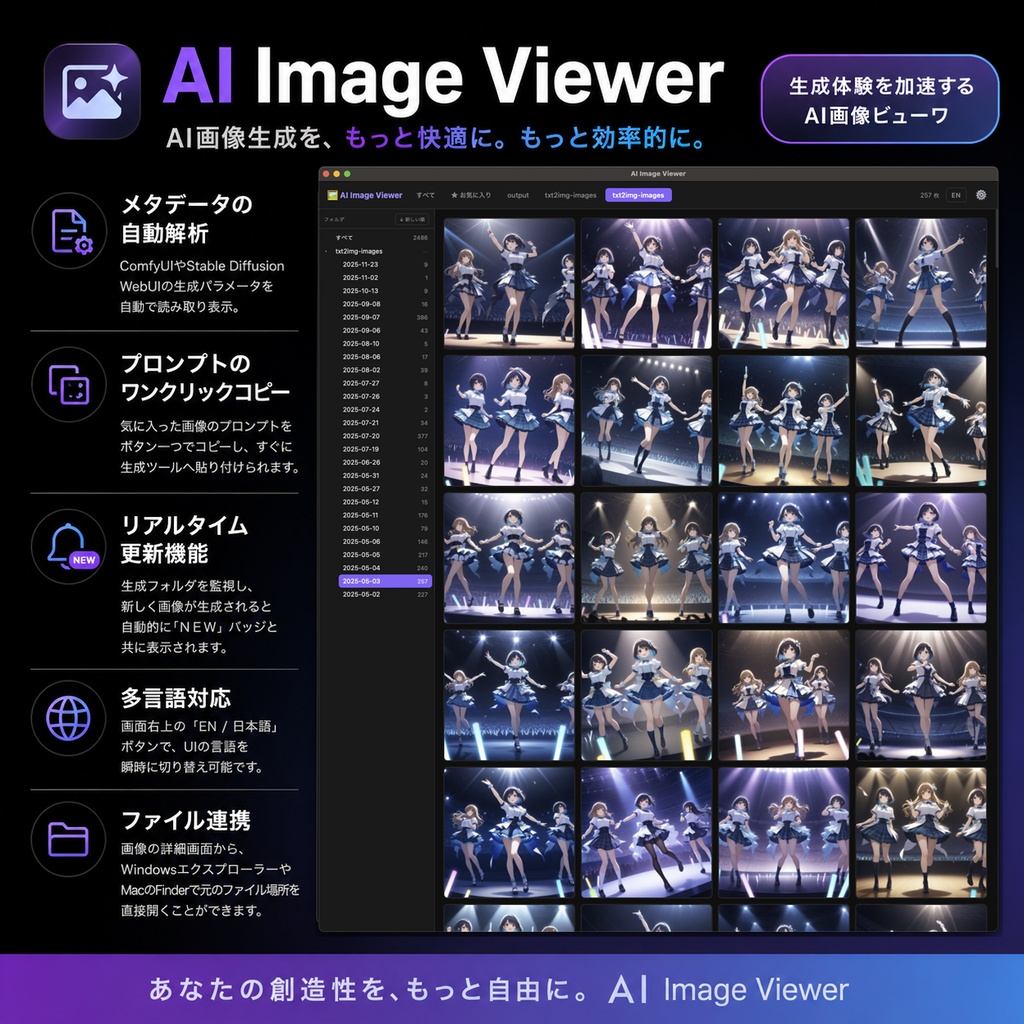
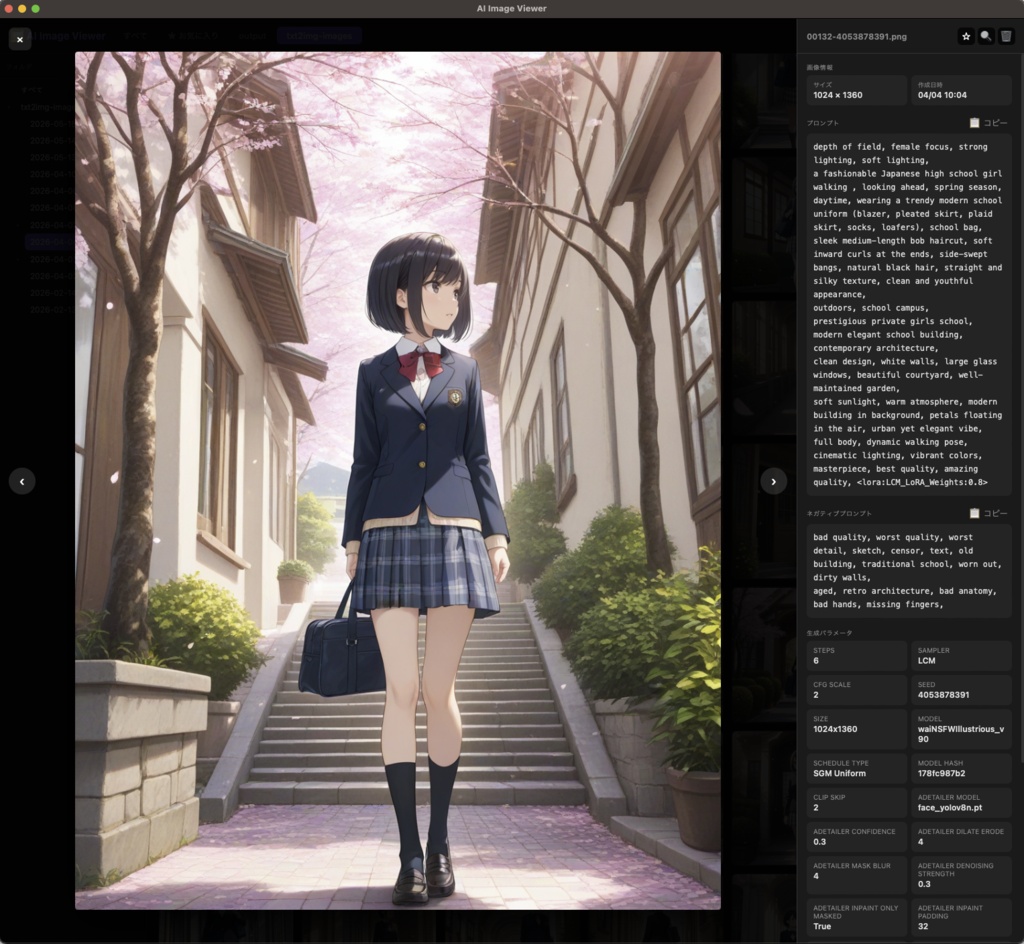
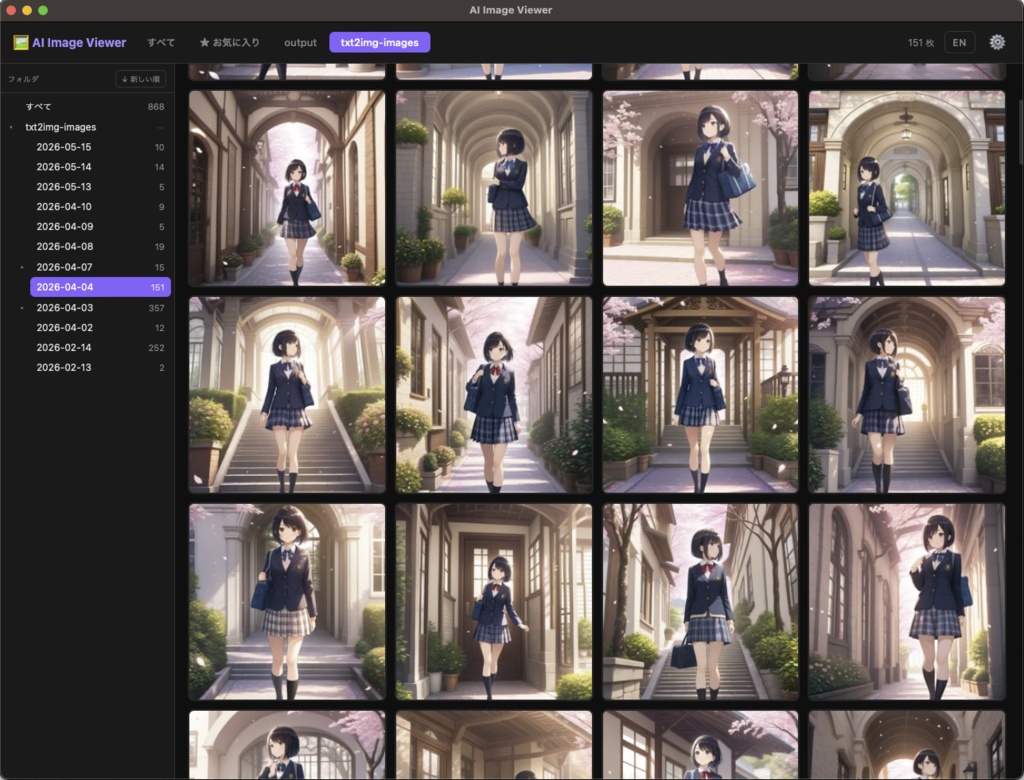


本ソフトウェアは、ComfyUIやStable Diffusion WebUI (Forgeなど) で生成された画像向けに最適化された、高速・軽量なAI画像ビューワです。 生成された画像に埋め込まれているプロンプトや生成パラメータ(メタデータ)を瞬時に読み取り、ワンクリックでコピーすることができます。 ※無料体験版をご用意しておりますので、動作確認等にご利用下さい。 ※Windows版とMac版をひとつのパッケージにした、お得なWin/Mac両対応版もあります。
主な機能
* メタデータの自動解析: ComfyUIのワークフローや、WebUIの生成パラメータを自動で読み取り表示します。 * プロンプトのワンクリックコピー: 気に入った画像のプロンプトをボタン一つでコピーし、すぐに生成ツールへ貼り付けられます。 * リアルタイム更新機能: 生成フォルダを監視し、新しく画像が生成されると自動的に画面に「NEW」バッジと共に表示されます。 * 多言語対応: 画面右上の「EN / 日本語」ボタンで、UIの言語を瞬時に切り替え可能です。 * ファイル連携: 画像の詳細画面から、WindowsエクスプローラーやMacのFinderで元のファイル場所を直接開くことができます。
基本的な使い方
1. 本アプリを起動します。(ブラウザが開き、ビューワ画面が表示されます) 2. 画面右上の「⚙️(設定)」アイコンをクリックします。 3. 監視したい画像生成ツールの出力先フォルダパスを入力し、「追加」を押します。 4. 「保存して更新」ボタンを押すと、画像が一覧表示されます。 5. 画像をクリックすると詳細画面が開き、右側のパネルからプロンプトの確認・コピーが可能です。
動作環境
* macOS 13 以降 * Windows 10 / 11
起動時のセキュリティ警告について(重要)
初回起動時にOSのセキュリティ機能によって警告が表示される場合があります。 * Macをご利用の場合: 「開発元を検証できません...」という警告が出た場合は、アプリアイコンを右クリック(またはControl+クリック)して「開く」を選択し、再度警告画面が出たらそのまま「開く」をクリックしてください。 アプリが壊れていると出た場合は、隔離属性が原因ですので解除(xattrコマンド)を実施して下さい。 * Windowsをご利用の場合: 「WindowsによってPCが保護されました」という青い画面が出た場合は、画面内の「詳細情報」をクリックし、表示される「実行」ボタンを押してください。
アップデート履歴
[2026-05-21: v1.0] Ver.1.0公開
既知の問題
■ Win/Mac共通 ■ ComfyUIで生成した画像の詳細を表示すると、ノードのつなぎ方によってはポジティブプロンプトとネガティブプロンプトが逆に表示される場合があります。 ■ Windows版のみ ■ フォルダ登録時、パスを入力欄に直接コピペするとパスを認識しないことがあります。その場合はボタン操作で登録して下さい。
English
## 1. Overview AI Image Viewer is a fast and lightweight image viewer optimized for images generated by ComfyUI and Stable Diffusion WebUI (including Forge). It instantly extracts embedded metadata (prompts, generation parameters, and workflows) from generated images, allowing you to copy them with a single click. ※ A free trial version is available. Please use it to check its functionality, etc. *A cost-effective Win/Mac compatible version is also available, which combines the Windows and Mac versions into a single package. ## 2. Key Features * Metadata Extraction: Automatically reads and displays ComfyUI workflows and WebUI generation parameters. * One-Click Copy: Copy prompts to your clipboard instantly and paste them directly into your UI. * Real-Time Updates: Watches your output folders and displays newly generated images automatically with a "NEW" badge (no reload required). * Bilingual UI: Toggle between English and Japanese instantly using the language button at the top right. * OS Integration: Open the original image file location directly in Windows Explorer or Mac Finder from the detail view. ## 3. Requirements * macOS 13 or later * Windows 10 / 11 ## 4. How to Use 1. Launch the application. (Your default browser will open the viewer interface). 2. Click the "⚙️ (Settings)" icon at the top right of the screen. 3. Enter the output folder path of your AI generation tool and click "Add". 4. Click "Save & Refresh" to load your images. 5. Click on any image to open the detail view, where you can view and copy the prompts from the right panel. ## 5. Security Warnings on First Launch (Important) As this is an independently developed application, your OS may display a security warning on the first launch. * For Mac Users: If you see an "unidentified developer" warning, Right-Click (or Control-Click) the app icon, select "Open", and then click "Open" again in the warning dialog. If the app is flagged as corrupted, it's likely due to the quarantine attribute; please remove it (using the xattr command). * For Windows Users: If you see a blue "Windows protected your PC" screen, click "More info" and then click the "Run anyway" button. ## 6.Known Issue ■ Win/Mac Common ■ When viewing the details of an image generated with ComfyUI, the positive and negative prompts may be displayed in reverse depending on how the nodes are connected. ■ Windows Version Only ■ When registering a folder, the path may not be recognized if you directly copy and paste it into the input field. In that case, please register it using the button operation.