

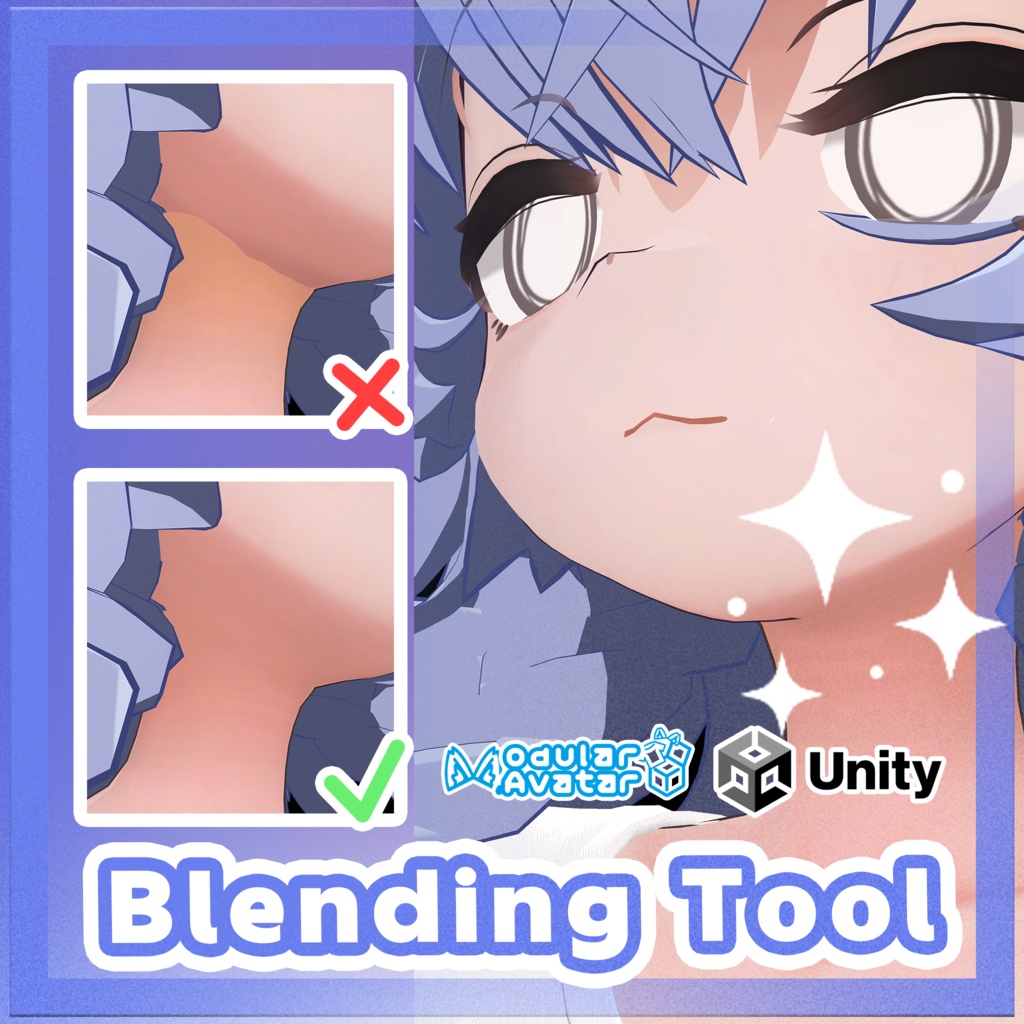
「MA」Normal & Color Blending Tool「シームレス接続ツール」
- ダウンロード商品¥ 800


このツールは日本語で利用できます。 This tool is available in English. 이 도구는 한국어로 제공됩니다. - - - - - - - - - - - - - - - - - - - - シームの除去やテクスチャのブレンドに役立つツールです。 - ノーマル(法線)ベクトルのブレンド - カラーブレンド(テクスチャまたはデカール) - スマートマスキング(Falloffカーブ、メッシュパーツ、メッシュの穴、マテリアル別) - リアルタイムシーンプレビュー - 各種シェーダー対応(PoiyomiおよびlilToonの拡張サポートにより、デカールへのベイクが可能) バージョン2.0以降、nadena.dev.ndmfパッケージが必要です。 こちらからインストールできます: https://modular-avatar.nadena.dev/ - - - - - - - - - - - - - - - - - - - - Useful tool for removing seams and blending textures. - Normal Vectors Blending - Color Blending (Texture or Decal) - Smart Masking (falloff curve, mesh part, mesh hole, by material) - Realtime Scene Preview - Any shader (Poiyomi and liltoon extended support allows to bake into decal) Starting with version 2.0, the nadena.dev.ndmf package is required. You can install it here: https://modular-avatar.nadena.dev/ - - - - - - - - - - - - - - - - - - - - 심(Seam) 제거 및 텍스처 블렌딩에 유용한 툴입니다. - 노멀(법선) 벡터 블렌딩 - 컬러 블렌딩 (텍스처 또는 데칼) - 스마트 마스킹 (Falloff 커브, 메쉬 파트, 메쉬 구멍, 마티리얼별) - 실시간 씬 프리뷰 - 다양한 셰이더 지원 (Poiyomi 및 lilToon 확장 지원을 통해 데칼 베이크 가능) 버전 2.0 이상부터는 nadena.dev.ndmf 패키지가 필요합니다. 여기에서 설치하실 수 있습니다: https://modular-avatar.nadena.dev/
日本語
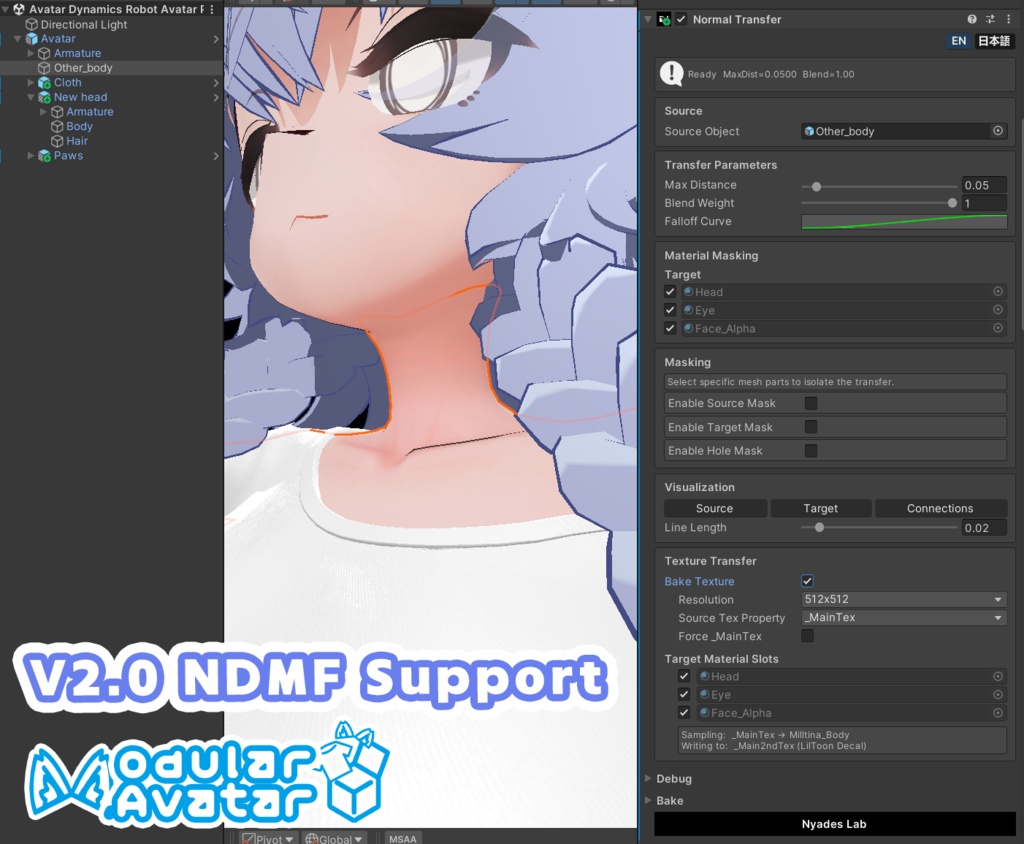
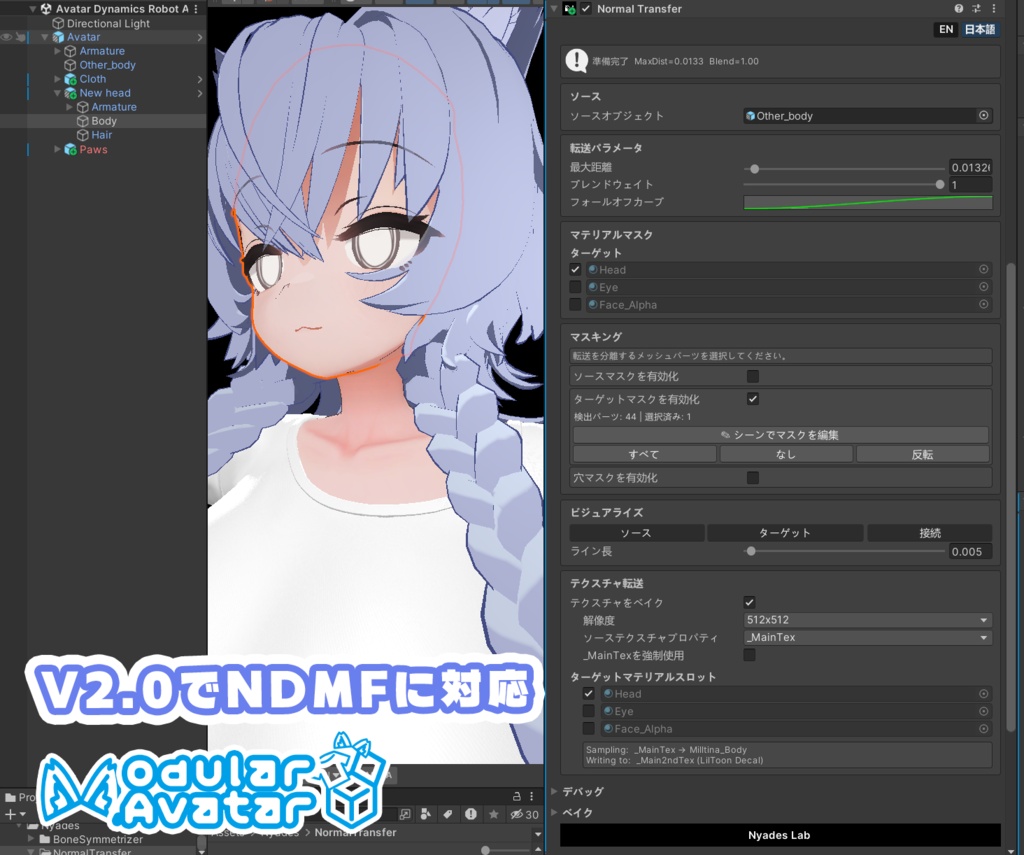
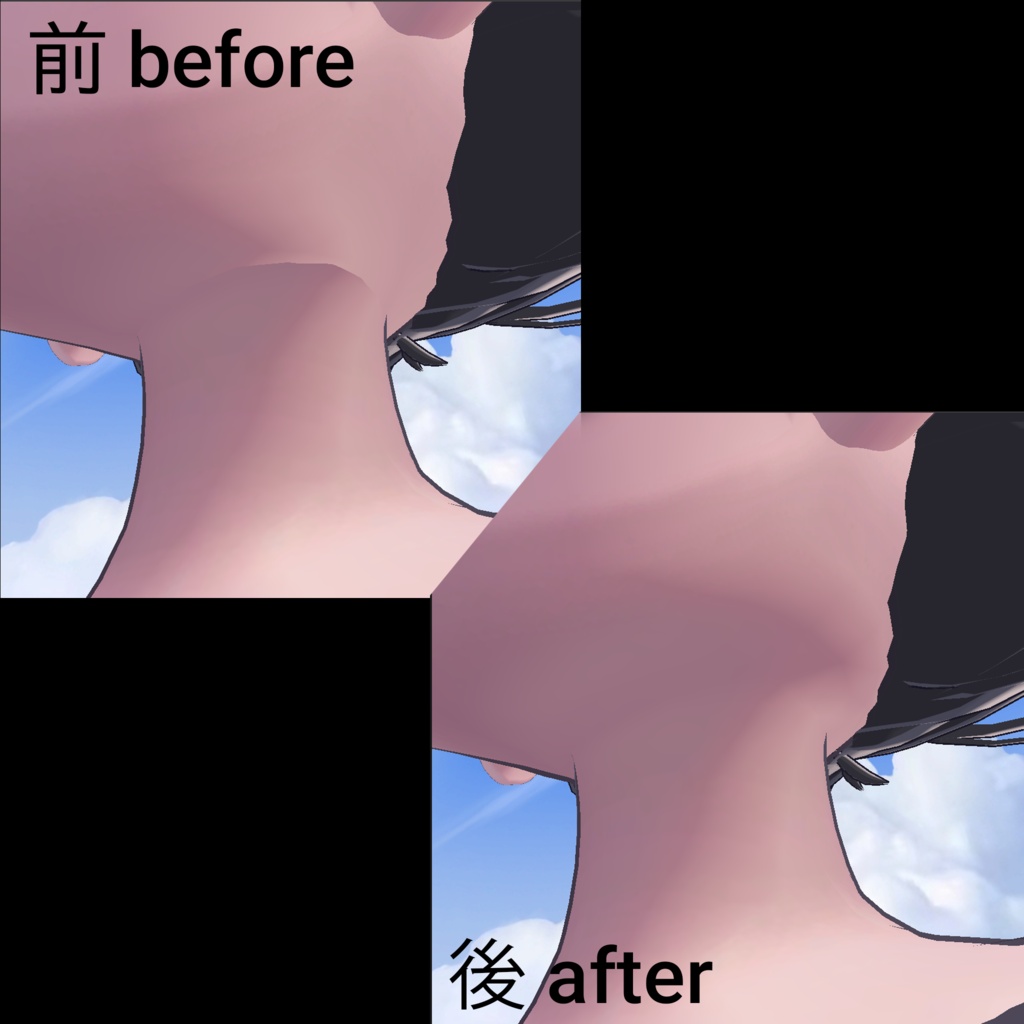
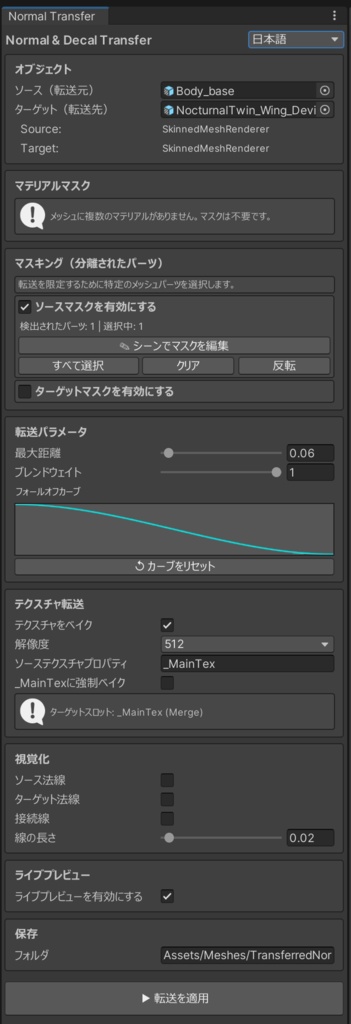
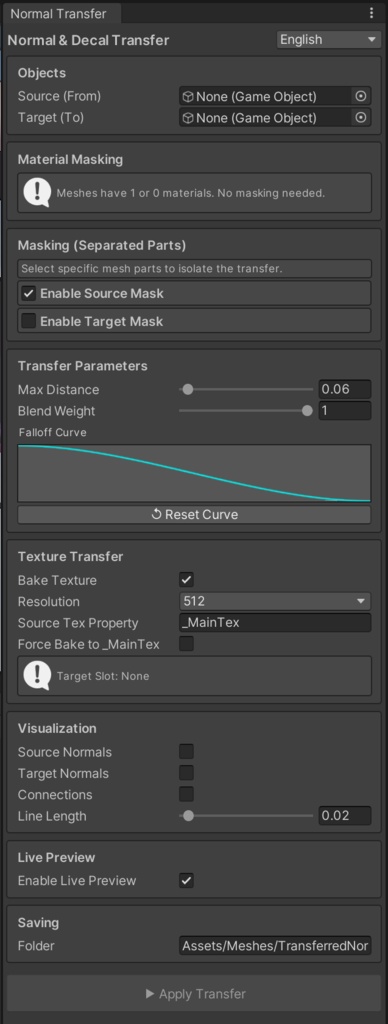
アバターのパーツ間の継ぎ目を一クリックで消します。 継ぎ目を取り除いたり、テクスチャをブレンドしたりするのに便利なツールです。 VRChatやVRMアバターにアクセサリーや別パーツのボディを取り付けた際、首・手首・足首などの接合部でノーマル(法線)のズレが生じ、目立つ段差や継ぎ目が出てしまうことがあります。このツールは一方のメッシュのノーマルをもう一方に転送することで、まるで最初から一体だったかのように自然に馴染ませます。 Super Plug Shader (SPS) と併用しても競合しません。 --- 各セクションの説明 Objects(オブジェクト) 2つのメッシュをここにドラッグします。*Source(ソース)* はシェーディングを転送する元のメッシュ(例:ボディ)、*Target(ターゲット)* はシェーディングを受け取る先のメッシュ(例:ネックアクセサリーや衣装)です。 Material Masking(マテリアルマスク) 複数マテリアルが含まれるメッシュの場合、転送に含めるマテリアルと除外するマテリアルを選択できます。特定のゾーンだけ修正したいときに便利です。 Masking (Separated Parts)(分離パーツのマスキング) *シーンでマスクを編集* ボタンを押すと、ビューポート上で直接メッシュのパーツをクリックして選択できます。選択したパーツにのみ転送が適用されます。袖には触れずシャツの襟だけを修正したい、といった場合に最適です。 Transfer Parameters(転送パラメータ) - *Max Distance(最大距離)* — 対応するサーフェスを探す範囲。メッシュ同士が少し離れている場合は値を大きくしてください。 - Blend Weight(ブレンドウェイト)— 転送されたノーマルの適用強度。1.0 = 完全転送、0.5 = 控えめなブレンド。 - *Falloff Curve(フォールオフカーブ)* — 最大距離の端に向かってエフェクトがどのようにフェードアウトするかを制御します。 Texture Transfer / Bake Texture(テクスチャ転送) オプションでソースメッシュのテクスチャをターゲットメッシュにベイクできます。継ぎ目をまたいでデカールや肌のパターンを転送するのに便利です。PoiyomiおよびlilToonのデカールスロットに自動対応しています。 Visualization(視覚化) どのノーマルが転送されているかをシーンビューにカラーラインで表示します。保存前に結果を確認するのに役立ちます。 Saving(保存) 新しいメッシュアセットとマテリアルの保存先フォルダを指定します。 ▶ Bake Current Mesh(転送を適用) 修正済みのノーマルを持つ新しいメッシュをプロジェクトに保存します。Undo(Ctrl+Z)で元に戻せます。
English
Remove visible seams between avatar body parts with one click. When you attach accessories, different body meshes, or replacement parts to a VRChat or VRM avatar, the normals at the junction (neck, wrists, ankles, etc.) often don't match — causing ugly hard edges or visible seam lines. This tool transfers the normals from one mesh onto another so the two parts blend together naturally, as if they were always one piece. Works alongside Super Plug Shader (SPS) without conflicts. --- ### What each section does Objects Drag your two meshes here. *Source* is the mesh whose shading you want to copy from (e.g. the body). *Target* is the mesh that will receive the new shading (e.g. the neck accessory or clothing). Material Masking If your mesh has multiple materials, you can choose which ones to include or skip in the transfer. Useful when you only want to fix one specific zone. Masking (Separated Parts) Click *Edit Mask in Scene* to visually click on parts of the mesh directly in the viewport. Only the highlighted parts will be affected by the transfer. Great for fixing just the collar of a shirt without touching the sleeves. Transfer Parameters - Max Distance — how far the tool looks for a matching surface. Increase this if meshes are slightly apart. - Blend Weight — how strongly the transferred normals are applied. 1.0 = full transfer, 0.5 = subtle blend. - Falloff Curve — controls how the effect fades out near the edge of the max distance. Texture Transfer (Bake Texture) Optionally bakes a texture from the source mesh onto the target mesh — useful for transferring decals or skin patterns across the seam. Supports Poiyomi and lilToon decal slots automatically. Visualization Shows colored lines in the Scene View so you can see exactly which normals are being transferred and how they connect. Helpful for checking the result before saving. ▶ Bake Current Mesh Saves a new mesh with the corrected normals to your project. Fully undoable.
Update information
## v1.11 — 2026.05.13 EN - Added: In-editor notification when a new version is available on Booth - Fixed: Objects with a scale other than 1 (e.g. scale 100) caused incorrect normal transfer and corrupted the saved mesh (outlines would expand proportionally to the scale) - Removed: Live Preview toggle — use the Visualization section to control normal/connection line display instead - Fixed: Visualization lines (normals, connections) now update correctly when source or target objects are moved in the scene JP - 追加: Boothに新しいバージョンが公開された際、エディタ内に通知を表示するようになりました - 修正: スケールが1以外のオブジェクト(例: scale 100)を使用した場合に法線転送が正しく機能せず、保存されたメッシュが破損する問題を修正しました(アウトラインがスケールに比例して拡大される現象など) - 削除: Live Previewトグルを廃止しました。法線・接続線の表示はVisualizationセクションで制御してください - 修正: ソースまたはターゲットオブジェクトをシーン上で移動した際に、ビジュアライズ(法線・接続線)が正しく同期・更新されるようになりました ## v1.31 — 2026.05.14 EN - Fixed: Incorrect mesh scaling handling when Skinned Mesh mode was enabled - Added: Mask Near Mesh Holes feature — only points near geometry holes are affected by normal transfer. Useful when source intersecting with target geometry - Fixed: Several bugs where visualization elements remained visible instead of disappearing properly JP - 修正: Skinned Meshモード有効時に、メッシュスケールが正しく考慮されない問題を修正しました - 追加: Mask Near Mesh Holes機能を追加しました。ジオメトリの穴付近のポイントのみが法線転送の影響を受けるようになります。ソースメッシュがターゲットジオメトリと交差している場合に便利です - 修正: ビジュアル表示が正しく消去されずに残ってしまう不具合を複数修正しました ## v2.00 2026-06-26 NDMF (Modular Avatar) EN - Nodular Avatar support - NDMF Realtime Preview - Texture baking speed increased more then x10 times - Hole Mask Curve Falloff - Ctrl + Z reverts baking - Updated Video and text tutorial for NDMF Component Known issues - Texture baking with Poyomi _DecalEnable is not working for realtime preview mode, needs to be enabled manually in material. Full baking is fine. - Ctrl + Z does not revert target material change after baking. JP - Modular Avatar(NDMF)に対応 - NDMFリアルタイムプレビュー機能を追加 - テクスチャのベイク速度が10倍以上に高速化 - ホールマスクの減衰カーブ(Hole Mask Curve Falloff)機能を追加 - Ctrl + Z でのベイク取り消しに対応 - NDMFコンポーネントの動画およびテキストチュートリアルを更新しました。 既知の不具合 - リアルタイムプレビューモードにおいて、Poiyomiの `_DecalEnable` を使用したテクスチャベイクが機能しません(マテリアル側で手動で有効にする必要があります)。ビルド時の完全なベイク(Full baking)は問題ありません。 - テクスチャベイク後、Ctrl + Z を行ってもターゲットマテリアルの変更が元に戻りません。 ## v2.10 — 2026-06-28 NDMF (Modular Avatar) EN - Fixed: Language selection is now persistent across sessions - Updated: "Tools -> Nyades -> Normal Transfer" window UI/UX - Changed: Video tutorials moved to YouTube due to the large package size JP - 修正: 言語設定がセッション間で保持(保存)されるようになりました - 更新: 「Tools -> Nyades -> Normal Transfer」ウィンドウのUIを更新しました - 変更: パッケージ容量削減のため、動画チュートリアルをYouTubeへ移行しました ## v2.11 — 2026-09-15 NDMF (Modular Avatar) EN - Added: Korean language support in the component inspector and Normal Transfer window - Updated: Compatibility with NDMF 1.14.8 - Fixed: Incorrect source mesh scaling during normal transfer on skinned meshes in NDMF preview and avatar builds - Fixed: NDMF preview now refreshes correctly when source or target bones are moved JP - 追加: コンポーネントのインスペクターとNormal Transferウィンドウに韓国語表示を追加しました - 更新: NDMF 1.14.8に対応しました - 修正: NDMFプレビューおよびアバタービルド時に、スキンメッシュのソース側のスケールが正しく処理されない問題を修正しまし た - 修正: ソースまたはターゲットのボーンを移動した際に、NDMFプレビューが正しく更新されるようになりました
Terms of Service
Not for redistribution / modification / resale.