
【OBS】マイク音量で弾ける!音量反応パーティクルエフェクト
- ダウンロード商品¥ 500
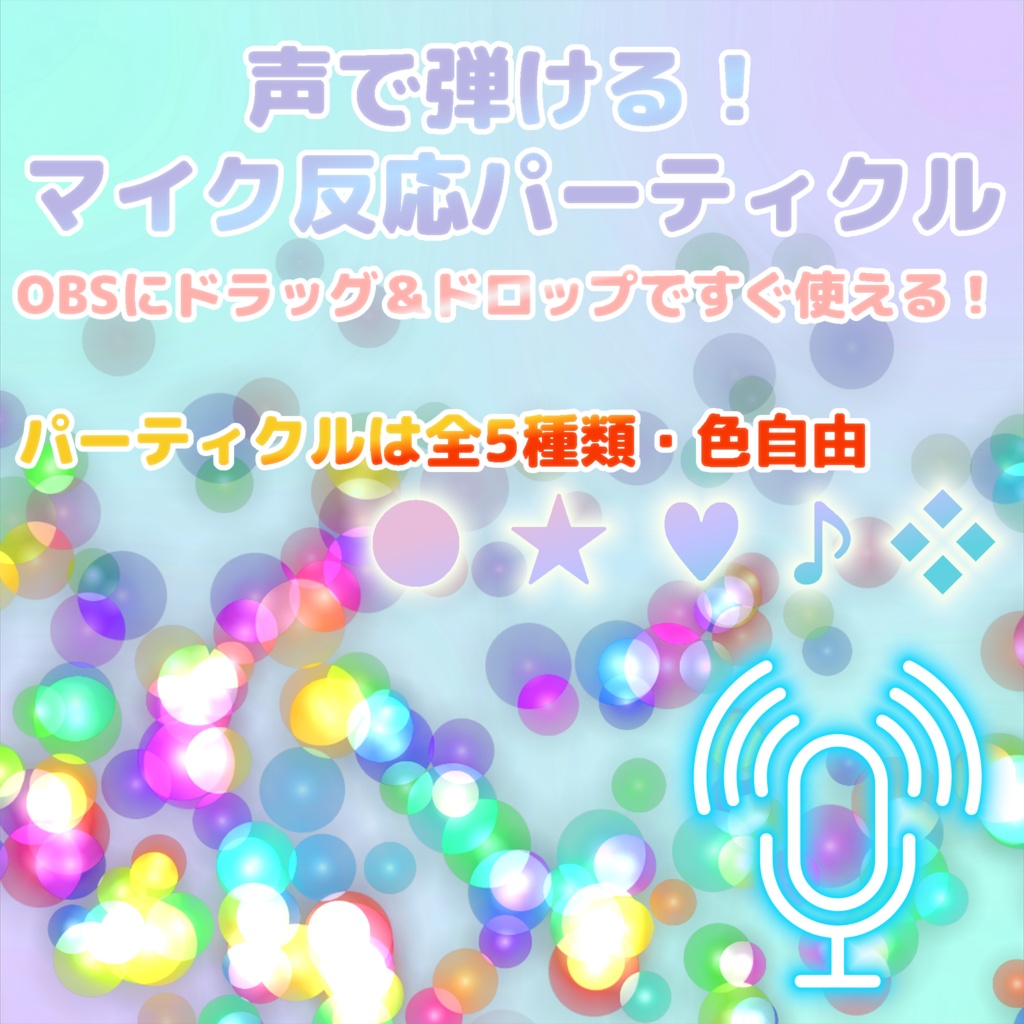


OBSのブラウザソースとして読み込むだけで、あなたの声やゲーム音量に反応して画面下からパーティクル(キラキラや音符など)が湧き上がる、新感覚のエフェクトウィジェットです! 声を大きく出せばたくさん弾け、小さく話せば控えめに発生。 設定画面がウィジェットに内蔵されており、あなたの配信スタイルやイメージカラーに合わせて直感的にデザインをカスタマイズできます。 English: OBS Volume Particles [Audio Reactive] A lightweight browser source widget that spawns beautiful particles reacting to your microphone or game audio in real time! The louder you speak, the more they spawn; speak softly for a subtle effect. Load the HTML file into OBS, connect to WebSocket, and watch your stream come alive. Includes a built-in settings panel to fully customize shapes, styles, and colors to match your brand.
【主な用途】
- 歌枠(カラオケ配信)で、歌声に合わせて音符や星を飛ばして画面を華やかに! - 雑談配信で、笑い声やリアクションに連動した視覚的なエフェクトとして! - ゲーム配信で、白熱したシーンのゲーム音に反応させて臨場感をアップ! 長時間配信や大量発生でもPC・OBSが重くならないよう、「スプライトキャッシュ技術」を用いて限界まで徹底的に軽量化・最適化済みです!
機能一覧
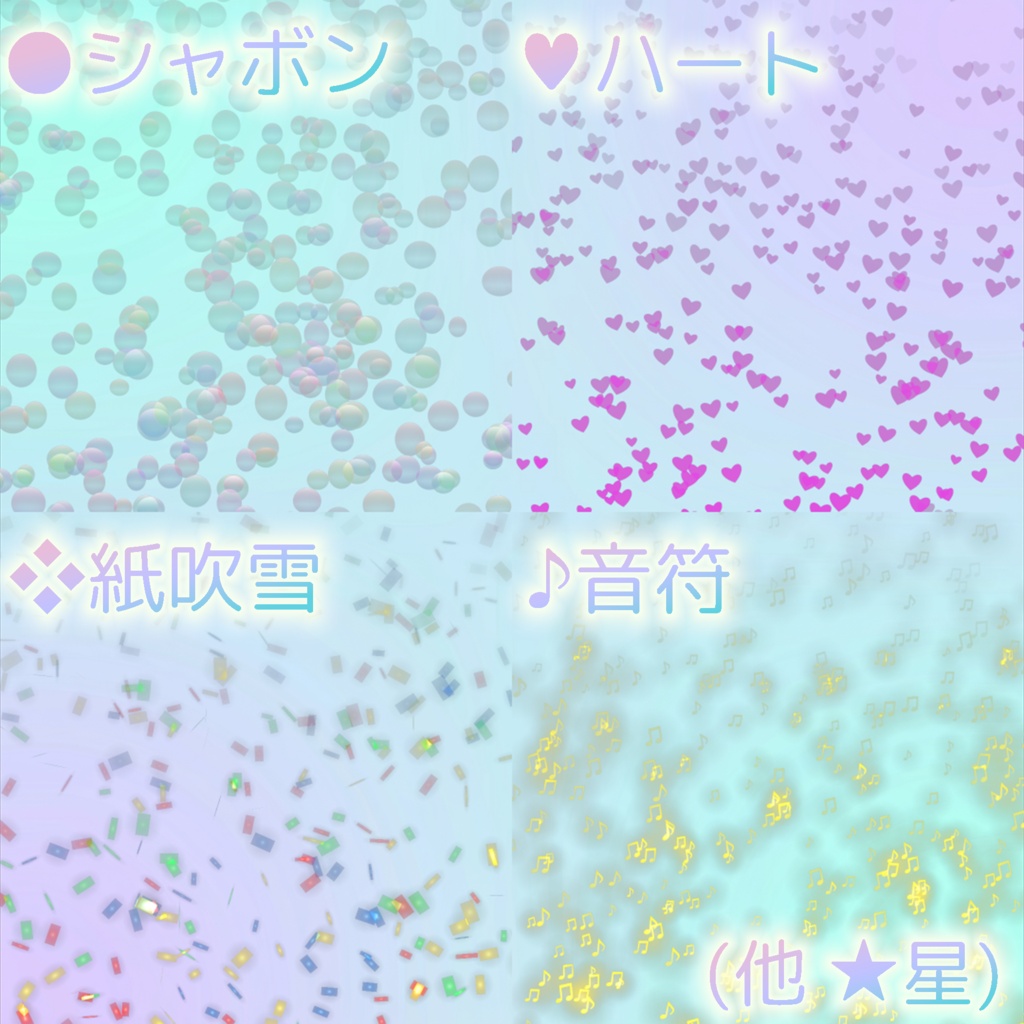
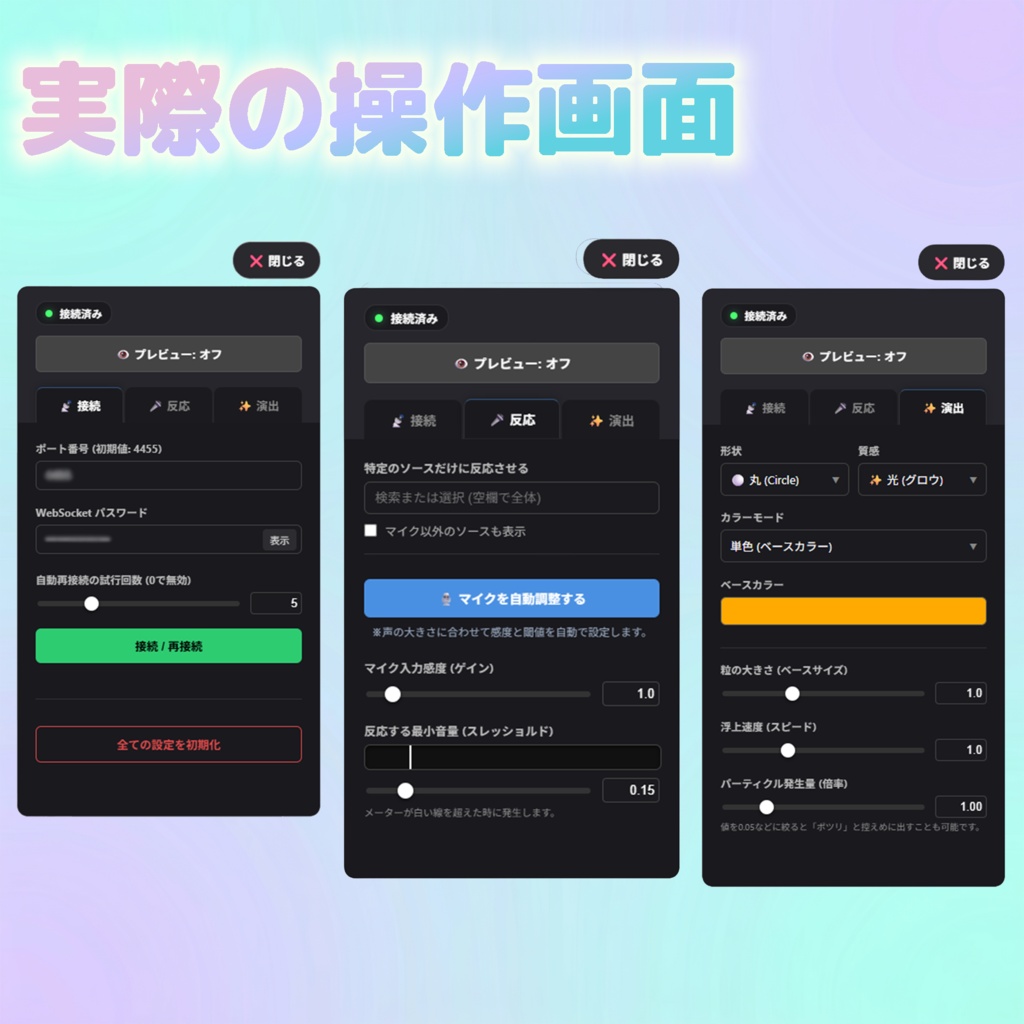
1. 自由自在なデザインカスタマイズ - 【形状】丸、スター、ハート、音符、紙吹雪から選択。 - 【質感】光(グロウ)、ガラス(シャボン)、ベタ塗りから選択。 - 【色】単色、4色パレット指定、フルカラーランダムから選べます。 2. マイク自動調整(キャリブレーション)機能 - 「マイクを自動調整する」ボタンを押し、ガイドに従って黙ったり声を出したりするだけで、あなたの環境に最適な感度とノイズカット(スレッショルド)を自動設定してくれます。 3. 反応させるソースを自由に選択可能 - 自分のマイクだけに反応させることも、Discordの通話音声やゲーム音全体に反応させることも可能です。 4. 便利な内蔵設定パネル - OBS上で「対話」ボタンを押すだけで直接操作できるUIパネルを搭載。 - 見えないプレビューモードも搭載しており、喋らなくてもエフェクトの見た目をじっくり調整できます。 - 設定内容は自動保存され、次回起動時にも維持されます。
導入方法
1. ダウンロードしたZIPファイルを解凍(展開)する。 2. OBSの「ソース」にある「+」ボタンから「ブラウザ」を追加。 3. 「ローカルファイル」にチェックを入れ、解凍したフォルダ内の `index.html` を指定。 ※幅と高さは、ご自身の配信画面の解像度(1920×1080など)を入力してください。 💡【簡単導入のコツ】index.html を直接OBSの画面にドラッグ&ドロップすると、ソース追加と解像度設定が自動で行われるため非常に簡単でおすすめです! ⚠️【重要】確実な動作と設定保存のために、プロパティ下部の「表示されていないときにソースをシャットダウンする」と「シーンがアクティブになったときにブラウザの表示を更新する」の2つに必ずチェックを入れてください。 4. 設定を変更する際は、OBSの「対話(Interact)」ボタンを押す。 対話ウィンドウ内でマウスを動かすと「⚙️ 設定を開く」ボタンが現れます。 5. (初回のみ)設定パネルの「接続」タブで、OBSのWebSocketポートとパスワードを入力して接続してください。(OBSの「ツール」>「WebSocketサーバー設定」から確認できます)
【動作確認環境】
- OBS Studio v28 以降(Windows / macOS) - OBS の「ブラウザソース」および「WebSocket」機能を使用します。
注意事項・できないこと
- 本ツールは音声データをブラウザソース内で受け取るために「OBS WebSocket」の機能を使用します。そのため、導入時に簡単なパスワード入力設定が必要です。 - OBS公式の通信用ライブラリを読み込むため、ご使用時にはインターネット接続が必要です。(※音声データや設定内容が外部に送信されることは一切ありません。完全にOBS内部で処理されます) - 本ツールは現状有姿(as-is)での提供となります。 個別の環境差異による動作保証や設定代行は行っておりません。
━━━━━━━━━━━━━━━━━━━━━━━
[Perfect For]
- Singing/Karaoke Streams: Fill the screen with notes or stars matching your vocals! - Just Chatting Streams: Add dynamic visual effects that react to your laughter and reactions! - Gaming Streams: Boost immersion by making particles react to intense in-game audio!
Main Features
1. Fully Customizable Design - Shapes: Choose from Circle, Star, Heart, Note, and Confetti. - Styles: Select Glow, Glass, or Solid finishes. - Colors: Pick a single color, a 4-color palette, or full-color random mode. 2. Auto Calibration - Simply follow the built-in wizard (stay quiet, then speak) to automatically measure your noise floor (threshold) and voice volume for perfect sensitivity. 3. Selectable Audio Sources - Choose to react only to your microphone, Discord voice chat, or overall game audio. 4. Convenient Built-in Settings Panel - Easily control settings via the OBS "Interact" window. - Includes an "Invisible Preview Mode" allowing you to tweak visuals without making a sound. - Settings are automatically saved and retained for your next stream. 5. Performance Optimized - Uses advanced "Sprite Caching" techniques to run smoothly with near-zero CPU/GPU impact, even with hundreds of particles.
How to Use
1. Unzip the downloaded file. 2. In OBS, click "+" in Sources and select "Browser". 3. Check "Local file" and select `index.html` from the unzipped folder. * Set Width and Height to match your canvas resolution (e.g., 1920x1080). 💡 [Tip] You can also simply drag and drop `index.html` directly into OBS to automatically set it up with the correct resolution! ⚠️ [IMPORTANT] We highly recommend checking "Shutdown source when not visible" and "Refresh browser when scene becomes active" in the source properties for stable operation and settings retention. 4. Click the "Interact" button in OBS to open the settings panel. Hover your mouse inside the interact window to reveal the "⚙️ Open Settings" button. 5. (First time only) Go to the Connection tab and enter your OBS WebSocket port/password (found in OBS Tools > WebSocket Server Settings).
Supported Environments
- OBS Studio v28 or later (Windows / macOS) - Requires OBS "Browser" and "WebSocket" features.
Requirements & Notes
- This tool uses OBS WebSocket to receive audio data, which requires a simple password setup during installation. - An internet connection is required to load the official OBS communication library. (No audio or stream data is ever sent externally; everything is processed locally within OBS). - This tool is provided "as-is". We do not offer individual setup support or guarantee compatibility across all unique environments.
━━━━━━━━━━━━━━━━━━━━━━━
FAQ
Q. 配信画面が重くなりませんか? / Will it lag my stream? A. いいえ、動作は非常に軽量です。「スプライトキャッシュ」という最適化技術を用いており、パーティクルが大量に出ても低負荷でスムーズに動作するように設計されています。 (No, it is very lightweight. It uses sprite caching optimization to run smoothly with extremely low load even when hundreds of particles spawn.) Q. 設定は保存されますか? / Are settings saved? A. はい。変更した設定は自動保存され、OBSを再起動しても維持されます。 (Yes. Settings are automatically saved and will be retained even after restarting OBS.) Q. 商用配信で使用できますか? / Can I use this for monetized streams? A. はい、個人・法人を問わず配信(収益化含む)でご利用いただけます。 (Yes. You may use it for both personal and commercial/monetized streams.) Q. 外部通信はありますか? / Does this tool access external servers? A. ライブラリ読み込みのためにインターネット接続が必要ですが、音声データや設定が外部へ送信されることはありません。 (An internet connection is required to load the library, but no audio or stream data is ever sent externally.)