

VRChat OBS Controller
- ダウンロード商品¥ 0
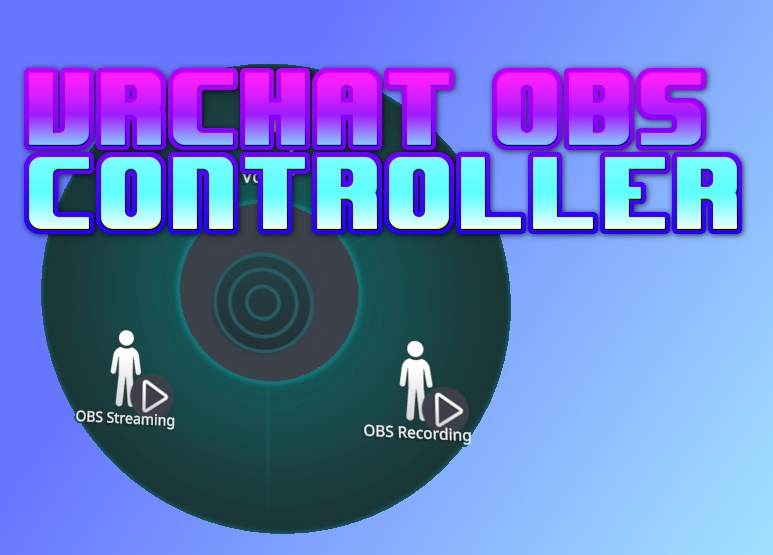

VRC OBS Controller Control OBS recording and streaming directly from your VRChat avatar's expression menu — no external apps required. [VRChat Avatar Menu] ──OSC UDP:9001──▶ [OBS Plugin] ──OSC UDP:9000──▶ [VRChat] (OBS Control submenu) (this repo) (state sync-back) The OBS plugin listens for OSC messages from VRChat and calls the OBS recording/streaming API directly. It also sends the current OBS state back to VRChat so your avatar toggles stay in sync. Requirements OBS Studio 32.x (Windows x64, Steam or standalone) VRChat SDK3 (Avatars) + Modular Avatar ≥ 1.9 Unity 2022.3.x LTS Installation OBS Plugin Download obs-osc-controller.dll from the latest release Copy it to <OBS install>\obs-plugins\64bit\ Restart OBS The plugin adds an OBS OSC Controller entry under Tools. Default ports: Port Direction Purpose 9001 VRChat → OBS Receive OSC commands 9000 OBS → VRChat Send state sync-back VRChat Avatar Open your avatar project in Unity 2022.3.x Ensure VRChat SDK3 Avatars and Modular Avatar ≥ 1.9 are installed Assets → Import Package → Custom Package → select OBSController.unitypackage Drag Assets/OBSController/OBSController prefab onto your avatar root in the Hierarchy Build & upload the avatar The prefab adds an OBS Control submenu to your expression menu with two toggles: OBS Recording and OBS Streaming. Enable OSC in VRChat Quick Menu → Options → OSC → Enable Usage Action Effect Toggle OBS Recording ON Starts OBS recording Toggle OBS Recording OFF Stops OBS recording (after 3 s debounce) Toggle OBS Streaming ON Starts OBS streaming Toggle OBS Streaming OFF Stops OBS streaming (after 3 s debounce) Start/stop recording in OBS manually Avatar toggles sync back within ~1 s The 3-second debounce prevents VRChat's parameter re-broadcast from immediately cancelling a just-started recording. Check the Github repository https://github.com/BunBnnuy/OBSController