

[無料]感想戦もできる 多機能チェスギミック - Multifunctional Chess Gimmick for VRC
- 通常版ダウンロード商品¥ 0
- きのこの山代 (スキン切り替え可能!)ダウンロード商品¥ 300
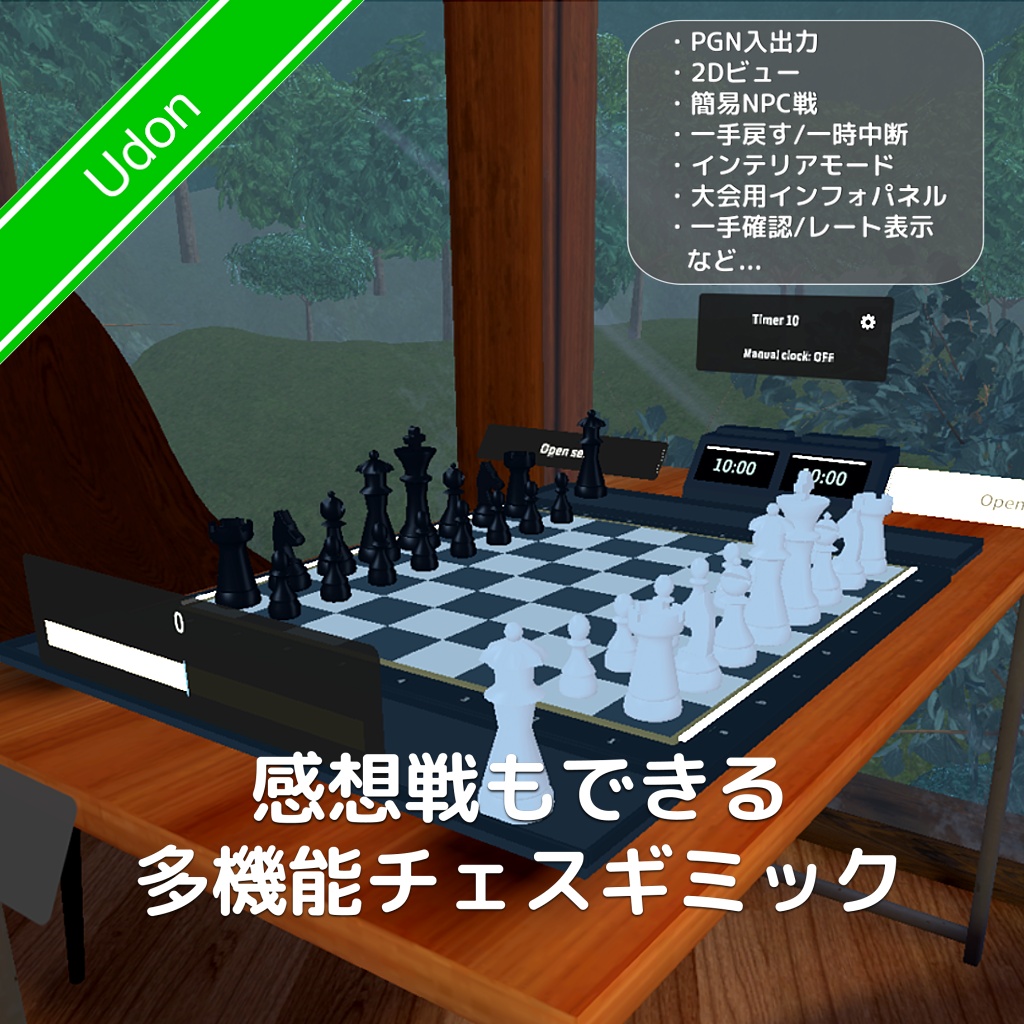


English explanation follows the Japanese text. VRCワールド用の多機能なチェスギミックです。 対局だけでなく、振り返り機能、棋譜出力、2Dビューパネル、 一手戻す申請から簡易NPC対戦など、様々な機能を搭載しています! また、イベントなどでも使えるように、複製するだけでボードを増やせるようになっており、 イベント用パネルに各テーブルの対局履歴などを表示することができます。 チェスプレイヤーの私自身としても(まだまだ駆け出しですが)、 痒い所に手が届く機能を実装しています!
導入手順
0. VRChat SDK - Base 3.10.0以上、+ lilToonが必要です。 1. 同梱のUnityPackageをインポートします。 2. Assets/MidnaUdon/Udon/MUChess/ を開き、用途に合うPrefabをシーンに配置します。 1卓だけ置く場合 無料版 MUChess.prefab Premium版 MUChess_Premium.prefab 複数卓をまとめて置く場合(8卓+大会リザルト) 無料版 MUChess_Tournament.prefab Premium版 MUChess_Tournament_Premium.prefab ※位置調整はGimmickの中の各盤とイベント用パネルの位置を調整してください 台数を増やしたい場合は、Gimmickの中のオブジェクトを複製するだけでOKです
使い方
※まずはじめに クロックの「側面」の歯車ボタンから、オプションが開けます Settingsから日本語/英語切り替えができます ■対局前 1.白/黒の正面にある参加ボタンから参加します 2.クロックの上の歯車ボタンから持ち時間を設定できます 3.両方が参加すると、中央に対局開始ボタンが表示されます ■対局中 4.動かしたい駒を手で掴んで配置できます (デスクトップでは駒を一度選択→置きたい場所を選択で移動) 5.対局後は感想戦に移行します 6.終了することで席を空けられます
主な機能
・対人対局とチェスクロック VR / デスクトップどちらでも対局できます。 持ち時間は加算あり・時間無制限を含む13種類。 着手後に自動で切り替える方式と、自分でクロックを押す方式を選べます。 ・対局中の打診 相手の承認で、直前の一手を戻す、対局を一時停止する、引き分けにすることができます。 ・感想戦 終局後は、開始局面から棋譜を振り返ることができます。 駒は自由に動かせるので、気になった局面で別の手やその先の展開を試せます。 対応する局面ではオープニング名も表示します。 PGNのエクスポートも可能。 ・棋譜の入出力と局面指定 対局をPGNで出力できます。手持ちのPGNを読み込んで振り返ったり、 FENで開始局面を指定したりすることもできます。 ・2Dビュー 自由に移動できるパネルで、拡大・縮小や白黒の位置反転ができます。 2Dビューからの着手にも対応! ローカル表示で過去の手を遡って確認もできます。 ・簡易NPC戦 白・黒の好きな色を選んで、ひとりでも対局できます。(弱い) ・自由配置とインテリア 気に入った局面を保存することで、次回ワールドジョイン時にもその盤面が再現された状態になります。 インテリアとして飾りたい場合におススメ! ・大会・イベント用Prefab 8卓と大会リザルトをまとめて設置でき、卓も複製するだけで使用できる状態になります。 同じインスタンス内で、進行中の対局と各卓の直近16局を確認できます。 終局した対局の棋譜は、一覧からPGNで表示できます。 ・プレイ設定とスキン 日本語/英語、SE音量、着手確認、自動クイーン昇格を設定できます。(ローカル) Chess.com/Lichessの自己申告のレートも表示できます。 戻し・ポーズの有効/無効を設定できます。 手動クロックの有効/無効を設定できます。 Premium版では、Classic/Wood/Marbleのスキンを選べます。(ローカル) ・その他 ユーザーがワールドから落ちても、持ち時間内に戻ってくれば再開することができます ユーザーは5分無操作が続くと警告ポップアップが表示されます、放置で退席扱いになります
ヘルプ
・Unity上で日本語が■で文字化けする →容量を削減するため、EmptyFontを使用しています。 Unityでフォールバックフォントを設定していない場合、Editor上では表示されませんのでご注意ください ※ワールドをアップロードすればVRChat上では正常に表示されます ※「VRChat SDK - Base」と「VRChat SDK - Worlds」は3.10.0以上が必要です。
更新履歴
2025/11/09:Ver1.00リリース! 2025/11/10:Ver1.01 - 特定条件でリザインの長押しが途切れてしまう問題を修正 - 感想戦で駒を手動で動かした際、移動アニメーションやSEが再生されない問題を修正
ライセンス
・以下のシェーダーを使用しています。 lilLab 【無料】lilToon https://booth.pm/ja/items/3087170 ・以下のフォントが含まれています。 Noto Sans JP Regular(SIL Open Font License 1.1) Copyright 2014-2021 Adobe, with Reserved Font Name 'Source' https://fonts.google.com/noto/specimen/Noto+Sans+JP ライセンス原文:License/OFL.txt ・以下の開局データを使用しています。 Lichess chess-openings(CC0 1.0 Universal) https://github.com/lichess-org/chess-openings ライセンス原文:License/CC0.txt 出典・使用版:License/chess-openings-SOURCE.txt ・駒の配置音・駒取り音・チェック音はAdobe Fireflyで生成しています。 https://www.adobe.com/products/firefly/features/sound-effect-generator.html
利用規約
改変:OK 本アセットを使用して制作・改変したPrefab等の無償配布:OK 本アセットを使用して制作・改変したPrefab等の有償販売・商用目的での二次配布:NG 本アセットそのもの、または内容をほぼそのまま再配布する行為:NG
EN
●What kind of system is this? ------------------------------ This is a feature-rich chess system. Beyond just playing matches, it includes a game review function, move-list export, a 2D view panel, a "take-back" request feature, and even a basic NPC opponent mode! It is also designed for use in events; you can easily create additional boards simply by duplicating the prefab, and you can display match histories for individual tables on a dedicated event panel. As a chess player myself (albeit still a beginner!), I’ve implemented features that address the specific needs and "pain points" players often encounter! ●Setup Instructions ------------------------------ 0. Requires VRChat SDK - Base 3.10.0 (or higher) and the "lilToon" shader. 1. Import the included UnityPackage. 2. Navigate to `Assets/MidnaUdon/Udon/MUChess/` and place the appropriate prefab into your scene. For a single board setup: Free Version: MUChess.prefab Premium Version: MUChess_Premium.prefab For a multi-board setup (8 boards + tournament results): Free Version: MUChess_Tournament.prefab Premium Version: MUChess_Tournament_Premium.prefab *Note: To adjust the position, please modify the coordinates of the individual boards and event panels located within the "Gimmick" object. If you wish to add more boards, simply duplicate the objects contained within "Gimmick." ● How to Use ------------------------------ *Getting Started You can access the options menu by clicking the gear icon on the "side" of the chess clock. Use the "Settings" menu to toggle between Japanese and English. ■ Before the Game 1. Join the game by clicking the "Join" button located in front of the White or Black side. 2. Set the time control (time limit) using the gear icon on top of the clock. 3. Once both players have joined, a "Start Game" button will appear in the center. ■ During the Game 4. Move pieces by grabbing them with your hand. (In Desktop mode: select a piece, then select the target square to move it.) 5. After the game concludes, the system transitions to a post-game analysis (review) phase. 6. You can vacate your seat by ending the session. ● Key Features ------------------------------ ・Player-vs-Player Matches and Chess Clock Supports both VR and Desktop modes. Includes 13 different time control settings, including increment-based and unlimited-time options. Choose between automatic clock switching after a move or manual clock operation. ・In-Game Requests With the opponent's approval, you can undo the last move, pause the game, or offer a draw. ・Post-Game Analysis (Review) After the game, you can review the moves from the starting position. Pieces can be moved freely, allowing you to explore alternative moves or future variations from any point in the game. Opening names are displayed for recognized positions. PGN export is supported. ・Game Record (PGN) I/O and Position Setup You can export game records in PGN format. You can load existing PGN files to review games, or specify a starting position using FEN notation. ・2D View A flexible, movable panel that supports zooming in/out and flipping the board (swapping White and Black). You can even make moves directly from the 2D view! It also allows you to scroll back through previous moves in the game. ・Basic NPC Match Play against an AI—choose to play as either White or Black. (Note: The AI is not very strong.) ・Custom Board Setup & Interior Decor Save your preferred board positions so they are restored the next time you join the world. Perfect for setting up a chess board as a decorative interior element! ・Tournament/Event Prefab Includes a setup for 8 chess tables and a tournament results display; tables can be easily duplicated for use. Within the same instance, you can view ongoing games as well as the 16 most recent games played at each table. PGN records for completed games can be accessed via a list. ・Gameplay Settings & Skins Configure language (Japanese/English), sound effect volume, move confirmation, and automatic pawn-to-queen promotion. (Settings are local to the user.) Display your self-reported Chess.com or Lichess ratings. Enable or disable the "undo" and "pause" functions. Enable or disable the manual chess clock. The Premium version offers a choice of board skins: Classic, Wood, or Marble. (Local setting.) ・Other Features If a user disconnects from the world, they can resume their game upon returning, provided they are still within their remaining time limit. A warning pop-up appears after 5 minutes of inactivity; if the user remains idle, they will be marked as having left the session. ● Help -------------------- ・Japanese characters appear as "■" (garbled text) in Unity. → To reduce file size, an "EmptyFont" is used. Please note that if a fallback font is not configured in Unity, text will not be visible within the Unity Editor. *Once the world is uploaded, it will display correctly in VRChat. *Requires "VRChat SDK - Base" and "VRChat SDK - Worlds" version 3.10.0 or higher. ● Update History ------------------------------ 2025/11/09: Ver 1.00 released! 2025/11/10: Ver 1.01 - Fixed an issue where the long-press action for resigning would be interrupted under certain conditions. - Fixed an issue where movement animations and sound effects would not play when manually moving pieces during a post-game review. ● Contents ------------------------------ - MUChess_v1.00.unitypackage - Readme.txt - Operation Guide.txt - Licenses (License documents for the Liberation Mono font and Lichess opening data) ● Licenses ------------------------------ ・Uses the following shader: lilLab [Free] lilToon https://booth.pm/ja/items/3087170 ・Includes the following font: Noto Sans JP Regular (SIL Open Font License 1.1) Copyright 2014-2021 Adobe, with Reserved Font Name 'Source' https://fonts.google.com/noto/specimen/Noto+Sans+JP License text: License/OFL.txt ・Uses the following opening data: Lichess chess-openings (CC0 1.0 Universal) https://github.com/lichess-org/chess-openings License text: License/CC0.txt Source/Version used: License/chess-openings-SOURCE.txt ・Sound effects for piece placement, captures, and checks were generated using Adobe Firefly.https://www.adobe.com/products/firefly/features/sound-effect-generator.html ● Terms of Use ------------------------------ Modification: Allowed Free distribution of Prefabs or other assets created or modified using this asset: Allowed Paid sales or commercial secondary distribution of Prefabs or other assets created or modified using this asset: Not allowed Redistribution of this asset itself, or of its contents in a largely unchanged state: Not allowed ● Disclaimer ------------------------------ The creator assumes no responsibility for any issues or damages that may arise from the use of this data. Terms of use and other conditions are subject to change without prior notice. ● Contact Information ------------------------------ X (Twitter): https://x.com/Midna_Alfort Booth: https://midna-alfort.booth.pm/ -------------------------------------------------- -------------------------------------------------- -------------------------------------------------- MUChess 1.00 Operation Guide Please refer to "Readme.txt" for installation instructions and basic operation. 1. In-Game Controls 2. Time Control and Clock 3. 2D View 4. Post-Game Analysis and Game Records 5. Options 6. Exiting the World and Handling Inactivity 7. Setup for Tournaments and Events ● 1. In-Game Controls The following requests are initiated when the opponent long-presses the "approve" button on the pop-up: ・Request to Undo a Move Cancels the most recent move. The time already consumed by the player who made the request remains unchanged. ・Request to Pause Pauses the game and the clock. To resume, press the "Resume" button that appears in the center of the board. ・Request a Draw Ends the game as a draw by mutual agreement. Long-pressing "Resign" will end the game in a resignation. Draws due to stalemate, threefold repetition, the 50-move rule, or insufficient material are determined automatically. ● 2. Time Control and Clock Before the game begins, select a preset using the gear icon located above the clock. The default setting is 10 minutes. For "3+2," each player starts with 3 minutes, and 2 seconds are added to the player's clock after each move they make. "∞" indicates no time limit. No increment: 1 min, 5 min, 10 min, 20 min, 30 min, 60 min With increment: 1+1, 2+1, 3+2, 5+5, 10+5, 15+10 No time limit: ∞ Normally, the clock switches to the opponent's side once a move is confirmed. If "Manual Clock" is enabled, you must manually operate your own side of the clock after making a move. In VR, you do this by touching it with your hand; on desktop, you do this by clicking it. ● 3. 2D View Selecting "2D View" at the table allows you to view the board in a 2D, top-down format. Players can also make moves by selecting a piece, followed by the destination square. ・Side Handles Grab either handle to move the panel closer to you. While holding it, you can zoom in or out—using the right joystick (up/down) in VR, or the Q/E keys on a desktop. ・Up/Down Arrows Toggle the orientation between the white and black sides. ・Left/Right Arrows Navigate through the game move by move. This change is visible only in your own 2D view. If you are making moves via the 2D view, please use the right arrow to return to the current (latest) position. ● 4. Post-Game Analysis and Game Records After a game concludes, selecting "Enter Analysis Mode" allows you to review the game record from the starting position. Using the arrows or the slider to navigate through moves will update the shared board. For recorded positions, the name of the opening (if applicable) will also be displayed. At any point you wish to review, you can move pieces for either side or return pieces from the side storage areas to the board to explore alternative moves and subsequent variations together. Advancing the move counter will return the board to the actual game state. The "Export PGN" section displays the record of the original game. On a desktop, you can select the text in the output field and copy it using Ctrl+C. Once you have copied the desired game record, long-press "Exit Analysis Mode" to clear the table. To review an external game record, access "Import Game Record" via the gear icon on the side of the clock before starting a game; paste the PGN and select "Load PGN." The system supports PGN data up to 4,096 characters. If you wish to set up a specific board position, paste the FEN string into the same field and select "Apply FEN." If the applied position is valid for play, you can join both seats to begin a game from that position. ● 5. Options Access the options menu via the gear icon on the side of the chess clock. 【Modes】 ・Standard Match Play a game as either White or Black. ・Free Setup Place pieces anywhere on the board by taking them from the storage areas on either side. ・vs. NPC (Simplified) Take a seat as either White or Black; an NPC will play as your opponent. 【Display/Save】 You can save the current board position and display it the next time you visit the world. This feature is available to the person who first became the "owner" of the board in that instance. During post-game analysis, you can save the position currently on the board. Saved positions can be loaded only when both seats are empty. 【Settings】 ・English / Japanese Toggle the language used for the on-screen interface. ・Skin (Premium Version) Choose between "Classic," "Wood," or "Marble" styles for your view. ・Rating Display Enter your Chess.com or Lichess rating to display it on the player information panel. ・Sound Effects (SE) Volume Adjust the volume of sound effects (audible only to you). ・Confirm Moves Requires you to press a "confirm" button after making a move—useful for preventing accidental moves. ・Auto-Promote to Queen Automatically promotes your pawns to a Queen upon reaching the opposite side of the board. ・Undo / Pause If disabled, the "undo" and "pause" request functions are deactivated for that table. ・Manual Clock If enabled, you must manually toggle the clock after making a move. ● 6. Leaving the World & Inactivity If you leave the world during a match, the game remains active in that instance. If you return before the seat is vacated—due to a time-out or a period of inactivity—you will automatically resume your original position. Note that the clock continues to run as normal while you are away. If you leave while the game is paused (by mutual agreement), it will remain paused upon your return. If there is no activity—such as moving pieces or pressing buttons—for 5 minutes, a warning will appear (based on the default settings). Once the warning is displayed, you must either press "Continue Play" or interact with a piece or button within 15 seconds. If a player becomes inactive and leaves the game (or remains idle) during a match or while the game is paused, the opponent will be declared the winner. Post-game analysis (review) sessions can continue as long as at least one participant remains active. ● 7. Setup for Tournaments and Events The tournament-ready Prefab includes 8 game tables and a "Tournament Results" panel. 1. Open the "Gimmick" component of the tournament Prefab placed in your scene. 2. Move each `MUChess Board` and the `TournamentResults` panel to your desired locations. 3. To add more tables, duplicate an existing `MUChess Board` under the same "Gimmick" object. The included setup helper automatically prevents duplicate save IDs and ensures new tables are registered in the Tournament Results panel. The Tournament Results panel displays ongoing matches and the 16 most recent games for each table. For completed games, you can view the game record (PGN) by clicking "PGN" in the corresponding row. Match history is maintained only within the current VRChat instance. If you wish to preserve any game records after the event, please copy them before closing the instance. 【Adjusting Prefabs】 Both the standard and tournament versions of the board share the same Prefab file: `Assets/Prefabs/MUChessBoard.prefab` (located within the `MUChess` folder). To change the appearance of all tables, edit this shared Prefab; to change only a specific table, edit the settings for that individual instance. Version-specific settings and save IDs are configured independently for each board. The `Editor/MUChessMultiBoardSetup.cs` script is required for the automatic registration process during duplication. In versions that include the setup helper tool, you can also use the Unity menu option: `Midna > MUChess > Placement and Lightweight Editing`. To remove boards created using the rapid-placement tool, simply delete the top-level object in the sce