
MP3など書き出し後の音質をすぐに確認できる! CodecSim VST/Standalone
- フルバージョン(複数コーデック対応)Digital1,000 JPY
- 体験版(MP3のみ対応)Digital0 JPY
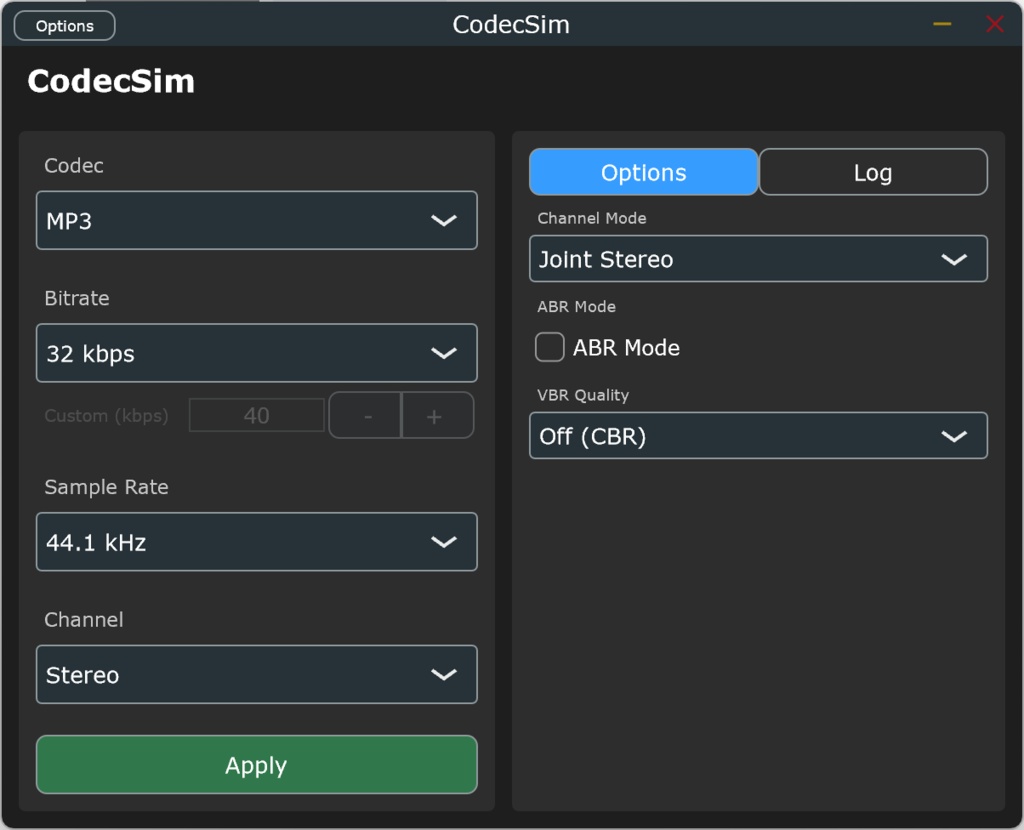

【DAW上で圧縮音源の劣化をリアルタイム確認!】 「MP3やAACに書き出したら、シンバルの音がシュワシュワになってしまった…」 「配信用の低ビットレート音声を通した時のミックスバランスを知りたい…」 「ゲーム用に容量を削りつつ、ギリギリの音質を攻めたい…」 そんな書き出しと確認のループ作業を終わらせるのが、リアルタイム オーディオコーデック シミュレーター「CodecSim」です。 内部処理にffmpegのパイプラインを採用し、MP3、AAC、Opusをはじめとする27種類以上のコーデックを通した音質を、DAW上で即座に確認できるVST3プラグイン / スタンドアロンアプリケーションです。 【主な用途・メリット】 マスタリングの時短: いちいちエンコードして聴き比べる手間を省き、EQやコンプを調整しながら圧縮後の音をリアルタイムでモニタリングできます。 配信・動画制作のプレビュー: YouTubeや各種配信プラットフォームで使われるOpusやAACの仕様に合わせた音質確認が可能です。 高品質なエフェクターとして: AMR-NBなどを使えば、EQでは作れない本物の「電話回線を通した声」を簡単に再現。DFPWMでレトロな質感も作れます。 【Check Compressed Audio Degradation in Real Time on Your DAW!】 “After exporting to MP3 or AAC, the cymbals sound all crackly...” “I want to know how the mix balance sounds when passed through low-bitrate audio for distribution...” “I want to push the limits of sound quality while minimizing file size for games...” End that endless loop of exporting and checking with the real-time audio codec simulator “CodecSim”. Utilizing ffmpeg pipelines internally, this VST3 plugin / standalone application instantly previews audio quality through over 27 codecs—including MP3, AAC, and Opus—directly within your DAW. 【Key Uses & Benefits】 Mastering time savings: Eliminate tedious encoding and comparison steps. Monitor compressed audio in real-time while adjusting EQ and compression. Distribution & Video Production Preview: Verify sound quality tailored to Opus or AAC specifications used on YouTube and various streaming platforms. High-Quality Effects: Easily recreate authentic “voice over phone line” textures impossible with EQ alone using effects like AMR-NB. Create retro textures with DFPWM.
Readme/日本語
================================================================================ CodecSim リアルタイム オーディオコーデック シミュレーター ================================================================================ 【概要】 -------------------------------------------------------------------------------- CodecSimは、さまざまなオーディオコーデックを通したときの音質をリアルタイムで シミュレーションできるVST3プラグイン / スタンドアロンアプリケーションです。 MP3、AAC、Opusをはじめとする31種類のコーデックの「圧縮後の音」を、わざわざ 書き出し(バウンス)することなく、DAW上で再生しながら即座に確認できます。 音楽制作時のマスタリング確認、配信プラットフォームごとの音質比較、 効果音作成など、様々な用途にお使いいただけます。 【動作環境】 -------------------------------------------------------------------------------- 対応OS: - Windows 10/11 (64bit) プラグイン形式: - VST3 - Standalone(スタンドアロンアプリケーション) ※ 動作に必要なものはすべて同梱されています。別途のダウンロードやインストールは 不要です。 【インストール方法】 -------------------------------------------------------------------------------- ■ インストーラーを使用する場合(推奨) インストーラーを実行してください。VST3プラグインとスタンドアロンアプリ の両方が自動的にインストールされます。動作に必要なものはすべて同梱されて いるため、別途の入手や設定は不要です。 ■ 手動インストール(VST3プラグイン) 1. ダウンロードしたCodecSim.vst3フォルダを以下のフォルダにコピーします: C:\Program Files\Common Files\VST3\ 2. DAWを起動(または再スキャン)してプラグインをスキャンしてください ■ 手動インストール(スタンドアロン版) CodecSim.exeを同梱ファイルと同じフォルダのまま実行してください。 【対応コーデック一覧(31種)】 -------------------------------------------------------------------------------- ■ 非可逆圧縮(主要 / ストリーミング系) MP3, AAC, Opus, Vorbis, AC-3, E-AC-3, MP2, WMA v2, WMA v1, Speex, DTS, SBC, aptX, aptX HD, Nellymoser ■ 可逆圧縮 / ADPCM FLAC, WavPack, ADPCM IMA, ADPCM MS, ADPCM Yamaha, G.722 ■ 電話 / VoIP 系 G.711 A-law, G.711 mu-law, GSM 06.10, AMR-NB, AMR-WB, iLBC, G.723.1, G.726 ■ レトロ / ノベルティ RealAudio 1.0, DFPWM ■ モノラル専用コーデック 以下のコーデックはモノラルのみ対応です。 選択時にチャンネルモードが自動的にモノラルに固定されます。 GSM 06.10, AMR-NB, AMR-WB, Nellymoser, iLBC, G.723.1, G.726 【コーデック固有オプション】 -------------------------------------------------------------------------------- 一部のコーデックには追加オプションがあり、右パネルの「Options」タブで 設定できます。 MP3: - Channel Mode: Joint Stereo / Stereo - ABR Mode: 平均ビットレートモード(トグル) - VBR Quality: Off (CBR) / Extreme / Standard / Medium / Low / Minimum AAC: - Coder: Two-loop / Fast Opus: - Application: VoIP / Audio / Low Delay - VBR Mode: Off / On / Constrained AC-3: - Dialogue Norm: -31 から -1(整数) FLAC: - Compression: 0-12(整数) MP2: - Stereo Mode: Auto / Stereo / Joint / Mono Speex: - CBR Quality: 0-10(整数) - VAD: Voice Activity Detection(トグル) iLBC: - Frame Mode: 20ms / 30ms G.726: - Code Size: 2 (16k) / 3 (24k) / 4 (32k) / 5 (40k) WavPack: - Compression: 0-8(整数) 【画面構成】 -------------------------------------------------------------------------------- ■ 左パネル(メイン設定) - Codec: コーデック選択ドロップダウン - Bitrate: ビットレート選択(32/48/64/96/128/160/192/256/320 kbps + Other) 「Other」選択時はカスタム値を数値入力できます - Sample Rate: サンプルレート選択(8000/16000/22050/32000/44100/48000/ 88200/96000 Hz の8段階) - Channels: ステレオ / モノラル切替 - Apply ボタン: 設定をコーデックに反映 ■ 右パネル(詳細設定) 2つのタブで構成されています: 【Optionsタブ】 選択中のコーデックに固有のオプションが表示されます。 オプションがないコーデックの場合は空欄になります。 【Logタブ】 処理ログをリアルタイムで確認できます。 問題が発生した場合の確認に役立ちます。 【使い方】 -------------------------------------------------------------------------------- 1. DAWで任意のトラックにVST3エフェクトとしてCodecSimを読み込む (またはスタンドアロンアプリを起動する) 2. 左パネルからコーデックを選択する 3. ビットレート(プリセット、または「Other」を選んでカスタム値を入力)、 サンプルレート、チャンネルモードを設定する 4. 必要に応じて右パネルの「Options」タブでコーデック固有の設定を調整する 5. 「Apply」ボタンをクリックして設定を反映する 6. 以降、オーディオが各コーデックの音質に変換されてリアルタイムで再生されます 7. 設定を変更した場合は再度「Apply」をクリックする ※ Applyボタンは、設定が適用済みのとき緑色、未適用の変更があるとき オレンジ色("Apply *")になります。 ※ コーデックの初期化中はスピナーが表示されます。 【設定の保存・読み込み】 -------------------------------------------------------------------------------- ◆ スタンドアロンアプリ ウィンドウ左上の歯車アイコン(Optionsメニュー)から行います。 - 保存: 歯車アイコン →「Save current state...」で現在の設定をファイルとして保存 - 読み込み: 歯車アイコン →「Load a saved state...」で保存済みファイルを読み込み ◆ VST3プラグイン VST3版では、DAW(ホスト)のプラグイン状態保存機能に従います。 プロジェクトの保存・読み込みや、DAWのプラグインプリセット機能を使うと、 CodecSimの設定もあわせて保存・復元されます。 【使い方のヒント】 -------------------------------------------------------------------------------- ◆ ストリーミング配信の音質を確認するには 1. コーデックを「Opus」に設定 2. ビットレートを配信サービスに合わせて設定(128kbps等) 3. Applyをクリックして音質を確認 4. 異なるビットレートを試して、最適な設定を見つける ◆ MP3エンコード時の音質劣化を確認するには 1. コーデックを「MP3」に設定 2. ビットレートを128kbps等に設定 3. OptionsタブでVBR Qualityを「Standard」等に設定 4. Applyをクリック ◆ 電話音声の音質を再現するには 1. コーデックを「AMR-NB」や「G.711 A-law」に設定 2. サンプルレートが自動的に8000Hzに設定される 3. Applyをクリック ◆ Bluetooth機器の音質を確認するには 1. コーデックを「SBC」「aptX」「aptX HD」から選択 2. 対応するビットレートを設定 3. Applyをクリック 【トラブルシューティング】 -------------------------------------------------------------------------------- Q: プラグインがDAWで認識されない A: プラグインファイルが正しいフォルダにあるか確認してください。 DAWのプラグインスキャン機能を再実行してください。 Q: 音が出ない A: 「Apply」ボタンをクリックしたか確認してください。 コーデック初期化中(スピナー表示中)は音が出ません。 入力信号が正しく入力されているか確認してください。 Q: Applyを押してもコーデックが初期化されない A: 右パネルの「Log」タブでエラーメッセージを確認してください。 Q: バグって動きません A: Windows版であればサポートします。ご連絡ください。 【体験版について】 -------------------------------------------------------------------------------- 体験版では以下の制限があります: - MP3コーデックのみ使用可能 (他のコーデックを選択するとMP3に戻されます) - 他のコーデックを選択した際に、購入案内ダイアログが表示されます - タイトルバーに「Buy」ボタンが表示されます MP3以外のすべてのコーデックをご利用いただくには、製品版をご購入ください。 製品版の購入: https://mousesoft.booth.pm/ 【サポート・お問い合わせ】 -------------------------------------------------------------------------------- ご質問・ご要望は下記までお願いいたします。 Twitter/X: @mouse_soft_y 【ライセンス】 -------------------------------------------------------------------------------- 本ソフトウェアは GPLv3 でライセンスされます。 GPLv3 の全文および関連する帰属表示は、配布物に含まれる NOTICE.txt および licenses/ フォルダに同梱されています。 GPLv3 に基づき、ご利用者は本ソフトウェアの対応するソースコードを入手する 権利を有します。ソースコードの提供をご希望の場合は、下記までご連絡ください。 連絡先: crypton.yuuma.shimizu@gmail.com 【バージョン情報】 -------------------------------------------------------------------------------- バージョン: 0.1.0 ================================================================================ Copyright 2025-2026 MouseSoft / 清水 ゆま. All Rights Reserved. ================================================================================
Readme/English
================================================================================ CodecSim Real-Time Audio Codec Simulator ================================================================================ OVERVIEW -------------------------------------------------------------------------------- CodecSim is a VST3 plugin / standalone application that lets you simulate the sound quality of various audio codecs in real time. Without bouncing (exporting), you can instantly hear how your audio sounds through 31 codecs including MP3, AAC, Opus, and more, while playing back inside your DAW. Ideal for mastering checks, comparing audio quality across streaming platforms, sound design, and more. SYSTEM REQUIREMENTS -------------------------------------------------------------------------------- Supported Operating Systems: - Windows 10/11 (64-bit) Plugin Formats: - VST3 - Standalone application Note: Everything required to run is bundled. No separate download or installation is needed. INSTALLATION -------------------------------------------------------------------------------- Using the Installer (recommended): Run the installer. Both the VST3 plugin and the standalone application are installed automatically. Everything required to run is bundled, so no separate download or setup is needed. Manual Installation (VST3 Plugin): 1. Copy the CodecSim.vst3 folder to: C:\Program Files\Common Files\VST3\ 2. Start (or rescan in) your DAW to scan for plugins Manual Installation (Standalone): Run CodecSim.exe from the same folder as the bundled files. SUPPORTED CODECS (31 codecs) -------------------------------------------------------------------------------- Lossy (Main / Streaming): MP3, AAC, Opus, Vorbis, AC-3, E-AC-3, MP2, WMA v2, WMA v1, Speex, DTS, SBC, aptX, aptX HD, Nellymoser Lossless / ADPCM: FLAC, WavPack, ADPCM IMA, ADPCM MS, ADPCM Yamaha, G.722 Telephony / VoIP: G.711 A-law, G.711 mu-law, GSM 06.10, AMR-NB, AMR-WB, iLBC, G.723.1, G.726 Retro / Novelty: RealAudio 1.0, DFPWM Mono-Only Codecs: The following codecs support mono only. When selected, the channel mode is automatically locked to mono. GSM 06.10, AMR-NB, AMR-WB, Nellymoser, iLBC, G.723.1, G.726 CODEC-SPECIFIC OPTIONS -------------------------------------------------------------------------------- Some codecs have additional options, accessible in the "Options" tab on the right panel. MP3: - Channel Mode: Joint Stereo / Stereo - ABR Mode: Average Bitrate mode (toggle) - VBR Quality: Off (CBR) / Extreme / Standard / Medium / Low / Minimum AAC: - Coder: Two-loop / Fast Opus: - Application: VoIP / Audio / Low Delay - VBR Mode: Off / On / Constrained AC-3: - Dialogue Norm: -31 to -1 (integer) FLAC: - Compression: 0-12 (integer) MP2: - Stereo Mode: Auto / Stereo / Joint / Mono Speex: - CBR Quality: 0-10 (integer) - VAD: Voice Activity Detection (toggle) iLBC: - Frame Mode: 20ms / 30ms G.726: - Code Size: 2 (16k) / 3 (24k) / 4 (32k) / 5 (40k) WavPack: - Compression: 0-8 (integer) USER INTERFACE -------------------------------------------------------------------------------- LEFT PANEL (Main Settings) - Codec: Codec selection dropdown - Bitrate: Bitrate selection (32/48/64/96/128/160/192/256/320 kbps + Other) Selecting "Other" allows custom value input - Sample Rate: Sample rate selection (8 steps: 8000/16000/22050/32000/ 44100/48000/88200/96000 Hz) - Channels: Stereo / Mono toggle - Apply button: Apply settings to the codec RIGHT PANEL (Detail Settings) Two tabs: [Options Tab] Displays codec-specific options for the selected codec. Empty if the codec has no additional options. [Log Tab] View the processing log in real time. Useful for checking when issues occur. USAGE -------------------------------------------------------------------------------- 1. Load CodecSim as a VST3 effect on any track in your DAW (or launch the standalone application) 2. Select a codec from the left panel 3. Set the bitrate (a preset, or choose "Other" to enter a custom value), sample rate, and channel mode 4. If needed, adjust codec-specific settings in the "Options" tab 5. Click the "Apply" button to apply settings 6. Audio is then converted to the selected codec's sound quality and played back in real time 7. Click "Apply" again after changing settings Note: The Apply button turns green when settings are applied, and orange ("Apply *") when there are unapplied changes. Note: A spinner overlay is shown during codec initialization. SAVING & LOADING SETTINGS -------------------------------------------------------------------------------- Standalone Application: Use the gear icon (Options menu) at the top-left of the window. - Save: gear icon -> "Save current state..." to save the current settings as a file - Load: gear icon -> "Load a saved state..." to load a saved file VST3 Plugin: The VST3 version follows the host DAW's plugin state-saving features. Saving/loading the project, or using your DAW's plugin preset feature, will also save and restore CodecSim's settings. USAGE TIPS -------------------------------------------------------------------------------- Checking Streaming Quality: 1. Set codec to "Opus" 2. Set bitrate to match your streaming service (e.g. 128kbps) 3. Click Apply and listen to the quality 4. Try different bitrates to find the optimal setting Checking MP3 Encoding Quality: 1. Set codec to "MP3" 2. Set bitrate to 128kbps etc. 3. In the Options tab, set VBR Quality to "Standard" etc. 4. Click Apply Simulating Telephone Audio: 1. Set codec to "AMR-NB" or "G.711 A-law" 2. Sample rate is automatically set to 8000Hz 3. Click Apply Checking Bluetooth Audio Quality: 1. Select from "SBC", "aptX", or "aptX HD" 2. Set the appropriate bitrate 3. Click Apply TROUBLESHOOTING -------------------------------------------------------------------------------- Q: Plugin is not recognized by my DAW A: Verify the plugin file is in the correct folder. Run your DAW's plugin scan function again. Q: No audio output A: Make sure you have clicked the "Apply" button. No audio is output during codec initialization (while spinner is shown). Verify that input signal is properly routed. Q: Codec fails to initialize after clicking Apply A: Check error messages in the "Log" tab on the right panel. Q: It's buggy and doesn't work A: Windows version is supported. Please contact us. TRIAL VERSION -------------------------------------------------------------------------------- The trial version has the following limitations: - Only MP3 codec is available (selecting other codecs will revert to MP3) - A purchase dialog appears when you select another codec - A "Buy" button is shown in the title bar To use all codecs other than MP3, please purchase the full version. Purchase: https://mousesoft.booth.pm/ SUPPORT & CONTACT -------------------------------------------------------------------------------- For questions and feedback, please contact us at: Twitter/X: @mouse_soft_y LICENSE -------------------------------------------------------------------------------- This software is licensed under GPLv3. The full text of GPLv3 and related attributions are bundled with the distribution in NOTICE.txt and the licenses/ folder. Under GPLv3, you have the right to obtain the corresponding source code of this software. If you would like to receive the source code, please contact us below. Contact: crypton.yuuma.shimizu@gmail.com VERSION INFORMATION -------------------------------------------------------------------------------- Version: 0.1.0 ================================================================================ Copyright 2025-2026 MouseSoft / Yuma Shimizu. All Rights Reserved. ================================================================================
更新履歴
【v0.0.3】 初回リリース 【v0.1.0】 - 一部環境で起動できないバグを修正 - 動作の高速化