
VTuber向け 配信素材 DJホームスタジオセット 4K背景 WEBMオーバーレイ OBS対応 YouTube・Twitch / DJ Home Studio Stream Package, Animated Music VTuber Background & Overlays for OBS, Twitch, YouTube, 4K
- Digital1,500 JPY
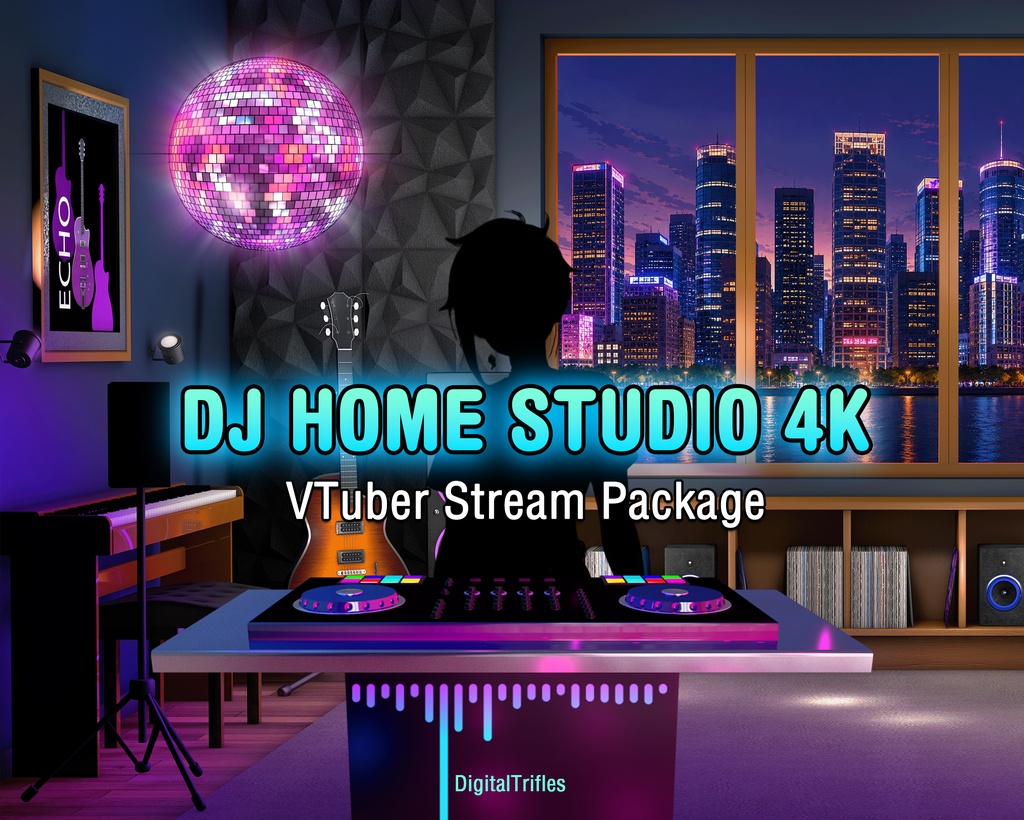
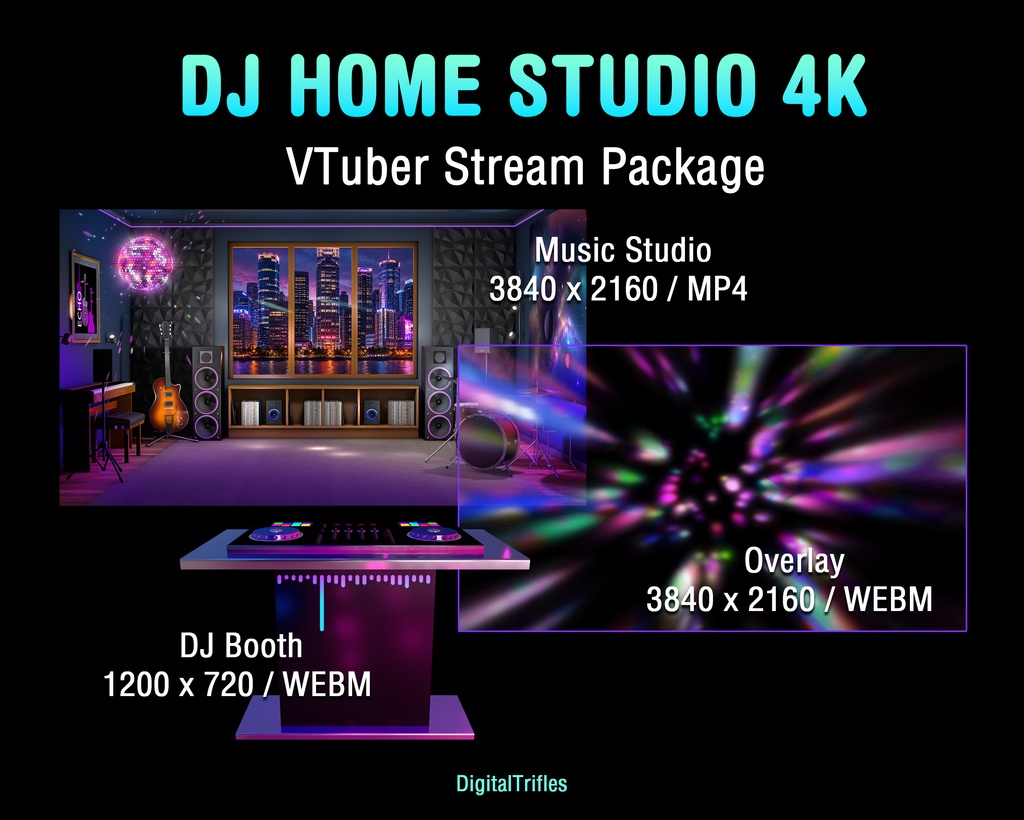
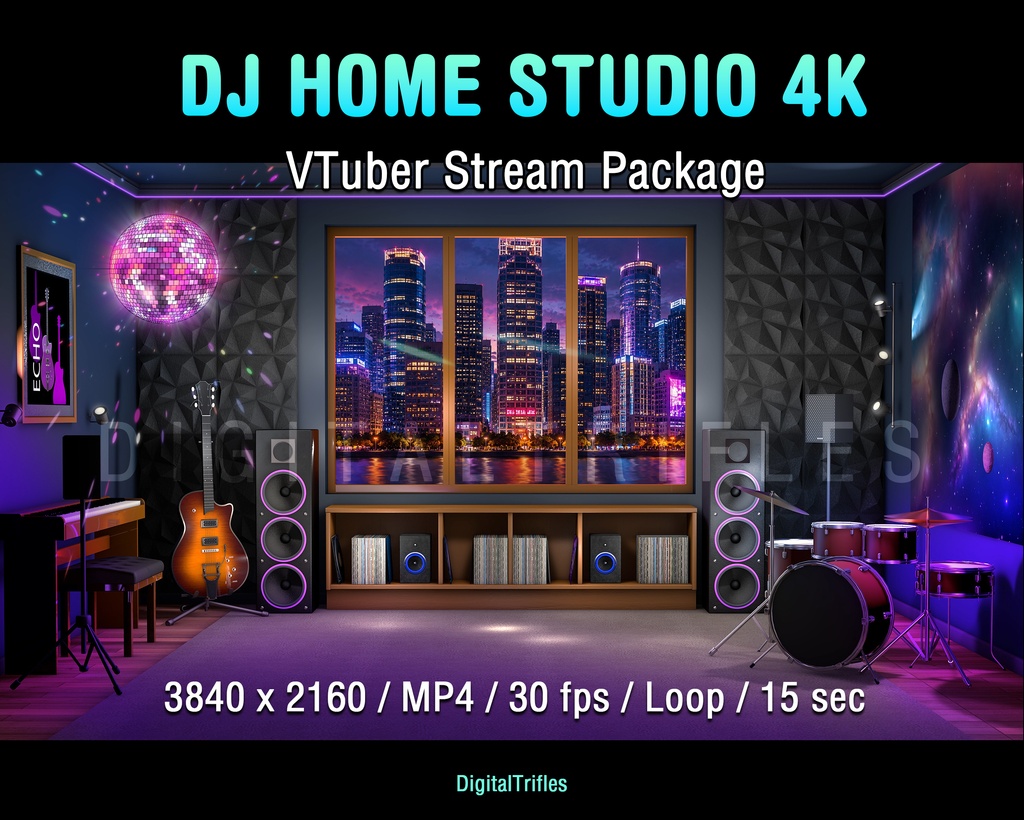
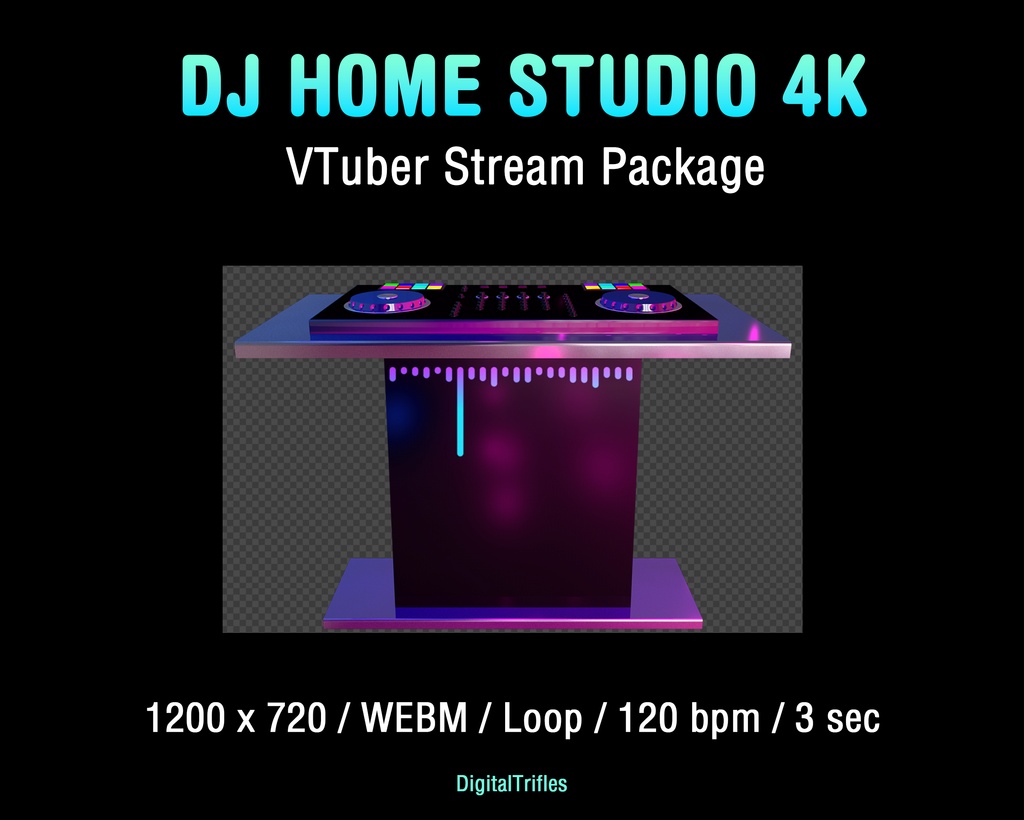
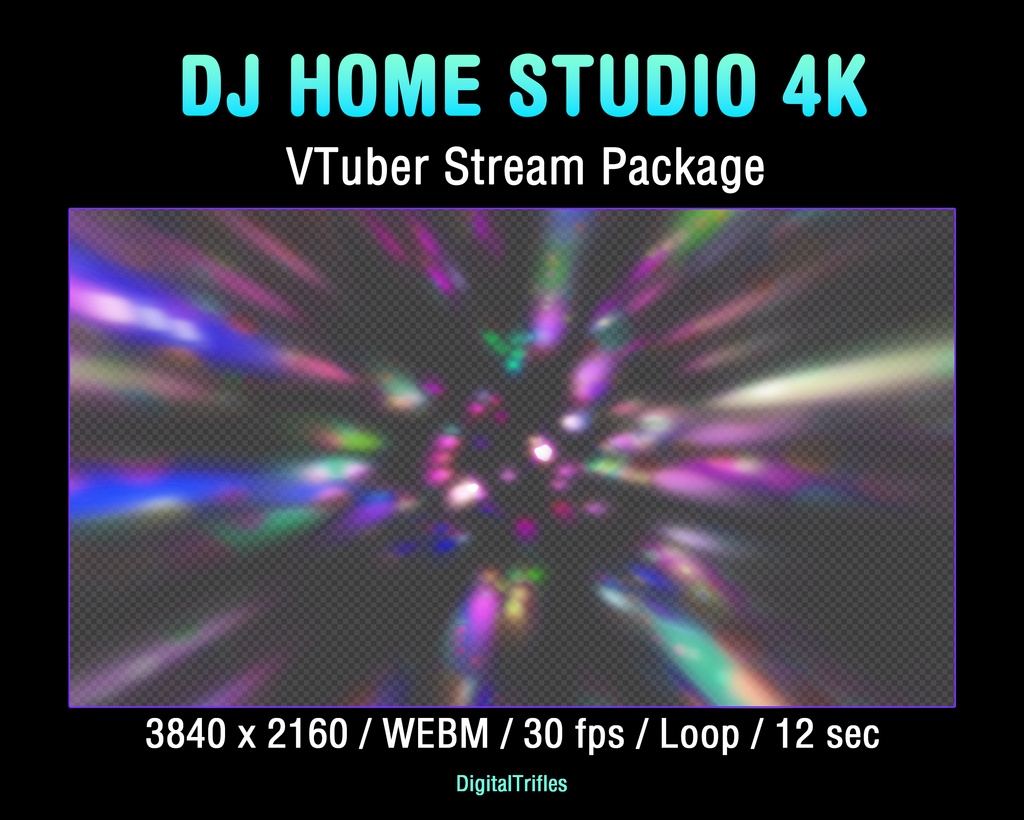


Turn your stream into a stylish music studio. This animated stream package combines a high-resolution VTuber home studio background with a disco ball, DJ booth, and stage light overlay, giving you everything you need to build a complete music streaming setup for DJs, music streamers, singers, VTubers, karaoke hosts, virtual concerts, and live performances. Designed for OBS Studio, Twitch, YouTube, and other streaming platforms. Mix and match the animated overlays, customize your layout, and create anything from a cozy home studio to a vibrant concert atmosphere.
DJホームスタジオ背景&オーバーレイ OBS対応 VTuber向け
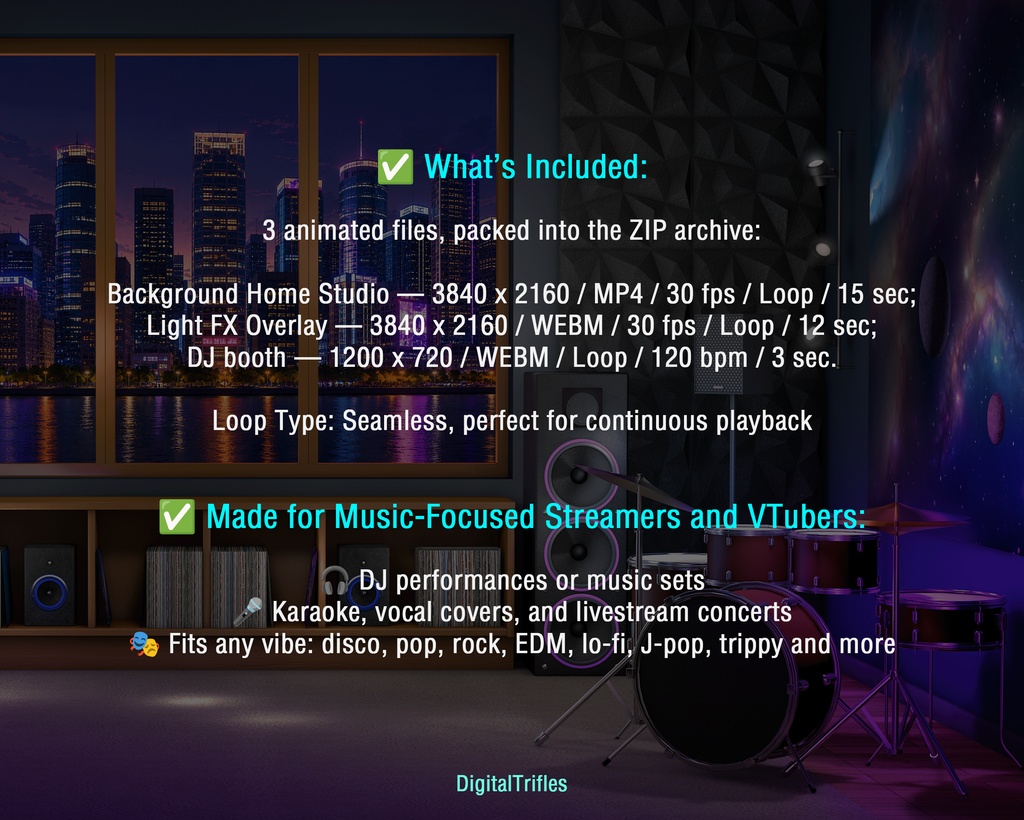
✅ What’s Included: 3 animated files, packed into the ZIP archive. Background Home Studio — 3840 x 2160 / MP4 / 30 fps / Loop / 15 sec; Light FX Overlay — 3840 x 2160 / WEBM / 30 fps / Loop / 12 sec; DJ booth — 1200 x 720 / WEBM / Loop / 120 bpm / 3 sec. Loop Type: Seamless, perfect for continuous playback ✅ Made for Music-focused Streamers and VTubers: 🎧 DJ performances or music sets 🎤 Karaoke, vocal covers, and livestream concerts 🎭 Fits any vibe: disco, pop, rock, EDM, lo-fi, J-pop, trippy and more Easy to Use in OBS Studio: Just drop loops into your scenes and trigger them live with hotkeys ✅ Drag and drop the files into your scene in OBS Studio. Alternatively, click the "+" button in the "Sources" menu, select "Media Source" in the dropdown menu. You can scale the background as needed. No plugins or extra software needed ✅ Don't forget to enable the "Loop" option to make it seamless ✅ If your creative vision requires it, add a light effect to your scene. You can resize it, drag it, and duplicate it as many times as needed. To make the light effect overlay as visually impactful as possible, use an appropriate blending mode: right-click on the overlay layer and, in the menu that opens, select "Blending Mode." Then, choose "Screen". ✅ You can also adjust the overlay's opacity or change the colour and brightness to suit your preferences and creative vision. To do this, right-click on the overlay layer, select "Filters," then click the "+" button to add the "Color Correction" filter. Use it to fine-tune the transparency, color and other parameters ✅ The DJ booth animation is timed to a 120 BPM beat. Playback speed can be adjusted to better match your music track.