

目を改変してもまばたきがきれいに閉じる LidFit【NDMF・非破壊】
- 製品版Digital1,000 JPY
- 無料お試し版Digital0 JPY
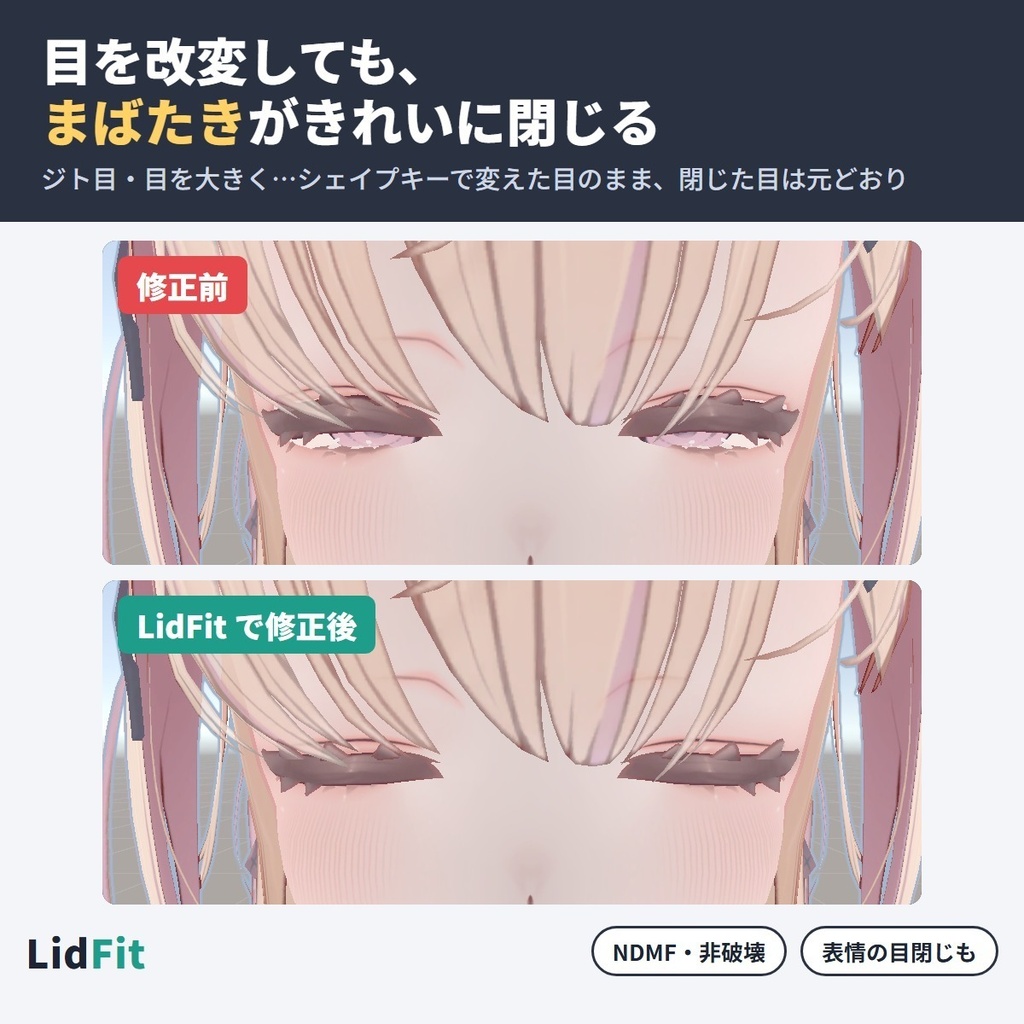
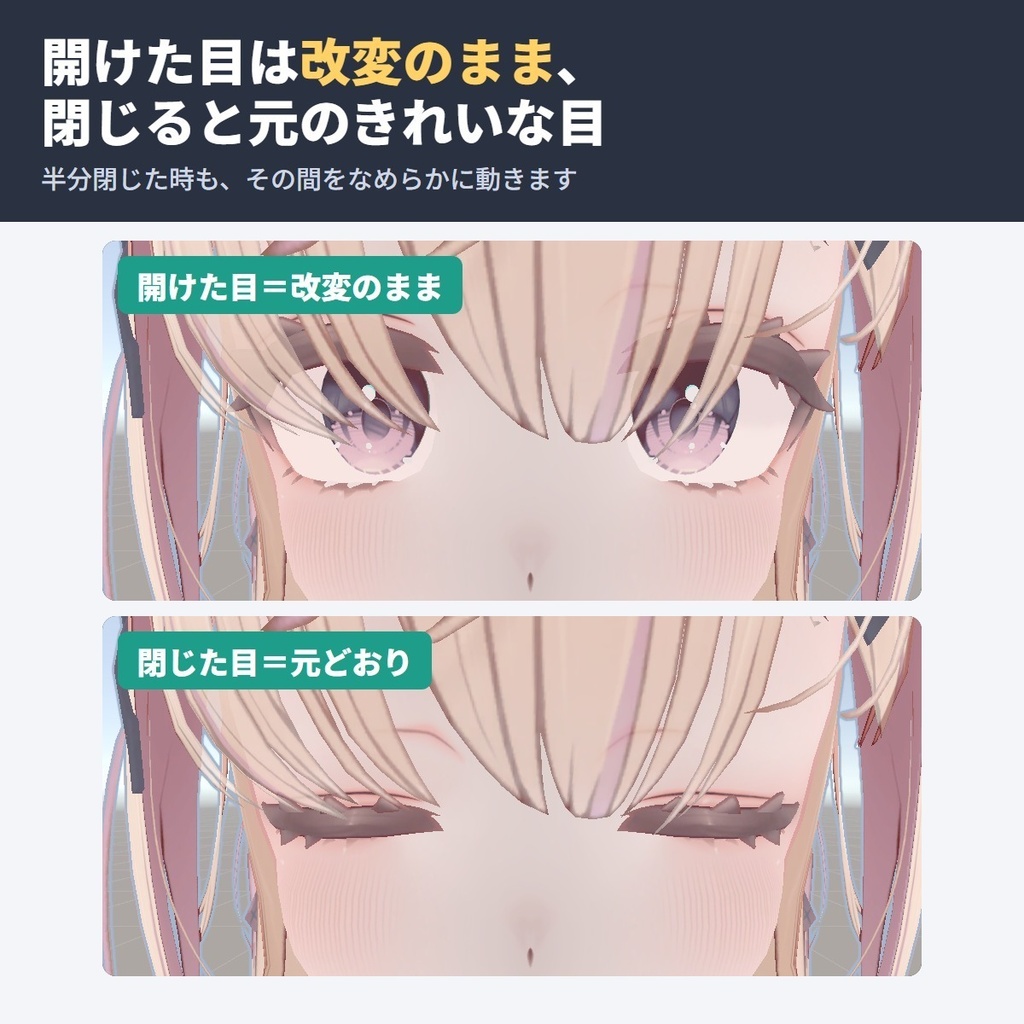
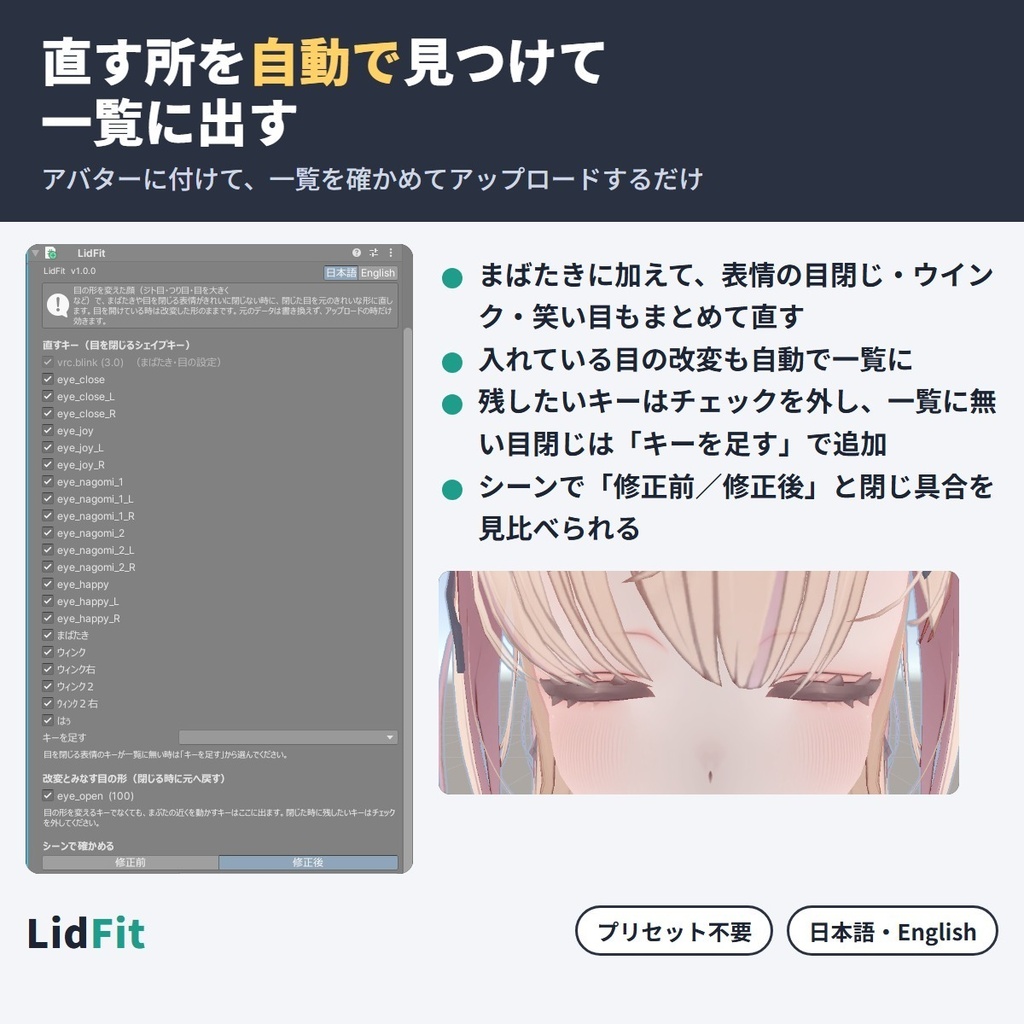
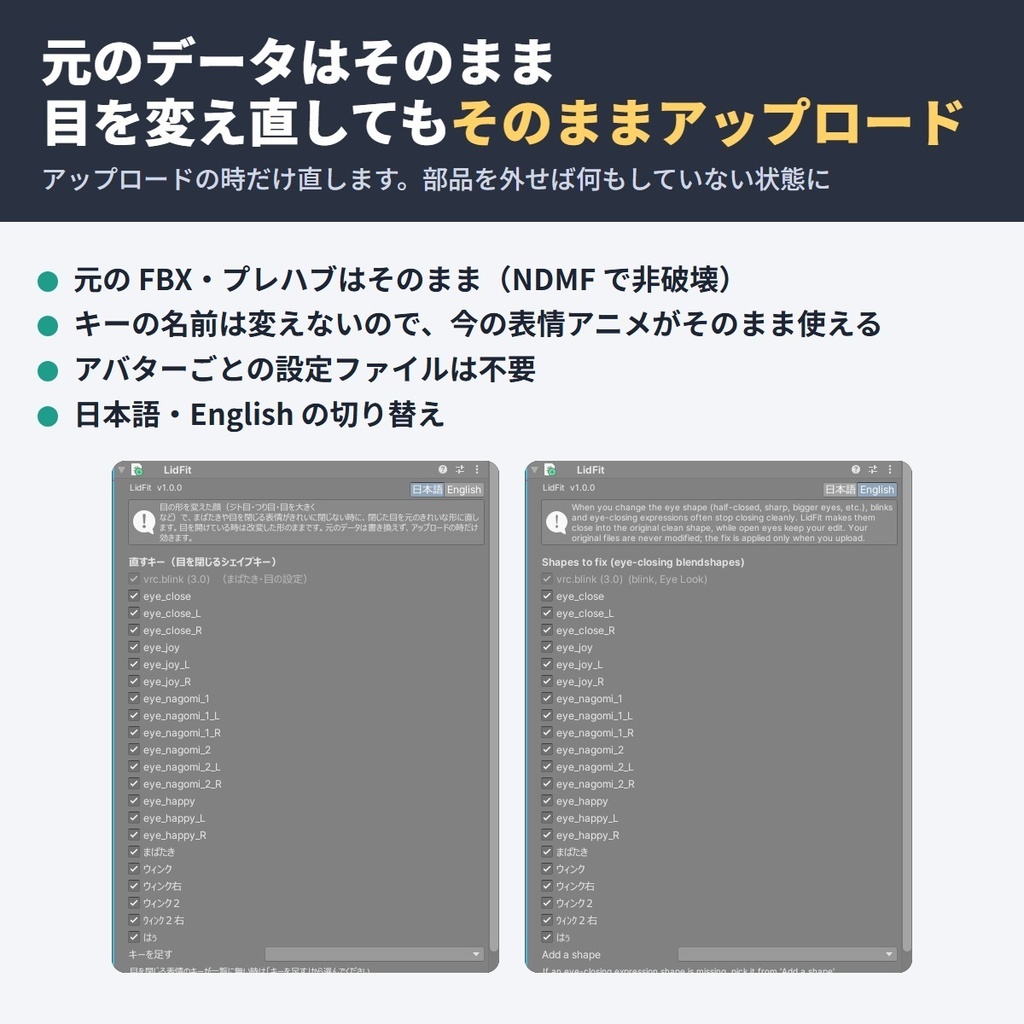
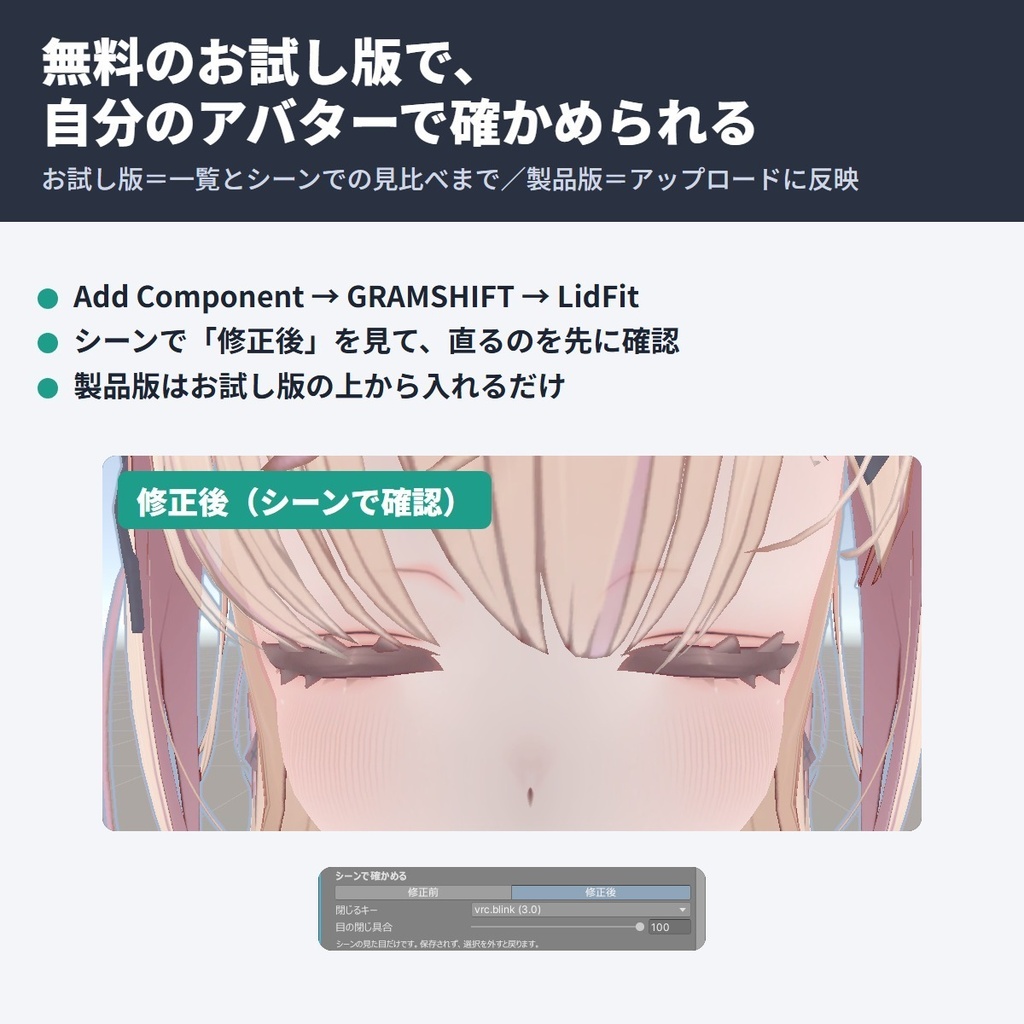


ジト目や目を大きくする改変をした VRChat アバターで、まばたきが閉じ切らない・閉じた目のすき間から目がのぞく、を直す NDMF 対応の非破壊 Unity エディタ拡張です。 アバターに付けてアップロードするだけで、開けた目は改変したまま、まばたき・目閉じ・ウインクの時は元のきれいな閉じた目になり、元のデータはそのまま残ります。 ■ できること ・目を改変すると起きる「まばたきで閉じ切らない」「閉じた目のすき間から目がのぞく」を直す ・目を開けている時は改変したままの見た目、閉じると元のきれいな閉じた目。半分閉じた時もその間をなめらかに動く ・自動まばたき(Eye Look)に加えて、表情のアニメで使う目閉じ・ウインク・笑い目も直す(キーの名前は変えないので、今の表情アニメがそのまま使える) ・いま入れている目の改変を自動で見つけて一覧に表示。残したいキーはチェックを外すだけ ・表情の目閉じのキーが一覧に無い時は「キーを足す」から選べる ・シーンで「修正前」「修正後」を切り替え、「目の閉じ具合」を動かしてアップロード前に見比べられる ・元の FBX・プレハブはそのまま。直した形はアップロードしたアバターにだけ入る ・目の形を変え直しても、そのままアップロードするだけで今の目に合わせて直る ・アバターごとの設定ファイルは不要。付けて一覧を確かめるだけ ・日本語/English 切り替え ■ 使い方 1. unitypackage をプロジェクトに入れる 2. アバター(VRC Avatar Descriptor が付いた物)に「Add Component → GRAMSHIFT → LidFit」を付ける 3. 一覧と、シーンの「修正前/修正後」で確かめる 4. いつもどおりアップロードする ■ 動作環境 ・Unity 2022.3(VRChat の推奨バージョン) ・VRChat SDK3 Avatars ・NDMF 1.14 以上(Modular Avatar 1.18 以上に含まれます) ・アバターの Eye Look が有効で、Eyelids が Blendshapes になっていること ・確認したアバター:ゆめか(Arka_X様)+ eye_open/フェリス(リュクらぼ様)+ じと目 ■ 無料お試し版 お試し版は、一覧の表示と、シーンでの「修正後」の見比べまで使えます(アップロードしたアバターには反映されません)。自分のアバターと改変で直るかを先に確かめてから製品版をお選びください。製品版はお試し版の上から入れるだけで切り替わります。 ■ よくある質問 Q. ジト目にしたらまばたきで目が閉じ切らないのですが、直せますか? A. 直せます。顔のシェイプキーで入れたジト目のまま、まばたきの時は元のきれいな閉じた目になります。 Q. 目を大きくする改変をしたら、まばたきで閉じた目のすき間から目がのぞきます。直りますか? A. 直ります。目を開けている時は大きい目のまま、閉じると元の閉じた目になります。 Q. 元のアバターのデータは変わりますか? A. 変わりません。直した形はアップロードしたアバターにだけ入ります。部品を外せば元どおりです。 Q. 表情(ハンドサイン)の目閉じやウインクも直りますか? A. 直ります。目閉じ・ウインク・笑い目のシェイプキーも直します。キーの名前は変えないので、表情のアニメはそのまま使えます。 Q. 目の形をあとから変えたら、何か押し直す必要はありますか? A. ありません。アップロードの時に、その時の目の形で直します。 Q. 直してほしくないシェイプキーは外せますか? A. 外せます。一覧でチェックを外すと、そのキーは今のまま残ります(目の設定のまばたきは常に直します)。 Q. Modular Avatar は必要ですか? A. NDMF 1.14 以上が必要です。Modular Avatar 1.18 以上を入れていれば含まれています。 Q. 自分のアバターで使えるか、先に確かめられますか? A. 無料お試し版で、一覧とシーンの「修正後」まで確かめられます。 ■ 制限 ・アバターの Eye Look の Eyelids が Blendshapes のアバターに対応しています ・表情のアニメーション(FX)の中で目の形を変えている場合、その変化は直す対象になりません(顔のメッシュのシェイプキーの値として入れた目の形が対象です) ・ほかの道具がアップロードの時に入れる目の形(Modular Avatar の Shape Changer など)は対象外です ・直すのは Eye Look の Eyelids に設定した顔のメッシュだけです。まつ毛が別のメッシュの場合、そのメッシュは直しません ・まばたきと表情の目閉じが同時に100になると、閉じた目が崩れることがあります(表情の間はまばたきを止める、よくある設定では起きません) ・直すキーに途中の形(中間フレーム)がある場合、直した後は開けた目から閉じた目へまっすぐ動く形になります ・目閉じ・笑い目のキーを今の顔に入れている(0より大きい)場合、そのキーは改変として扱い、表情で使っても直りません ・表情の目閉じのキーは、名前(blink・wink・まばたき・ウインク・目閉じ・はぅ、「目」と「閉じ/笑」を両方含む物など)で自動で一覧に入ります。入らないキーは「キーを足す」から選べます ・目の形を変えるキーでなくても、まぶたの近くを動かすキー(頬・眉など)は改変の一覧に出ます。残したい物はチェックを外してください ・LidFit はアバター1体に1つだけ付けてください ■ 困った時は このページの「ショップへのお問い合わせ」から気軽にどうぞ(アバター名と表示されたエラーの文があると早く調べられます)。 --- Fixes VRChat blinks that stop half-way or show the eye through the gap after you edit the eyes with blendshapes (half-lidded "jito-me", bigger eyes). Add it to your avatar and upload: open eyes keep your edit, while blink, eye-close and wink shapes close into the original clean closed eye, with your original files left as they are. Features - Fixes blinks that do not fully close and eyes showing through the gap of closed eyes after eye edits - Eyes keep your edited look while open and close into the original clean closed eyes, moving smoothly in between - Fixes the Eye Look blink and the eye-closing, wink and smiling-eye shapes used in expressions (shape names are kept, so your expression animations work as they are) - Detects your current eye edits automatically and lists them; uncheck any you want to keep (the Eye Look blink is always fixed) - Missing an eye-closing expression shape? Add it from "Add a shape" - Before/After toggle and a "Close amount" slider in the Scene to compare before uploading - Non-destructive: applied only at upload; your FBX and prefabs stay untouched - No button to press again after changing the eye shape; just upload - No per-avatar settings file: add it, check the lists and upload - Japanese / English UI How to use 1. Import the unitypackage into your project 2. On your avatar (the object with VRC Avatar Descriptor), Add Component → GRAMSHIFT → LidFit 3. Check the lists and the Before/After toggle in the Scene 4. Upload as usual Requirements: Unity 2022.3, VRChat SDK3 Avatars, NDMF 1.14+ (included in Modular Avatar 1.18+), Eye Look enabled with Eyelids set to Blendshapes. Free trial: the lists and the Before/After preview in the Scene; not applied to the uploaded avatar. Install the full version on top to unlock it. Tested avatars: Yumeka (Arka_X) + eye_open, Felis (リュクらぼ) + jito-me. FAQ Q. After making half-lidded "jito-me" eyes, my blink does not fully close. Can this fix it? A. Yes. Your jito-me shape stays while the eyes are open, and blinks close into the original clean closed eye. Q. After making the eyes bigger, the eye shows through the gap when I blink. Does this fix it? A. Yes. Open eyes stay big, and closed eyes become the original closed eye. Q. Are eye-close and wink in hand-sign expressions fixed too? A. Yes. Eye-closing, wink and smiling-eye shapes are fixed; shape names are kept, so your expression animations work as they are. Limitations: eye shapes changed inside FX animations or by other tools at upload (e.g. MA Shape Changer) are not covered. Only the face mesh set in Eye Look is fixed; separate eyelash meshes are not. If blink and an expression eye-close are both at 100 at once, the closed eye may break (does not happen when blinking is turned off during expressions). In-between frames of fixed shapes become a straight move. An eye-closing or smiling-eye shape that is already above 0 on the face is treated as an edit and is not fixed. Expression shapes are listed automatically by name (blink / wink / まばたき / ウインク / 目閉じ, or an eye word plus a close/smile word); add any missing one from "Add a shape". Shapes that move near the eyelids (cheeks, brows) can appear in the edit list; uncheck any you want to keep. Use one LidFit per avatar. Need help? Contact the shop from this page (include your avatar name and any error message shown).
利用規約
・VRChat などで使うアバターの改変に、個人・商用を問わず使えます ・このツールを使って作ったアバターの販売に制限はありません ・ツールそのもの(ファイル)の再配布・転売はできません ・同梱の「利用規約_Terms.txt」が正です
更新履歴
1.0.0(2026-10)公開