
LUNA AiBridgeMCP — AI Connector v2 Auto-Setup Package for Claude Desktop & Gemini CLI
- Digital0 JPY
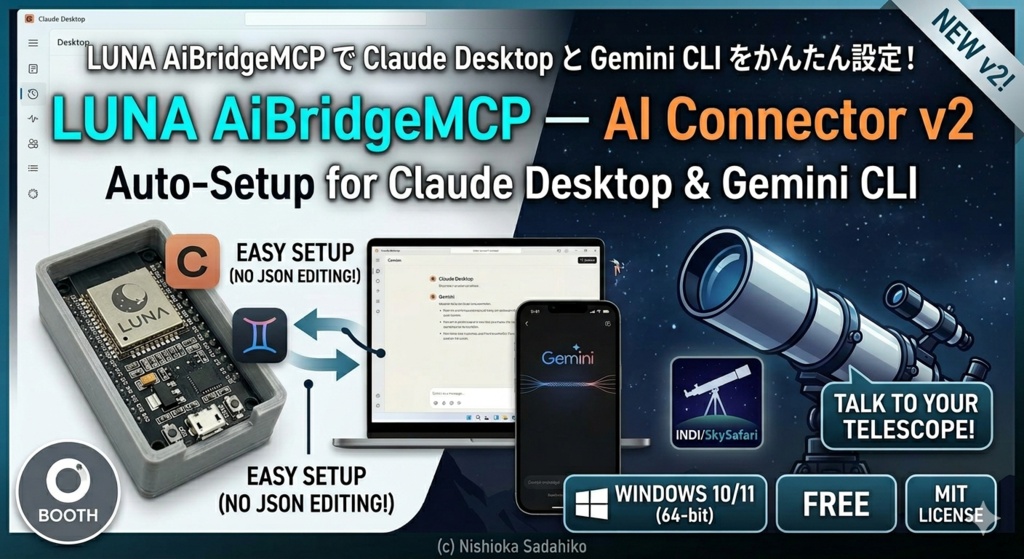

LUNA AiBridgeMCP — AI Connector v2 Auto-Setup Package for Claude Desktop & Gemini CLI ────────────────────────────────────────────────── Connect your LUNA device to Claude AI or Gemini CLI in minutes. One double-click does all the setup — no JSON editing, no command prompt, no technical knowledge required. ■ WHAT'S INCLUDED (3 files — keep them in the same folder) • aibridge-connector-v2.exe LUNA connector core — the MCP proxy that links your PC to LUNA • setup_luna.bat Auto-setup script — automatically writes the MCP server config into Claude Desktop and Gemini CLI. Just double-click to run. • README.md Full instruction manual (English) ■ SETUP IN 5 STEPS Step 1 — Extract the ZIP and place the folder anywhere you like (Desktop, C:\LUNA\, Documents — your choice) Step 2 — Open setup_luna.bat in Notepad and change the IP address to match your LUNA device (default: 192.168.3.50) Step 3 — Double-click setup_luna.bat Step 4 — Wait for "[Success] All setup procedures completed!" Step 5 — Restart Claude Desktop or type gemini in Command Prompt That's it. No manual JSON editing. No command-line configuration. ■ SUPPORTED AI CLIENTS • Claude Desktop claude.ai/download (free) • Gemini CLI Google (free) ■ VERIFYING THE CONNECTION Gemini CLI → type /mcp list → 🟢 luna - Ready means success Claude Desktop → click the plug icon → "luna" tools appear in list ■ WHAT YOU CAN DO AFTER SETUP • Control telescopes and serial devices via natural language • Run Lua scripts on ESP32 from Claude or Gemini • Read sensors, send commands, automate observation sequences • Integrate with SkySafari, INDI, NINA, and more ■ REQUIREMENTS • Windows 10 / 11 (64-bit) • Claude Desktop or Gemini CLI installed on the same PC • LUNA firmware flashed to an ESP32 board (pre-flashed boards available separately on this page) ■ NOTES • The 3 files must always remain in the same folder. • Do not move the folder after setup — the registered paths will break. If you need to move it, simply run setup_luna.bat again from the new location to reconfigure automatically. • ⚠ setup_luna.bat completely overwrites the existing config files. If you already have other MCP servers registered in Claude Desktop or Gemini CLI, back up the following files before running: Claude Desktop : %APPDATA%\Claude\claude_desktop_config.json Gemini CLI : %USERPROFILE%\.gemini\settings.json After setup, manually merge your previous entries back if needed. • Compatible with LUNA v5.x.x and v6.x.x firmware. • MIT License — free for personal and commercial use. ■ LINKS GitHub: https://github.com/OnStepNinja/LUNA © Nishioka Sadahiko 📚 LUNA Docs / AiBridgeMCP — Start here for setup guides, technical references, and FAQ. Ask questions directly inside NotebookLM and get answers from the official documentation. 👉 https://notebooklm.google.com/notebook/f2ce997f-18c2-44c4-8738-973b204c190c 💬 AiBridgeMCP Community — Join our Facebook group to ask questions, share your results, and connect with other users. The developer is also a member. Everyone is welcome. 👉 https://www.facebook.com/groups/1230935959149731