

Holiday Light Aura
- Personal UseDigital800 JPY
- Commercial UseDigital1,400 JPY
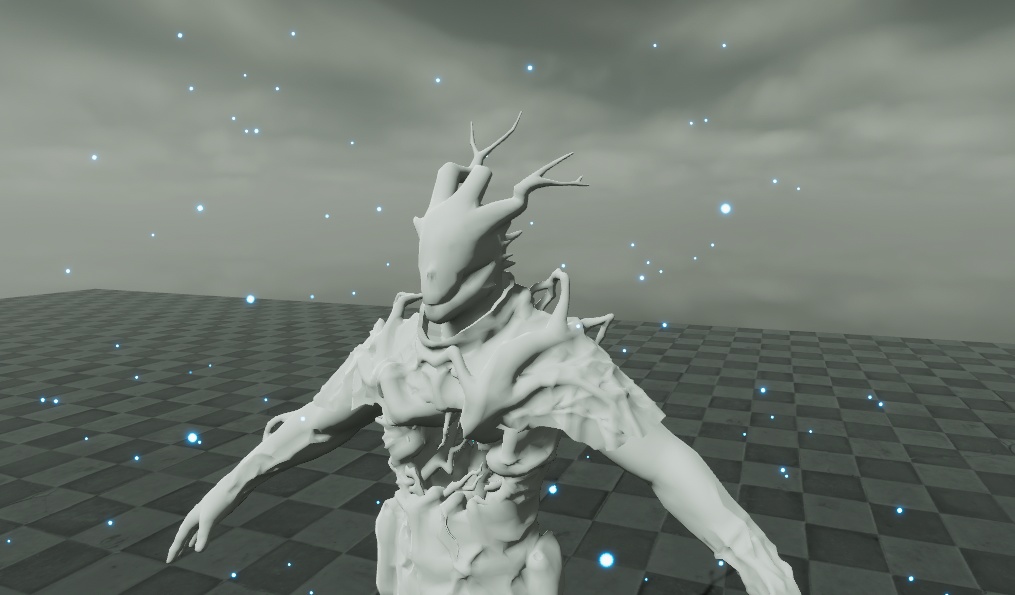
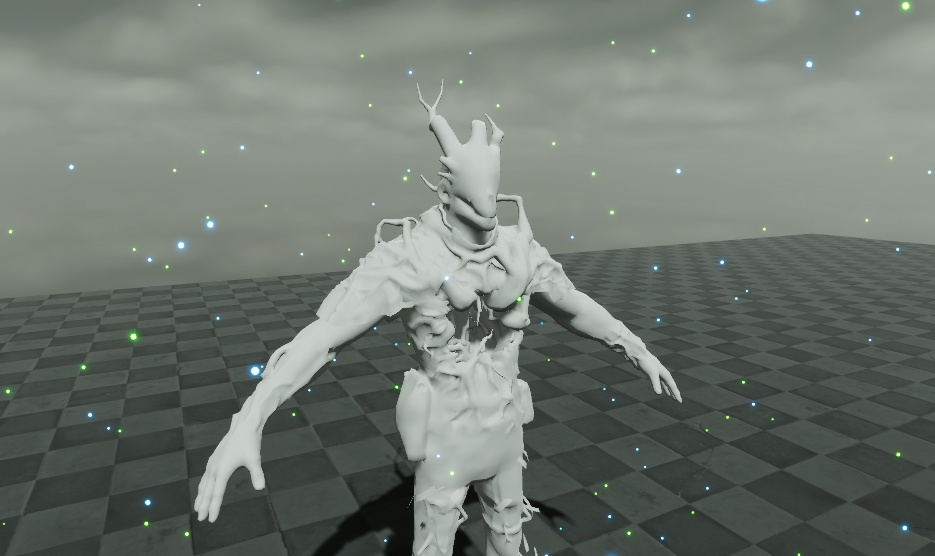
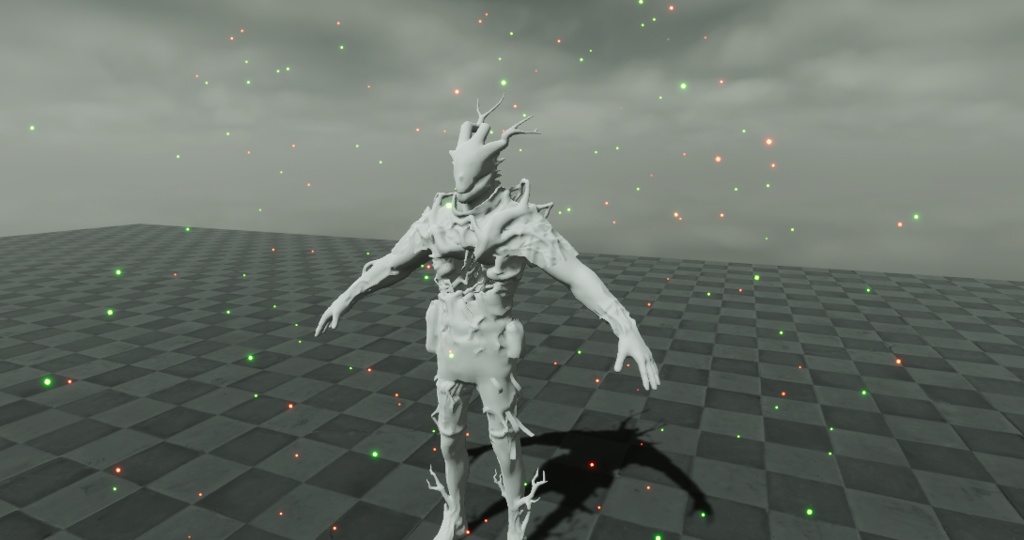


Howdy! This is a simple to set up, holiday themed aura, for Unity 2019 / 2022 / VRChat avatar accessory, great to use for various means. The package contains all shaders, particles, textures, materials and the prefab, as well as an example scene, sound effect, and installation guide readme. PLEASE MAKE SURE THAT NOTHING IN THIS PACKAGE OVERRIDES ANYTHING IN YOUR UNITY PROJECT BEFORE IMPORT IN THE IMPORT MANAGER! -Made in Unity 2019 (still is compatible in 2022, DM me if you have issues). Do not redistribute in any way/form. Do not use on public avatars. Do not resell. Do not claim as your work. For Private use only. Installation: Quick Installation Guide: Please drag all '(Body)' Particle Systems (the ones that have (body) in their name) into the hierarchy of the model you want. Highlight all of the Particle Systems in the hierarchy, and in the Inspector Tab, look for the 'Shape' tab. Drag and drop the 'Body' or Skinned Mesh of your choice into the element there. Done! It's all set up properly now. Please refer to the example model within the HolidayLightAura Scene attached to this file if you need to troubleshoot. It's set up properly on that model. If you are trying to set up the smoke onto a different object or mesh renderer, please select that option in the Particle System's Shape tab. Textures and Shaders by Hovl Studios Please contact @hyrneyhyrney on Twitter if you have any issues. ------------------------------------------- こんにちは!これは、Unity 2019 / 2022 / VRChat アバターアクセサリー用の、設定が簡単なホリデーテーマのオーラです。様々な用途にご利用いただけます。 このパッケージには、すべてのシェーダー、パーティクル、テクスチャ、マテリアル、プレハブ、サンプルシーン、効果音、インストールガイドのReadmeファイルが含まれています。 インポートマネージャーでインポートする前に、このパッケージ内のファイルがUnityプロジェクト内の既存のファイルを上書きしないことを必ず確認してください! -Unity 2019で作成(2022でも互換性があります。問題が発生した場合はDMでご連絡ください)。 いかなる方法でも再配布しないでください。 パブリックアバターには使用しないでください。 転売しないでください。 自分の作品だと主張しないでください。 個人的な使用のみに限定されます。 インストール方法: クイックインストールガイド: すべての「(Body)」パーティクルシステム(名前に「(body)」が含まれているもの)を、使用したいモデルのヒエラルキーにドラッグ&ドロップしてください。 ヒエラルキーで全てのパーティクルシステムを選択し、インスペクタータブの「Shape」タブを探してください。 「Body」または選択したSkinned Meshを、その要素にドラッグ&ドロップしてください。 これで完了です!正しく設定されました。 トラブルシューティングが必要な場合は、このファイルに添付されているHolidayLightAuraシーン内のサンプルモデルを参照してください。そのモデルには正しく設定されています。煙を別のオブジェクトまたはメッシュレンダラーに設定する場合は、パーティクルシステムのShapeタブでそのオプションを選択してください。 テクスチャとシェーダーはHovl Studiosによるものです。 問題が発生した場合は、Twitterの@hyrneyhyrneyまでご連絡ください。 これが意味をなさない場合はお詫びします。英語から日本語への機械翻訳を使用しました。