

乗れる三輪車【ModularAvatar対応】
- ダウンロード商品¥ 500
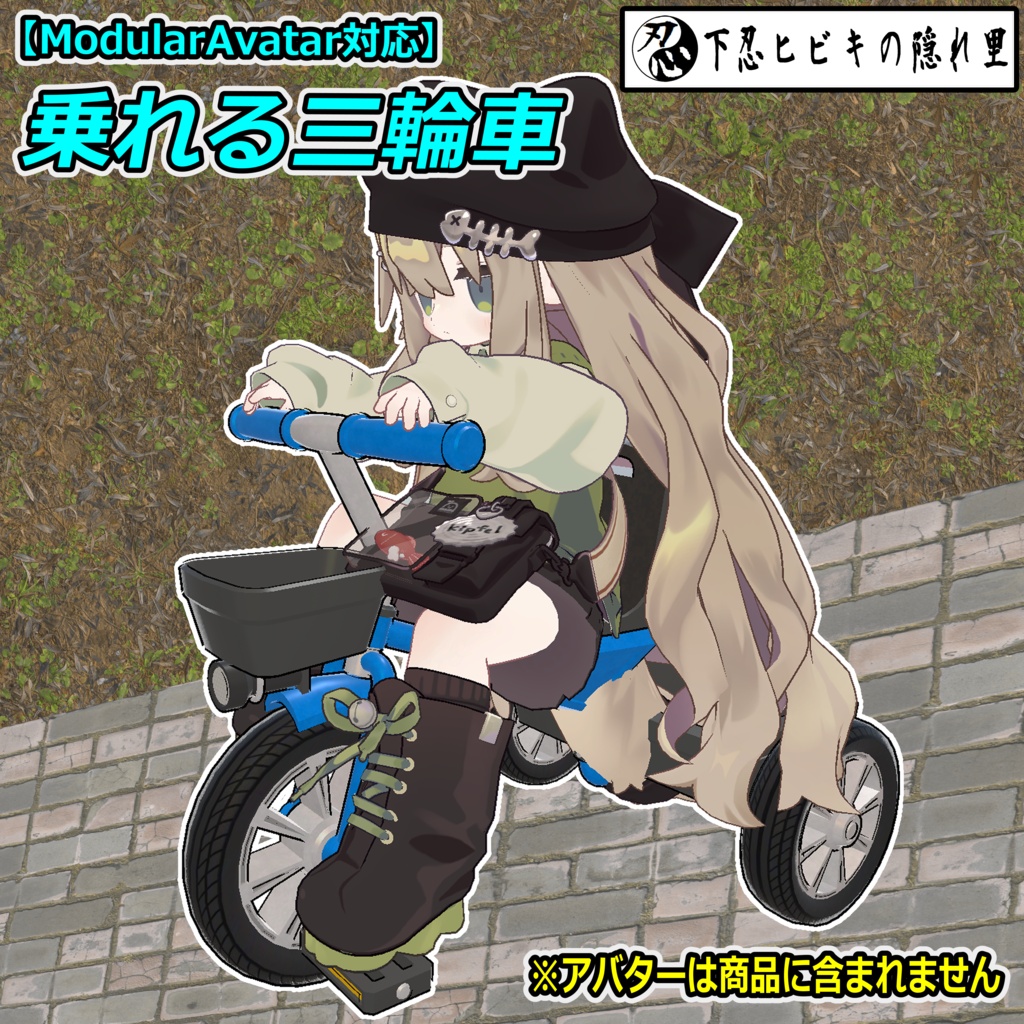
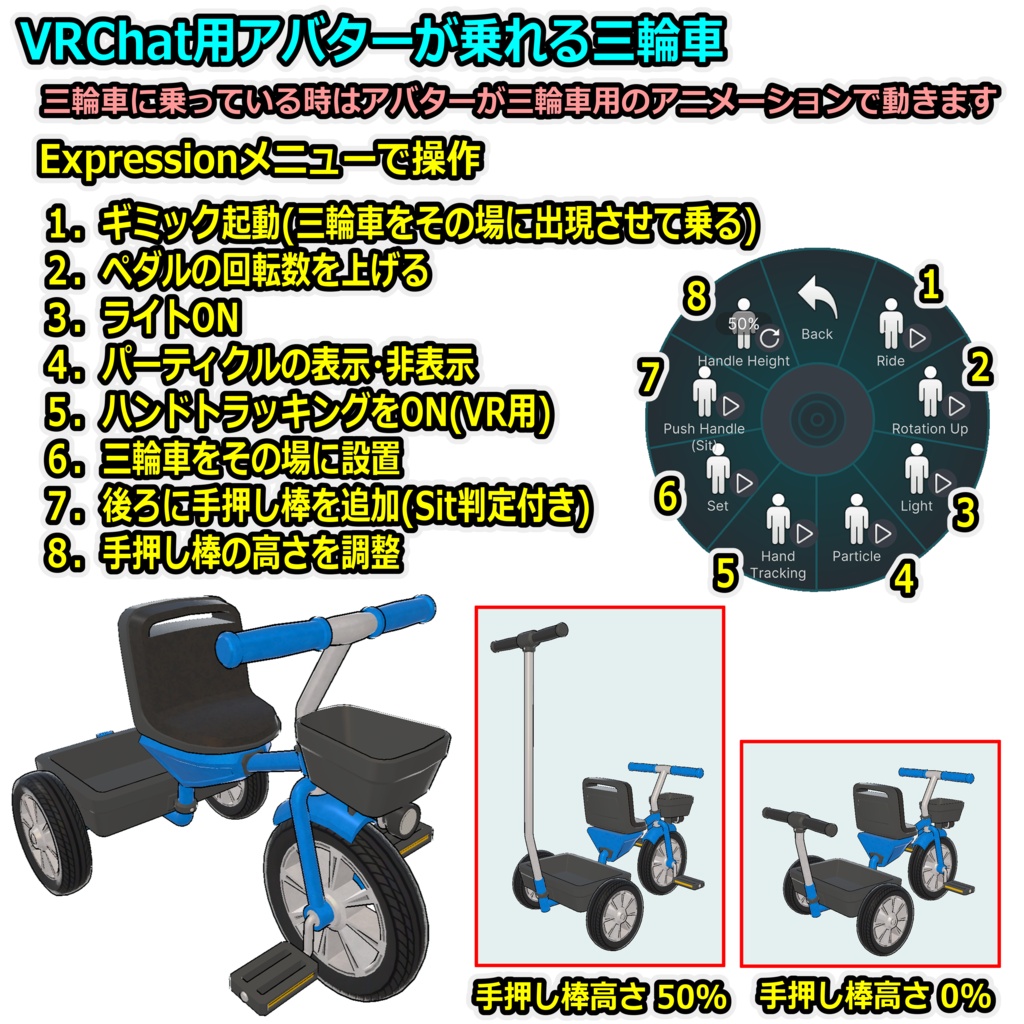
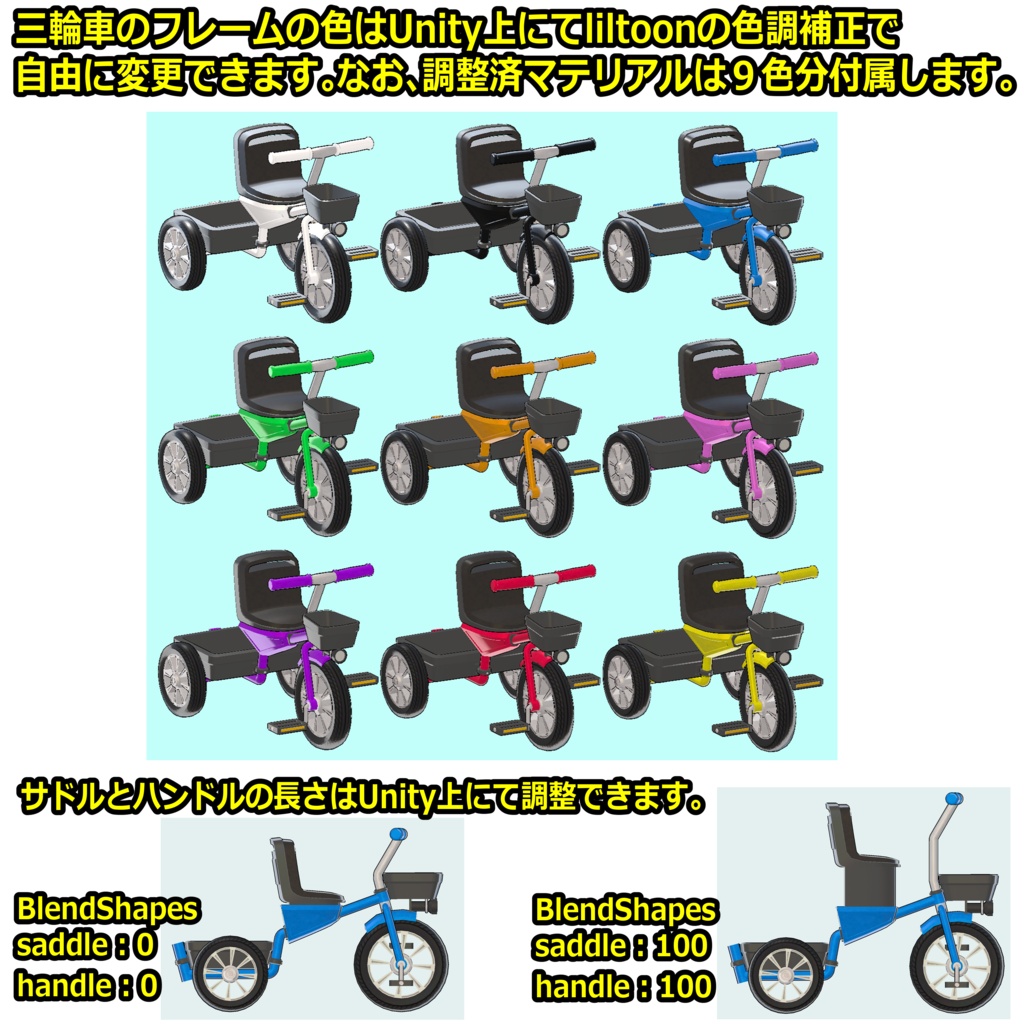
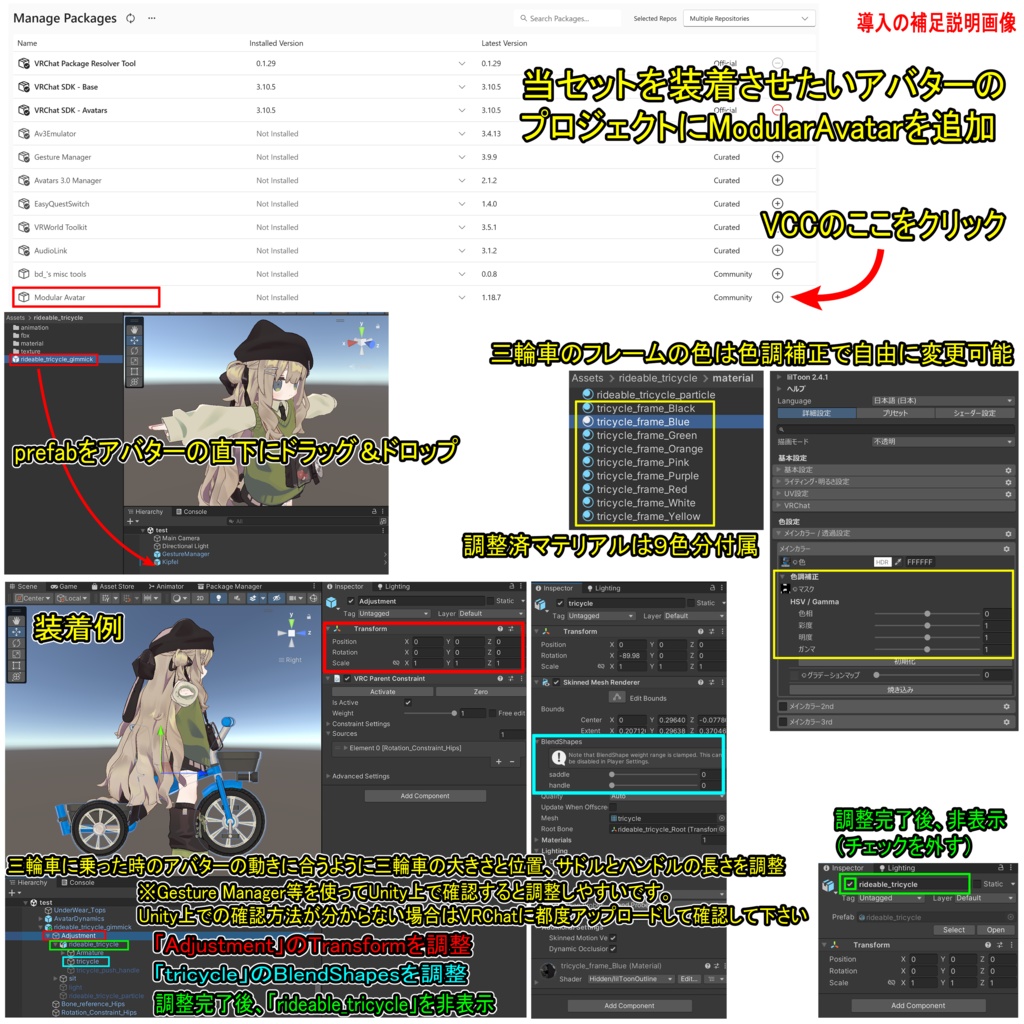


【商品名】 乗れる三輪車【ModularAvatar対応】 【商品説明】 VRChat用アバターが乗れる三輪車です。 VRChat内にてExpressionメニューで三輪車をその場に出現させて乗ることができます。ペダルの回転数を上げることもできます(移動速度は変わりません)。 三輪車に乗っている時はアバターが三輪車用のアニメーションで動きますが、ハンドトラッキングをONにすることもできます(VR用)。 ※アニメーションは、一般的なボーン構造のヒューマノイドアバターなら使えると思います。なお、段差やジャンプでアニメーションが解除される場合があります。 ライトON、パーティクルの表示・非表示、三輪車をその場に設置する機能もあります。 また、三輪車の後ろに手押し棒を追加することもできます。棒の先のSit判定を他の人にUseしてもらうと一緒に散歩もできます(棒の高さは調整可能)。 ※一緒に散歩する時の移動は三輪車に乗っている人が制御します。 三輪車のフレームの色はUnity上にてliltoonの色調補正で自由に変更できます。なお、調整済マテリアルは9色分付属します。 ※装着例のアバター「キプフェル Kipfel( https://booth.pm/ja/items/5813187 )」は商品に含まれません。 【VRChatへの導入方法】※詳しくは導入の補足説明画像を参照 1.ModularAvatarをVCCにダウンロード。 https://modular-avatar.nadena.dev/ja/ 2.当セットを装備させたいアバターのプロジェクトにModularAvatarを追加 3.シェーダー(liltoon)をインポート https://booth.pm/ja/items/3087170 4.本商品(rideable_tricycle_1.0.unitypackage)をインポート 5.プロジェクト内(Assets/rideable_tricycle)にあるrideable_tricycle_gimmick.prefabをアバターの直下にドラッグ&ドロップ 6.三輪車の大きさと位置、サドルとハンドルの長さを調整 ・Hierarchy上のオブジェクト「Adjustment」のTransformを調整 ・Hierarchy上のオブジェクト「tricycle」のBlendShapesを調整 ・調整完了後、Hierarchy上のオブジェクト「rideable_tricycle」を非表示にする 7.通常の手順でVRChatにアップロード(必ずPrivate 設定で) 【ポリゴン数】 三輪車:△19724 【内容物】 Unitypackage readme FBX テクスチャ(PNG) 導入の補足説明画像 【利用規約】 改変可 商用利用可 再配布不可 再販売不可 公序良俗に反する使用を禁止 【免責事項】 制作者は本データを利用したことにより発生した損害、損失、その他の不利益に対して一切の責任を負いません。 【Quest対応する方法】 ・マテリアル「tricycle_frame_Blue」のシェーダーを「VRChat/Mobile/Toon Lit」に変更 ※フレームの色は青になります。全体的に見た目は大きく劣化します。 ・マテリアル「rideable_tricycle_particle」のシェーダーを「VRChat/Mobile/Particles/Additive」に変更 ・Hierarchy上のオブジェクト「light」を削除 ※ライトON機能は無くなります。 【更新履歴】 2026/10/26 リリース 【追記】 <よくある質問> ギミックが正常に機能しない場合 →VCC、VRChat SDK、Modular Avatarのバージョンを最新にしてから【VRChatへの導入方法】の5.からやり直してください。 Gesture Managerが正常に機能しない場合 →バージョンを最新にして下さい。 乗っている時にアバターの動きが大きく崩れたり移動速度が遅くなる場合 →VRで頭の位置が低いと起きる場合があります。姿勢を高くしてみて下さい。 乗っている時(ペダルの回転数を上げた時)に視界が塞がれる場合 →アバターのビューポジションを調整して下さい。 ギミックを起動していないのに他の人から三輪車が見える場合 →【VRChatへの導入方法】に記載の通りHierarchy上のオブジェクト「rideable_tricycle」を非表示にしてからアップロードして下さい。 他の人から見た時に足とペダルの位置が大きくずれる場合 →Expressionメニューで「Rotation Up」をON、「Hand Tracking」をOFFにすると位置のずれを最小にできます。 フルトラで正常にアニメーションが動かない場合 →当ギミックを使用する場合は一時的に3点トラッキングに切り替えてください。なお、VRChatのメニューの「設定(歯車アイコン)」の「トラッキングとIK」の「フルボディトラッキングを許可」をOFFにすると切り替えできます。 他のツールやギミックなどと干渉して当ギミックが正常に機能しない場合 →それらを削除してお使い下さい。
English
[Product name] Rideable tricycle [Compatible with ModularAvatar] [Product Description] A tricycle that your VRChat avatar can ride. You can spawn the tricycle on the spot using the VRChat Expression menu and hop on. You can also increase the rotation speed of the pedals (though this does not affect movement speed). While riding, your avatar will use specific animations for the tricycle; however, you can also enable hand tracking (for VR users). *Note: The animations should work with most humanoid avatars that follow a standard bone structure. Please be aware that the animations may stop if you encounter steps or jump. Features include toggling lights on/off, showing or hiding particle effects, and placing the tricycle in the world. Additionally, you can attach a push handle to the back of the tricycle. By having another person use the "sit" trigger at the end of the handle, they can join you for a stroll (the height of the handle is adjustable). *Note: When taking a stroll together, movement is controlled by the person riding the tricycle. The color of the tricycle frame can be freely customized in Unity using the color adjustment settings in "liltoon." The package includes pre-configured materials in 9 different colors. *Note: The avatar shown in the example, "Kipfel" ( https://booth.pm/ja/items/5813187 ), is not included with this product. [How to Install in VRChat] *Please refer to the supplementary installation 1. Download ModularAvatar to VCC. https://modular-avatar.nadena.dev/ja/ 2. Add ModularAvatar to the project containing the avatar you wish to equip with this set. 3. Import the shader (liltoon). https://booth.pm/ja/items/3087170 4. Import this product (rideable_tricycle_1.0.unitypackage). 5. Drag and drop rideable_tricycle_gimmick.prefab from your project (Assets/rideable_tricycle) directly below the avatar. 6. Adjust the size and position of the tricycle, as well as the lengths of the saddle and handlebars. ・Adjust the Transform of the "Adjustment" object in the Hierarchy. ・Adjust the BlendShapes of the "tricycle" object in the Hierarchy. ・Once adjustments are complete, hide the "rideable_tricycle" object in the Hierarchy. 7. Upload to VRChat using the standard procedure (make sure to use the Private setting). [Polygon Count] Tricycle: △19724 [Contents] Unitypackage readme FBX Textures (PNG) Additional image for installation instructions [Terms of Use] Modifications permitted Commercial use permitted No redistribution No resale Prohibition of use that violates public order and morals [Disclaimer] The creator assumes no responsibility for any damages, losses, or other disadvantages arising from the use of this data. [How to make it Quest-compatible] ・Change the shader for the "tricycle_frame_Blue" material to "VRChat/Mobile/Toon Lit." *Note: The frame color will be blue, and the overall visual quality will be significantly reduced. ・Change the shader for the "rideable_tricycle_particle" material to "VRChat/Mobile/Particles/Additive." ・Delete the "light" object from the Hierarchy. *Note: The "light on" feature will no longer be available. [Update History] 2026/10/26 release [Additional Notes] <Frequently Asked Questions> If the gimmick isn't working properly → Update your VCC, VRChat SDK, and Modular Avatar to the latest versions, then start again from step 5 of the [How to install in VRChat]. If Gesture Manager doesn't work properly →Please update to the latest version. If your avatar's movement becomes significantly disrupted or its movement speed slows while riding → This may occur if your head is positioned too low in VR. Try raising your posture. If your field of view is obstructed while riding (when the pedal rotation speed increases) → Please adjust your avatar’s View Position. If others can see the tricycle even though you haven't activated the gimmick → Please hide the "rideable_tricycle" object in the Hierarchy—as described in the [How to Install in VRChat] section—before uploading. If the positions of the feet and pedals appear significantly misaligned when viewed by others →In the Expression menu, enable "Rotation Up" and disable "Hand Tracking" to minimize this misalignment. If it doesn't work properly with full tracking →When using this gimmick, temporarily switch to 3-point tracking. You can also switch to this mode by turning off "Allow FullBody Tracking FBT" under "Tracking & IK" in "Settings (gear icon)" in the VRChat menu. If this gimmick is interfering with other tools or gimmicks and isn't functioning properly →Delete them before using.