[Unity] Scene View Coordinates - Camera Readout for AI Screenshots
- ダウンロード商品¥ 0
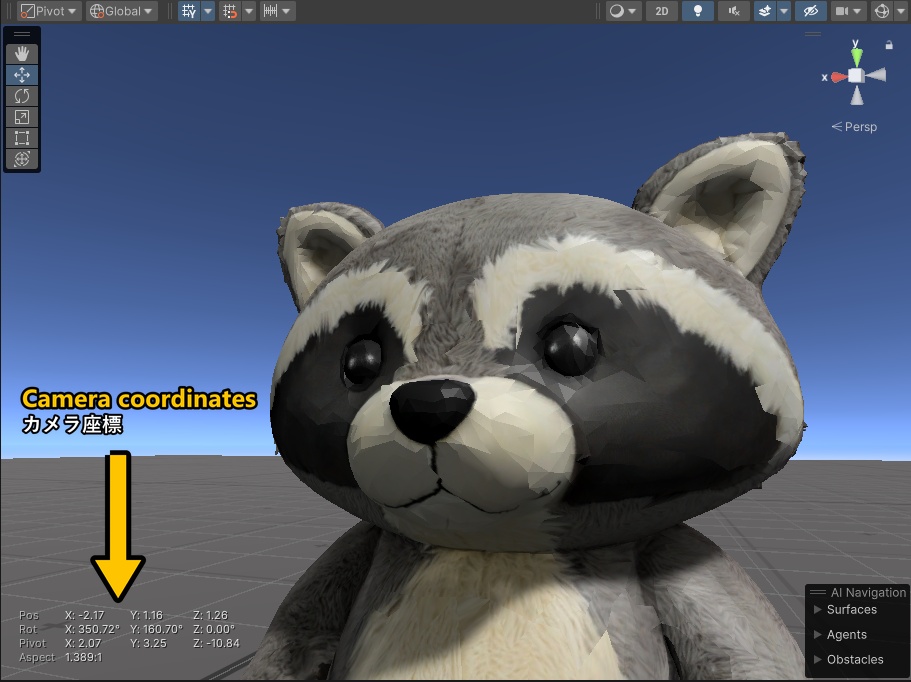


Scene View Coordinates puts your Scene camera's position, rotation, pivot, distance, FOV and aspect right on the Unity Scene view, so every screenshot you share shows exactly where it was taken from. ■ What it does - Live readout in the corner of the Scene view, or in its own dockable pop-out window - Click to Copy is an option, off by default, so a stray click in the Scene view never does anything. Turn it on and click the readout to copy the numbers as text or as a paste-ready Vector3. The pop-out window always copies - Drag it anywhere with Free placement, or pin it to any corner. Lock Position (on by default) keeps a Free readout where you put it. Untick it to drag - Stays clear of Unity's own Scene view overlays (Unity 2021.2 and newer): in a corner placement it sits just above or below them instead of hiding behind them - Choose your font, size, bold, colour, opacity, shadow and an optional background panel - Collapsible Help built in for every option, and a collapsible Appearance section (closed by default) keeps the Settings window tidy - English and Japanese (日本語) built in: one dropdown switches the whole tool, Help included ■ Where to find it Import the package, then open the Unity menu bar and go to Tools > Savi > Scene View Coordinates: - Show in Scene View: turn the on-screen readout on or off - Open Coordinates Window: show the readout in its own dockable window - Settings...: open the settings panel (language, font, colour, placement, copy options and more) ■ Why it helps When you send an AI agent a screenshot of a bug, it can't tell where your camera was. It falls back on generic front, top and side shots that often miss the angle you meant. With the coordinates in the screenshot, it can read Pos and Rot, place a camera at those values and see exactly what you saw. It works the other way too. After an AI changes something (in Blender, for example), it can move to match your view and check its work. And when an AI judges its own screenshots, the readout tells it where each one was taken from. The package includes a short AI notes file you can add to your CLAUDE.md or AGENTS.md. ■ Help and contact If you need direct help, find my Discord link in my Booth profile bio. I'm a native English speaker, so any Japanese support is done through translation. ■ Details - Version 1.0.1. One Editor-only script plus a README, the MIT license and a short AI notes file. No dependencies, nothing added to your builds - Tested on Unity 2022.3, 2019.4 and Unity 6 (6000.0.67f1) - Free and open source (MIT). Use it, change it, build on it. If you share it or build on it, please credit Savi. ■ From the author I made this little editor tool for myself, and it has saved me a lot of time whenever I take screenshots while working with my AI agent. The coordinates let the AI recreate the exact position I took a screenshot from, so it can focus on the actual problem instead of hunting for the right angle. It has been a real help in my workflow, and I thought it could help someone else too. ―――――――――― 日本語 ―――――――――― Scene View Coordinates は、Unity のシーンビューに、シーンカメラの位置・回転・ピボット・距離・FOV・アスペクト比を表示するエディター拡張です。共有するスクリーンショットに、撮影した視点の情報がそのまま残ります。 ■ 主な機能 - シーンビューの隅に常時表示(独立したウィンドウとしても表示可能) - 「クリックでコピー」はオプションで、初期設定はオフです。シーンビュー上でうっかりクリックしても何も起きません。オンにすると、表示をクリックして数値をテキスト、または貼り付け可能な Vector3 としてコピーできます(ポップアウトウィンドウは常にコピー可能) - フリー配置でどこにでもドラッグ移動、または四隅に固定。「位置をロック」(初期設定でオン)で、フリー配置の表示を置いた場所に固定できます。ドラッグしたいときはオフにします - Unity 2021.2 以降では、Unity 標準のシーンビューのオーバーレイをよけて、隅に固定した表示がそのすぐ上または下に自動で移動します(オーバーレイの裏に隠れません) - フォント、サイズ、太字、色、不透明度、影、背景パネルを自由に設定 - 各設定を説明する折りたたみ式ヘルプ付き。外観セクションも折りたたみ式(初期設定は閉じた状態)で、設定ウィンドウをすっきり保てます - 英語/日本語に対応:ドロップダウンひとつで、ヘルプを含むツール全体の言語を切り替えられます ■ 場所 パッケージをインポートしたら、Unity のメニューバーの Tools > Savi > Scene View Coordinates から使えます。 - Show in Scene View:画面上の表示のオン/オフ - Open Coordinates Window:独立したウィンドウとして表示 - Settings...:設定パネルを開く(言語、フォント、色、配置、コピー設定など) ■ どんなときに役立つか バグのスクリーンショットを AI エージェントに送っても、AI はカメラの位置が分からず、正面・上・横からの一般的なアングルで確認してしまい、見てほしい角度を外すことがよくあります。スクリーンショットに座標が写っていれば、AI は Pos と Rot を読み取り、同じ位置にカメラを置いて、あなたが見たものをそのまま確認できます。 逆の使い方もできます。AI が(たとえば Blender で)何かを変更したあと、AI 自身があなたの視点に合わせてカメラを移動し、結果を確認できます。また、AI が自分で撮ったスクリーンショットを評価するときも、それぞれの撮影位置が分かります。 パッケージには、CLAUDE.md や AGENTS.md に追加できる短い AI 向けメモが含まれています。 ■ サポート・連絡先 直接のサポートが必要な場合は、私の BOOTH プロフィールの自己紹介欄にある Discord リンクをご覧ください。 私は英語ネイティブのため、日本語でのサポートは翻訳を通して行います。 ■ 詳細 - バージョン 1.0.1。Editor 専用のスクリプト 1 つに、README、MIT ライセンス、短い AI 向けメモが付属。依存関係なし、ビルドには何も追加されません - Unity 2022.3、2019.4、Unity 6(6000.0.67f1)で動作確認済み - 無料のオープンソース(MIT)。自由に使用・改変・拡張できます。共有や再利用の際は Savi のクレジットをお願いします。 ■ 作者より 自分用に作った小さなエディターツールですが、AI エージェントと作業しながらスクリーンショットを撮るとき、作業時間をかなり短縮してくれました。座標があれば、AI は撮影した位置を正確に再現でき、アングル探しではなく本来の問題に集中できます。私の作業フローでとても役に立ったので、他の方の助けにもなればと思い公開します。