

Color Match & Material Copy - Unity Editor Extension|テクスチャ色合わせ・マテリアル設定コピー
- Digital300 JPY
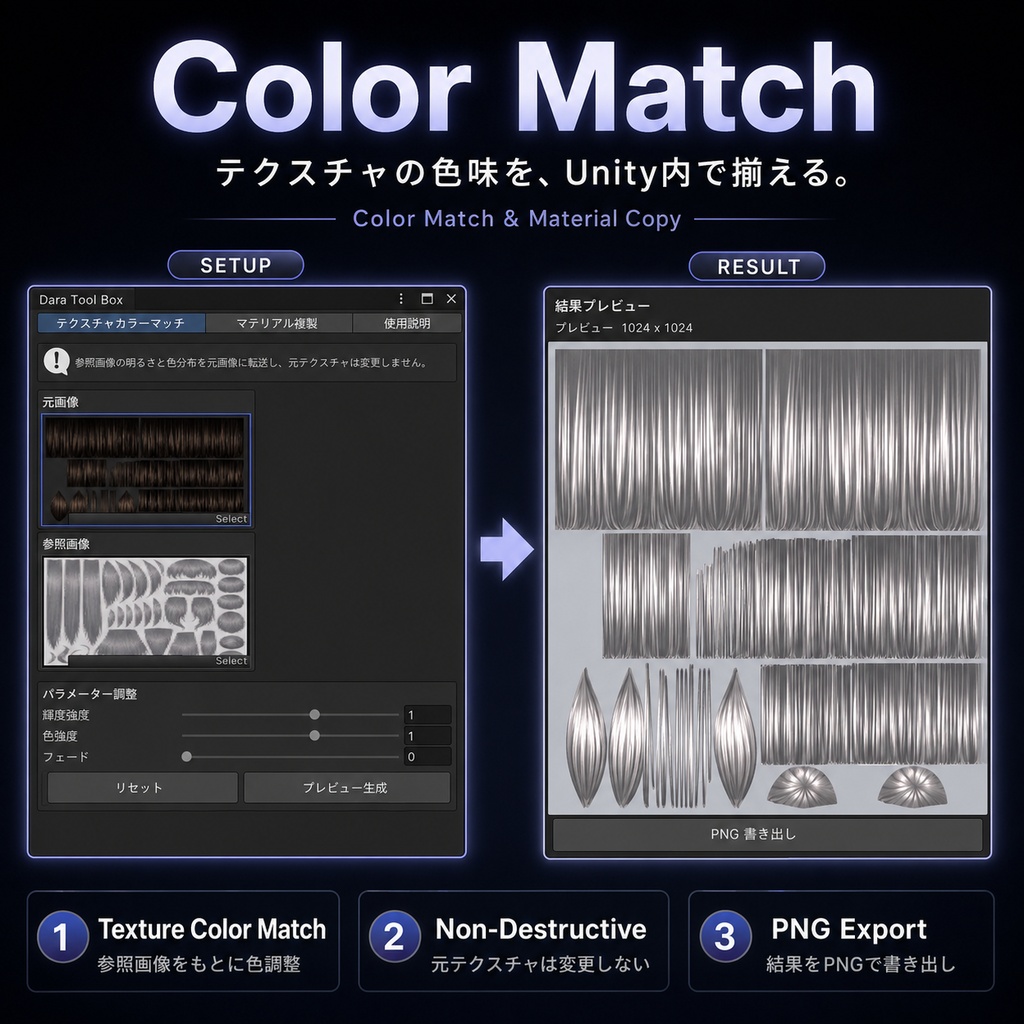
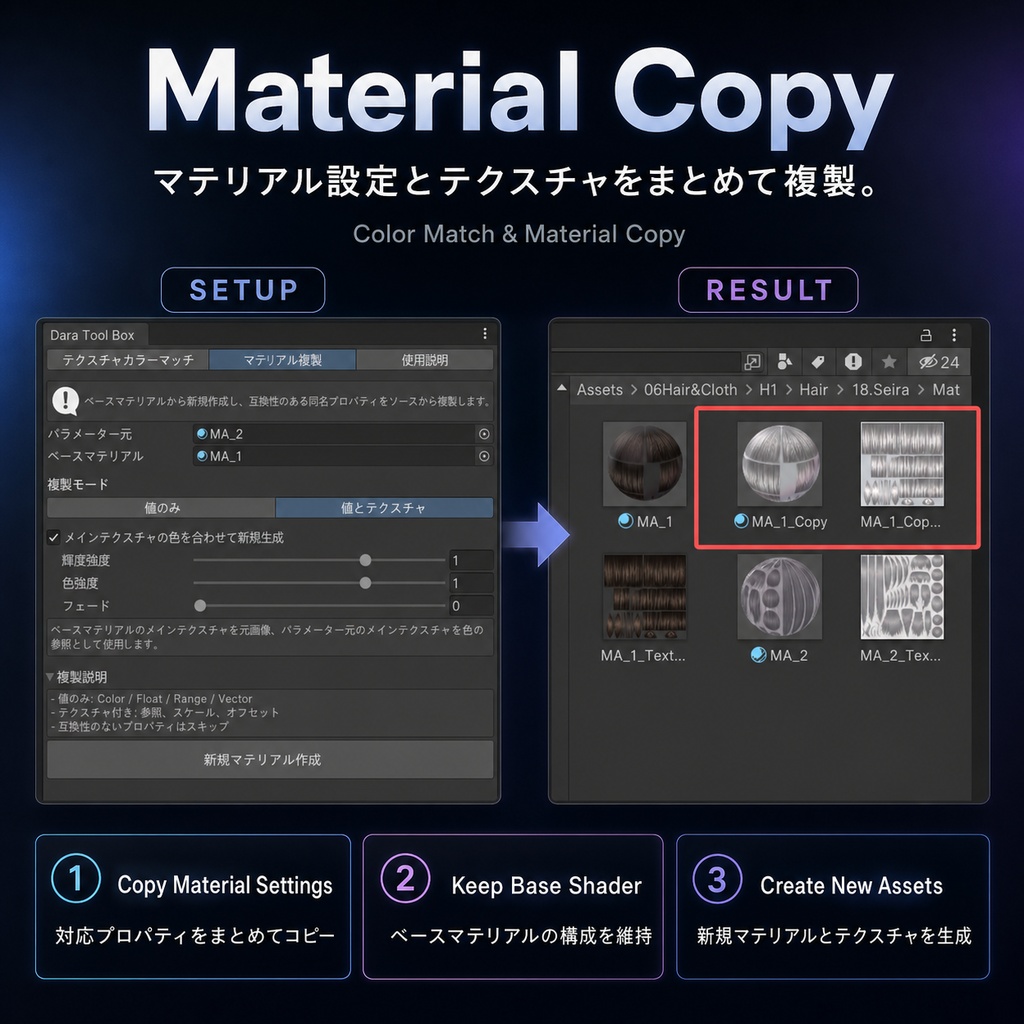


【商品説明】 異なる作者が制作したモデル、衣装、髪型などを組み合わせると、素材ごとの色味や質感の違いが目立つことがあります。 例えば、同じ黒髪でも、明るく光沢のある黒、浅い黒灰色、マットな質感の黒など、TextureやMaterialの設定によって見え方が大きく異なります。 モデル全体の雰囲気を揃えるためには、通常、以下のような作業が必要です。 1. Photoshopなどで2枚のTextureを開き、参考画像に合わせて色や明るさを調整する 2. Unityに戻り、調整後のTextureに差し替える 3. 参考となるMaterialの設定を、対象のMaterialに一項目ずつコピーする 特に3番目の作業は手間がかかります。 Unityでは、Materialのすべての設定を別のMaterialに一括でコピーできないため、各項目を開きながら、数値やTexture、Scale、Offsetなどを個別に確認して移す必要があります。 Materialの項目が多い場合や、複数の髪型・衣装を調整する場合は、時間がかかるだけでなく、設定漏れも起こりやすくなります。 【このツールでできること】 Color Match & Material Copyは、これらの作業をUnity内でまとめて行うためのエディター拡張です。 元のTextureと参考Textureを指定することで、明るさ、色の強さ、適用量を調整しながら、新しいPNG画像を生成できます。 また、ベースとなるMaterialのShaderや構成を維持したまま、別のMaterialから同名の対応パラメーターをまとめてコピーし、新しいMaterialを作成できます。 元のTextureやMaterialは変更されないため、比較しながら何度でも調整できます。 【使用イメージ】 これまでPhotoshopとUnityを行き来していた作業を、以下の流れで進められます。 1. 調整したいTextureを選択 2. 色の参考にしたいTextureを選択 3. 明るさ、色の強さ、適用量を調整 4. ベースMaterialと参照Materialを選択 5. 対応するMaterialパラメーターをまとめてコピー 6. 新しいTextureとMaterialを生成 【こんな場合におすすめ】 ・異なる髪型素材の色や質感を揃えたい ・複数の衣装素材を同じ色合いに調整したい ・異なる作者の素材を一つのモデルに自然になじませたい ・複雑なMaterial設定をまとめてコピーしたい ・Materialの各項目を手作業で移す時間を減らしたい ・VRChat Avatarや着せ替えモデルの見た目を統一したい 【主な機能】 <Textureの色合わせ> ・参考Textureに合わせて元画像の色を調整 ・明るさの強さを調整可能 ・色の強さを調整可能 ・元画像と結果の適用バランスを調整可能 ・生成前に結果をプレビュー ・新しいPNG画像として保存 ・元のTextureを上書きしない ・TextureのRead/Writeを有効にする必要なし <Material設定コピー> ・ベースMaterialを新しいMaterialのテンプレートとして使用 ・参照Materialから同名の対応パラメーターをコピー ・数値パラメーターをまとめてコピー ・Texture参照のコピーに対応 ・TextureのScale・Offsetに対応 ・新しいMaterialを自動作成 ・元のMaterialは変更されません <色合わせとMaterial作成> Material設定のコピー時に、メインTextureの色合わせも同時に行えます。 調整後のTextureを新しいPNGとして生成し、そのTextureを使用した新しいMaterialを作成できます。 【導入方法】 パッケージ内の「Assets/DaraToolBox」フォルダーを、Unityプロジェクトの「Assets」フォルダーへコピーしてください。 ツールはこちらから開けます。 Tools > Dara Tool Box > Color Match & Material Copy 詳しい操作方法は、ツール内の使用説明から確認できます。 言語設定はこちらです。 Tools > Dara Tool Box > Settings 【動作確認環境】 Unity 2022.3.22f1 Windows 上記環境で制作・動作確認を行っています。 その他のUnity 2022.3 LTSバージョンでも使用できる可能性がありますが、すべてのバージョンや環境での動作を保証するものではありません。 【バージョン】 Version 1.2.0 不具合やご要望がありましたら、BOOTHのメッセージからご連絡ください。 ご購入済みの方は、今後のアップデートを無料でご利用いただけます。
Color Match & Material Copy - Unity Editor Extension
【Product Name】 Color Match & Material Copy - Unity Editor Extension 【Product Description】 When combining models, outfits, hairstyles, or other assets made by different creators, differences in color and material appearance can make the final model feel inconsistent. For example, two black hairstyles may look completely different. One may use a bright, glossy black texture, while another may use a lighter gray-black texture with a matte appearance. To make the overall model look consistent, the usual workflow often requires the following steps: 1. Open both textures in Photoshop or another image editor and manually adjust the source texture to match the reference 2. Return to Unity and replace the original texture 3. Copy the settings from the reference material to the target material one section at a time The third step is usually the most time-consuming. Unity does not provide a simple way to copy every material setting to another material at once. Values, textures, scale, offset, and other properties often need to be checked and transferred individually. When a material contains many parameters, or when several hairstyles and outfits need to be adjusted, this process can take a long time and may lead to missed settings. 【What This Tool Does】 Color Match & Material Copy brings these steps together inside Unity. By selecting a source texture and a reference texture, you can adjust luminance, color strength, and blend amount, then generate a new PNG image. You can also keep the shader and structure of a base material while copying compatible properties with matching names from another material, then create a new material automatically. The original textures and materials are not modified, so you can compare results and make further adjustments at any time. 【Example Workflow】 The usual Photoshop-and-Unity workflow can be simplified to: 1. Select the texture you want to adjust 2. Select a reference texture 3. Adjust luminance, color strength, and blend amount 4. Select the base material and reference material 5. Copy compatible material properties in one operation 6. Generate a new texture and material 【Recommended For】 ・Matching the color and appearance of different hairstyles ・Unifying the color style of multiple outfits ・Making assets from different creators look consistent on one model ・Copying complex material settings more efficiently ・Reducing repetitive manual material editing ・Standardizing the appearance of VRChat avatars and character assets 【Main Features】 <Texture Color Matching> ・Adjust a source texture based on a reference texture ・Adjustable luminance strength ・Adjustable color strength ・Adjustable blend amount ・Preview the result before export ・Export the result as a new PNG ・Does not overwrite the original texture ・Texture Read/Write does not need to be enabled <Material Property Copy> ・Use a base material as the template for the new material ・Copy compatible properties with matching names from a reference material ・Copy multiple numeric parameters at once ・Supports copying texture references ・Supports texture scale and offset ・Automatically creates a new material ・Does not modify the original materials <Color Matching and Material Creation> Texture color matching can also be performed while copying material properties. The tool generates a new PNG texture and creates a new material using the adjusted texture. 【Installation】 Copy the “Assets/DaraToolBox” folder from the package into your Unity project’s “Assets” folder. Open the tool from: Tools > Dara Tool Box > Color Match & Material Copy Detailed instructions are available inside the tool window. Language settings: Tools > Dara Tool Box > Settings 【Tested Environment】 Unity 2022.3.22f1 Windows The tool was developed and tested in the environment listed above. It may also work with other Unity 2022.3 LTS versions, but compatibility with every version and environment is not guaranteed. 【Version】 Version 1.2.0 Please contact me through BOOTH messages if you find a bug or have a feature request. Customers who have already purchased the product will receive future updates for free.