

Angel's Quick Transfer - 設定済みアバターの情報を新しいFBXへ一括転送【VRChat / Unity】
- Digital800 JPY

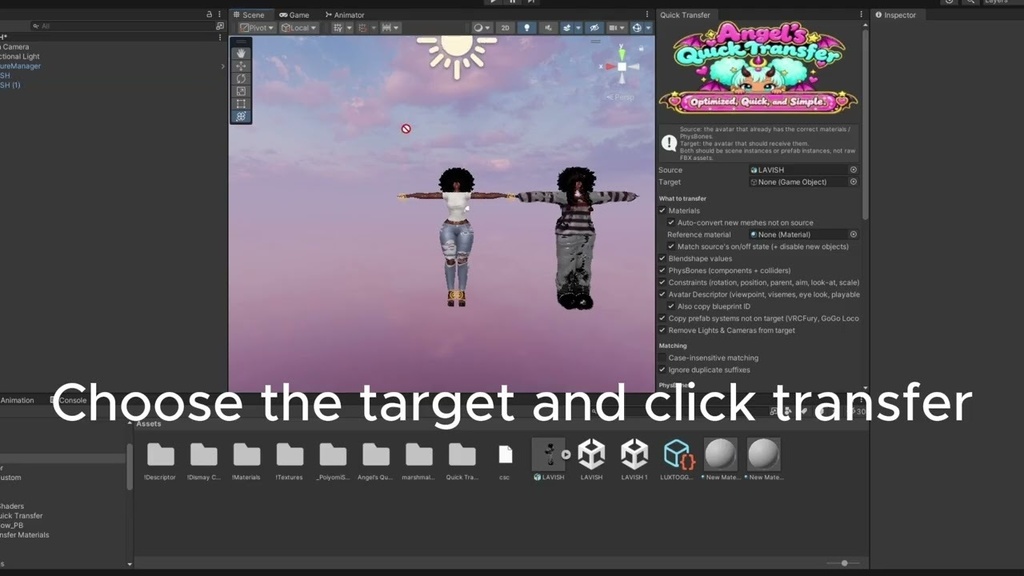


紹介動画 / Video: https://www.youtube.com/watch?v=Ko7aMtdh9DU 【概要】 Pumpkin Tools で、全部は転送されなかった経験はありませんか? あとは手作業でやり直す番です。 ……でも、もしかしたら、その必要はないかもしれません。 Angel's Quick Transfer は、設定済みアバターのマテリアル、PhysBone、ブレンドシェイプ、コンストレイント、そのほかのアバター設定を、新しく読み込んだFBXへボタン一つで転送できる Unity エディタ拡張です。余計な準備は必要ありません。 すでにすべて設定済みのアバターを「Source」に、新しくインポートまたは更新したアバターを「Target」に設定し、転送したい項目を選んで「Transfer」を押すだけ。 Blenderでアバターを頻繁に変更していて、FBXを書き出すたびにUnityで何時間も修復や再設定をしたくない方に、特におすすめです。 紹介動画(約2分の機能紹介):https://www.youtube.com/watch?v=Ko7aMtdh9DU 【こんな方におすすめ】 ・転送しきれなかった設定を、手作業でやり直している方 ・Blenderでアバターを更新するたびに、Unity側の設定をやり直している方 ・マテリアル、PhysBone、ブレンドシェイプ、コンストレイントなどをまとめて移したい方 ・新しいメッシュ用のPoiyomiマテリアルを、毎回手で作り直したくない方 【できること・主な機能】 ■ 転送・照合できる項目 ・マテリアル ・ブレンドシェイプの値 ・PhysBone と PhysBone Collider ・Rotation / Position / Parent / Aim / Look At / Scale コンストレイント ・Avatar Descriptor の設定 ・Viewpoint、Viseme、Eye Look、Playable Layers、Expressions ・Blueprint ID ・Target 側にまだないプレハブシステム ・VRCFury、GoGo Loco、小物(props)など、プレハブ型のシステム ・オブジェクトの表示/非表示(有効/無効)状態 ・ライトとカメラのクリーンアップ アバターを更新するときの、繰り返しのUnity作業をできるだけ減らすためのツールです。 ■ 自動マテリアル変換(Automatic Material Conversion) ・Source 側になかった新しいメッシュにも対応します ・たとえば、新しくインポートしたFBXのメッシュが通常の Standard マテリアルを使っていて、そのマテリアルの設定済み Poiyomi 版をまだ持っていない場合、選んだ参照マテリアルを使って、転送中に変換済みマテリアルを自動で作成できます ・Blenderで追加したメッシュごとに、Poiyomiマテリアルを手で作って設定し直すために転送を止める必要はありません ■ Missing Script Cleaner ・アバターに残った壊れたコンポーネントを掃除できます ・アバターとその子オブジェクトをスキャンし、パッケージの削除などで残った "Missing (Mono Script)" のような死んだコンポーネントを見つけます ・Scan:何も変更せず、Missing Script を探すだけ ・Scan & Remove:壊れたコンポーネントを自動で削除 ・掃除対象を別に選ばなければ、現在の Target アバターを使えます ■ Restore Pose ・ボーンを誤って動かしたり回転させたりしてしまい、手作業で元に戻したくないときに使えます ・メッシュデータから元のバインドポーズを読み取り、ボーンをリグされた位置と回転に戻します ・元のFBXが手元にない、展開済み(unpacked)のアバターにも便利です ・戻るのはメッシュ本来のバインドポーズです。もともとTポーズでバインドされていて、Unity上ではAポーズに見えているアバターは、Tポーズに戻ることがあります 【導入方法】 1. .unitypackage をプロジェクトにインポートします(ダブルクリック、またはProjectウィンドウにドラッグ&ドロップ)。 2. インポート画面で「Import」を押します。 【使い方】 1. 両方のアバターをUnityのシーンに配置します。 2. Angel's Quick Transfer を開きます。 3. 設定済みのアバターを「Source」に設定します。 4. 新しくインポートまたは更新したアバターを「Target」に設定します。 5. 転送したい項目を選びます。 6. 「Transfer」を押します。 これだけです。追加の準備は必要ありません。 Source と Target には、生のFBXアセットではなく、シーン上のインスタンスまたはプレハブのインスタンスを指定してください。 ※約2分の機能紹介を、商品の紹介動画でご覧いただけます。 【動作環境】 ・VRChat Avatar SDK を導入したUnityプロジェクト ・Unity と VRChat アバターセットアップの基本的な知識 【注意事項】 ・Source と Target には、生のFBXアセットではなく、シーン上のインスタンスまたはプレハブのインスタンスを指定してください。 ・Restore Pose は、メッシュ本来のバインドポーズに戻します。もともとTポーズでバインドされていて、Unity上ではAポーズに見えているアバターは、Tポーズに戻ることがあります。 ・紹介動画内のアバターは本商品には含まれません。アバターは ABUNNYISEE 様の作品です。https://payhip.com/b/HLyo7 【内容物】 ・テキストファイル(TXT/654B) ・.unitypackage(4KB) ・.unitypackage(2MB) 【利用規約】 本商品(Angel's Quick Transfer)をご購入・ダウンロードした時点で、以下の規約に同意したものとみなします。 ・本ツールおよびそのUnityパッケージの流出・共有・再配布・再アップロード・転売を禁止します。 ・ご自身で入手していない方へ、パッケージや同梱ファイルを渡すことを禁止します。 ・個人・商用のアバター制作に使用していただけます。 ・Quick Transfer を使って改変したアバター・プロジェクトは、使用したアセットのライセンスに従って配布・販売していただけます。 ・Angel's Quick Transfer 本体やそのファイルを、配布するアバター・アセット・プロジェクト・パッケージに含めることはできません。 ・本ツールやそのコードを自作と偽ることを禁止します。 ・デジタル商品のため、返金はお受けできません。 ・今後のUnity・VRChat SDK・サードパーティ製パッケージのアップデートによって生じた問題について、制作者は責任を負いかねます。ただし、必要に応じて対応アップデートを行う場合があります。 【クレジット】 ・紹介動画内のアバターは ABUNNYISEE 様の作品です。Payhip:https://payhip.com/b/HLyo7 【連絡先】 使い方のサポートや不具合のご報告・ご質問は、BOOTHのメッセージ、または以下までお気軽にどうぞ。 ・サポート用Discord:https://discord.gg/q76Vpkaxd5 ・Instagram:@angelstheatre(https://www.instagram.com/angelstheatre/) ・ウェブサイト:https://angelstheatre.com/ 【更新履歴】 v1.0 — 初回リリース ・マテリアルの転送と照合 ・自動マテリアル変換 ・ブレンドシェイプの転送 ・PhysBone とコライダーの転送 ・コンストレイントの転送 ・Avatar Descriptor の転送 ・Blueprint ID の転送 ・プレハブシステムの転送 ・オブジェクト状態の照合 ・ライトとカメラのクリーンアップ ・Missing Script Cleaner ・バインドポーズの復元ツール ―――――――――――――――――――― English Description 【Overview】 Ever had Pumpkin Tools just... not transfer everything? Time for you to do the rest by hand. . . . But maybe you don't have to. This is for those people. The ones who just need a quick button to transfer all their properties to an fbx without the headache of having to redo all of the materials, PhysBones, blendshapes, constraints, and other avatar settings. Angel's Quick Transfer is made to make that process quick and easy — no extra setup needed! Simply set the avatar that already has everything configured as your Source, set your newly imported or updated avatar as the Target, choose what you want transferred, and press Transfer. Quick Transfer is especially useful for people who regularly make changes to their avatar in Blender and don't want every new FBX export to mean hours of fixing or rebuilding things in Unity all over again. Preview video (full 2-minute feature overview): https://www.youtube.com/watch?v=Ko7aMtdh9DU 【Recommended for】 ・Anyone who has to finish a transfer by hand ・Creators who regularly update their avatar in Blender and don't want to redo Unity setup on every new FBX ・Anyone who wants to move materials, PhysBones, blendshapes, constraints, and other avatar settings in one go ・Anyone who doesn't want to stop and hand-make a new Poiyomi material for every mesh added in Blender 【Features】 ■ What Quick Transfer can transfer and match ・Materials ・Blendshape values ・PhysBones and PhysBone Colliders ・Rotation, Position, Parent, Aim, Look At, and Scale Constraints ・Avatar Descriptor settings ・Viewpoint, Visemes, Eye Look, Playable Layers, and Expressions ・Blueprint ID ・Prefab systems not already present on the Target ・VRCFury systems, GoGo Loco, props, and similar prefab-based systems ・Object enabled/disabled states ・Lights and Cameras cleanup It is designed to take as much of the repetitive Unity work out of updating your avatar as possible.
English (continued)
■ Automatic Material Conversion ・Quick Transfer can also take care of new meshes that weren't present on your Source avatar ・For example, if your newly imported FBX has a mesh using a regular Standard material, but you don't already have a properly configured Poiyomi version of that material, Quick Transfer can automatically create its own converted material during the transfer using your chosen reference material ・That means you don't have to stop the transfer just to manually create and configure another Poiyomi material for every new mesh you added in Blender ■ Missing Script Cleaner ・A built-in cleaner for broken components left behind on your avatar ・It can scan your avatar and its children for dead "Missing (Mono Script)" components, such as scripts left behind by packages or components that have since been removed ・Scan to find missing scripts without changing anything ・Scan & Remove to automatically remove the broken components ・If you don't select a separate object to clean, the tool can simply use your current Target avatar ■ Restore Pose ・For when you've accidentally moved or rotated bones and don't want to manually figure out how to put everything back ・Reads the avatar's original bind pose directly from the mesh data and restores the bones back to the position and rotation they were rigged with ・This can also be useful for unpacked avatars where you may no longer have the original source FBX readily available ・Keep in mind that Restore Pose restores the actual bind pose of the mesh. For example, if an avatar was originally bound in a T-Pose but normally appears in an A-Pose in Unity, it may restore to that original T-Pose 【Installation】 1. Import the .unitypackage into the project (double-click it, or drag it into the Project window). 2. Click Import. 【How to Use】 1. Place both avatars in your Unity scene. 2. Open Angel's Quick Transfer. 3. Set your finished avatar as the Source. 4. Set your newly imported or updated avatar as the Target. 5. Choose what you want transferred. 6. Press Transfer. That's it. No additional setup process is required. The Source and Target should be scene instances or prefab instances rather than raw FBX assets. A full 2-minute feature overview is available in the product preview video. 【Requirements】 ・A Unity project with the VRChat Avatar SDK installed ・Basic knowledge of Unity and VRChat avatar setup 【Notes】 ・The Source and Target should be scene instances or prefab instances rather than raw FBX assets. ・Restore Pose restores the actual bind pose of the mesh. If an avatar was originally bound in a T-Pose but normally appears in an A-Pose in Unity, it may restore to that original T-Pose. ・The avatar in the feature overview video is NOT included. It was created by ABUNNYISEE: https://payhip.com/b/HLyo7 【Contents】 ・Text file (TXT, 654B) ・.unitypackage (4KB) ・.unitypackage (2MB) 【Terms of Service】 By purchasing or downloading Angel's Quick Transfer, you agree to the following terms: ・DO NOT leak, share, redistribute, reupload, or resell this tool or its Unity package. ・Do not send the package or included files to anyone who has not obtained their own copy. ・You are allowed to use Quick Transfer for personal and commercial avatar work. ・Avatars and projects modified using Quick Transfer may be distributed or sold according to the licenses of the assets used in those projects. ・You may NOT include Angel's Quick Transfer itself or its files inside an avatar, asset, project, or package that you distribute. ・Do not claim the tool or its code as your own. ・No refunds will be provided for digital purchases. ・I am not responsible for issues caused by future Unity, VRChat SDK, or third-party package updates, though compatibility updates may be provided when necessary. 【Credits】 ・The avatar shown in the feature overview video was created by ABUNNYISEE: https://payhip.com/b/HLyo7 【Contact】 Need more help using this product? Send a BOOTH message or reach out here: ・Support Discord: https://discord.gg/q76Vpkaxd5 ・Instagram: @angelstheatre (https://www.instagram.com/angelstheatre/) ・Website: https://angelstheatre.com/ 【Changelog】 v1.0 — Initial Release ・Material transfer and matching ・Automatic material conversion ・Blendshape transfer ・PhysBone and collider transfer ・Constraint transfer ・Avatar Descriptor transfer ・Blueprint ID transfer ・Prefab system transfer ・Object state matching ・Light and Camera cleanup ・Missing Script Cleaner ・Bind pose restoration tools